A WordPress installation will always contain its core PHP files and directory structure. You might be familiar with the WordPress configuration file, wp-config.php, which connects the WordPress installation to the desired database, or the wp-content directory which contains plugin and theme files. The only files you may need to edit are the wp-config.php file and the .htaccess file. However, as standard there's no need to edit these files right away.
Modifying core WordPress files can be dangerous and result in the WordPress installation not passing a checksum. At SIRSTEVEHQ CP, if your WordPress installation does not verify against the official WordPress checksum then some of the SIRSTEVEHQ WordPress tools may be limited until the installation passes this check.
An installation that does not verify against WordPress's checksum returns the following message:
When your installation does pass, the following message is returned:
There are three methods you can use to re-install WordPress core files:
1. Use the SIRSTEVEHQ CP Checksum Report tool
2. Re-Install/Update WordPress Via WP-Admin
3. Verify and Re-install WordPress using the WP CLI
How To FIx Modified WordPress files (Replace Modified Core WordPress Files) Without Damaging Existing Content?
You can re-introduce missing core files, or fix modified core files without harming your hard work. The methods below won't affect the WordPress database, wp-config.php file to wp-content folder. These methods only re-install the core WordPress files.
1. Use the SIRSTEVEHQ CP Checksum Report tool
The easiest way to fix missing or modified core files is to use the SIRSTEVEHQ CP WordPress Checksum Report tool. This scan checks if your core files match what exists in the official WordPress core repository.
If your files have changed, it’s likely that either you have either modified them yourself (which is not recommended), or your WordPress installation has been infected by malware which has modified your core files.
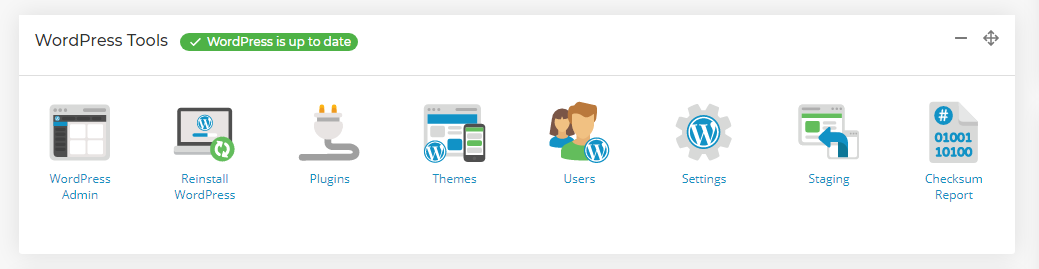
If your installation verifies against the WordPress checksum, you'll receive this success message:
If your installation contains modified or missing core files, you'll be shown which files are missing and an option to automatically re-install those whilst preserving your WordPress installation.
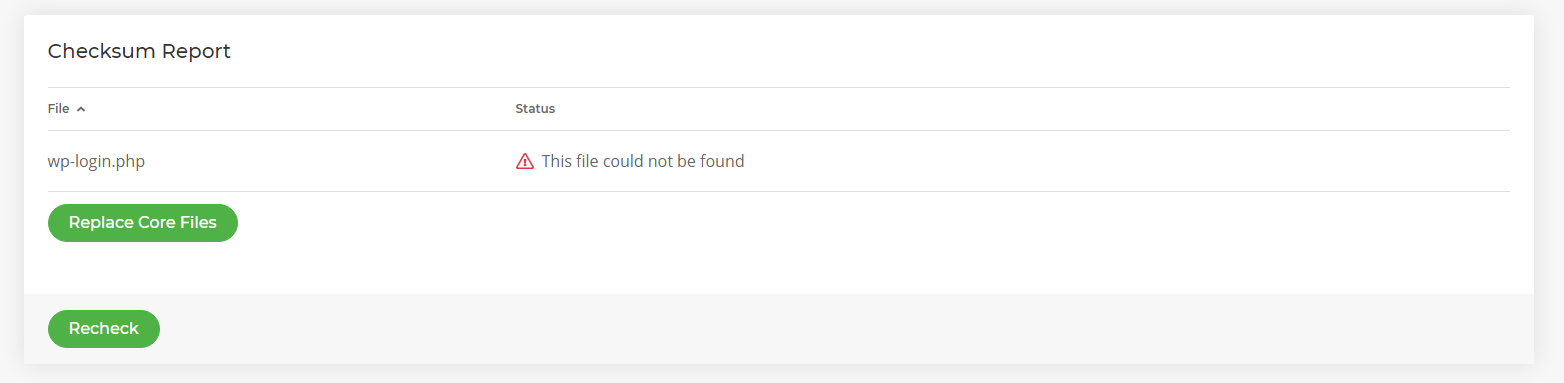
2. Re-Install/Update WordPress via WP-Admin
This method is straightforward and can be done by logging in the WordPress Admin area via /wp-admin.
- Log in to the wp-admin dashboard of your WordPress site
- Click Dashboard
- Click Updates
- Select Check Again to check for an update - If you have the latest version of WordPress
- Select Re-Install Now to re-install the core WordPress file

3. Verify and Re-install WordPress using the WP CLI
At SIRSTEVEHQ the WP Command Line Interface (CLI) is installed by default and can be used by connecting via SSH. Learn more about connecting via SSH here.
You can use the WordPress wp core verify-checksums CLI command to check your own installations files against WordPress's own checksum to ensure all core files match the official repository.
- Connect to your site via SSH.
- Change into the directory where your core WordPress installation is located, usually public_html.
- Run the command
wp core verify-checksums - You'll either receive a Success message indicating that your installation verifies against the WordPress checksum.
Success: WordPress installation verifies against checksums.- Or you'll receive an Error message indicating your installation is has modified or missing core files.
Error: WordPress installation doesn't verify against checksums.
- If your core files have been modified or are missing, you can re-install those files using (whilst keeping your installation safe) by running
wp core download --force
Debugging modified core WordPress files is outside the remit of the SIRSTEVEHQ Support Team. However, we can help you you perform a re-install of the core WordPress files if you're having any problems with the above process.












