After migrating a WordPress website you may see a 500 error when testing the website. If you’re using the Wordfence plugin then chances are this is caused by an old path used within the files that will need to be updated.
To confirm if this is the issue, you can check the error logs on the package. You can do this by following these steps:
- Sign in to SIRSTEVEHQ CP
- Select Access/Error Logs
If the issue is due to the path Wordfence is set to use then it will show an error similar to this:

This will display the path from your old host which will need to updated within the .user.ini in the website files.
Before we do that, you’ll need to get the path you need to replace it with. This can be retrieved when managing the hosting package under the Account information section on the right-hand side.
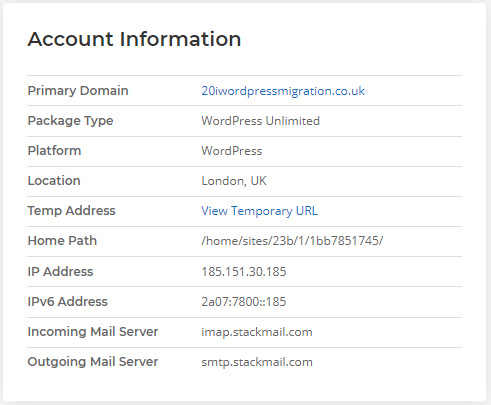
The home path will be the one needed and, in this example, it will be: /home/sites/23b/1/1bb7851745/
Next you will need to go to the file manager and locate the .user.ini which in most cases will be in the public_html folder - but this can depend on how the website is set up. Once you find the .user.ini file, edit it and it should look something like this:
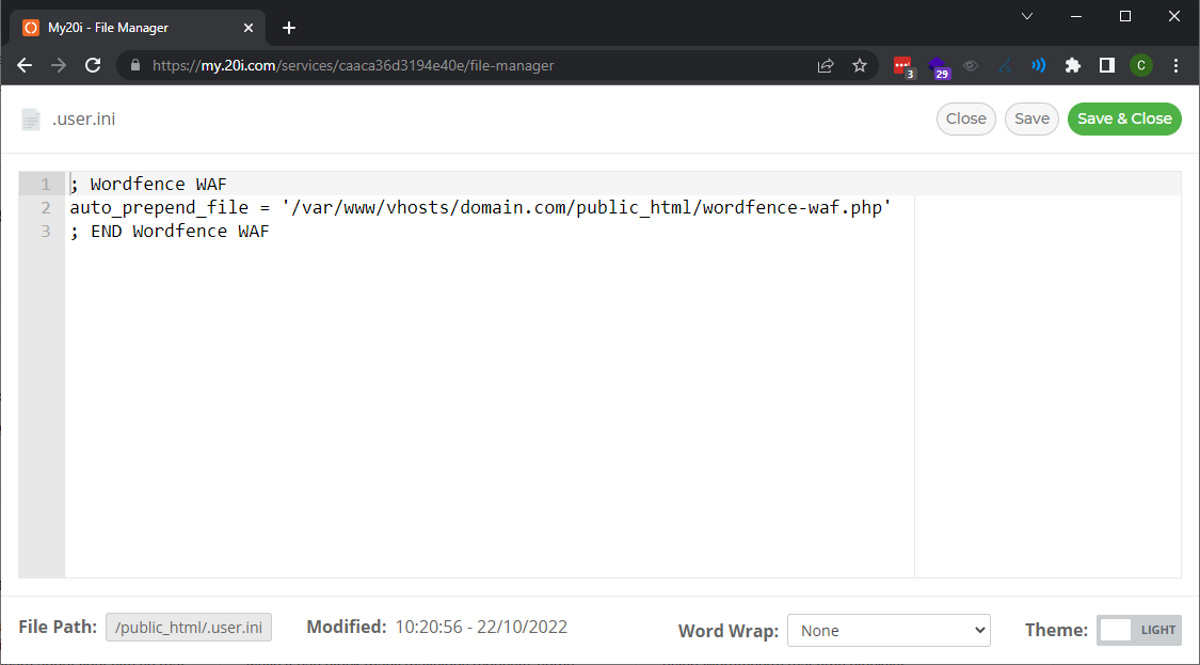
You’ll need to change the /var/www/vhosts/domain.com to the home path link, appended with /public_html/wordfence-waf.php
So in this example you’d need to change /var/www/vhosts/domain.com/public_html/wordfence-waf.php to /home/sites/23b/1/1bb7851745/public_html/wordfence-waf.php
The path will need to follow the same path where the wordfence-waf.php file is located which should be the same location as the .user.ini by default.
Save the changes to the file and test the website again. This should have resolved that error. If there’s an error still showing on the website, then it’s possible that there could be another problem. The error log should have more information about it.
If there are still problems, please contact our support team who will be able to help further.












