Introduction
Managing your disk space is an essential task that you must do on a daily basis to ensure the smooth operation of your server. Running out of storage can cause all of your applications and services to stop working as they will not be able to write inside their log files or create files needed for their functionality (such as sessions). Having used all of the available disk space can cause certain sectors on your disk to fail and become corrupted, rendering your server completely unusable. The WHM control panel has a feature that allows you to view the current disk usage and based on the results, take actions to prevent any damage to your server.
Accessing the Show Current Disk Usage feature
As with all other WHM control panel features you need to log into the WHM service for your VPS or Dedicated Server. After you have logged in, please use the search field on the left side of the page and type “Show Current Disk Usage”.
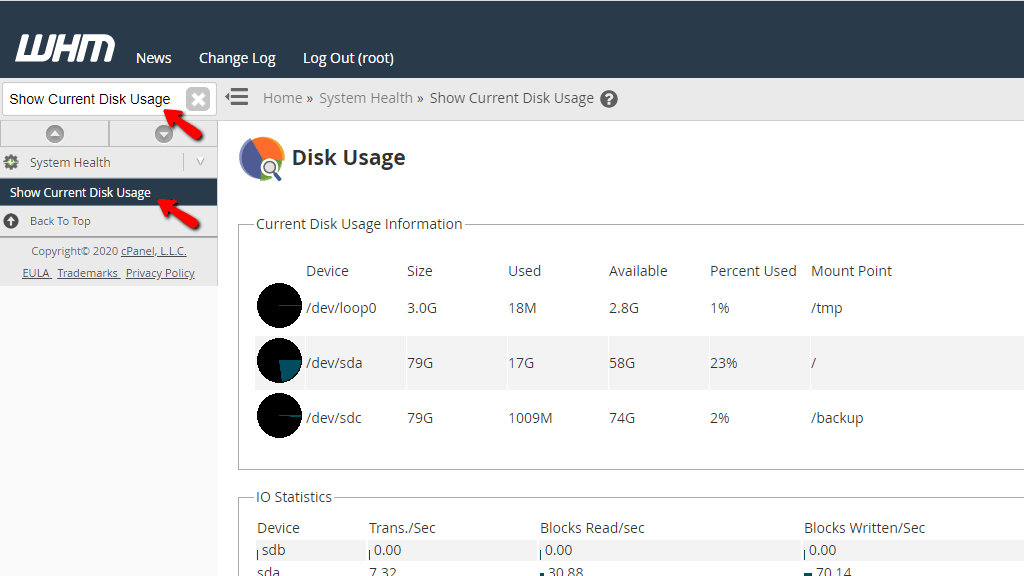
When the single result presents itself below the search bar, click on the “Show Current Disk Usage” link in order to be redirected to the desired page.
Reading the Disk Usage Information section
Upon landing on the page, you will find two table sections under the “Disk Usage” Label. The first one is called “Current Disk Usage Information” and on it, you will find the server’s current partitions and hard disk usage.
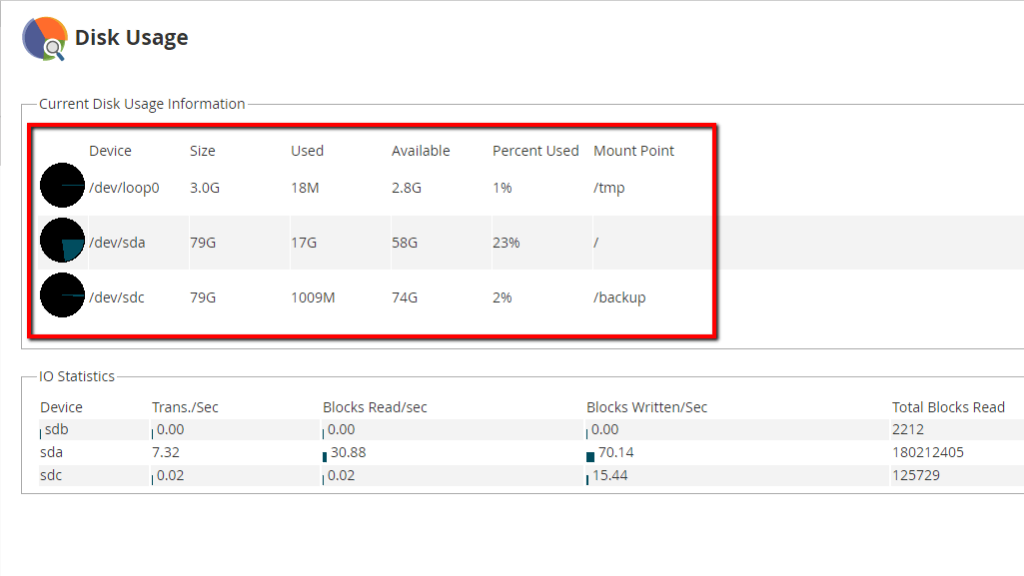
Each column represents different statistics which we will go over in the next few lines.
- Device - This shows the device name of the partition or the hard disk.
- Size - Displays the total size of the partition or hard disk.
- Used - Gives information about the amount of space that the system uses on the partition or hard disk.
- Available - Represents the amount of available space on the partition or hard disk.
- Percent Used - Displays the percentage of space that the system uses on the partition or hard disk.
- Mount Point - Shows the location of the partition or hard disk in the server’s directory structure.
Interpreting the IO Statistics section
The second section depicts the “IO Statistics”. I/O pronounced “eye-oh” or simply Input/Output is a term that describes any program, operation, or device that transfers data to or from a computer.
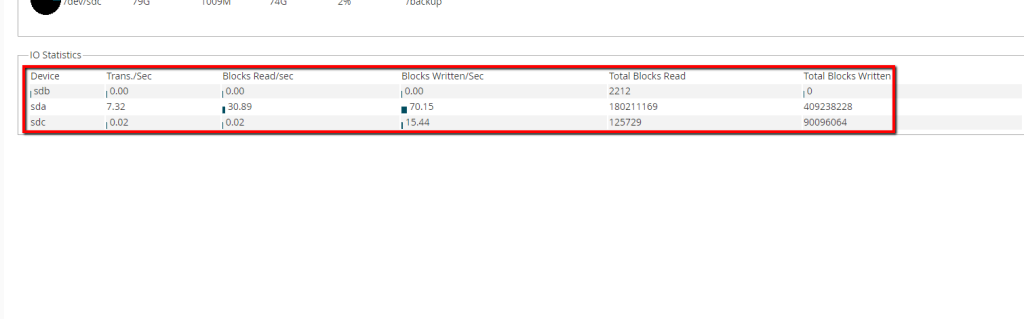
For instance, an input process would be typing words into a file located on the server, while an output process would be reading a log file. This statistic is generated from the data since the last server reboot occurred.
Here you go! We hope that this guide has given you the needed insight to track and manage the disk usage and the I/O from the WHM control panel on your server. If you need additional information in regards to these metrics, please feel free to submit a ticket to our Technical Support Crew from your Client Area.












