Introduction
Being able to delete a DNS zone could be useful in a few situations. For example, if you used the “Add a DNS Zone” function, which is described in How to use the Add a DNS Zone feature in WHM tutorial and you have added the DNS zone under the system’s ownership. The delete function is the only way you would be able to remove it, given the fact that the DNS Zone will be invisible for all of your cPanel. This guide is aimed at teaching you how to use this functionality to its full extent. Let’s get right into it!
Accessing the Delete a DNS zone feature
First, you need to log into the WHM service for your VPS or Dedicated Server. After you have logged in, please use the search bar on the left side of the page and type “Delete a DNS Zone”.
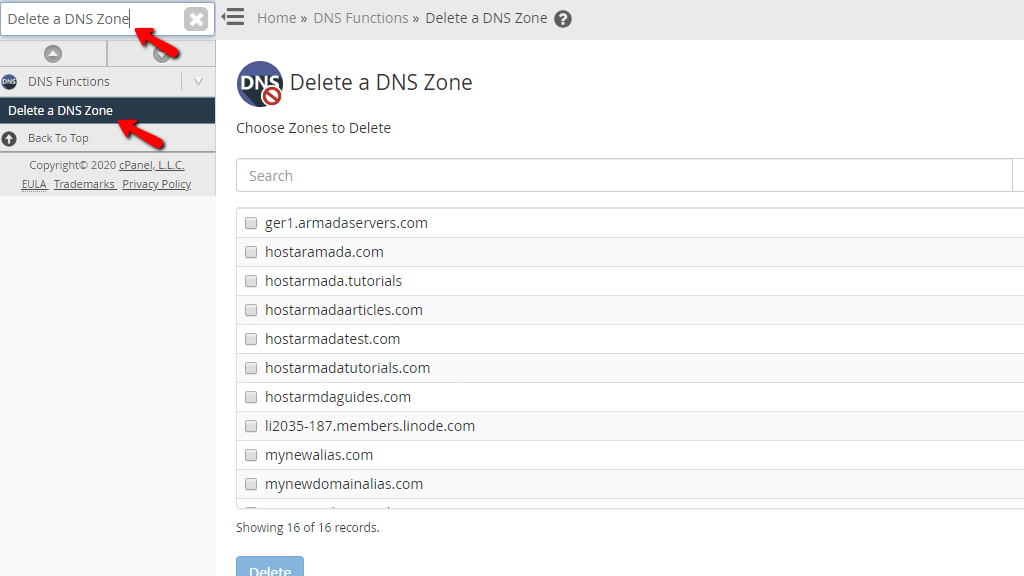
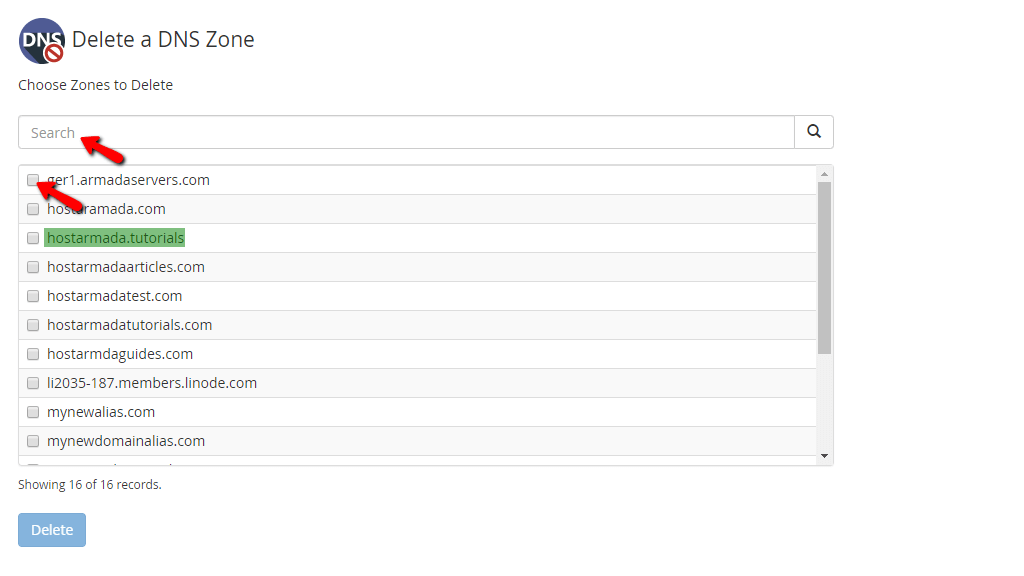
When you click on the first result presented by the WHM, you will be immediately redirected to the “Delete a DNS Zone” page where you will notice a search bar below the “Choose Zones to Delete” heading. You can use the search bar to filter out the DNS zones and find the one you want to delete. Below this search bar, you will find a section containing checkboxes and the DNS zones of the domains hosted on the server.
Deleting the DNS Zones
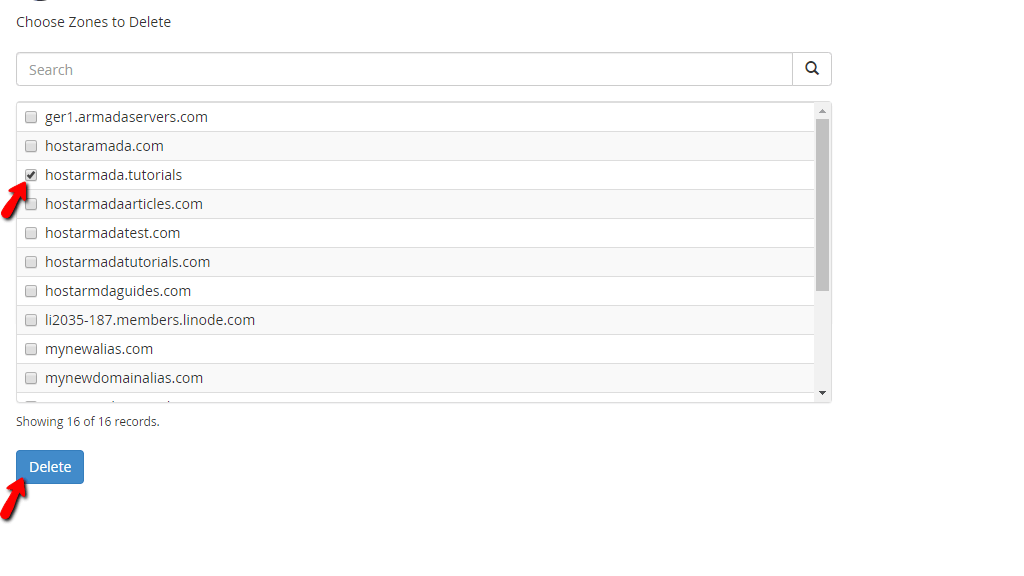
In order to delete a DNS zone, please put a tick inside the checkbox located right before the desired DNS Zone and then press the “Delete” button located on the bottom of the page.
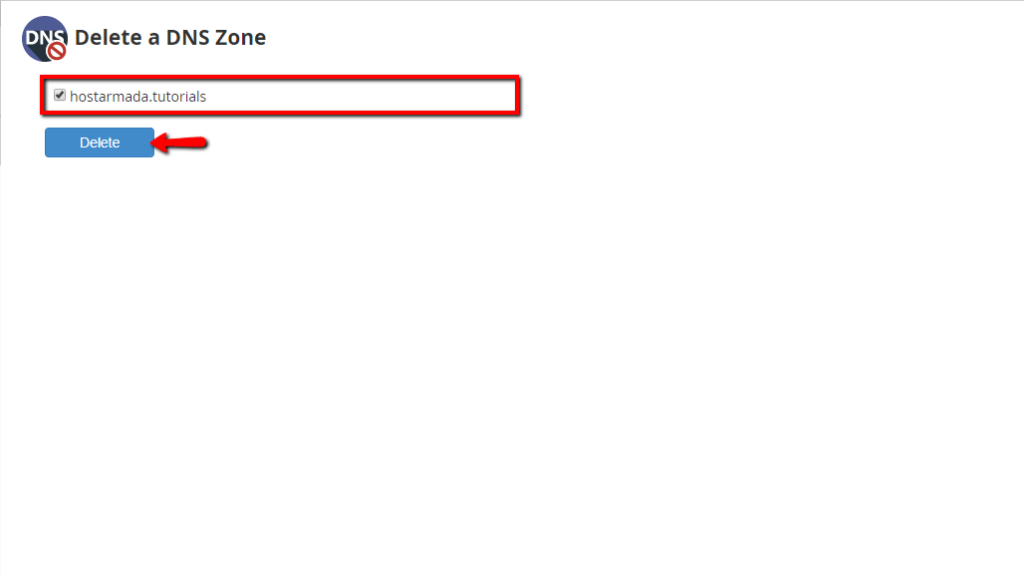
Upon pressing the “Delete” button, you will be redirected to a page, where you need to finalize this process by pressing one more “Delete” button located underneath a section containing a checkbox that has the desired DNS zone selected.
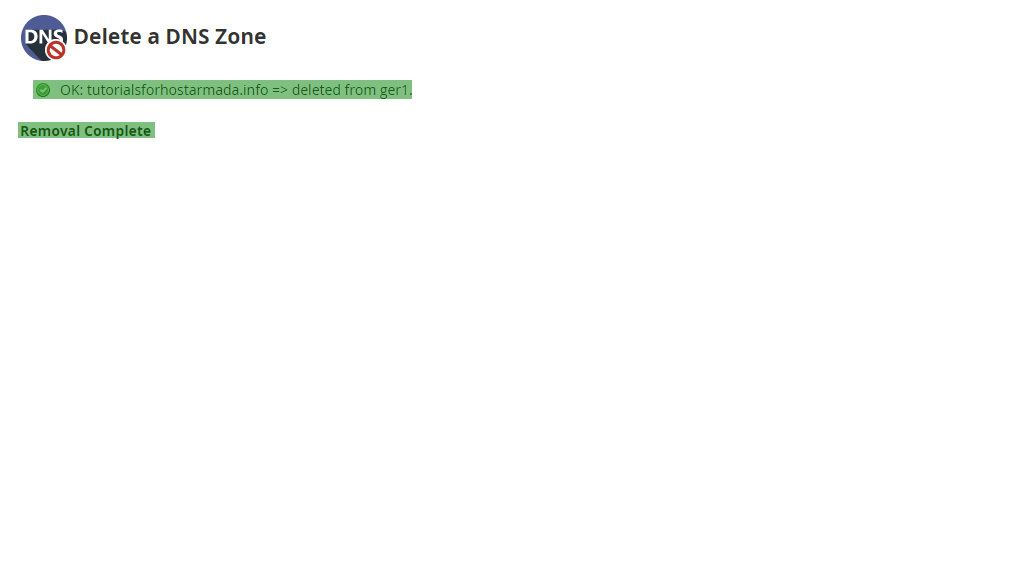
When the “Delete” button is pressed, the last page you will be redirected to will contain a log, that informs you about the outcome of this process. If there are no issues, you will receive a “Removal Complete” message.
An important thing you need to note about this tool is the fact that you WILL NOT be able to delete a DNS zone of a primary domain or an addon domain associated with any of the cPanel accounts hosted on your server.
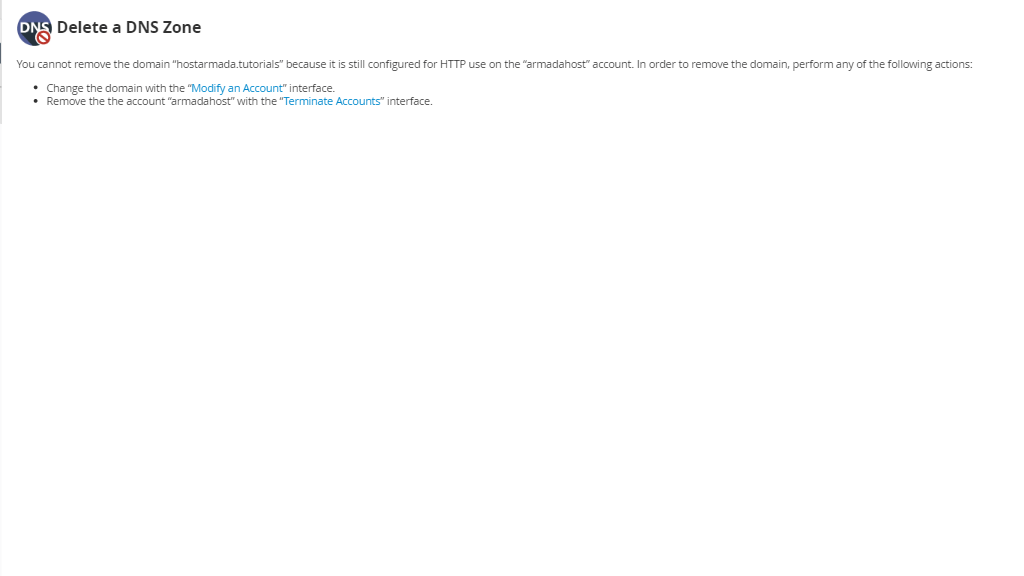
If you want to be able to remove the DNS Zone of a primary domain name of a cPanel account, you need to change it. If you are not sure how to do that, please refer to our tutorial on the matter How to modify cPanel Accounts in WHM.
Doing either of these procedures will typically remove the DNS zones of the domains that were removed/changed, however, if you run into a problem with the DNS zones remaining after the removal of the addon domain or the change of the primary domain, please delete their DNS zones using the methods explained in this tutorial.
There you have it! All you need to know about the “Delete a DNS Zone” feature in the WHM control panel Hopefully, the provided information will allow you to use this feature with ease. If you need any assistance using this or you are faced with any difficulties, please submit a ticket to our Support Staff from your Client Area and they will be happy to assist you.












