Introduction
cPanel is the world's leading application for web hosting providers, offering a vast array of features that customers can use to manage their websites, web applications, emails, databases, and other web-hosting-related needs. When cPanel is installed, there are a few steps you need to take before you can have full access to the WHM panel, from which you can proceed with fine-tuning your cPanel server. In this tutorial, we will guide you through these steps to provide a better understanding of the initial setup required before you can fully utilize cPanel.
Without further ado, let’s begin.
IMPORTANT: cPanel is a licensed application, and to perform this setup, you need to have an active license for your IP address. If you have purchased this license from SIRSTEVEHQ, you can proceed. Otherwise, please ensure that you apply the license to your IP address correctly; otherwise, you will not be able to proceed with the initial setup wizard.
Getting Started
This setup will cover the post-deployment steps for SIRSTEVEHQ's unmanaged VPS packages of cPanel, if you chose it as your control panel during the package order process, or if you chose to reinstall your server with cPanel later.
To begin, the first thing you need to do is log in to your WHM panel. To do that, you can use the link in your SIRSTEVEHQ unmanaged VPS dashboard, or you can simply type in your IP address/hostname and add a “:2087” to the end, which will look something similar to “https://173.234.137.18:2087/”. You will likely get an SSL warning, which is completely normal, as you are accessing the WHM with the server’s IP address, and SSL certificates cannot be installed for IP addresses - only for Hostnames.
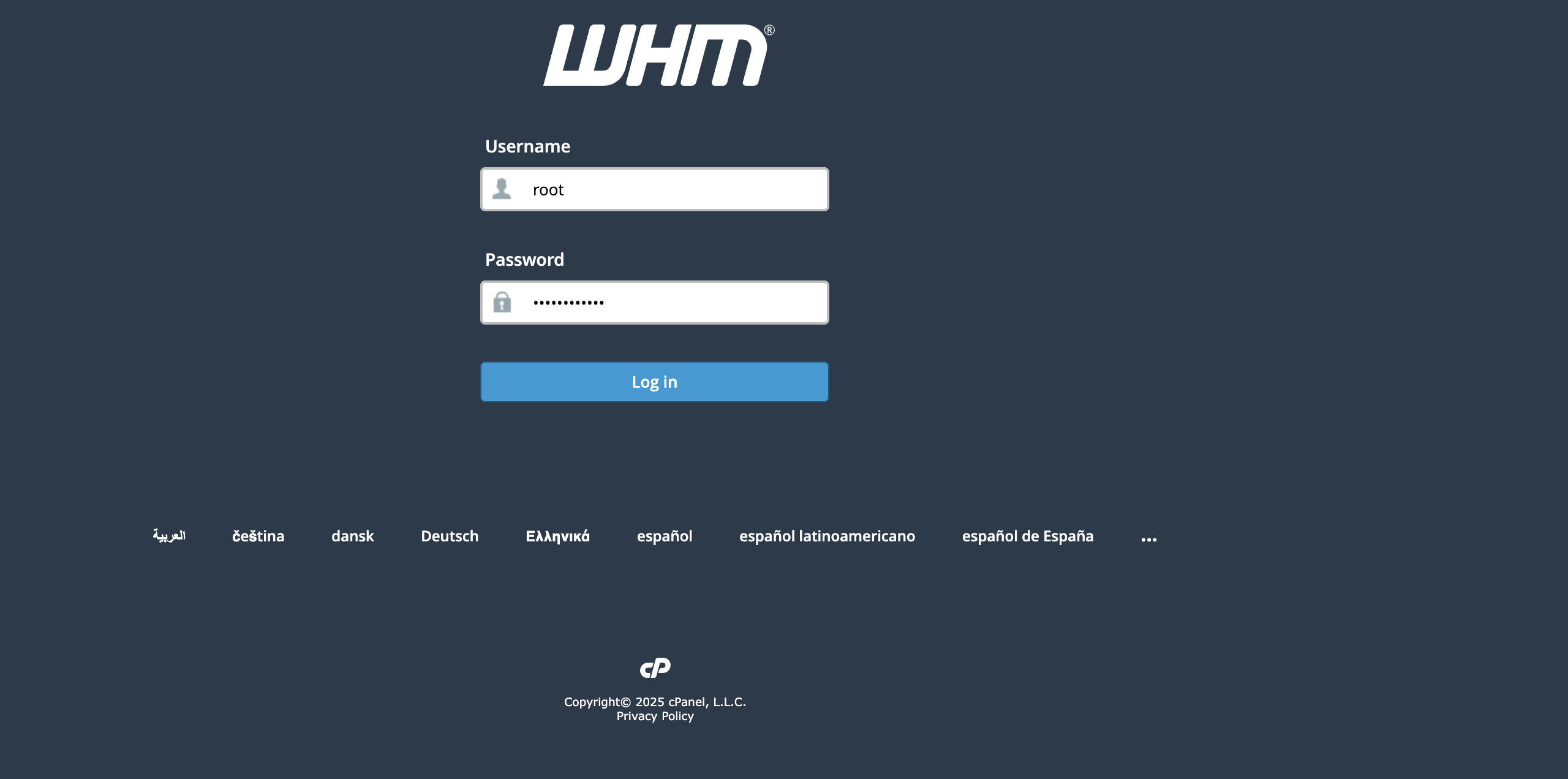
You will be required to use your “root” username and password, which were mailed to you once you purchased the server.
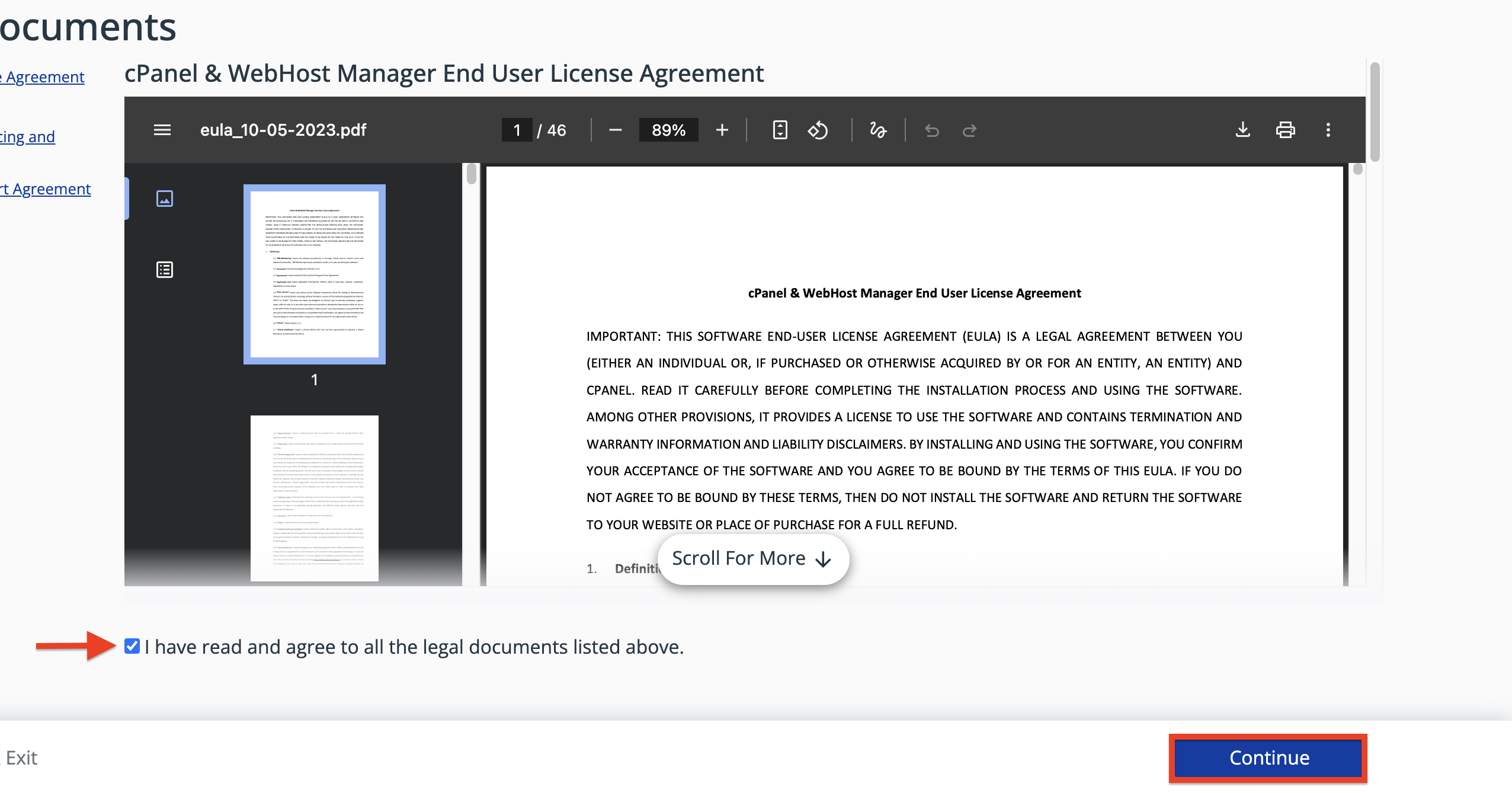
Upon logging in, you will be presented with legal documents, which you can scroll through quickly to get acquainted if you want, or you can simply check the “I have read and agree to all the legal documents listed above.” tickbox and then click on the “Continue” button on the bottom right side of the page.
Performing the action above will take you to yet another page where you need to consent to the privacy disclaimer cPanel imposes so they can track activity using third-party software.
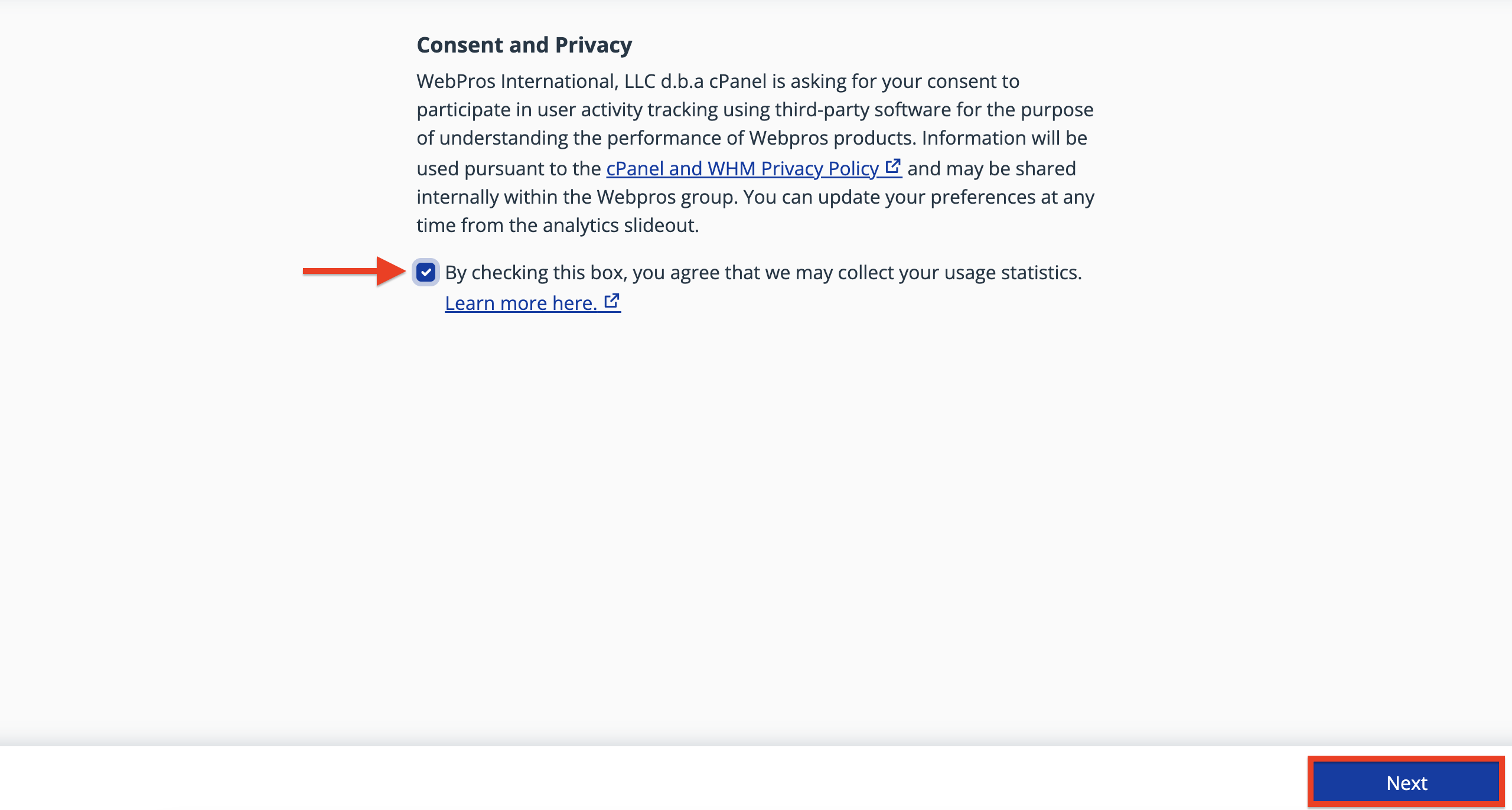
Please click on the “By checking this box you agree that we may collect your usage statistics.” and then, click on the “Next” button located on the bottom right side of the page.
Configure email address and nameservers
The next step involves configuring the email address and your nameservers. The email address will be the primary point of contact for notifications related to your server, such as changes made, resource usage, account creation, SSL installations, and other relevant updates. The nameservers will serve as the authoritative nameservers, which you can use to point all your domain names to your cPanel server.
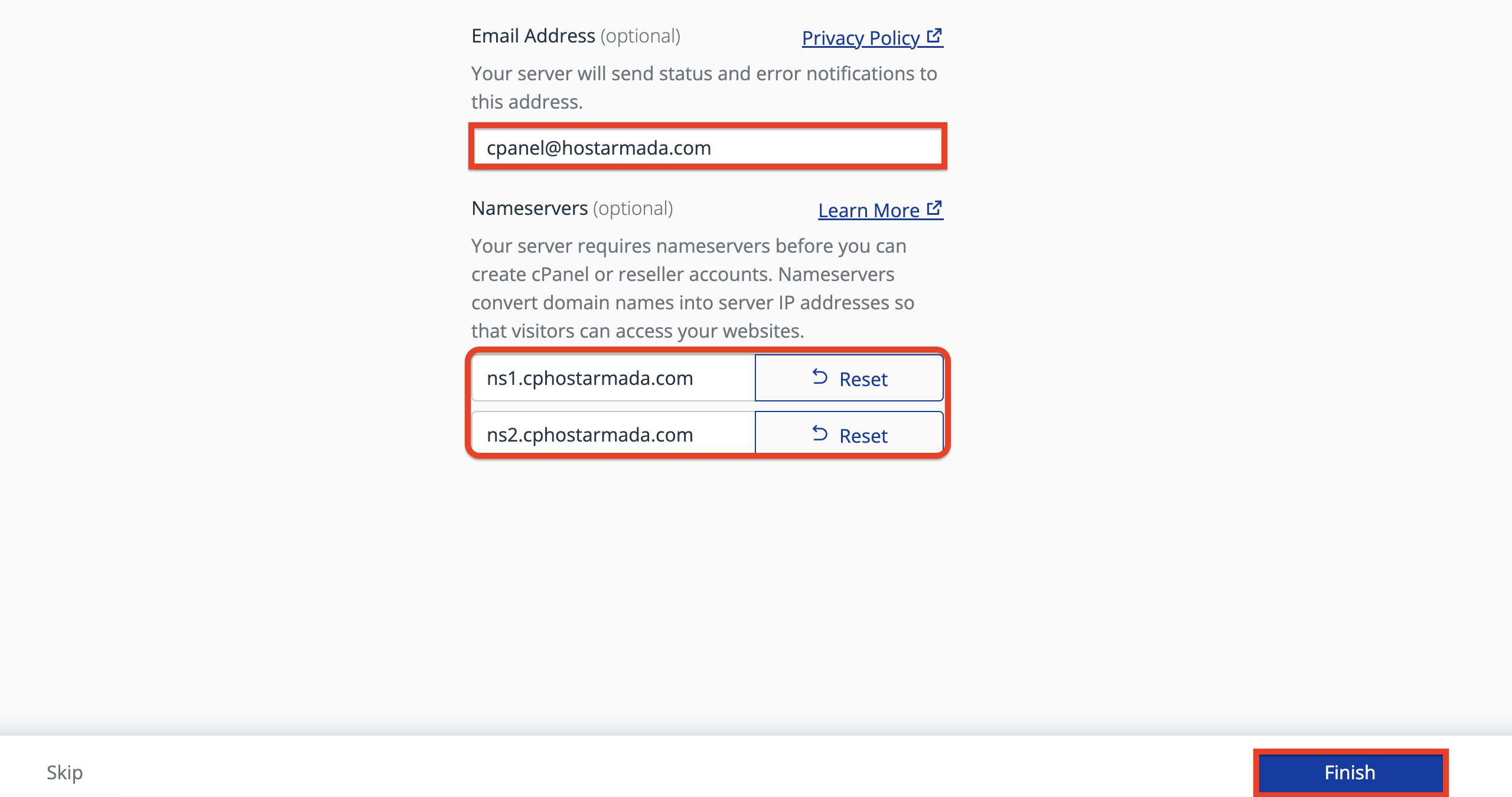
Please use the email address text field to enter your email address, and then use the nameserver text fields to input the desired nameservers for your server. Please note that these nameservers must be configured properly at the registrar level to function correctly.
After filling the above-mentioned text fields, please click on the “Finish” button located in the bottom right corner of the screen.
If you are still unsure about the email and name servers, you can skip this step by clicking the “Skip” button located at the bottom left side of the screen.
Feature Showcase
After clicking on the “Skip” button, you will be redirected to the “Feature Showcase” page, where you will see what kind of features were introduced to the most recent cPanel upgrade. There will be explanations and links that will provide you with even more info on the mentioned features as well.
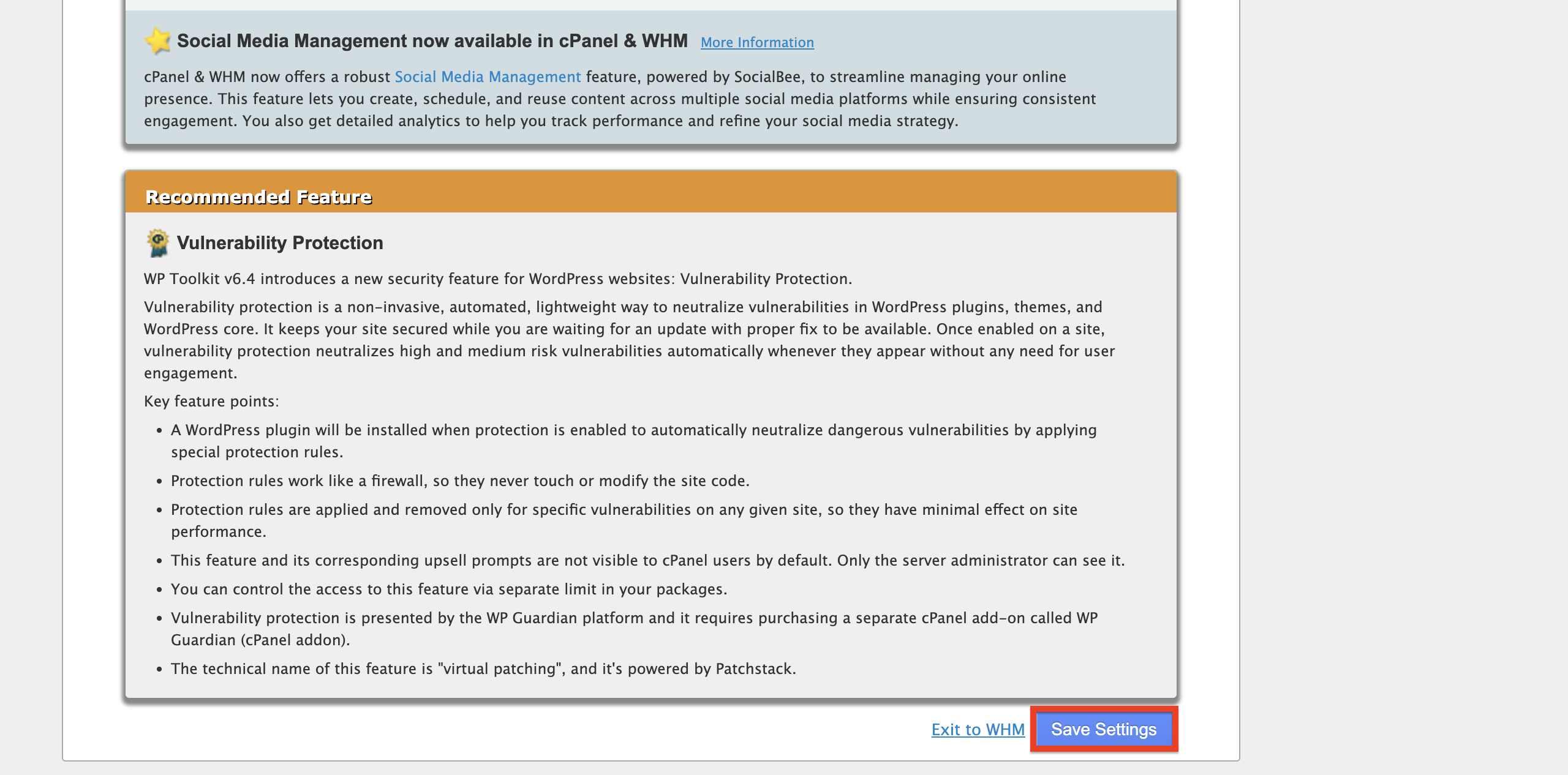
Sometimes, you will be asked to enable or accept certain changes on the “Feature Showcase” page. If you are happy with these changes, you can do so by clicking on the “Save Changes” button in the bottom left corner of the screen. Alternatively, if you would like to retain your old settings, please click on the “Exit to WHM” link, located on the left side of the “Save Changes” button.
After a brief loading time, you will be redirected to the WHM panel from where you can start managing all your server-related settings, tweaks, and optimizations! We have a comprehensive tutorial section on the WHM panel, which you should definitely check out here.
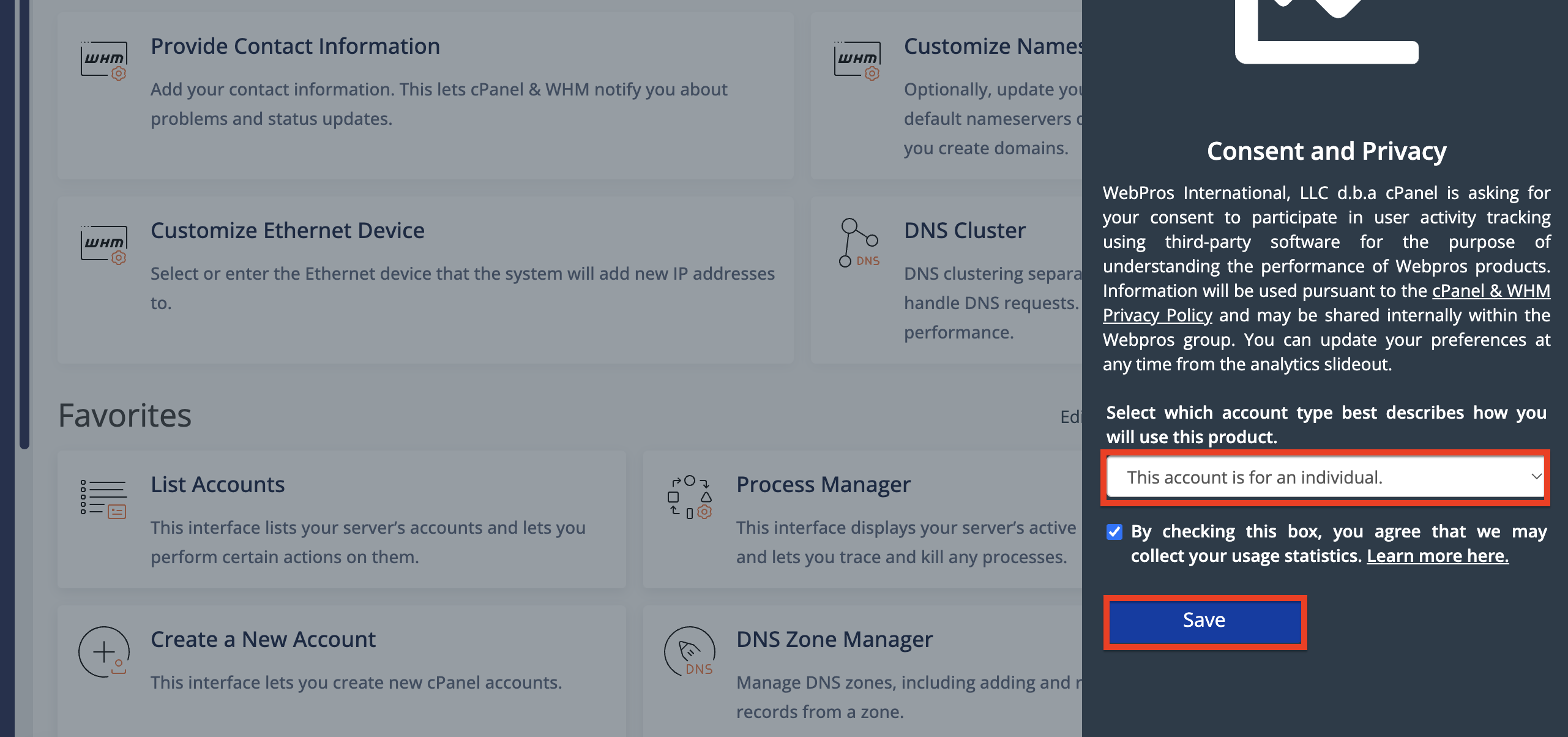
The last step is to select the type of account that best describes the intended use for the mentioned cPanel, which can be either an individual or a business, using the drop-down menu located on the right side of the screen. Upon setting this up, please click the “Save” button at the bottom left side of the pop-up window.
Conclusion
There you have it! A few very straightforward steps before you can start using cPanel/WHM. We hope that the information was helpful and you were able to follow it without too much confusion. Be sure to check our tutorial sections for WHM and cPanel if you need guidance on fine-tuning and tweaking your server.












