Introduction
A WHM based Web Hosting Service will always come with a MySQL server running and providing the various services and websites with access to the Structured Query Language or SQL in short. A MySQL process is a process that is spawned by a query originating from either your application or service utilizing the MySQL server. If your database is not optimized properly this could lead to slow execution of these processes, which, in turn, will start utilizing a lot of the server’s resources, such as CPU and Memory. If left unchecked, these processes can cause your server’s load to increase exponentially to the point where your server will be completely inaccessible and will most likely require a reboot. As the server’s load increases, your websites will start getting slower and slower and at a certain point, they will become completely inaccessible. This is why it is important to monitor these processes on a regular basis, especially if you are noticing one of the above-mentioned symptoms. The majority of the queries are meant to execute fast, typically within a fraction of a second. If you open the “Show MySQL Processes” feature in the WHM control panel and you notice a process taking longer than 2-3 seconds to execute, this suggests a problem with the database. In this tutorial, we will be going through the “Show MySQL Processes” functionality in the WHM control panel and the information it provides in regards to your MySQL processes. Let’s get started
Accessing the Show MySQL Processes feature
First, you need to log into the WHM service for your VPS or Dedicated Server. If you are not sure how to do that, please check our How to access the WHM service tutorial. After you have logged in, please use the search bar on the left side of the page and type “Show MySQL Processes”.
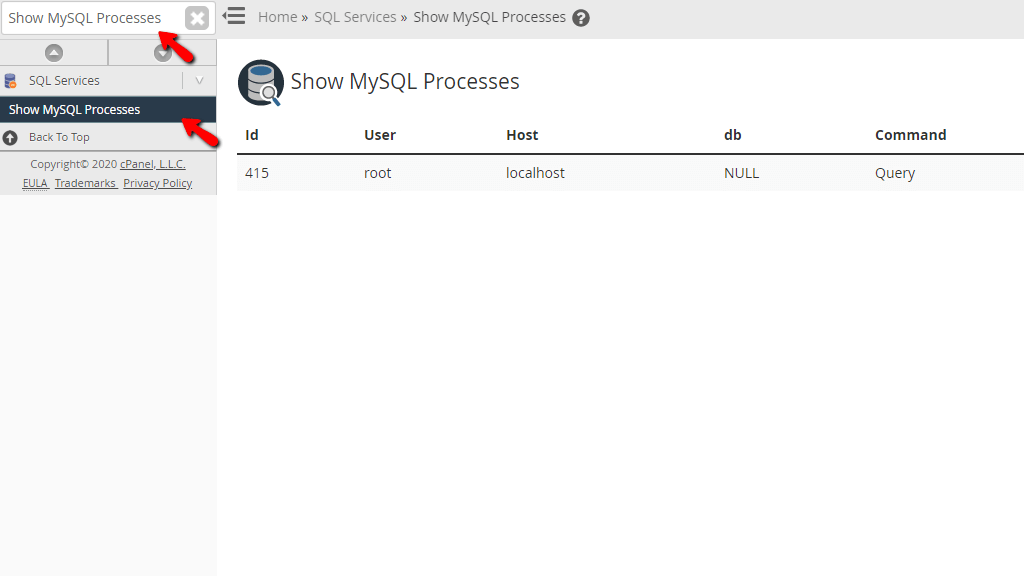
When the functionality presents itself below the search bar, please click on the “Show MySQL Processes” link.
Viewing the MySQL processes on your server
This will redirect you to the “Show MySQL Processes” page immediately.
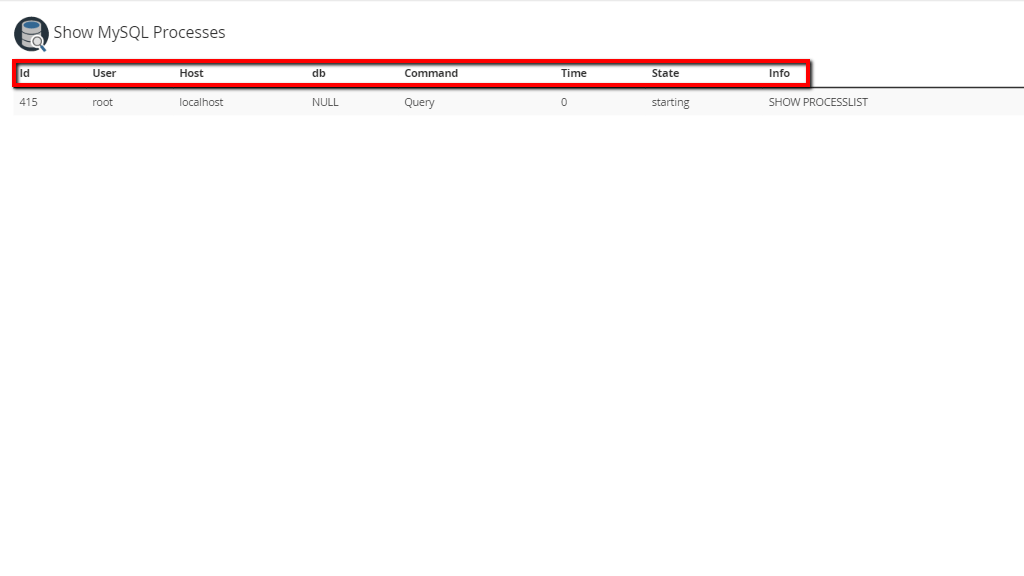
Upon going to the ”Show MySQL Processes” page, you will see a table section containing columns with the following information:
- Id - This column will display the process ID. In Linux, unique identification numbers are assigned to each process an application or a service spawns.
- User - This column will contain the user that executed the process.
- Host - This column will display the hostname from which the user triggered the process. Additionally, it may also contain a port and it will be represented like 127.0.0.1:1234 or sirstevehqservers.com:4321.
- db - This will display the database for which the process is currently running.
- Command - This will be the type of command, which the application/system/service executed and was sent to the database.
- Time - This column will show the time in seconds in which the process has remained in its current state.
- State - This shows the current state of the process. Usually, a process should remain in a given state for a very short period of time. If you notice that a process is spending more than 2-3 seconds in a specific state, there is most likely a problem with the service or application which spawned it.
- Info - This column will contain the text of the statement which is being executed. It may contain the first 100 characters of an SQL query.
This concludes our tutorial about the “Show MySQL Processes” feature in the WHM control panel. A really basic and simple functionality at first but it does require knowledge in terms of SQL so you may use it to its full extent. If you have any questions or you are faced with any issues regarding this functionality, please contact our Support Team. They are 24/7 available at your disposal through the ticketing system in your Client Area.












