Introduction
Whether for personal or business use, including an email signature to your email is essential if you intend to leave a lasting impression. With a unique and personalized email signature, you will not only look professional, but you will also ensure your instant recognition. Setting up an Email Signature will be the tutorial's primary focus as we will guide you toward configuring it in the Thunderbird Email Client.
Getting Started
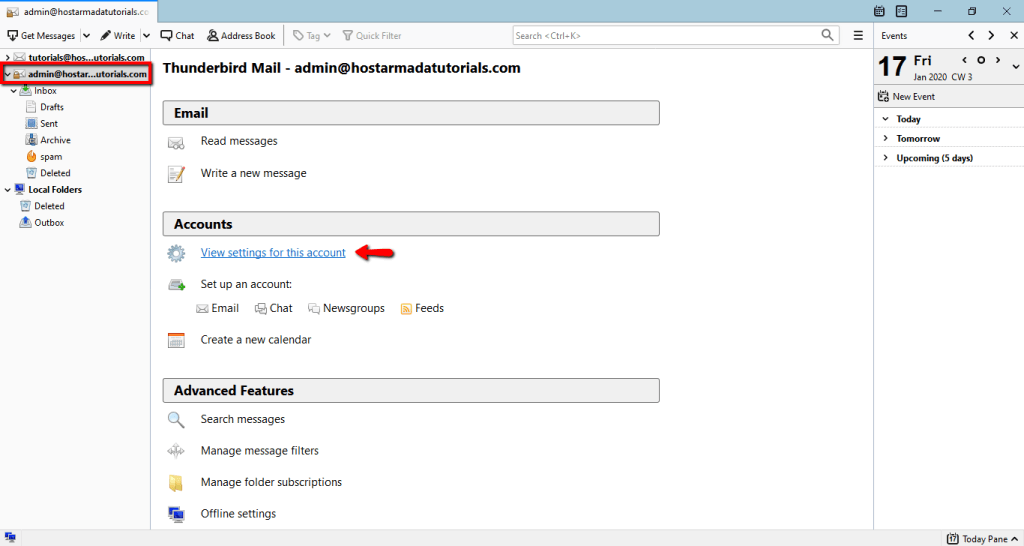
To begin with, please open the Thunderbird email application on your local computer. Once you open it, please select the email account you want to set up a signature for from the list displayed in the left-hand sidebar and click on the "View settings for this account" button (in the middle section).
Afterward, Thunderbird will prompt you with the "Account Settings" dialog where you can configure your email signature.
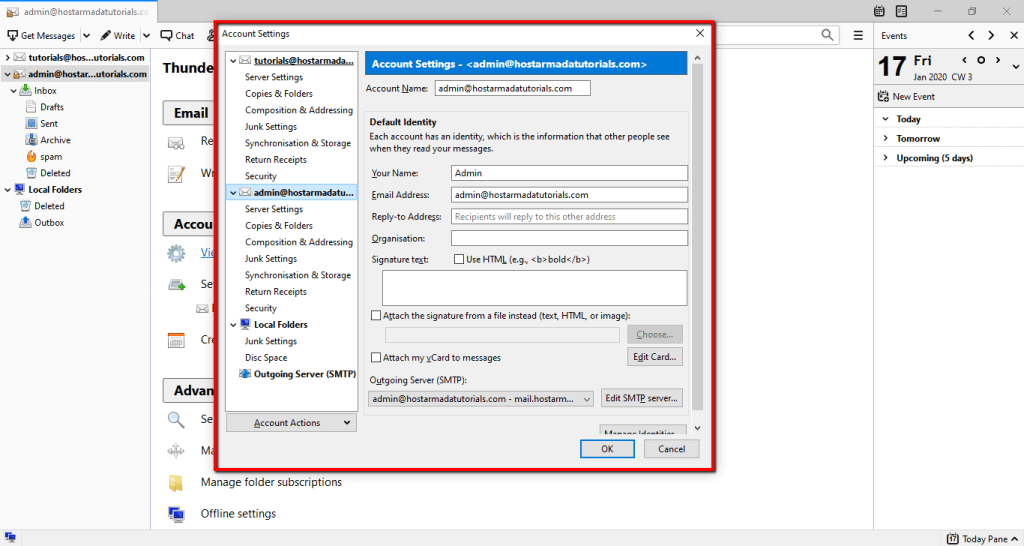
Now that you are in the right place, you are ready to move forward.
Adding an Email Signature to Mozilla Thunderbird
You can use a few methods to set up your signature in Thunderbird, and we will review each of them separately. That can be achieved by:
- Adding plain text directly into the Account Settings.
- Adding an HTML code inside the Account Settings.
- Attaching an initially prepared Text, HTML, or Image file.
Adding Plain Text Email Signature
To add a Plain Text Email Signature, you need to add the desired information directly into the "Signature text" field under the "Account Settings" dialog.
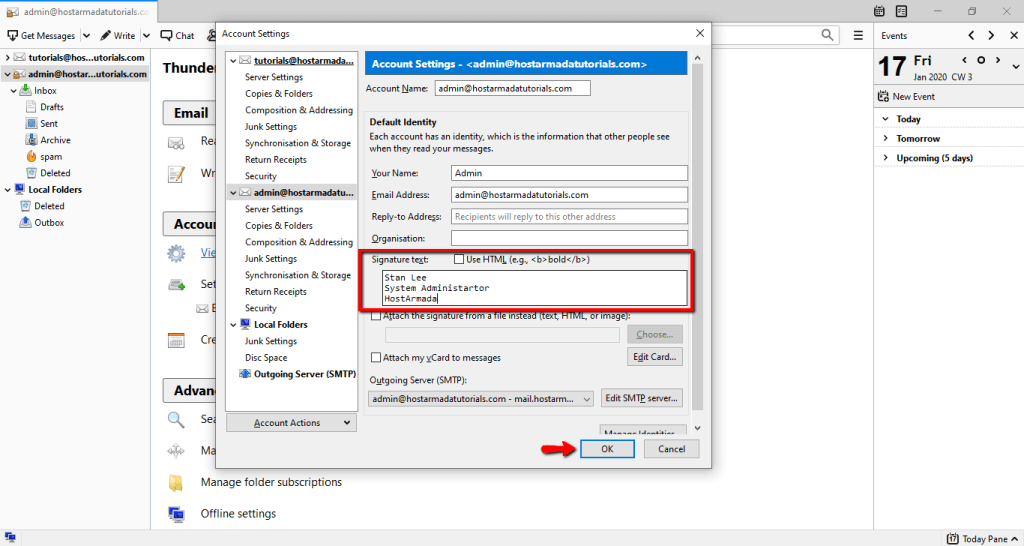
When you are ready, please do not forget to click on the "OK" button to save the changes you have made.
Now you can go ahead and click on the "Write a new message" button (home screen) and double-check how the signature appears.
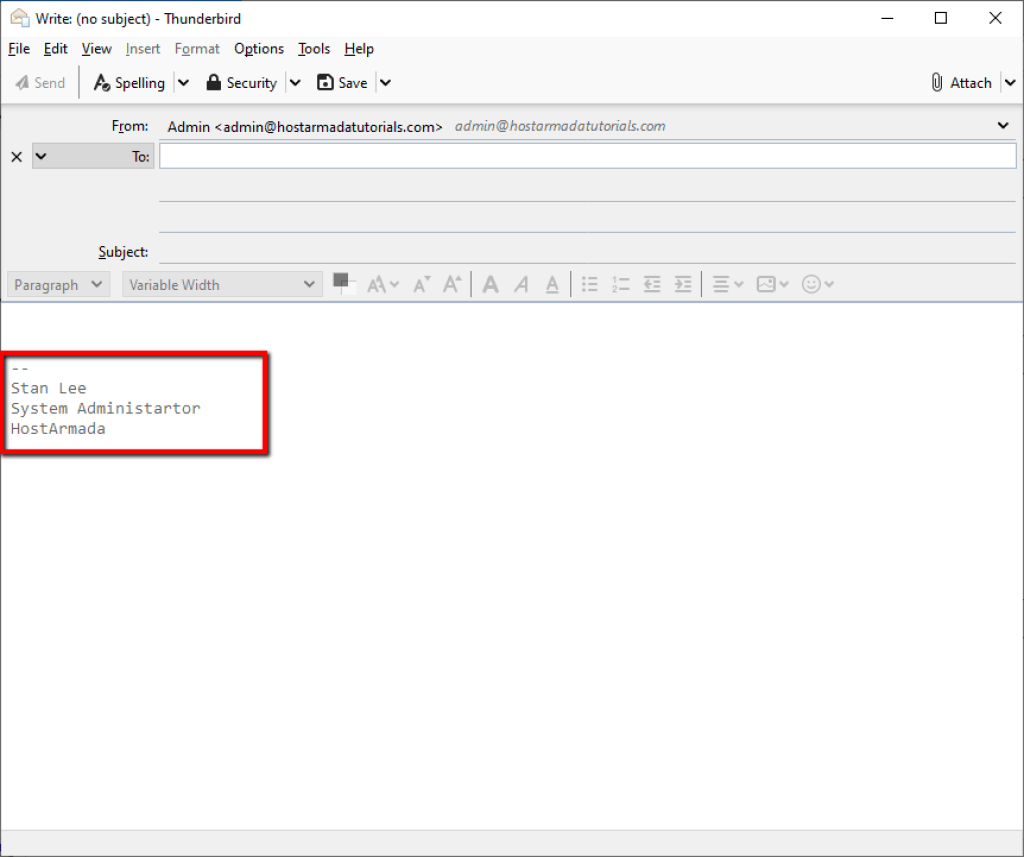
That is it! From now on, the configured signature will appear in all your email messages.
Adding HTML code Email Signature
Similar to the previous example, you can also add the signature HTML code directly to the "Signature text" field under the "Account Settings" dialog. Please make sure to mark the "Use HTML" checkbox so Thunderbird can read it as HTML code instead of plain text.
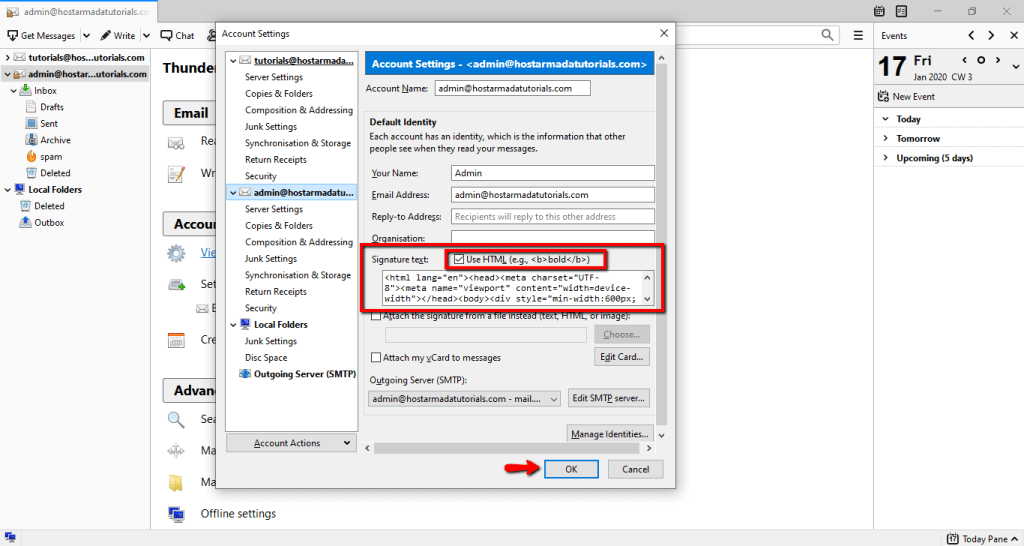
When you are ready, please click on the "OK" button to record the changes.
Now you are ready to go ahead and check if the signature appears as expected by composing a new email.
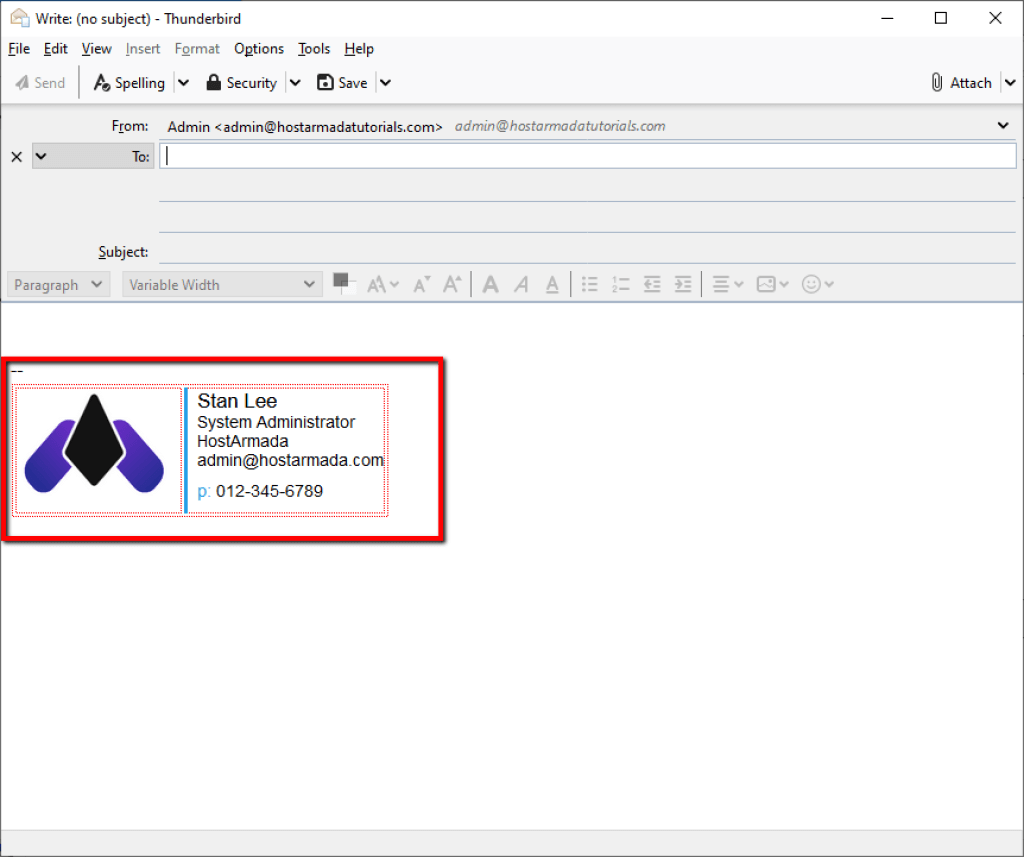
If you are pleased with the result, you are all set!
Attaching Text, HTML, or an Image Signature to a Mozilla Thunderbird Email Account
If you have your Email Signature stored in a Text, HTML, or Image file, Thunderbird allows you to import and attach it to your email account. To do so, you will need to access the "Account Settings" section again.
Once you are there, all you need to do is tick the "Attach the signature from a file instead" checkbox and click on the "Choose" button to select the file from your local computer.
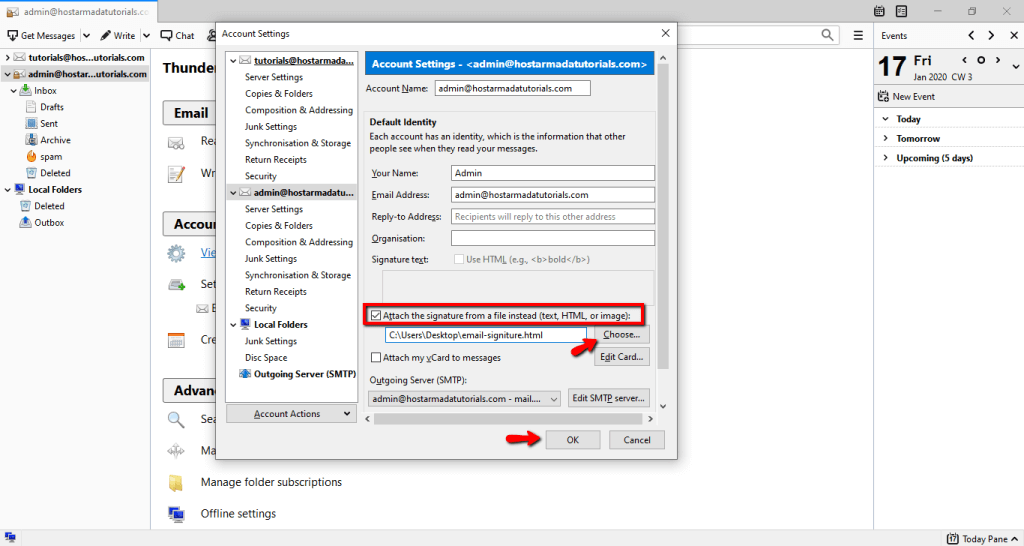
When you are ready, do not forget to click on the "OK" button to save the changes.
Now you are ready to go ahead and check how your signature appears.
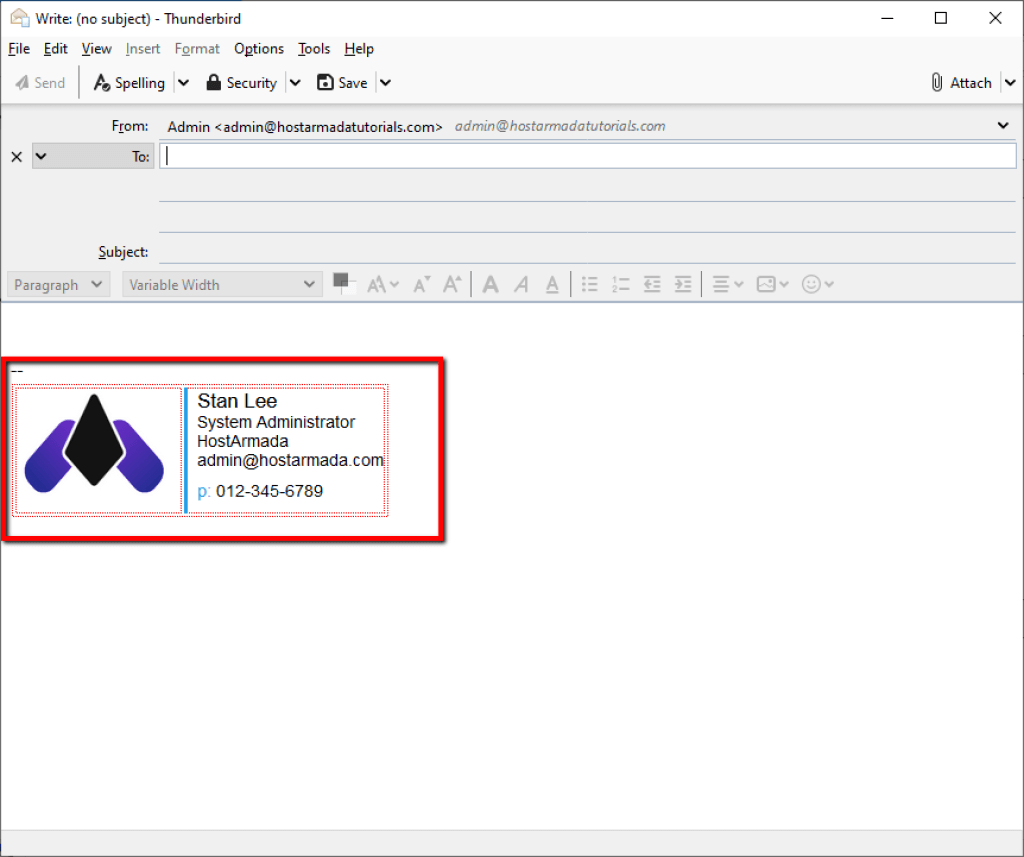
If you like what you see, you are all good.
We want to congratulate you on learning how to set up your email signature. We believe you will appreciate the convenience of having the signature pre-configured and avoid the need to type it each time you compose an email manually. Hopefully, you have found the information well explained, and our guidance easy to follow. Should you have any questions on the topic, please do not hesitate to contact our Support Team.












