Introduction
Having instant access to your email accounts is exceptionally convenient, especially during times when you do not have a computer or a laptop in hand. Therefore, we decided to review the process of configuring your emails on Android Devices. Within a few simple steps, you will be able to check, send, and receive emails through your phone or tablet.
Getting Started
Please note that this tutorial expects you to have an active email account before proceeding with this tutorial. If you have not done that yet, please go ahead and do it before you continue further. You can find detailed instructions in our guide based on How to manage Email accounts in cPanel.
You will also need to acquire the configuration details required to set up your email account:
- Email Account
- Email Password
- IMAP/POP incoming mail server and port
- SMTP outgoing mail server and port
Suppose you are a SIRSTEVEHQ customer and are using our email services. In that case, you will find the required details in the Welcome Email containing all the essential information of your hosting account with us.
You can also find the configuration details in your cPanel account by navigating to the EMAIL section > Email Accounts > Connect Devices.
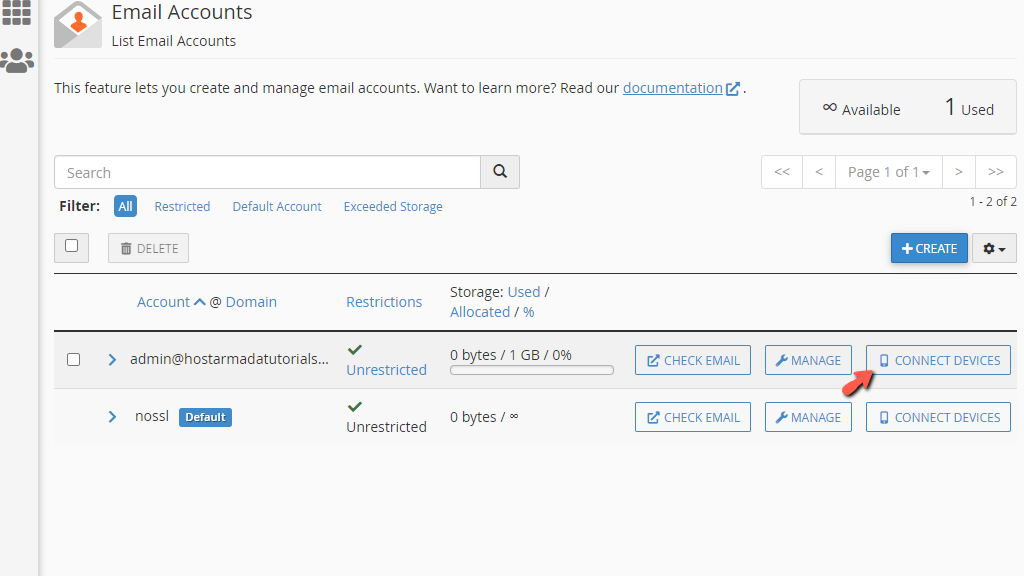
In case you have any difficulties finding the details, please make sure to submit a ticket request to our team, and they will gladly give you the settings you need.
Setting up IMAP/POP3 Android Email Account
The first thing you need to do is to locate the email application on your Android device. Please bear in mind that it may differ depending on the type of device, the brand, and the OS version, however, the actual setup will be similar on all Android email applications.
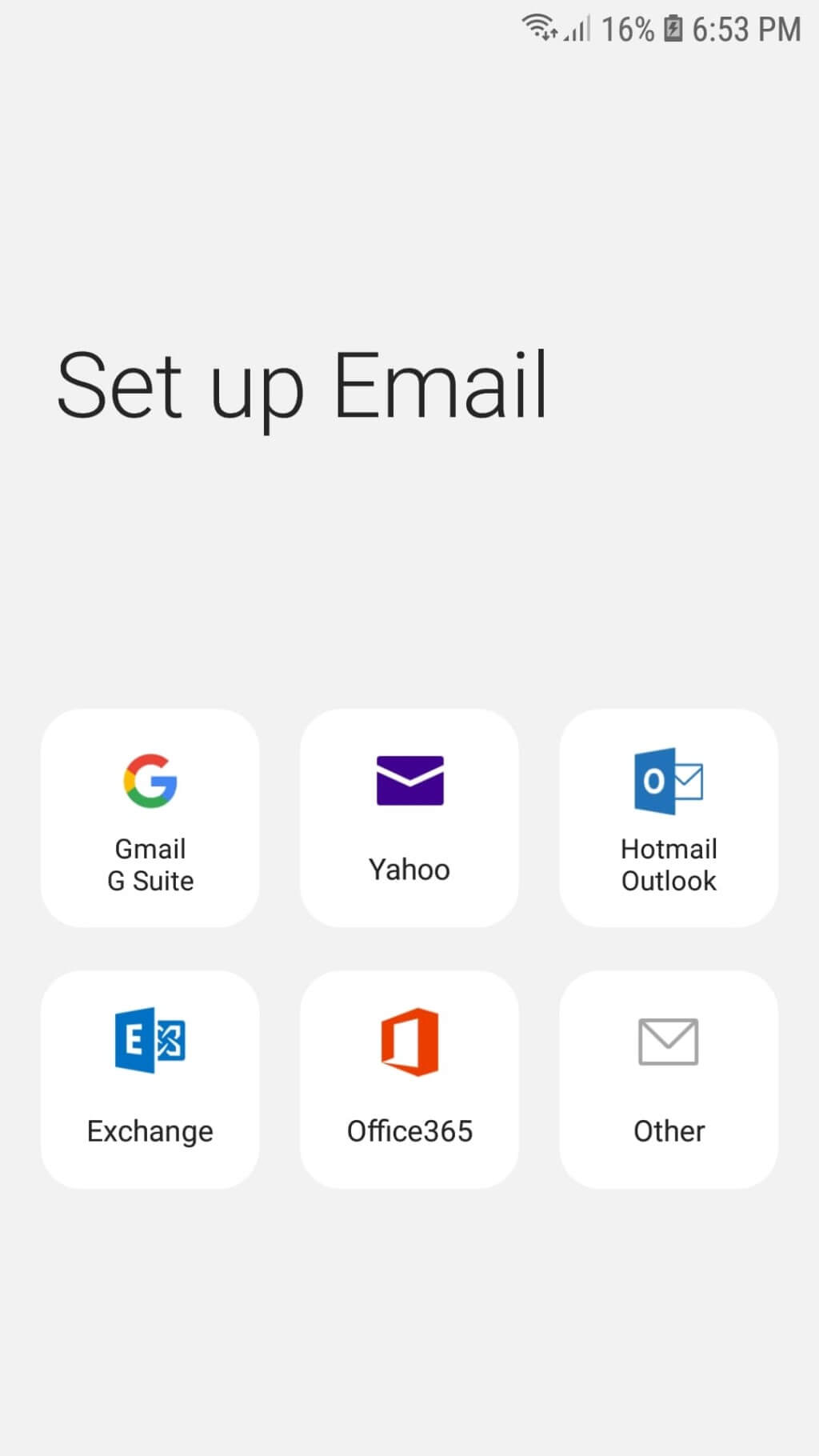
After you locate and open the email application, it will allow you to pick an account type. From these options, please select the "Other" type.
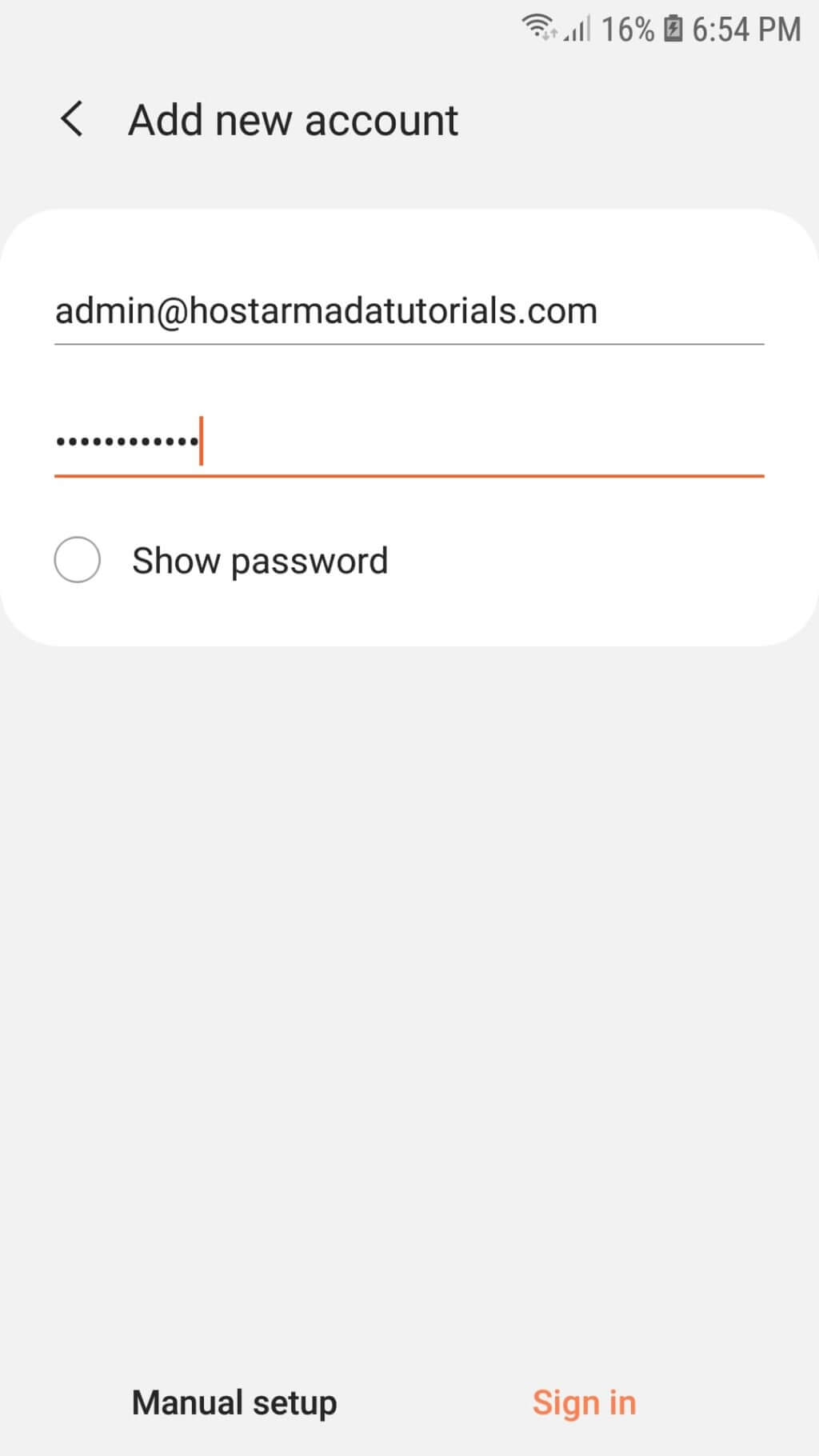
Once you do this, you will see the "Add new account" screen, where you will notice two text fields for the username and password. Please enter them in the respective fields. After you add the details, please click on the "Manual setup" button located at the screen's bottom-left corner.
A new "Select account type" pop-up will appear, and you will need to choose the preferred configuration type - IMAP or POP3. If you wish to learn more about these email account types, please read our knowledge base article on The difference between POP3 and IMAP protocols.
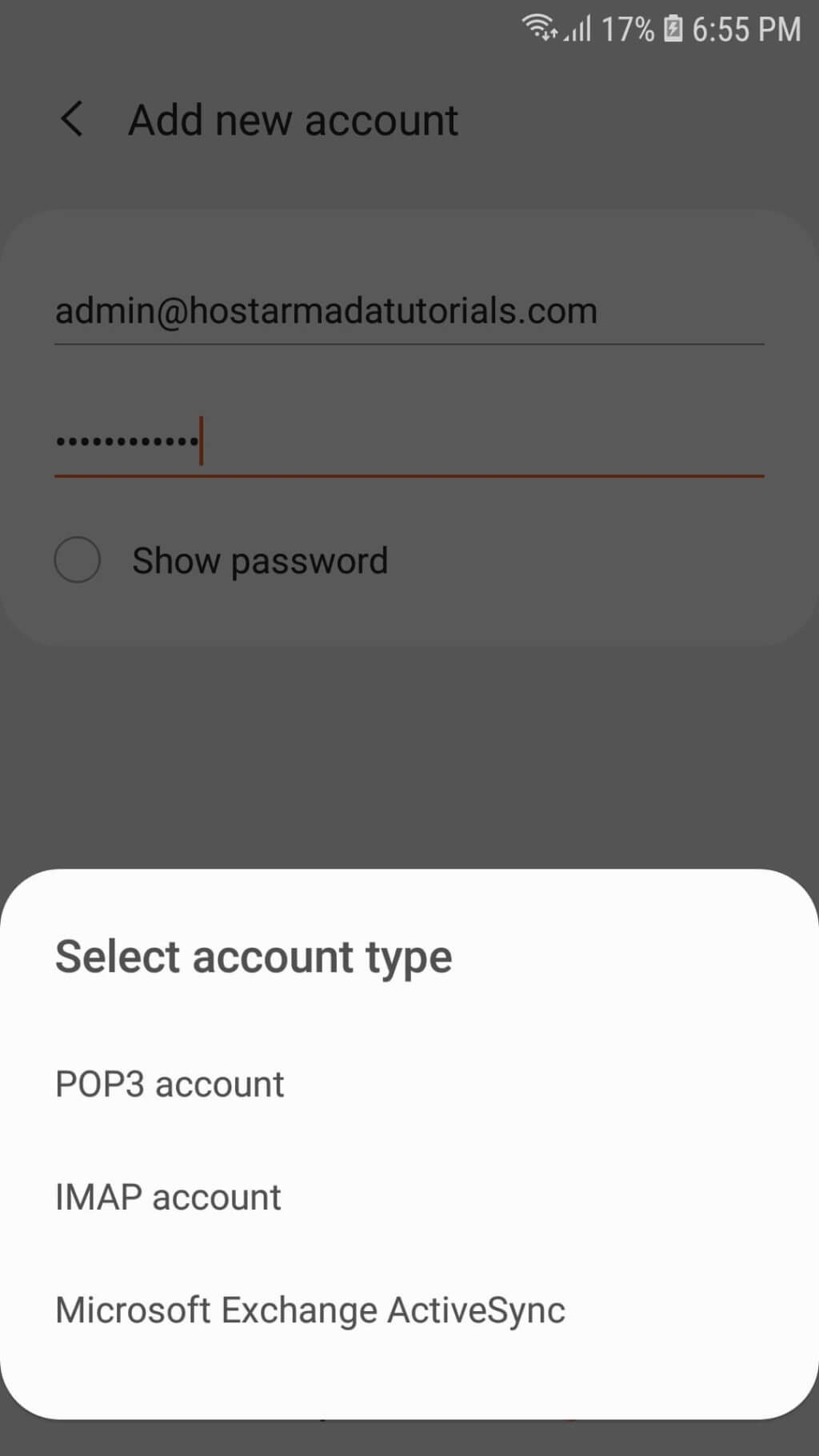
In the following sections, we will review each type, step-by-step, to avoid any confusion.
Setting up an IMAP Android email account
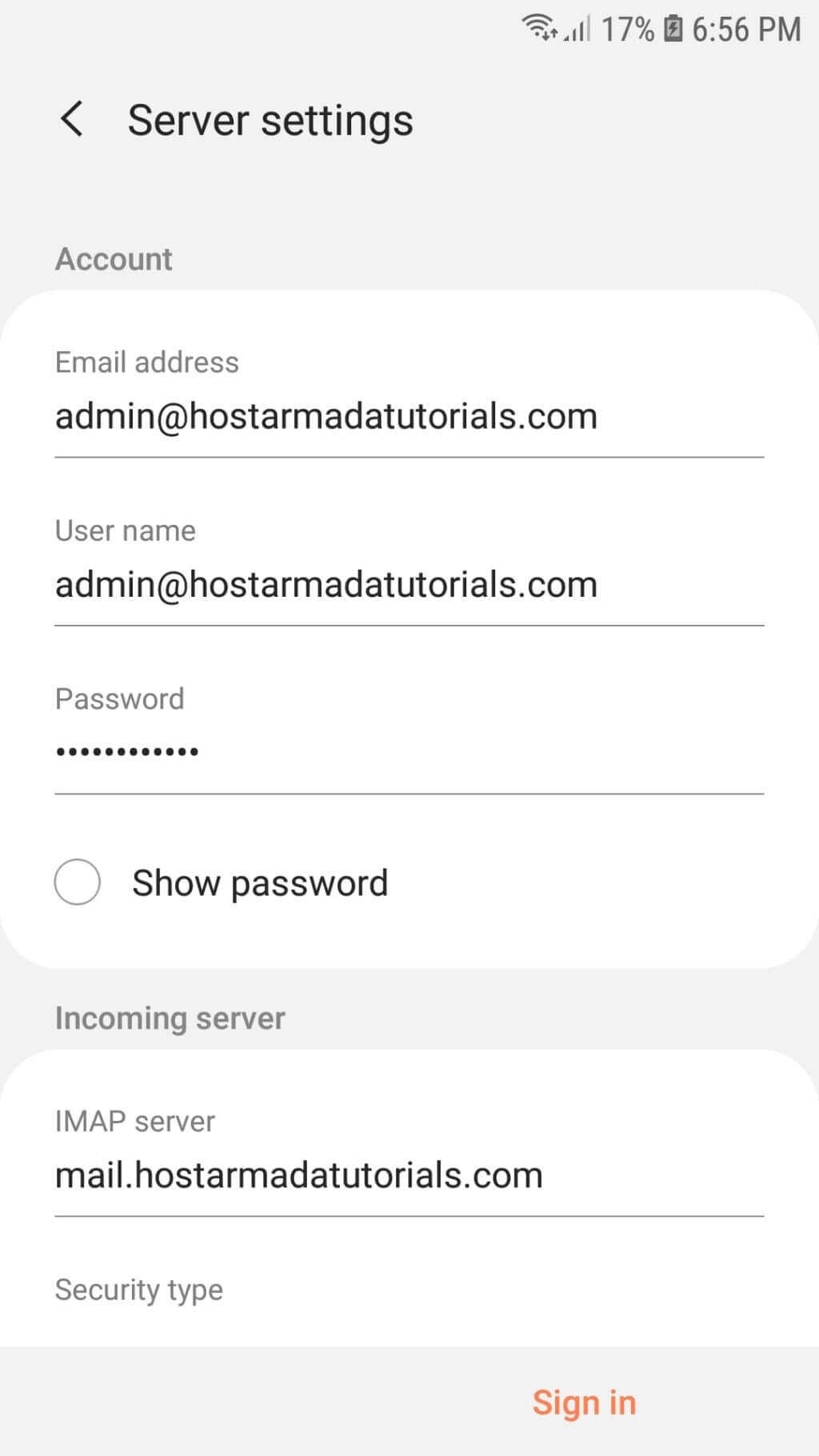
After you have selected the "IMAP account" option, the Android email application will redirect you to the next "Server settings" step. There you will notice the page splitting into three sections: "Account", "Incoming server", and "Outgoing server".
Account:
- Email address - The email application will automatically fill this text field with the email account you entered earlier in the setup.
- User name - This is typically your email address, however it could be only the email prefix. In our case, it is the full email (e.g., support@sirstevehq.com), so if you are utilizing our email services, please make sure to enter the full address.
- Password - The Android email application will fill the password automatically using the same one you entered earlier during the setup.
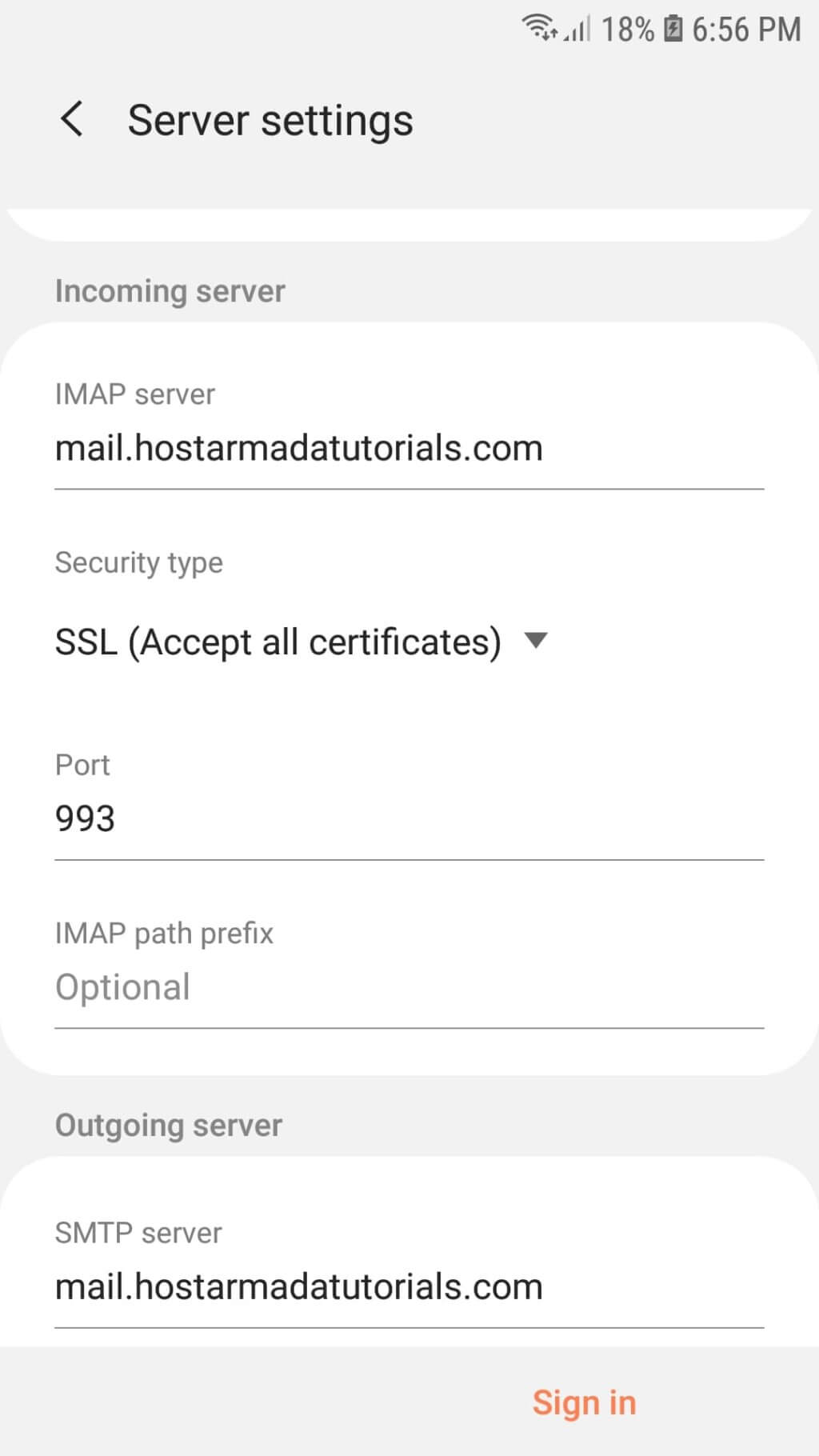
Incoming server:
- IMAP server - Typically, this text field holds the "mail.domain.com" where "domain.com" represents your actual domain name. Alternatively, you can use the server's hostname hosting your domain (e.g., eude1.armadaservers.com).
- Security type - Determines the encryption method used to connect to the server.
- Port - IMAP non-SSL: 143. IMAP SSL: 993.
- IMAP path prefix - Optional setting. Leave unchanged.
Outgoing server:
- SMTP server - Same as IMAP unless you are using a third-party SMTP provider.
- Security type - None or SSL.
- Port - SMTP non-SSL: 25. SMTP SSL: 465 or 587.
- Require authentication - Keep enabled.
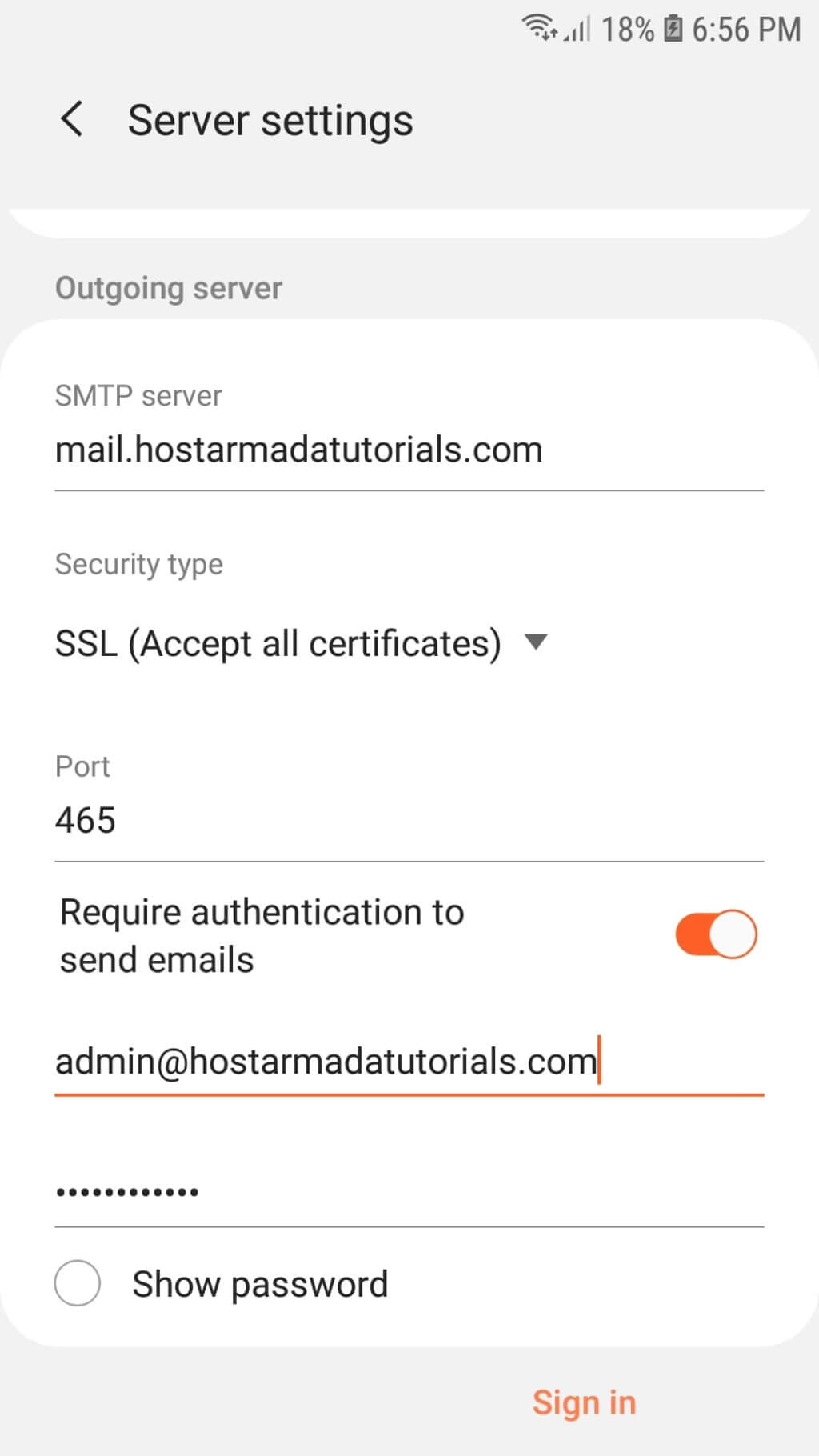
Once you enter the required details inside your Android email application, please ensure you have filled all the fields correctly. Finally, please click on the "Sign in" button.
As soon as the phone accepts the provided information, it will take you directly to the email's inbox, where you will see all your messages.
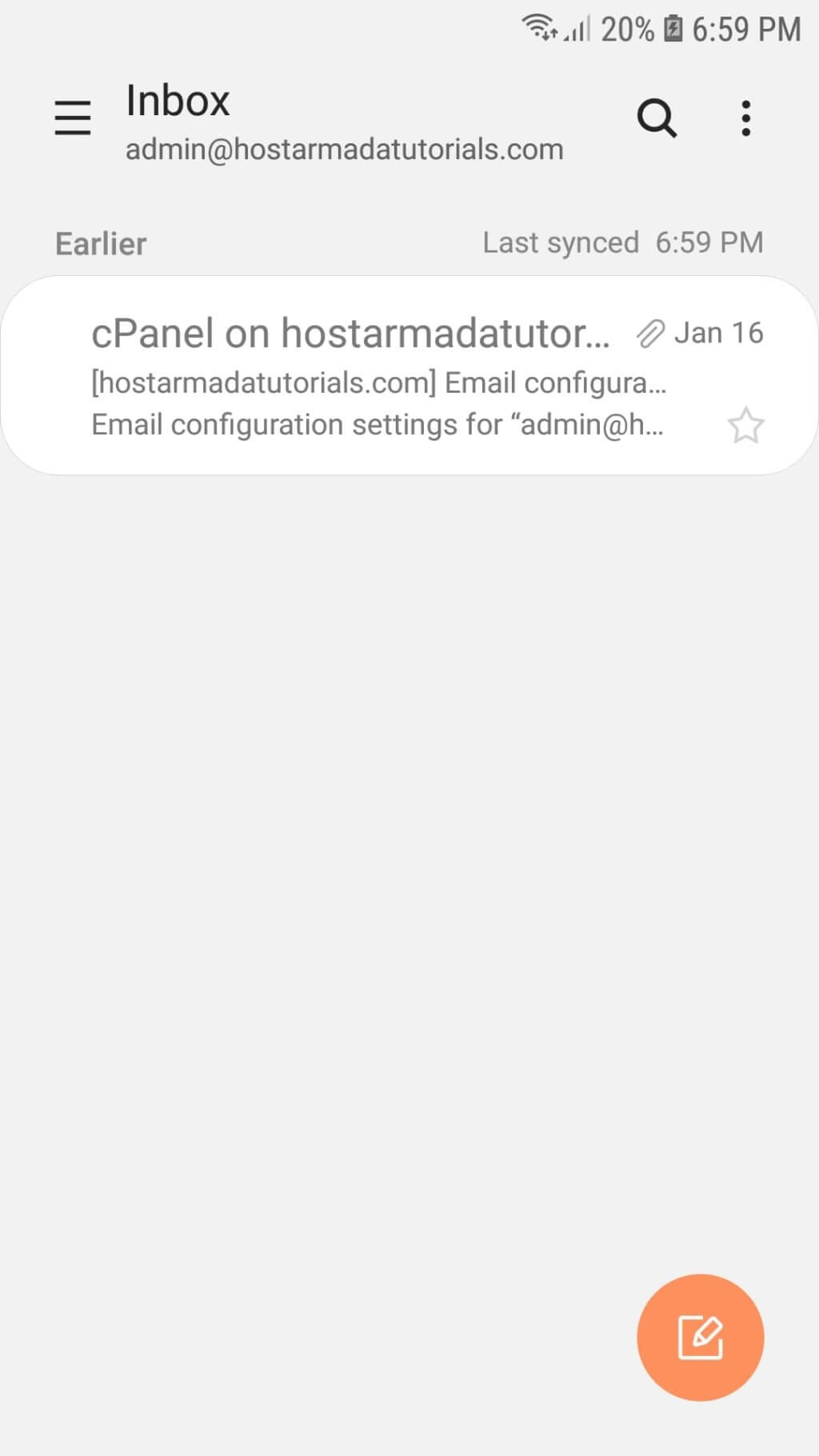
That is it! You have managed to set up your Email Account on the Android email application successfully.
Setting up a POP3 Android email account
If you intend to set up a POP3 Email Account, you should follow the same steps. After you enter your email address and password, this time, please select the "POP3 account" type instead. Once again, the email application will show you the "Server settings" screen where you need to configure the "Account" and "Outgoing server" settings in the same manner as for an IMAP account. The only difference will be under the "Incoming server" section, where instead of IMAP, you will need to configure the POP3 information.
- POP3 server - Similarly to IMAP, you can set the server to "mail.domain.com" where "domain.com" represents your actual domain name, or you can directly use the hostname of the server which hosts your domain name (e.g., eude1.armadaservers.com).
- Security type - Determines the encryption method used to connect to the server.
- Port - POP3 non-SSL: 110. POP3 SSL: 995.
- Auto delete from server - This determines whether deleting emails through your Android email application will affect the email data stored on the server. The "Never" option will ensure that removing email(s) from your Android email application does not delete any email data from the server. The "When deleted from Inbox" option will delete them from the server when you delete them from the device.
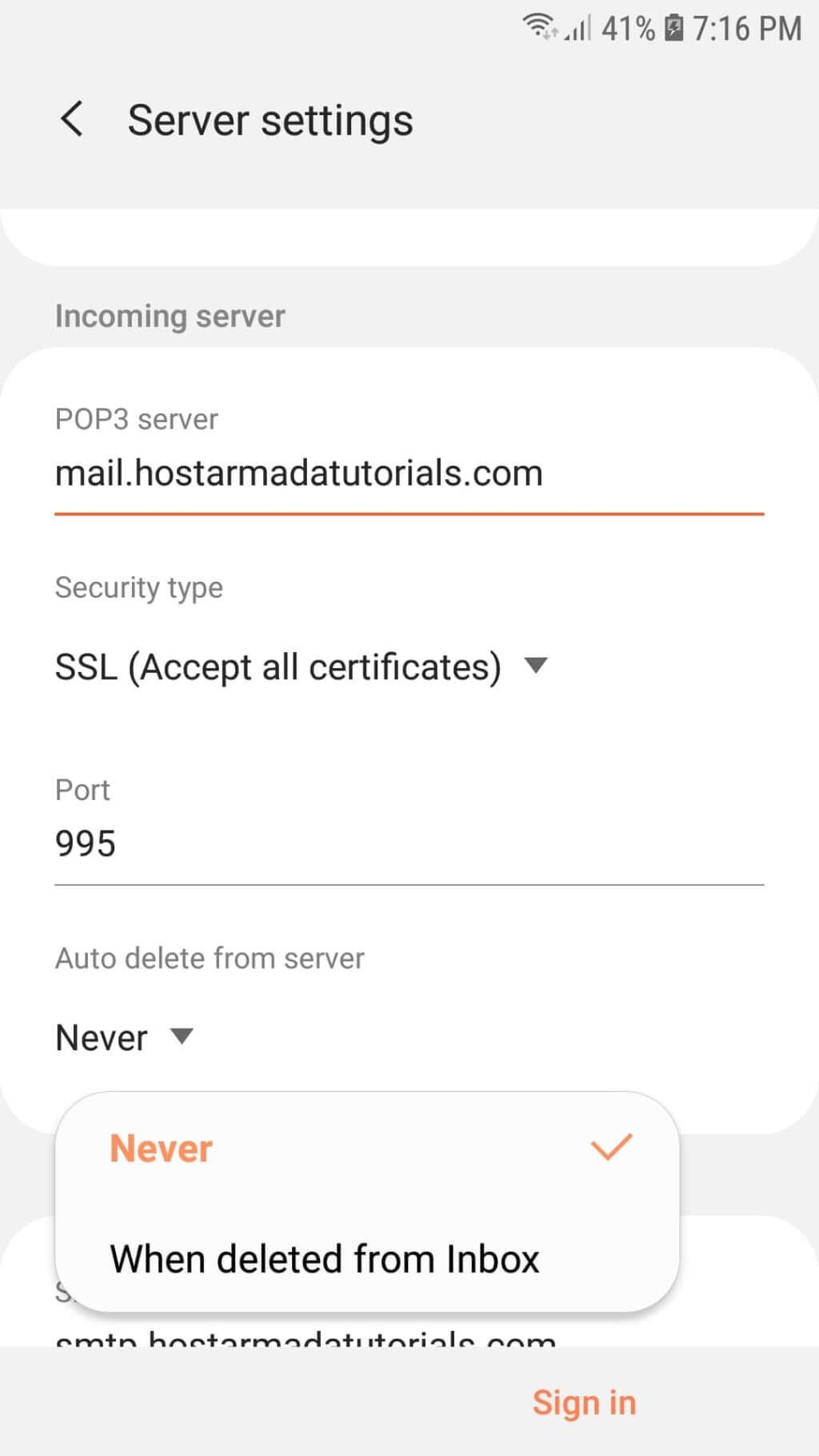
Whenever you are ready, click on the "Sign in" button, and the Android email application will create your POP3 account!
Simple as that, and you have your email account successfully configured on your Android Device. We hope you did not experience any difficulties, and you have managed to set it up on the email application on your Android following our directions. If you have any further questions, please do not hesitate to contact our Support Team.












