Introduction
When your emails stop working correctly and you need to troubleshoot or switch providers, you may need to reconfigure the email setup on your Android device. This guide will walk you through the steps to review, modify, and delete email settings so you can send and receive messages smoothly again. Let's get started!
Accessing the Android Email Settings
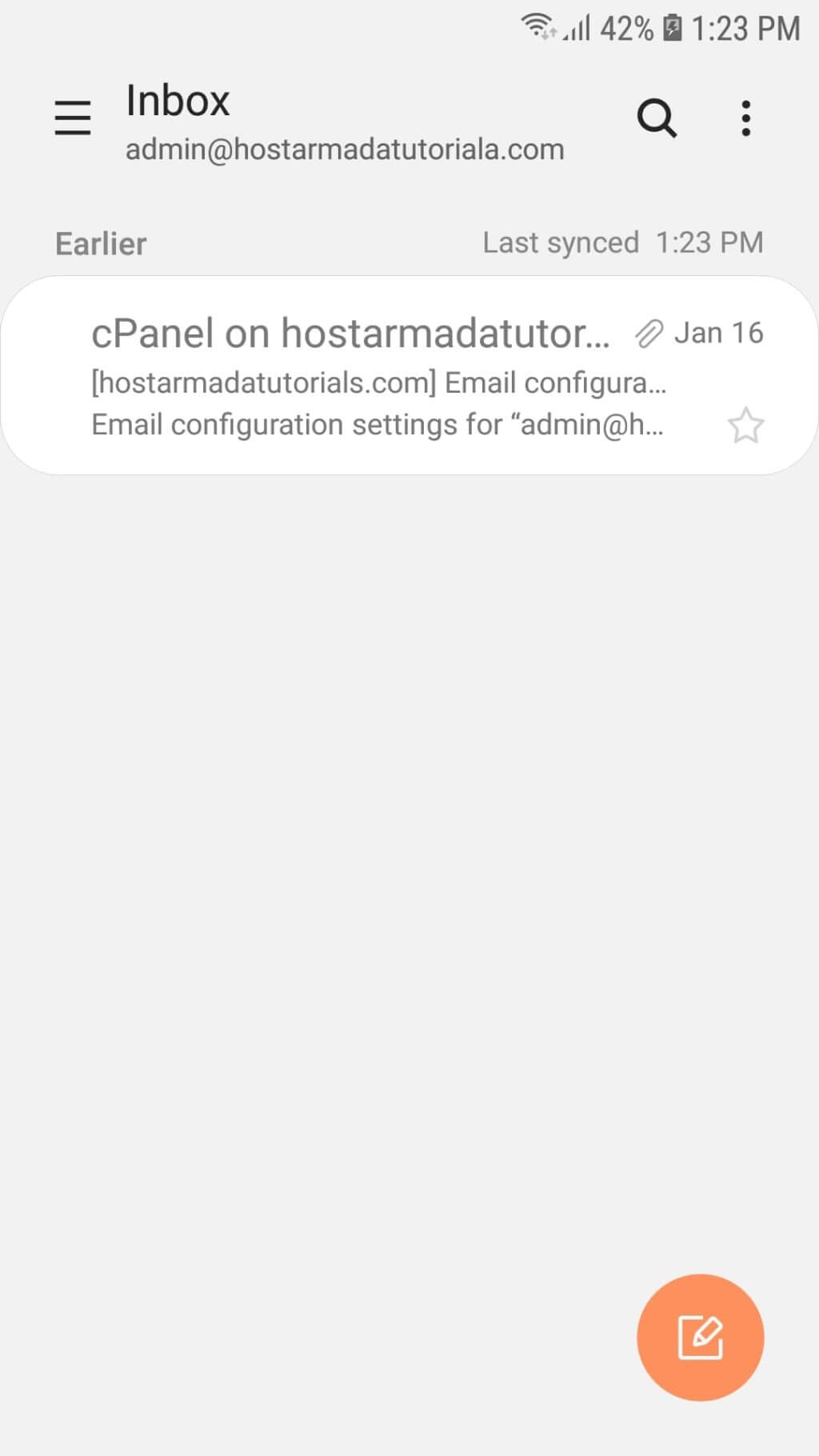
Open the email application on your Android device. Next, tap the triple bar icon located at the top left corner of the screen.
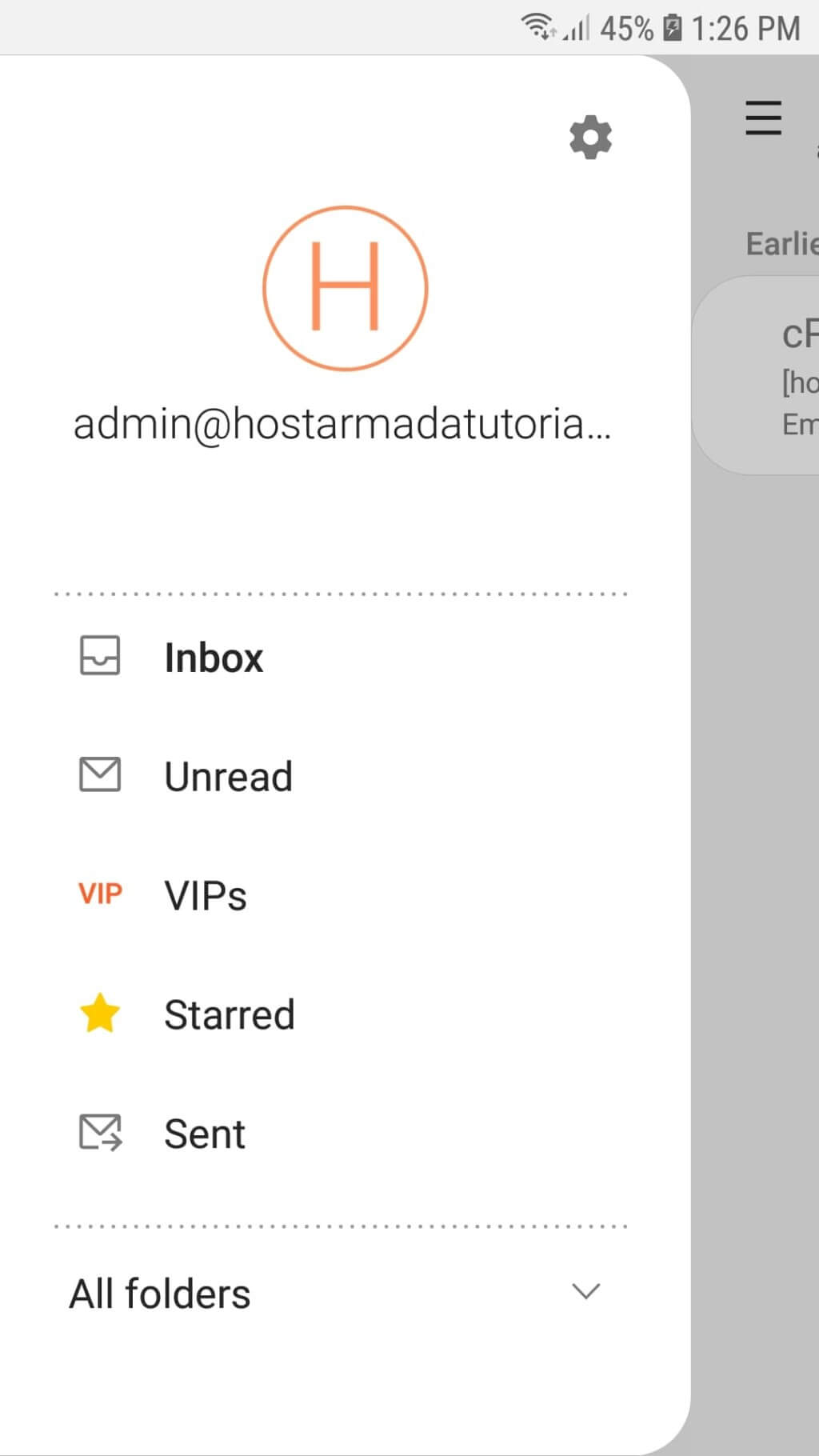
Once you do this, you will see a menu displaying your email account and its mailboxes. Tap the Settings (gear) icon in the top right corner of the menu.
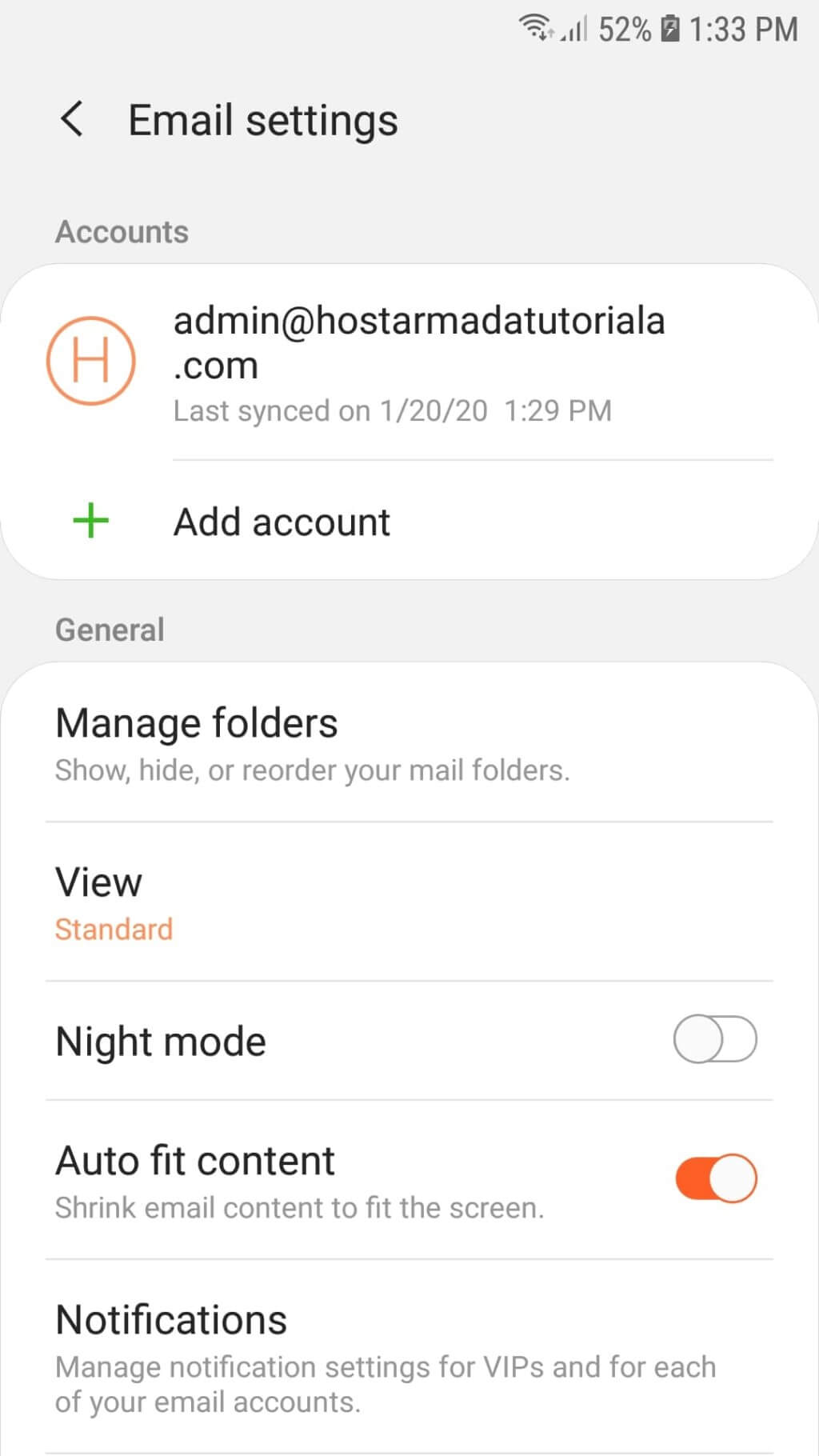
This action will take you to the Email settings screen. Under the Accounts section, you will see all accounts currently configured on your Android email app. Tap the email account you want to edit.
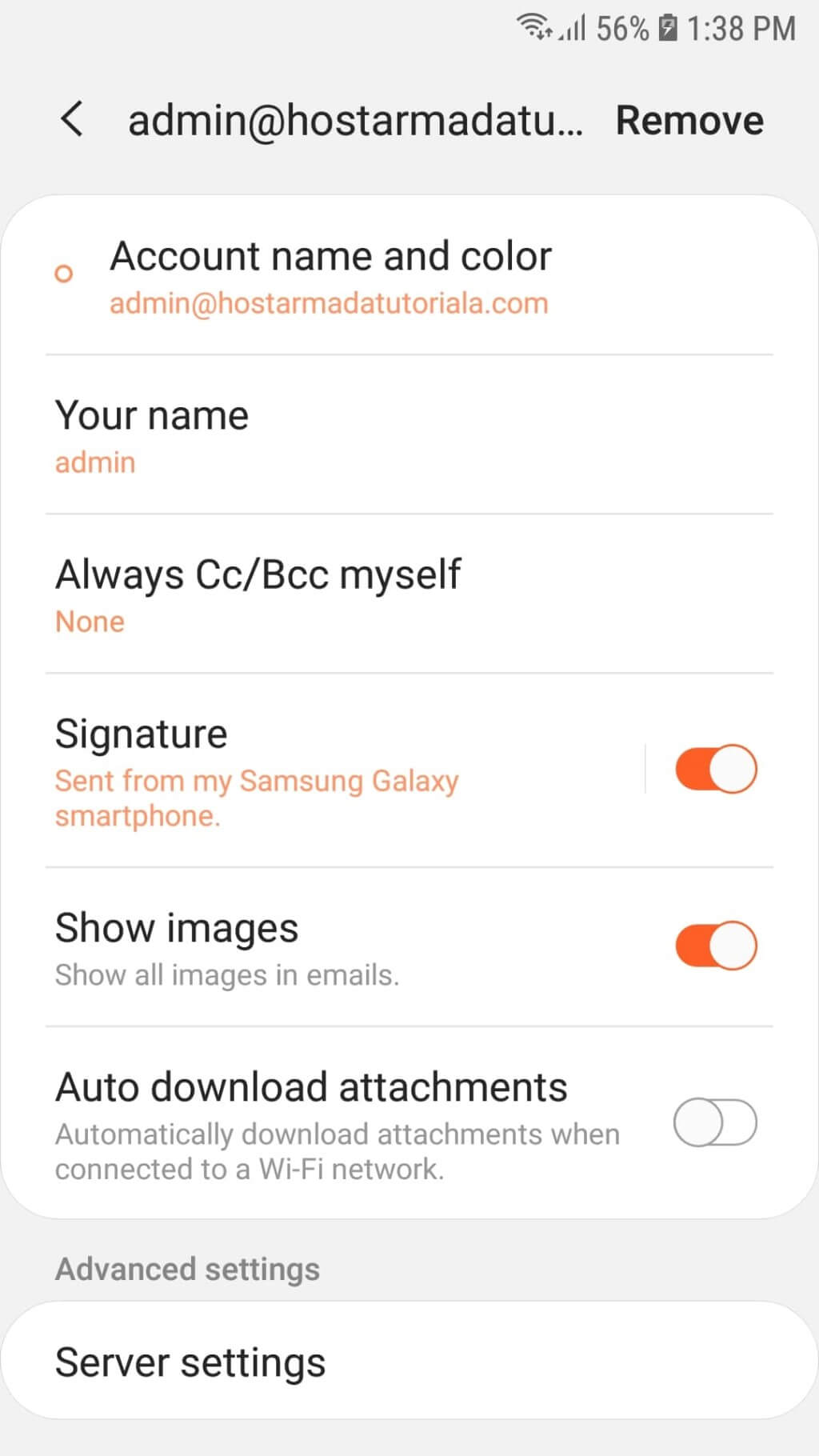
Your device will then display a new screen containing the account setup.
Editing the Android Email Setup
Scroll down to the Advanced settings section, located at the bottom of the screen. This section contains the Server settings you may need to update.
After you tap it, you will be taken to the Server settings screen. Here you will find the same settings you entered during the initial setup.
Beneath the Account section, you can modify the account password if needed.
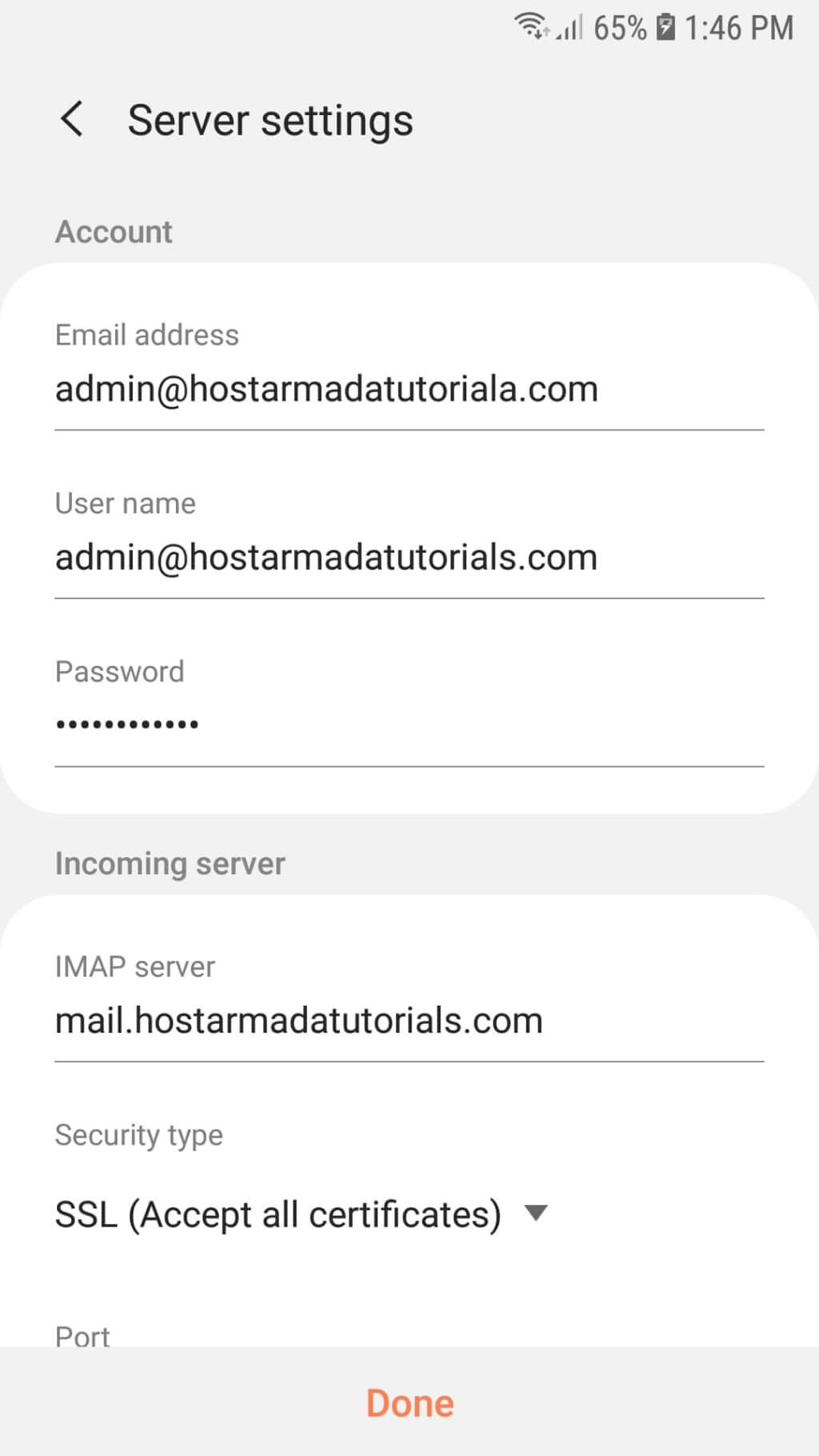
Under the Incoming server section, you can edit the IMAP/POP3 server, security type, and port.
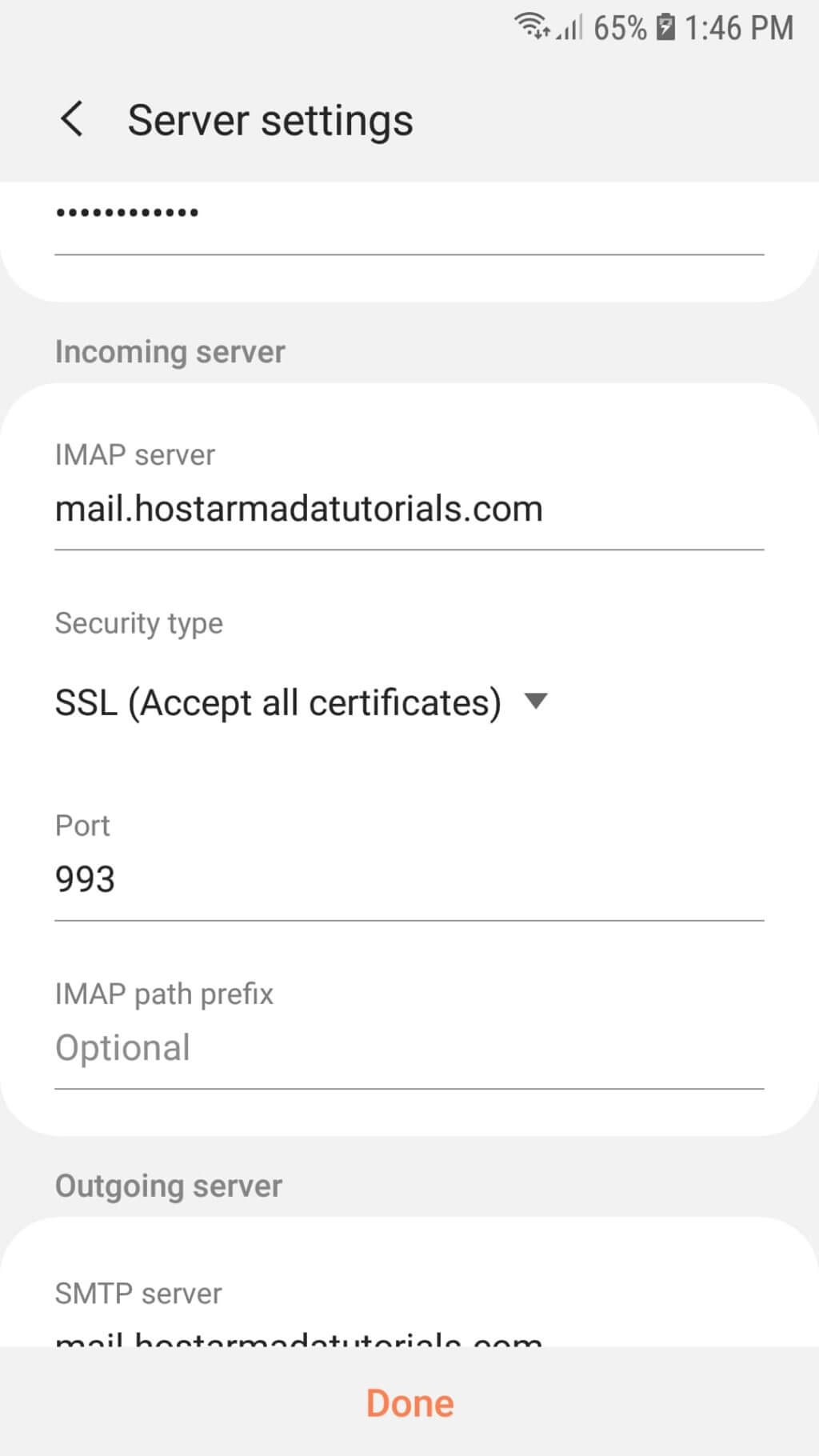
Under the Outgoing server section, you can edit the SMTP server, security type, port, and authentication options, including the username and password.
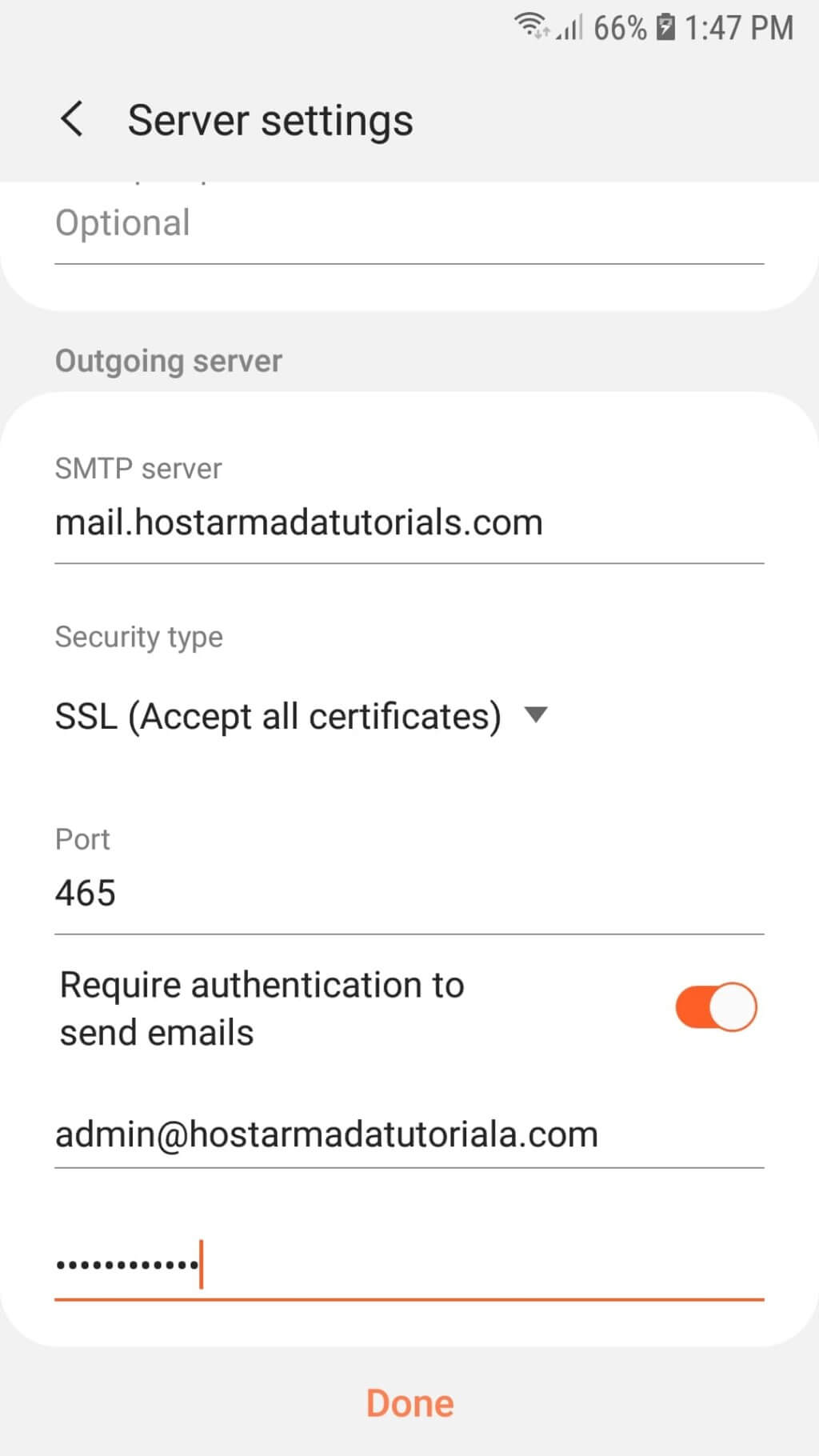
Tap the Done button to save your changes.
Deleting an Android Email Account
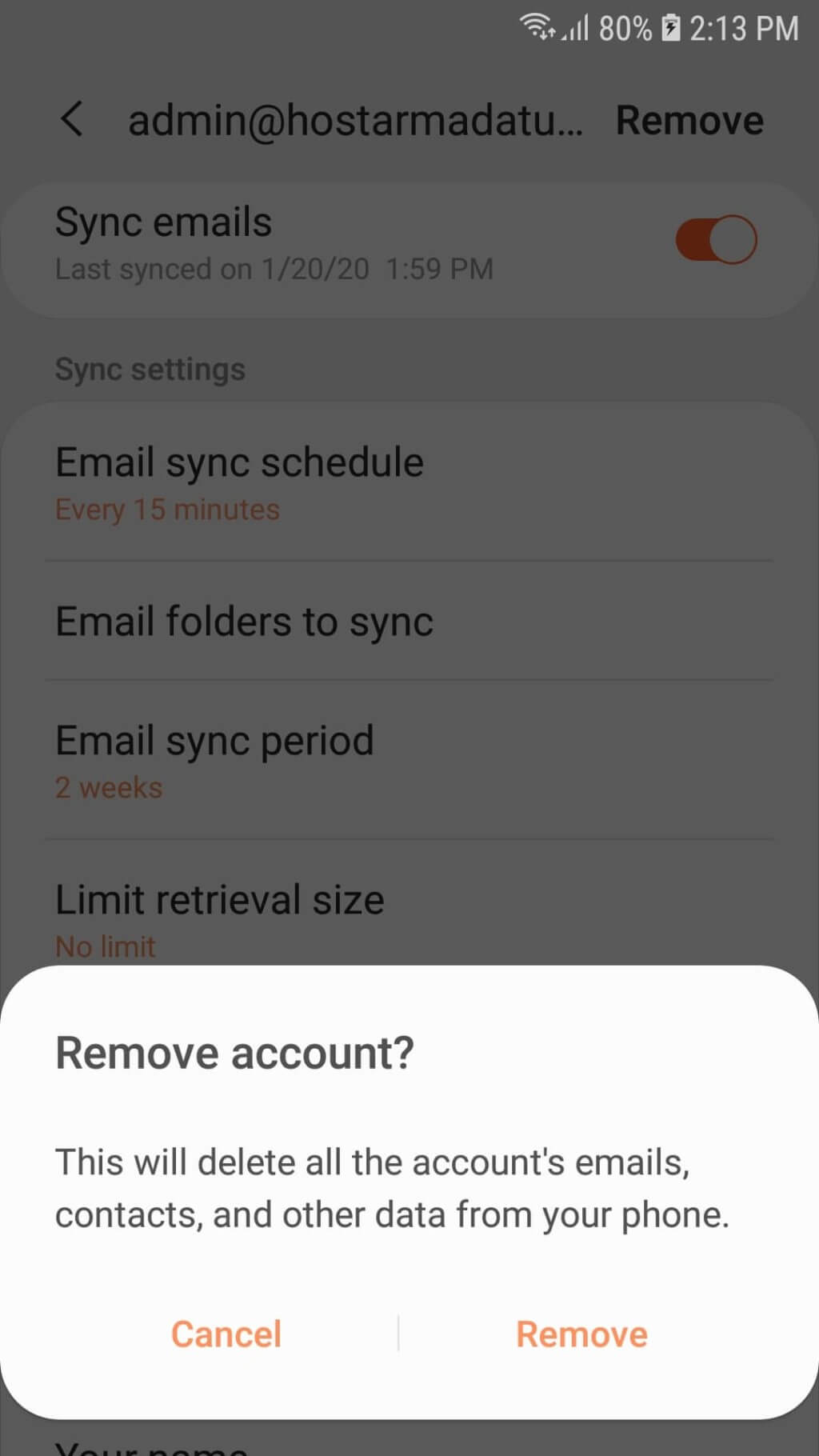
If you no longer need an email account, you can remove it with a single tap. After selecting the account under Email settings, you will see the Remove option at the top right corner of the screen next to the email address.
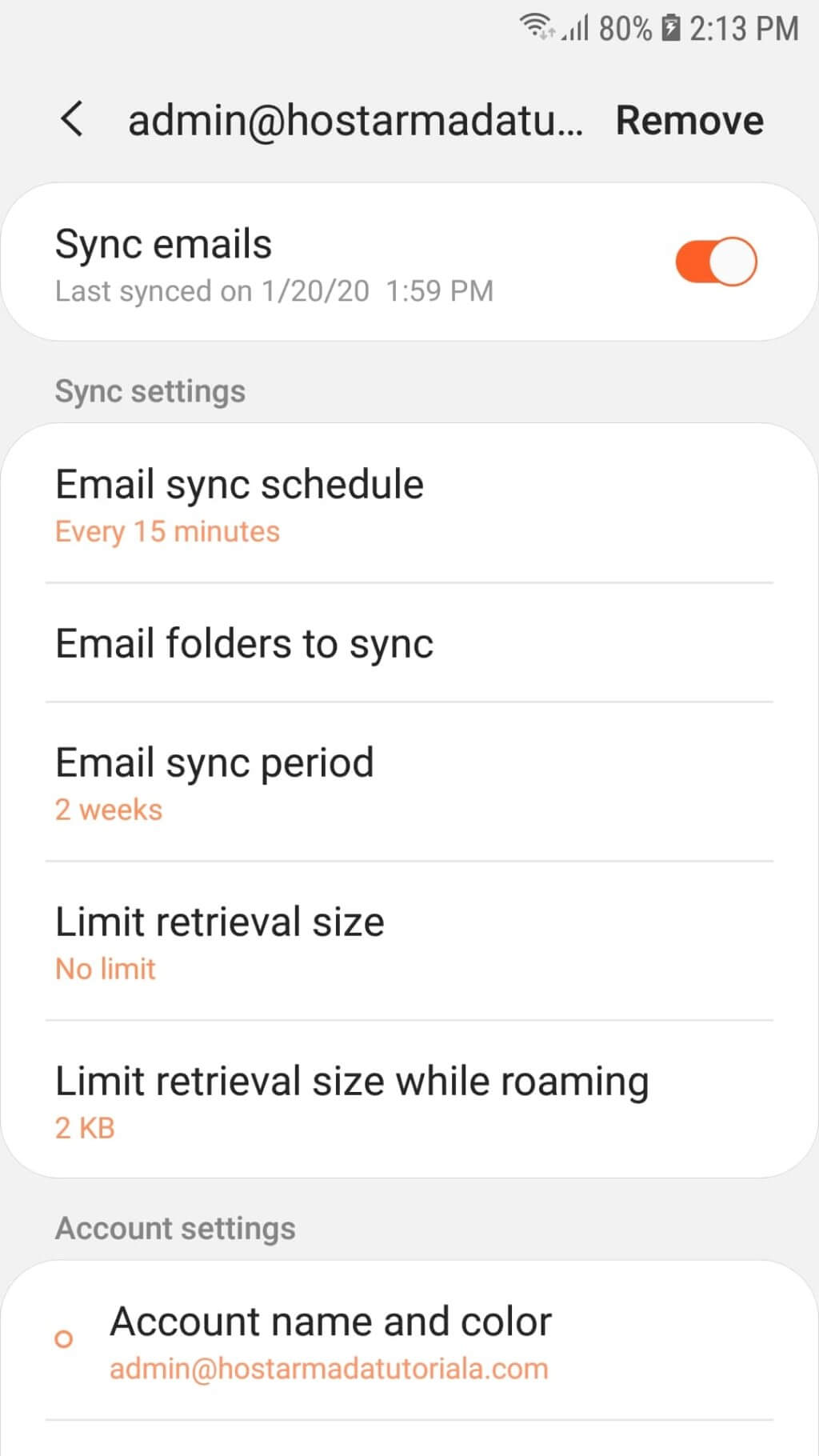
After tapping it, confirm the deletion by selecting Remove again in the confirmation pop-up.
Great job! You now know how to modify and delete email settings on your Android device. If you have further questions, feel free to contact our Support Team, available 24/7 to assist you.












