Introduction
Gmail is one of Google’s most widely used applications and a trusted email platform recognized around the world. It provides a simple and reliable way to send, receive, and manage messages from any device. Using Gmail on your Android phone or tablet allows you to conveniently access your emails on the go while benefiting from Google’s highly optimized interface and security.
This tutorial will guide you step-by-step through the process of setting up your custom email account inside the Gmail app on your Android device. By the end of this guide, you will be able to send, receive, and manage emails from your hosting account directly from Gmail.
Getting Started
Please note that this tutorial assumes you have already created an email account under your hosting package. If you have not done so, please refer to our tutorial on Managing Email Accounts in cPanel.
Before proceeding, make sure you have the correct configuration details for your email account. You will need the following:
- Email Account (example: support@yourdomain.com)
- Email Password
- IMAP or POP (Incoming) Server and the correct port number
- SMTP (Outgoing) Server and the correct port number
If you are a SIRSTEVEHQ customer using our email services, the necessary configuration details can be found in your "[SIRSTEVEHQ LIMITED] New Hosting Account Information" email. These details are automatically sent to you when your hosting account is created.
You may also retrieve your email configuration settings from your cPanel dashboard by navigating to: EMAIL → Email Accounts → Connect Devices.
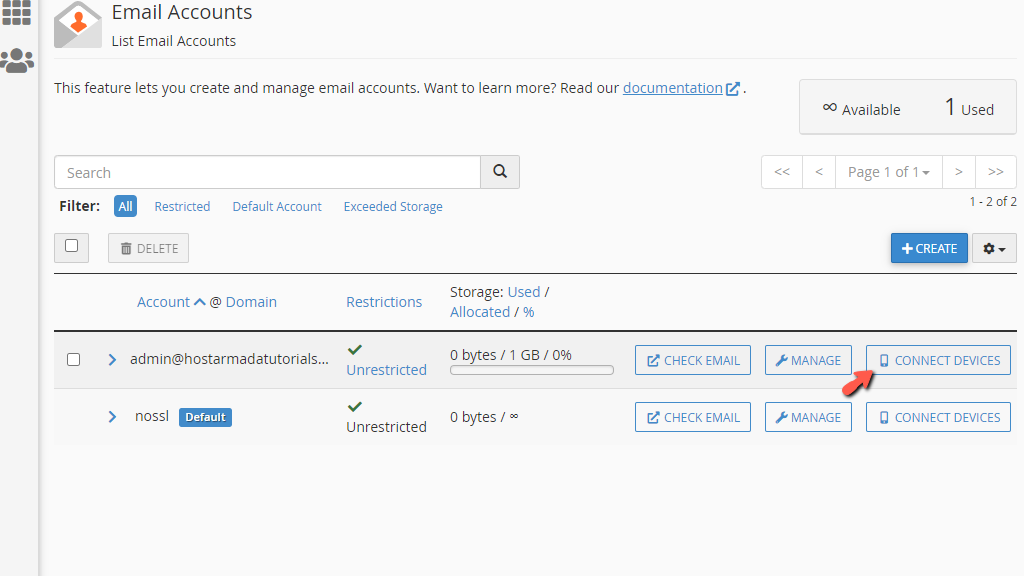
If you are unable to locate your email configuration details, feel free to submit a support ticket, and our team will provide them for you.
How to Start the Gmail Email Setup on Android
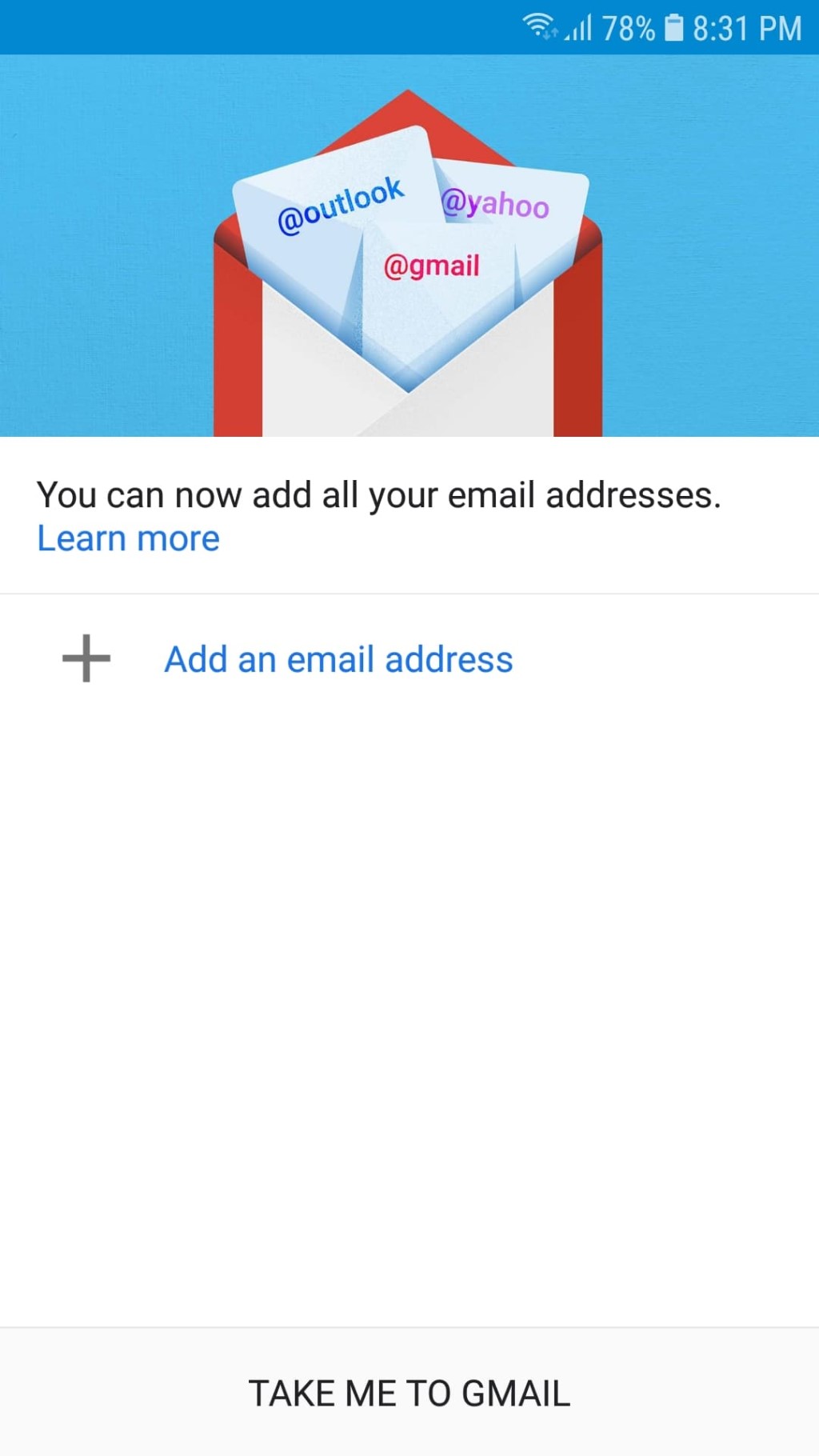
To begin, open the Gmail app on your Android device. If no accounts are configured yet, Gmail will display the option “Add an email address”. Tap it to start the setup.
If you already have emails configured in Gmail, tap your profile icon at the top right corner of the screen and select “Add another account”.
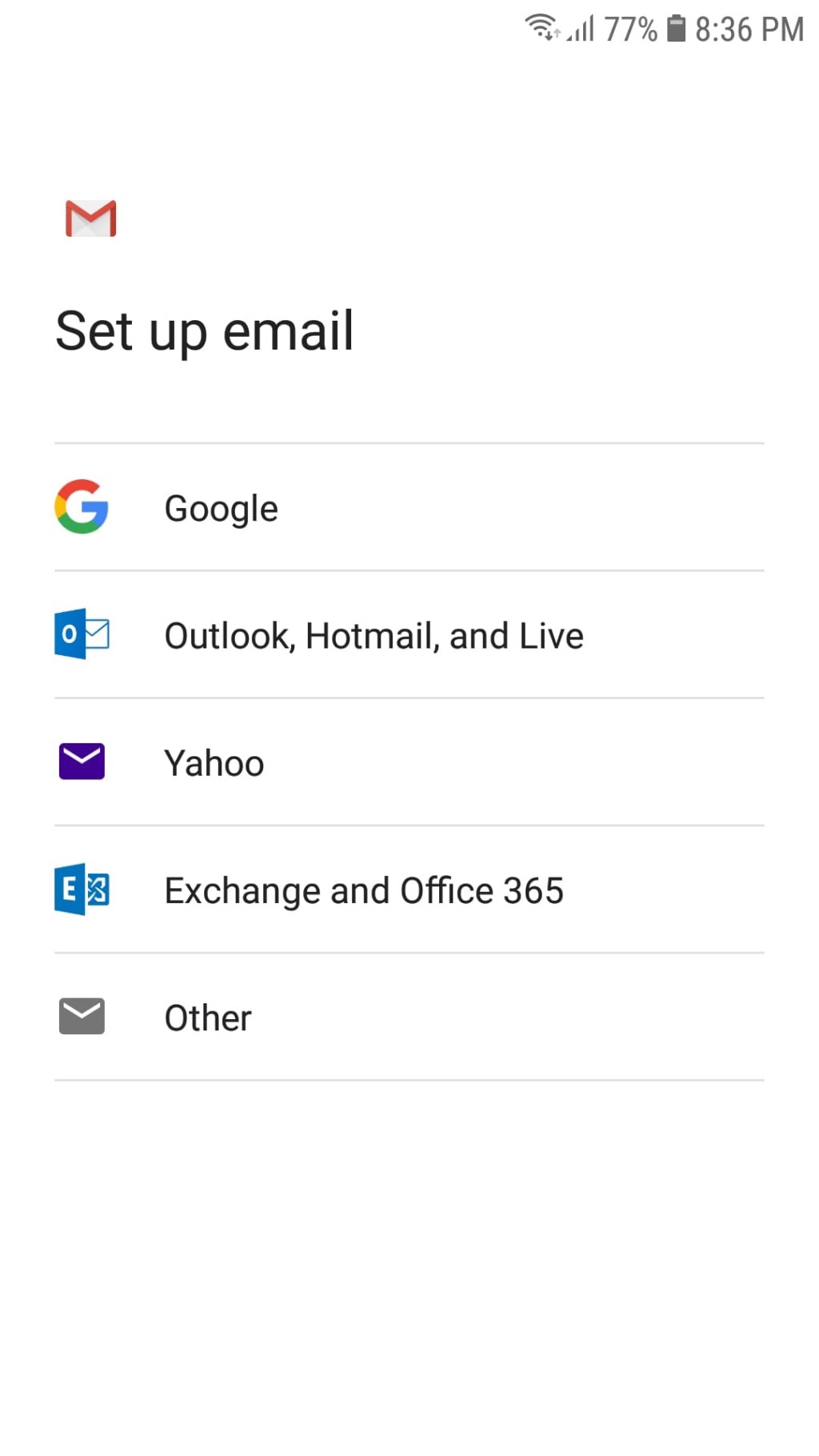
After selecting to add an account, you will be directed to the “Set up email” screen. From the list of options displayed, choose “Other” to configure a custom email address (such as those created in cPanel or SIRSTEVEHQ hosting).
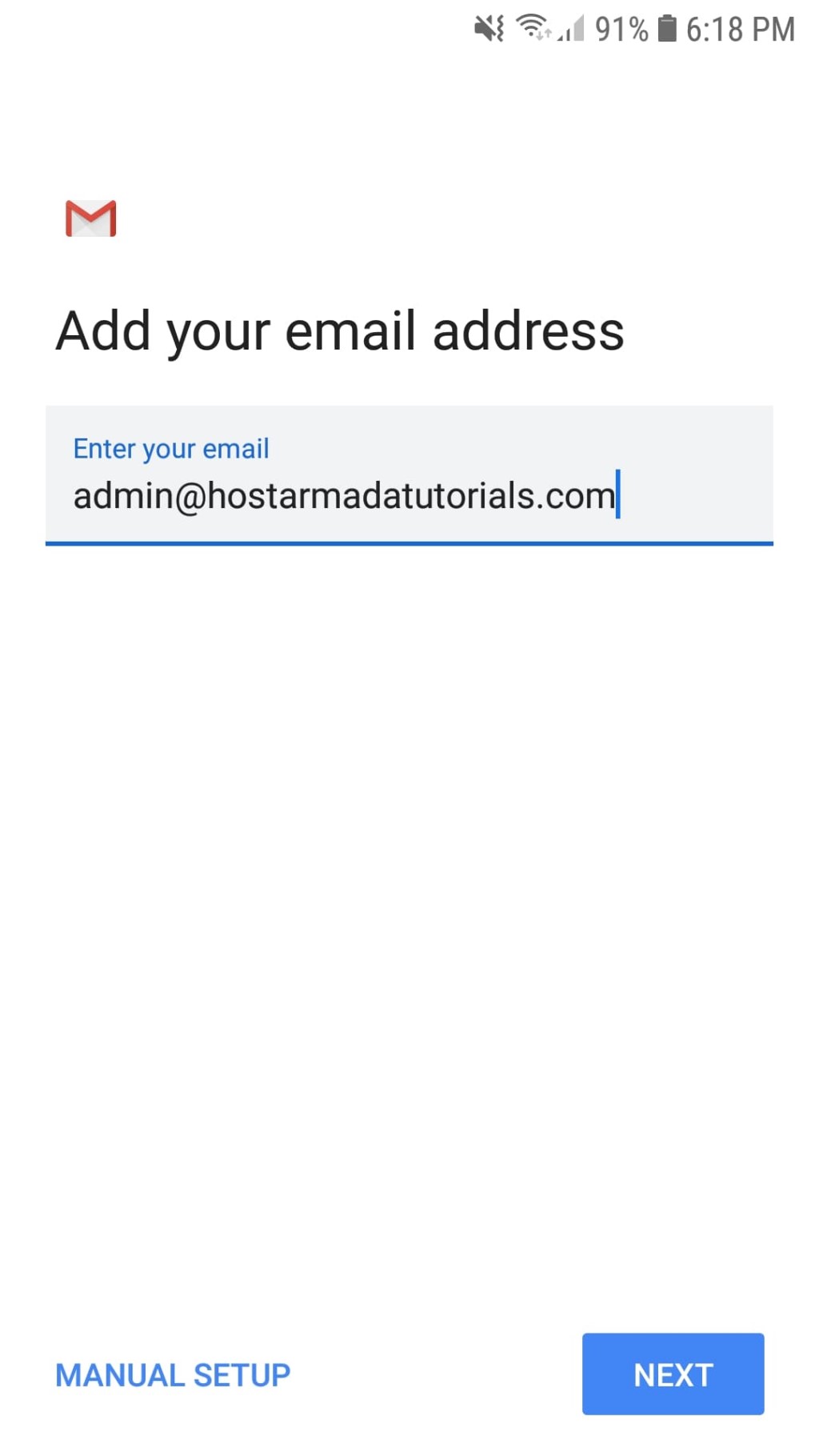
At the next screen titled “Add your email address”, enter your full email address and then tap “Manual Setup”.
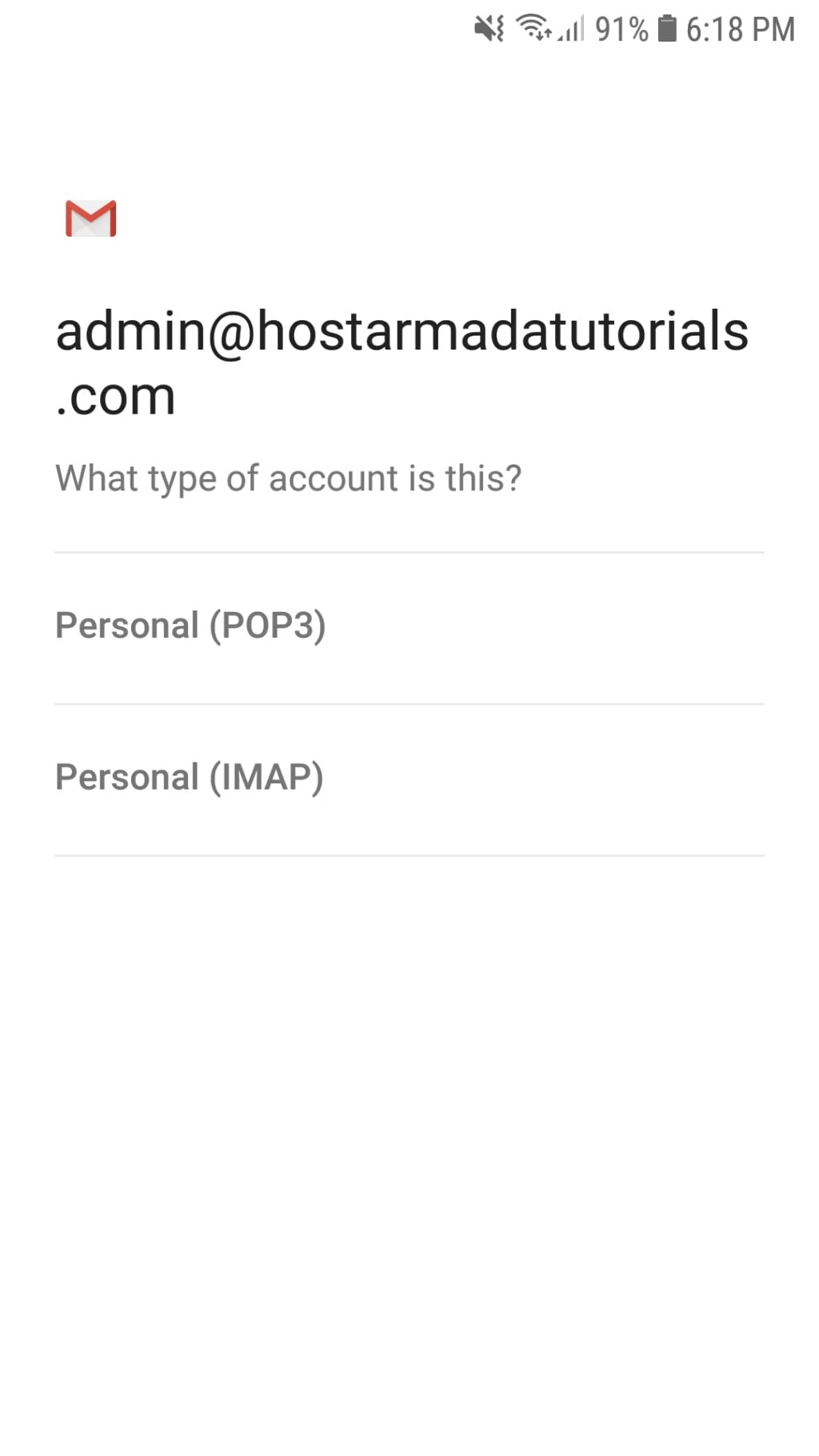
You will now be asked whether you want to set up your email using IMAP or POP3. Both options work, but IMAP is recommended because it synchronizes your emails across all devices. Select the option that best suits your needs.
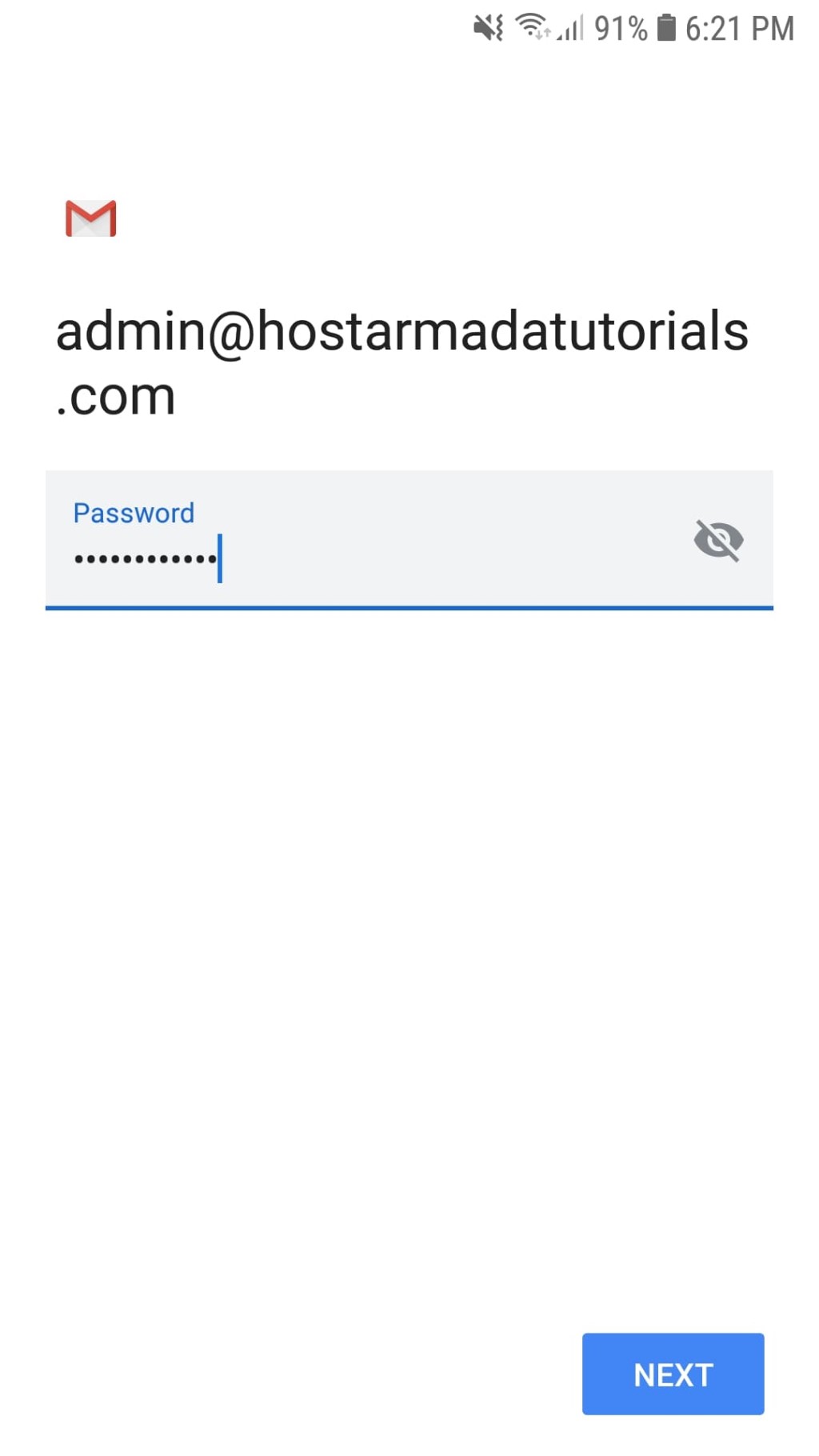
Next, enter your email account password and press “Next”.
Incoming Server Settings
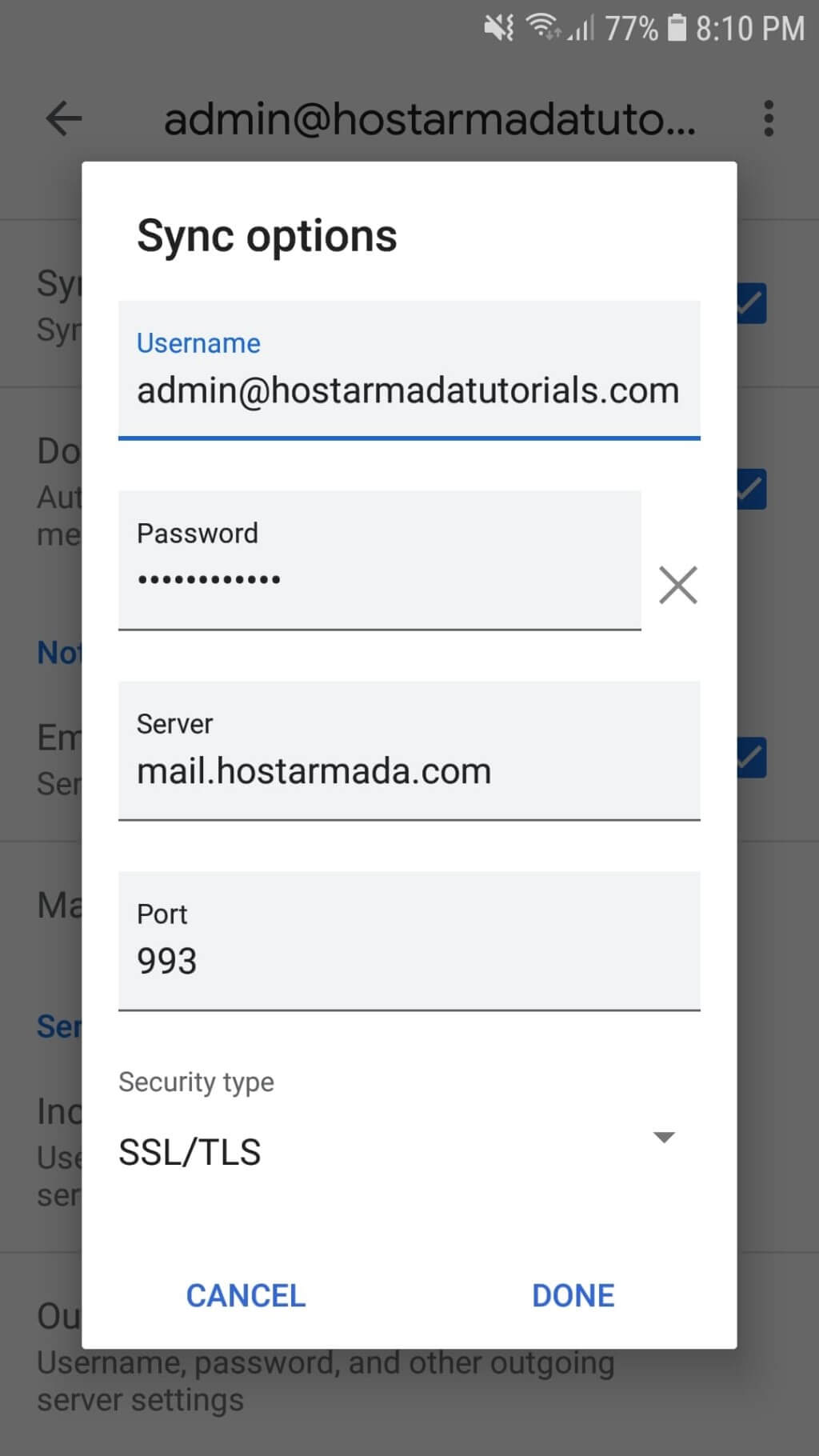
At the Incoming Server Settings screen, you will be required to enter the following details:
- Username – In most cases, this will be your full email address.
- Password – This should already be filled in automatically.
- Server – This is usually mail.yourdomain.com. Replace yourdomain.com with your actual domain. Alternatively, you may use your server’s hostname.
Outgoing Server Settings
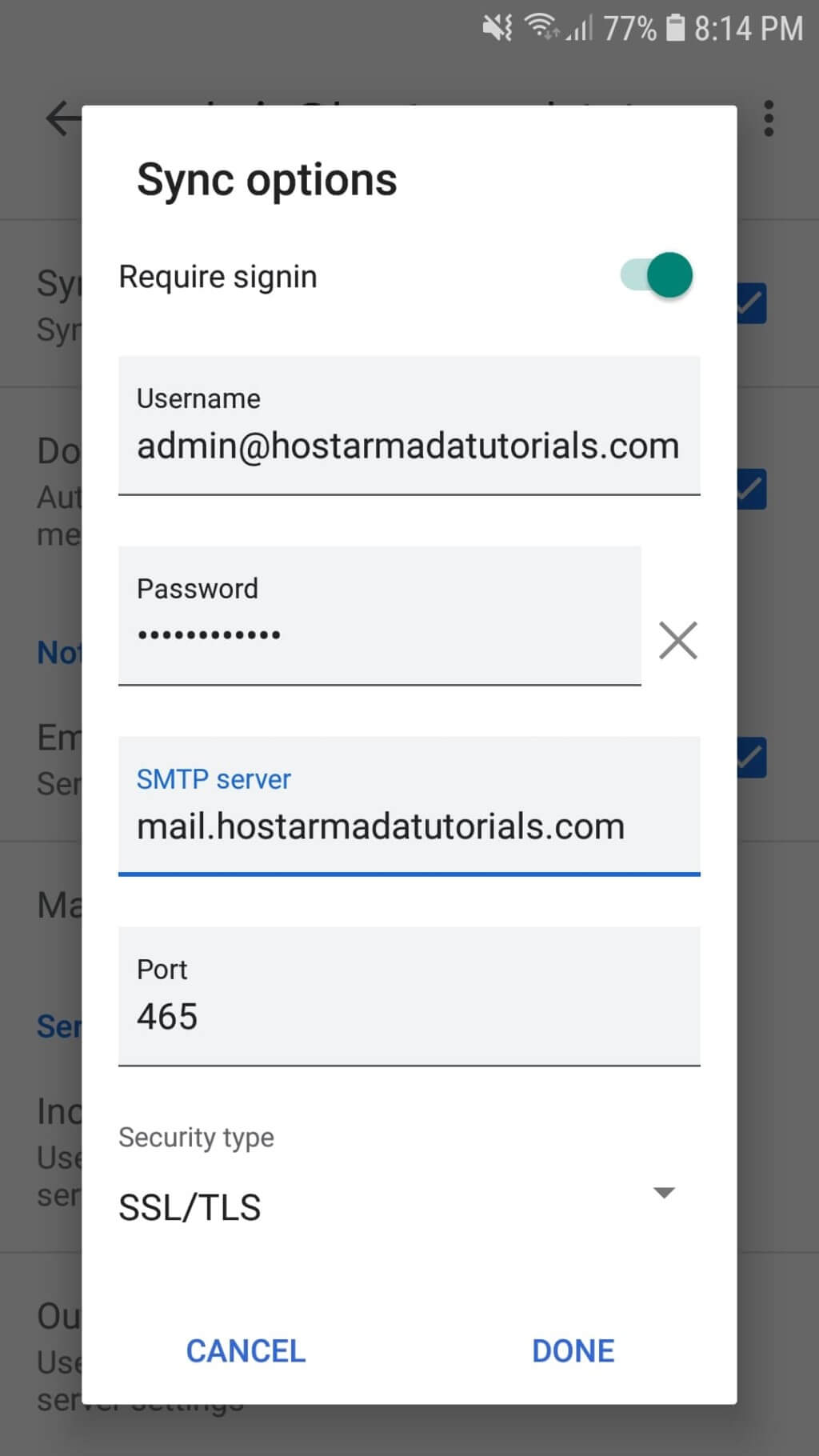
You will now configure the SMTP settings. Ensure the following:
- Require sign-in: This must be enabled.
- Username: Your full email address.
- Password: Your email password.
- SMTP Server: Usually mail.yourdomain.com or your server hostname.
Once completed, tap “Next”.
You will then be prompted to configure synchronization settings, including how often Gmail checks for new messages. Adjust these settings according to your preferences.
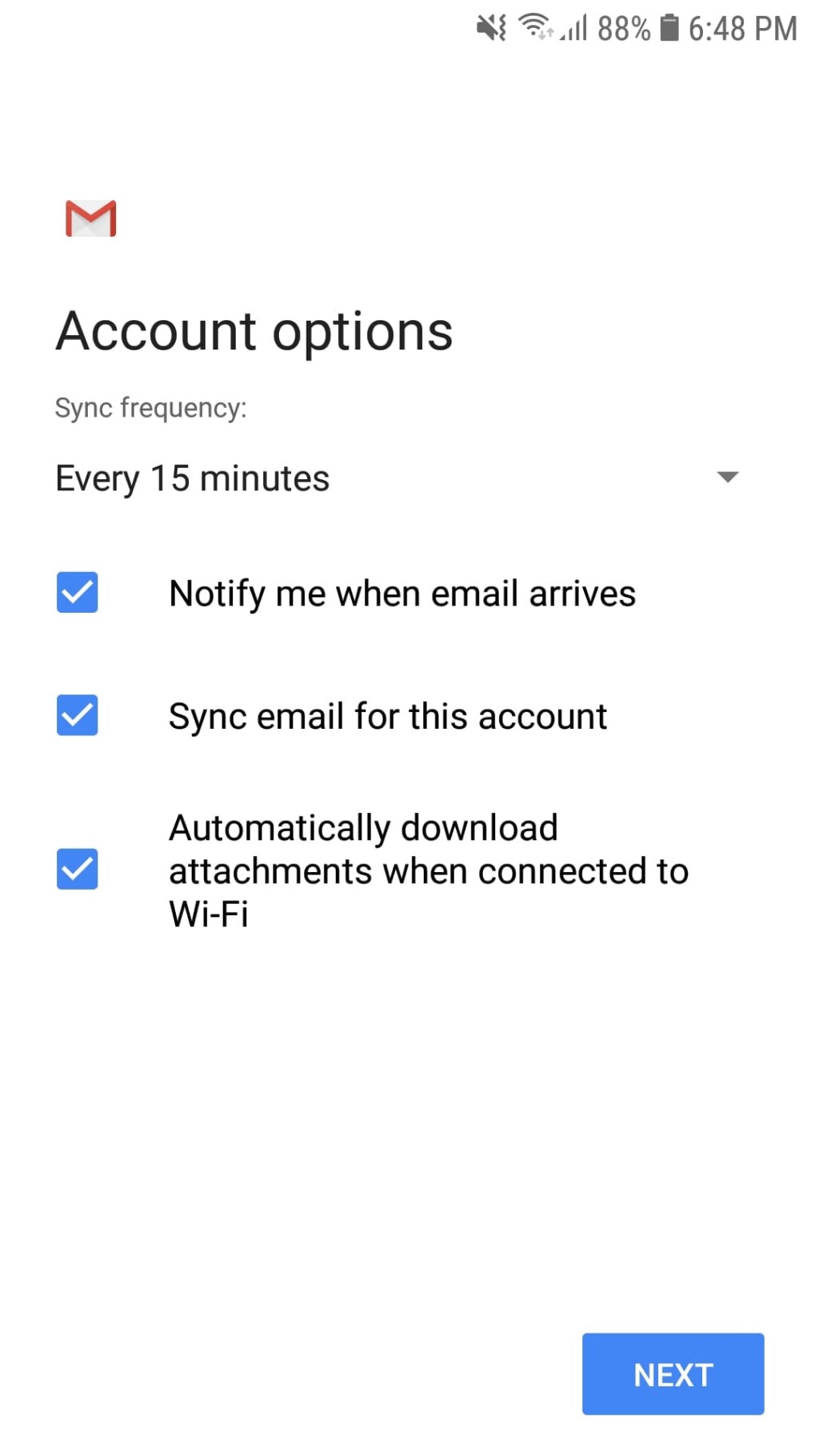
After confirming your sync options, tap “Next” again.
You will now be able to set your Account Name and Display Name, which determine how your name appears when recipients receive your messages.
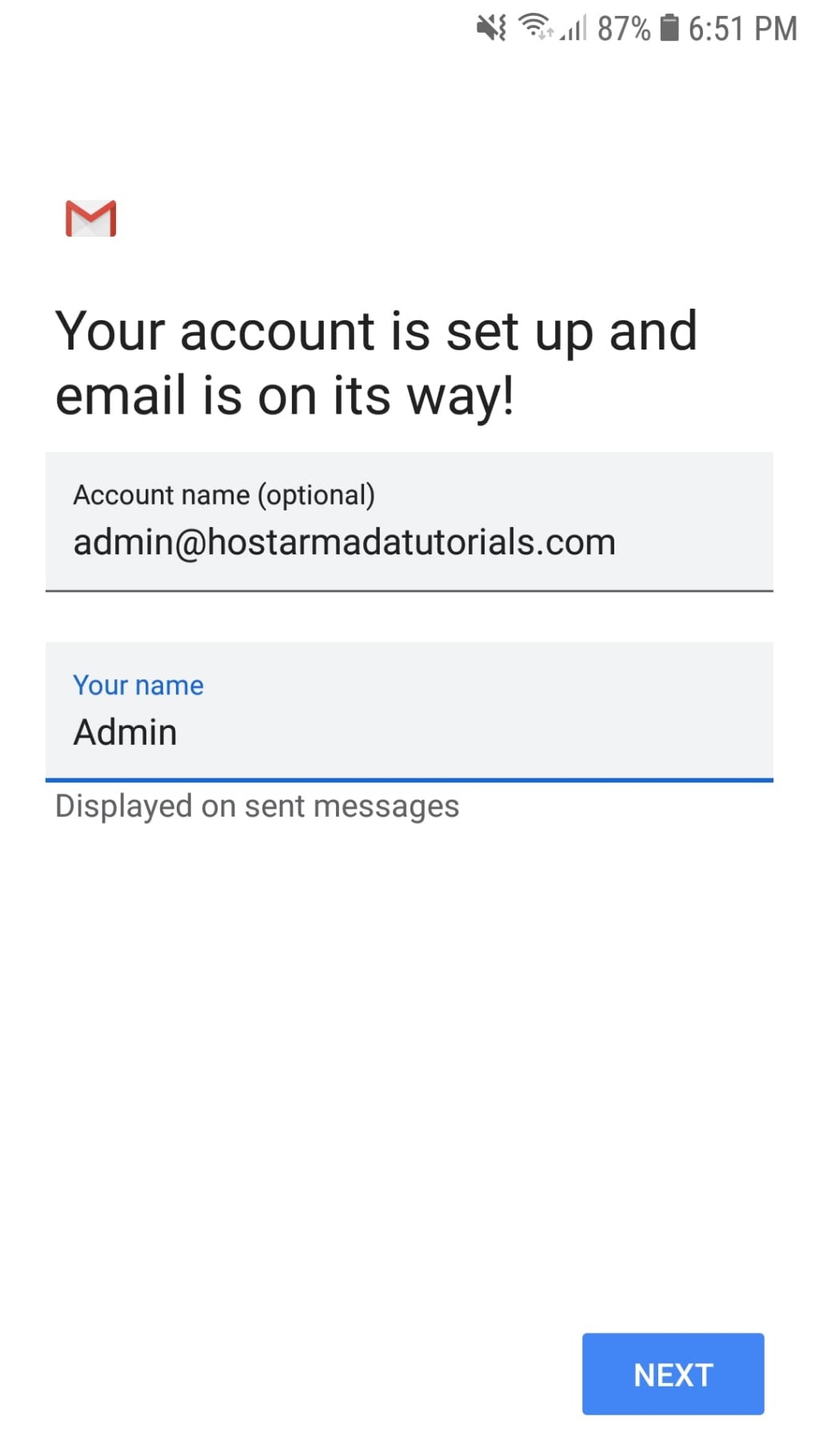
Once you save your settings, your custom email account will be fully configured and ready for use in the Gmail app.
Congratulations! You have successfully set up your email address on your Android device using the Gmail application. If you need further help at any point, feel free to contact our Support Team.












