Introduction
There will be times when your Email Account properties change. Whether you decide to move from one provider to another or change your email password, you will need to re-configure your account settings. In this guide, we will walk you through the process of reviewing and modifying your email settings, as well as removing existing email accounts set up in the Gmail App on your Android Device.
Accessing the Email Settings in the Gmail App on Android
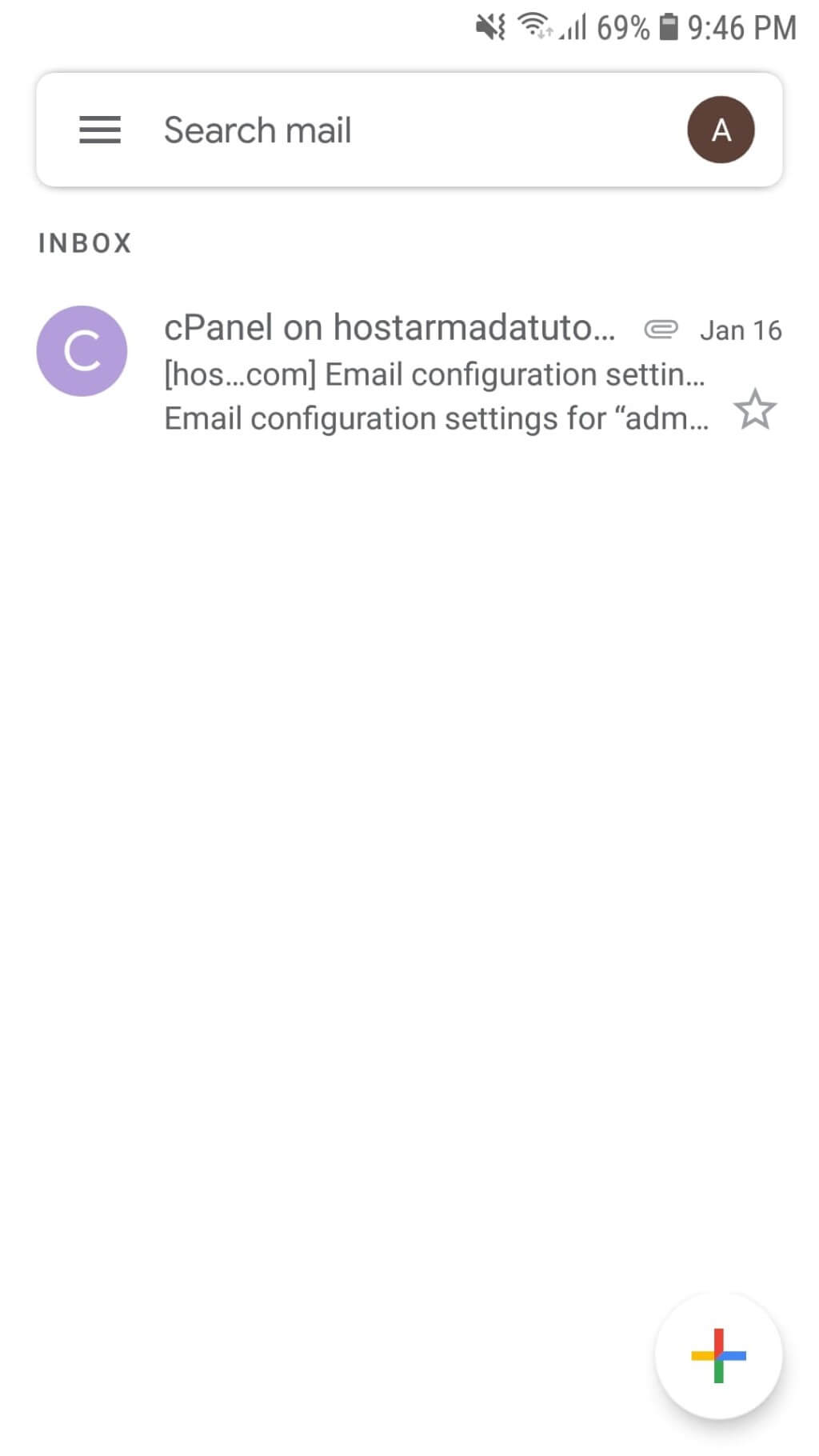
Firstly, please open the Gmail application on your Android device and click on the triple bar icon located at the top left corner of the screen.
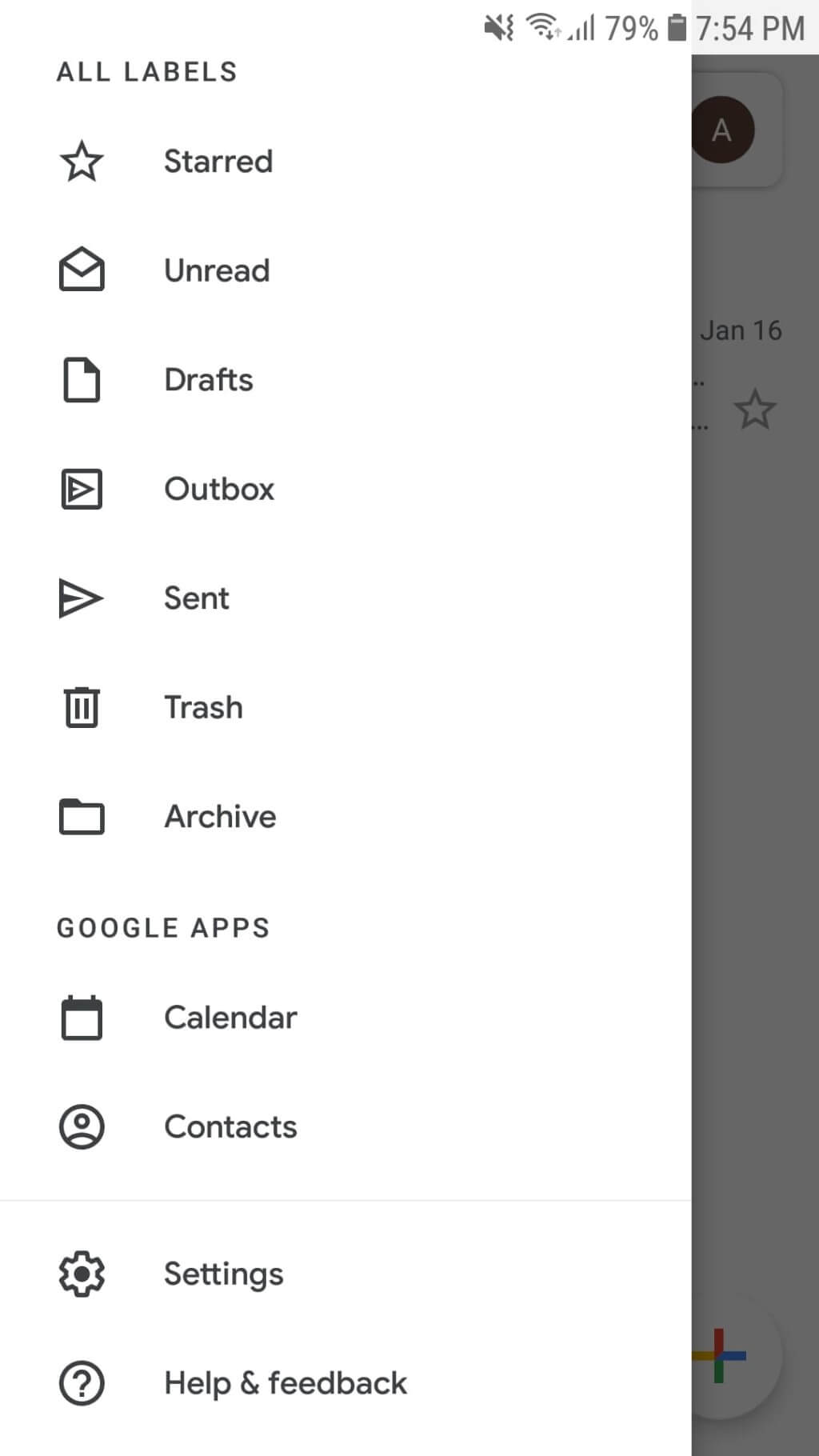
Afterward, please select the "Settings" option from the pop-up menu, which will appear on your screen's left side.
Once you access the "Settings" section, you will see a list of all Accounts currently configured on your email application.
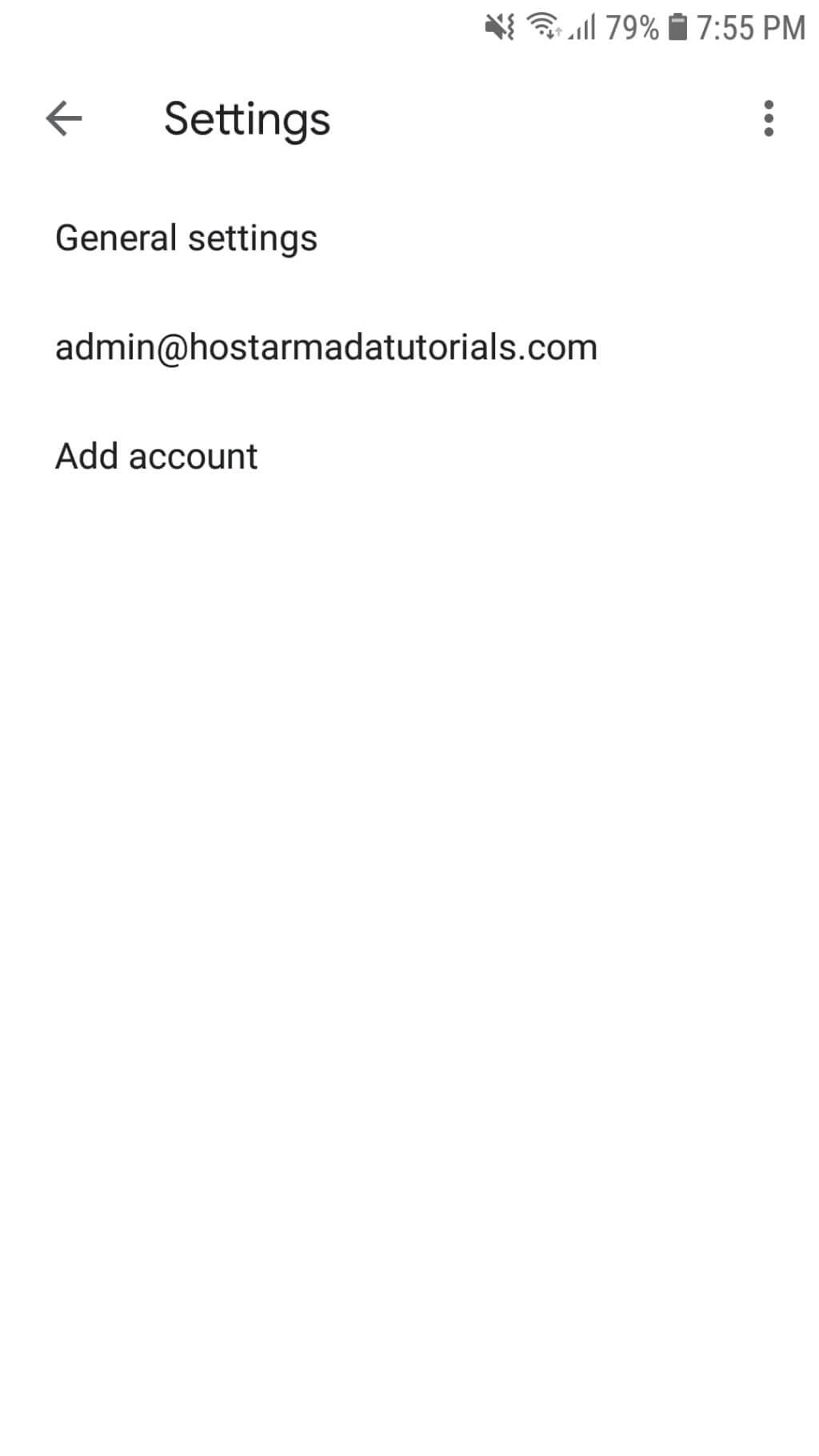
Please select the email you desire to review or modify.
How to edit the Gmail app's settings for your email on Android
Once you select the email, the Gmail app will redirect you to the account settings section. As you will notice, the email address is indicated at the top of the screen to ensure you edit the correct email account.
At the very bottom of the screen, you will see the "Server settings" section where you will find the Incoming and Outgoing server settings of your account.
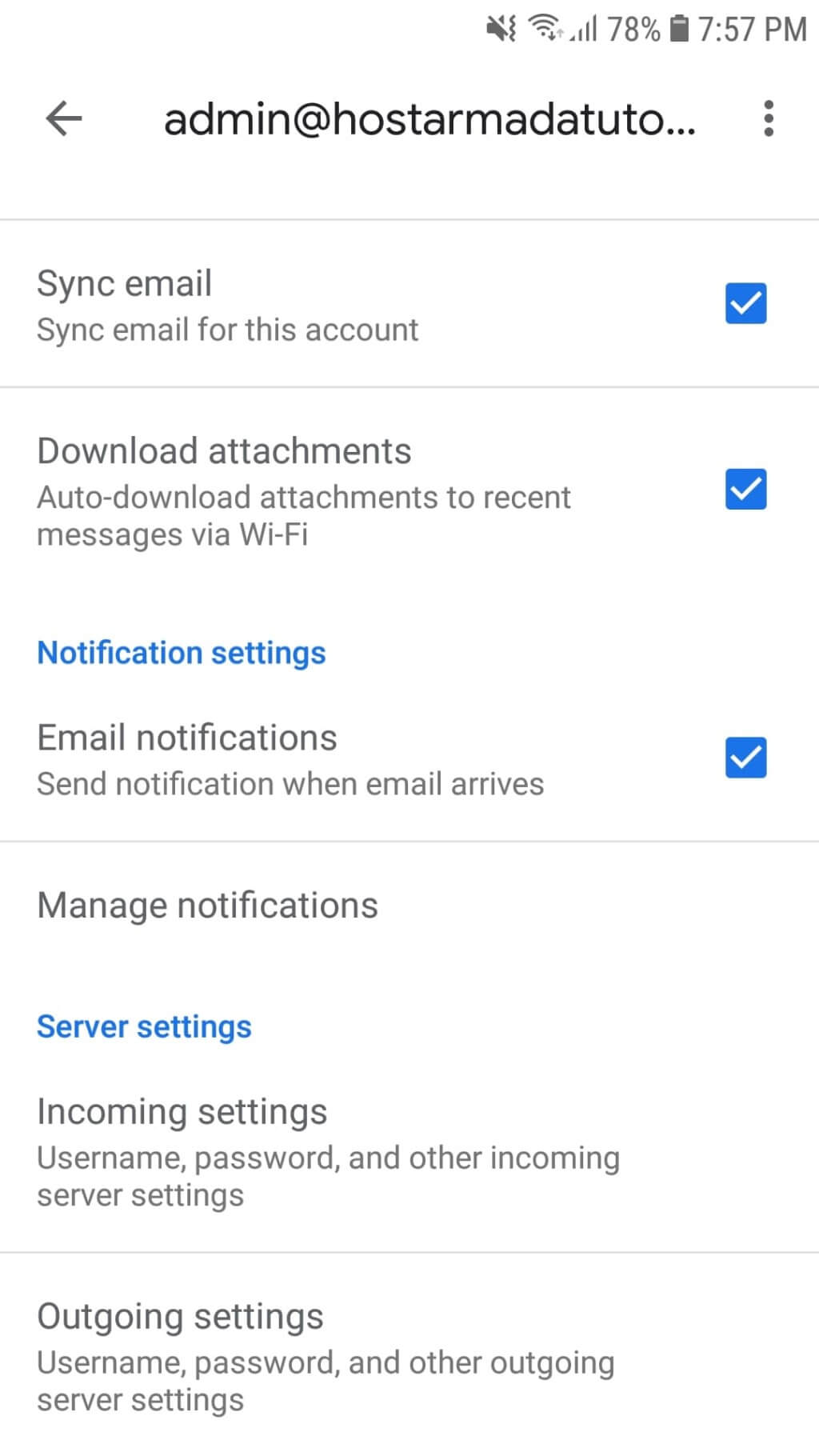
Let's first review the Incoming mail settings. After you click on "Incoming settings", the email application will display a new pop-up window containing the IMAP/POP3 email account settings:
- Username
- Password
- Server
- Port
- Security type
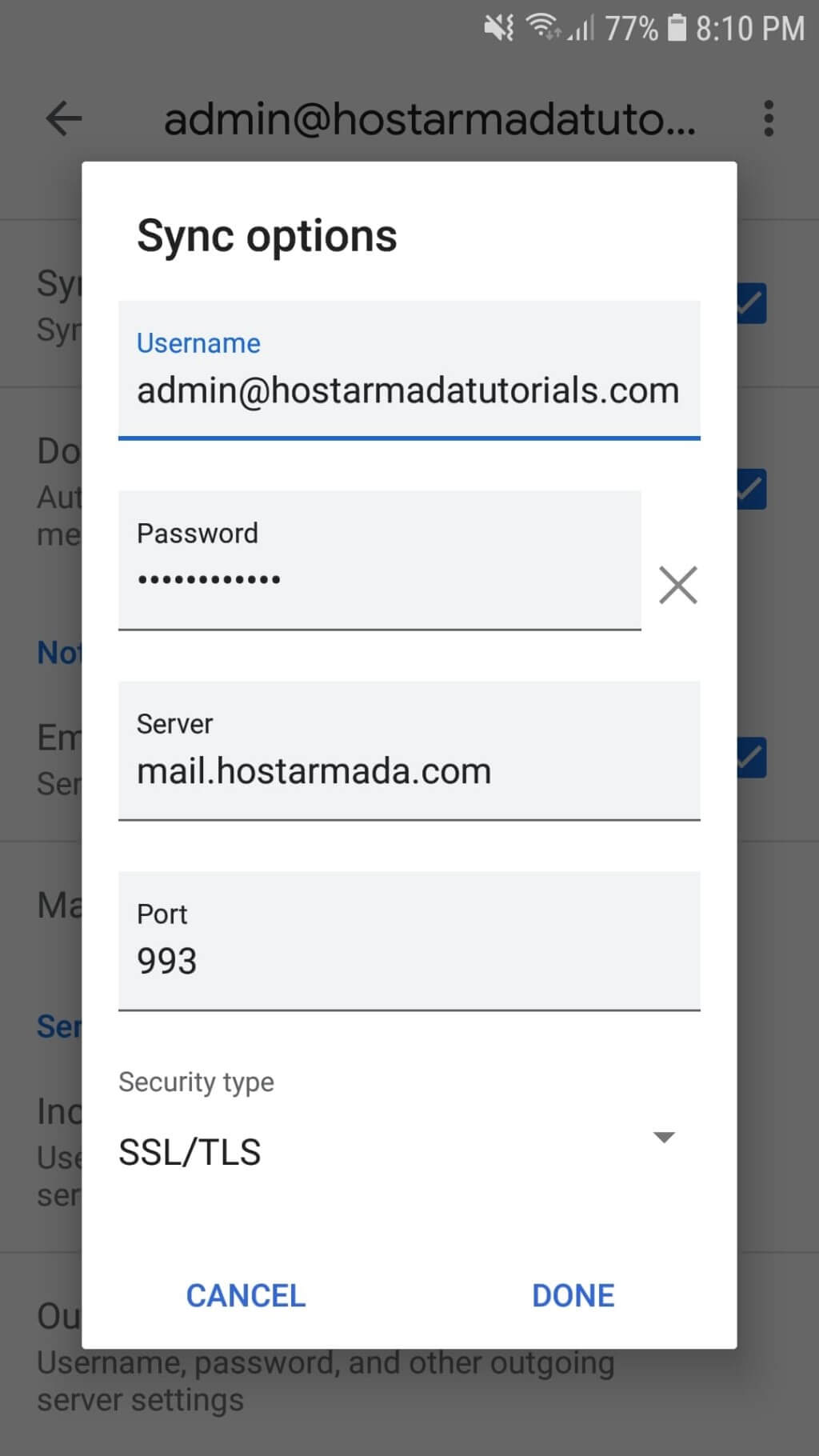
When you perform the intended changes, please do not forget to click on the "Done" button to save them successfully.
Now, please click on "Outgoing settings" and review your SMTP email account settings. As you will notice, the configurations are the same apart from the "Require sign-in" option, which should be enabled to authenticate the account on the server and send emails using your device.
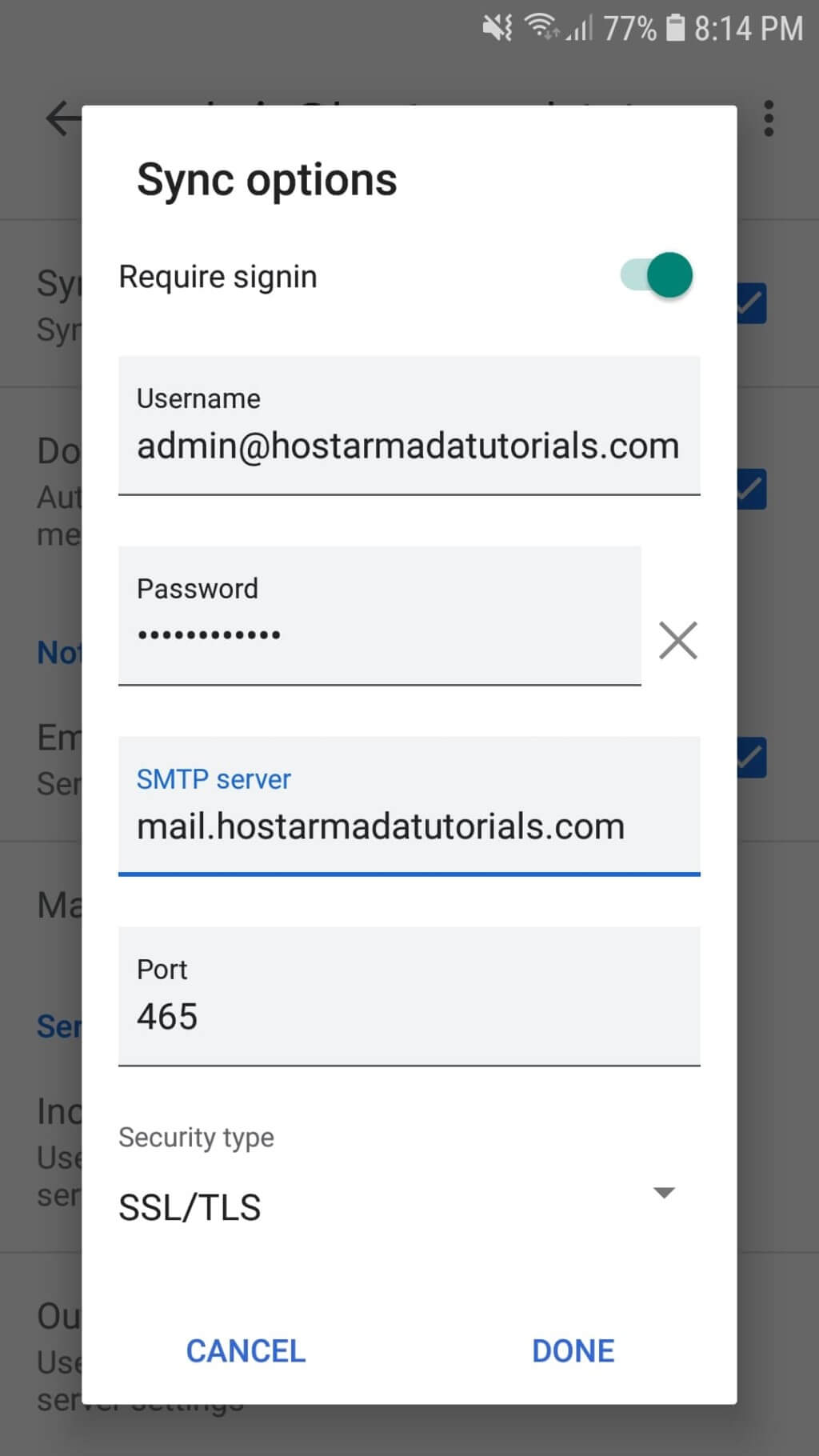
Once again, please make sure to click on the "Done" button when you perform the desired changes.
It is as simple as that. Now you are familiar with the process of editing your account settings, and you can perform any required changes or troubleshoot your email functionality.
How to remove emails from the Gmail app in Android
This section will show you how to eliminate old and unneeded Email Accounts set up in the Gmail App on your Android Device.
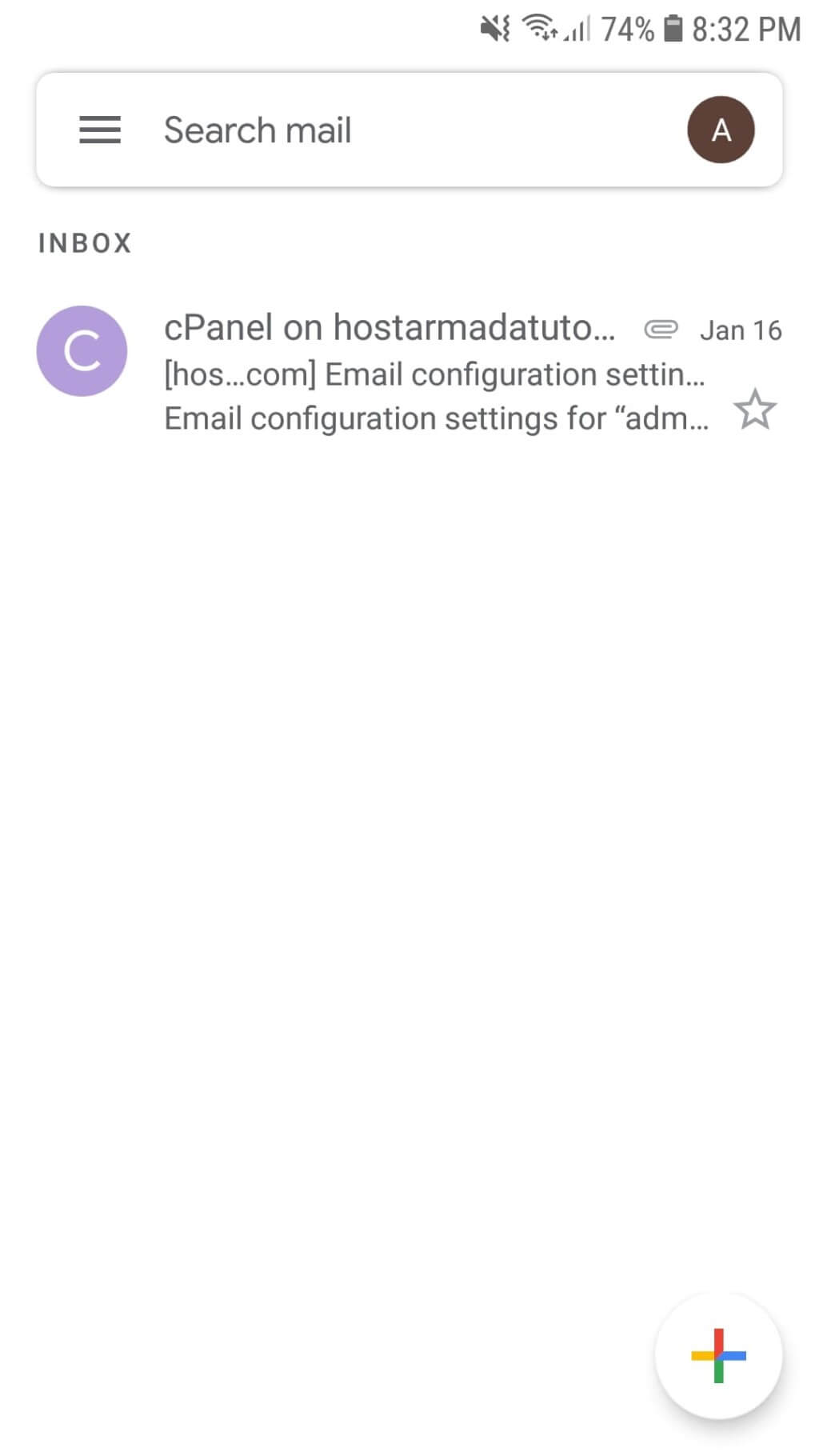
To do that, please go back to the starting point (the home screen of the Gmail App). Once there, please tap the small email account icon (or image, if you have configured such) located at the top right corner of the screen.
Afterward, a new pop-up window will appear. Please select the "Manage accounts on this device" option.
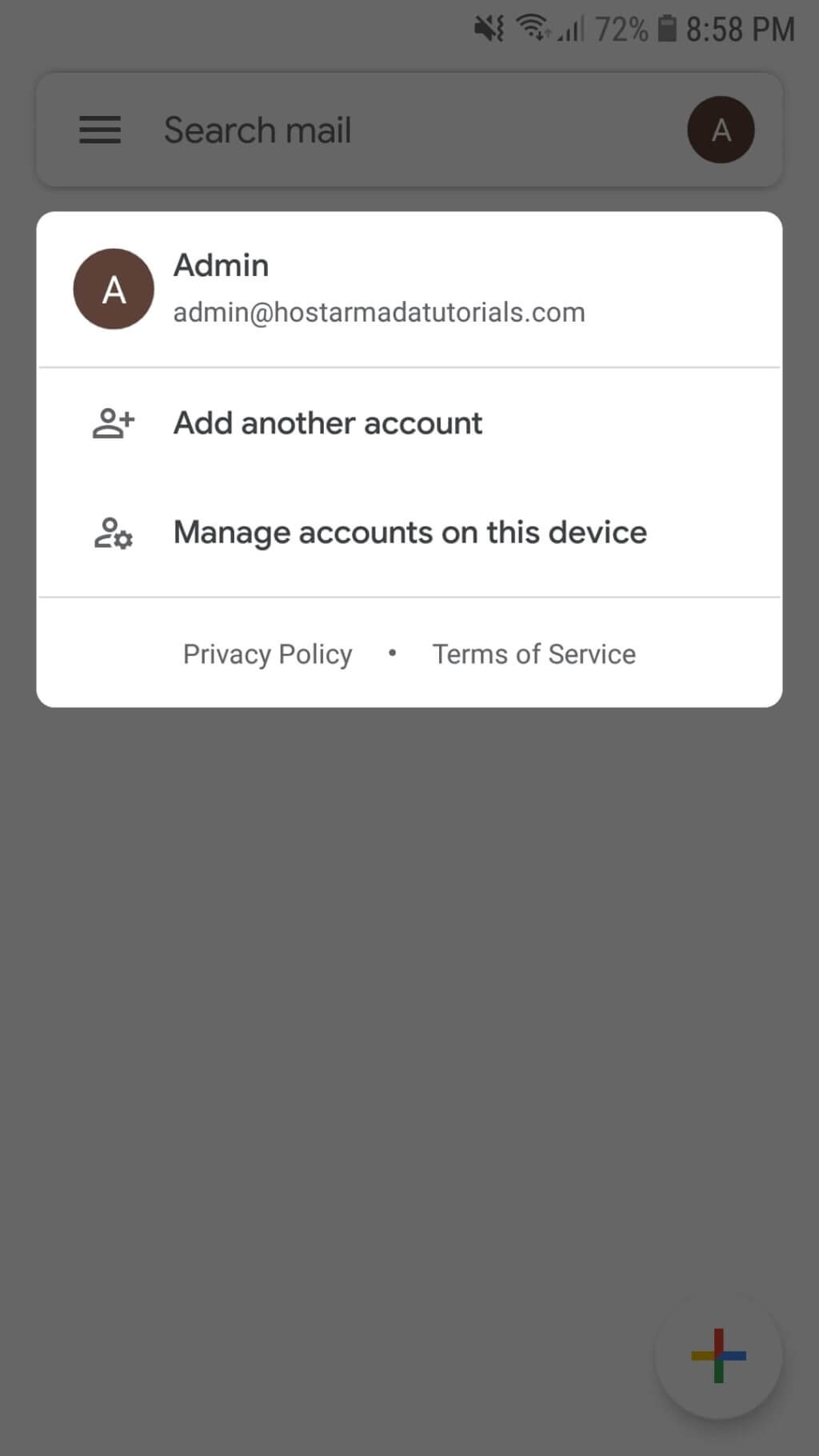
When you do the above, the email application will take you to the "Accounts" section, where you will see a list of all email accounts currently set up in the Gmail application. Please select the email you would like to delete.
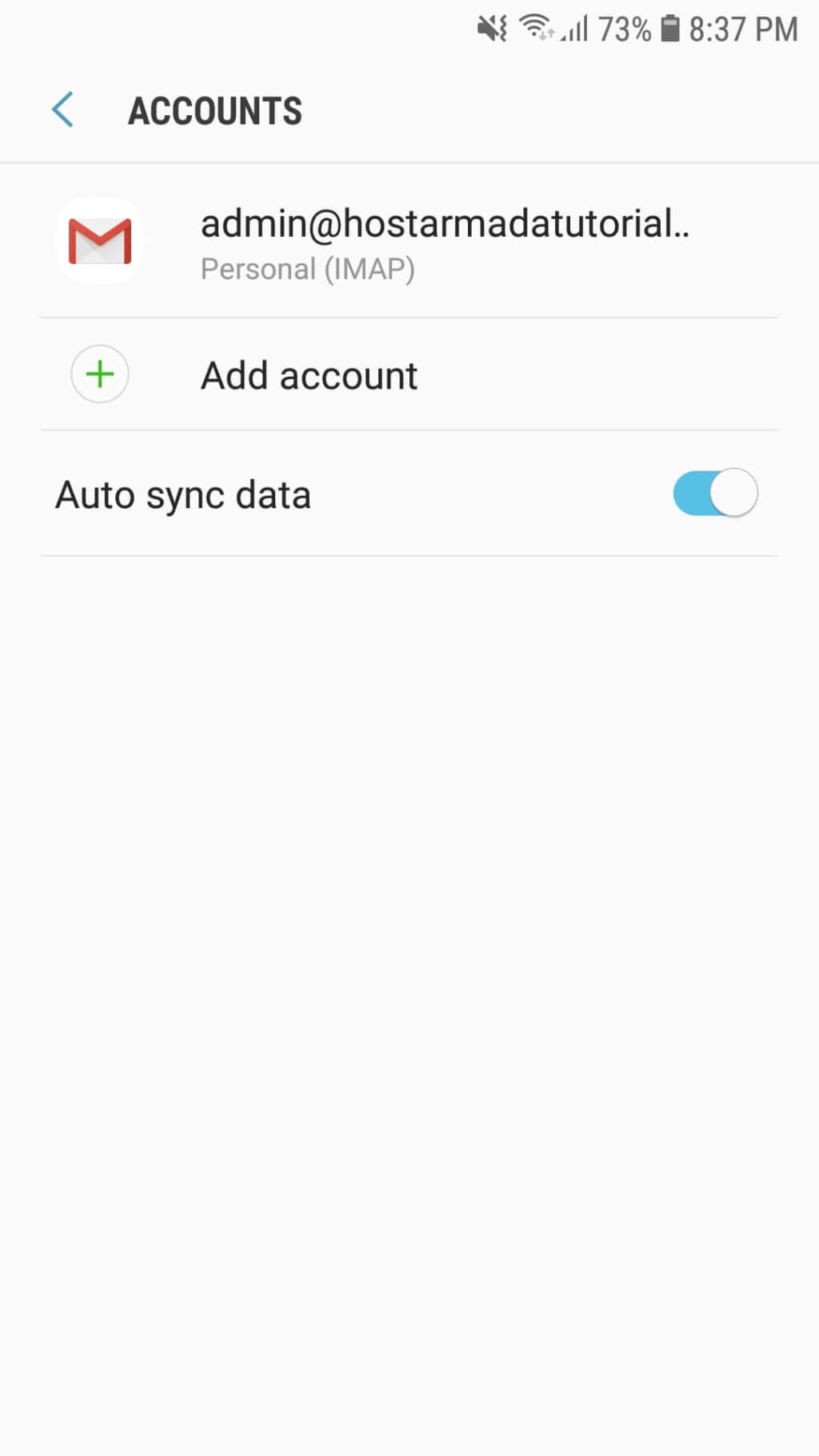
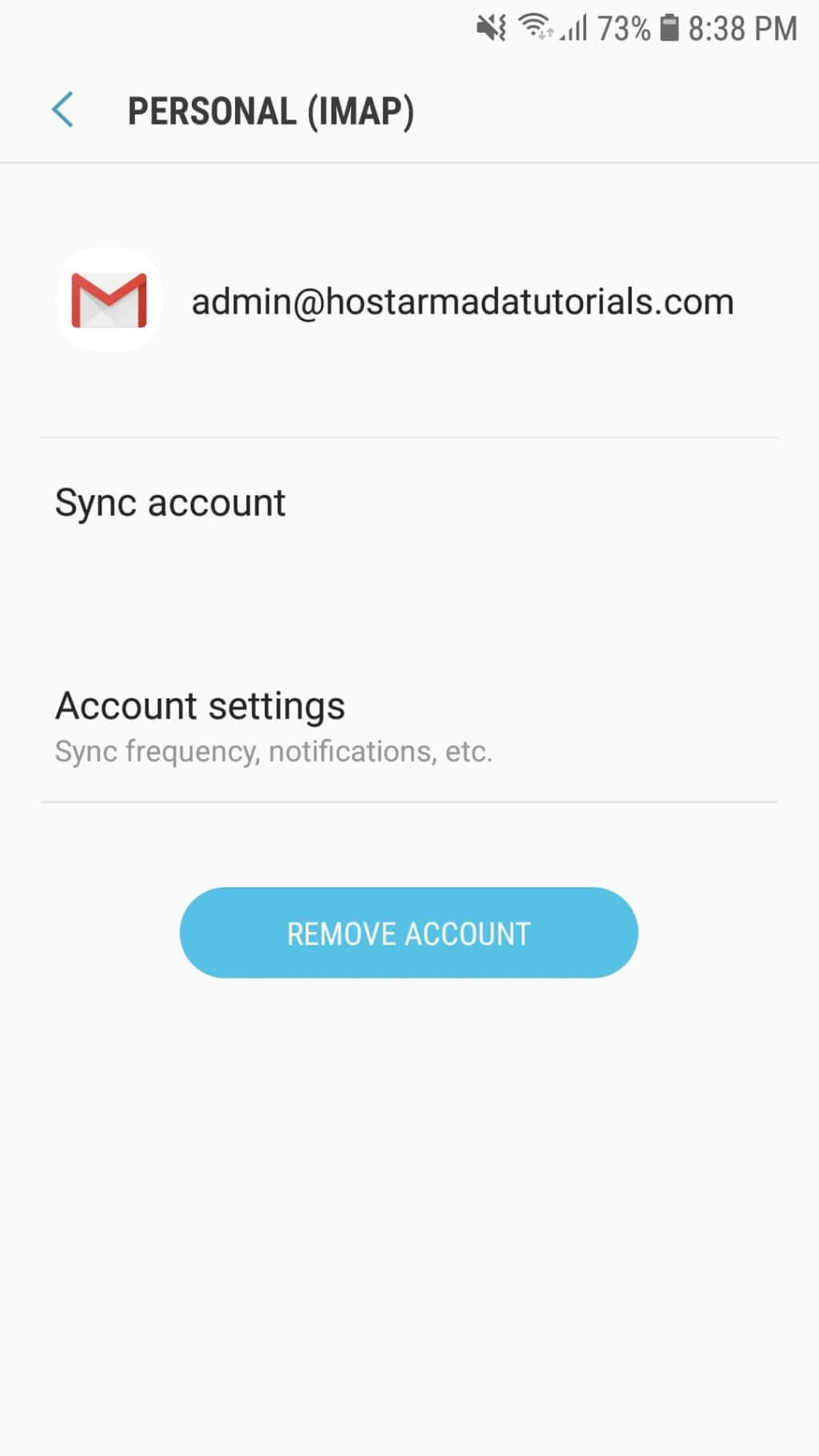
Finally, you will need to click on the blue "Remove Account" button.
Afterward, the Gmail application will show a warning, and you will need to tap on the "Remove Account" option to confirm the email account deletion.
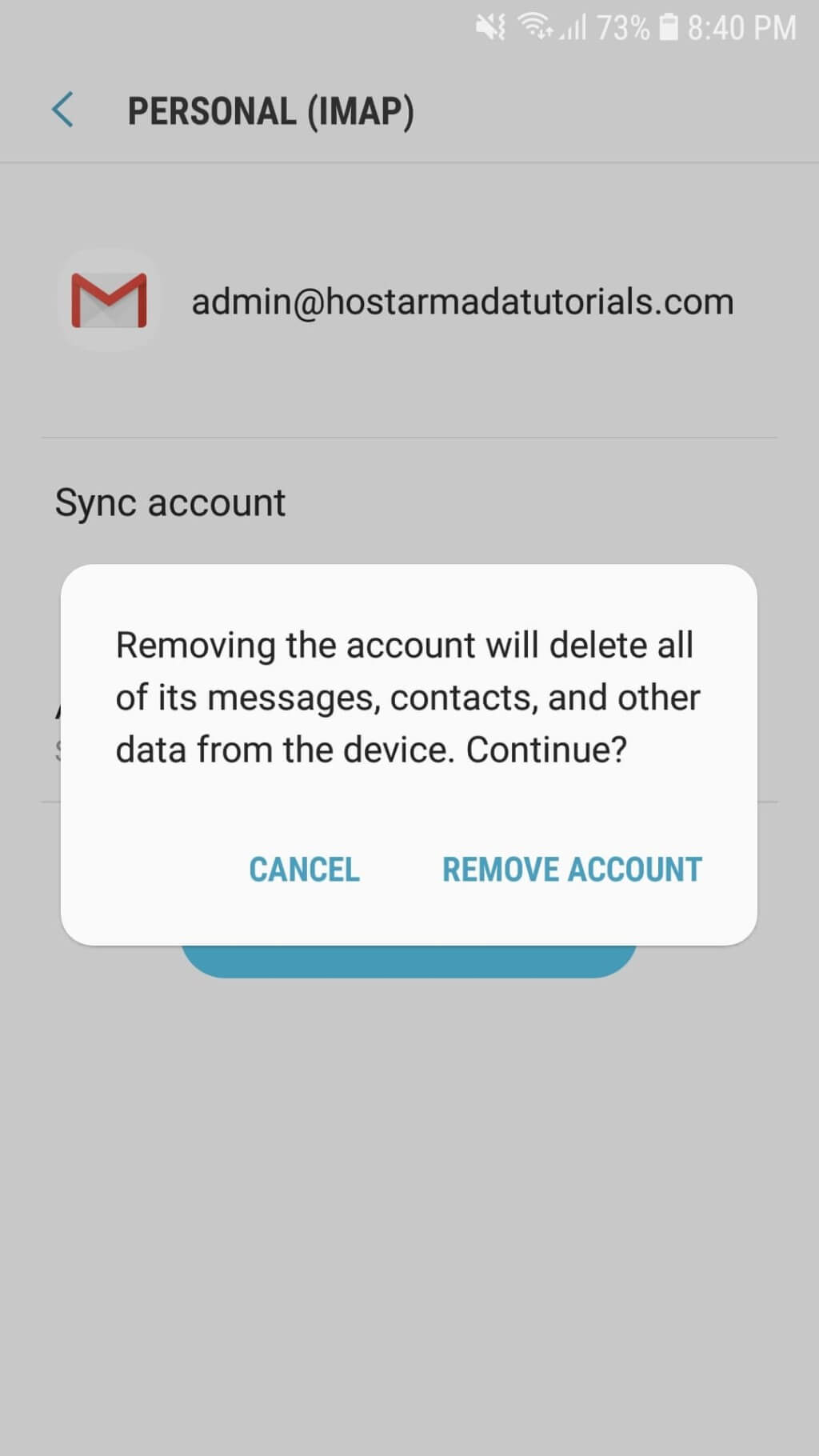
Once you have done the above, your Android device will remove the email address permanently.
Well done! You have now learned how to modify and remove existing Email Accounts configured on your Android Device. We sincerely hope you have found the information in this guide useful and our instructions easy to follow. If you have any further questions, you can always contact our Support Team, which is available 24/7.












