Introduction
macOS is the second most used Operating System in the world. Its simplicity and ease of use make it the choice of everyday users, programmers, content creators, and even musicians. The Operating System offers many applications for users to install with ease using the integrated App Store. One of the most used macOS applications is the natively supported Apple Mail application. To use it, you must have an active email account, which you need to create first and set up correctly. In the next lines of this tutorial, we will show you how easy it is to do that. For the tutorial's purpose, we will use an email account created in the cPanel service and the macOS El Capitan operating system.
Accessing the Apple Mail application in macOS
To access the Apple Mail application in macOS, you can consider two procedures - accessing it from the Dock or using the Finder.
Let's start by accessing the email application via the Dock of macOS. By default, your computer will display the Apple Mail application in the Dock located at the bottom of the screen. Therefore, please click on it so you can continue.
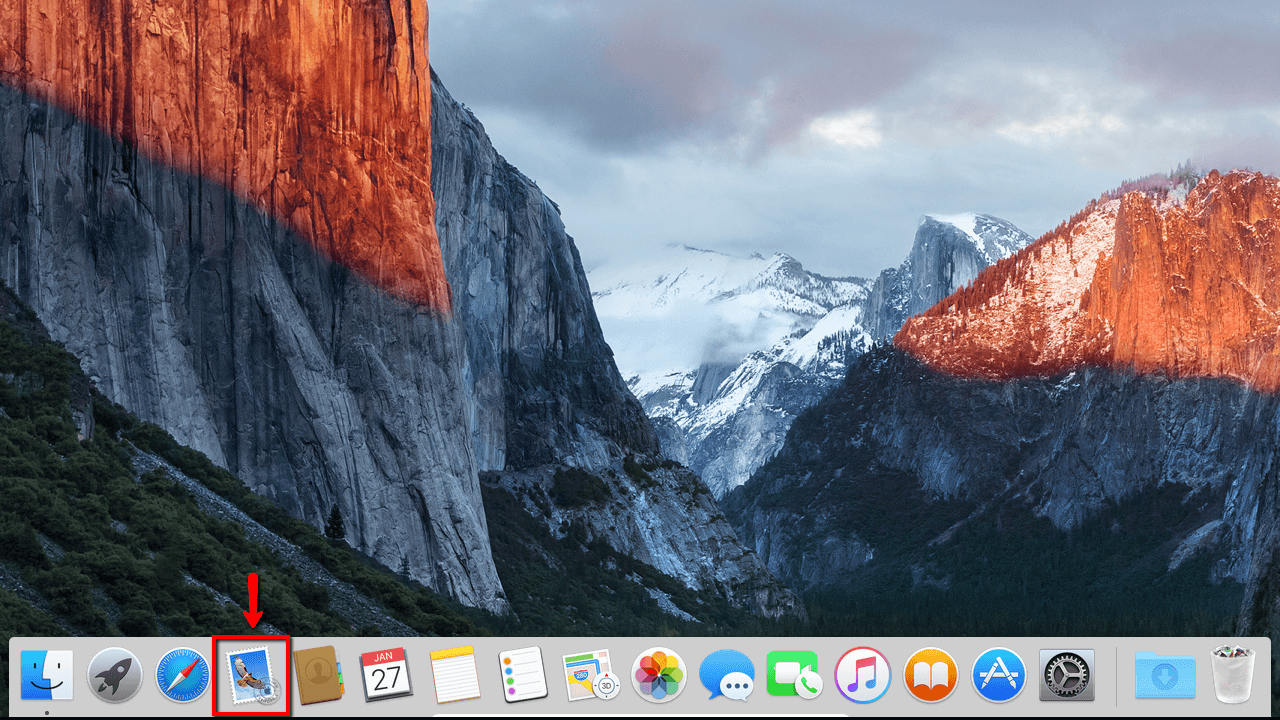
This action will prompt the application's default screen, where you can perform the Apple email setup.
Adding a new Email In Apple Mail on macOS
If you have not added any other email accounts to the Apple email application or are accessing the application for the first time, it will prompt you to add a new email. In addition to that, it will show you a list of all supported email services. Out of all the options, please choose the last option - Other Mail Account....
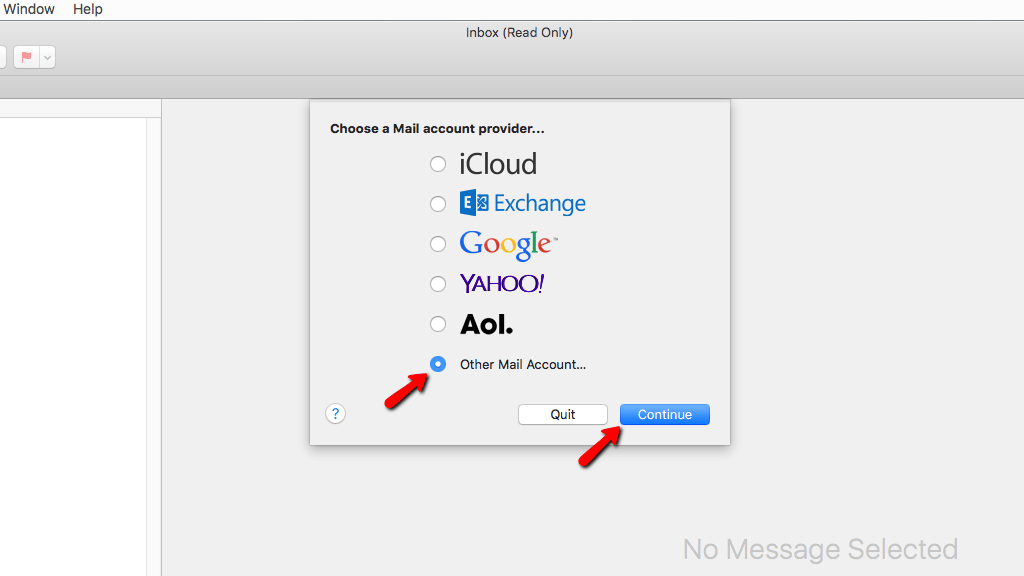
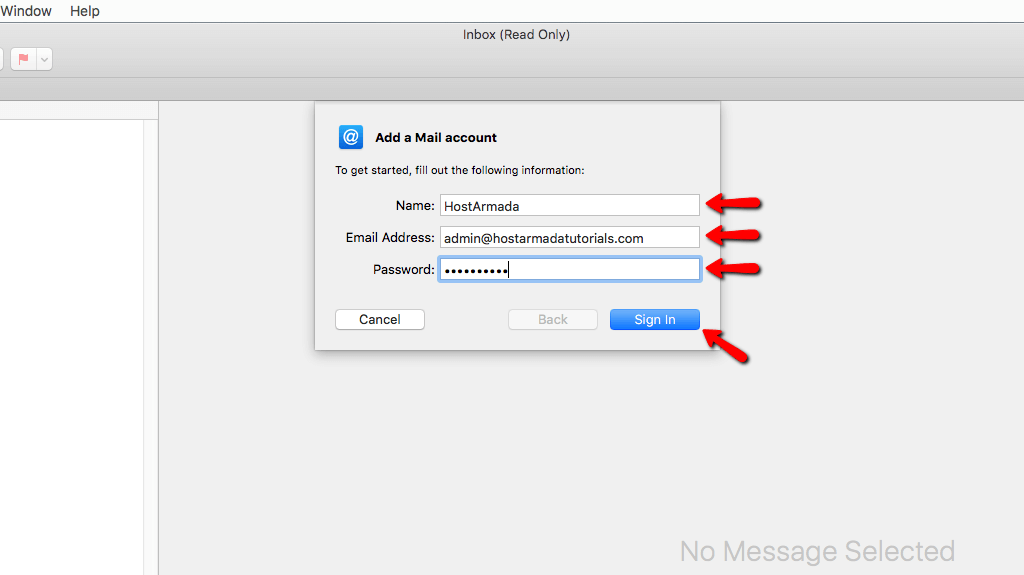
Next, please click on the Continue button to land on the next configuration screen. On it, you will see the following fields you will have to fill out:
- Name - The name you would like your visitors to see when you send them an email from Apple Mail.
- Email Address - The full email address you would like to use. Please ensure that before you set up the account in the email application, you create it in the cPanel first. In case you do not know how to do so, please check our comprehensive tutorial on the Email Accounts feature in cPanel.
- Password - The password for your email account.
Once you complete the Apple mail setup mentioned above, please click on the Sign In button so it can sign you in using the provided settings.
Next, the Mac application will prompt a new configuration screen where you will need to perform a more detailed configuration. To populate the required fields, you need to obtain the details of the email account you created in the cPanel.
You can easily find those by checking the welcome email, which you should have received after signing up for a service with us. In that email, you can find the last section called Email Settings where you can see the IMAP/POP3 Host Address information.
Please bear in mind that if you want to use the mail sub-domain (mail.domain.com) where domain.com is your actual domain name as your mail service's Hostname, you need to point it appropriately to our nameservers. You will find the name server information in the Welcome Email mentioned above. If you are not sure that you have done it correctly, please contact our support team for assistance.
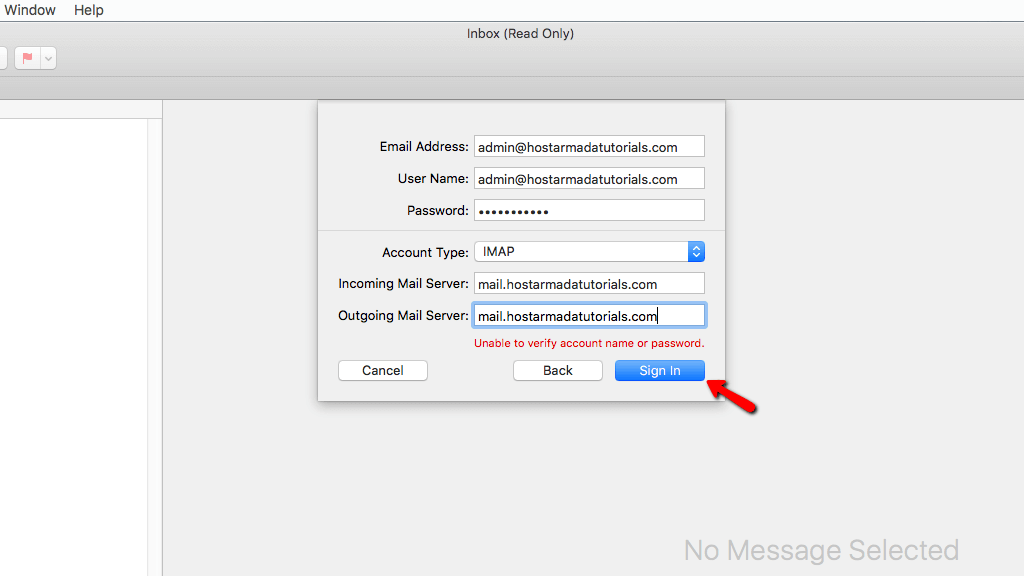
The fields you need to configure on this page are as follows:
- Email Address - The name of your email address. Example: support@sirstevehq.com
- User Name - The username is the name of your email address as well.
- Password - The password used for the email address entered above.
- Account Type - You will have the option to choose either IMAP or POP3. To better understand these protocols, please check our Difference Between POP3 and IMAP article. We suggest using IMAP.
- Incoming Mail Server - The Hostname of the incoming email server. This can be mail.yourdomain.com or the server's Hostname where your domain is hosted.
- Outgoing Mail Server - If using SIRSTEVEHQ services, use the same value as the “Incoming Mail Server”. For third-party SMTP, contact your provider.
Once you are ready, please click once again on the Sign In button.
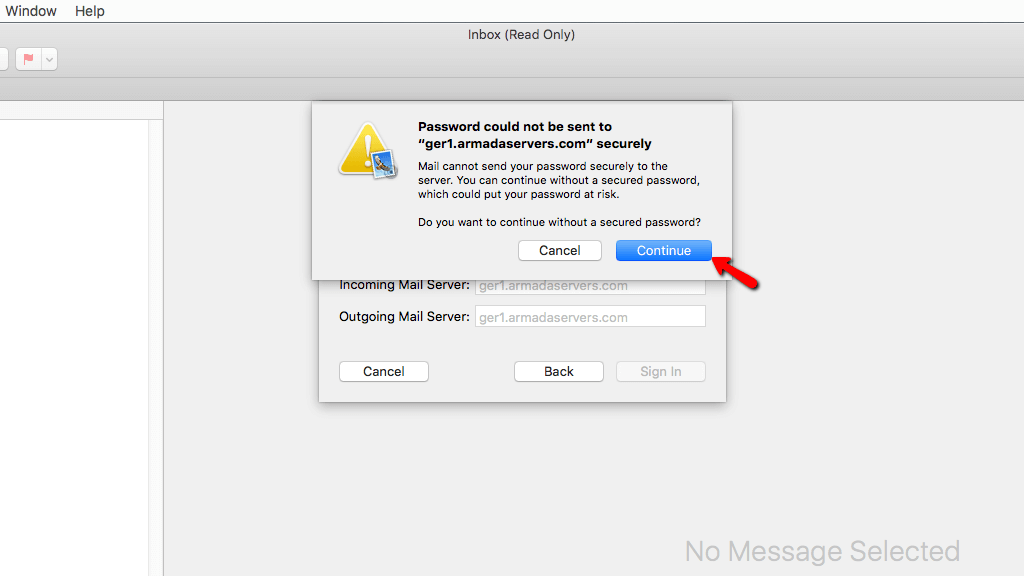
Please note that if you choose to use the Hostname of the Web Hosting server, the Apple mail setup process might show an error indicating it cannot send the password securely. This happens because the Mac email application cannot match the server SSL certificate with the domain SSL. You should ignore it and click Continue to proceed.
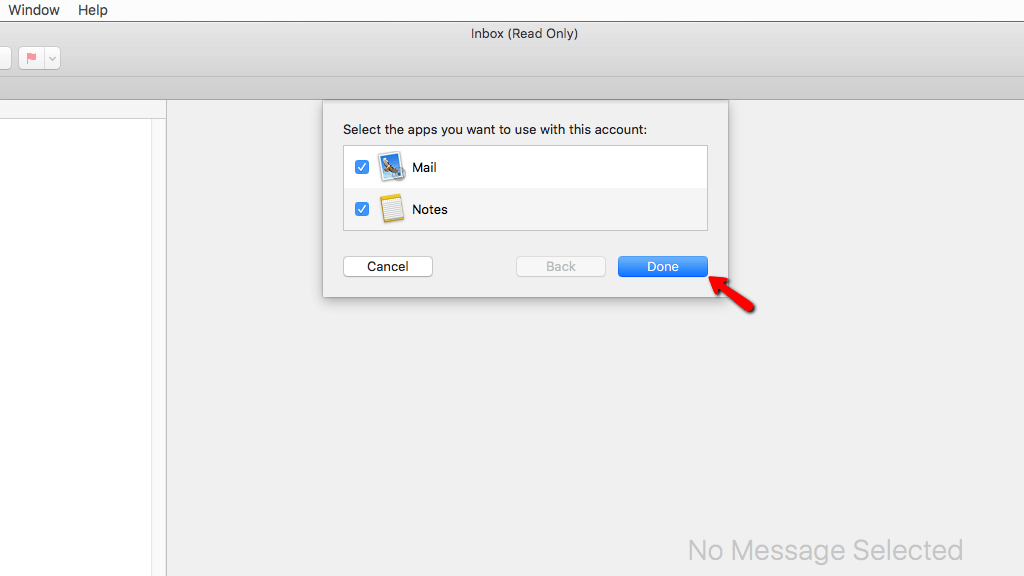
Next, the email application will ask you what type of apps you would like to use with this email. The default selected options are Mail and Notes. Please click on the Done button to continue.
This action will finalize the process, and the application will add the email account on your Mac. Apple Mail will display all your existing emails in the Inbox folder.
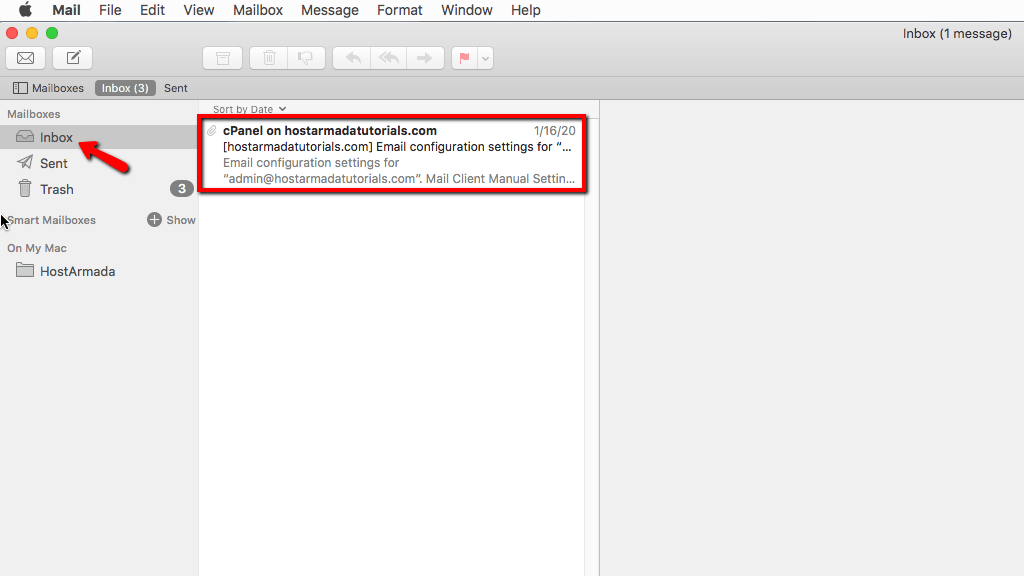
Congratulations! You have successfully configured your email account with the Apple Mail on macOS. If you face any errors, please do not hesitate to contact our Support Crew for assistance.












