Introduction
Now that you have added an email account into the Apple Mail application, it is time to review how to manage it and even remove it from the macOS's native mail client. Typically you might need to change the configuration of an email account in Apple Mail when you change your Web Hosting provider, or the server administrators perform a change affecting the email service on the server. No matter the case, in the next paragraphs, we will explain in detail how to edit your existing Apple email setup on macOS.
Accessing the Email Preferences in Apple Mail on macOS
To begin managing your email accounts' settings, please make sure to open the Apple Mail application on your macOS device. Next, please click on the "Mail" menu at the top left corner of your screen and select the "Preferences" option.
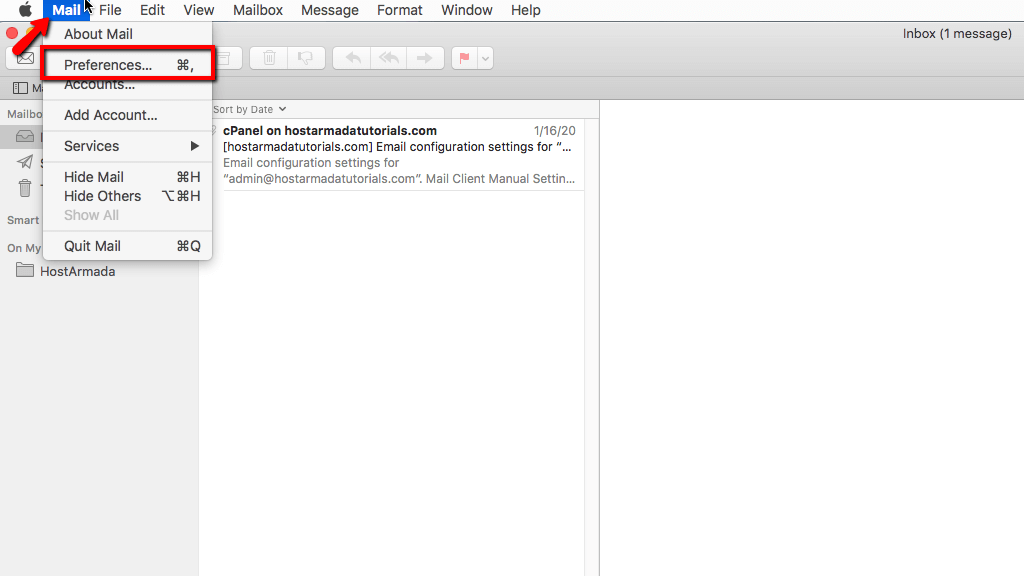
This action will bring up the "Accounts" dialog box, where you can perform different modifications on your added email accounts.
Editing the Apple email setup for Incoming and Outgoing mail
The first configuration we will review is the most common one - changing the incoming and outgoing mail servers' values. To access those settings, please ensure that you have selected the "Accounts" tab from the "Accounts" dialog box. From there, please choose the "Account Information" sub-tab.
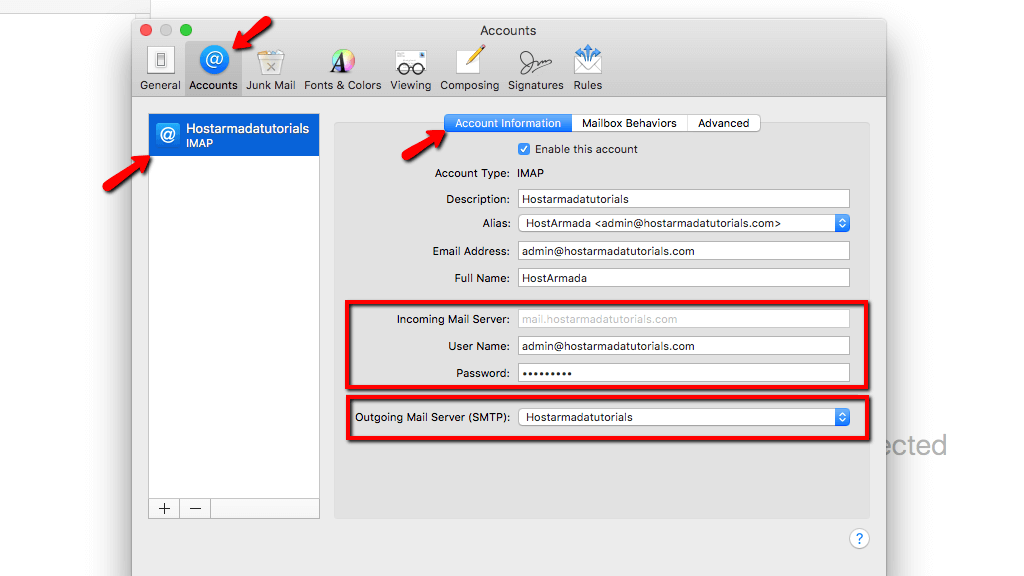
Within the "Account Information" sub-tab, you will see different options related to the chosen Apple email account. Out of all these, we will review the Incoming and Outgoing mail servers.
Editing the Apple email setup's Incoming Mail Server
By default, you will be able to edit only the "User Name" and the "Password" of the Incoming Mail Server, however in most cases, you need to edit the actual "Incoming Mail Server" as well.
To achieve that, you have to "tell" the email application that it should not fetch the mail settings automatically, and instead, you want to insert them manually.
Please navigate to the "Advanced" sub-tab, and from there, please untick the first option called "Automatically detect and maintain account settings".
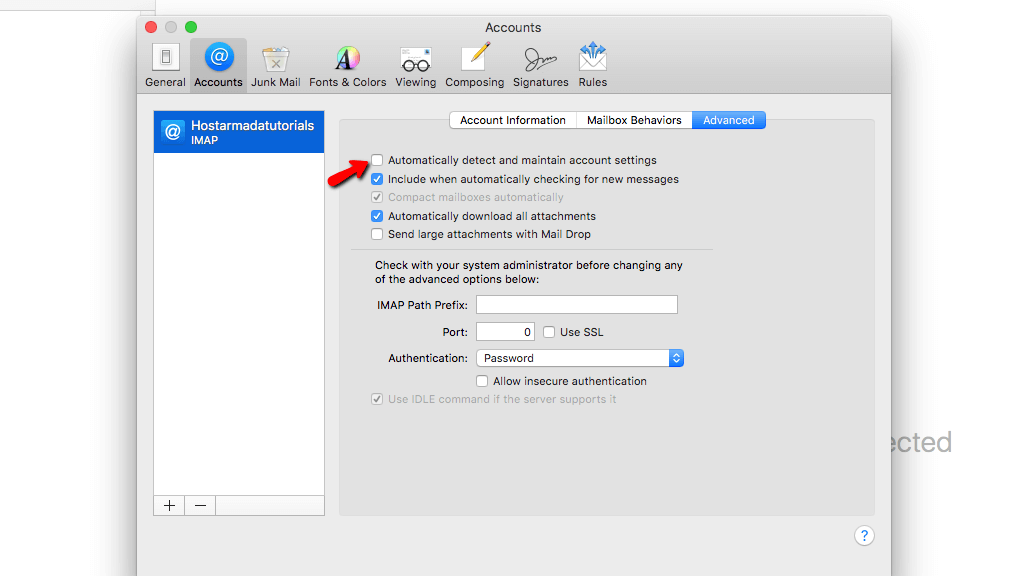
Once you do that, you have to save the configuration by closing the "Accounts" dialog box, and then, please confirm the new changes.
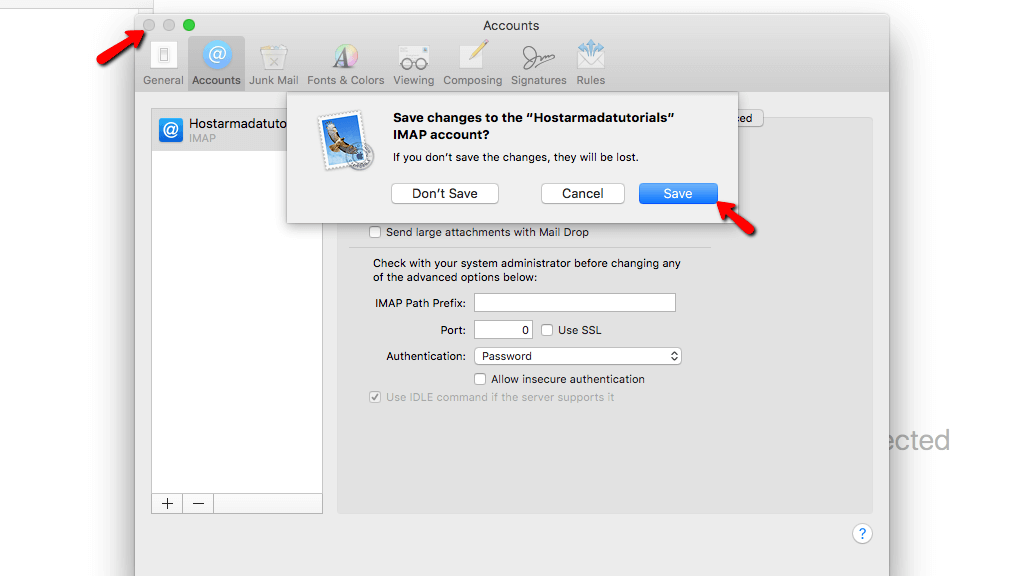
Afterward, please click on "Mail" -> "Preferences" and from the "Accounts" dialog box, please ensure you select the "Account Information" sub-tab.
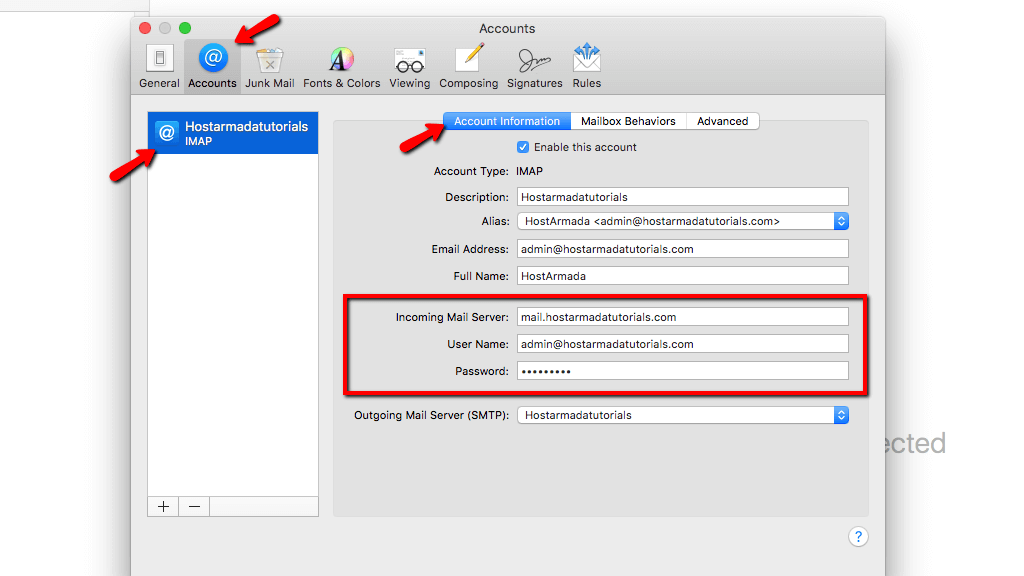
This time, you will notice that the "Incoming Mail Server" is no longer greyed out, and you can edit it. Please apply the new values for the "Incoming Mail Server" and close the "Accounts" dialog box so the Apple email application can save the newly entered values.
Another option missing on the "Account Information" sub-tab is the incoming mail server's port. That configuration is once again available under the "Advanced" sub-tab.
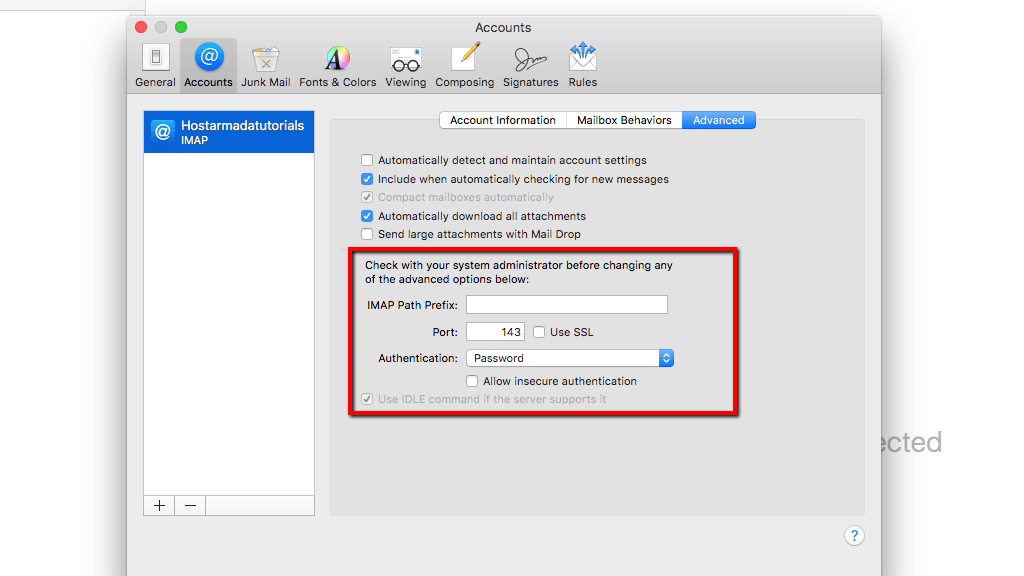
Please ensure that you set the port to 143 if your domain name does not use an SSL or port 993 if your domain name uses an SSL.
Editing the Apple email setup's Outgoing Mail Server
To edit the Outgoing Mail Server, the actions you need to perform are way more straightforward than the previous section. Once again, please access "Mail" -> "Preferences", and from the "Accounts" dialog box, please ensure that you select the "Account Information" sub-tab.
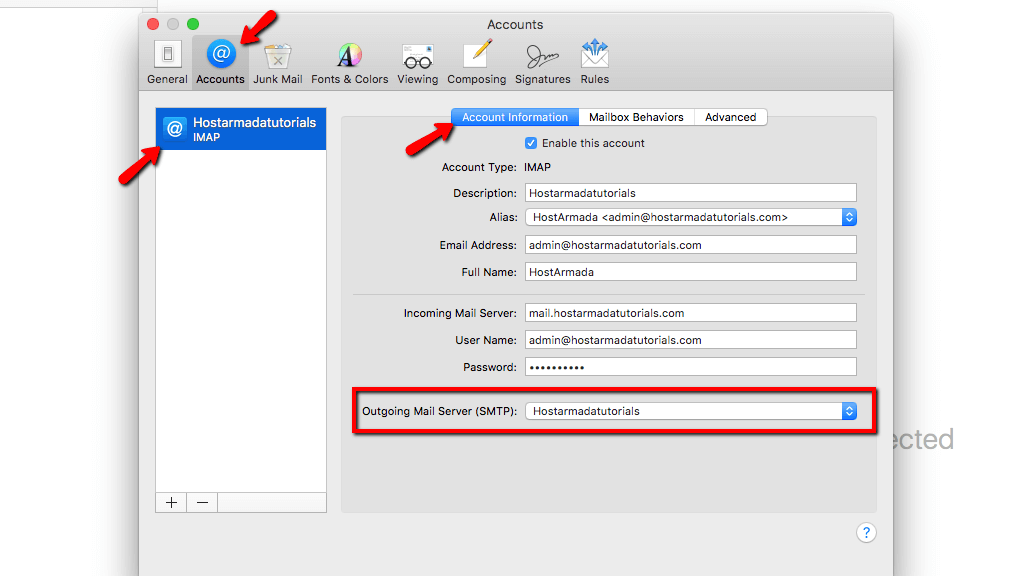
The last section from the settings' list, which will show up, is the "Outgoing Mail Server (SMTP)". From this section, you can choose the Outgoing mail server and edit the current Outgoing Mail Server. To do so, please click on the drop-down menu and select the "Edit SMTP Server List" option.
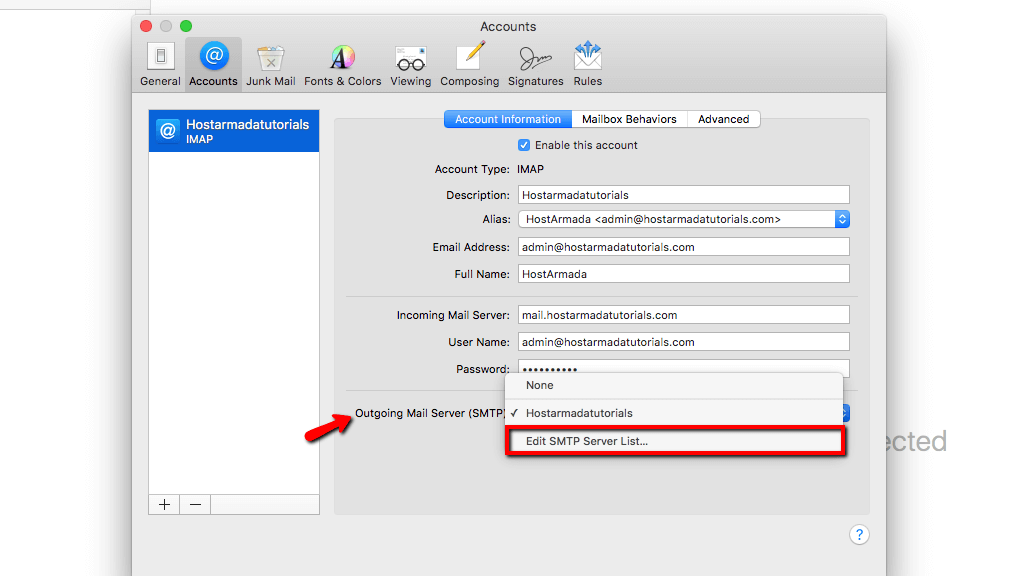
This action will display a list of all the SMTP servers that the Apple email application has in its database. The mail application will select the currently used one by default and if that is not the case, please manually select it by clicking on it.
To add new SMTP settings for the selected server, please change the values inside the text fields located right under the "Account Information" sub-tab.
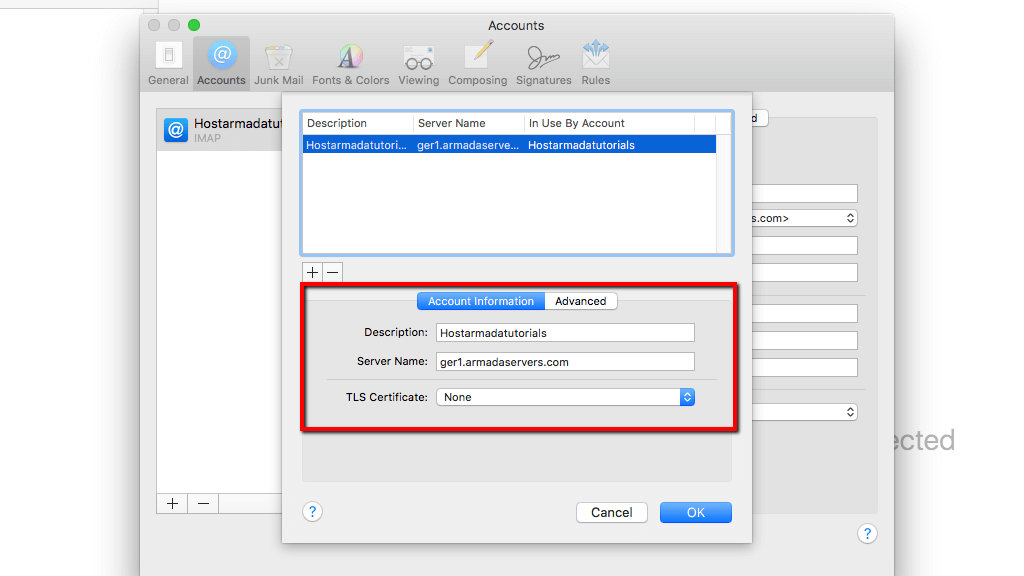
Here are the details of the SMTP server you can change for your Apple email setup:
- Description - The description of the server can be anything. You can use it to identify the server in the list of SMTP servers more distinctly.
- Server Name - The Hostname of the Outgoing Mail Server. Here you can set "mail.yourdomain.com" or enter the Hostname of the server hosting your domain name.
- TLS Certificate - The certificate the Apple Mail will use to encrypt the messages you send.
Please note that to configure the Outgoing Mail Server port, you will need to click on the "Advanced" tab.
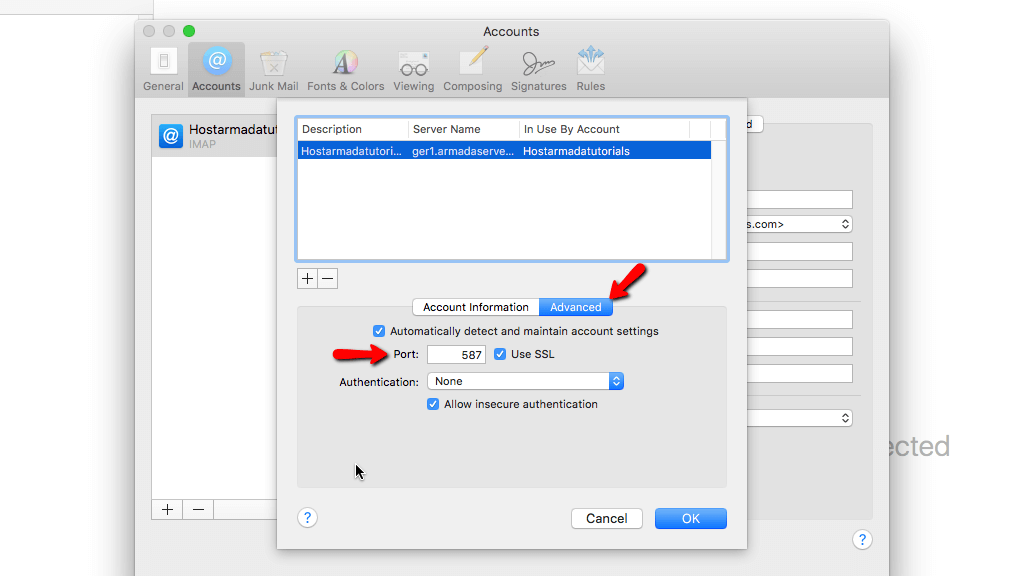
Once you are ready with the configuration, please click on the "OK" button. This step will finalize the Apple email setup for the Outgoing Mail Server.
Deleting Emails from Apple Mail on macOS
Now that you know how to edit the configuration for an email account in Apple Mail, it is time to find out how you can delete it. To begin, let's access the existing email accounts. You can do that by clicking on "Mail" -> "Preferences" and under the "Accounts" tab, you will see all the added email accounts.
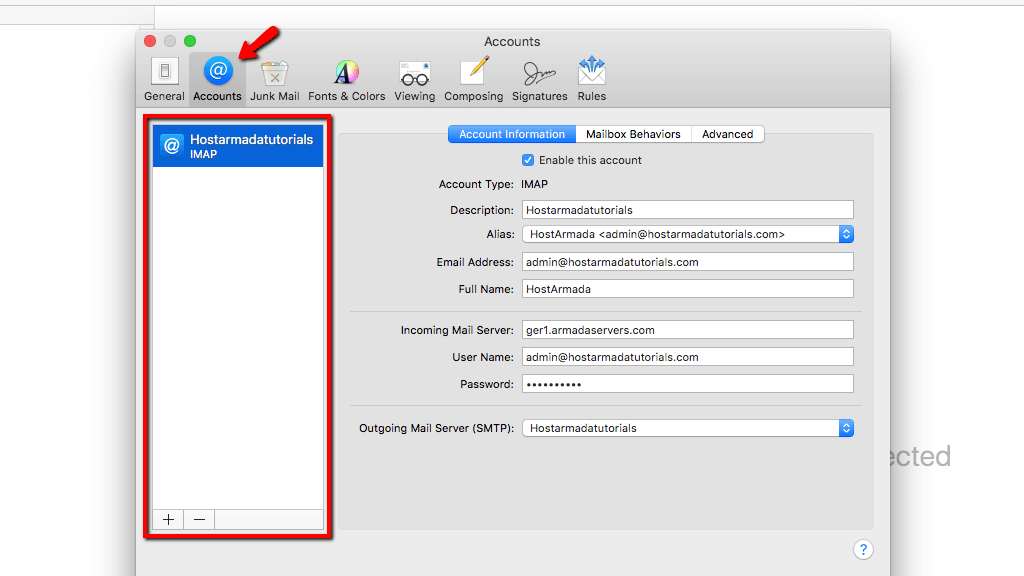
To delete an Apple email setup, select it within the list and click the minus sign ("-") displayed at the bottom of the list.
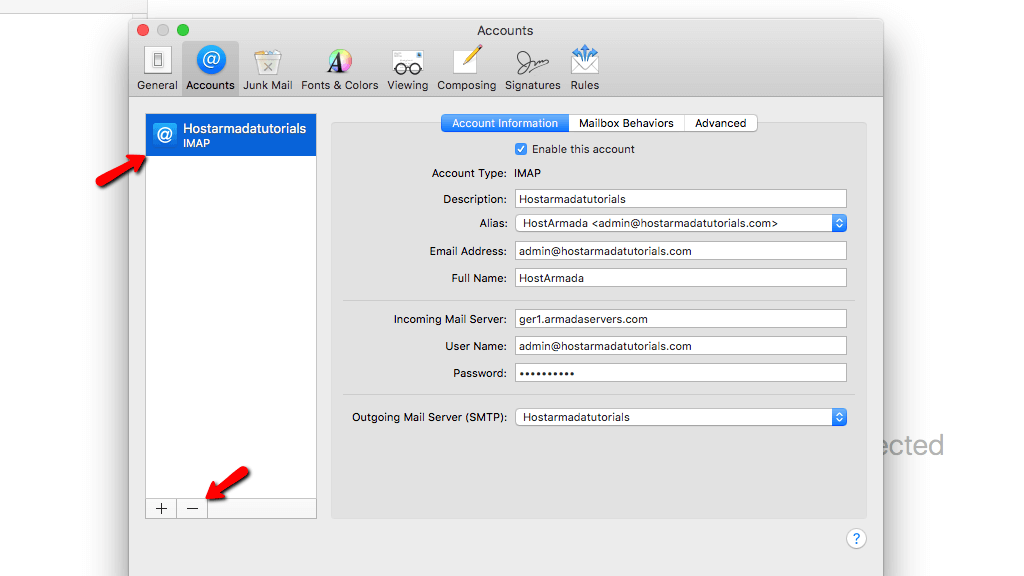
After clicking the minus sign ("-"), a confirmation prompt will appear where you need to press the "OK" button to remove the account for your Apple email application permanently.
You have done it! You should be proficient enough to edit the email settings and delete existing Apple email setups in macOS's default mail application. In case you are experiencing any difficulties, or if you need any information on the correct email settings you should use for your mail client, please do not hesitate to contact our Support Crew for further assistance.












