Introduction
Website cloning is a powerful feature in Plesk that allows users to copy their website from one domain to another. This is especially useful when creating staging environments for testing, duplicating sites for development, or migrating content between domains or subdomains. Of course, there are other scenarios the user may find useful; thus, having this feature at your disposal will be a tremendous asset to your web hosting arsenal.
With Plesk’s built-in cloning tool, the process is seamless and does not require any manual uploads or database configuration.
In this tutorial, we’ll walk you through how to clone your WordPress website in Plesk in just a few clicks. Without further ado, let us begin!
Accessing the Cloning Interface
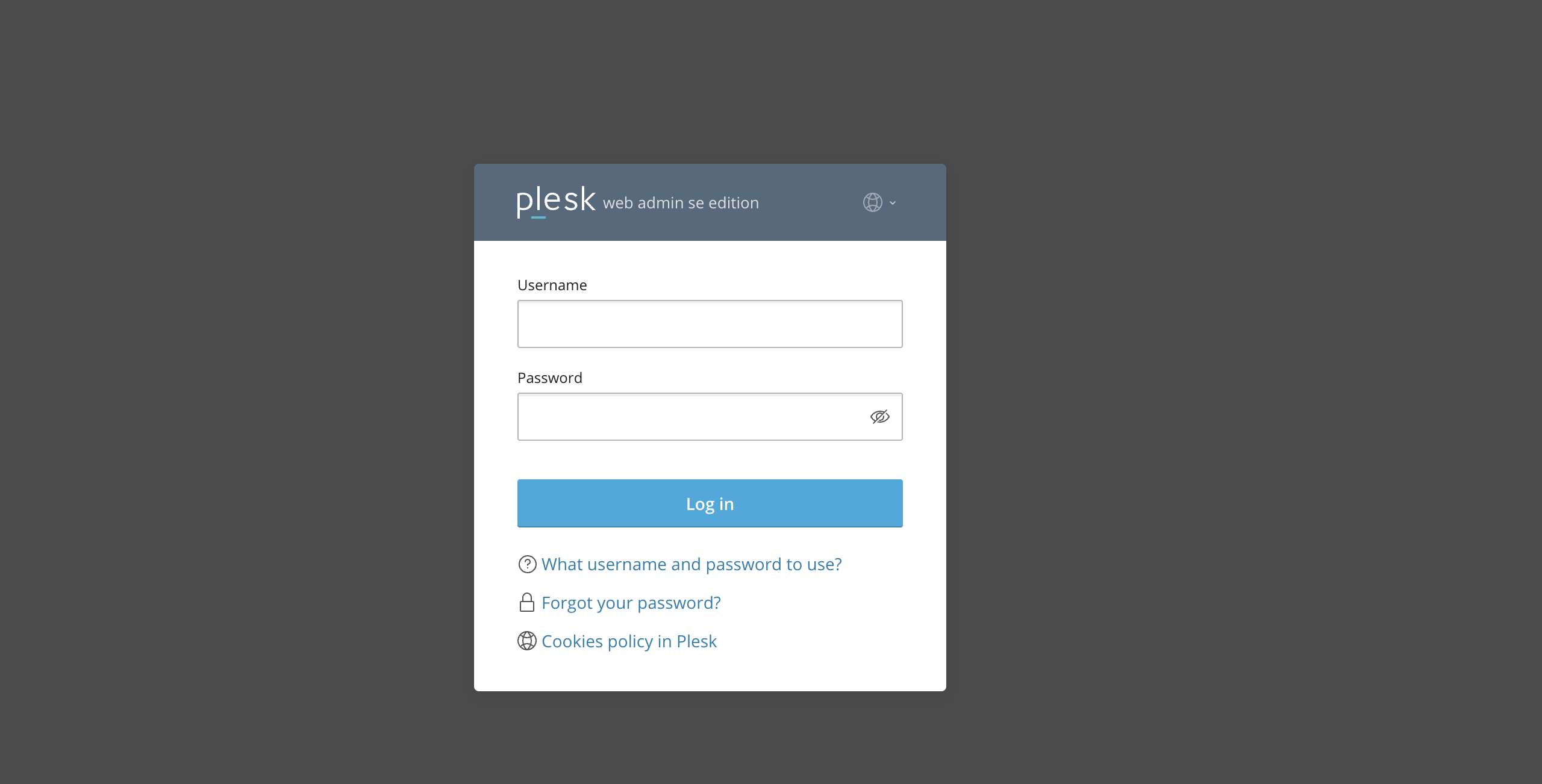
To begin managing your domains in Plesk, please make sure you have logged in to your Plesk control panel. To do that, please type in your IP address, hostname, or domain name inside your browser search bar and add “:8443” at the end. It should look something like: https://yourdomain.com:8443. By doing that, you will be prompted by a login form requiring your username and password.
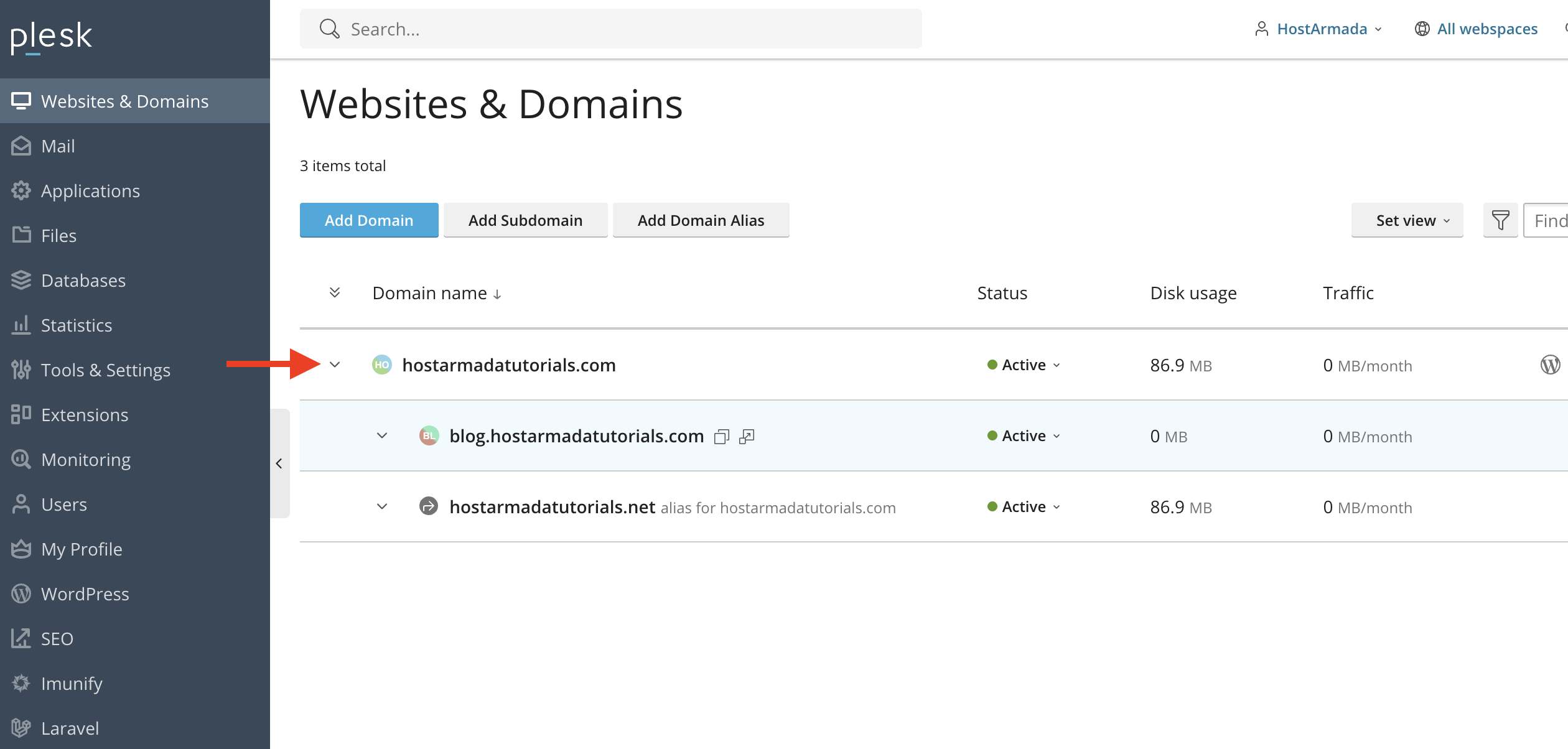
Once logged in, Plesk will automatically display the “Websites & Domains” page, which will be the index every time. In the middle, you will see a table section containing a list of all your websites.
Selecting the Website to Clone
To clone a WordPress website, please use the drop-down menu on the left side of the table section corresponding to the website you would like to clone.
Performing this action will expand a menu containing many management options for your WordPress website. However, as we are going to learn how to clone a website, please point your attention to the “Clone” feature, which should be located somewhere around the middle.
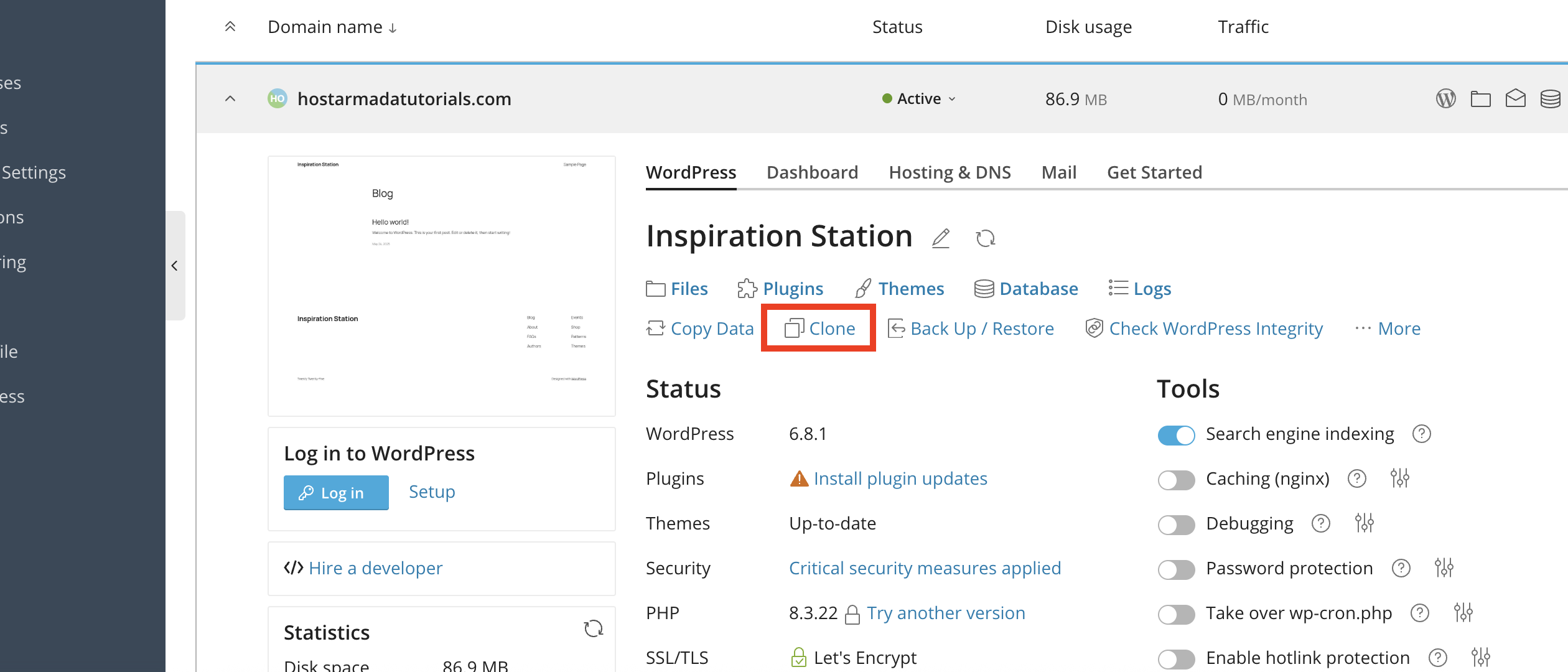
Once you locate it, please click on it to proceed with the process!
Configuring the Clone Settings
Once you click on the “Clone” option, Plesk will open a side menu on the left side of the screen, containing some configuration fields, before you can initiate the clone process. Let’s go over them so you can get a better understanding.
- Source: Here, you will see the name of the domain you selected earlier, which you want to get cloned. Right next to it, you will see a [Show path] link, which will allow you to show the absolute path to the website’s files, in case you want to see it.
- Target: Here, you will have two radio buttons that will allow you to select either a sub-domain or another domain on the server where the website will be cloned. Depending on your needs, please select either option using the radio button.
- Database Name: Plesk will automatically generate a new database for the cloned website. Please use this text field to choose a different name if you are not happy with the one chosen by Plesk.
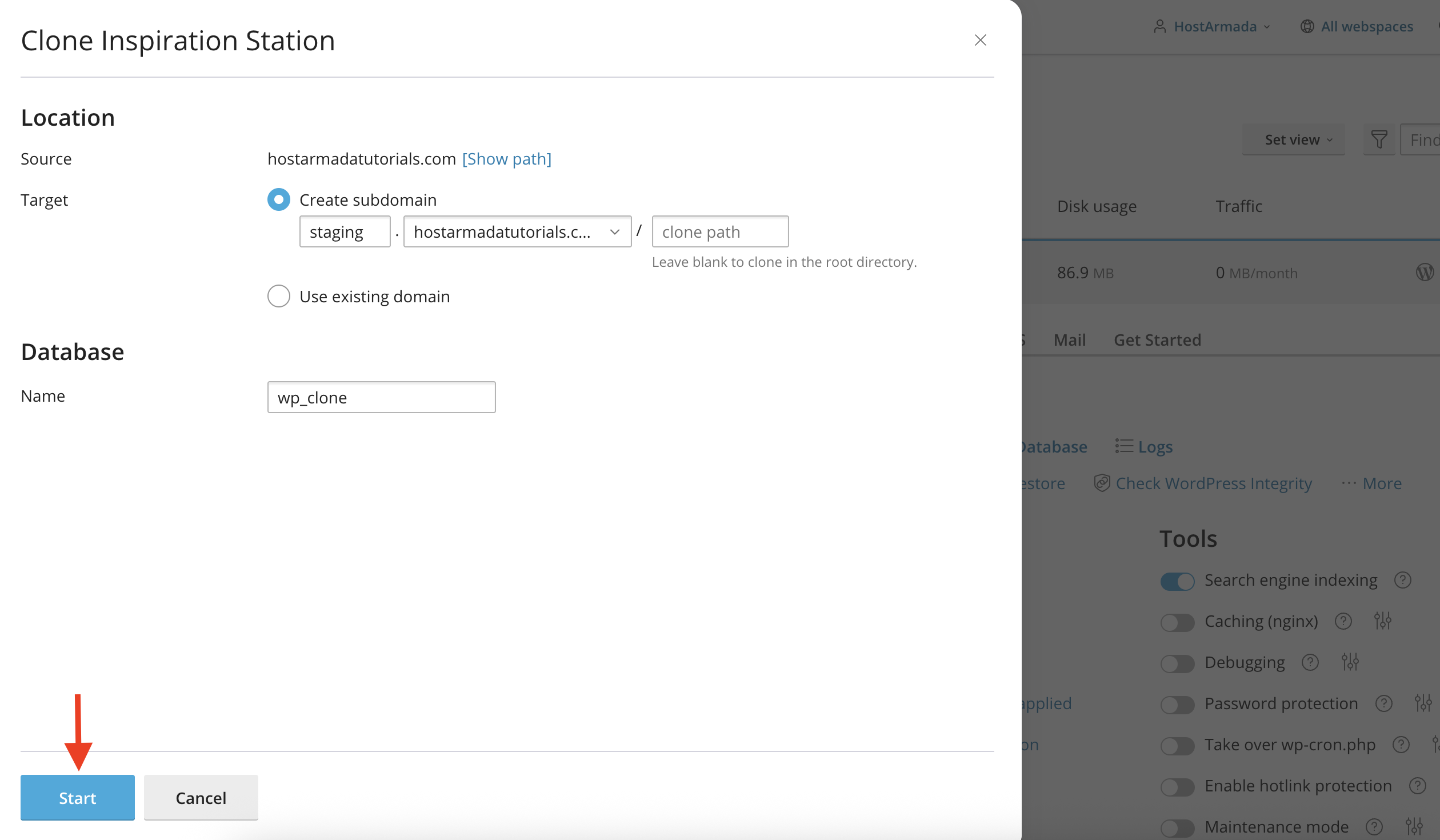
Once you have typed in all the required information, please click on the blue “Start” button located at the bottom left side of the pop-up window to initiate the cloning process.
Cloning Process and Progress
Upon clicking the “Start” button, the cloning process will start. The side menu will refresh, and in its place, you will see a few progress bars, giving you information about the cloning process.
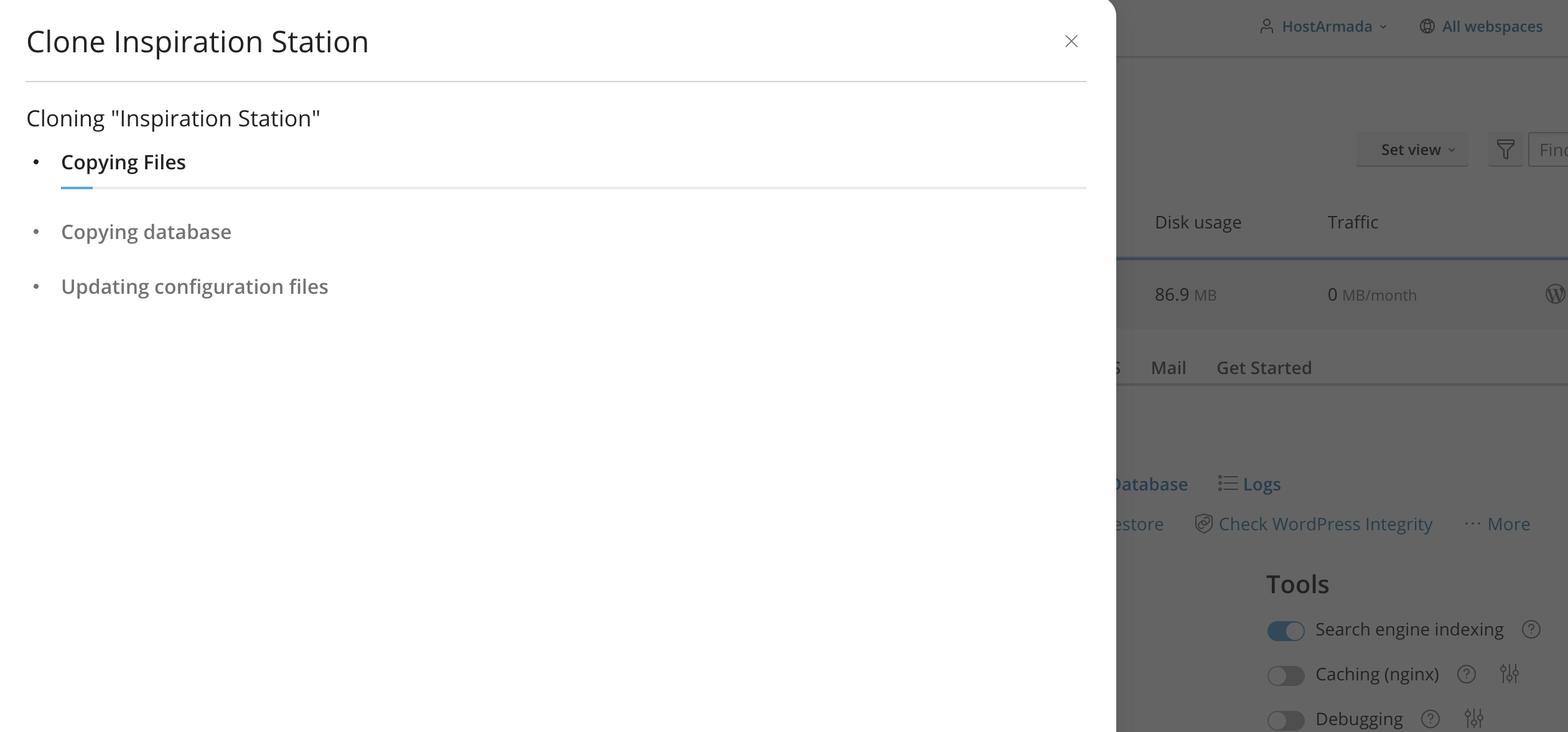
The time it takes depends on the size of your website. During the cloning process, Plesk will perform the following actions:
- It will duplicate your WordPress files.
- It will export the website’s SQL, create a new database, and import it there.
- It will adjust the configuration files to match the new database name and run a search-replace for all the entries inside the database to match the new domain.
IMPORTANT: Sometimes, the cloning process may not be successful because of multiple factors. In such a case, we recommend performing this action manually.
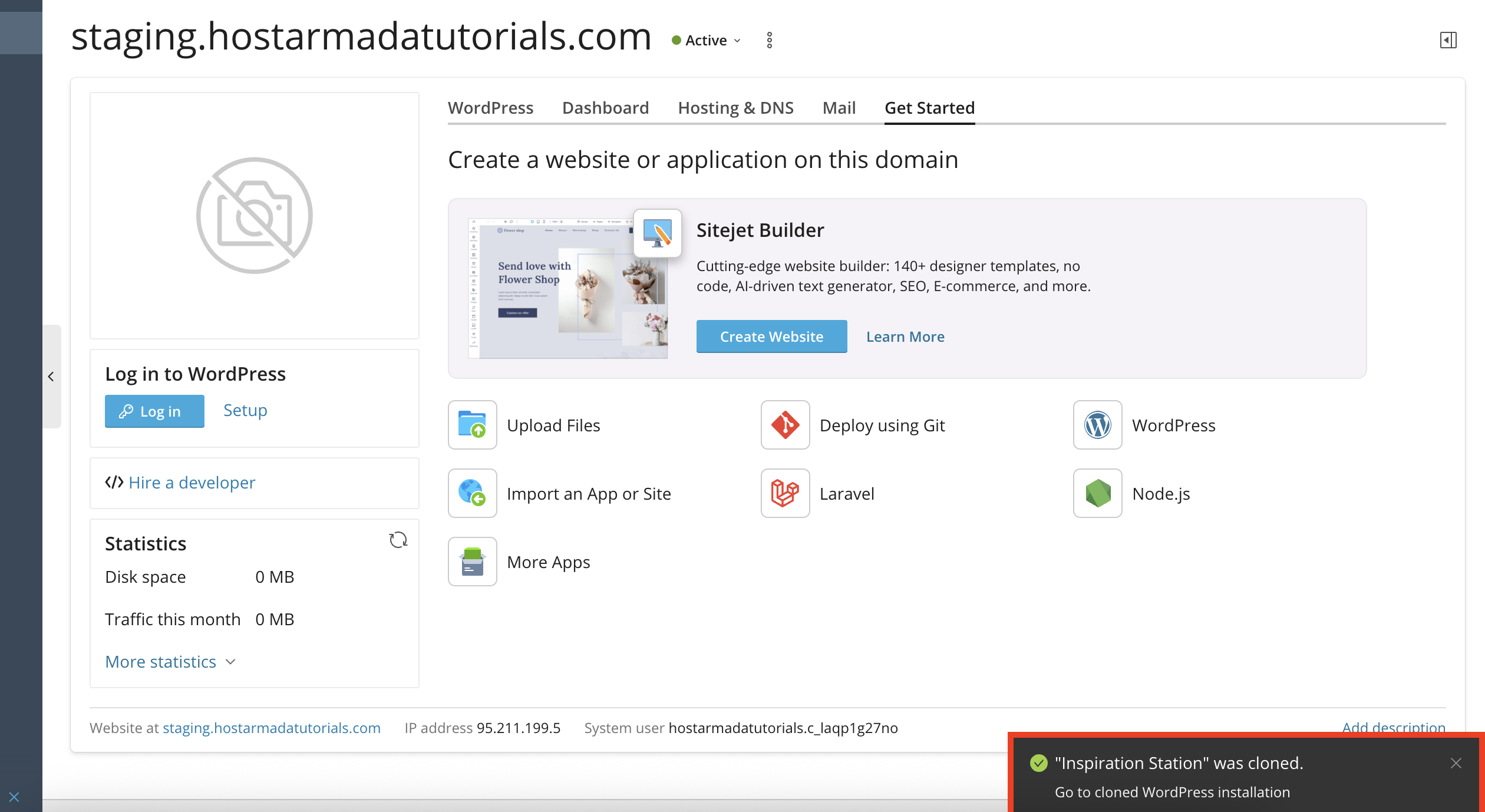
Once the process is finalized, you will receive a confirmation message at the bottom right side of your screen.
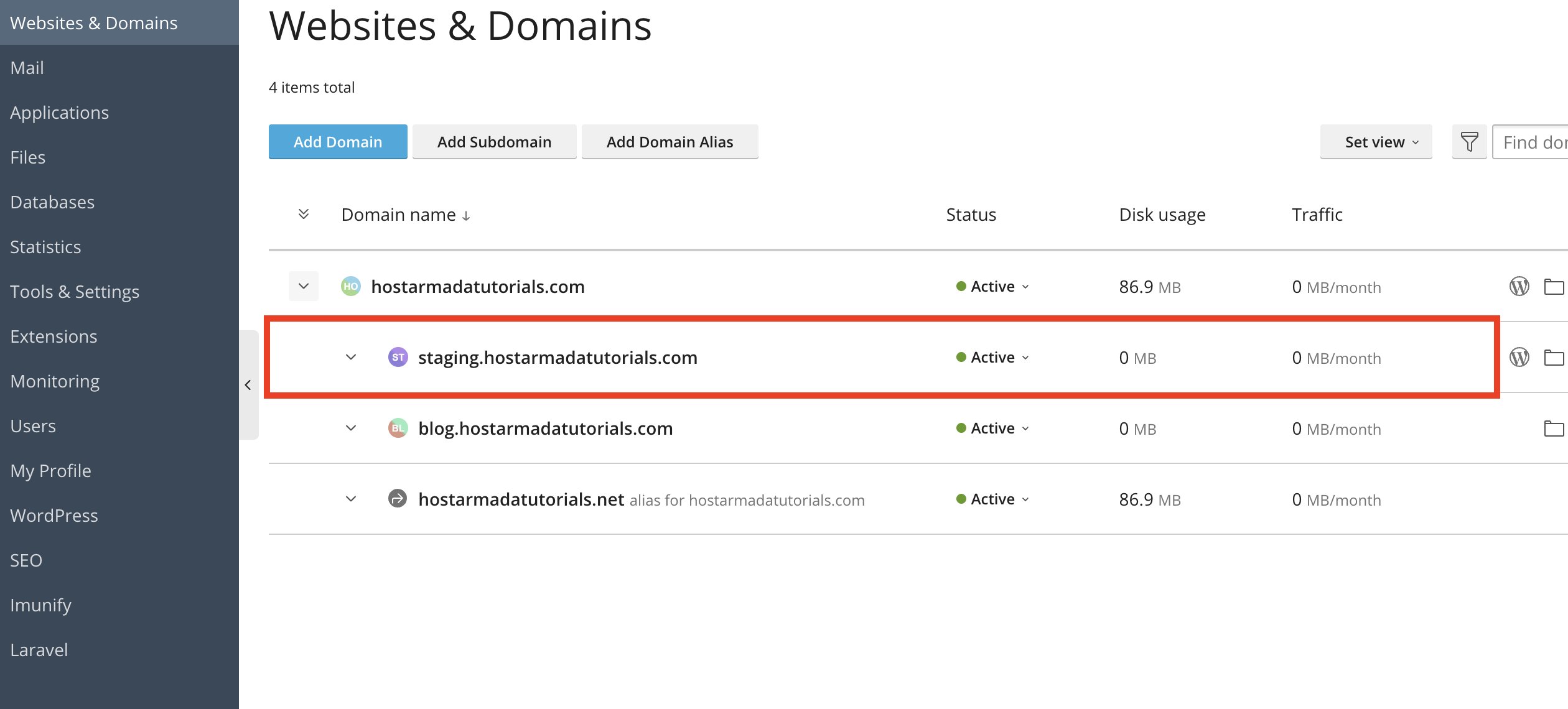
Now that the cloning process is complete, the cloned website will appear as a separate entry in the Websites & Domains section.
IMPORTANT: After cloning, ensure the new site has a valid SSL certificate. Plesk may not automatically apply one to the cloned domain.
Conclusion
Cloning your WordPress website with Plesk is incredibly easy and straightforward. Whether you're setting up a staging environment or duplicating your site for development or testing purposes, the process is streamlined and requires just a few clicks.
With your cloned site ready, you now have a safe space to test, develop, or redesign without touching your live environment. If you want to learn how to clone a NodeJS or a Laravel website using Pleks, please refer to our tutorial on the matter!












