Introduction
Email or electronic mail, ever since its conception, has remained one of the most essential communication methods for both individuals and businesses. In a hosting environment, the email service allows you to send, receive, and store messages using addresses tied to your own domain name (e.g., info@yourbusiness.com). This not only helps maintain a professional image but also gives you complete control over your brand’s communication channels.
For business owners, having a domain-based email address builds credibility, strengthens branding, and provides a central, secure point for customer interaction. For general internet users, it’s a reliable way to keep personal and professional correspondence organized and accessible.
To allow business owners and individuals to take full advantage of the electronic mail service, Plesk enables users to create, configure, and manage email accounts directly from its control panel. Whether you need to set up a new professional address, adjust mailbox sizes, configure forwarding, enable spam filtering, or change passwords, Plesk makes it quick and straightforward.
In this tutorial, we’ll guide you through the process of managing your email addresses in Plesk, from their creation to their customization, so that you can make the most of this crucial service.
Let’s get started!
Accessing the Email Management Section
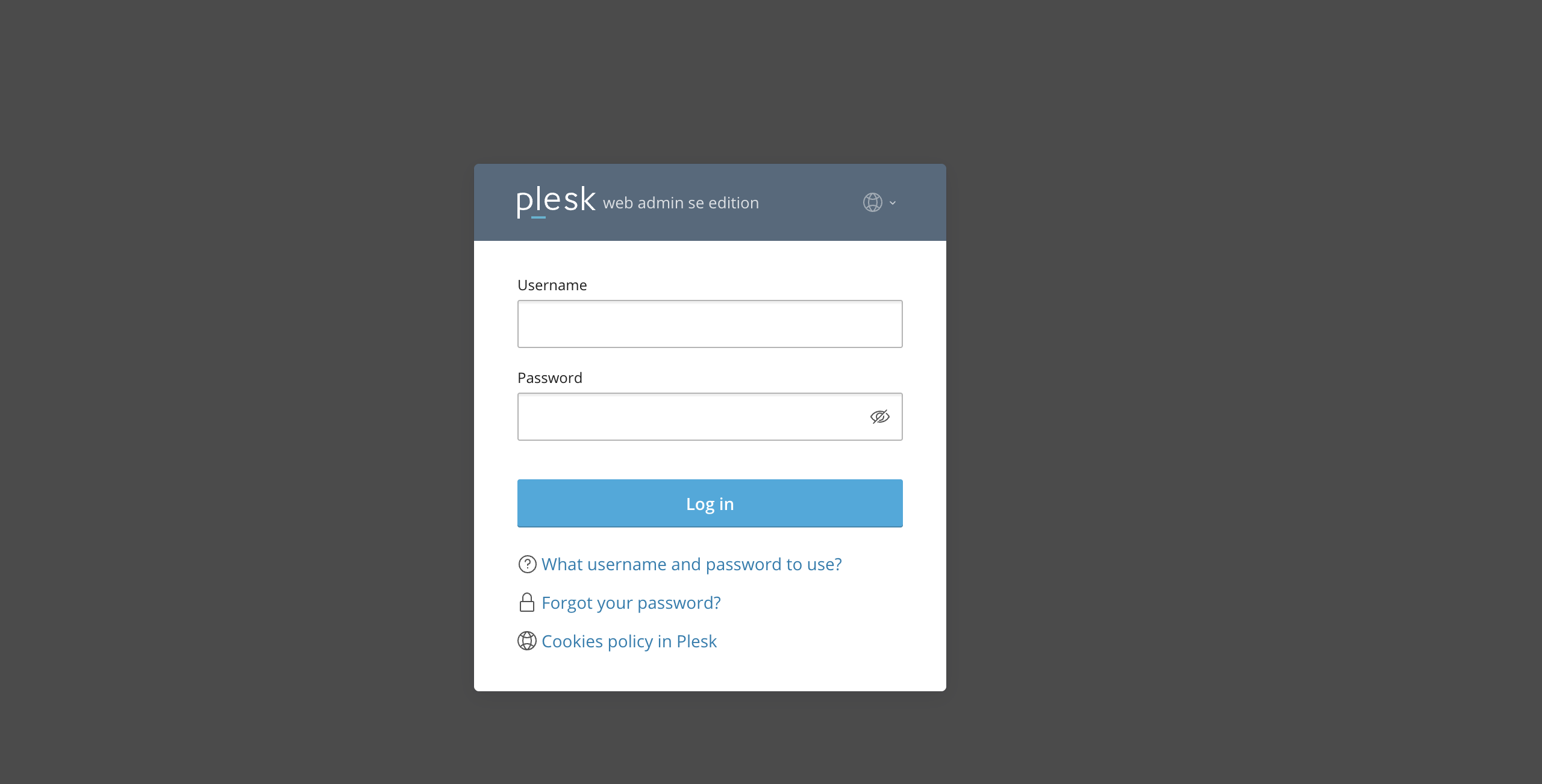
First and foremost, please ensure you are logged in to your Plesk control panel. To do that, please enter your IP address, hostname, or domain name inside your web browser’s search bar and add “:8443” at the end. It should look something like: “https://yourdomain.com:8443”. By doing so, you will be prompted by a login form that requests your username and password.
After logging in with your username and password, Plesk should automatically display the “Websites & Domains” page, which will serve as the index page from where you can manage everything related to your websites and domains on Plesk. If that is not the case, please select the “Websites & Domains” option from the left side menu.
From the “Websites & Domains” page, please expand all the available tools by clicking the little pointed down arrow at the far left side of the row corresponding to the website you want to check the log for.
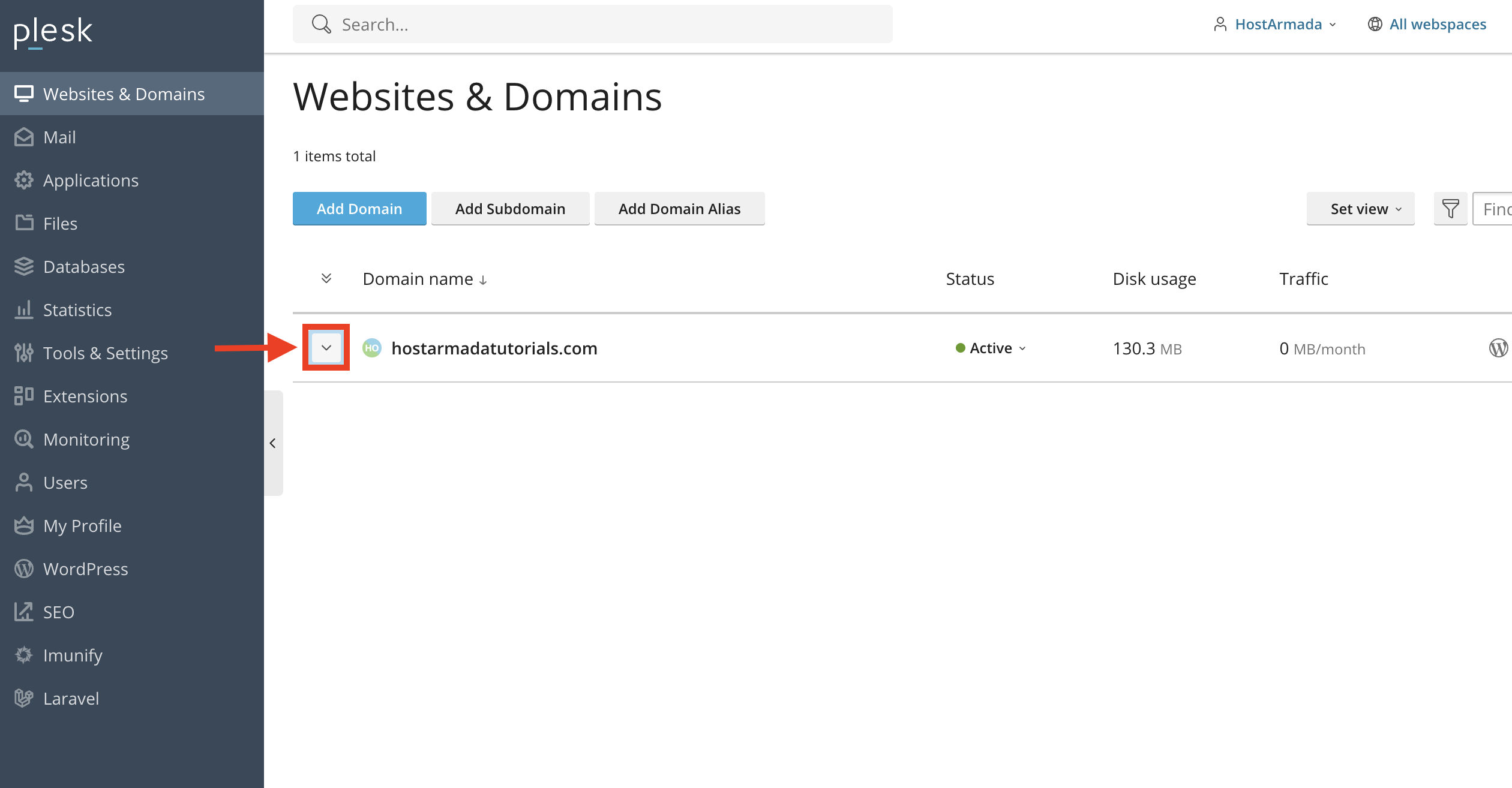
Performing this action will display all functionalities you have at your disposal that you can use to manage your website.
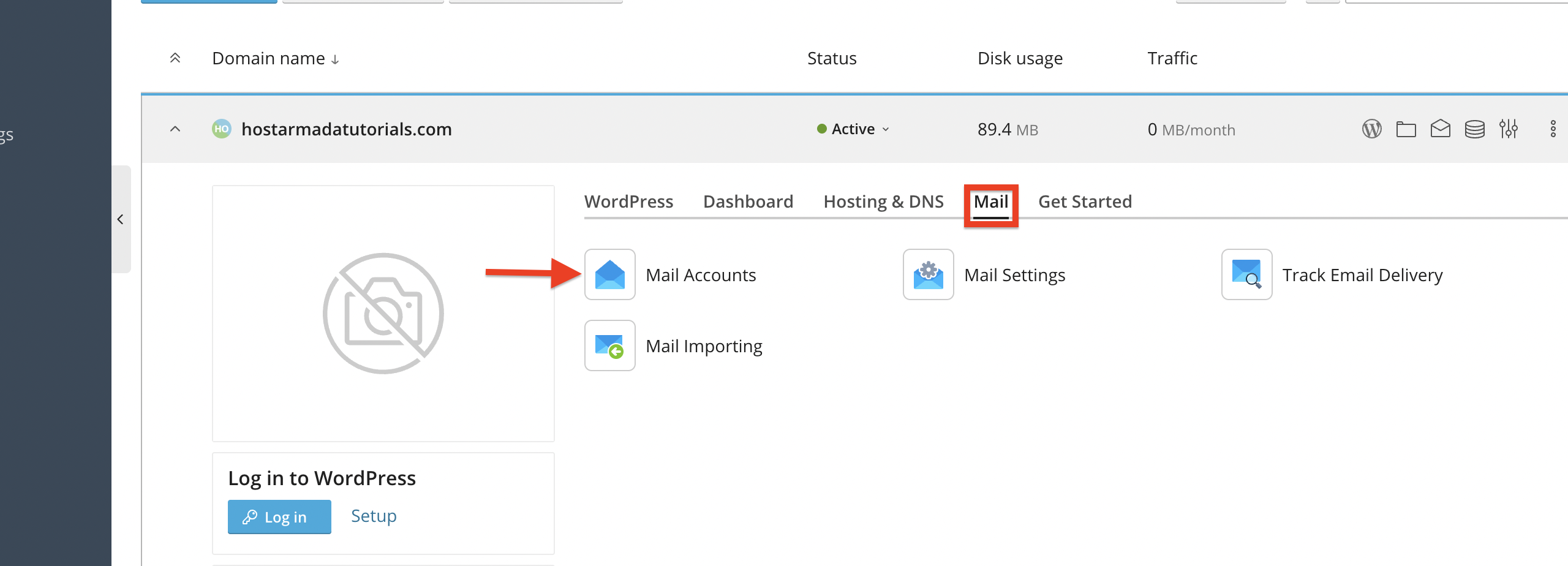
To navigate to the emails section, please click on the “Mail” tab, and from there, all the available email-related functionalities will be revealed. The first thing we are going to explore is the process of creating an email account. To begin, please click on the “Mail Accounts” functionality.
Creating a New Email Address
Upon clicking on the “Mail Accounts” functionality, Pleks will redirect you to the email administration page, where you can begin setting up and managing your mail accounts.
If you do not have any email accounts yet, you will see a big blue button in the middle of the screen labeled “+ Create Email Address”. To create your first email account, please click on it.
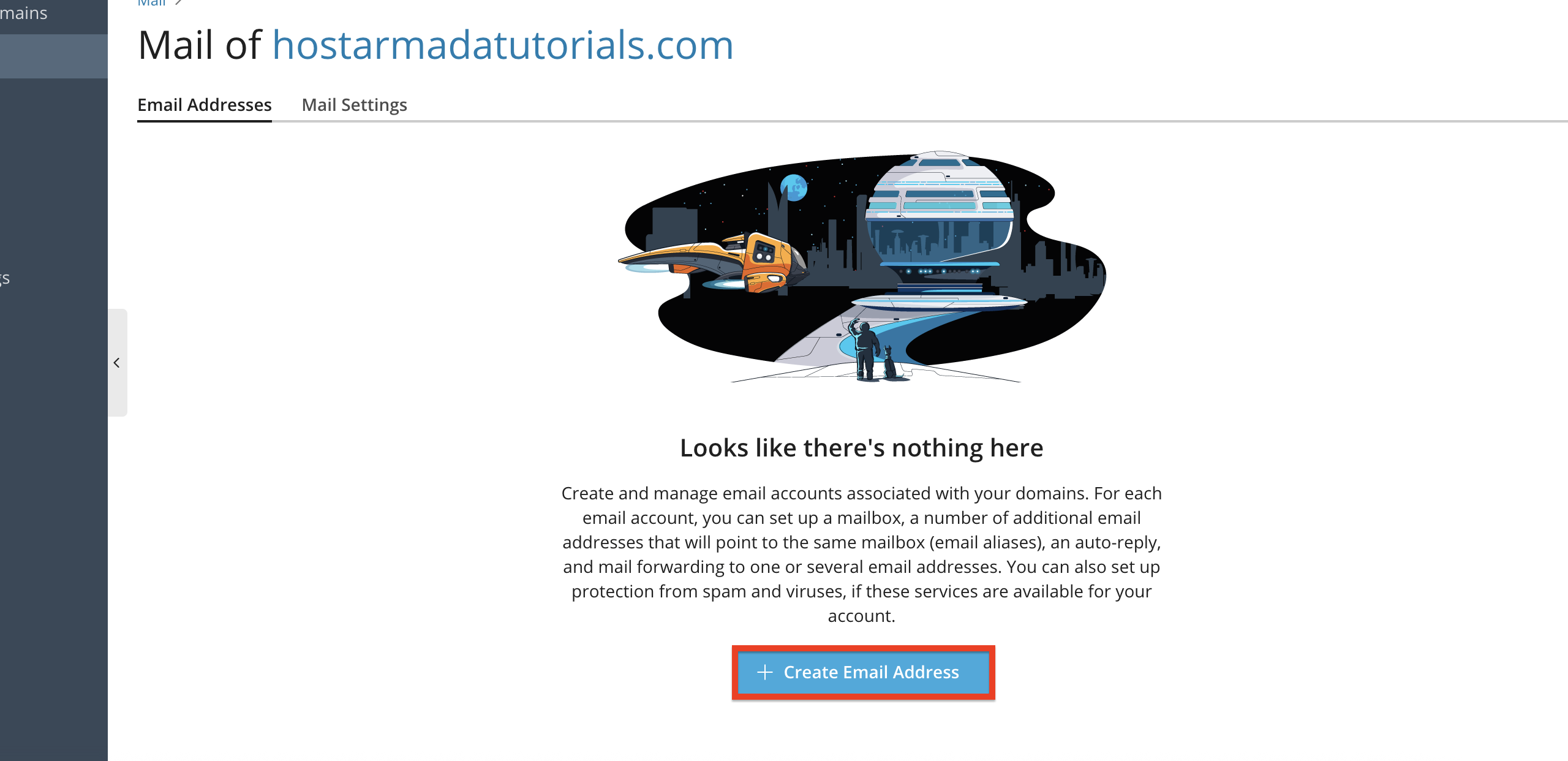
Performing this action will redirect you to the email account creation form. You will also notice a few other tabs that allow you to perform other actions with your emails. We will discuss this later in this tutorial.
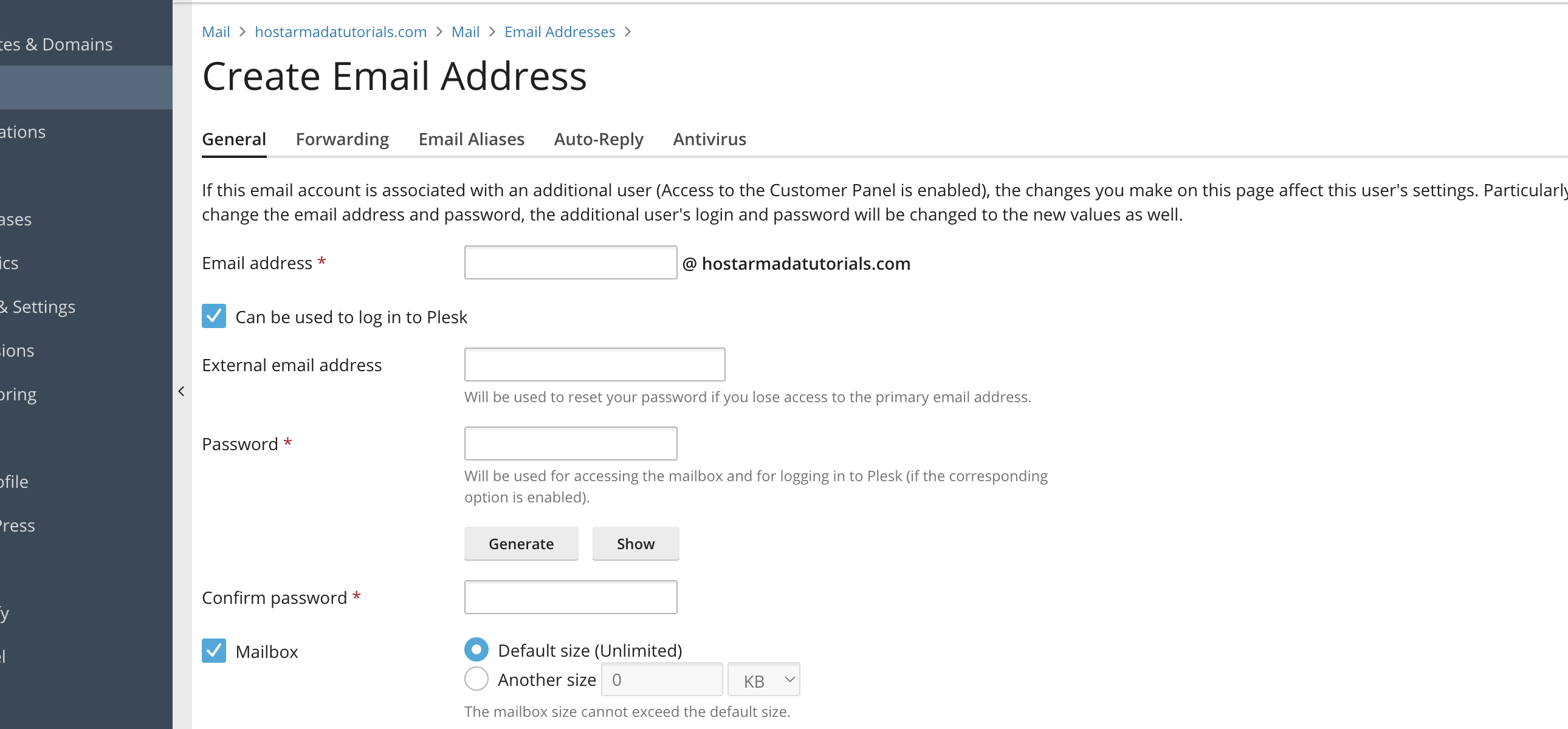
Let’s go over the required fields on the page that you need to fill in order to create your email account.
- Email address - Please use this text field to enter the name of your email. Since this is an email address for the domain “sirstevehqtutorials.com, you will see a “@ sirstevehqtutorials.com” at the end.
- Can be used to log in to Plesk - Please check this tickbox if you would like to also use this email address to log into Plesk.
- External email address - Please use this text field to type in an external email address you want to use, should you ever lose access to this email. The external email will be able to receive a password reset link and help you regain access.
- Password - Please use this text field to type in the password for your email account. You can use the “Generate” button below to generate a randomized and robust password, and you can also use the “Show” button to unhash the password so you can write it down somewhere or save it in your browser’s password vault if you use such.
- Confirm password - Please use this text field to retype the password and confirm your password.
- Mailbox - Please use the radio button to select if the mailbox quota will use the default (Unlimited in this case) value or allot a specific size to your liking.
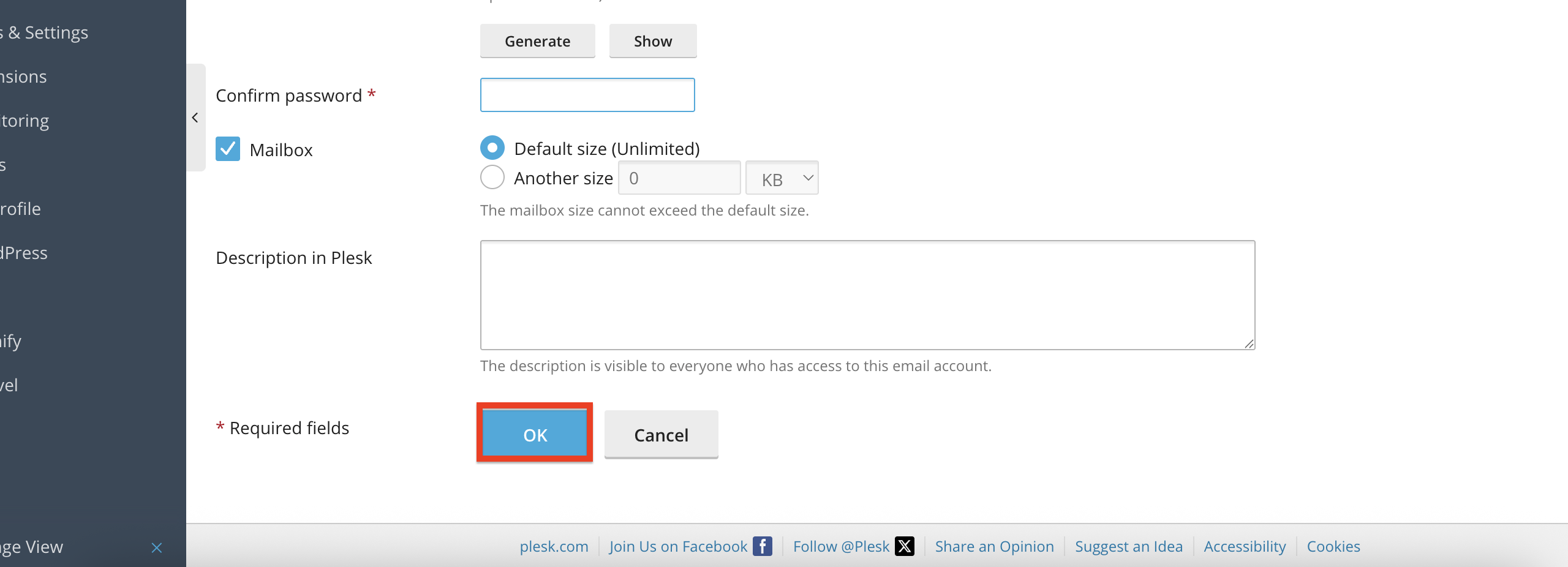
- Description in Pleks - Please use this content box to add a description to this email account, which will be visible to everyone who has access to it.
Once you have typed in all the required information, please click on the blue “OK” button located at the bottom of the page.
Performing the action above, you will be redirected to the previous page, where you will see your email account in a table section, where all your emails will be added after their creation.
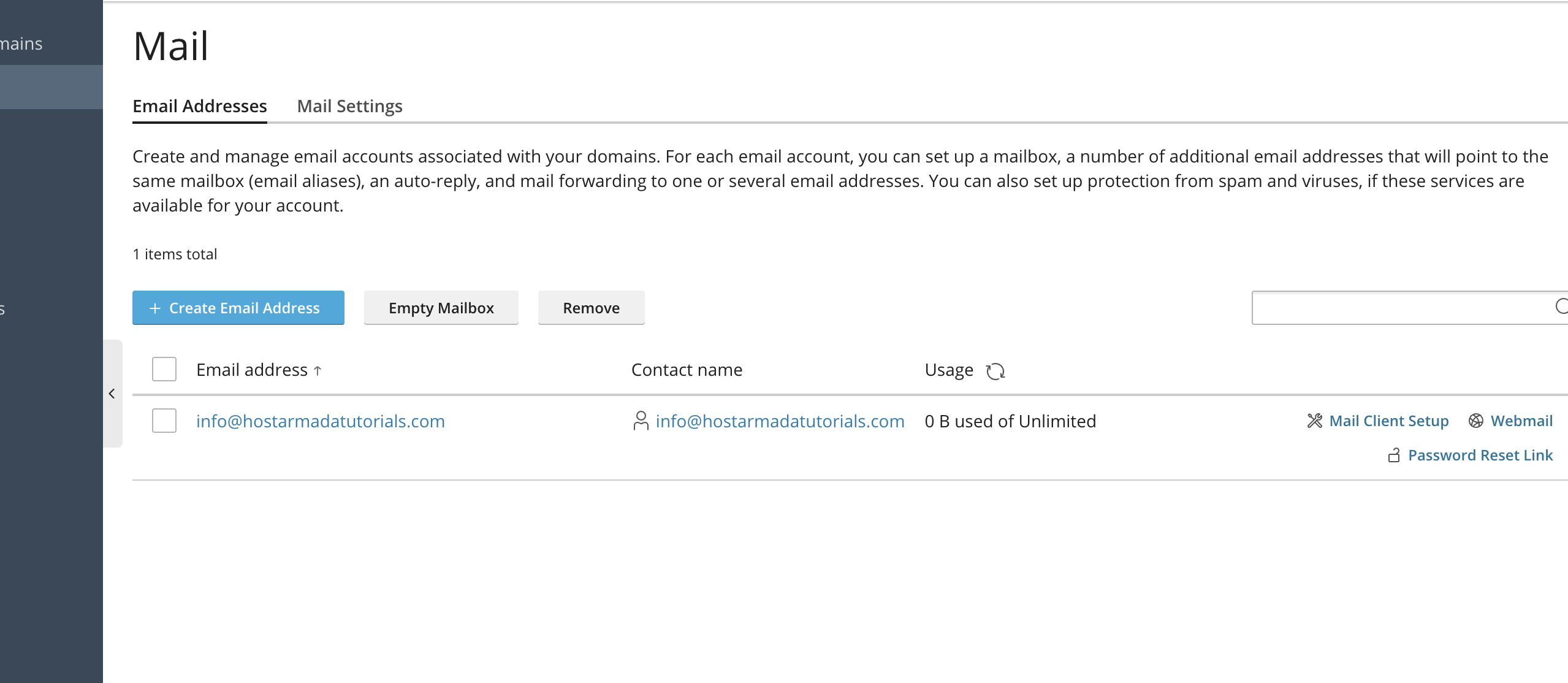
From the above-mentioned table section, you can perform a couple of actions. Let’s go over them.
Remove Email Account
To remove email accounts, please select the email account you would like to remove, using the checkbox on the far left side of the table section that corresponds to the email account.
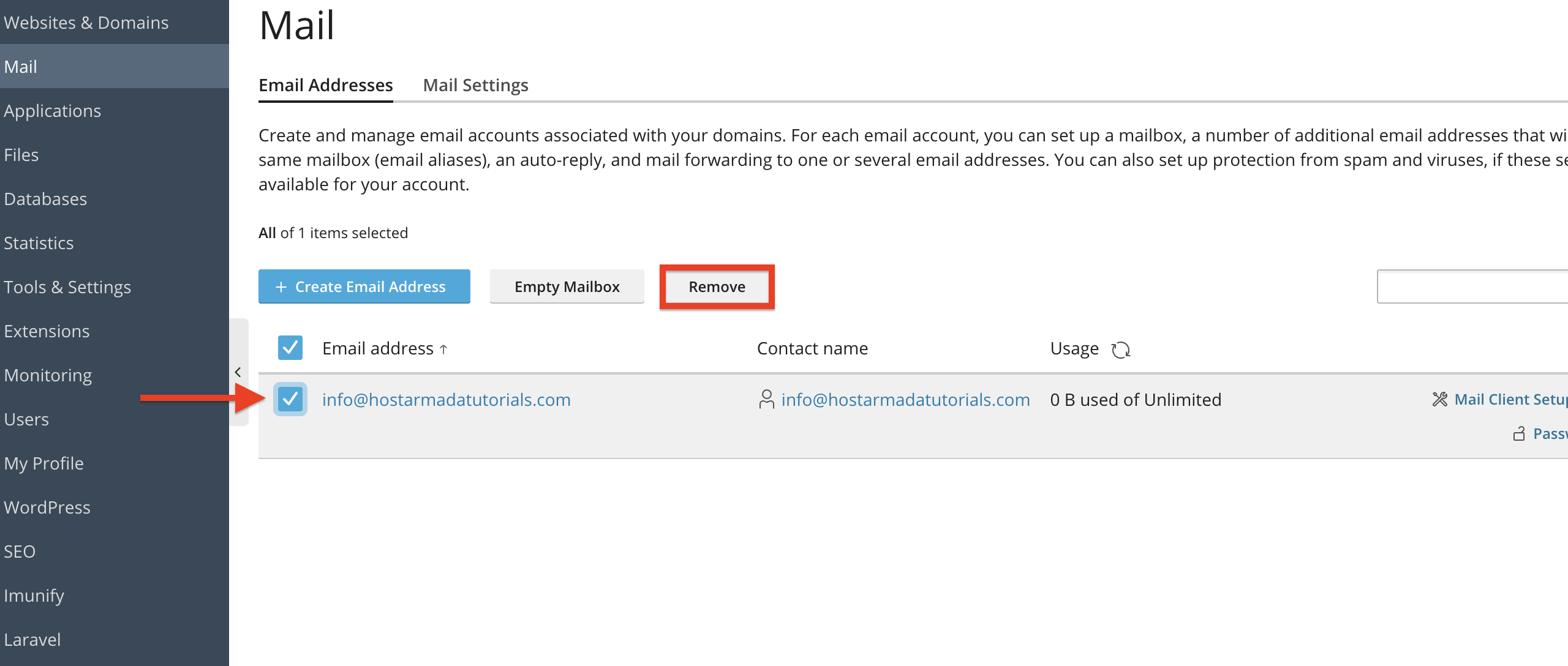
After doing that, please click on the “Remove” button located above the table section, right next to the “Empty Mailbox” button. Performing this action will unveil a prompt to which you must click “Yes, remove” to finalize the deletion process.
Empty Email Account
The act of emptying email accounts refers to deleting all messages within the account. This action could be helpful if you are using this email account for auto-replies or only for receiving notifications, and you simply want to empty all the messages inside.
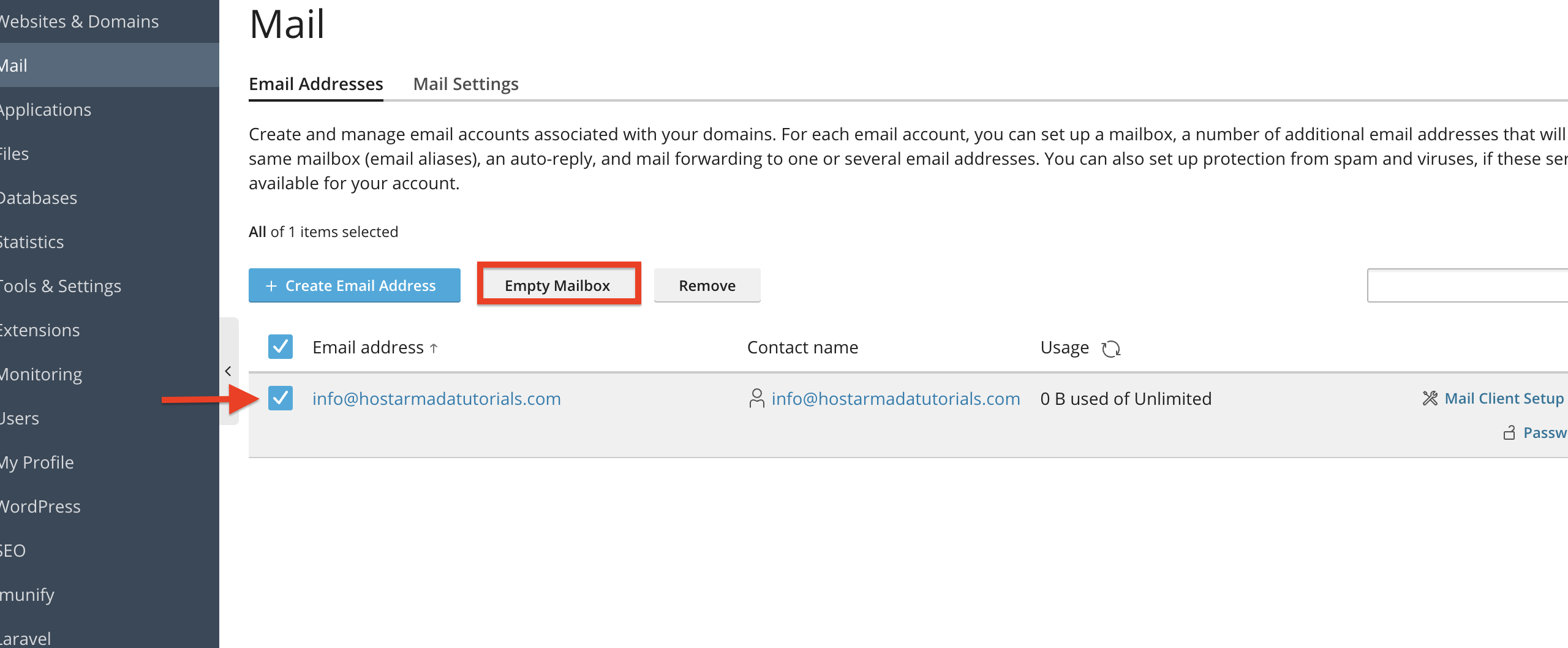
To empty an email account, please tick the checkbox for the respective email account you want to delete all messages for, and after that, please click on the “Empty Mailbox” button located above the table section, on the left side of the “Remove” button.
Performing this action will unveil a prompt to which you must select the “Yes, empty” button to finalize the process.
Mail Client Setup
Email Clients are third-party applications usually installed on a mobile device, laptop, or personal computer from where the customer can send or receive messages. They are handy as they can serve as an index point for all your email accounts, and you can easily send and receive messages without having to log in every time in your Plesk account.
To configure an email account, you would need specific details, such as IMAP/POP3 host name, IMAP/POP3 port, and your email address’s username and password. Plesk provides a very intuitive way of getting this information from within the email account management area. To reveal the Email Client Configuration Settings, please click on the “Mail Client Setup” link, located on the far right side of the table section, corresponding to the email account you wish to add to your email client.
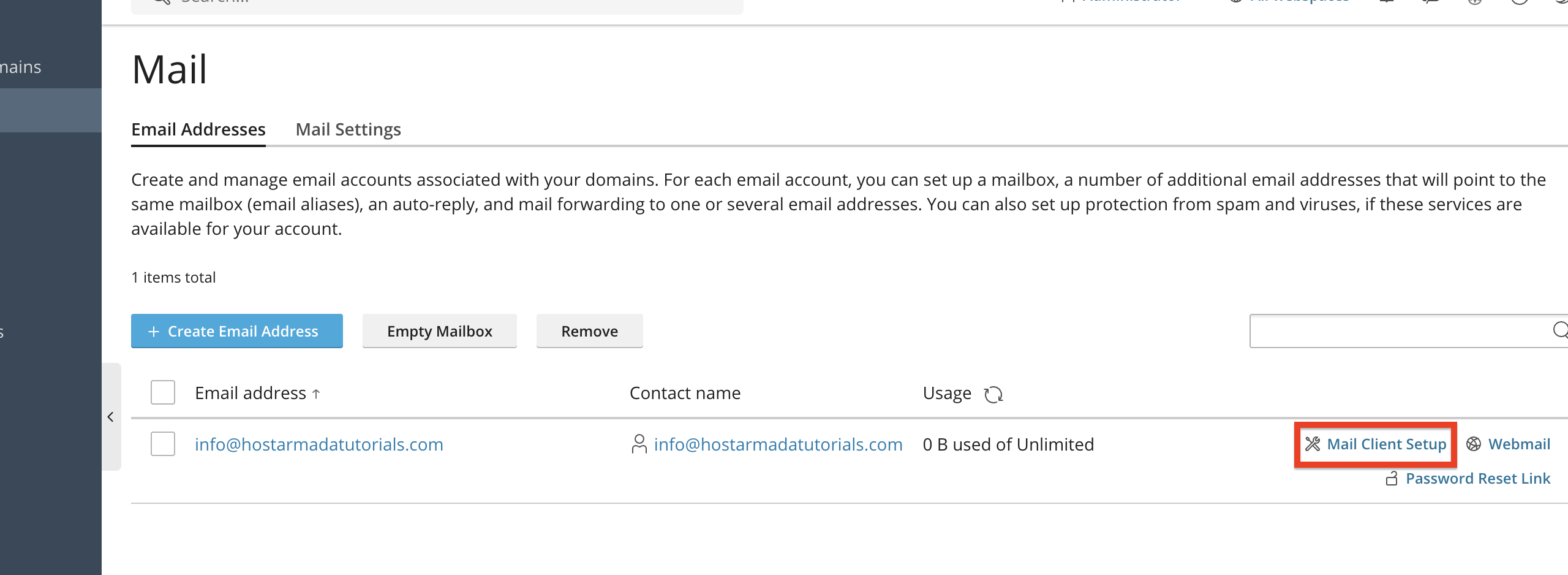
Performing this action will generate a pop-up window from the left side of your screen, containing all the required settings. The pop-up window will also contain step-by-step instructions for the most commonly used email clients, such as Outlook, Apple Mail, Gmail, and Thunderbird.
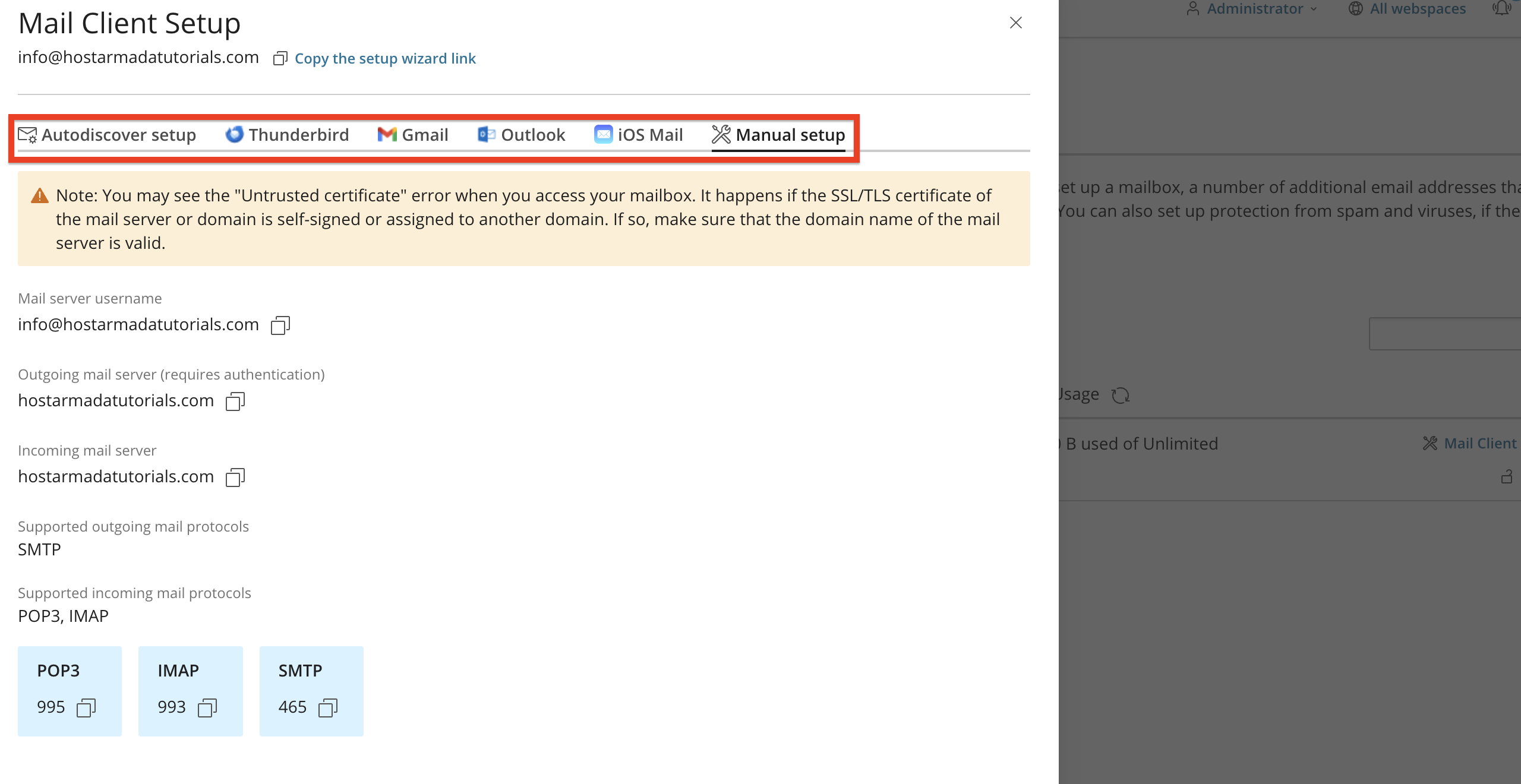
We suggest following the instructions provided to perform the integration seamlessly.
Access Webmail
Webmail is the primary way of viewing and sending messages from your email accounts. To access it, please click on the “Webmail” link corresponding to the email account you want to use on the far right side of the table section.
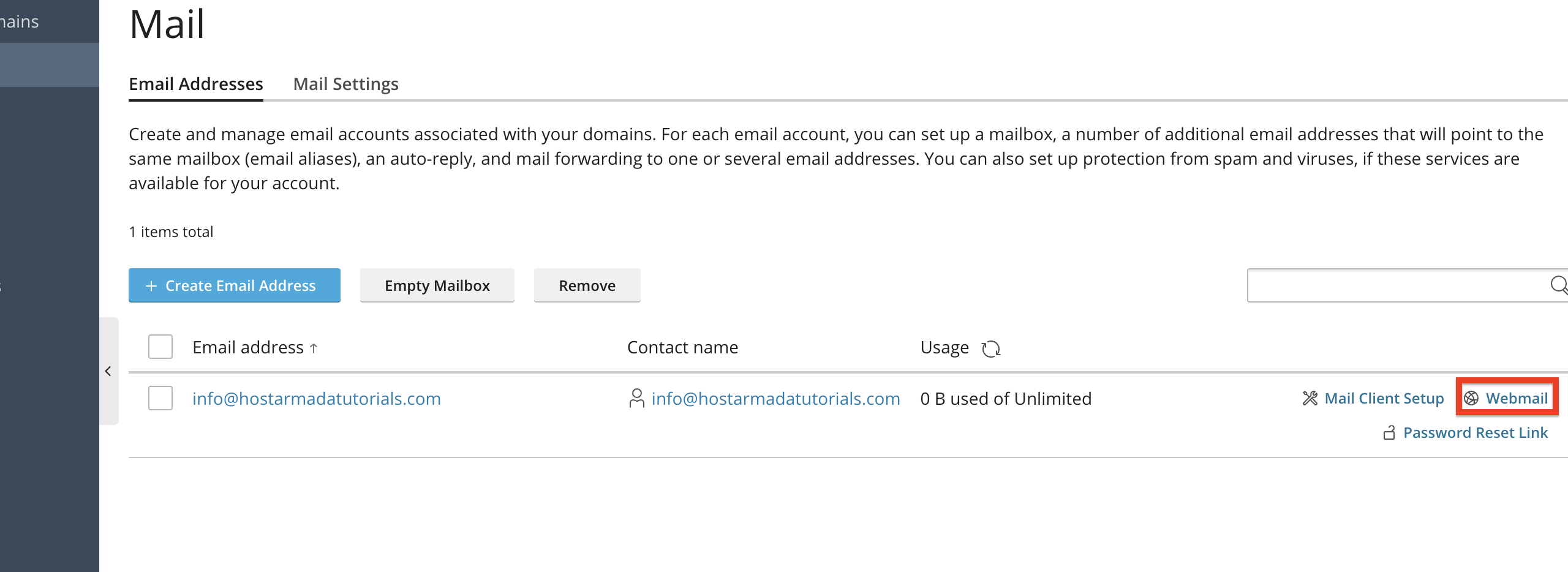
Performing this action will open a new tab in your browser and will open the Roundcube login form.
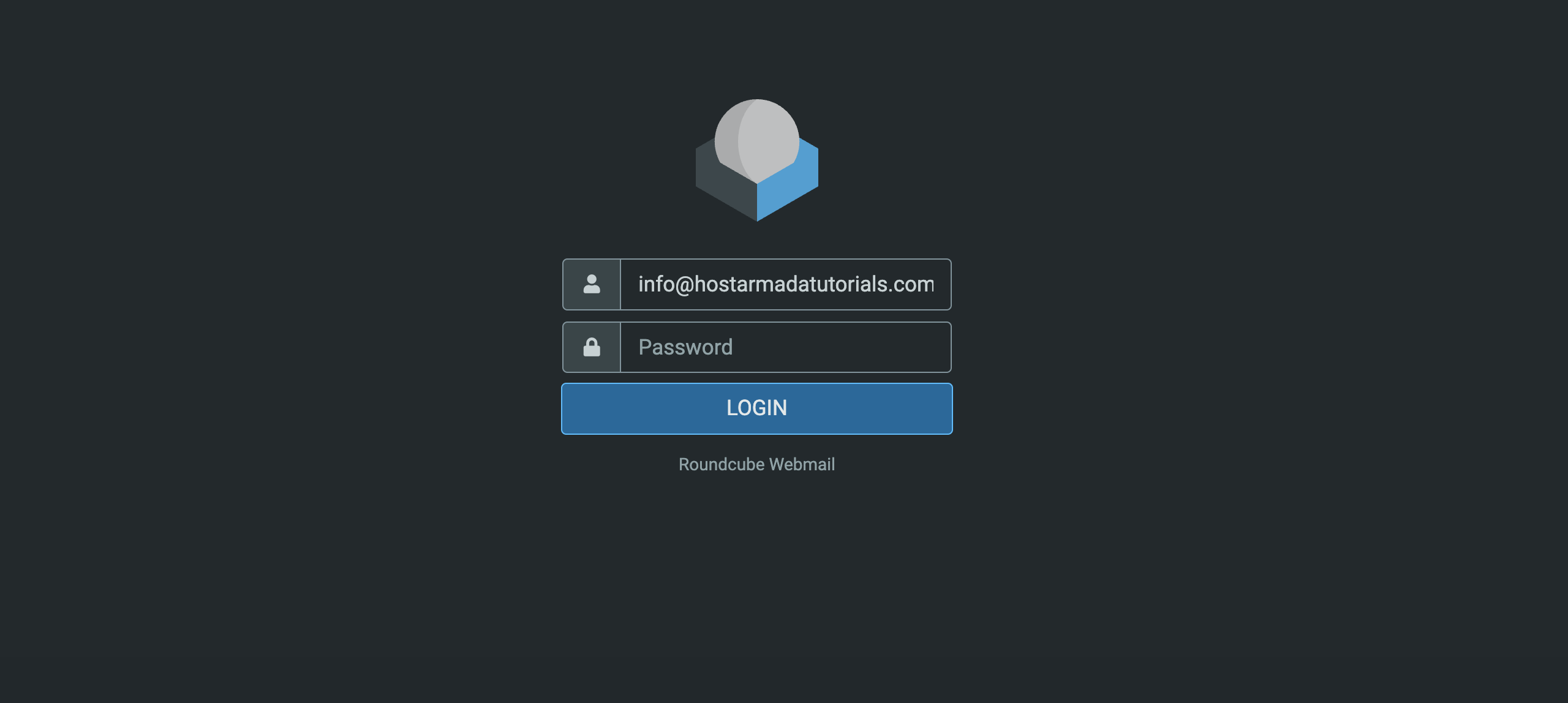
Please type in your email address and its password to log in.
Send Password Reset Link
Sending a password reset link could be especially useful if you, or your customer using that particular email account, has lost their password.
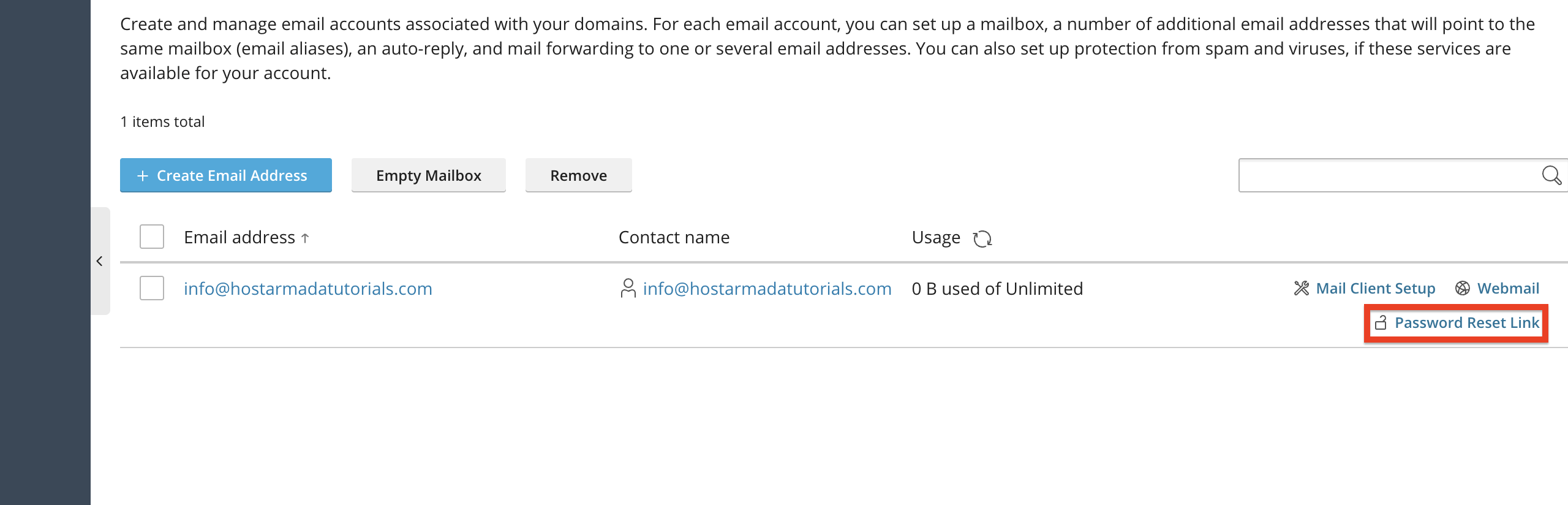
Thankfully, Pleks provides a straightforward method of retrieving your password by clicking the “Password Reset Link” for the email account you want to reset.
Upon performing the action above, Plesk will open a pop-up window from the left side of your screen, from where you will have two options:
- Copy the link to the password reset page - Please select this option if you completely forgot your email’s password and want to gain access again with a new one.
- Send it to email@domain.com - Please select this option if you want to perform a password change for your email account.
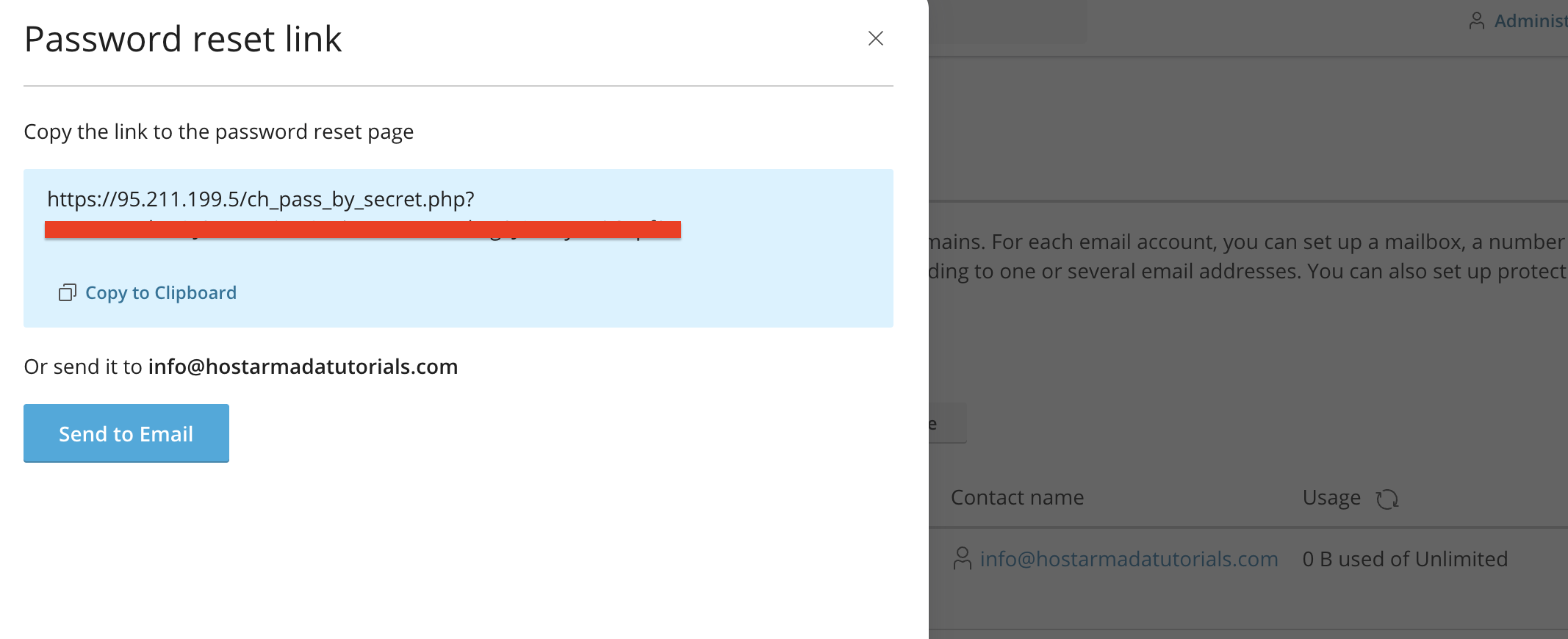
Of course, your reason for picking either of those could be different, however, we believe that our recommendations are generally the best situations in which you can choose each respective option.
Now that we have gone over all the available tools on the email accounts page, let’s explore how you can change existing email accounts’ settings.
Changing Email Account Settings
Changing an email account's settings, naturally, requires you to have at least one created account. From the email management page, please click on the email account itself to open its settings.
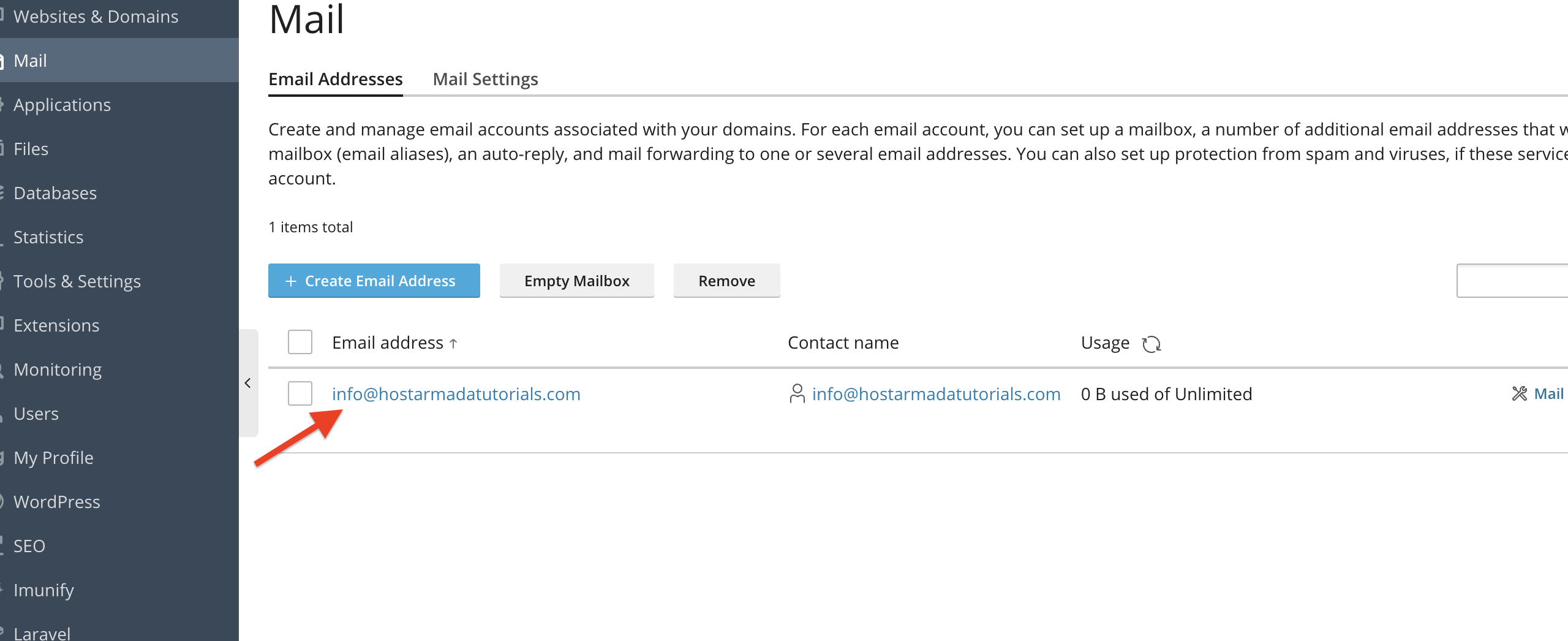
Performing this action will redirect you to the email account management page from where you can start editing the email account’s general settings. These settings are absolutely identical to the ones we discussed in our Email Creation Section earlier in this tutorial; thus, we will not cover them once again.
In other words, you may edit your email account’s password, quota, and name. For example, you can rename it from “info@domain.com” to “hello@domain.com”.
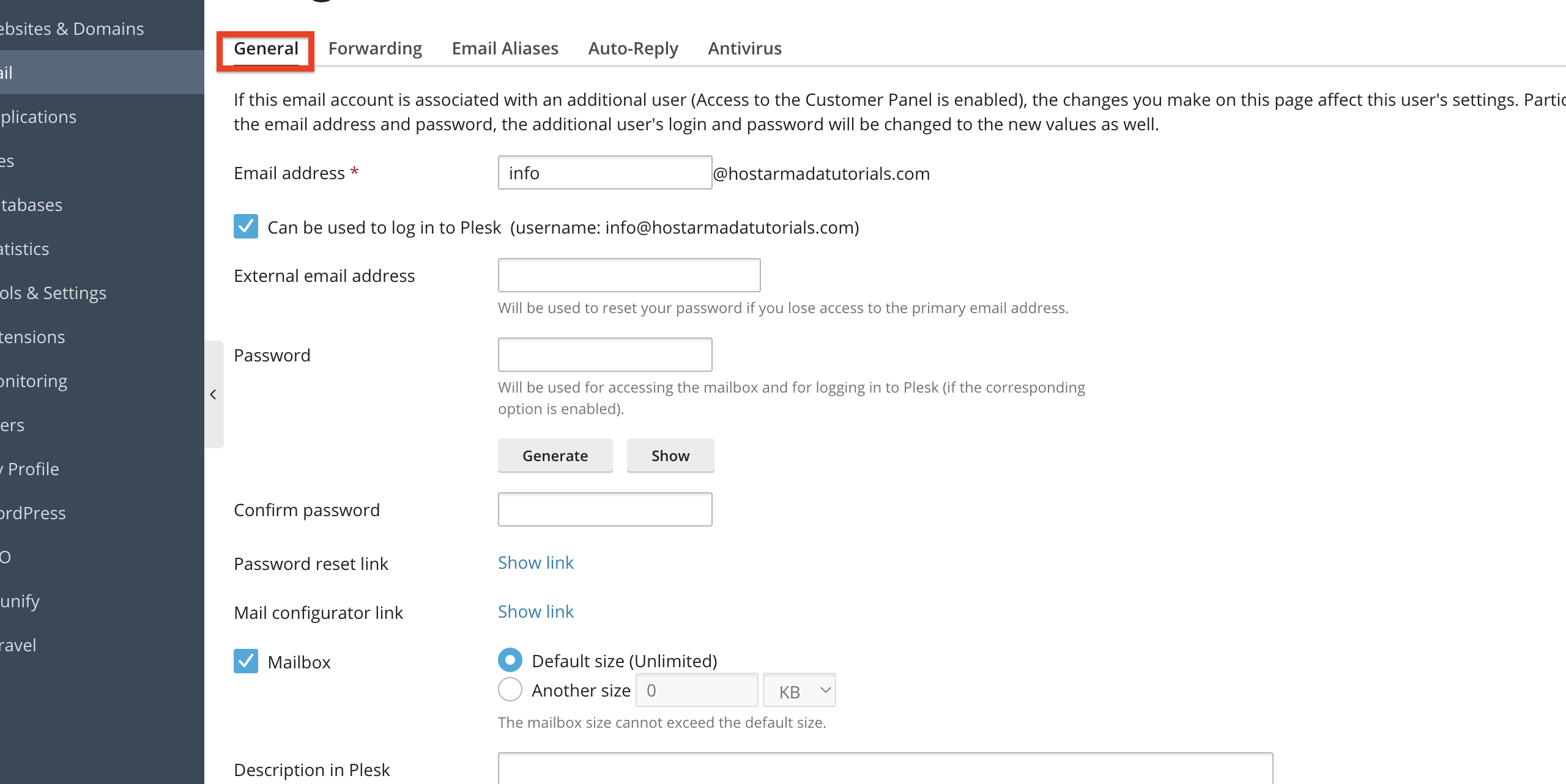
After making the desired changes, you can click either the “Apply” button at the bottom of the page to save them and remain within the Email Settings page, or click on the “Ok” button to save your settings and get redirected to the previous page.
Setting Up Email Forwarding
The next tab we will examine is the “Forwarding” tab. Email forwarding allows you to redirect incoming messages to another email address automatically. This can be particularly useful when you would like to distribute a message across your team, without having to send it to each team member manually.
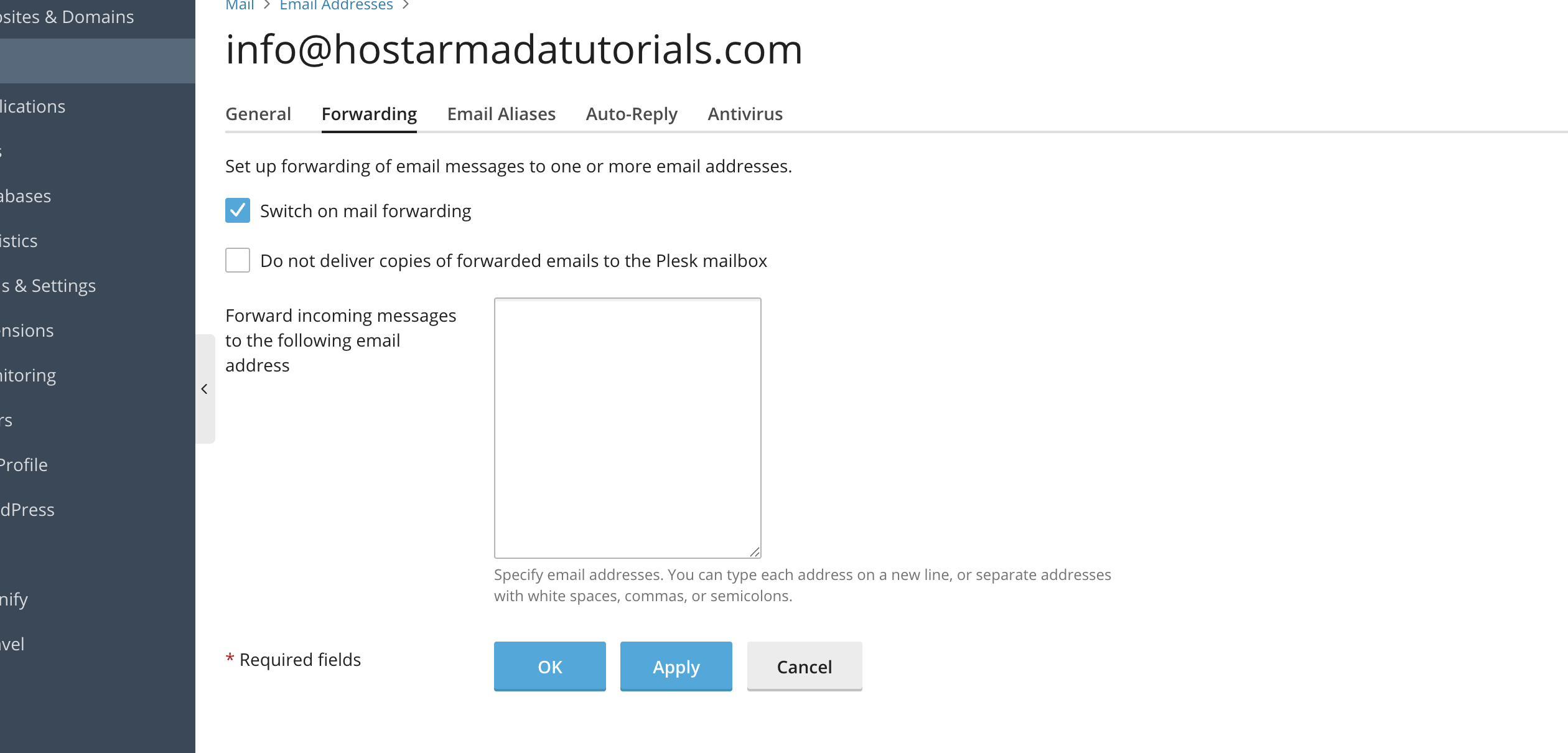
To set this up, please click on the “Forwarding” tab, located on the right side of the “General” tab. Doing this will unveil the settings there, which are as follows:
- Switch on mail forwarding - Please use this tickbox to enable/disable email forwarding for this email account.
- Do not deliver copies of forwarded emails to the Plesk mailbox - Please use this checkbox to enable/disable message retention to the original sender. If this option is disabled, the primary recipient will also have a copy of the message within their inbox. If this option is enabled, no copies will be kept on the Plesk server.
- Forward incoming messages to the following email address - Please use this content box to add all the email recipients you wish to have the messages this account receives forwarded to.
After adding the desired email forwarders, you can click either the “Apply” button at the bottom of the page to save them and remain within the “Email Settings” page, or click on the “Ok” button to save your settings and get redirected to the previous page.
Setting Up Email Aliases
Email aliases are similar to the forwarder, however, the messages are only forwarded to the same @domain.com mail account. You may set an email alias only for accounts derived from your domain.com. For example, you cannot set your Gmail email address as an alias to your info@domain.com.
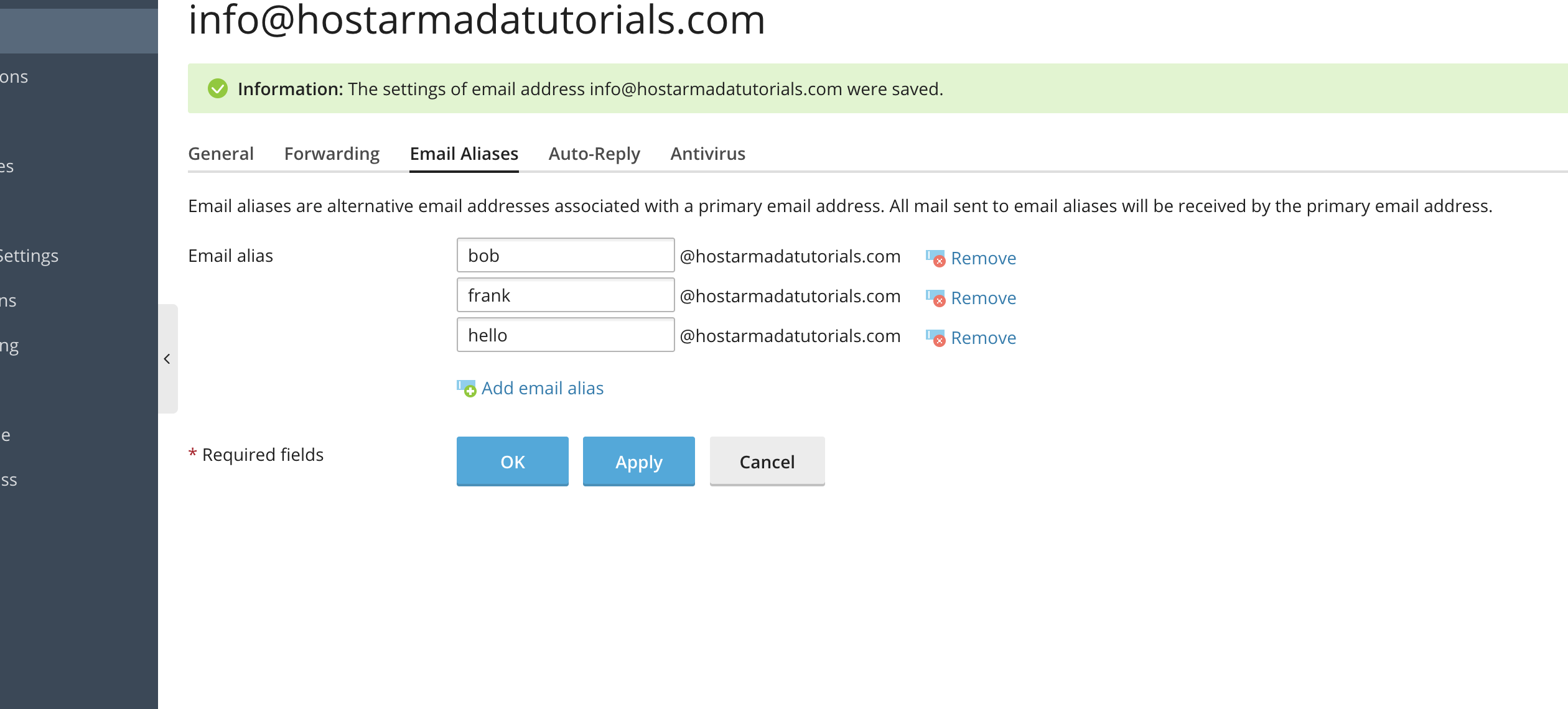
To set up email aliases, please click on the “Email Aliases” tab, located on the right side of the “Forwarders” tab. Doing this will unveil the settings there, which are as follows:
- Email Alias - Please use this text field to type in the name of your email alias.
- Remove - Please click this link to remove an existing email alias.
- Add email alias - Please click this link to add more email aliases.
After adding or removing the desired domain aliases, you can click either the “Apply” button at the bottom of the page to save them and remain within the “Email Settings” page, or click on the “Ok” button to save your settings and get redirected to the previous page.
Enabling Auto-Reply
The Auto-Reply functionality is quite handy, as it sets up an automatic response to any incoming message to your email address. A very popular case where the auto responder is used is to notify your correspondents that you are out of the office or on vacation.
To set up an Auto-Reply for your email account, please click on the “Auto-Reply” tab, located on the right side of the “Email Aliases” tab. Doing this will unveil the configurations there, which are:
- Switch on auto-reply - Please use this checkbox to enable/disable the auto-reply functionality.
- Auto-reply message subject - Please use this text field to set the auto-reply message subject. The default one is “Re: <request_subject>”, which is a decent option, however, you can configure it to your liking.
- Message format - Please use this radio button to select the format of the message. You can choose between Plain text and HTML.
- Encoding - Please use this drop-down menu to select the encoding for your auto-replied message.
- Auto-reply message text - Please use this content box to type in the content of your auto-reply message. In other words, what the sender sees when the auto-reply is triggered.
- Forward to - Please use this text field to add an email account to which the auto-replied message will be forwarded as well.
- Send an automatic response to a unique email address no more than (times a day) - Please use this field to type a number, setting the number of messages a unique email address can receive from your auto-responder. Particularly useful if you wish to avoid duplicate emails on the same email accounts.
- Attach a file - Please use this button here to add an attachment to your auto-replier.
- Switch off auto-reply on - Please use this checkbox to unlock three drop-down menus that let you set an expiry date for your auto-replier.
After you are done configuring your auto-replied message, please click either the “Apply” button at the bottom of the page to save it and remain within the “Email Settings” page, or click on the “Ok” button to save your settings and get redirected to the previous page.
Mail Settings
The last form of control Plesk provides you for your email accounts is the Mail Settings, which allows you to alter the mail service settings for this domain.
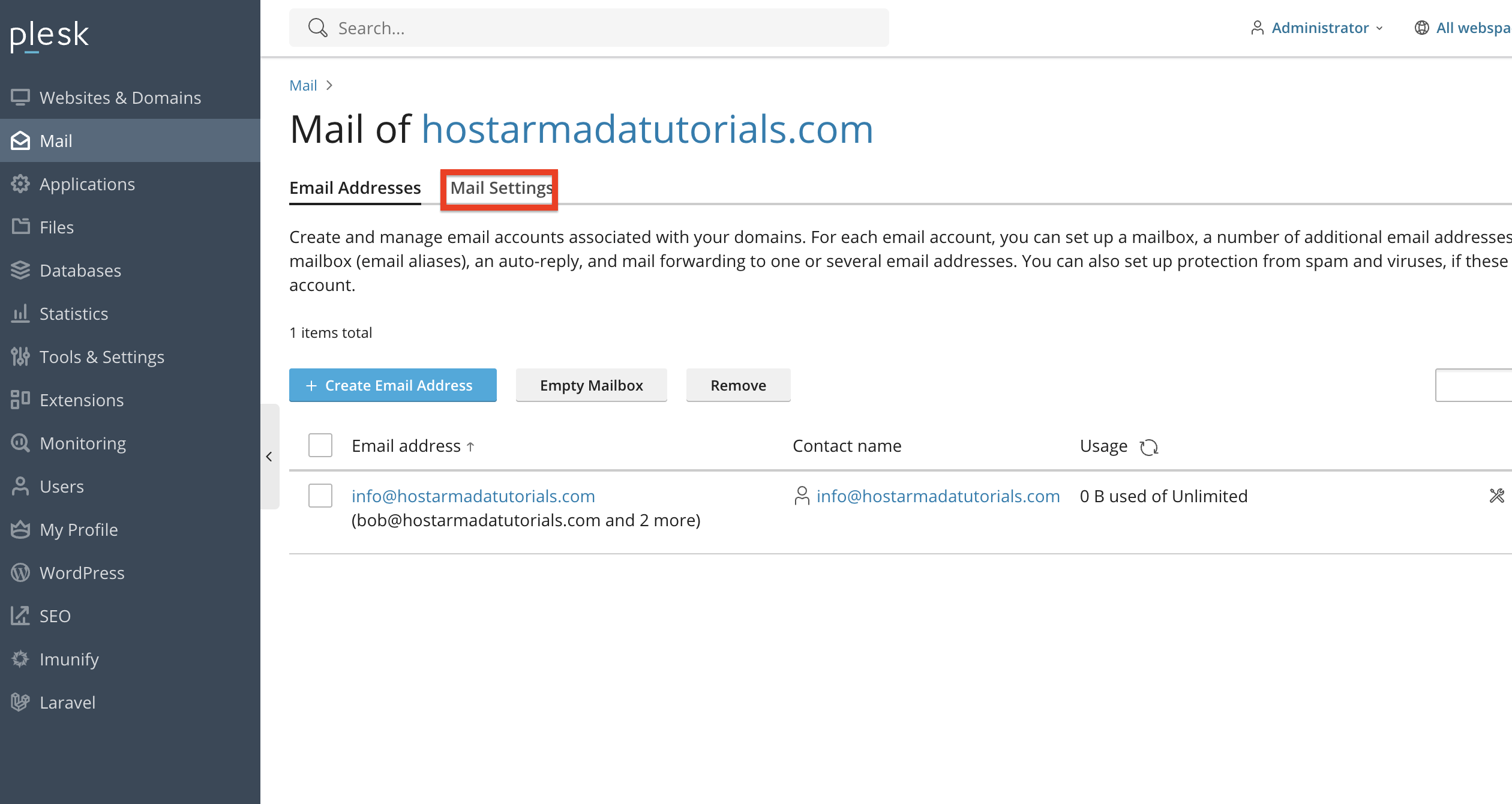
To access this area, please navigate to the page where you can see all your email accounts, and from there, please click on the “Mail Settings” tab located near the top right side of the page.
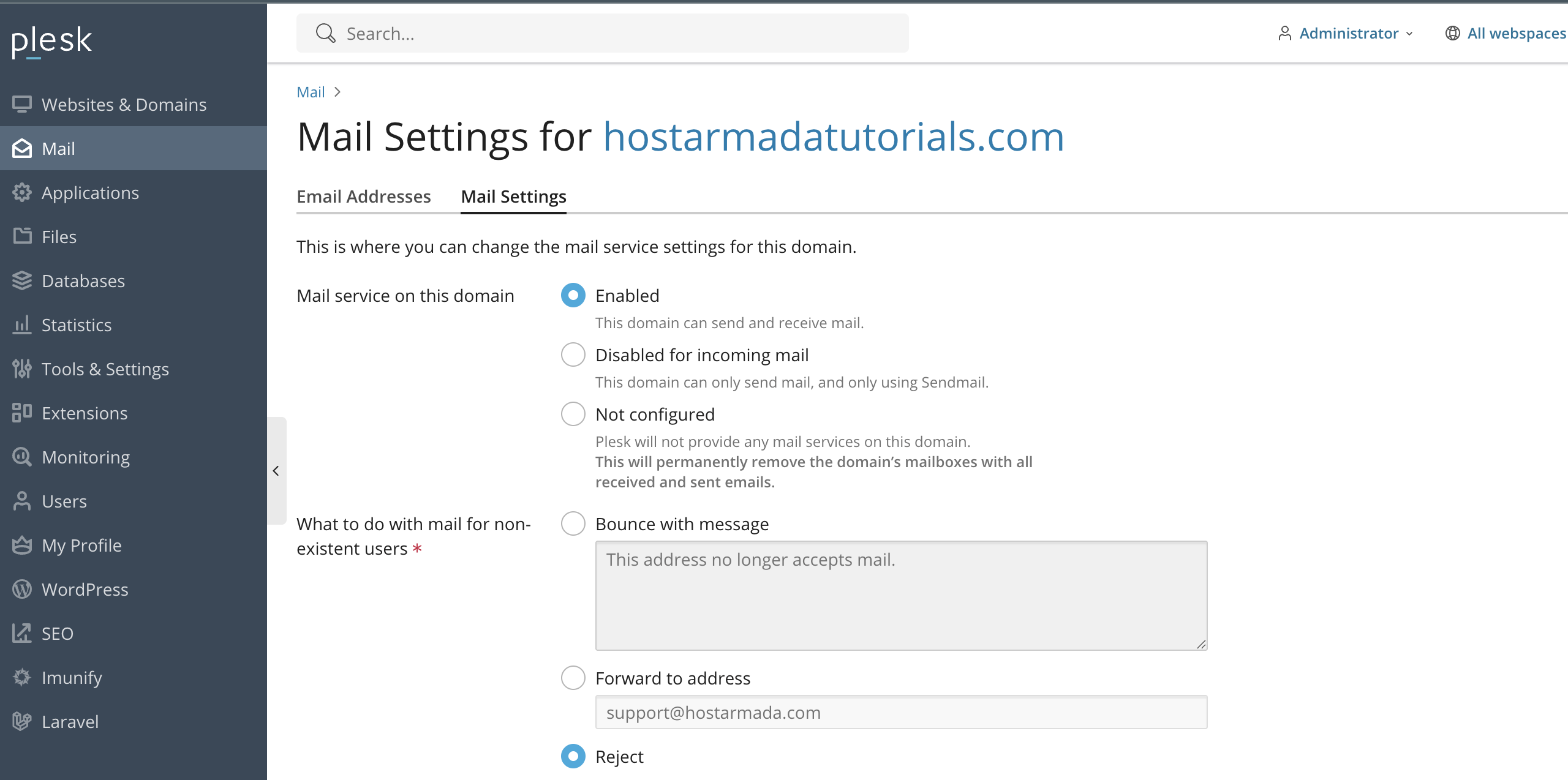
Performing this action will redirect you to the page that contains all the mail service settings for your domain. Let’s go over them one by one.
- Mail service on this domain - Please use the radio button here to select the email service behaviour for this domain. The options are as follows:
- Enabled - Please select this option to allow both incoming and outgoing email services.
- Disabled for incoming - Please select this option to disable your mail outbound service, but leave the incoming service working.
- Not configured - Please select this option if you would like to disable both incoming and outgoing email services for this domain.
- What to do with mail for non-existent users - Please use the radio button here to select the email service’s behaviour when you receive an email for a non-existent email account.
- Bounce with message - Please select this option to use the content box underneath, and the sender will receive a bounce message with what you typed inside.
- Forward to address - Please select this option to use the text field corresponding to it and forward the message to an email account of your choosing.
- Reject - Please select this option to reject the message completely.
- Webmail - Please use this drop-down menu to select your preferred webmail application. The default choice is RoundCube.
- SSL/TLS certificate for webmail - Please use this drop-down menu to select an SSL/TLS certificate for your webmail sub-domain.
- SSL/TLS certificate for mail - Please use this drop-down menu to select an SSL/TLS certificate for your mail sub-domain.
- Use DKIM spam protection system to sign outgoing email messages - Please use this checkbox if you would like to enable DKIM signing for your outgoing email messages. This should reduce the likelihood of your outbound messages being flagged as spam.
- Active DKIM Selector - Please use the radio button and the button “Create new DKIM Selector” to select or create a new DKIM selector for your email service. The default option is the Plesk DKIM selector, but you can add a new one and change it if you need to.
- Enable mail autodiscover - Please use the checkbox here to enable or disable Autodiscover. This allows email client applications to retrieve an XML file from the server describing all the services and their options (such as whether SSL is used, port numbers, etc). To retrieve this XML file, the email clients make various HTTP requests using the email address as a starting point.
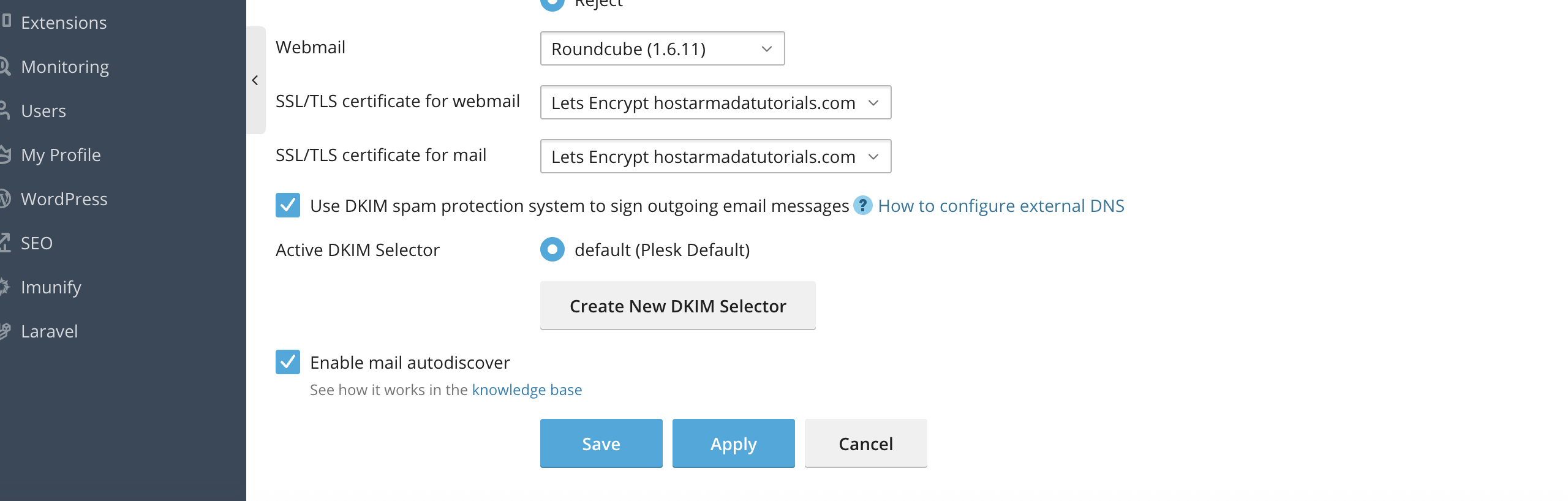
Once you have configured all the settings you need on the Mail Settings page, please click on the “Save” button to save all your changes and be redirected back to the email accounts page, or click the “Apply” button to save the changes and remain on the same page.
Conclusion
There you have it! A very straightforward step-by-step guide on how to manage email addresses in Plesk. From creating new accounts to setting up forwarding, auto-replies, and spam filtering, Plesk’s email tools are robust and easy to use, no matter your level of technical expertise!
By following this tutorial, you can efficiently handle all aspects of your domain’s email services and ensure smooth, professional communication for your business.












