Introduction
Email is one of the most important communication tools, but it often comes with the challenge of dealing with unwanted or suspicious messages, commonly known as spam. Too much spam not only clutters your inbox but can also pose risks such as phishing attempts or malware.
To help you stay protected, Plesk provides a built-in Spam Filter feature. This tool allows you to detect and manage unwanted emails by adjusting how strict the filtering is, choosing what happens to detected spam, and maintaining trusted (whitelist) or blocked (blacklist) senders.
In this tutorial, we will show you how to access and configure the Spam Filter in Plesk so that you can keep your mailbox clean and safe. We will begin by guiding you on how to reach the Spam Filter settings for your email account, and then we will explore the available configuration options.
Accessing the Spam Filter Settings in Plesk
First and foremost, make sure you are logged in to your Plesk control panel. To perform that, please enter your IP address, hostname, or domain name inside your web browser’s search bar and add “:8443” at the end. It should look something like: “https://yourdomain.com:8443”. By doing that, you will be prompted by a login form requesting your username and password.
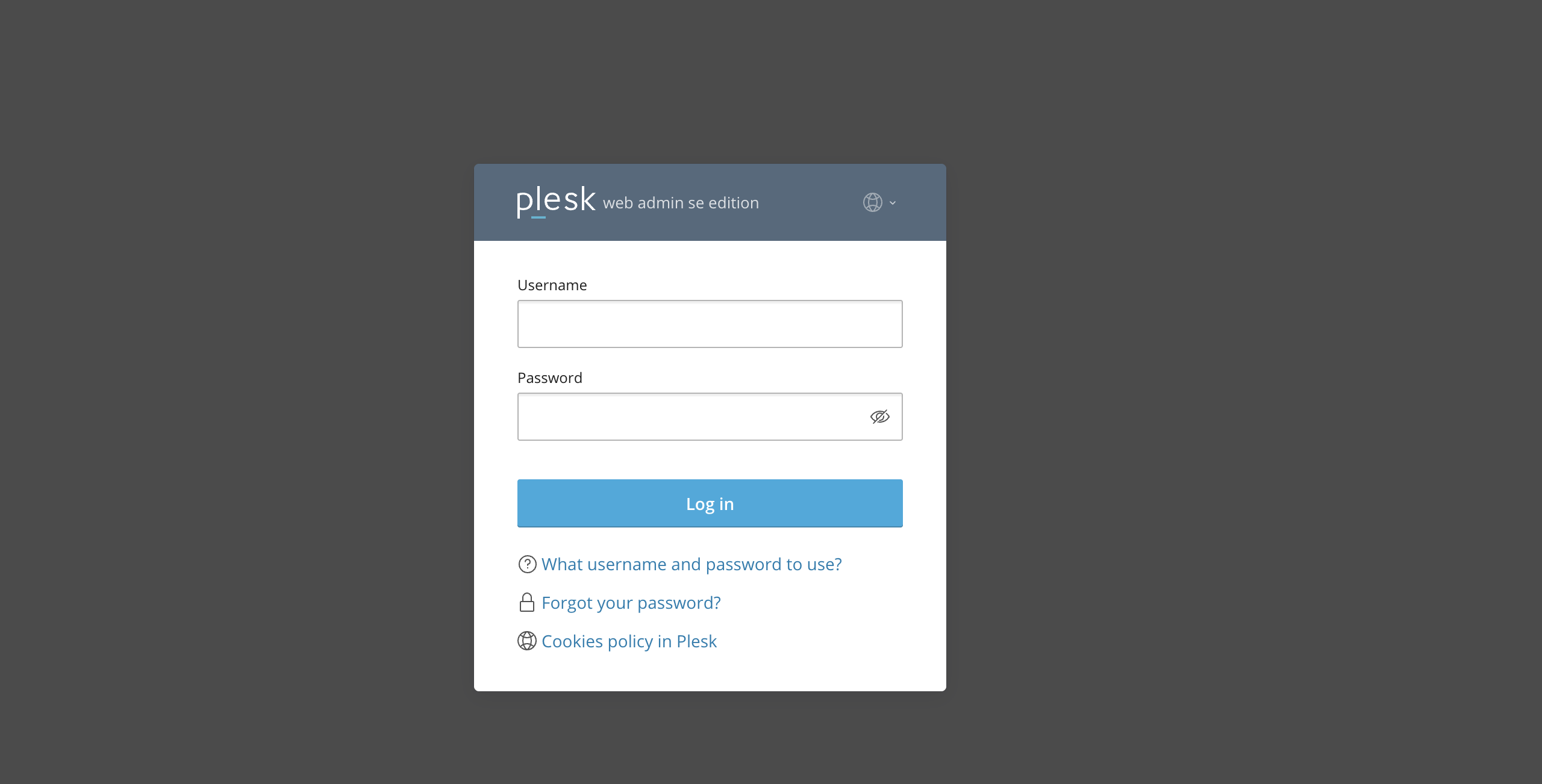
After logging in with your username and password, Plesk will automatically display the “Websites & Domains” page, which will be your index page from where you can manage everything related to your websites and domains on Plesk.
Once you are inside the Plesk dashboard, you will see a menu on the left-hand side. Please locate and click on the “Mail” option, located right under the “Websites and Domains”.
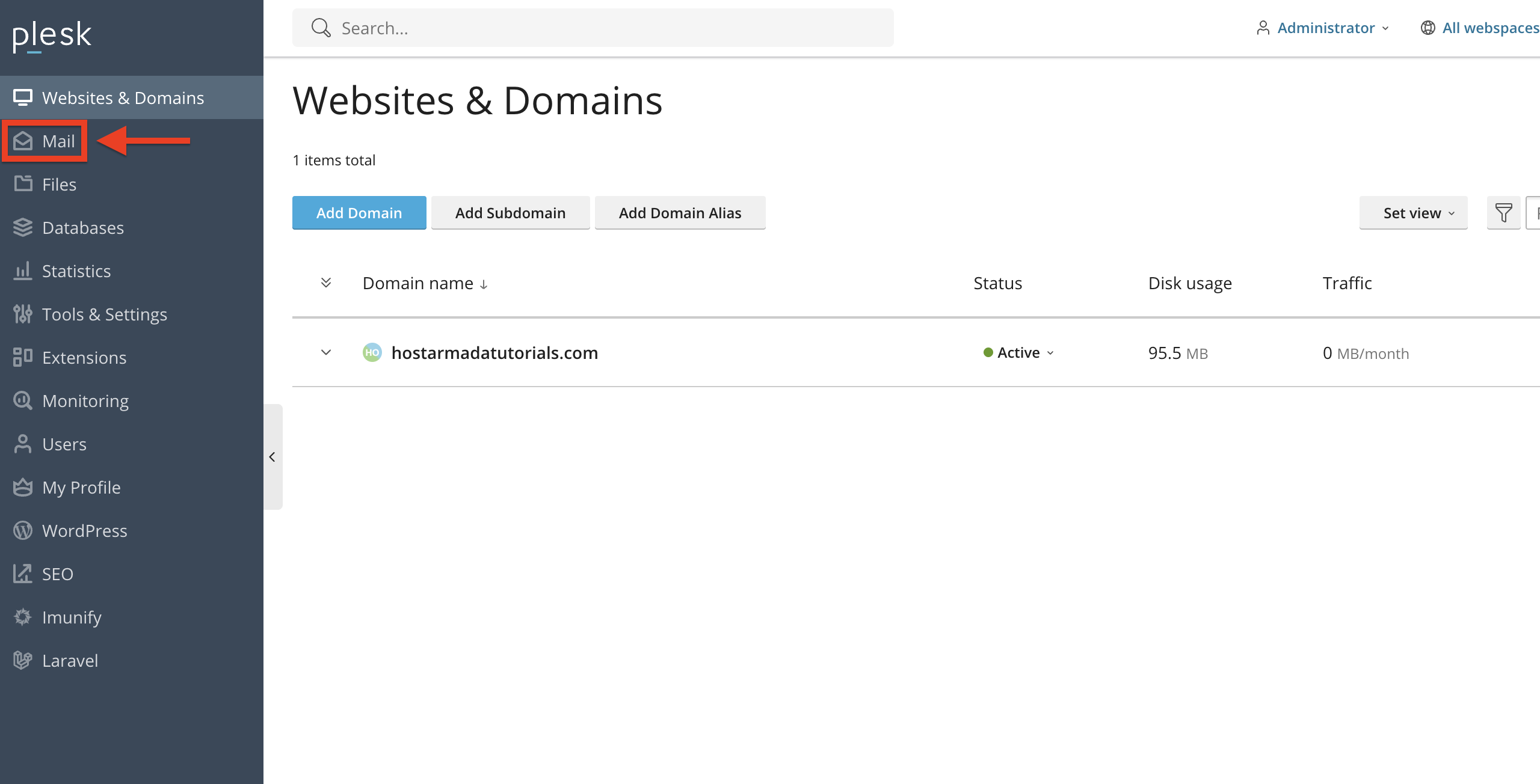
After clicking, you will be presented with a list of all email accounts that belong to your domain. Each of these accounts can be managed separately.
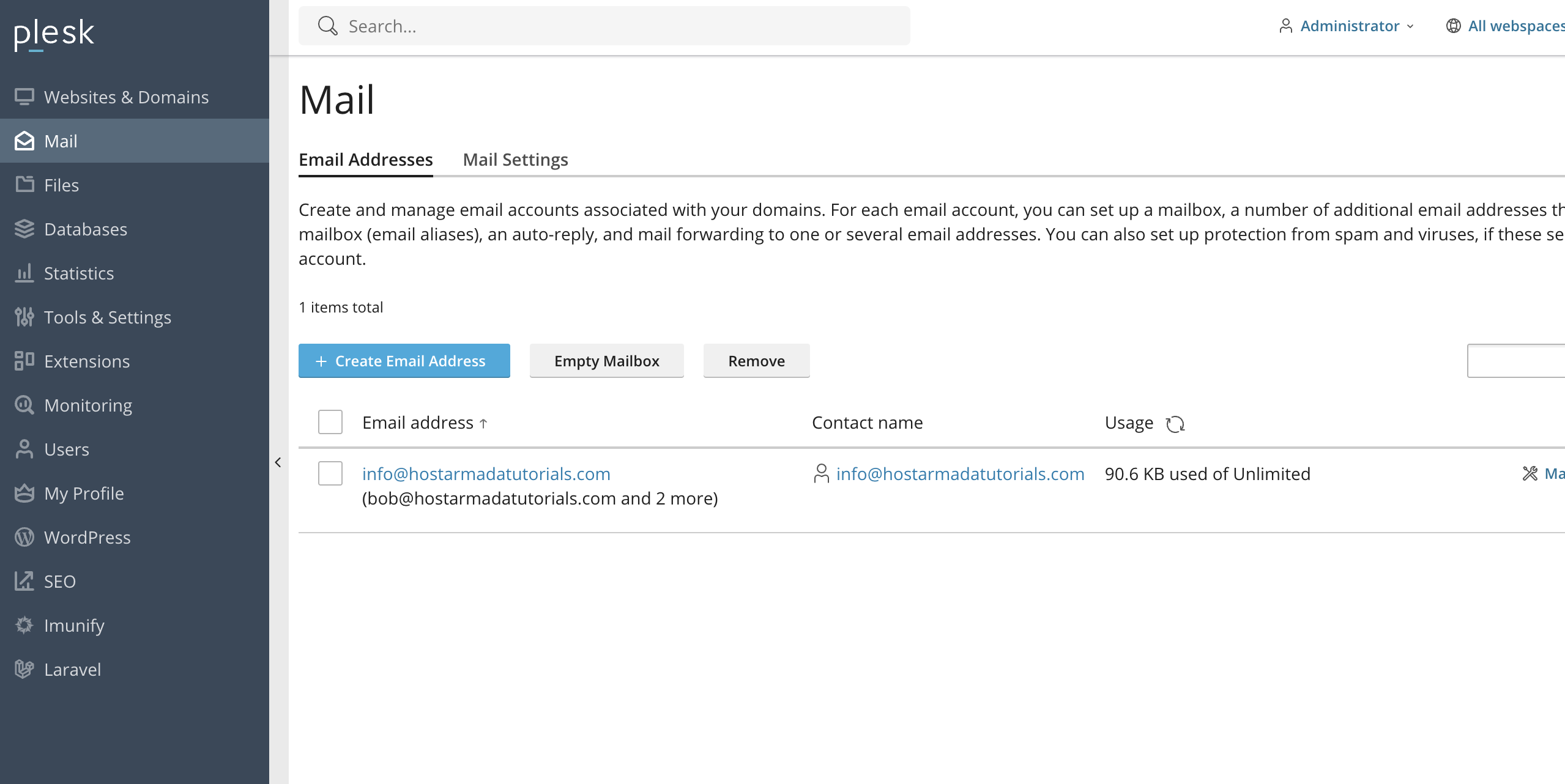
Please find the email address you would like to configure and click on it. Performing this action will open the management page for that particular email account. On this page, you will notice several tabs related to different settings. Among them, you will see the Spam Filter tab.
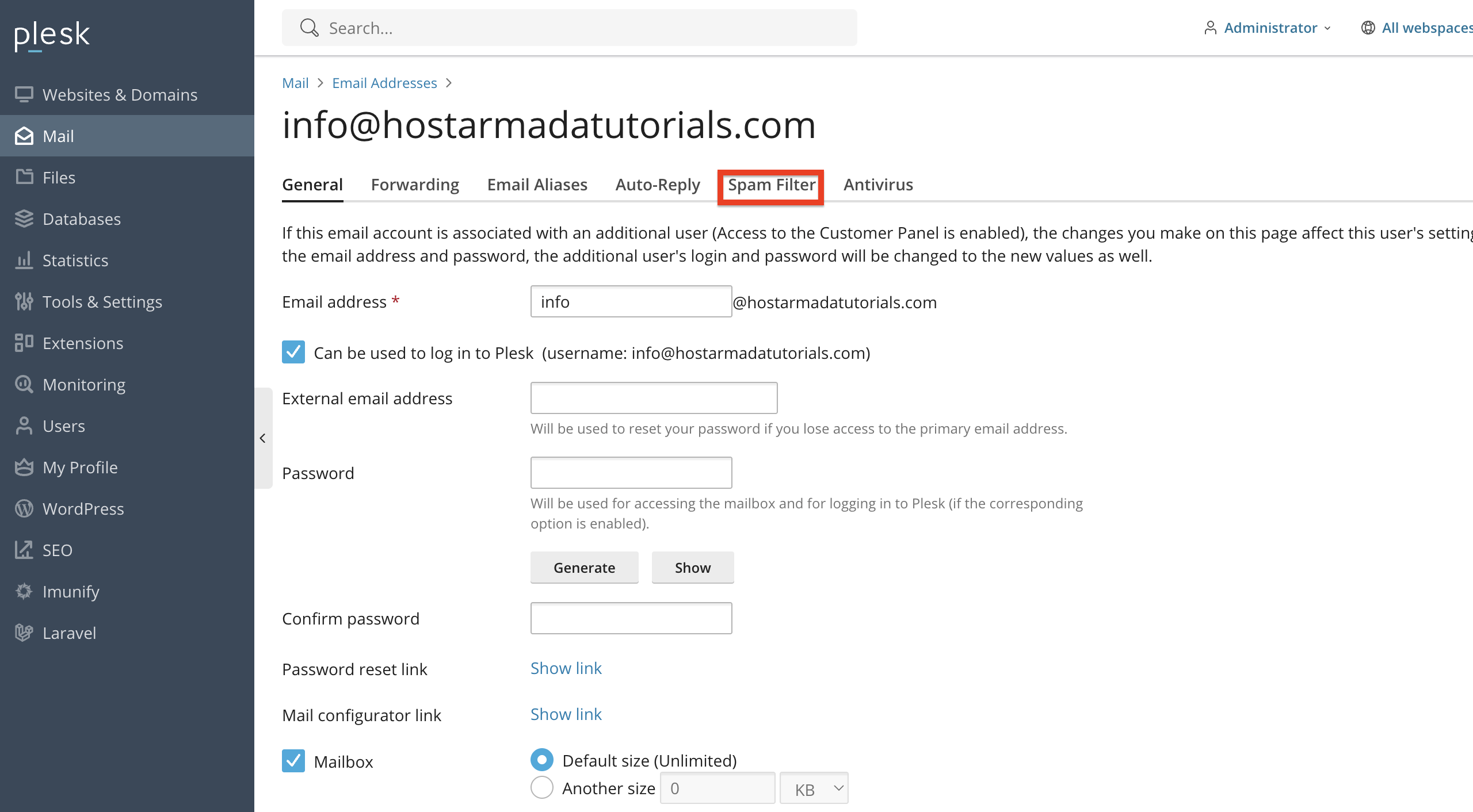
Please click here, as this is the section where you can configure the filtering rules and preferences for the selected mailbox.
Enabling the Spam Filter
By default, the Spam Filter might not be active. To enable it, please check the option labeled Switch on spam filtering for this email address.
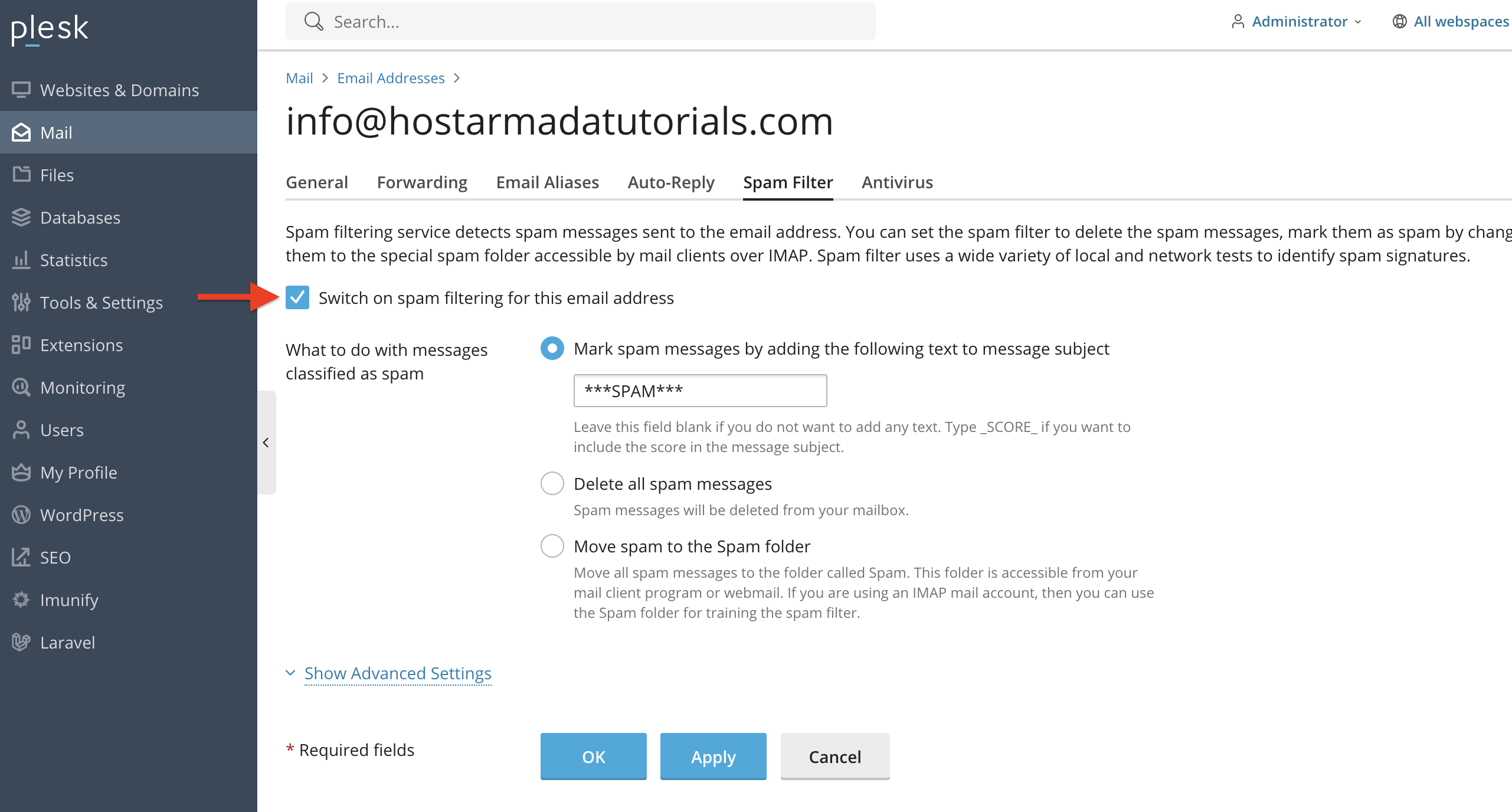
Once enabled, Plesk will begin scanning incoming messages for spam characteristics, and you will also see additional options that allow you to customize how the filter works. Please continue with this tutorial to learn how to fine-tune the spam-filtering functionality.
Configuring the Spam Filter
When the Spam Filter is turned on, you can fine-tune its behavior. Let’s go over all of the options below so you can get a better idea.
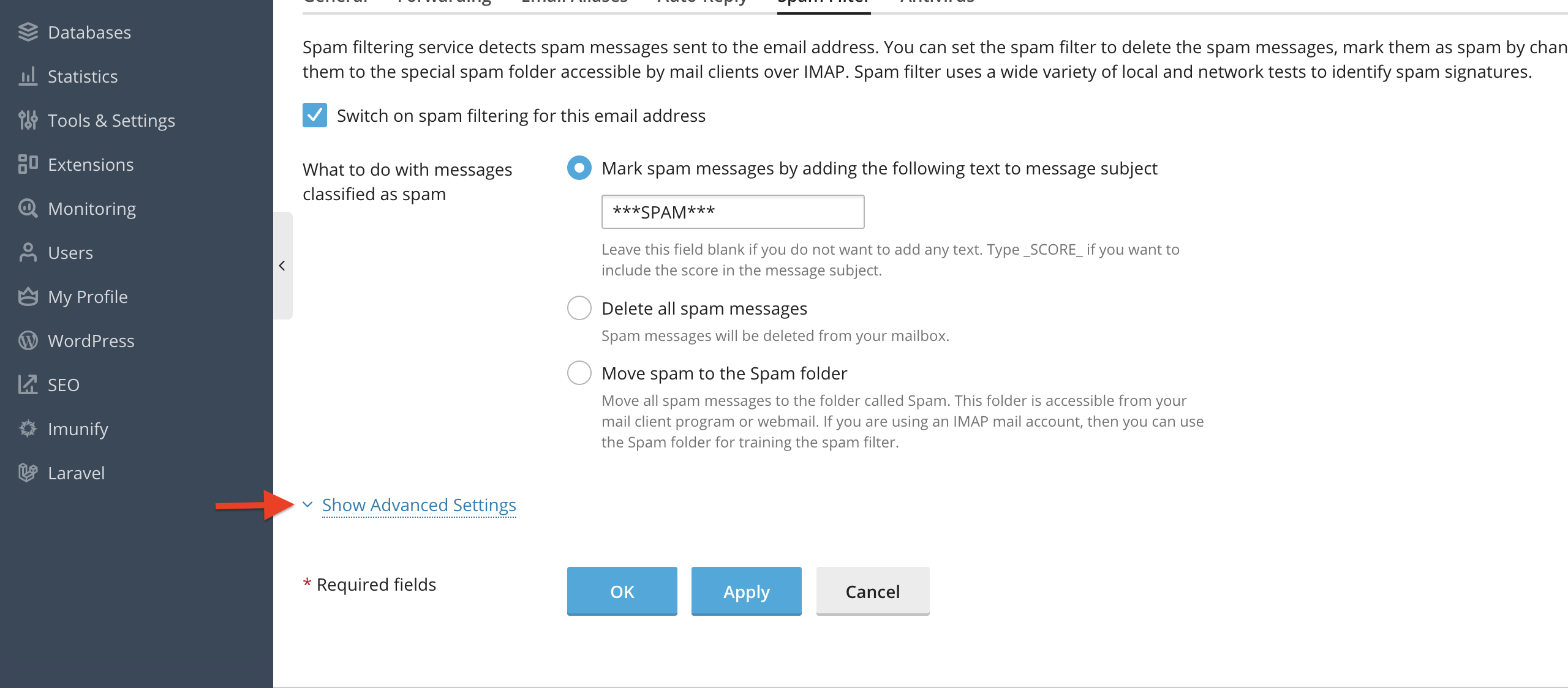
- What to do with messages classified as spam - Please use the radio button to select the spam filter’s behaviour when it classifies a message as spam.
- Mark spam messages by adding the following text to message subject - Please use this option if you would like all messages detected as spam to add a text message to their subject and make it more distinguishable. The default text is “***SPAM***”; however, you can use a custom message if you want.
- Delete all spam messages - Please use this option if you want to immediately delete all the spam the filter detects.
- Move spam to the Spam folder - Please use this option if you would like to move all spam messages to the folder labeled as “Spam”. This folder is accessible from your mail client program or webmail. If you are using an IMAP mail account, then you can use the Spam folder for training the spam filter.
Notice: To expand the remaining options, please click on the “Show Advanced Settings” drop-down menu.
The spam filter performs several different tests on the body and subject line of each message. As a result, each message scores points that will later be used to form a spam “score”. The higher the number, the more likely a message is spam. By default, the filter sensitivity is set so that all messages with a score of 7 or higher are classified as spam.
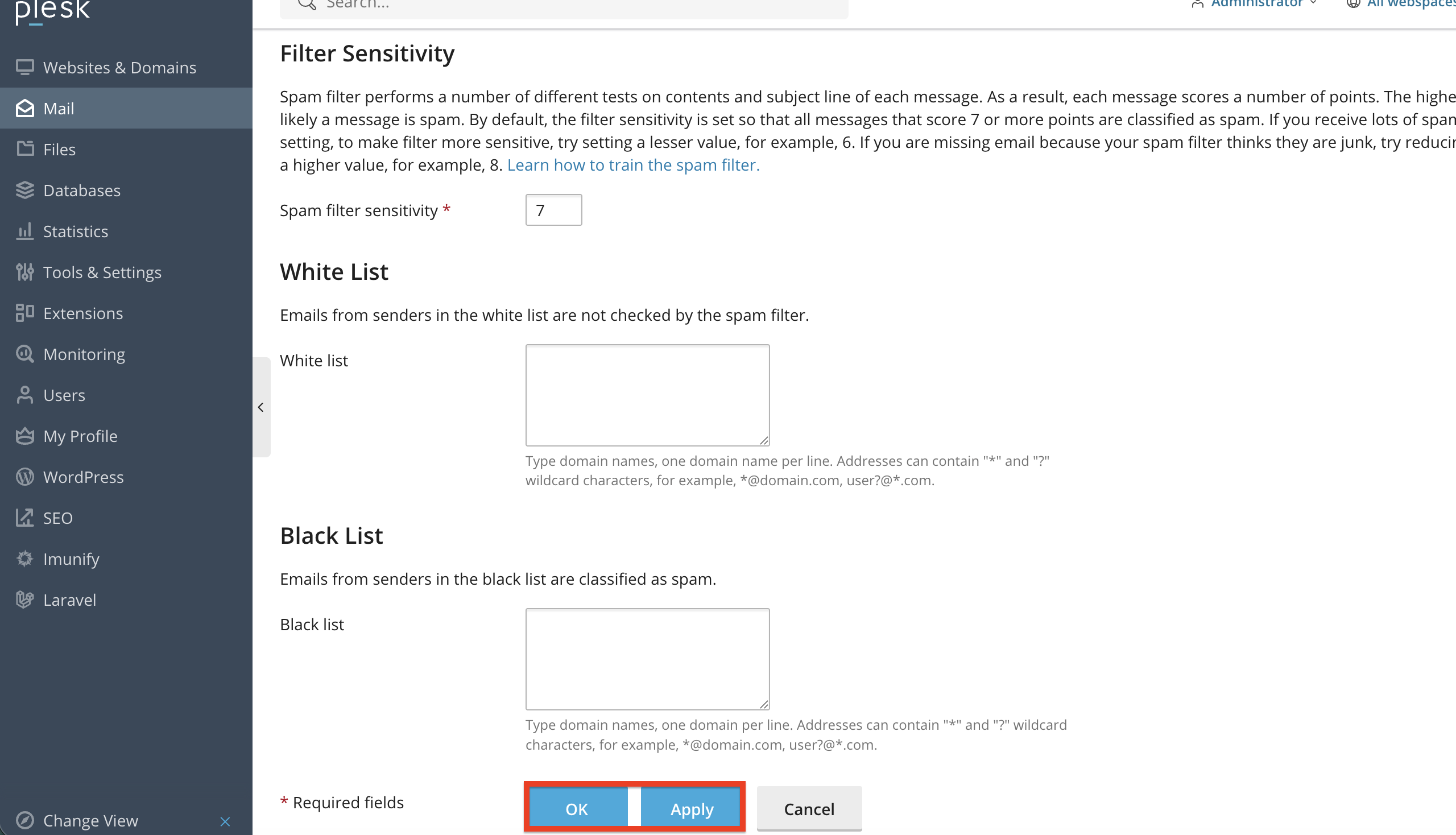
If you receive a lot of spam messages with the current setting, to make the filter more sensitive, try setting a lower value, for example, 6. If you are missing emails because your spam filter thinks they are junk, try reducing the filter’s sensitivity by setting a higher value, for example, 8.
- Sensitivity - Please use this number field to decide how strict the filter should be. Lower values will mark fewer messages as spam, while higher values will catch more, but may sometimes result in a false-positive, affecting legitimate messages.
- Whitelist - Please use the content box to add trusted senders here so their emails are never marked as spam. You can enter individual addresses (e.g., example@email.com) or entire domains (e.g., @company.com).
- Blacklist - Please use the content box to add unwanted senders or domains here to ensure their emails are always flagged as spam.
This is a very useful feature if you frequently communicate with specific partners or if you want to block persistent spammers. Finally, once you are done with fine-tuning your spam filter’s behaviour, please click on the “Ok” or “Apply” buttons at the bottom. Clicking the “Ok” button will save the settings and redirect you to the email account page. Clicking the “Apply” button will save the changes and keep you on the same page.
Conclusion
As demonstrated, Plesk makes it very straightforward to configure spam protection for your email accounts. By enabling the Spam Filter, adjusting its sensitivity, defining what to do with detected spam, and maintaining your whitelist and blacklist, you can keep your inbox safe, organized, and clutter-free.
We hope this tutorial was helpful, and we encourage you to utilize the Spam Filter in Plesk to enhance your email security.












