Introduction
Databases are the backbone of many websites and web applications nowadays. It is used to securely store information that will be used by your website, whenever someone performs a task on it or simply strolls around on it, marveling at your content! Whether you’re running a CMS like WordPress, an e-commerce store, or a custom app built using either PHP or another programming language, chances are your website relies on a database to function properly. In this tutorial, we’ll walk you through the basic database management features in Plesk. These include accessing your website’s database, changing its name and user names, accessing phpMyAdmin, and figuring out your database server.
By the end of this tutorial, you’ll be well-equipped to confidently access and perform basic actions on your site’s database directly from your Plesk control panel. Let’s dive in!
Accessing your website’s database
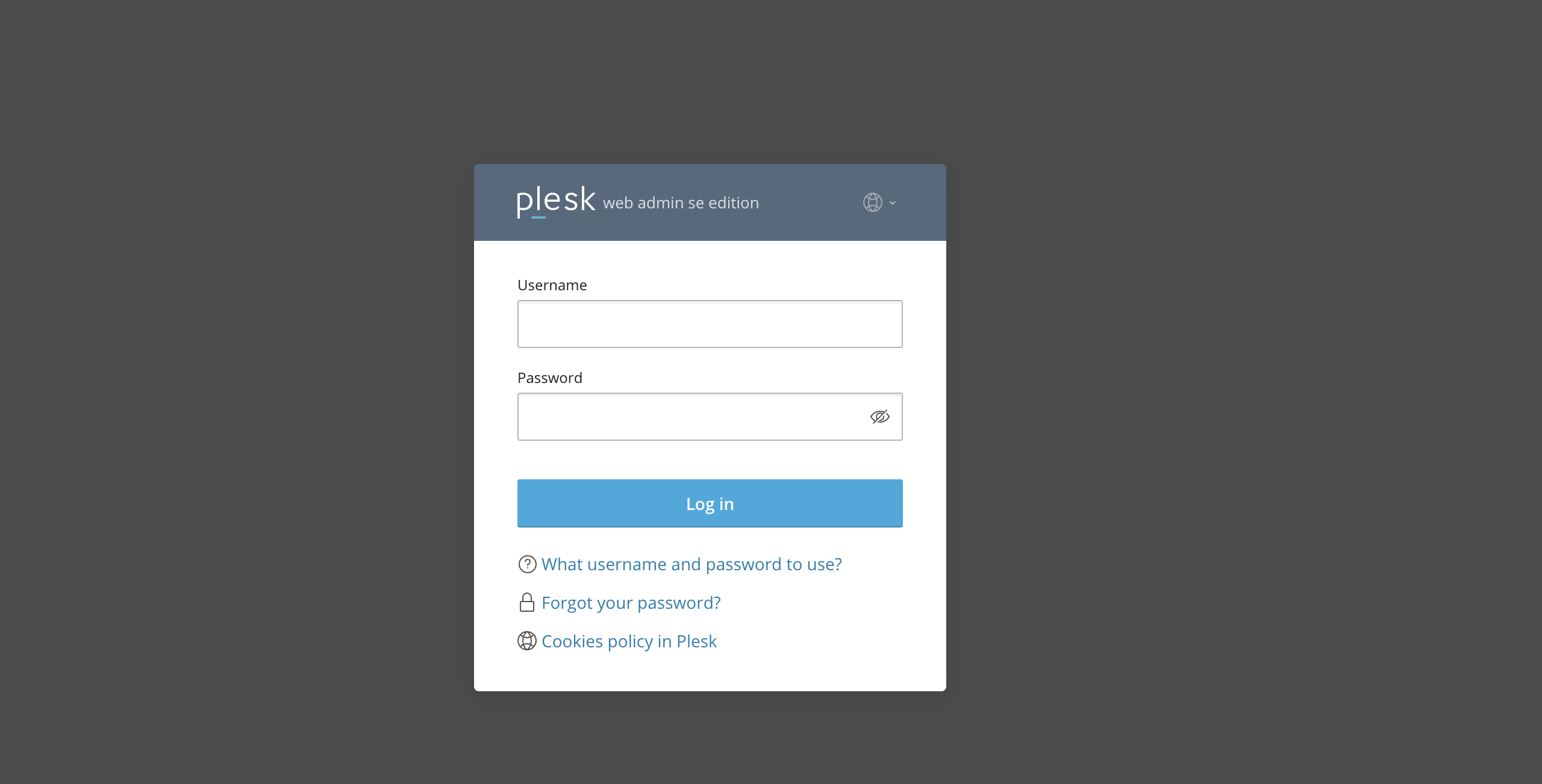
First and foremost, make sure you are logged in to your Plesk control panel. To perform that, please enter your IP address, hostname, or domain name inside your web browser’s search bar and add “:8443” at the end. It should look something like: “https://yourdomain.com:8443”. By doing that, you will be prompted by a login form requesting your username and password.
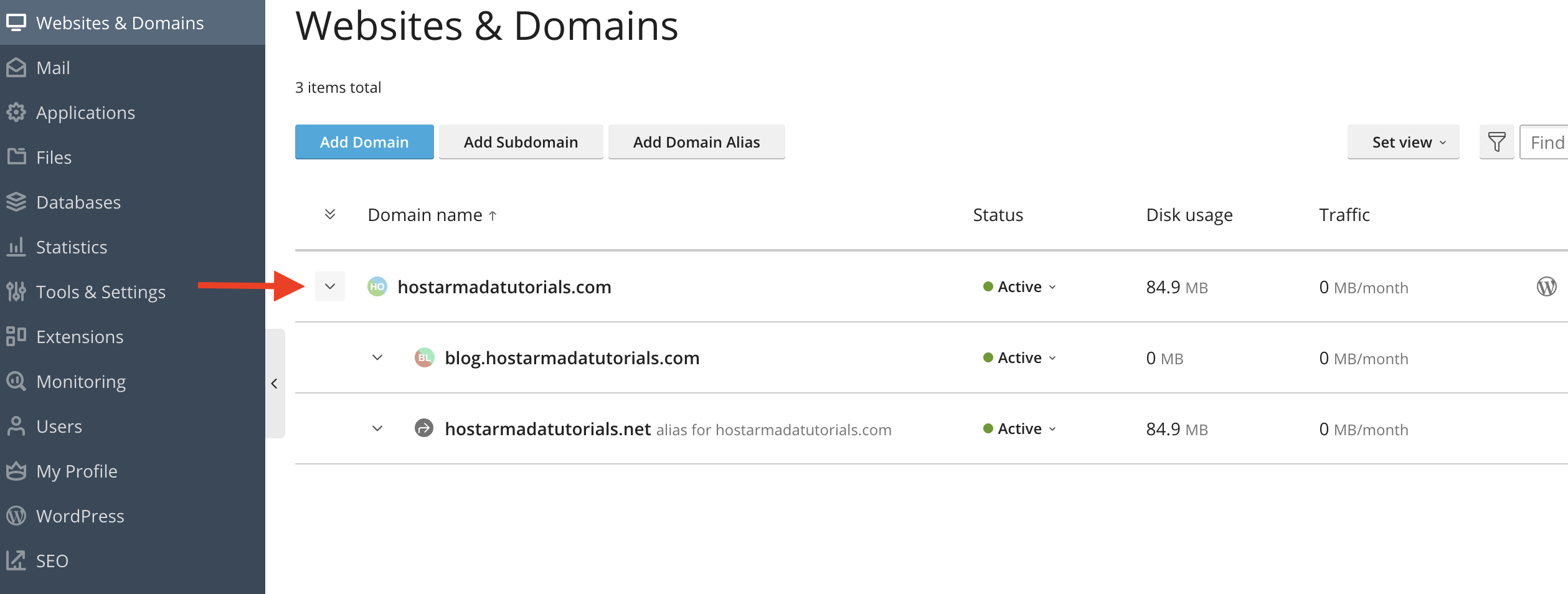
After logging in with your username and password, Plesk will automatically display the “Websites & Domains” page, which will be your index page from where you can manage everything related to your websites and domains on Plesk.
From the displayed table section, please click on the drop-down menu on the far left side.
Performing this action will expand all the available actions you can do with your website. To access the website’s database, please click on the “Database” link, located in the middle of your screen.
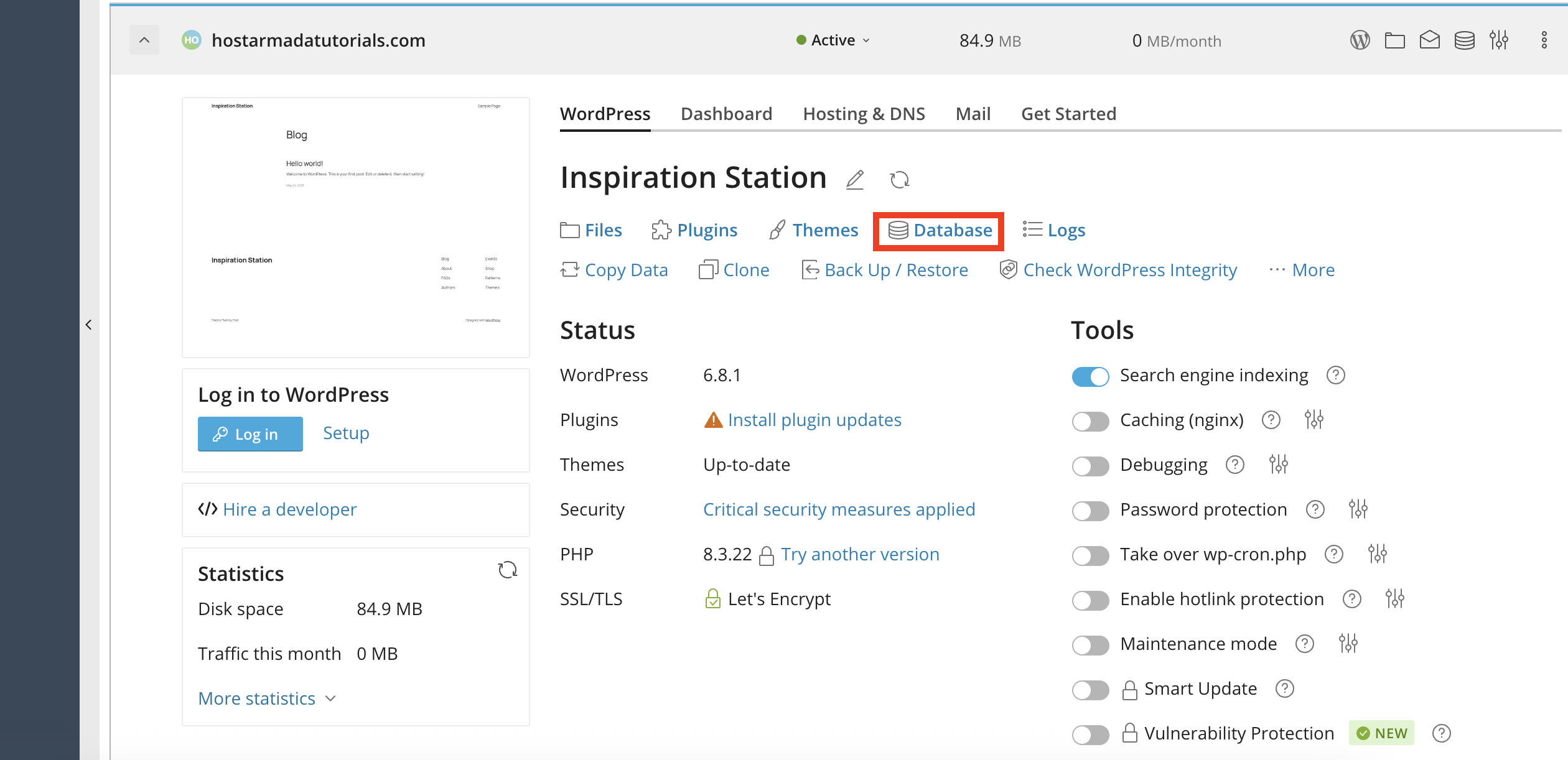
Hint: You can please “Ctrl + F” or “Command + F” on a MacBook to easily locate it!
Performing basic actions with your database
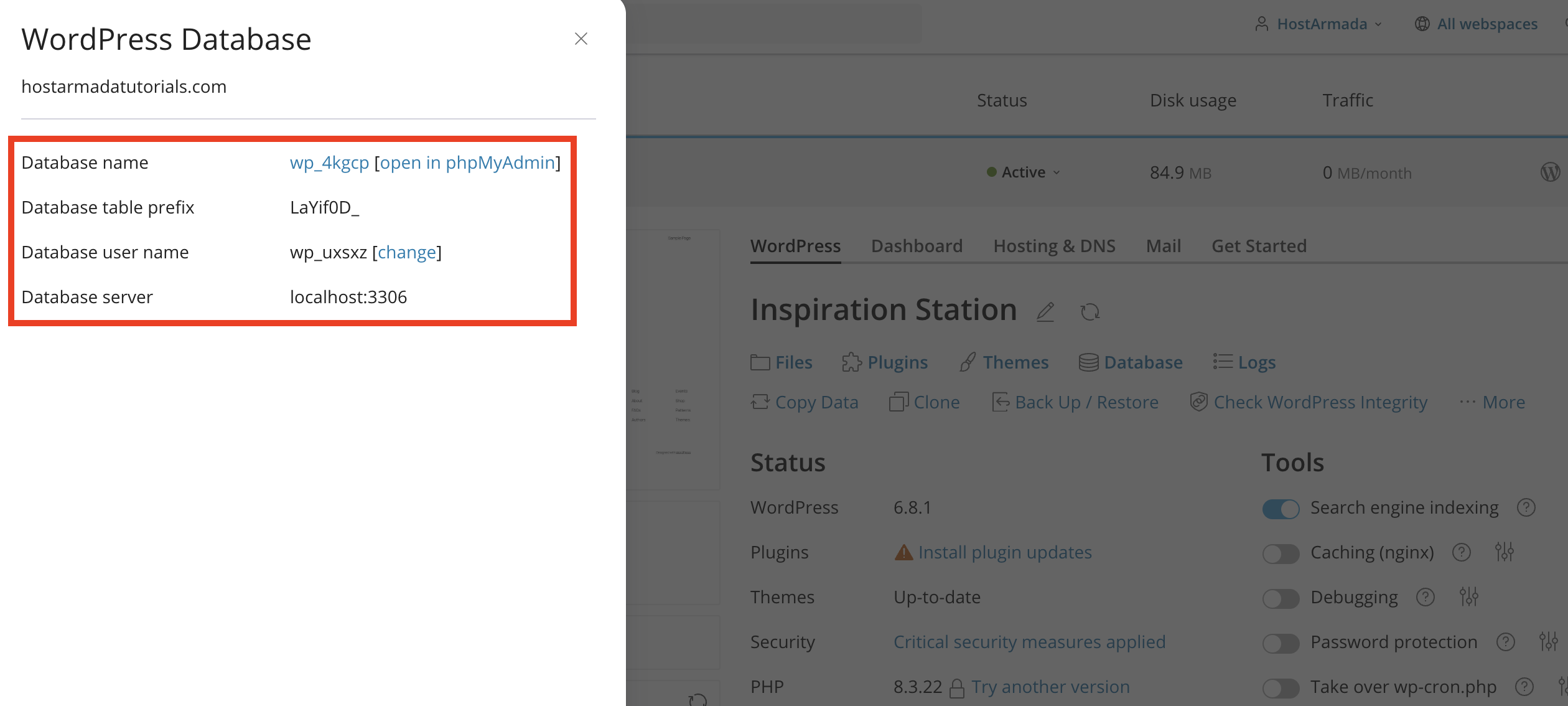
Upon clicking on the “Database” link, a side pop-up window will appear with information about your website’s database, along with a few basic actions you can perform with it.
Let’s go over them.
- Database name - Shows the name of your website’s database. By clicking on this name, you will be redirected to the “Databases” feature of Pleks, which we will discuss in a separate tutorial. You will see the “[open in phpMyAdmin]” link on the right side of the database name. Please click on this link if you would like to be redirected to phpMyAdmin and gain additional database management capabilities.
- Database table prefix - Displays the database prefix of your website. This is very important, as if this prefix does not match the prefix inside your website’s configuration file, your website will not work.
- Database user name - Shows the database user name assigned to this specific database. Ensure these match the user name configured inside your website’s configuration file. On the right side of the username itself, you will see a “[change]” link, allowing you to change the username. Please click on it if you wish to perform a change to your website’s database name. Performing this action will open another pop-up window allowing you to define a new username and password for your database.
- Database server - Displays the database server name and port for the database server on your Plesk server. Typically, this is “localhost” or “127.0.01”.
These were all the actions that are available to manage your website’s existing database. In future tutorials, we will be doing additional tutorials that go more in-depth about creating, deleting, exporting, and importing.
Conclusion
Accessing and performing basic actions on your website’s database in Plesk has never been easier with the guidance of this tutorial. Hopefully, our information was straightforward, and you could confidently follow it through. For more related tutorials, please make sure to check our Pleks tutorial section!












