Introduction
Monitoring your website’s traffic is an important part of understanding how your visitors interact with your content. Plesk provides built-in tools that allow you to easily check your website’s traffic statistics, including data transfer usage, visitor numbers, page visits, HTTP request breakdowns, and more.
These statistics can help you analyze your website’s performance, detect unusual activity, and ensure that your hosting resources are being used efficiently.
In this tutorial, we will guide you through the process of checking your website’s traffic and data transfer statistics in Plesk.
Getting Started
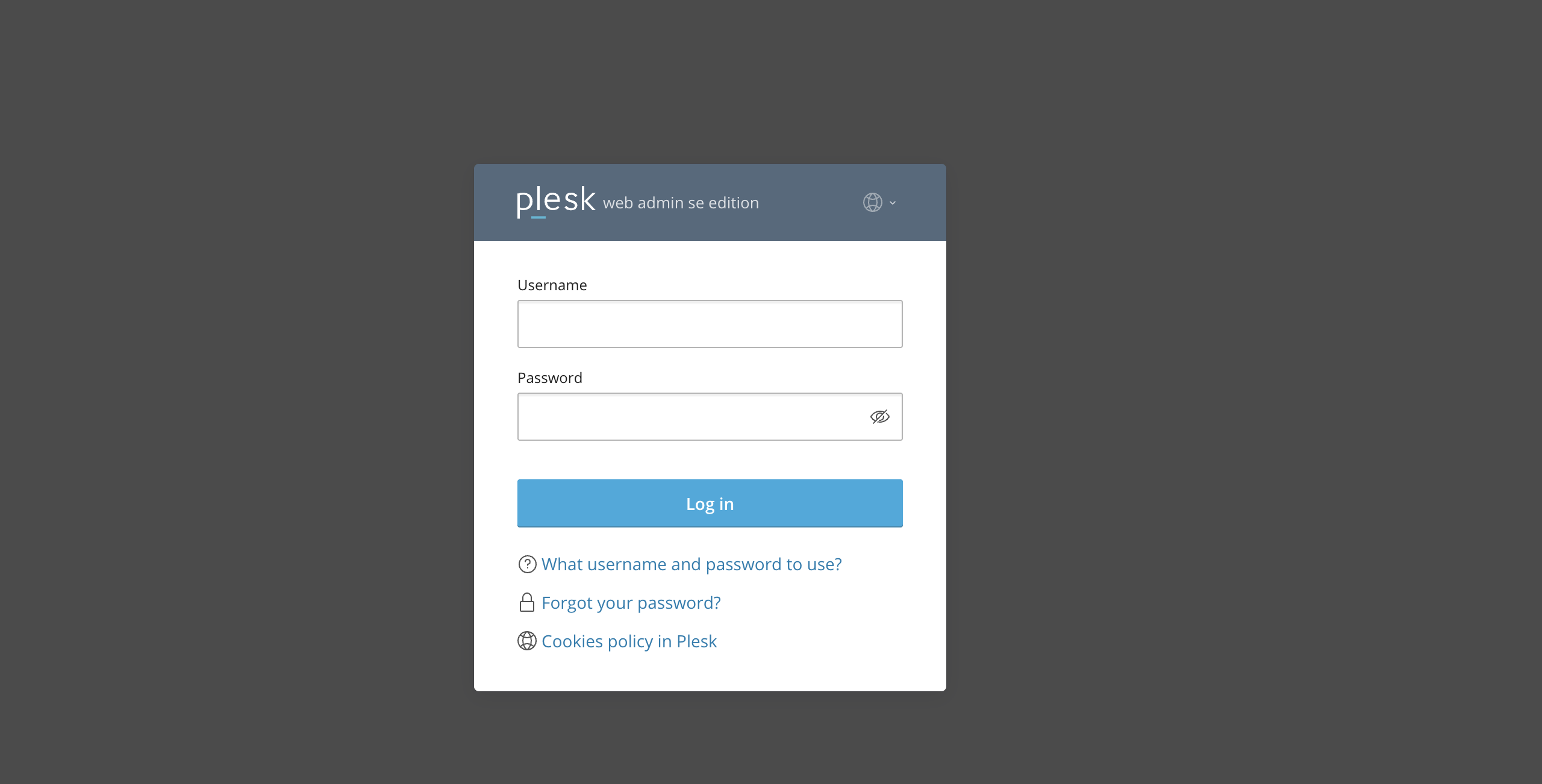
First, ensure you are logged in to your Plesk control panel. To do that, please enter your IP address, hostname, or domain name inside your web browser’s search bar and add “:8443” at the end. It should look something like: “https://yourdomain.com:8443”. By doing that, you will be prompted by a login form requesting your username and password.
After performing the steps above, you will be redirected to the dashboard. Plesk will automatically display the “Websites & Domains” page, which will be your index page from which you can manage everything related to your websites and domains on Plesk.
Accessing the Statistics Section
To review the traffic usage for your website, click on the “Statistics” option from the left-hand menu.
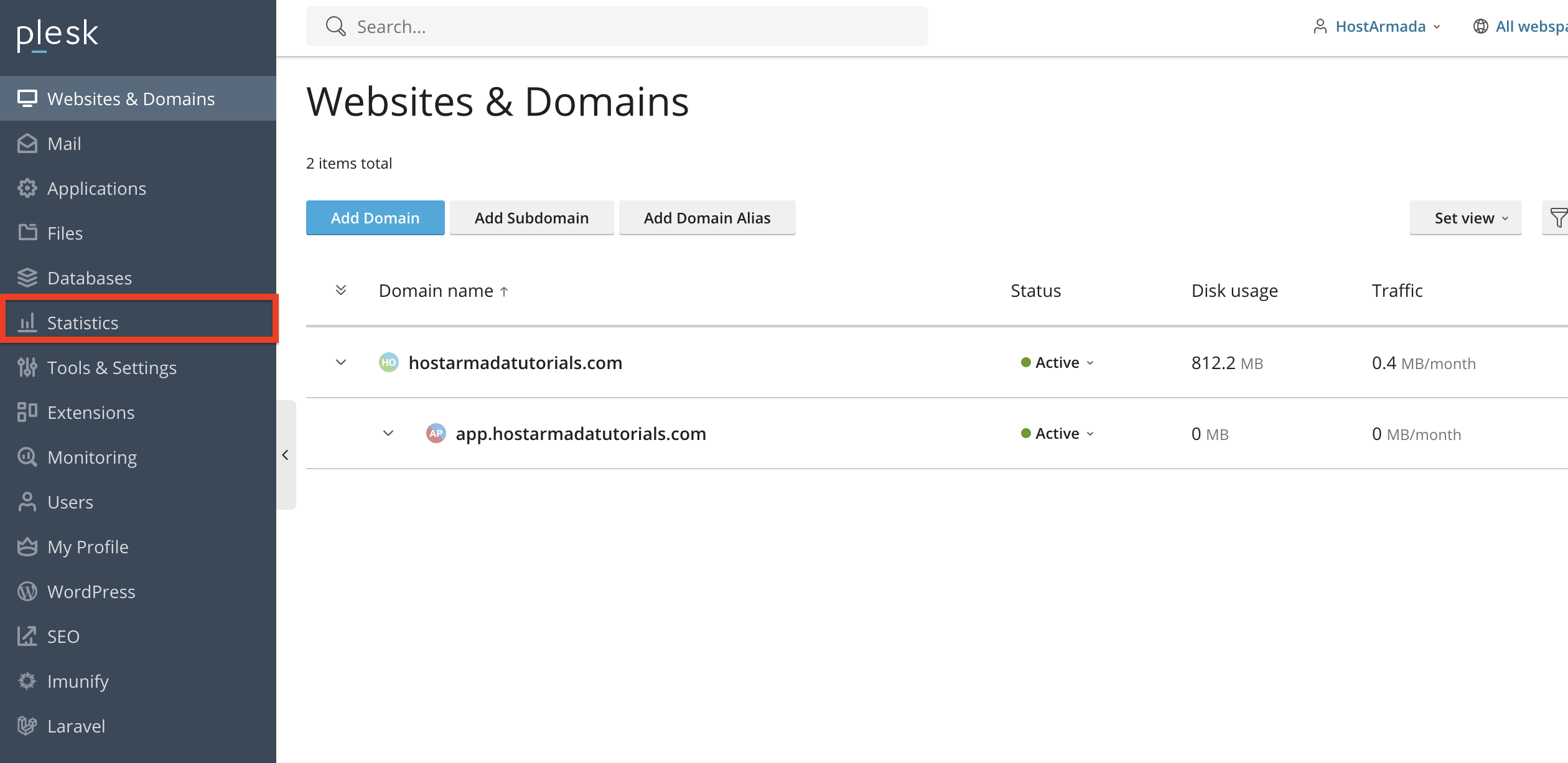
Upon clicking the statistics page, you will be redirected to a page that includes both your traffic statistics and disk space usage statistics. We covered the disk space statistics in a separate tutorial!
This will open the main statistics dashboard for that particular domain.
Viewing Traffic and Data Transfer Statistics
Inside the Statistics page, you will find detailed information about your website’s data usage. This typically includes:
- HTTP - The HTTP traffic represents all bandwidth generated through the web. In other words, the traffic from people opening your website in their browser.
- FTP - The FTP traffic represents all bandwidth generated through FTP, which includes uploading and downloading files.
- IMAP/POP3 - The IMAP/POP3 Traffic presents all the bandwidth generated from receiving emails.
- SMTP - The SMTP Traffic presents all the bandwidth generated from sending emails.
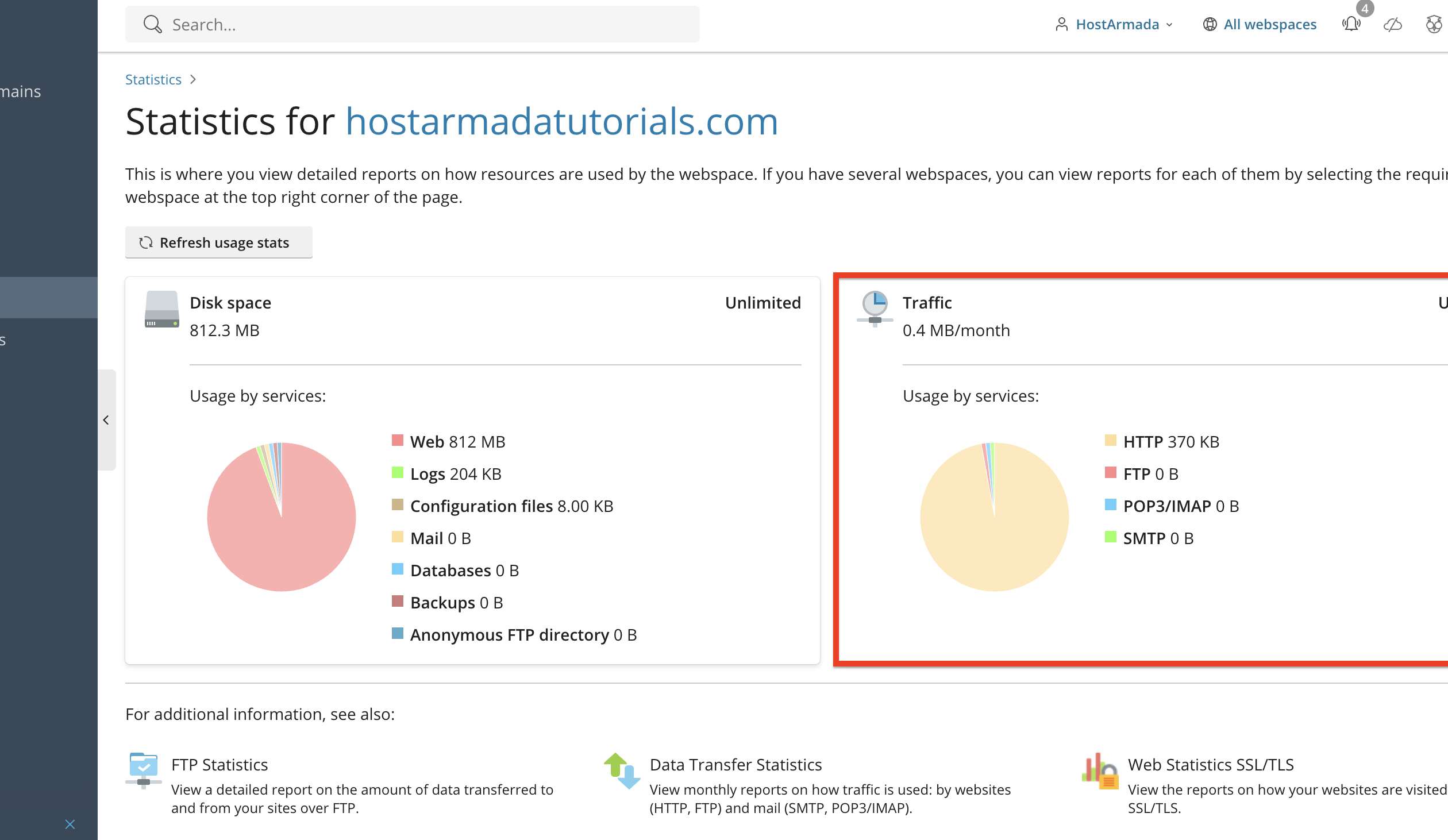
The breakdown will show how much data your website has transferred this month, allowing you to identify where bandwidth is being consumed.
Viewing Detailed Traffic Reports via Web Statistics Tools
Many Plesk installations include additional tools, such as AWStats or Webalizer, which provide graphical charts and detailed logs.
To access them, please navigate to the “Statistics” section and look for a link labeled “Web Statistics SSL/TLS”. Typically, it should be right below the pie charts. Please click on it.
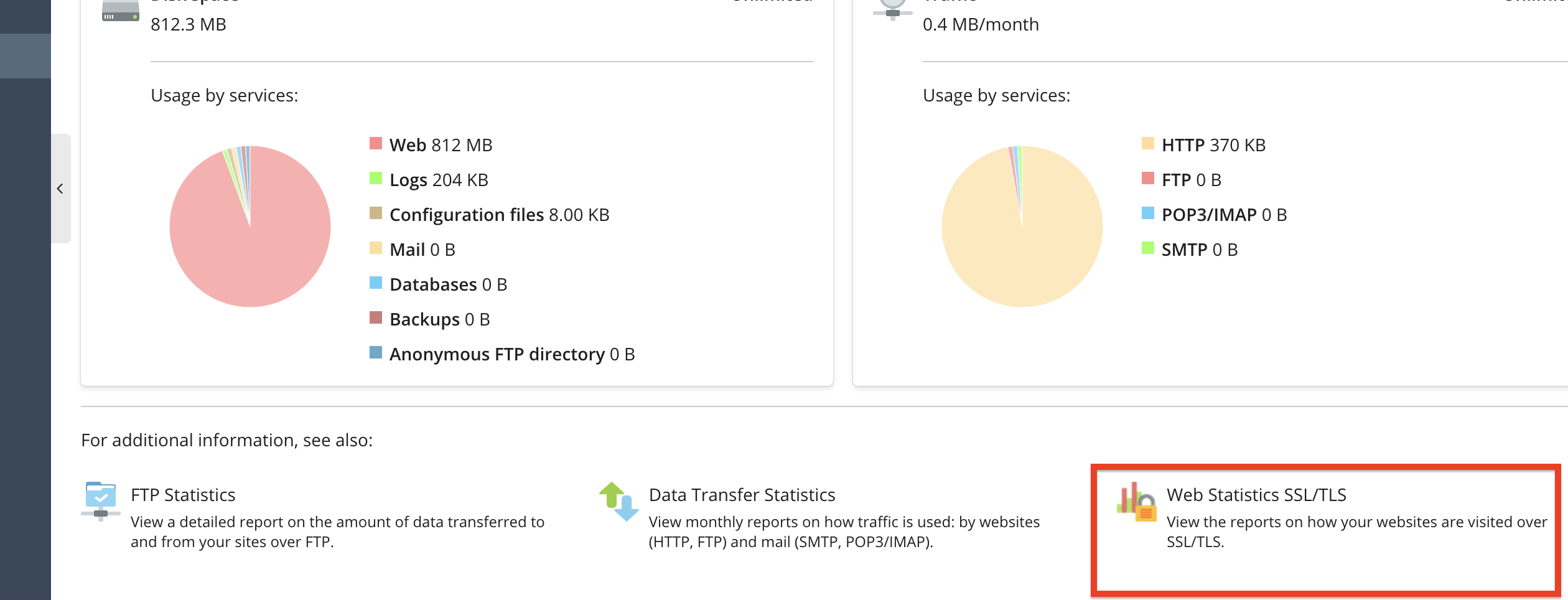
This will redirect you to a page where you will see a list of all your websites. To open the AWStats panel for the desired website and view its web statistics, please click on the “View” link corresponding to the domain you want to examine.
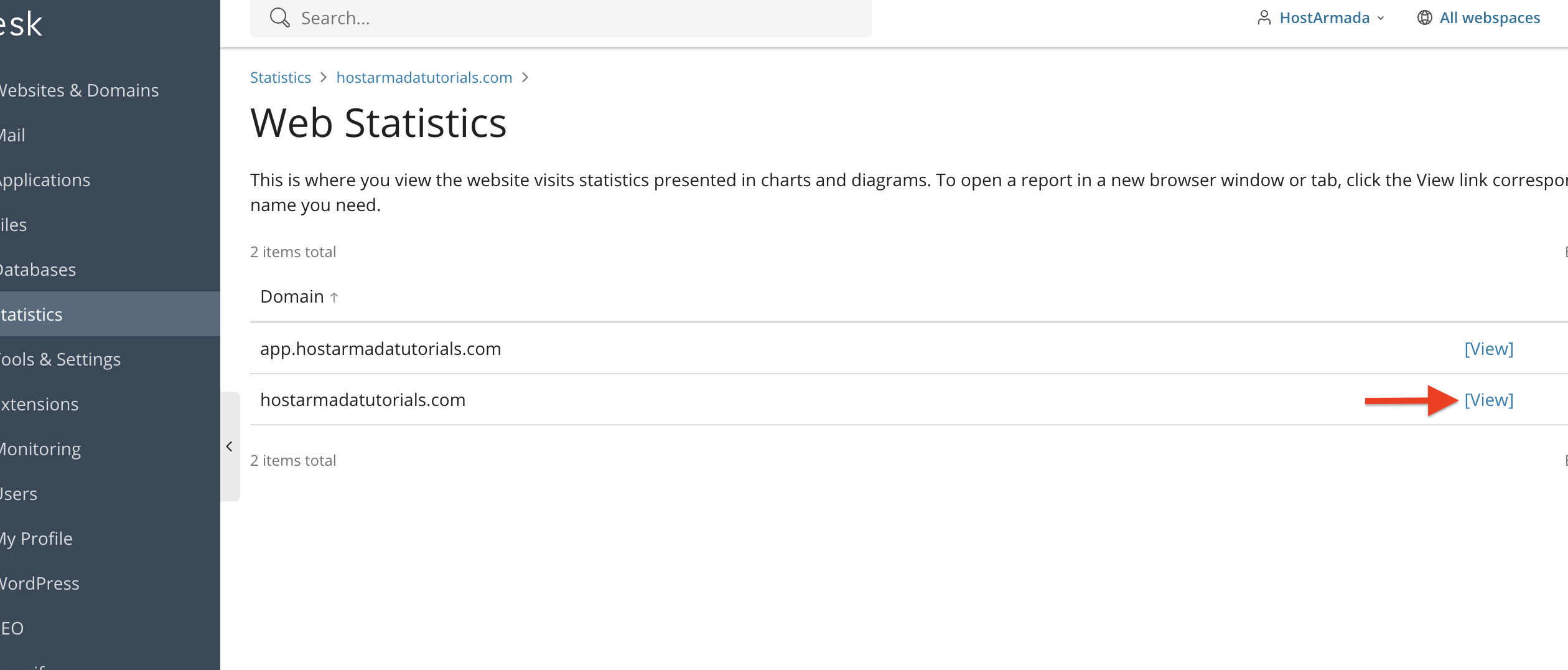
Inside AWStats, you can see the following information:
- Monthly and daily traffic graphs
- Number of unique visitors
- Most viewed pages
- Bandwidth usage per page
- Traffic by country
- HTTP codes and errors
- Referrer websites
- Search engine queries
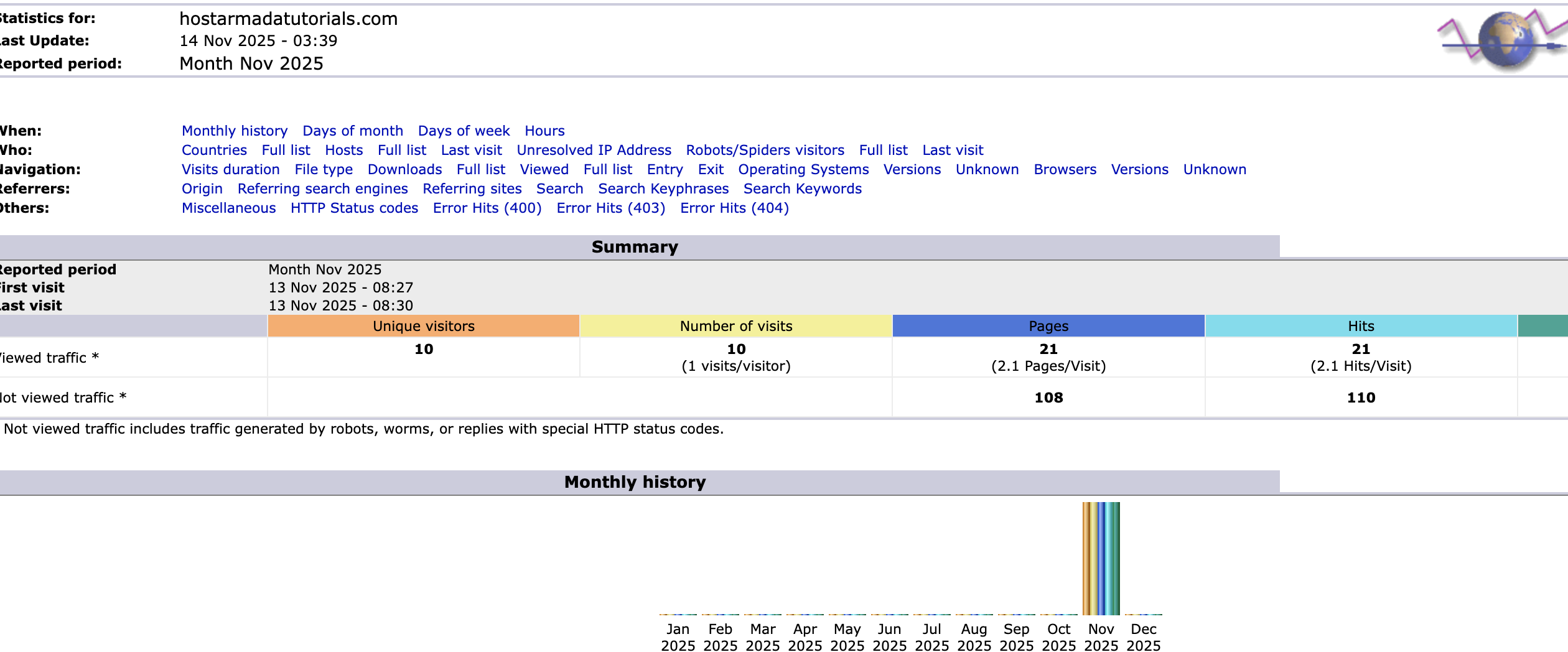
These tools provide a more visually detailed and analytical view of your website's activity. If you want a more detailed breakdown of AWStats, you can check out the tutorial on it here.
Understanding the Traffic Data
Your Plesk traffic statistics can help you identify:
- Traffic spikes - Which may indicate marketing success or possible malicious bot attacks.
- Pages that use the most bandwidth - This data can help optimize performance on those specific pages to reduce bandwidth in the future.
- Sources of your traffic - These can be search engines, referrals, or direct visits.
- Bot or crawler activity - Which may require rate-limiting or security adjustments.
Regular monitoring helps maintain a healthy hosting environment and prevents exceeding traffic limits.
Conclusion
As you can see, Plesk provides clear and detailed traffic and data transfer statistics that help you understand how your website performs and how your hosting resources are being utilized. By regularly reviewing these statistics, you can enhance your website’s performance, identify potential issues early, and manage your resource usage effectively.
We hope this tutorial was helpful, and we kindly encourage you to review your traffic statistics regularly to stay informed about your website’s activity.












