Introduction
Blocking unwanted IP addresses is an effective way to protect your website and server from suspicious visitors, brute-force attempts, bots, or abusive traffic. Plesk provides built-in tools that allow you to block single IPs, IP ranges, or even entire networks directly from the control panel.
Whether you want to restrict access to your hosting, secure your login pages, or prevent repeated attack attempts, Plesk makes it simple to manage IP restrictions.
In this tutorial, we will guide you through the process of blocking IP addresses in Plesk.
Getting Started
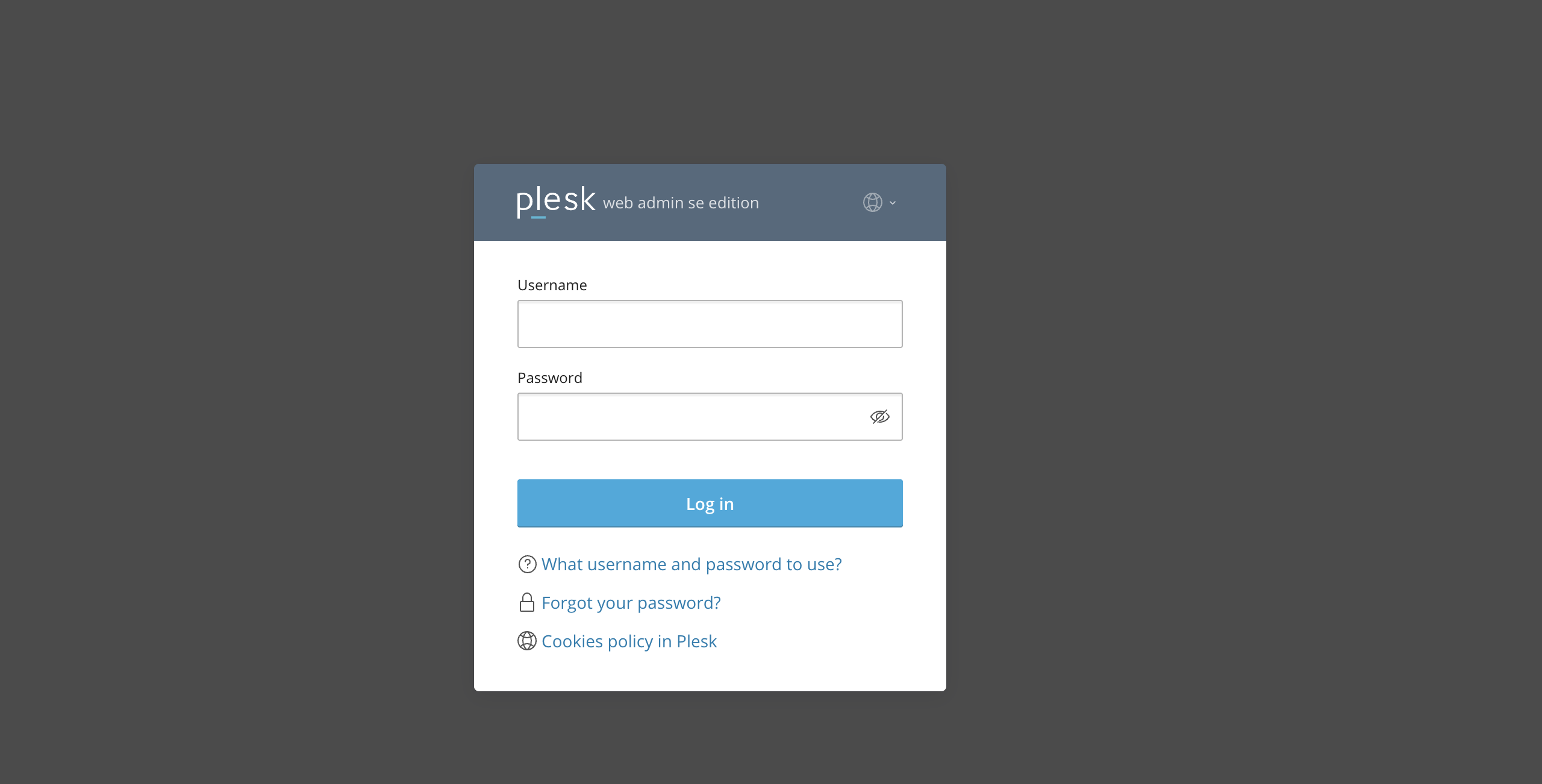
First and foremost, make sure you are logged in to your Plesk control panel. To perform that, please enter your IP address, hostname, or domain name inside your web browser’s search bar and add “:8443” at the end. It should look something like: “https://yourdomain.com:8443”. By doing that, you will be prompted by a login form requesting your username and password.
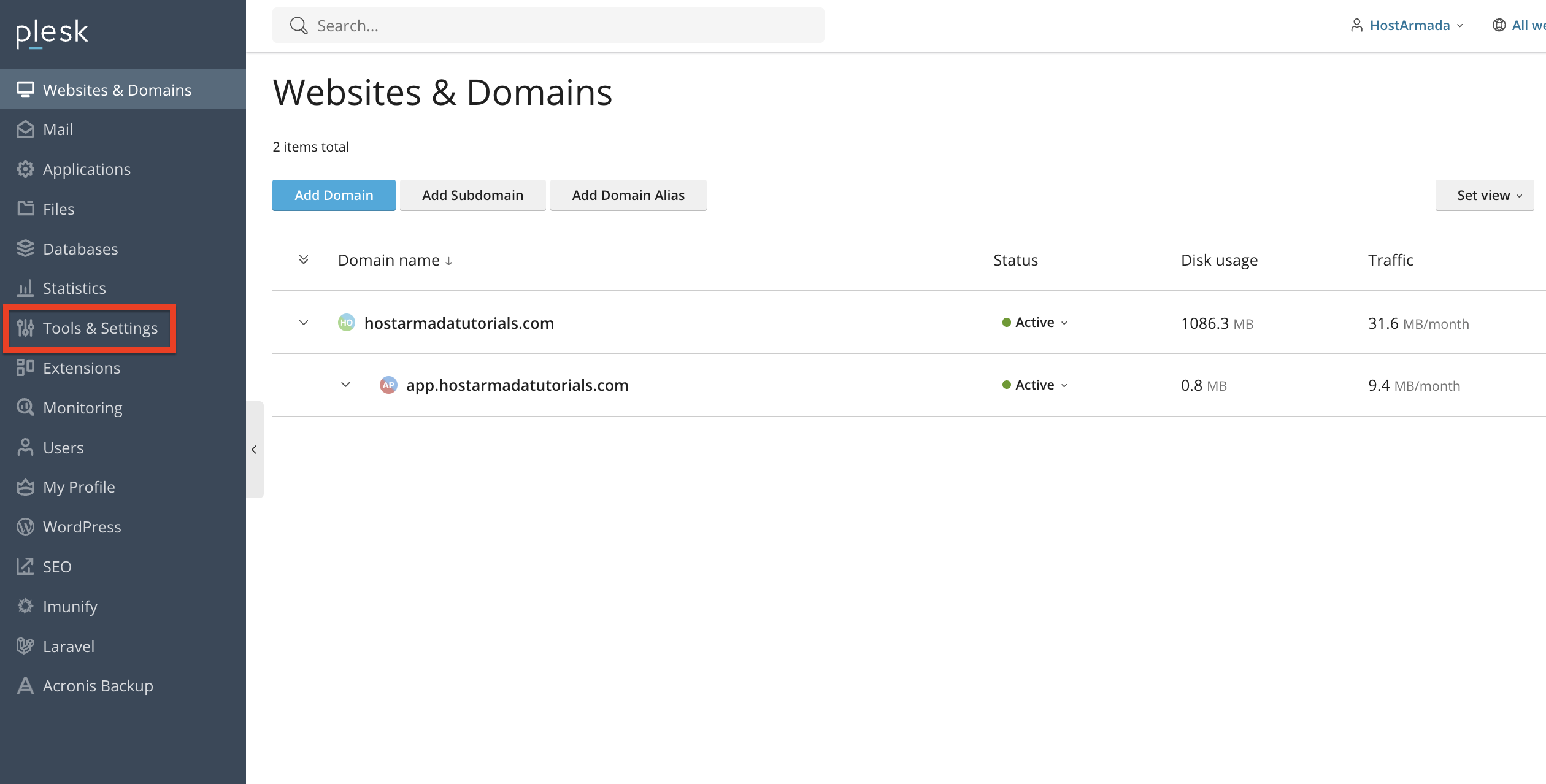
After logging in with your username and password, Plesk will automatically display the “Websites & Domains” page, which will be your index page from where you can manage everything related to your websites and domains on Plesk.
Accessing the IP Access Restrictions Tool
To block IP addresses, you need to access Plesk’s security settings. From the left-hand menu, please click on Tools & Settings.
Under the "Security" section, please select "IP Address Banning (Fail2Ban)" or "Firewall", depending on what is available in your Plesk installation.
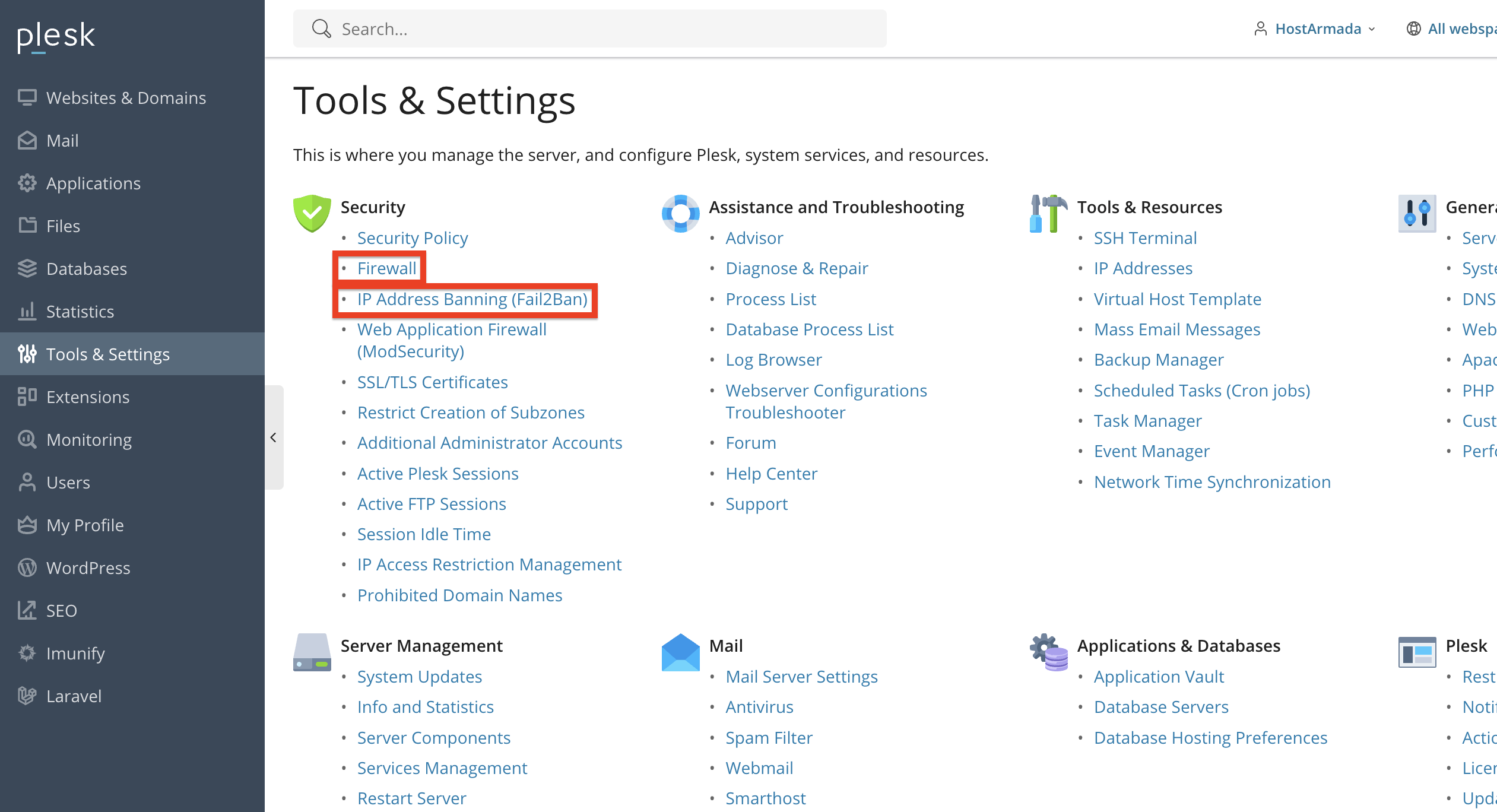
Note: Some hosting providers enable Plesk Firewall, while others use Fail2Ban as the primary IP-blocking tool. Both methods allow you to block IPs effectively.
Please continue with this tutorial to find out how to use both tools to block IP addresses.
Blocking IPs Using Fail2Ban
If your server uses Fail2Ban, you can manually block IP addresses from the tool’s interface. To access it, please click on the IP Address Banning functionality under the “Security” section.
Once there, you will notice a few tabs, with the default one being the “Ban IP” tab. In the middle, you will see a table section containing all the blocked IP addresses. To add more to the list, please click on the “Ban IP” button located above the table section.
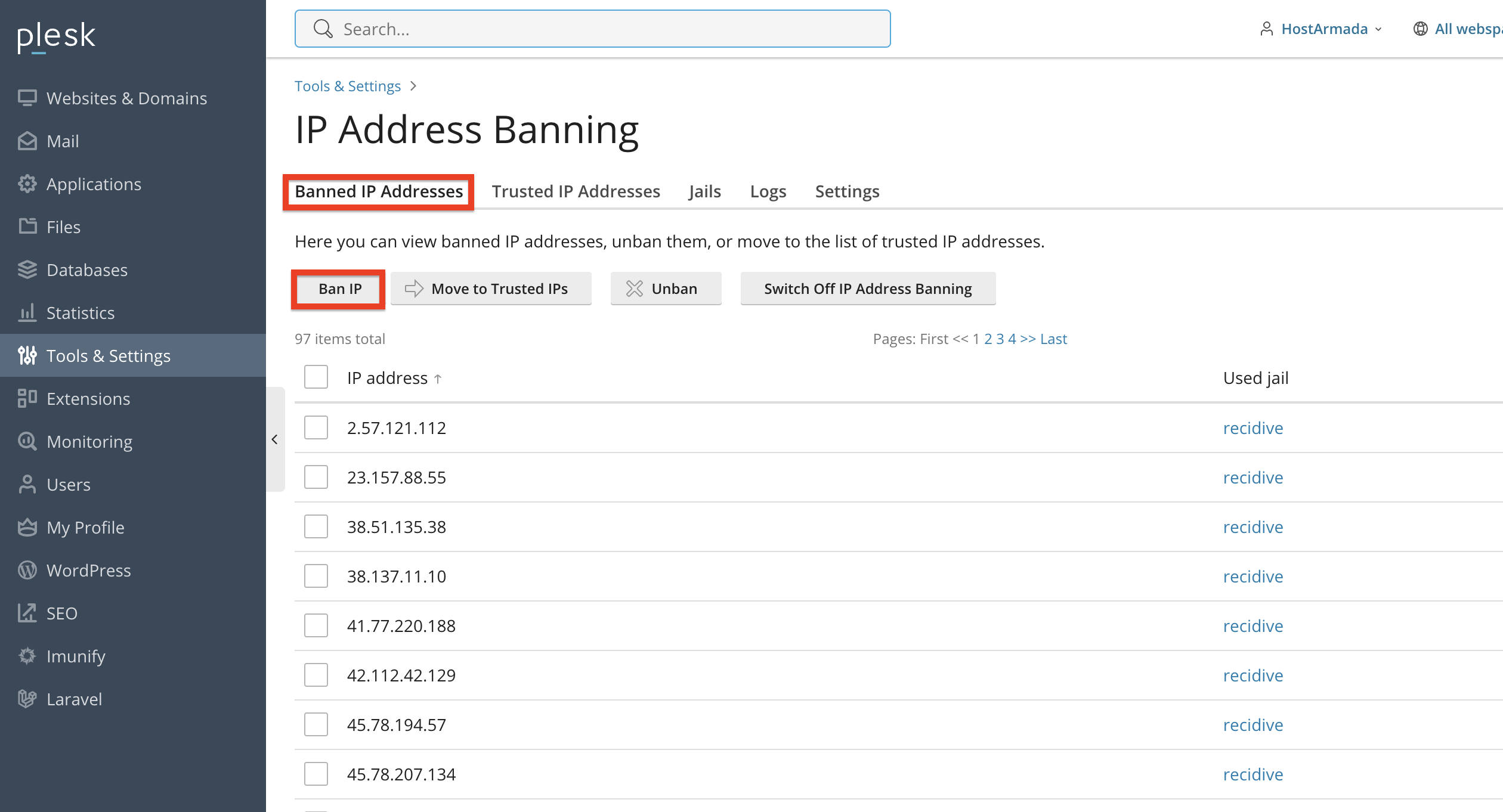
Performing the action above will redirect you to a new page where you can enter an IP address and the length of time you want the ban to last to finalize the process:
- IP Address - Please use this text field to add the IP address you wish to block.
- Ban the Address - Please use this radio button to select the length of the block. It can be either permanent or for one week.
After filling in the required details, please click "OK" to apply the ban.
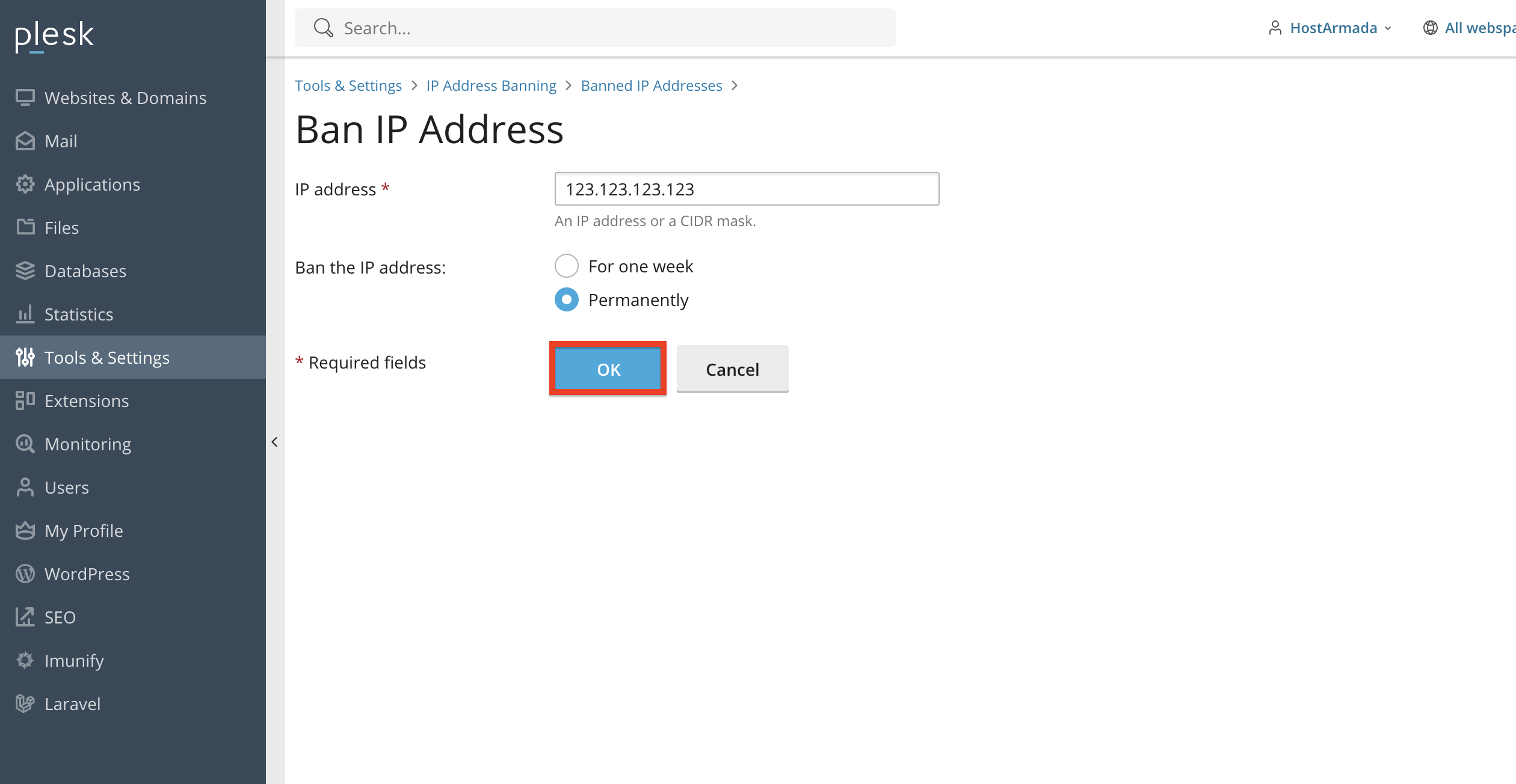
The IP address will immediately be added to the banned list for the designated duration.
Blocking IPs Using the Plesk Firewall (If Available)
If your server uses the Plesk Firewall, blocking IPs is also very straightforward. From the “Tools & Settings” page, please click on the “Firewall” functionality, located under the security section.
Performing the above will redirect you to the “Firewall” tool, where you can start adding new rules to it, based on your needs. On the same page, you will be able to see all current rules that allow, deny, or in some way modify the server’s Firewall. To add a new rule, please click on the blue “+” sign, located on the left side of the screen.
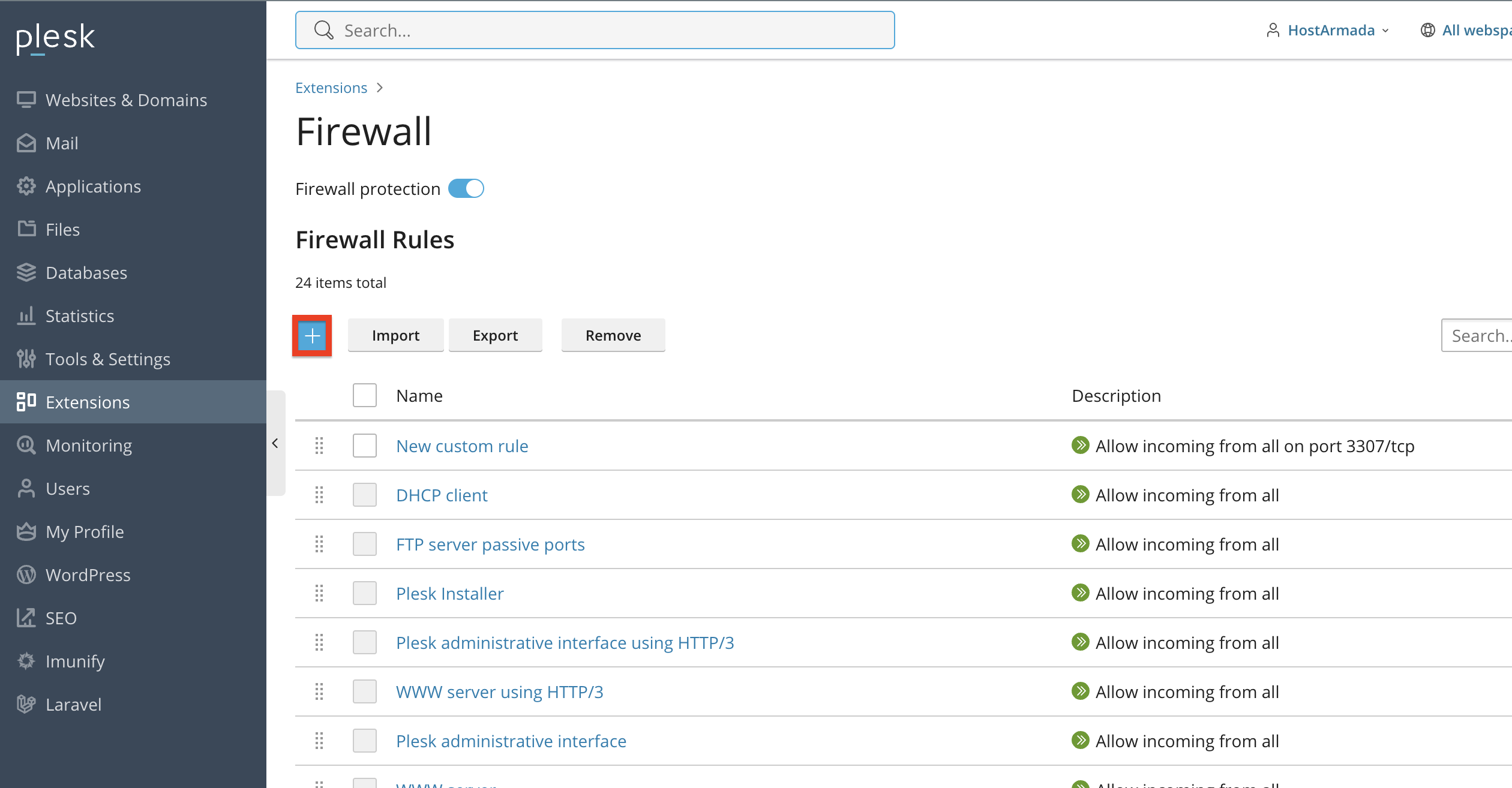
Clicking on the “+” sign will unveil a side screen from the left side that will allow you to add a new rule. Let’s go over the requirements on the side menu needed to finalize the IP blocking process.
- Rule name - Please use this text field to add a name for the new rule you want to add. For example, you can call it “Block malicious visitor”.
- Match redirection - Please use the radio button here to select the type of redirection the rule should match.
- Outgoing - Please set the radio button at this option to enable the rule only for outgoing redirections.
- Incoming - Please set the radio button at this point to enable the rule only for incoming redirections.
- Forwarding - Please set the radio button at this point to enable the rule for both outgoing and incoming redirections.
- Action - Please use the radio button to select the type of action the rule should enforce upon it being triggered. It can be either “Deny” (prevent access) or “Allow” (provide access).
- Ports - Please use the drop-down menu and the text field to select the protocol type (TCP or UDP) and port number.
- Sources/Destinations - Please use this text field to type in the IP address you wish to prevent/allow from accessing the server.
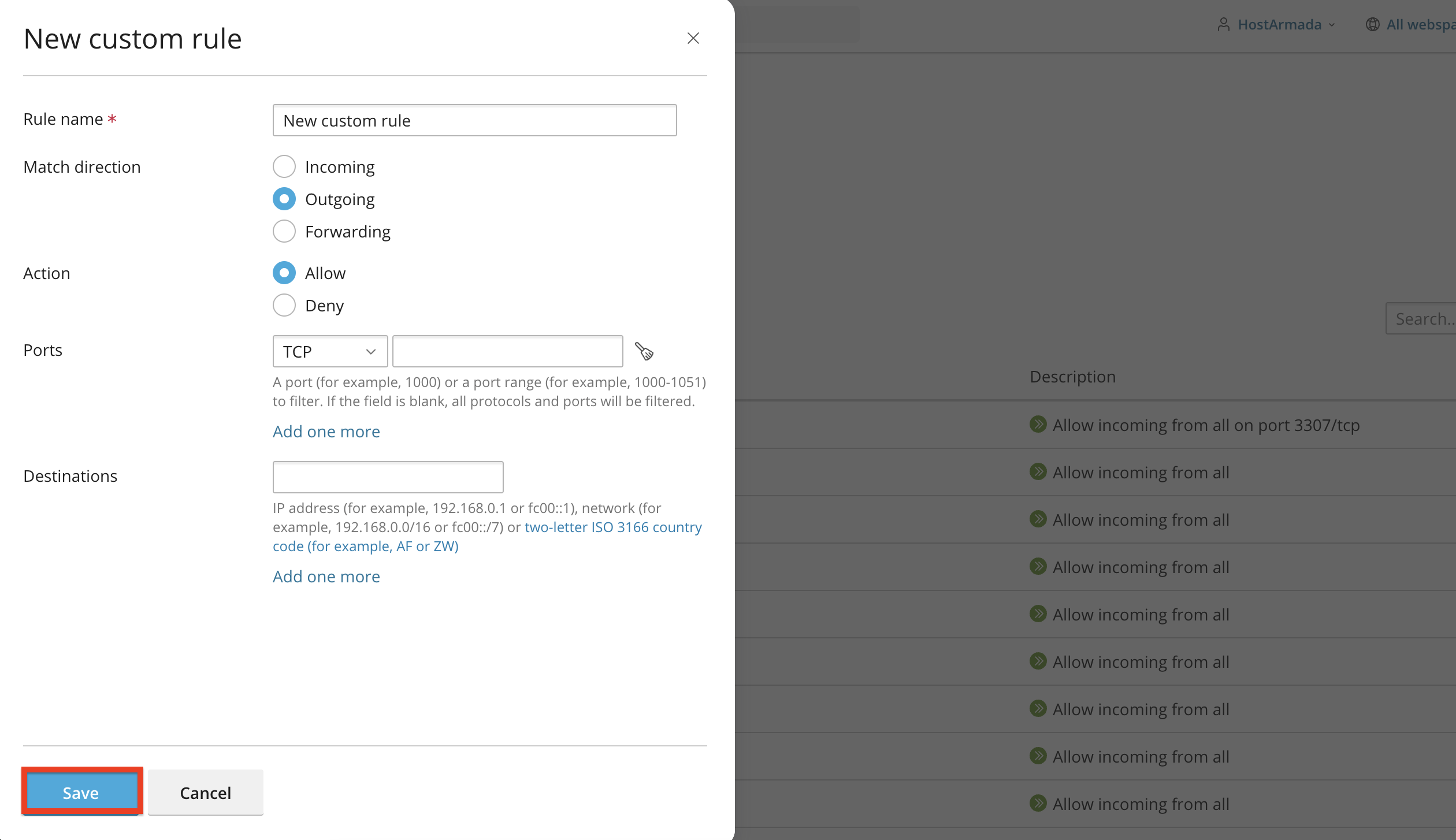
Once all your settings are set, please press the “Save” button at the bottom left side of the side menu to enable the rule.
TIP: If you wish to block an IP address from accessing a specific website only, there is a way to do so via your website’s htaccess file. Please note that this method will only prevent IPs from accessing the website via web (web browsers), other types of access to the server will still work.
Conclusion
As you can see, Plesk offers several effective methods to block IP addresses—either through Fail2Ban, the Plesk Firewall, or by adding custom directives at the domain level. Blocking IPs can significantly improve your website’s security and help mitigate unwanted activity.
We hope this tutorial was helpful, and we kindly encourage you to regularly review your access logs and block suspicious IPs to maintain a secure hosting environment.












