Introduction
Managing active sessions in Plesk is important for both security and system administration. The Active Sessions feature in Plesk allows you to see which users are currently logged into your control panel, where they are connecting from, and what operations they are performing.
This is especially helpful for:
- Detecting unauthorized access
- Ending stuck or idle sessions
- Logging out old sessions after password changes
Monitoring administrative activity
In this tutorial, we will guide you through the process of viewing and managing active sessions in Plesk.
Getting Started
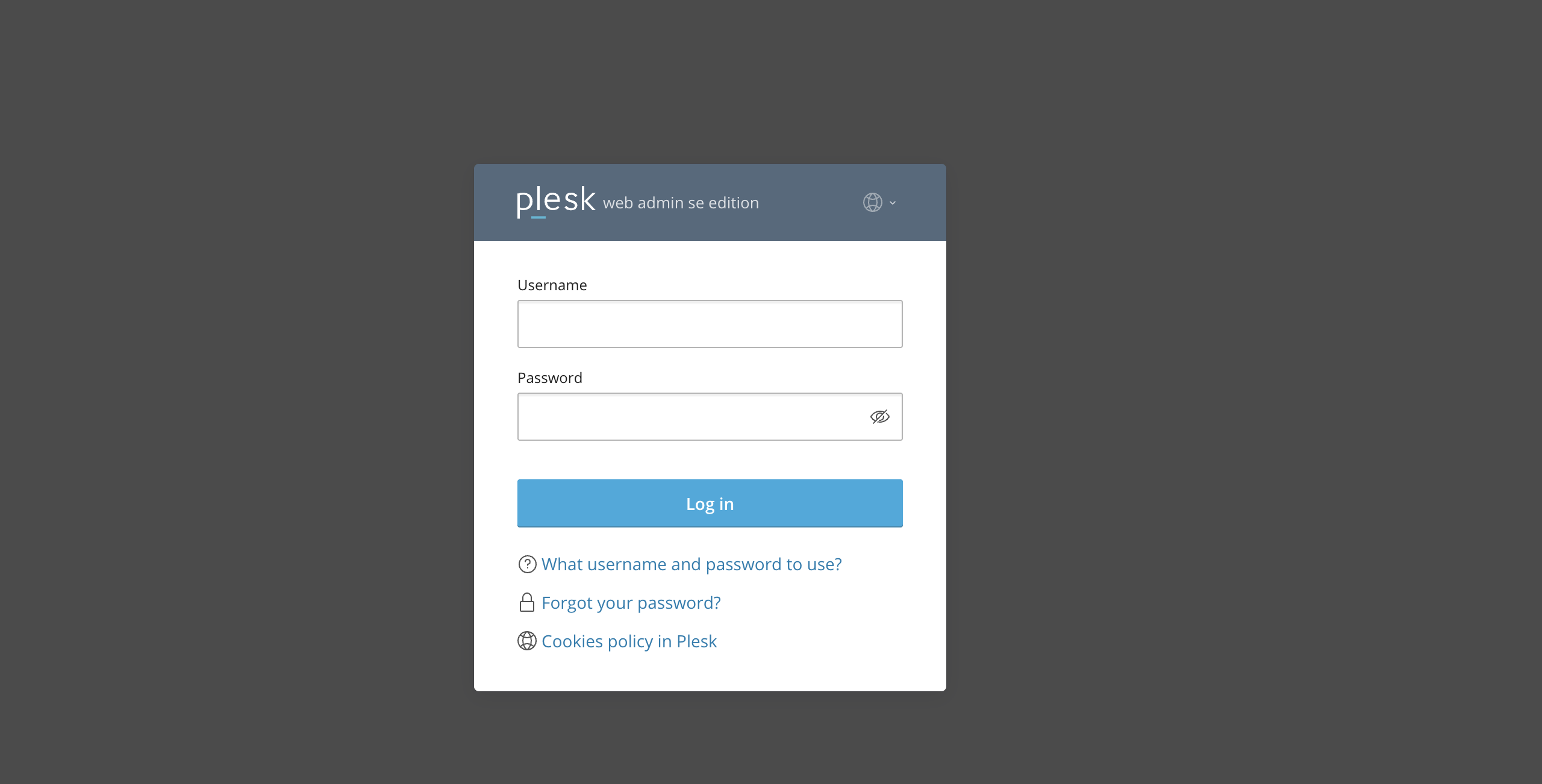
To access the File Manager in your Plesk control panel, please make sure you have logged in to your Plesk control panel. To do that, please type in your IP address, hostname, or domain name inside your browser search bar and add “:8443” at the end. It should look something like: https://yourdomain.com:8443. By doing so, you will be prompted by a login form that requires your username and password.
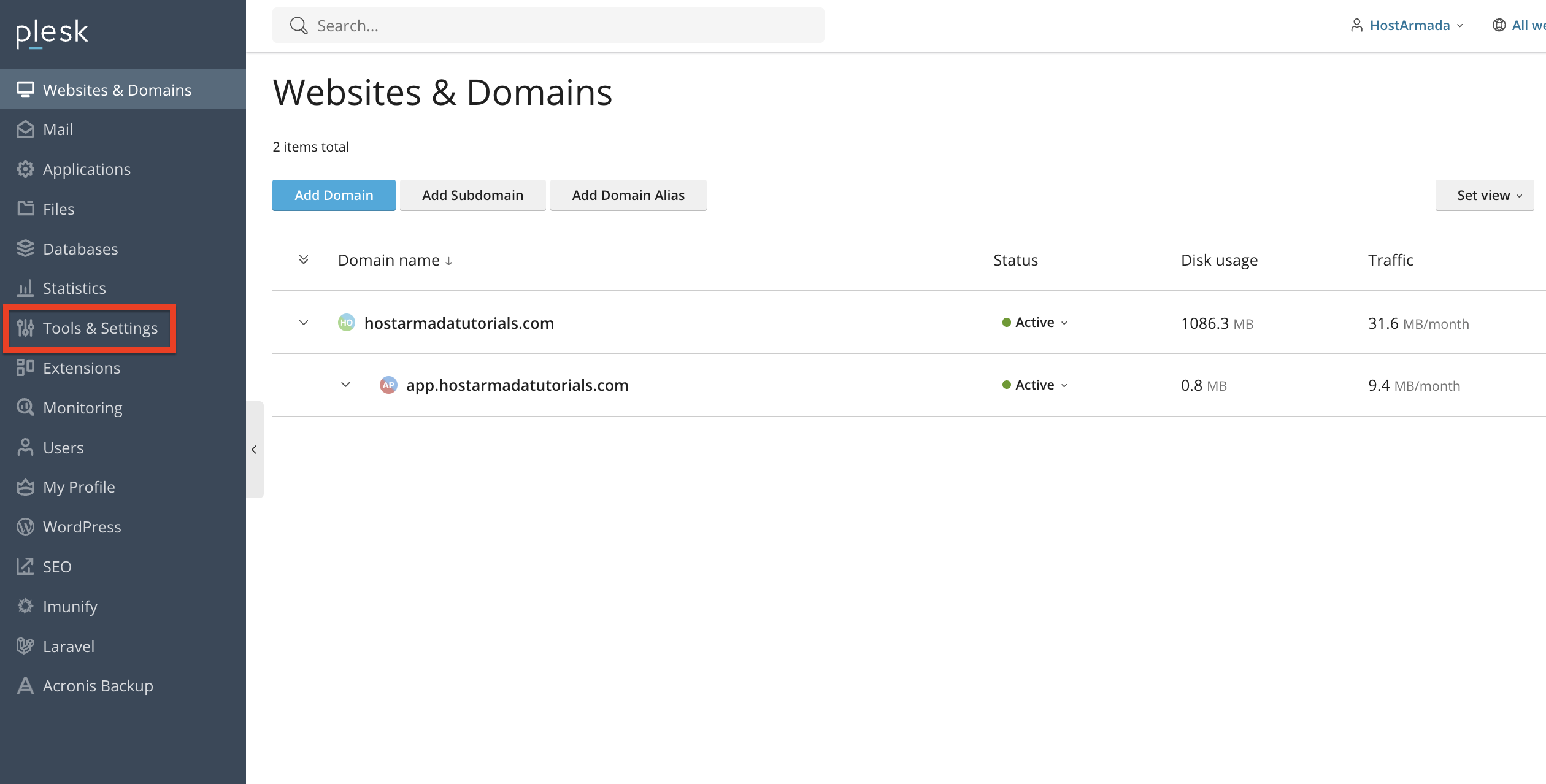
Once logged in, Plesk will automatically display the “Websites & Domains” page, which will be the index every time. In the middle, you will see a table section containing a list of all your existing domains.
Accessing the Active Sessions Section
To view the current active Plesk sessions, please locate the “Tools & Settings” option on the left side of the screen and click on it.
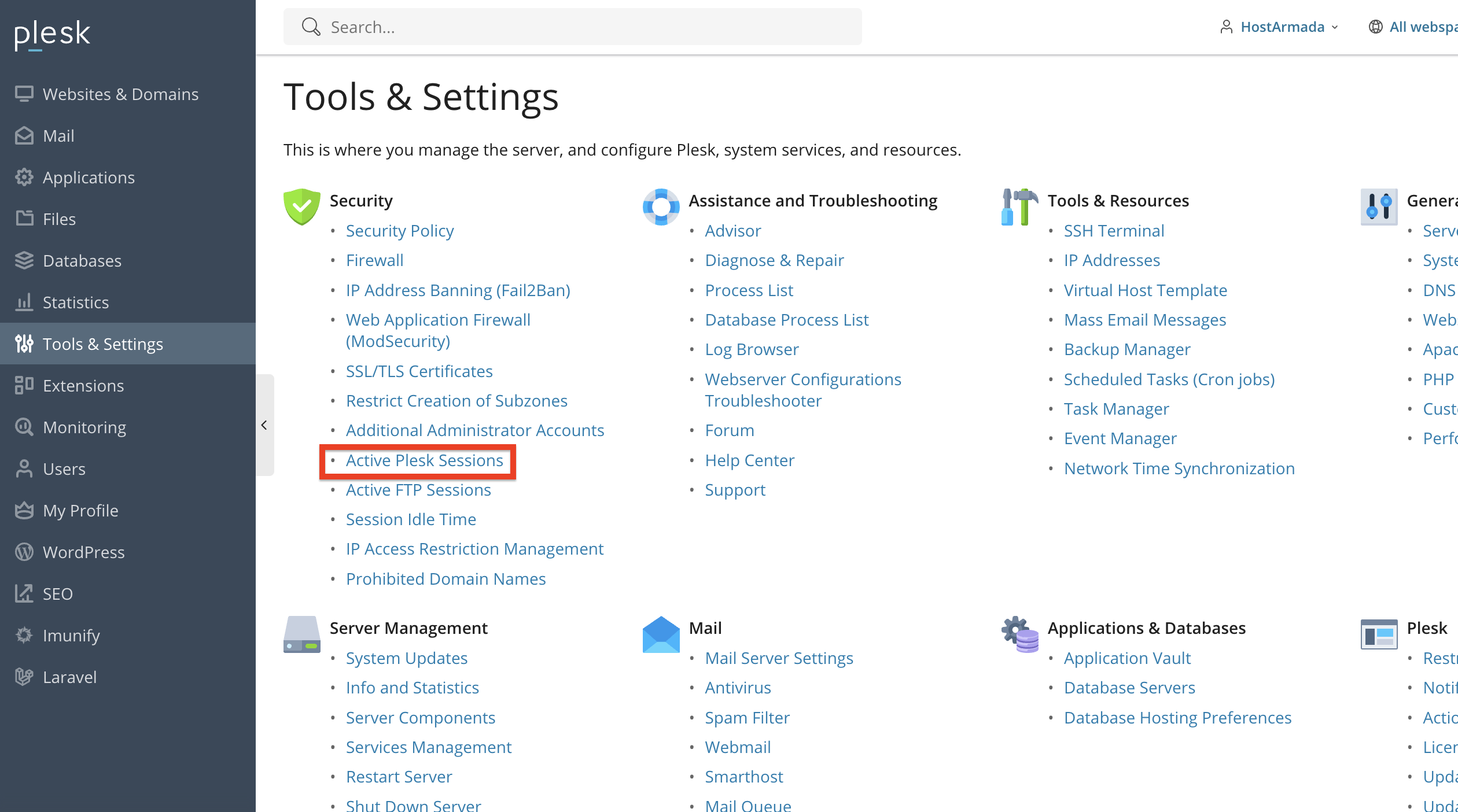
After performing the action above, please click on “Active Sessions”, located under the Security section.
This will bring you to a list of all users currently logged into your Plesk environment.
Reviewing Active Sessions
On the Active Sessions page, you will see a table containing information such as:
- Session Type - Under this column, you will see the session type of the logged-in user. It can be either an administrator session, a reseller session, or a customer session.
- Login - Under this column, you will see the currently logged-in Plesk’ user’s username.
- IP Address - Under this column, you will see the IP address of the user.
- Logon Time - Under this column, you will see the start time of the user’s session.
- Idle Time - Under this column, you will see when the user was last active.
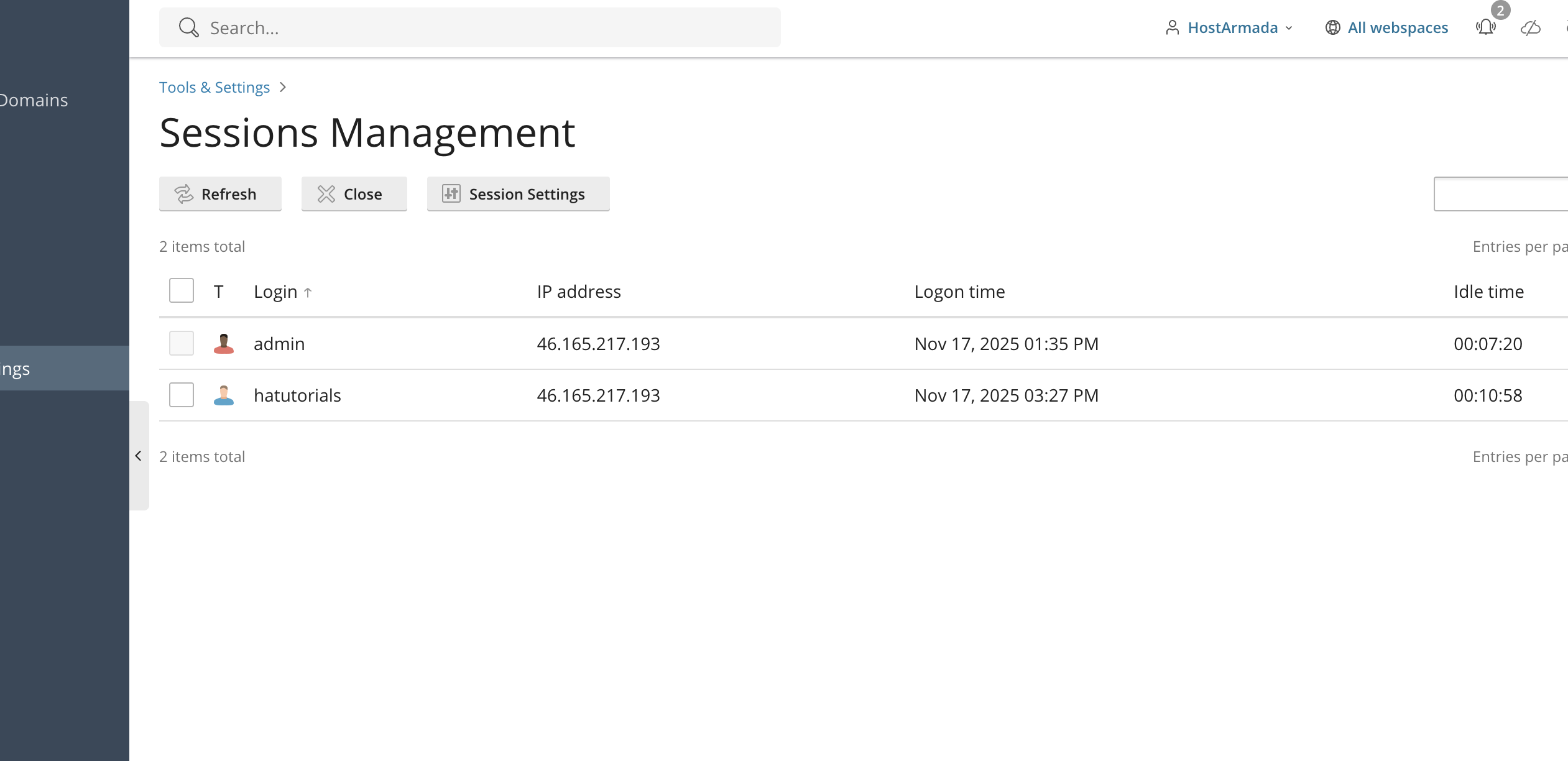
This overview helps you identify who is accessing your server and from where.
Closing Sessions & Refreshing Session List
If you notice an unfamiliar session or want to terminate an idle or abandoned one, you can use the checkbox on the left side of the row corresponding to the user for whom you wish to terminate the session.
Afterward, please click the “Close” button located above the table section, where all user sessions are populated. You will receive a prompt that you need to confirm, and after doing so, the session will be terminated.
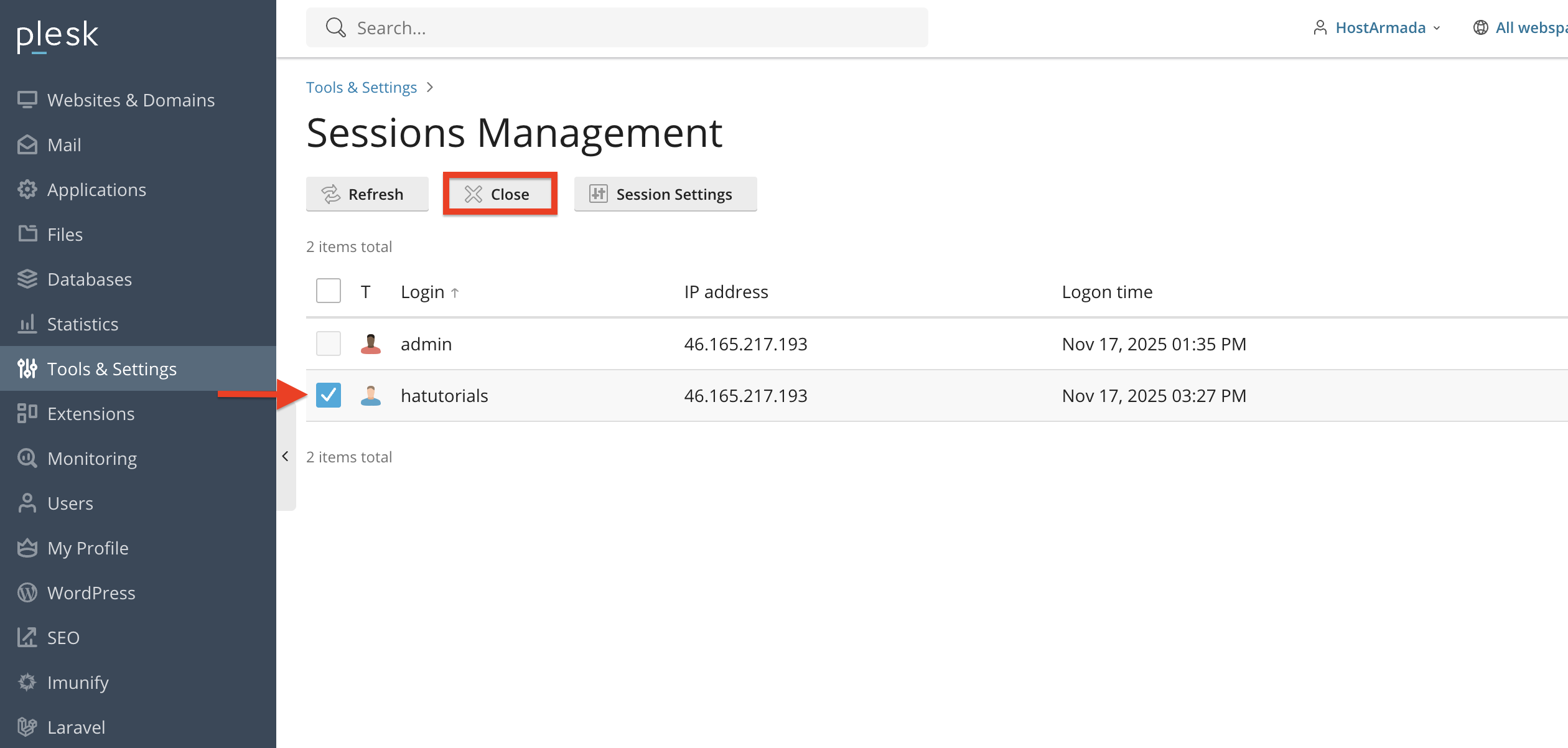
Performing the action above will immediately log the user out of Plesk.
Recommendation: Ending a session does not disable the user account. If you suspect unauthorized activity, please also change the user’s password.
The session list will not be refreshed automatically, which means that if new sessions are started, you will not be able to view them.
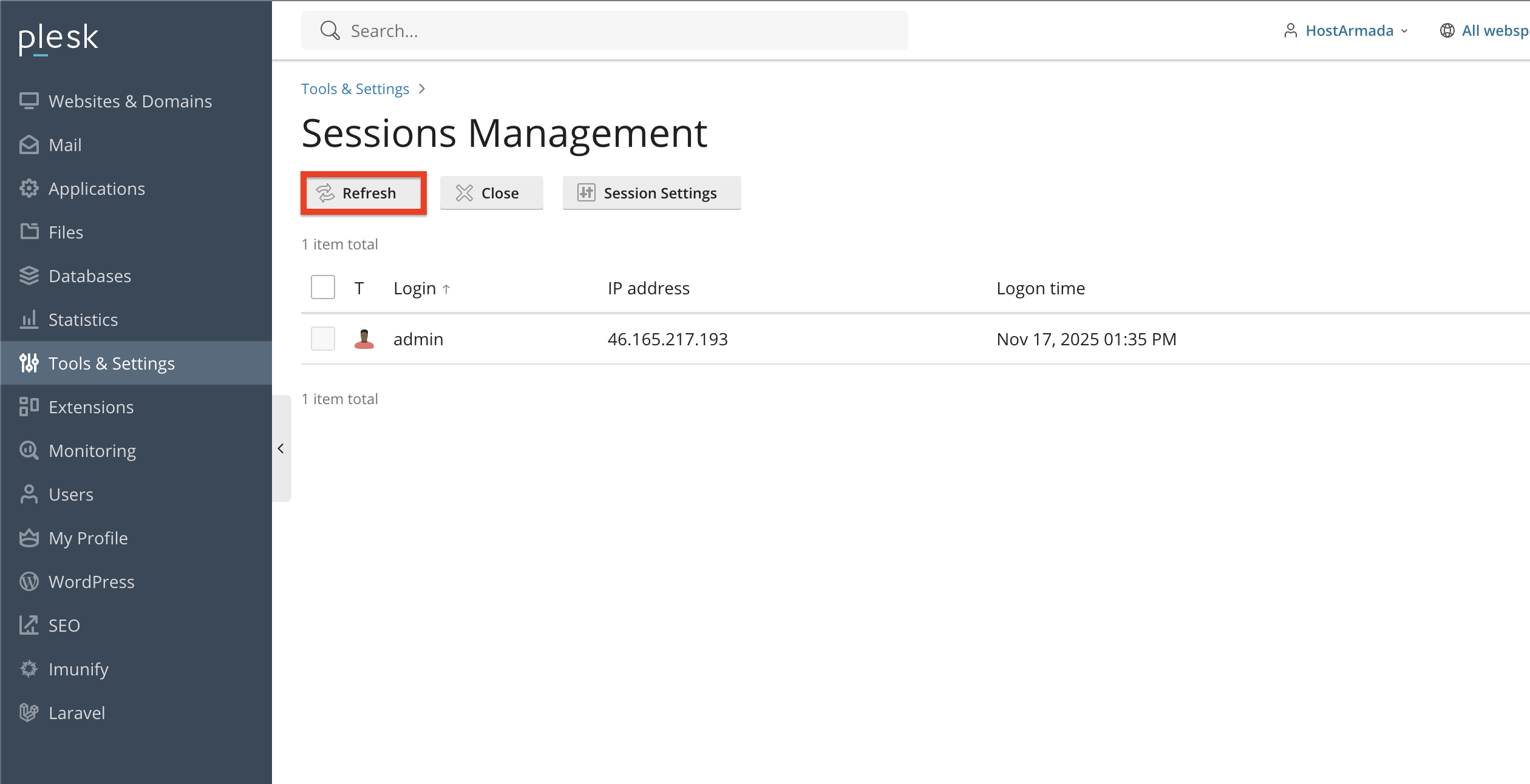
To address that, you can click the “Refresh” button at the top of the table section, which will immediately populate it with new sessions that you were not able to see previously.
Session Settings
Plesk automatically ends sessions after a period of inactivity. You can manually modify this inactive to last longer, based on your or your customer’s preferences. Additionally, you can allow IP address changes during a session, ensuring the logged-in user remains online without being logged out.
IMPORTANT: Allowing IP address changes during a session is a serious security breach, and we do not recommend using this feature.
To perform the actions mentioned above, please click on the “Sessions Settings” button, located above the table section, on the right side of the “Close” button.
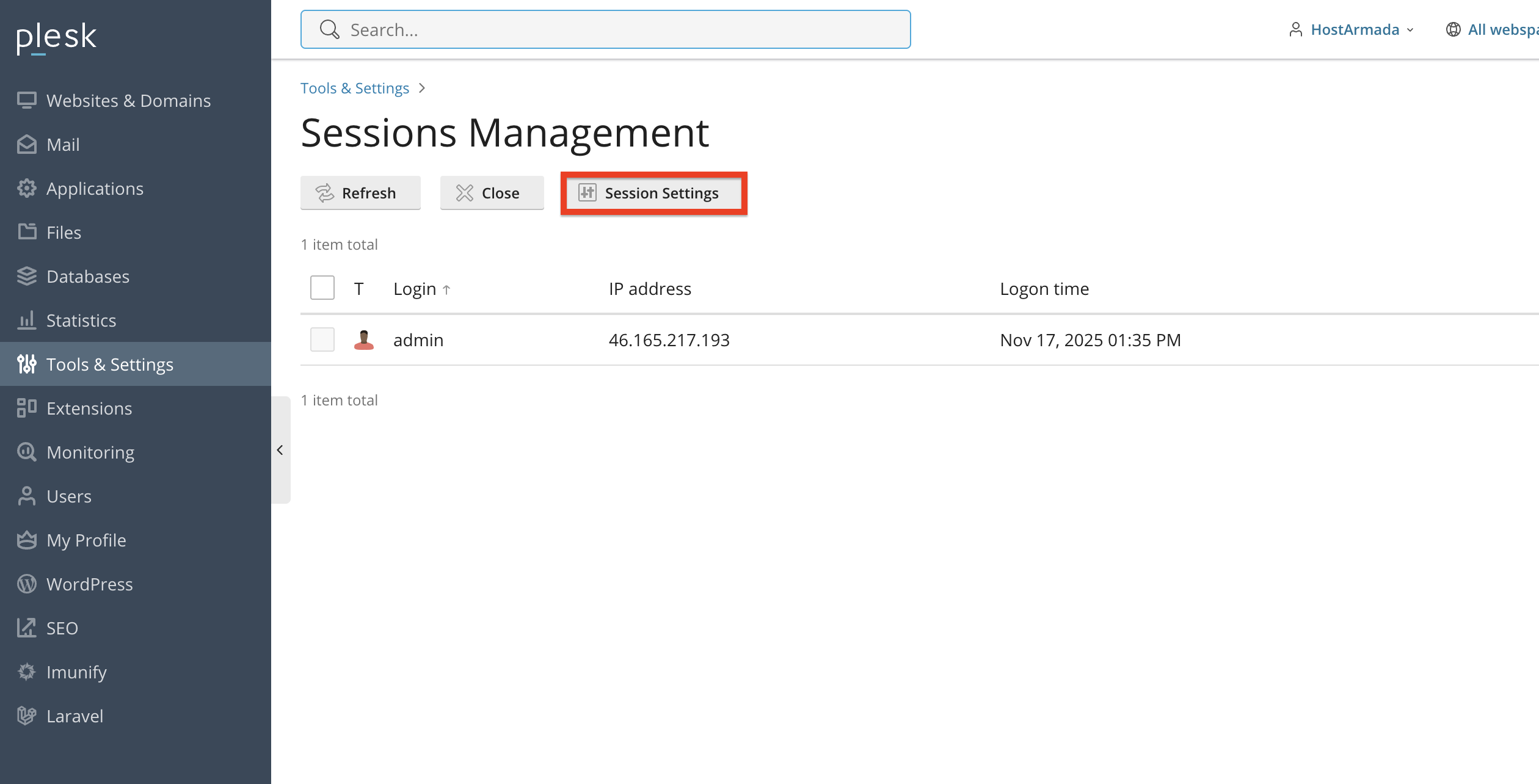
After being redirected to the settings page, you will see the available options.
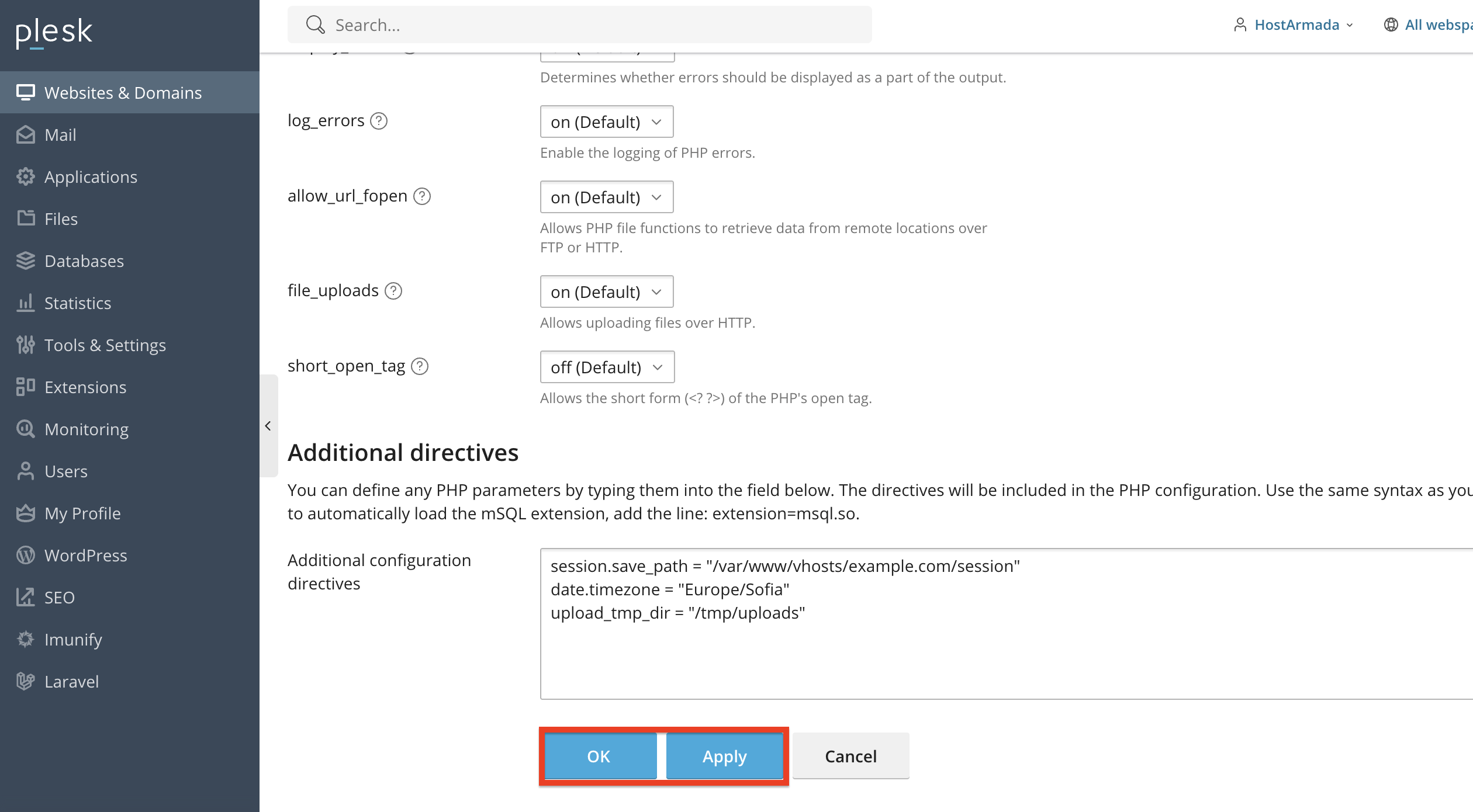
- Session idle time - Please use the text field to set the session idle time. Shorter timeouts improve security, while longer ones improve convenience. The default value here is 30 minutes.
- Allow IP address changes during a single session - Please use the checkbox to enable IP address changes during a session. As we mentioned earlier, we do not recommend enabling this unless the customer strictly requests it.
To save the changes, please press the “Ok” button located at the bottom of the page.
Conclusion
As you can see, Plesk provides a simple and effective way to monitor and control active user sessions. By reviewing active sessions regularly and terminating any suspicious or idle ones, you help keep your hosting environment secure and well-maintained.
We hope this tutorial was helpful, and we kindly encourage you to use the Active Sessions feature whenever you want to check who is accessing your control panel.












