Introduction
FTP (File Transfer Protocol) is commonly used to upload, download, and manage files on your hosting server. However, sometimes FTP sessions may remain active longer than expected, become stuck, or appear suspicious. Managing active FTP sessions in Plesk allows you to see which users are currently connected, their activity, and terminate sessions when necessary.
This is very useful for:
- Monitoring who is accessing your server files
- Ending idle or frozen FTP connections
- Detecting unauthorized access attempts
- Freeing up system resources
In this tutorial, we will guide you through the process of viewing and managing active FTP sessions in Plesk.
Getting Started
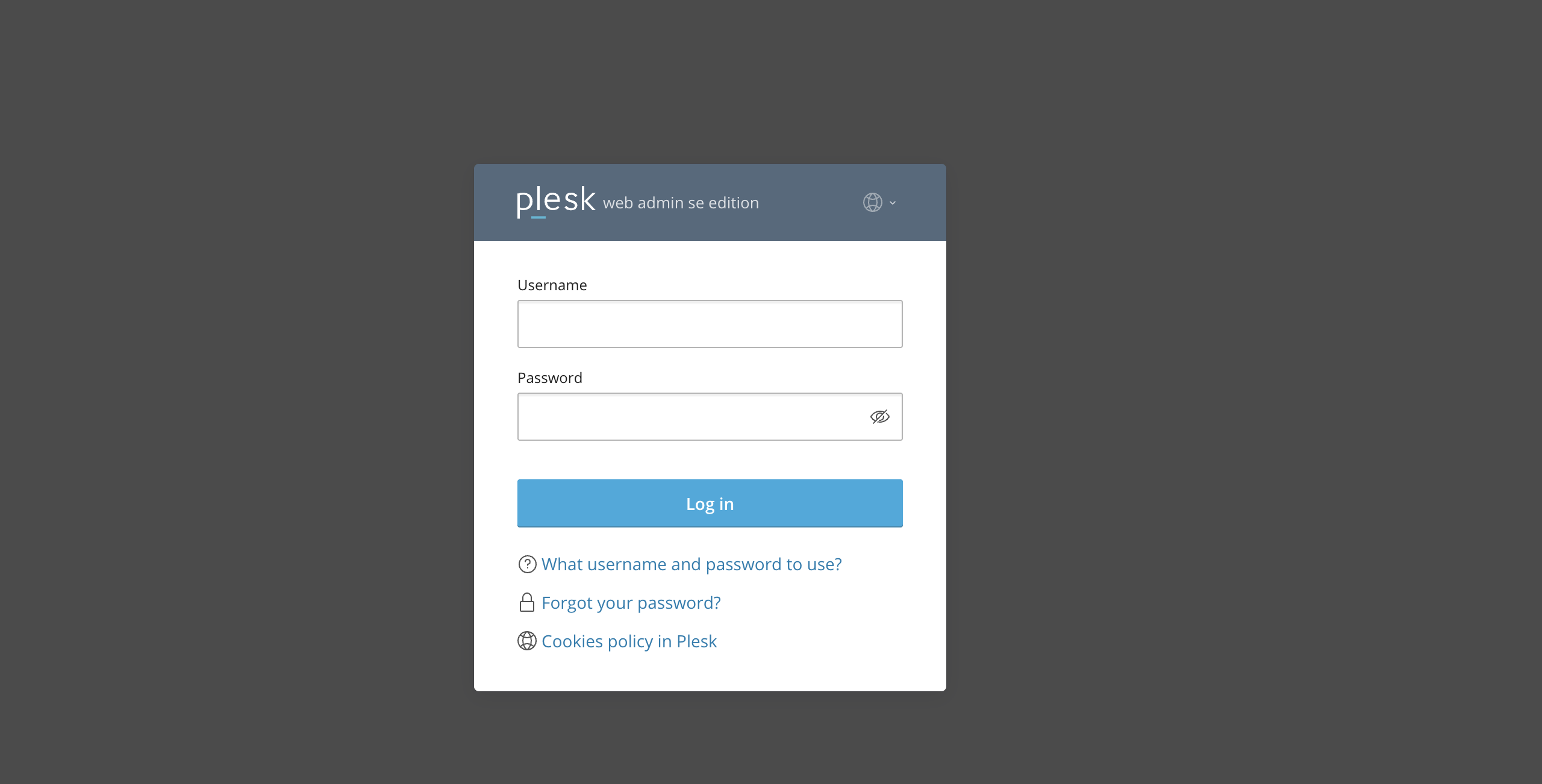
First and foremost, please ensure you are logged in to your Plesk control panel. To do that, please enter your IP address, hostname, or domain name inside your web browser’s search bar and add “:8443” at the end. It should look something like: “https://yourdomain.com:8443”. By doing so, you will be prompted by a login form that requests your username and password.
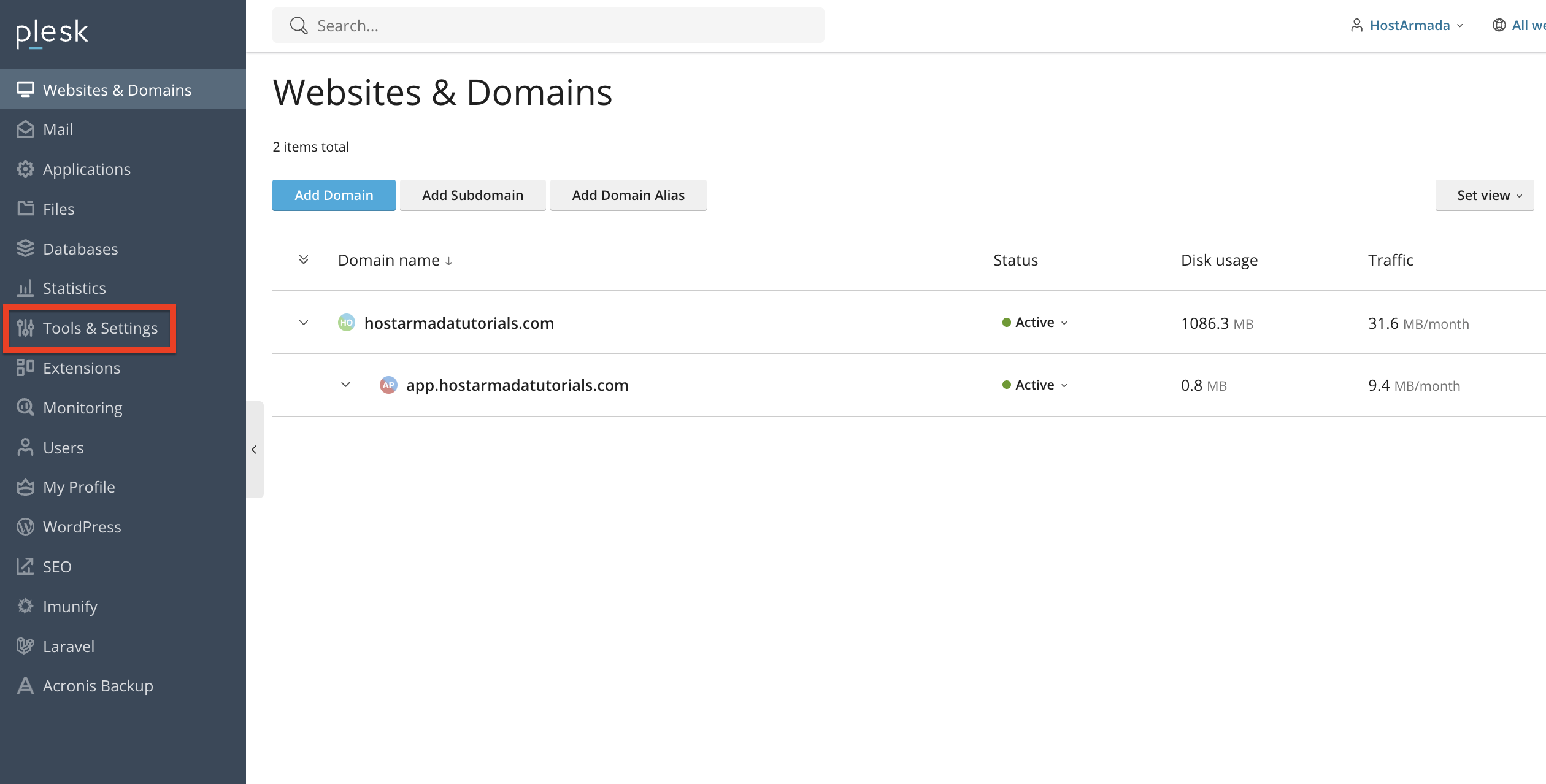
After logging in with your username and password, Plesk should automatically display the “Websites & Domains” page, which will serve as the index page from where you can manage everything related to your websites and domains on Plesk.
Accessing Active FTP Sessions in Plesk
To view active FTP sessions, please navigate to the “Tools & Settings” section, located on the left-hand menu.
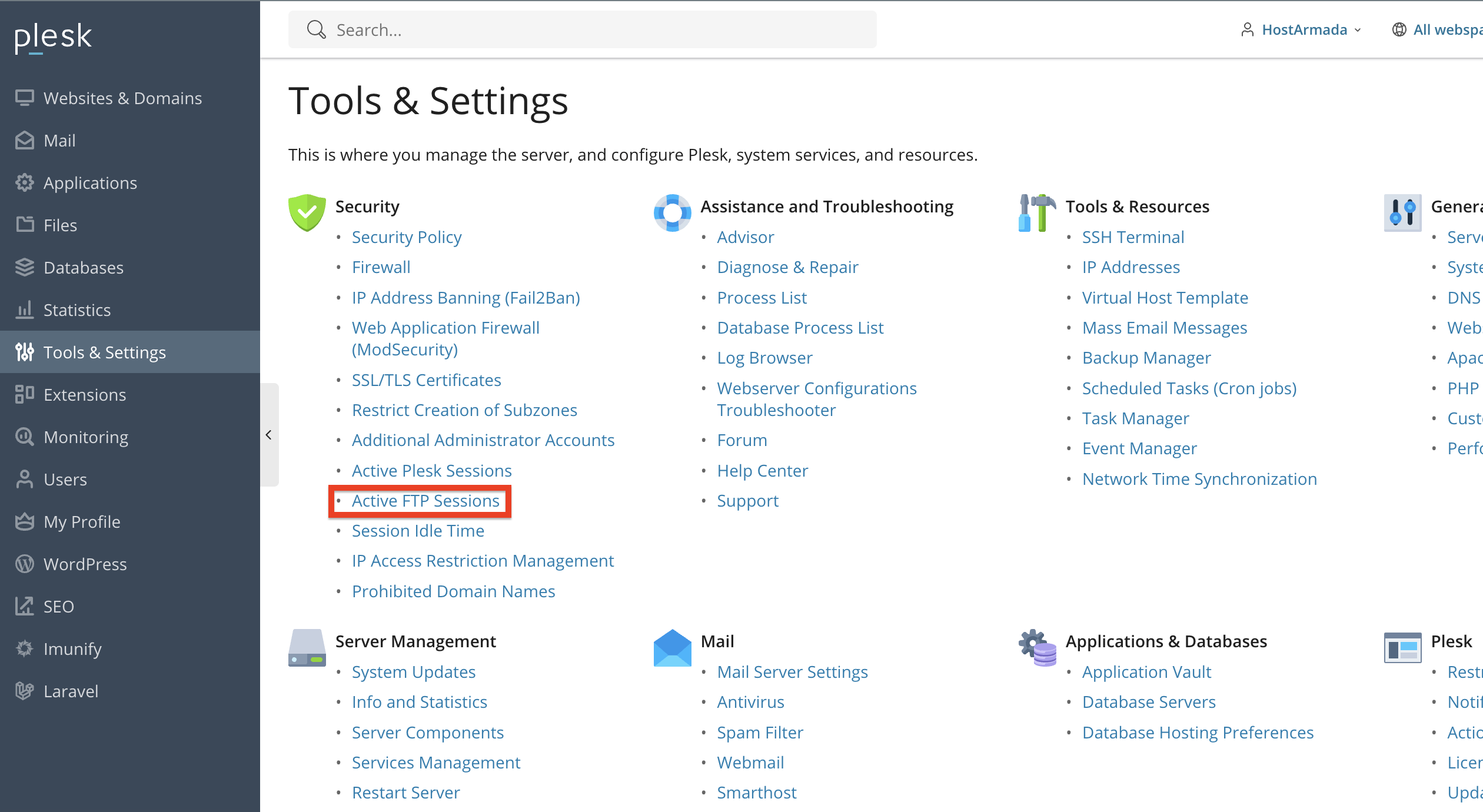
Under the Security section, please locate and click on the Active FTP Sessions functionality.
This page displays all currently active FTP connections to your server.
Reviewing Active FTP Sessions
On the Active FTP Sessions page, you will see a table with details such as:
- Type - Under this column, you will see the type of user currently connected via FTP.
- State - Under this column, you will see the state in which the current connection is in. For example, it can be idle, uploading, or downloading.
- Domain Name - Under this column, you will see the domain name to which the FTP connection is associated with.
Current location - Under this column, you will see the current location of the FTP user. For example, it can be in the “/” directory, which means the root of your hosting account, or it can be in the “htdocs” directory, which is the document root of the primary domain. File name (if available) - Speed, KB/S - Under this column, you will see the upload/download speed of the FTP connection
- Progress, % - Under this column, you will see the progress of the current upload/download process.
- IP address - Under this column, you will find the IP address at which the FTP session is established.
- Logon time - Under this column, you will find the logon time of the user.
- Idle time - Under this column, you will see how long the user has been idle for.
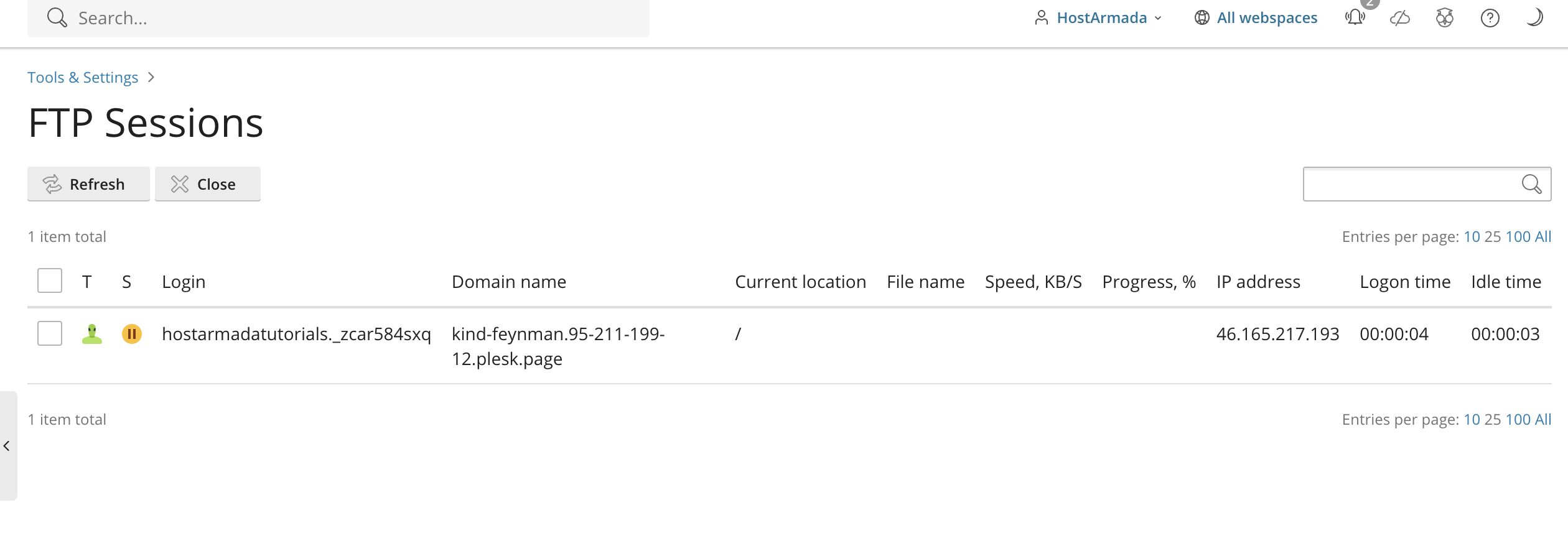
This information helps you monitor normal activity and identify suspicious or unnecessary connections.
Terminating an FTP Session
If you see an FTP session that you want to end, whether it appears stuck, idle, or unauthorized, you can terminate it easily.
To do that, locate the FTP session in the list and use the checkbox corresponding to its row to mark it.
Afterward, please click on the “Close” button, located above the table section. Finally, please confirm the action when prompted.
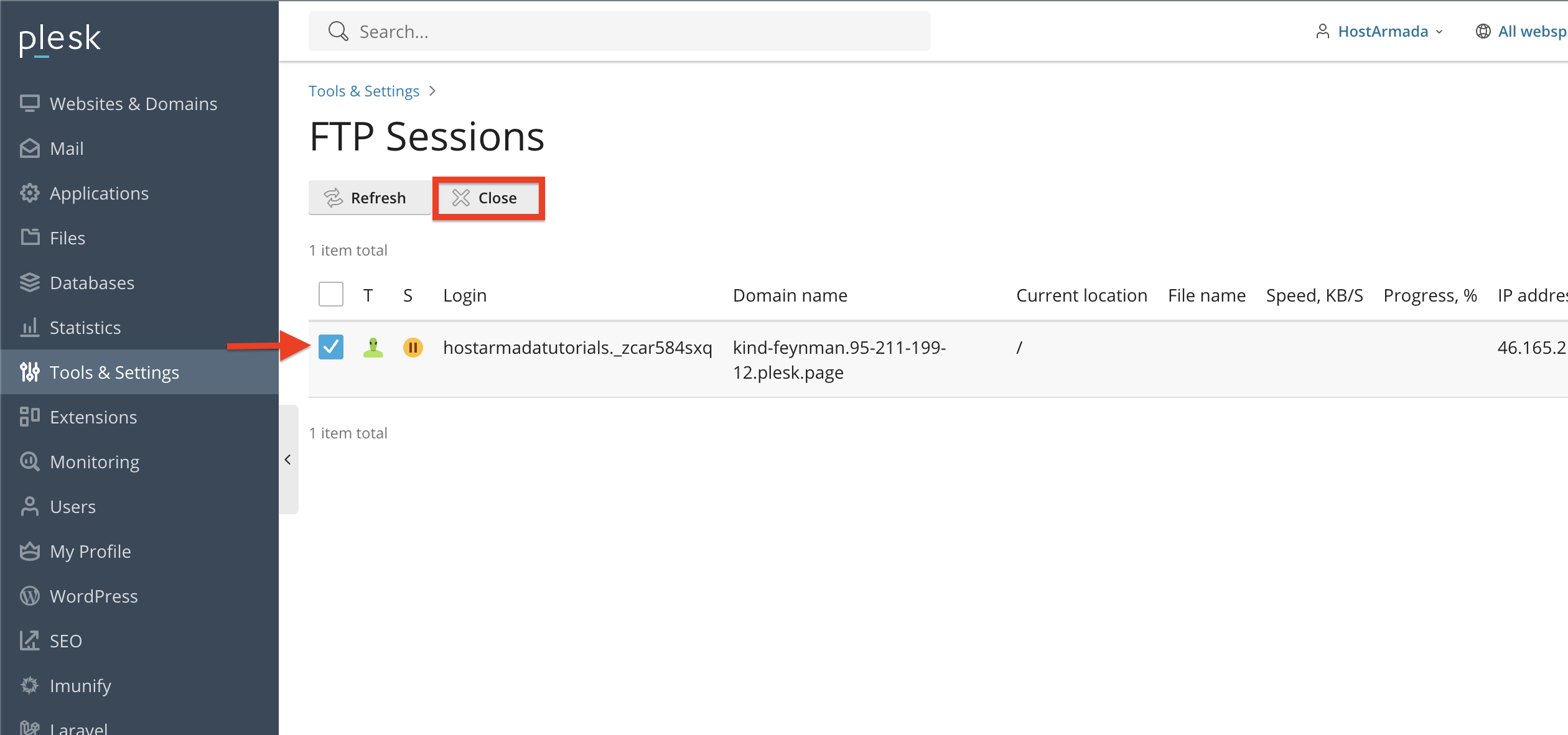
The user will immediately lose their FTP connection to the server.
Recommendation: If you notice repeated unauthorized connections, consider blocking the IP or updating the affected user’s password.
Lastly, to update the FTP session list with the latest established connections, please click on the “Refresh” button, located on the left side of the “Close” button.
Conclusion
As you can see, Plesk makes it easy to monitor and manage active FTP sessions. By viewing current connections, terminating idle or suspicious sessions, and reviewing session logs, you maintain full control over who is accessing your server files.
We hope this tutorial was helpful, and we kindly encourage you to check your active FTP sessions regularly to ensure a secure and efficient hosting environment.












