Introduction
Plesk includes a very useful feature called Diagnose & Repair, designed to help you automatically detect and fix common issues within your hosting environment. This tool can scan your system for configuration problems, service interruptions, permission errors, missing components, and inconsistencies that could affect your websites or server functionality.
Instead of troubleshooting manually, Diagnose & Repair allows you to run a full system check and even automatically correct many issues with just a few clicks.
In this tutorial, we will guide you through the process of using the Diagnose & Repair tool in Plesk.
Getting Started
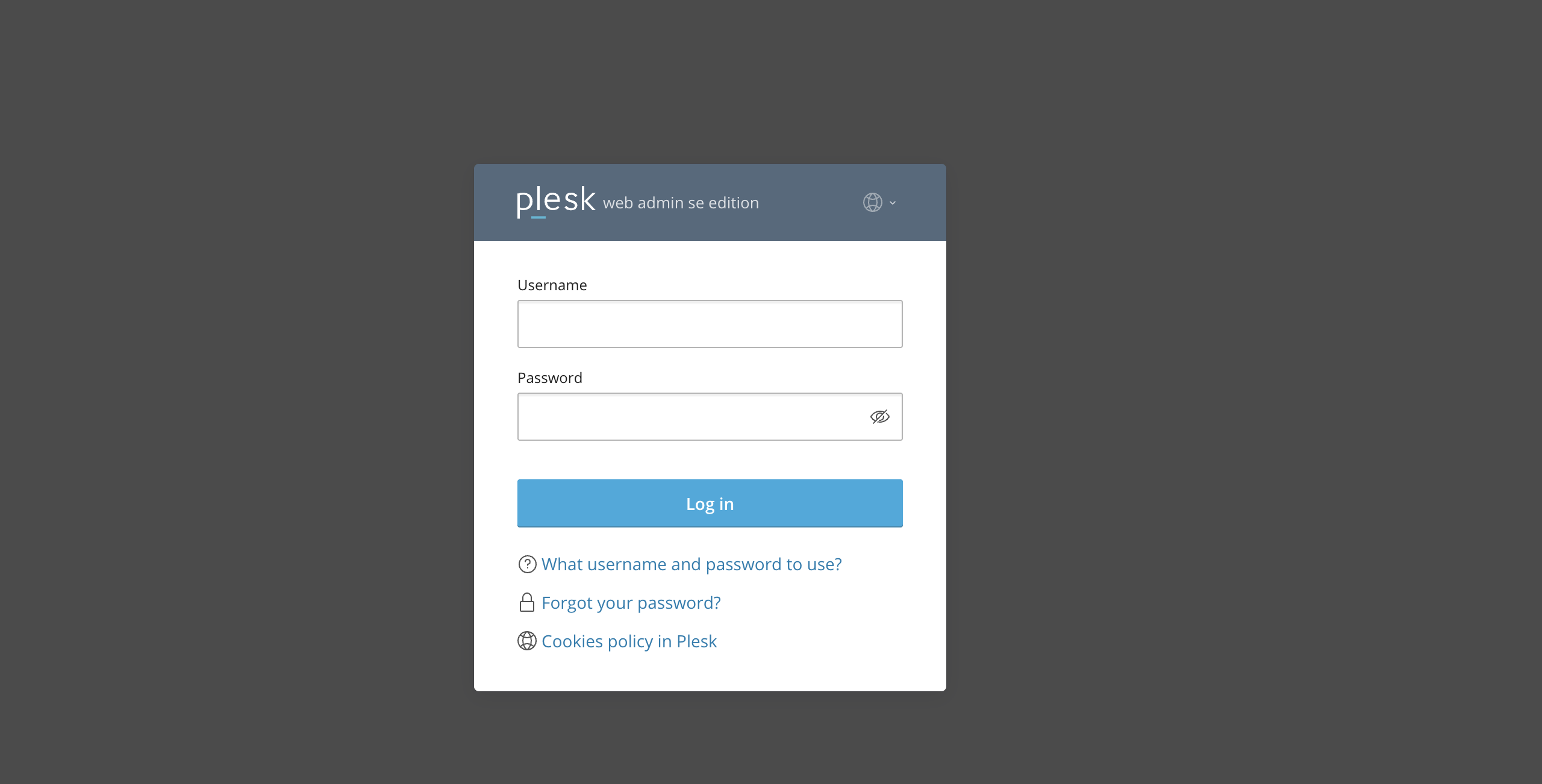
Before you begin managing backups, please log in to your Plesk control panel. To perform that, please enter your IP address, hostname, or domain name inside your web browser’s search bar and add “:8443” at the end. It should look something like: “https://yourdomain.com:8443”. By doing so, you will be prompted by a login form that requests your username and password.
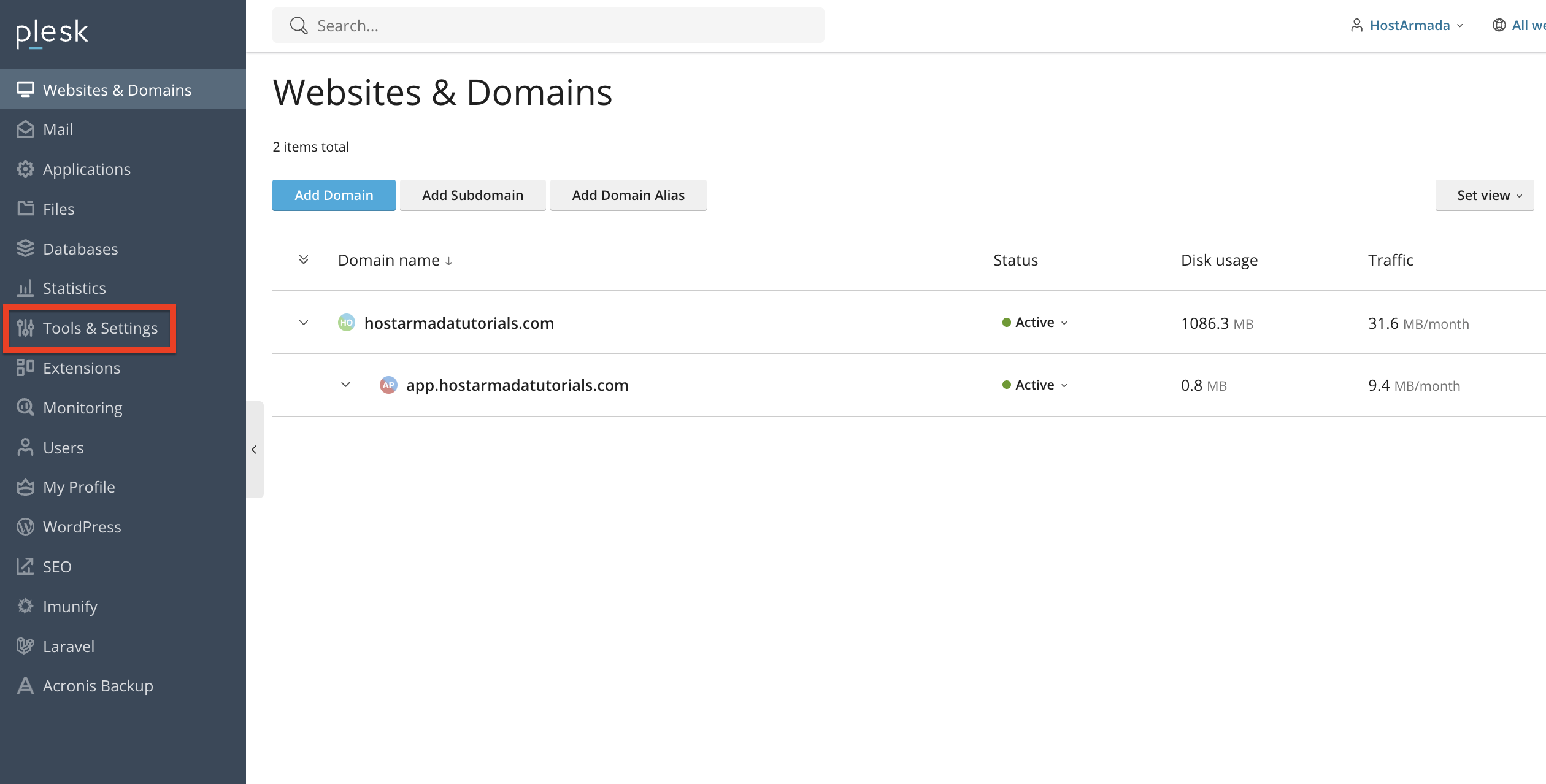
After logging in with your username and password, Plesk will automatically display the “Websites & Domains” page, which will serve as the index page from where you can manage everything related to your websites and domains on Plesk.
Accessing the Diagnose & Repair Tool
To locate the Diagnose & Repair tool, please point your attention to the left-hand menu and from there, please click on the “Tools & Settings” option.
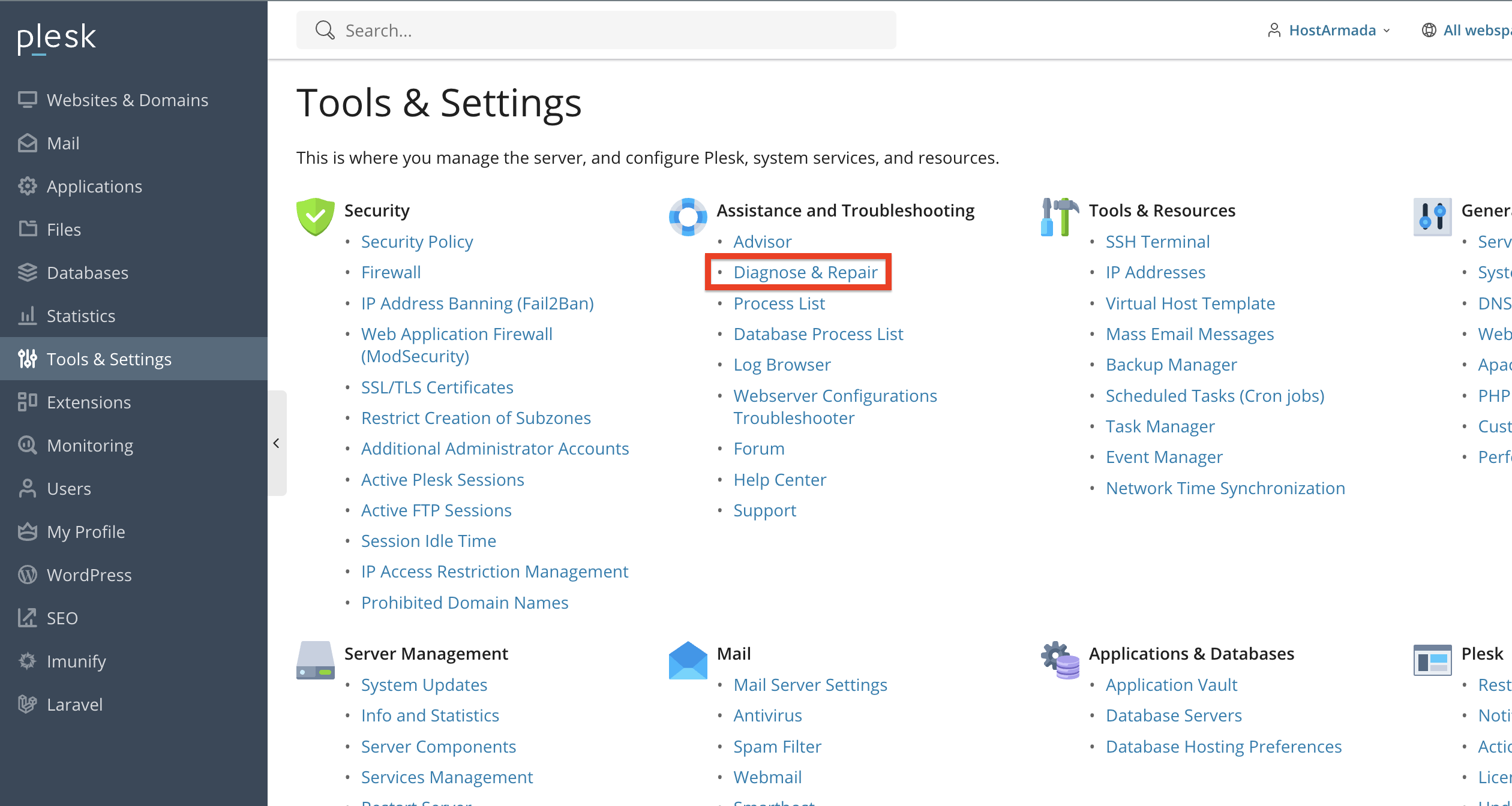
Under the “Assistance and Troubleshooting” category, please click on "Diagnose & Repair" functionality.
This will open the main interface where you can scan your server and repair detected issues.
Running a Diagnostic Scan
Once you are redirected to the diagnostics page, you will notice a couple of things. At the top of the page, you will see a mass diagnosis & repair option on all the services, which is a great option to check everything on the server.
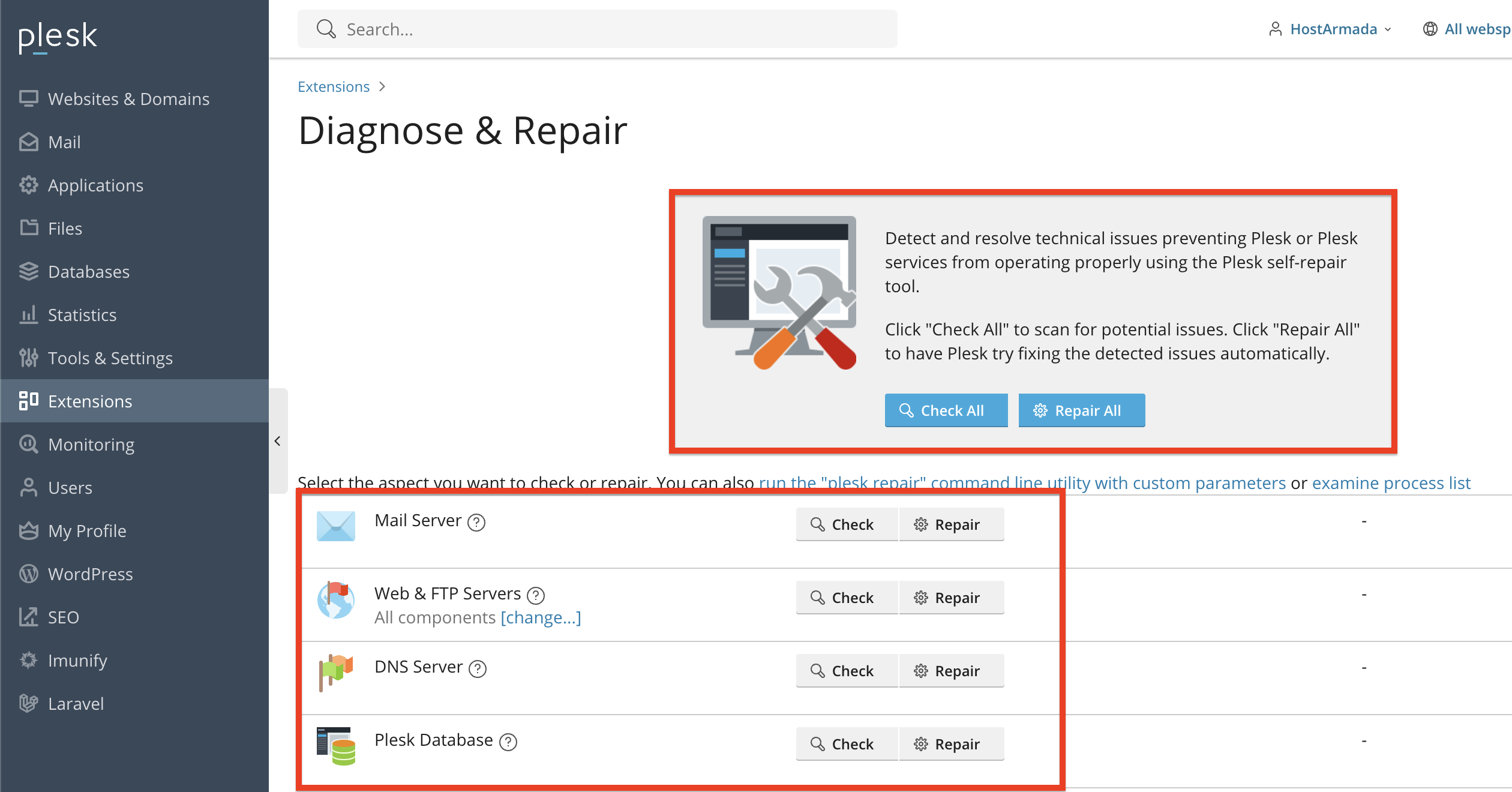
Below, you will find a table section listing all the services individually. Depending on what you believe can be broken or requires attention, you can run standalone scans for each service.
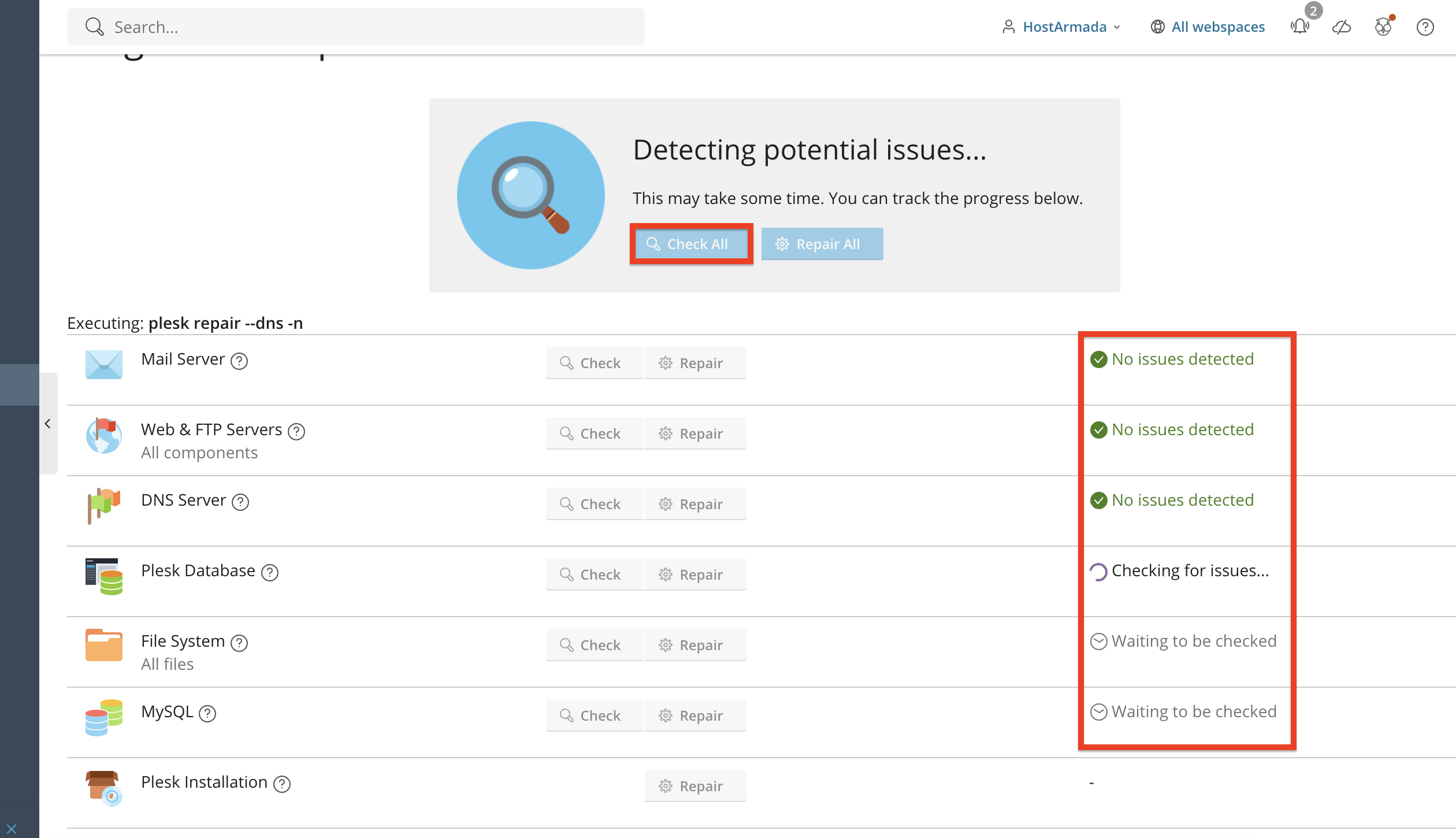
Let’s go over what will happen if you click the “Check all” button at the top of the screen.
First, Plesk will start analyzing important components such as:
- Web server configuration
- File system permissions
- DNS settings
- Mail server configuration
- Database server availability
- Plesk services and modules
The scan may take a few minutes, depending on the size of your server and the number of hosted websites.
Reviewing the Diagnostic Results
Once the scan is complete, Plesk will display a list of issues found (if any). These may include:
- Incorrect file permissions
- Broken symlinks
- Missing service components
- Misconfigured PHP settings
- DNS inconsistencies
- Database connection issues
- Mail queue errors
- Plesk extension failures
Each issue will include a short explanation, making it easier to understand the problem.
At the end, if an issue is detected, Plesk will show you which service it is related to and what it is exactly.
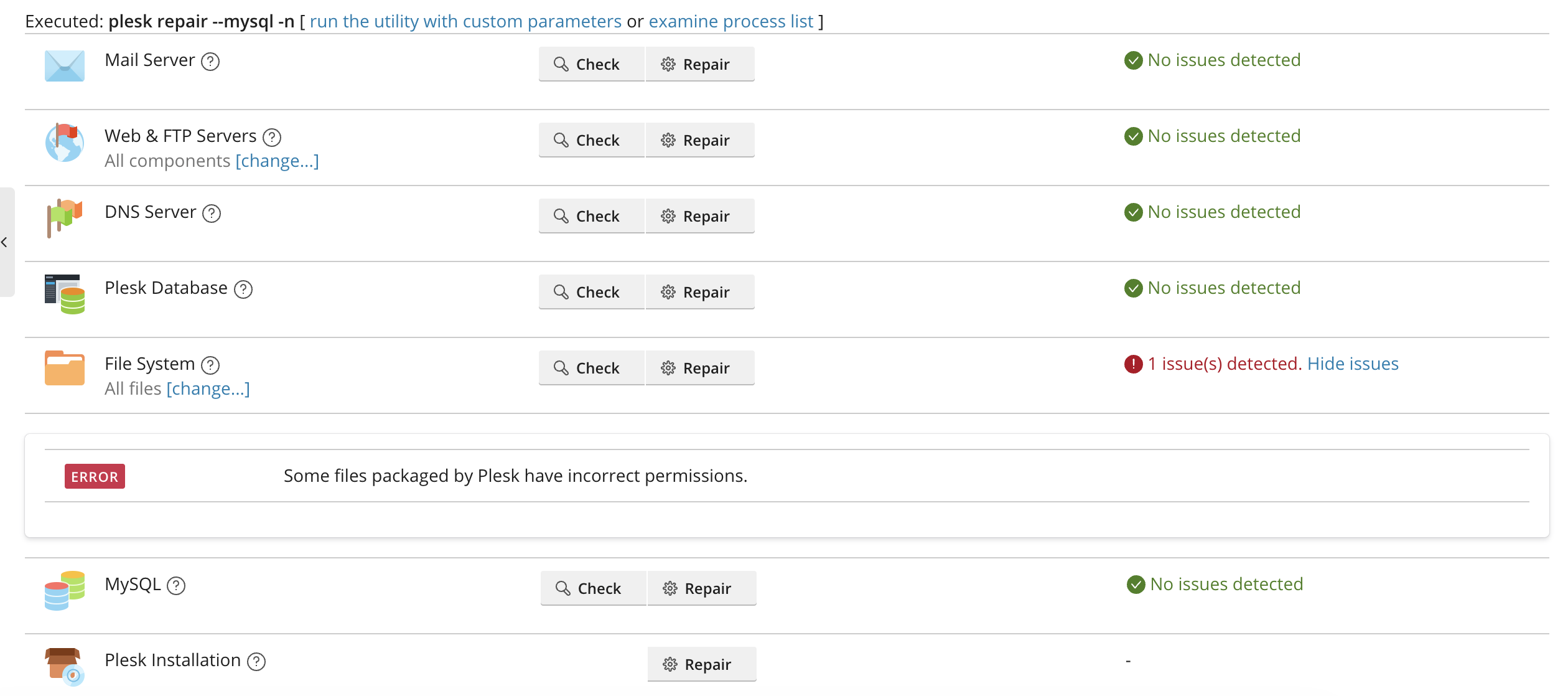
In our case, it appears that there is an issue with the File System, which is related to file or folder permissions. This is when the “repair” tool comes in. To initiate the repair process, click the “Repair All” button, located on the right side of the “Check All” button.
Repairing Detected Issues
Plesk offers automatic fixes for many common problems, and clicking on the “Repair All” button will allow the tool to do its magic!
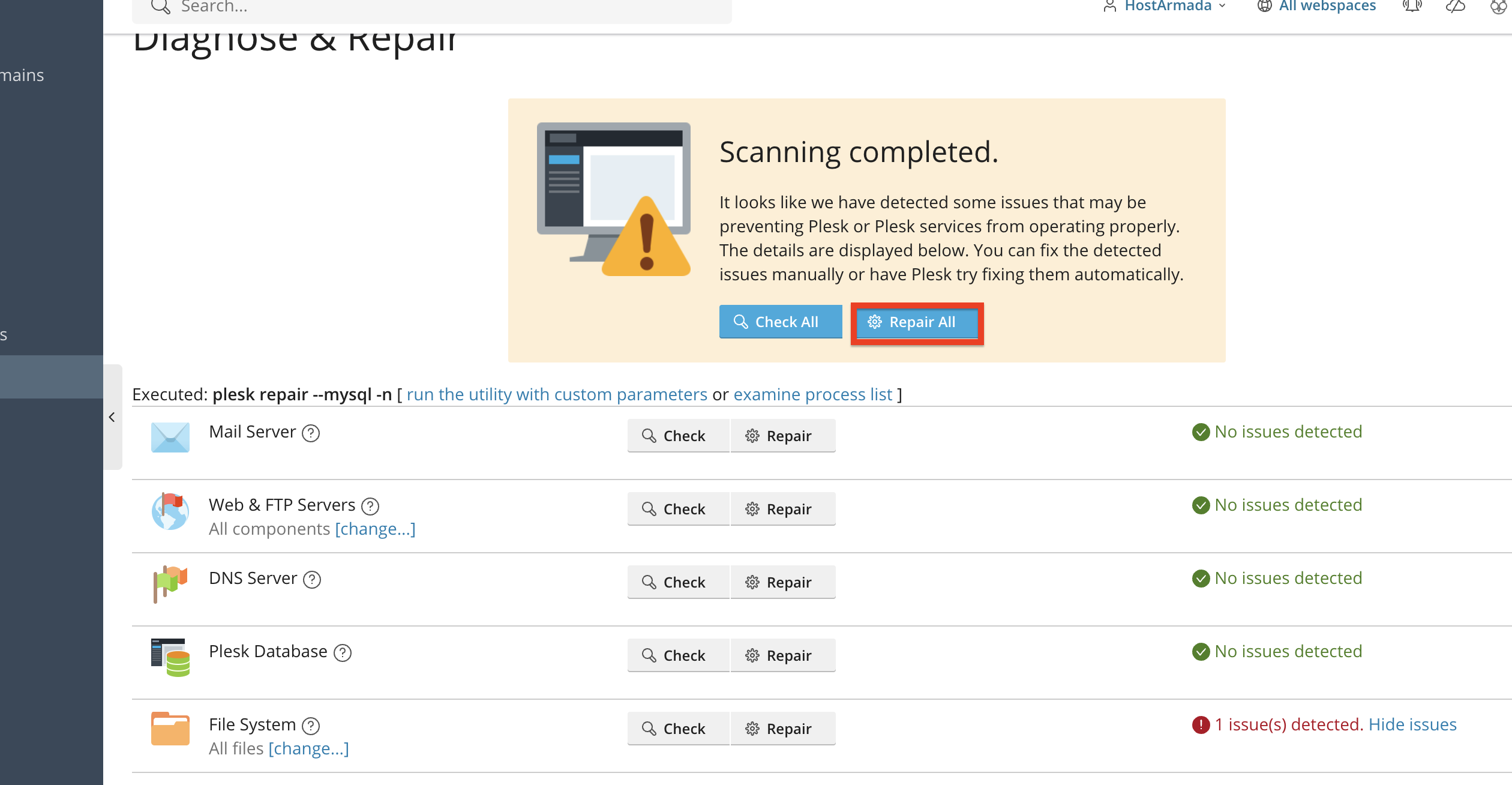
Performing the action above will generate a prompt, and after you confirm, the repair process will begin. You will notice that each service displays a progress bar for the respective service, and it may take some time for the tool to repair everything. Please allow it the necessary time to complete the task.
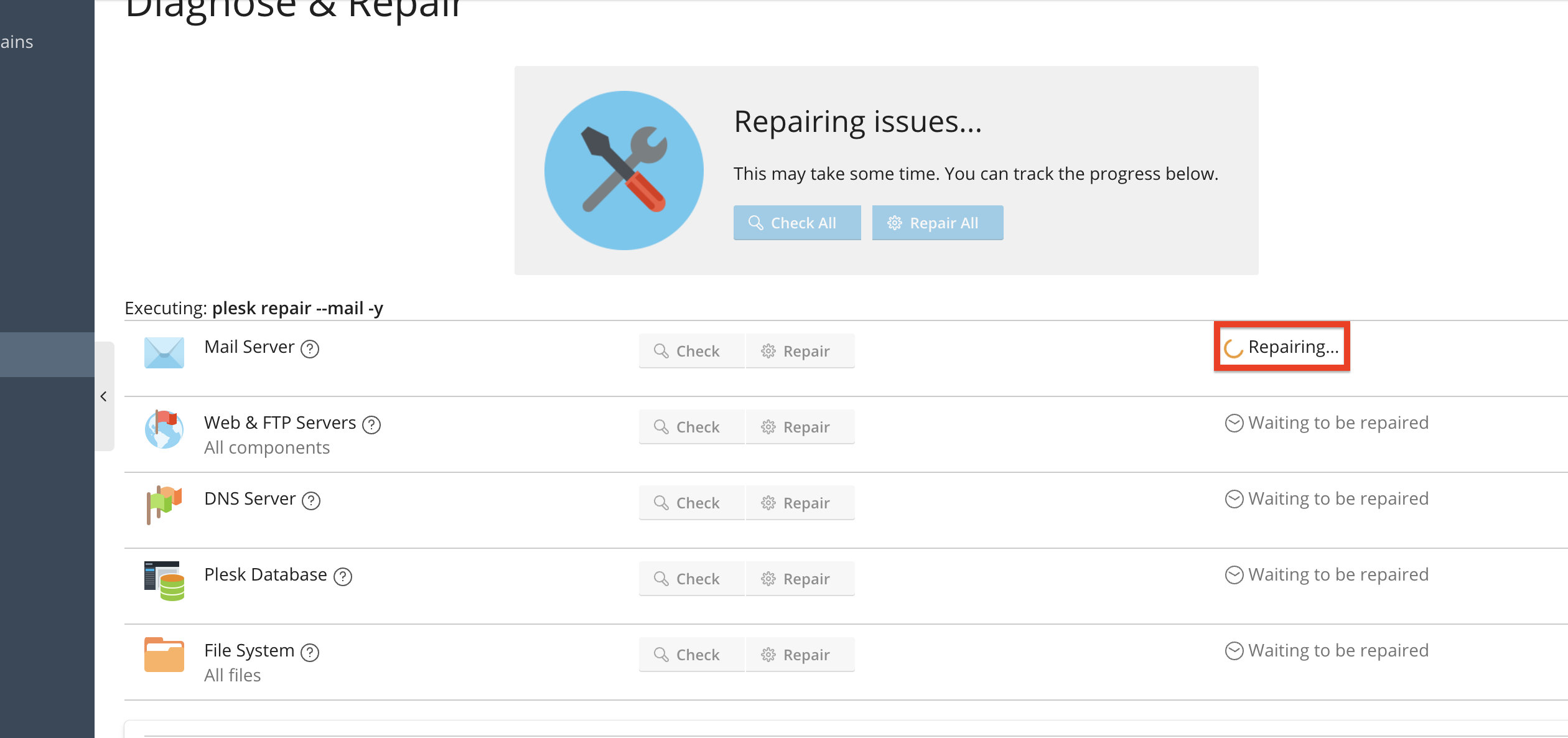
After a brief while, the results will be ready, and Pleks will show exactly what it did. In our case, we had issues with the File System, and as you can see from the screenshot below.
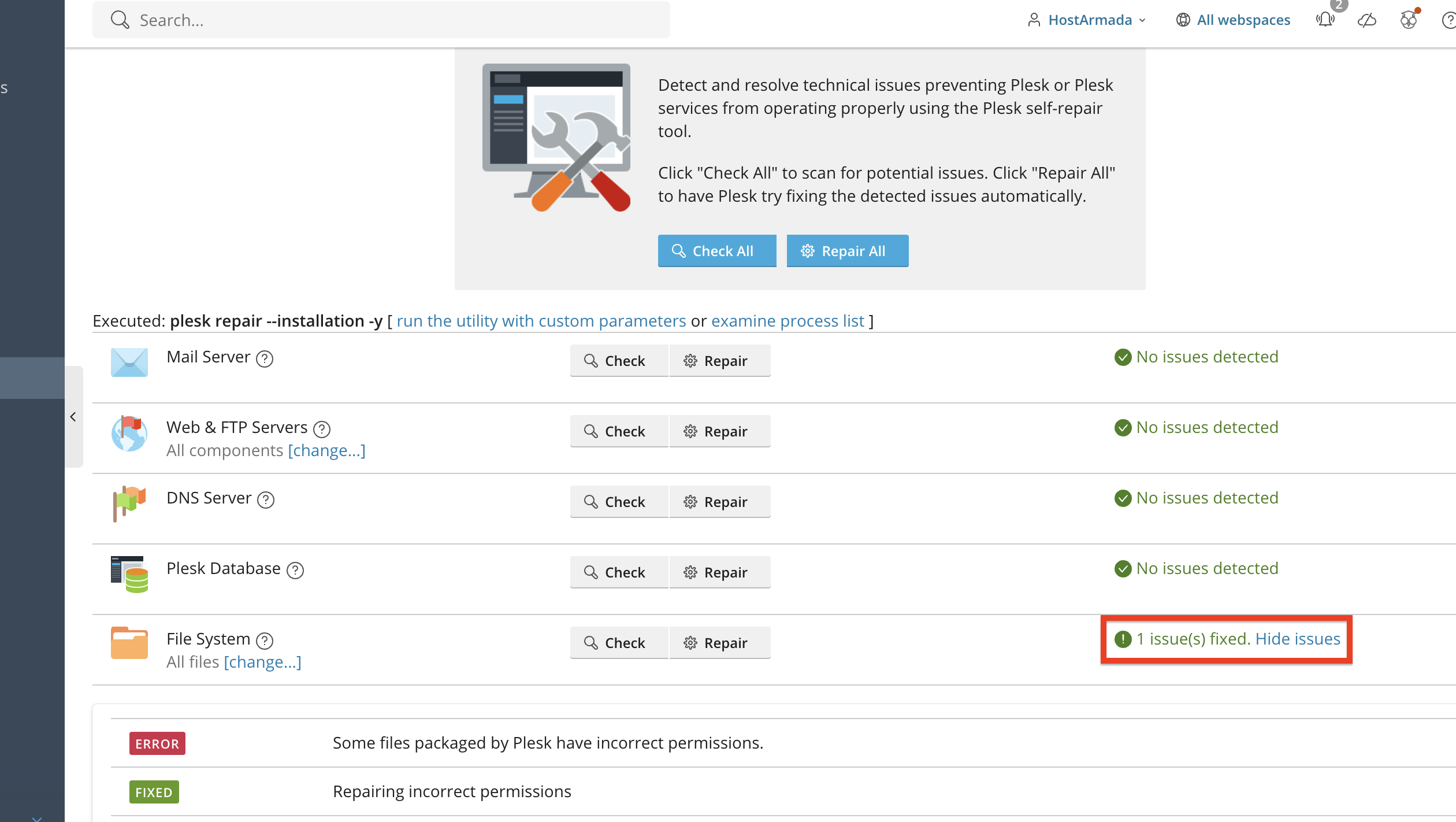
Plesk has successfully repaired this issue, and the entire system is now fully intact.
Viewing Repair Logs
After repairs are completed, you can view detailed logs that show:
- What was fixed
- Actions taken by Plesk
- Any warnings or unrepaired issues
- Suggested manual interventions (if needed)
To access logs, please click “Show Issues” next to the completed repair operation. These logs help track changes and understand underlying problems.
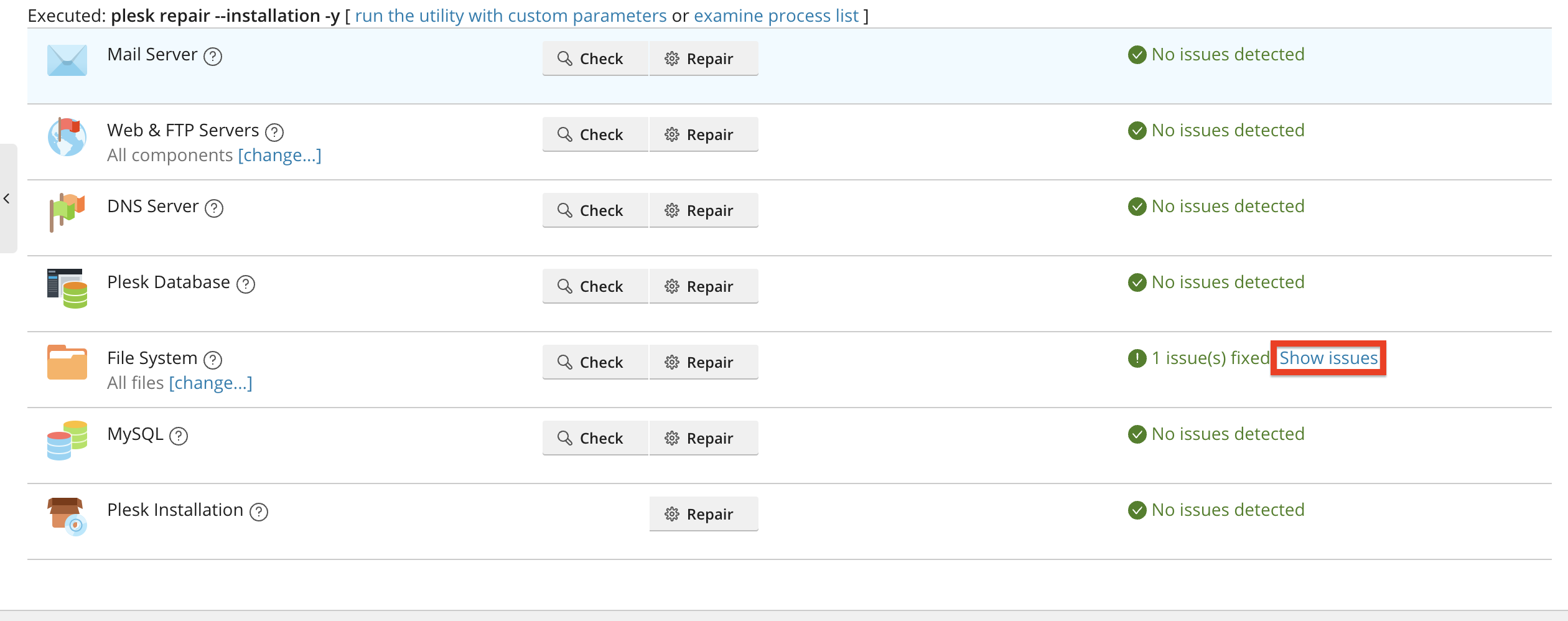
If needed, you can run the Diagnose & Repair scan again to confirm that all issues have been resolved. Simply click the “Check all” button again to reinitiate the scan.
Running Individual Scans
As we mentioned earlier, there is an option to run an individual Scan & Repair option for a specific service you believe may be compromised. To do so, please click on the “Check” or “Repair” buttons corresponding to the service itself.
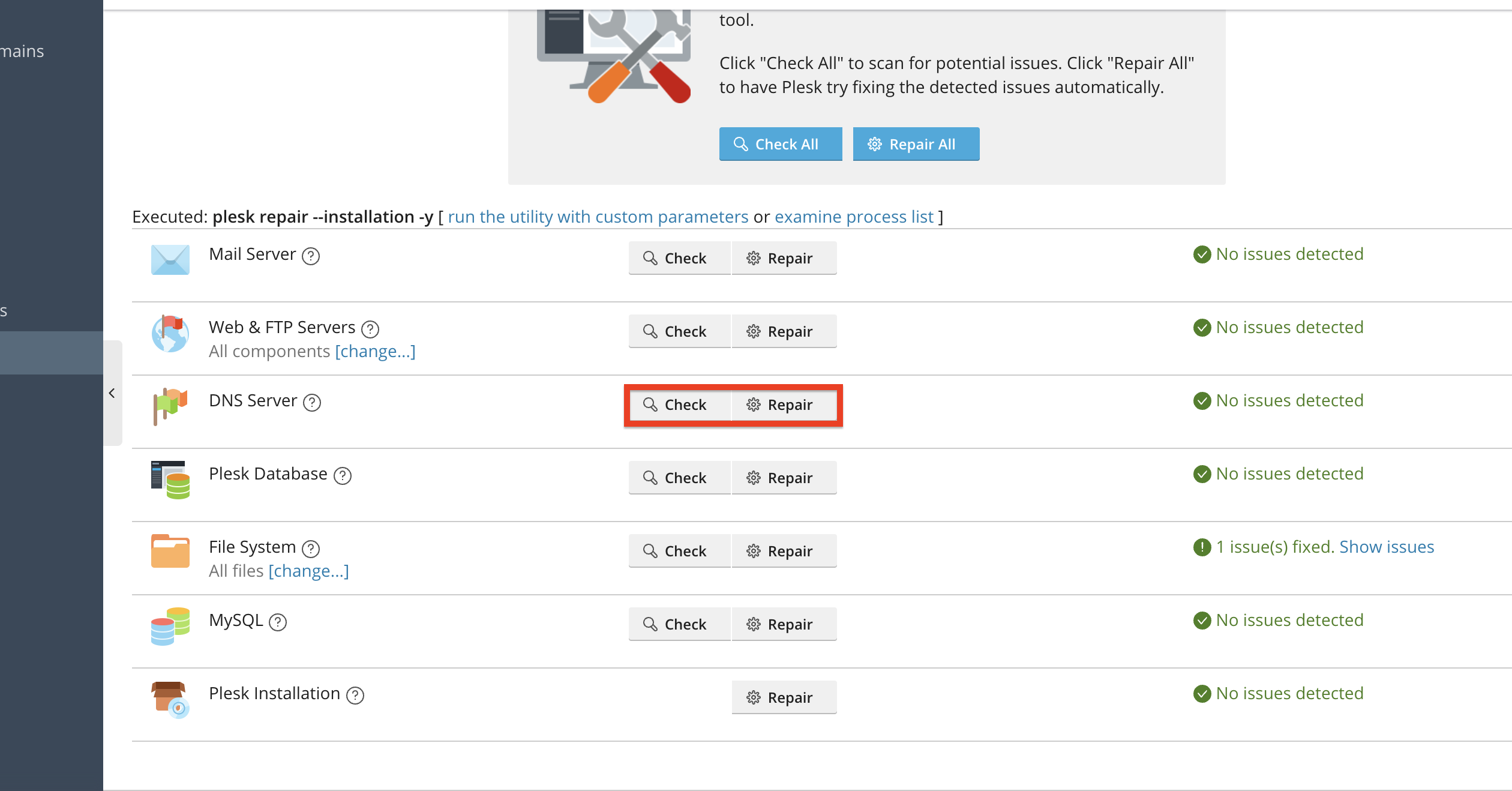
The process is completely analogous to the mass scanning and repair we went through earlier in this tutorial; thus, please follow the steps, and you should be able to use the tool to scan & repair your service successfully!
Conclusion
As you can see, the Diagnose & Repair tool in Plesk provides a powerful and user-friendly way to maintain the health of your server and websites. With automatic detection and repair options, it saves time and effort while ensuring your hosting environment remains stable and functional.
We hope this tutorial was helpful, and we kindly encourage you to use Diagnose & Repair whenever you experience unexpected issues or simply want to verify that everything is running smoothly.












