Introduction
Monitoring running processes on your server is an important part of maintaining a healthy and secure hosting environment. By checking active processes, you can identify tasks that are consuming resources, detect suspicious activity, troubleshoot performance issues, and make informed decisions when optimizing your server.
Plesk provides a built-in tool that allows you to view all currently running processes, including CPU usage, memory consumption, and real-time activity — all directly from the control panel.
In this tutorial, we will guide you through the process of checking the list of running processes in Plesk.
Getting Started
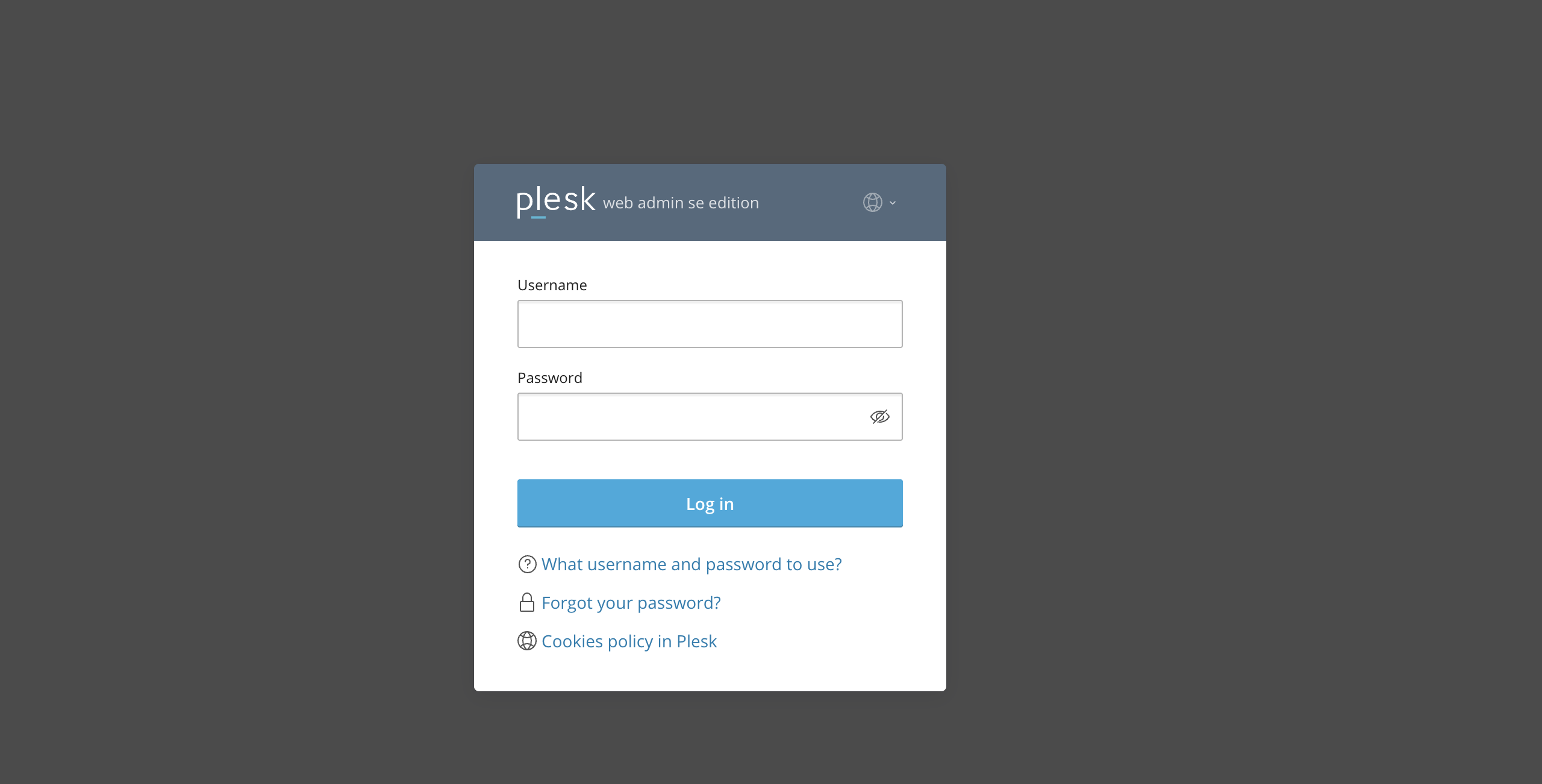
First and foremost, please ensure you are logged in to your Plesk control panel. To do that, please enter your IP address, hostname, or domain name inside your web browser’s search bar and add “:8443” at the end. It should look something like: “https://yourdomain.com:8443”. By doing so, you will be prompted by a login form that requests your username and password.
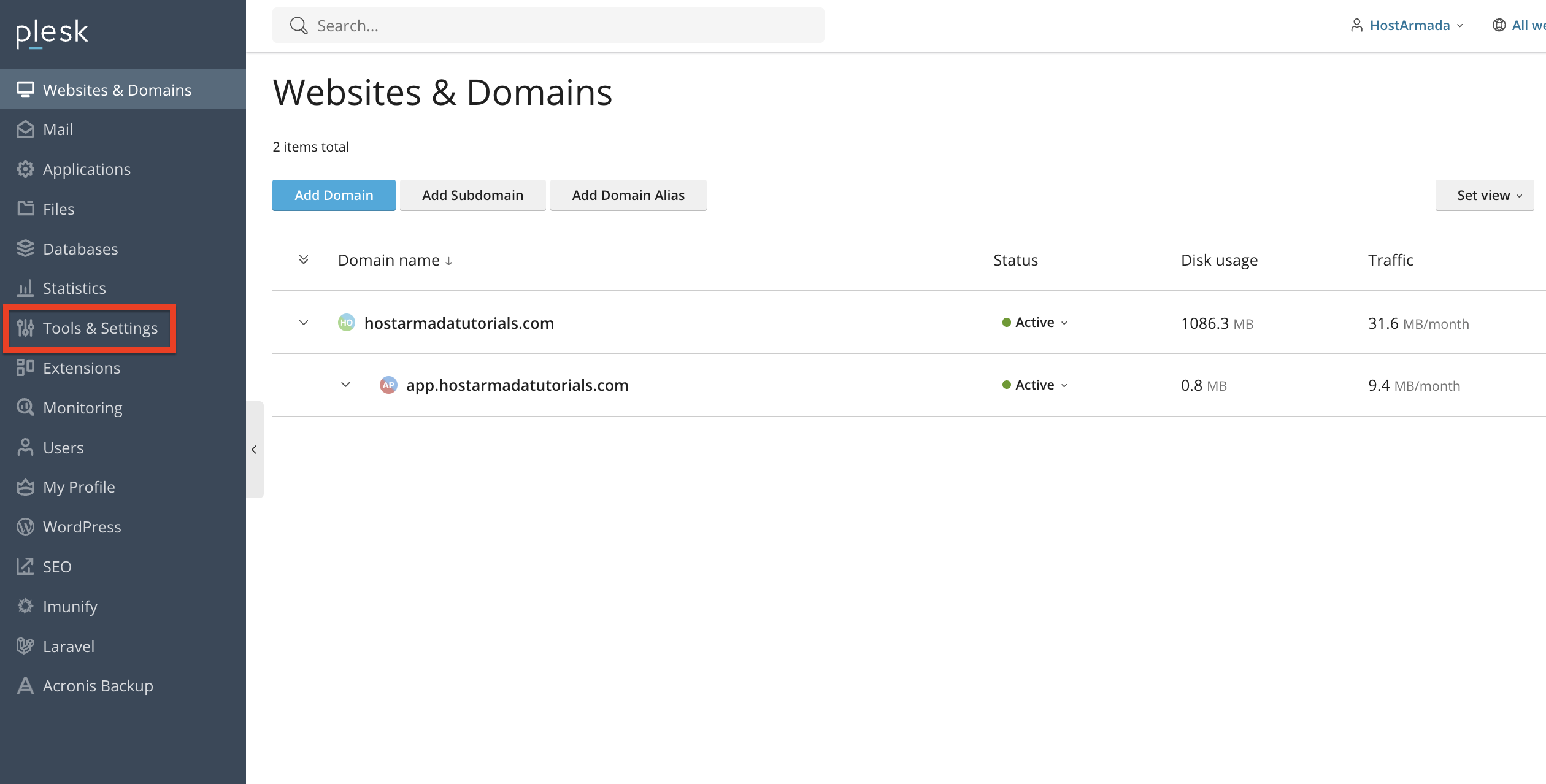
After logging in with your username and password, Plesk should automatically display the “Websites & Domains” page, which will serve as the index page from where you can manage everything related to your websites and domains on Plesk.
Accessing the Running Processes List
To view your server’s processes, please select the “Tools & Settings” option from the left-hand menu.
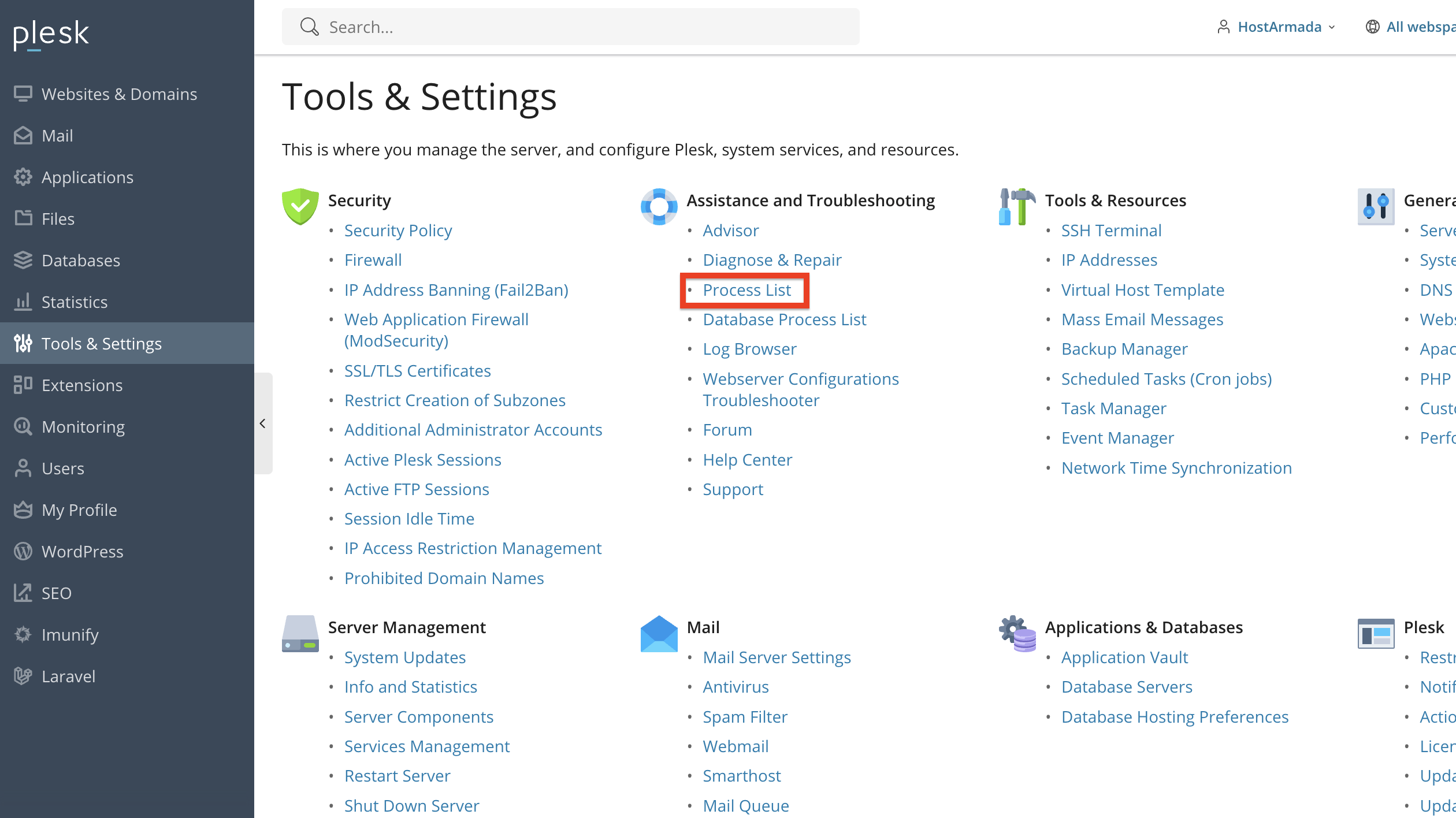
Under the”Assistance and Troubleshooting” section, click on Process list.
Performing the action above will redirect you to the page displaying all processes currently active on your server.
Understanding the Running Processes Page
Upon being redirected to the process list page, you will notice quite a few things there. At the top of the page, you will see the current CPU, RAM, and I/O usage on the server.
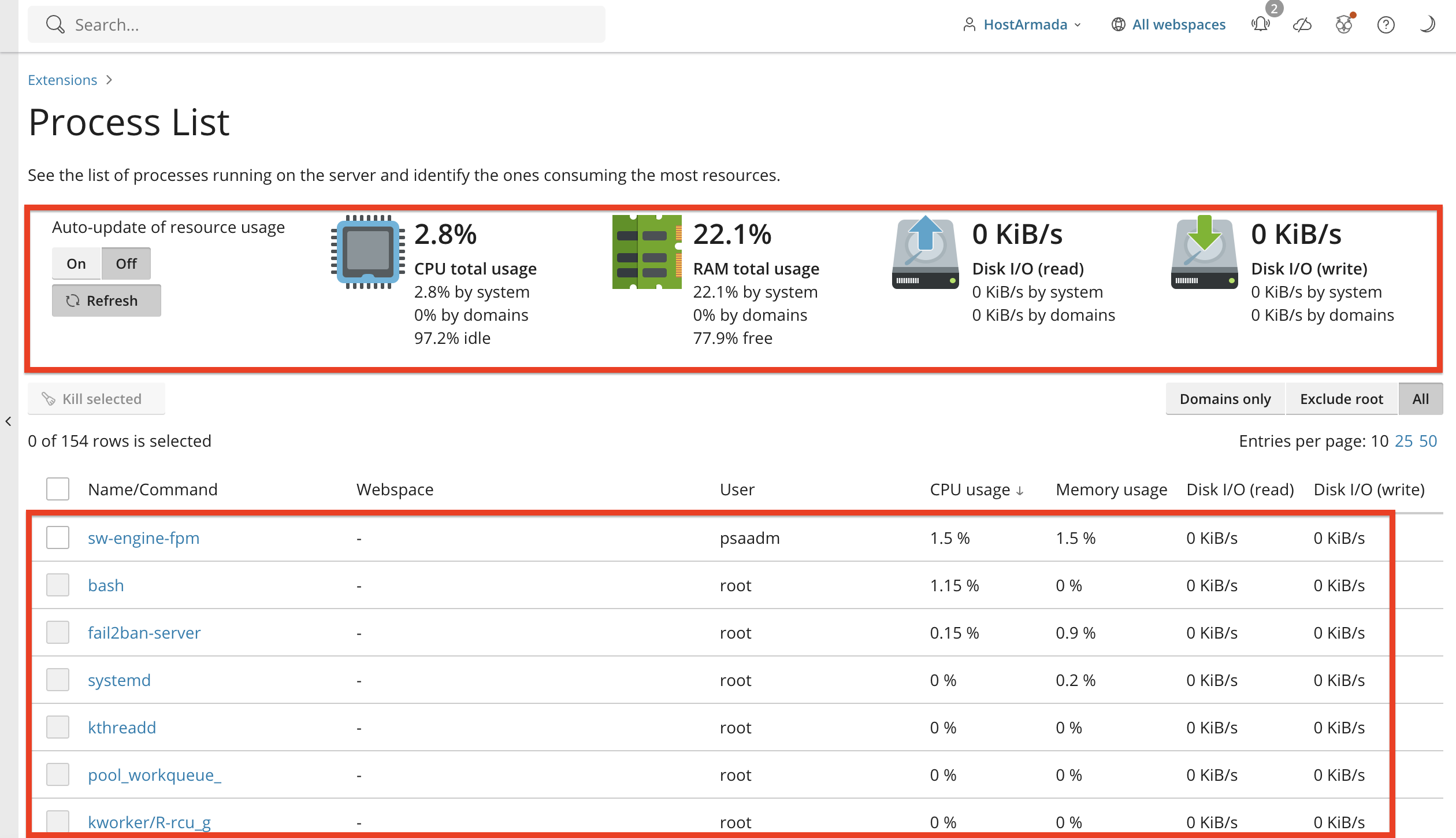
Underneath, you will see a table section containing all the running processes on the server. Let’s go over the columns in this table section, so you have a better understanding of what they represent.
- Name/Command - Under this column, you will see the name of the task or command currently running.
- Webspace - Under this column, you will see the webspace from which the task or command has been executed.
- User - Under this column, you will see the user associated with the process.
- CPU Usage - Under this column, you will see how much CPU the process is consuming.
- Memory Usage - Under this column, you will see the RAM usage by the process
- Disk I/O (read) - Under this column, you will see the disk I/O (read) of the process.
- Disk I/O (write) - Under this column, you will see the disk I/O (write) of the process.
This real-time overview helps you understand how system resources are being used.
Sorting and Filtering Processes
There is a convenient method that will allow you to sort and filter out the processes whenever you need to and allow you to easily identify high-usage processes. You can sort the process by domains and by all the above-mentioned resources mentioned in the previous paragraph.
To sort the process and filter them by domain, you can click on the “Domains Only” button, located on the top right side of the table section.
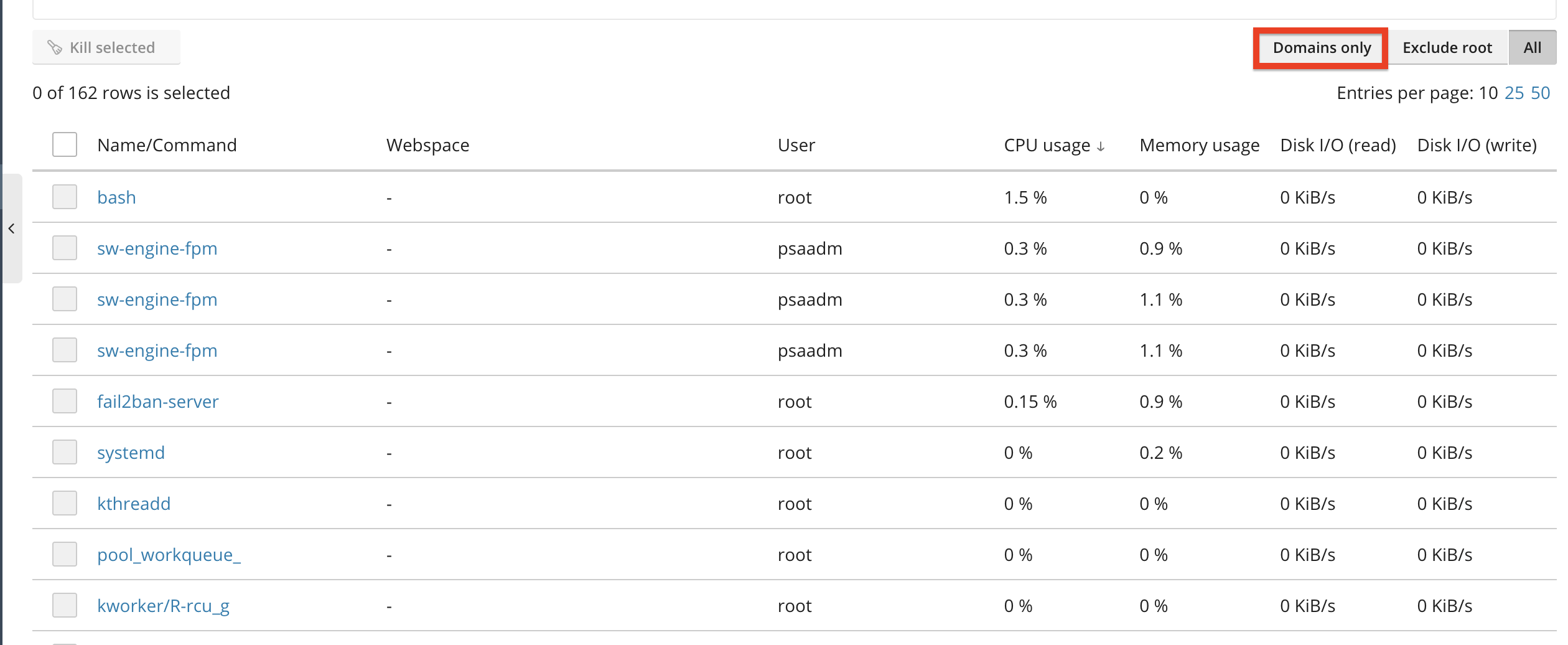
Performing the action above will populate the table only with processes that were triggered by your domain names or their access.
If you would like to filter the process by CPU, RAM, or Disk I/O, please click on the respective resource corresponding to the column above.
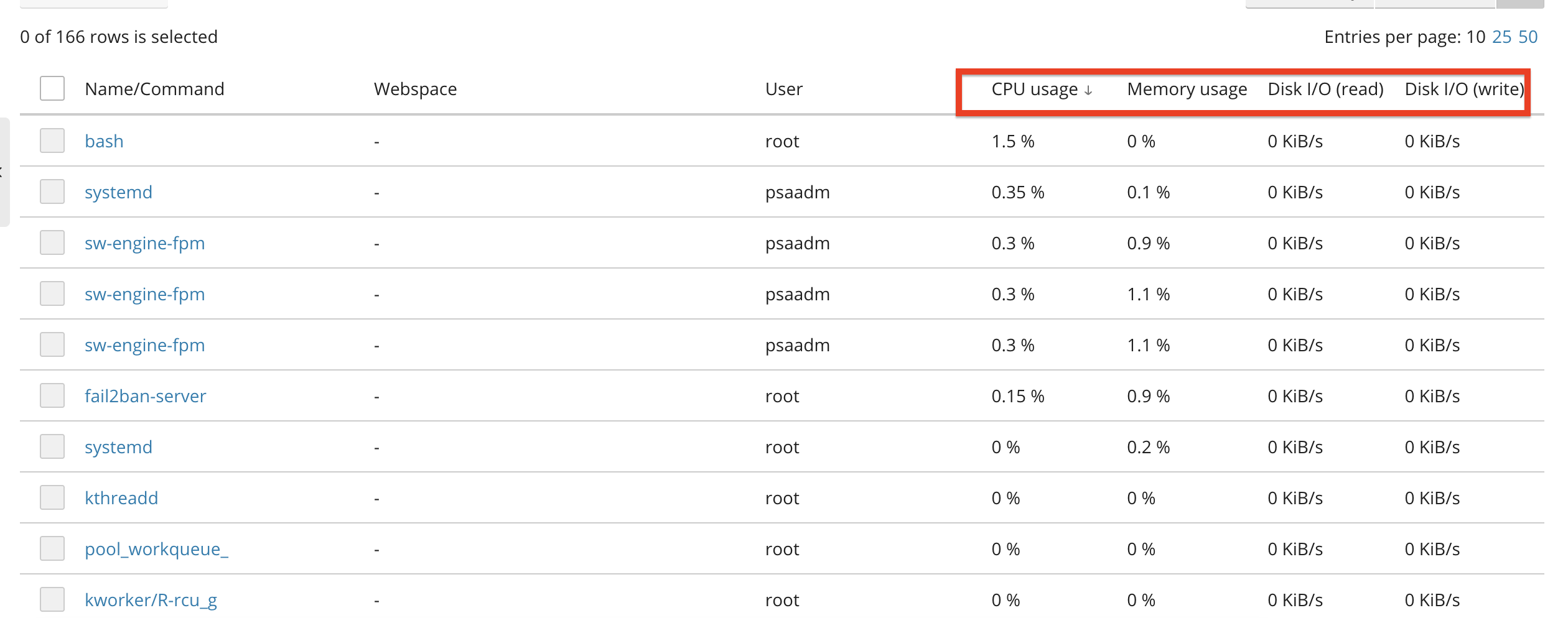
Sorting is especially helpful when diagnosing performance issues or server load spikes.
Stopping a Running Process
If you find a process that is stuck, unresponsive, or consuming excessive resources, you can stop it directly from Plesk. To do so, please use the checkboxes on the far left side of the table section corresponding to the process you want to stop.
Afterward, please press the “Kill Selected” button, located on the top left side of the table section.
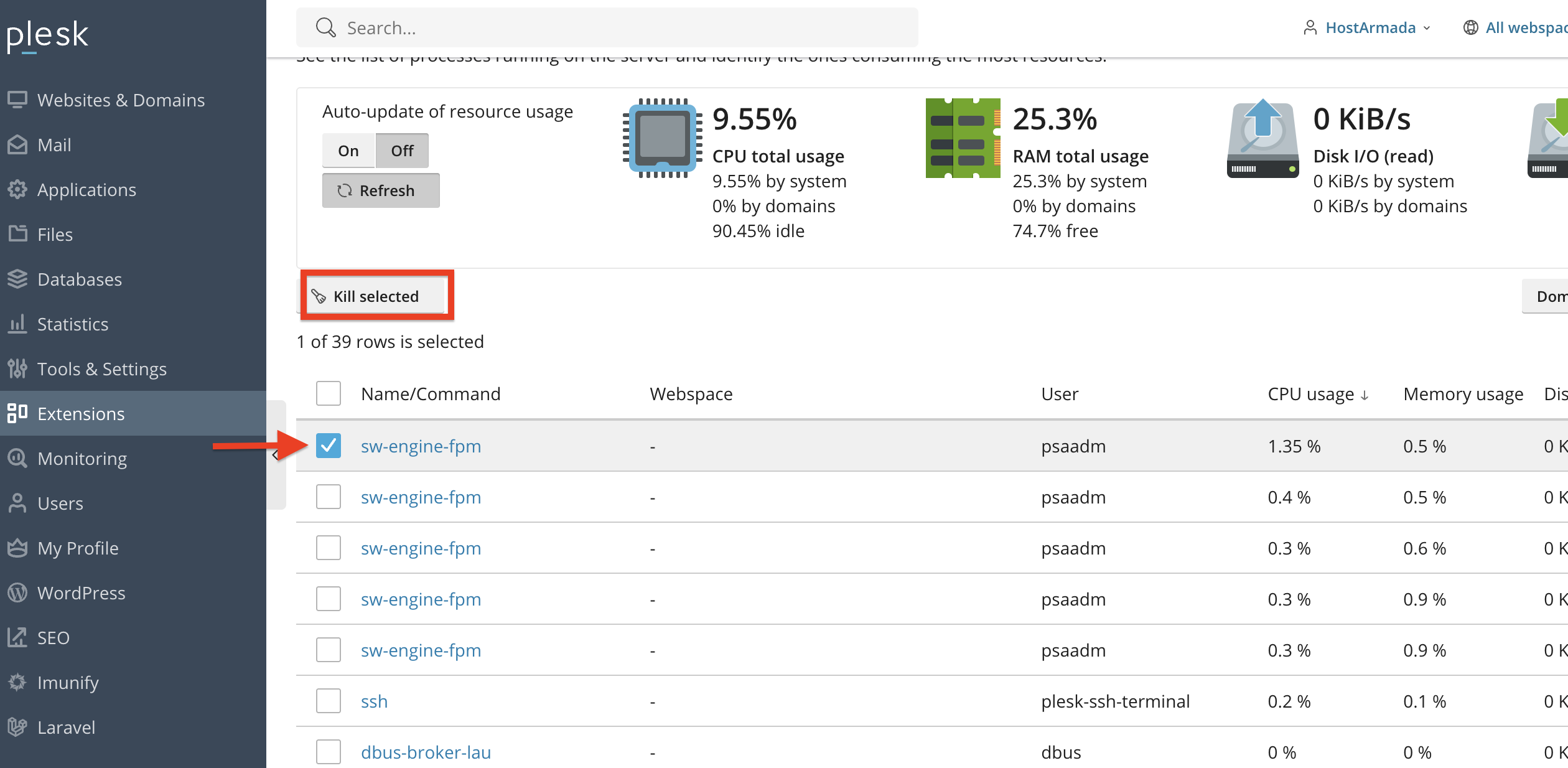
You will receive a prompt that requires your confirmation before the process is actually terminated.
Important: Stopping system-critical processes may cause service interruptions. Please ensure you are stopping the correct process. Thus, we recommend leaving the system processes running at all times, unless you are familiar with what they do.
Conclusion
As you can see, Plesk makes it easy to view and manage the list of running processes on your server. By regularly checking CPU and memory usage, sorting active tasks, and terminating problematic processes, you can keep your hosting environment secure, stable, and optimized.
We hope this tutorial was helpful, and we kindly encourage you to use the Running Processes tool whenever you are troubleshooting or monitoring your server’s performance.












