Introduction
Your server’s timezone plays an important role in how logs, scheduled tasks (cron jobs), backups, emails, and system events are recorded. Having the correct timezone ensures that timestamps match your local time and that all automated processes run as expected.
Plesk allows you to easily view and change your server’s timezone directly from the control panel, without needing to access the server via SSH or modify system files manually.
In this tutorial, we will guide you through the process of viewing and managing the server timezone in Plesk.
Getting Started
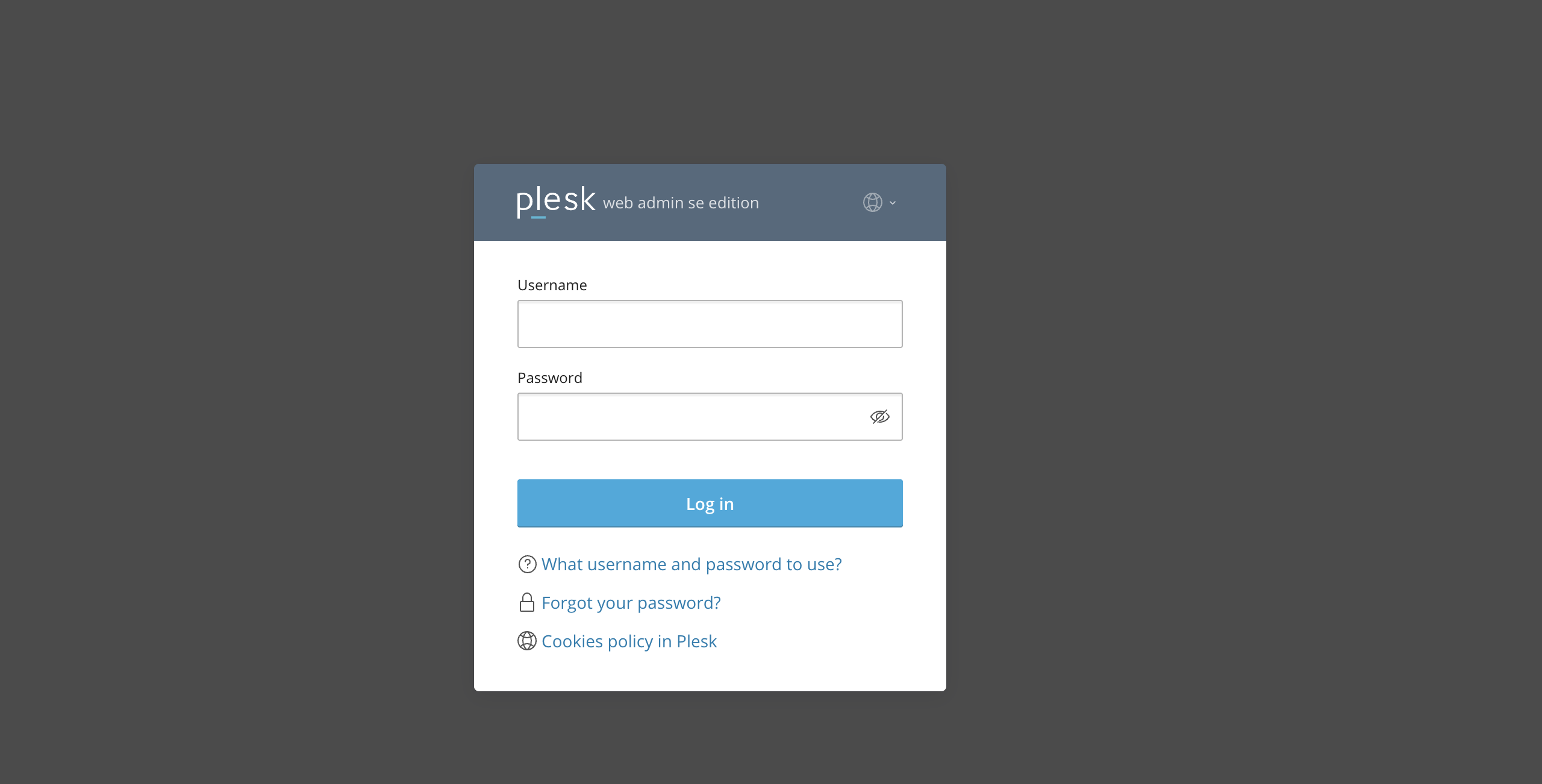
First and foremost, please ensure you are logged in to your Plesk control panel. To do that, please enter your IP address, hostname, or domain name inside your web browser’s search bar and add “:8443” at the end. It should look something like: “https://yourdomain.com:8443”. By doing so, you will be prompted by a login form that requests your username and password.
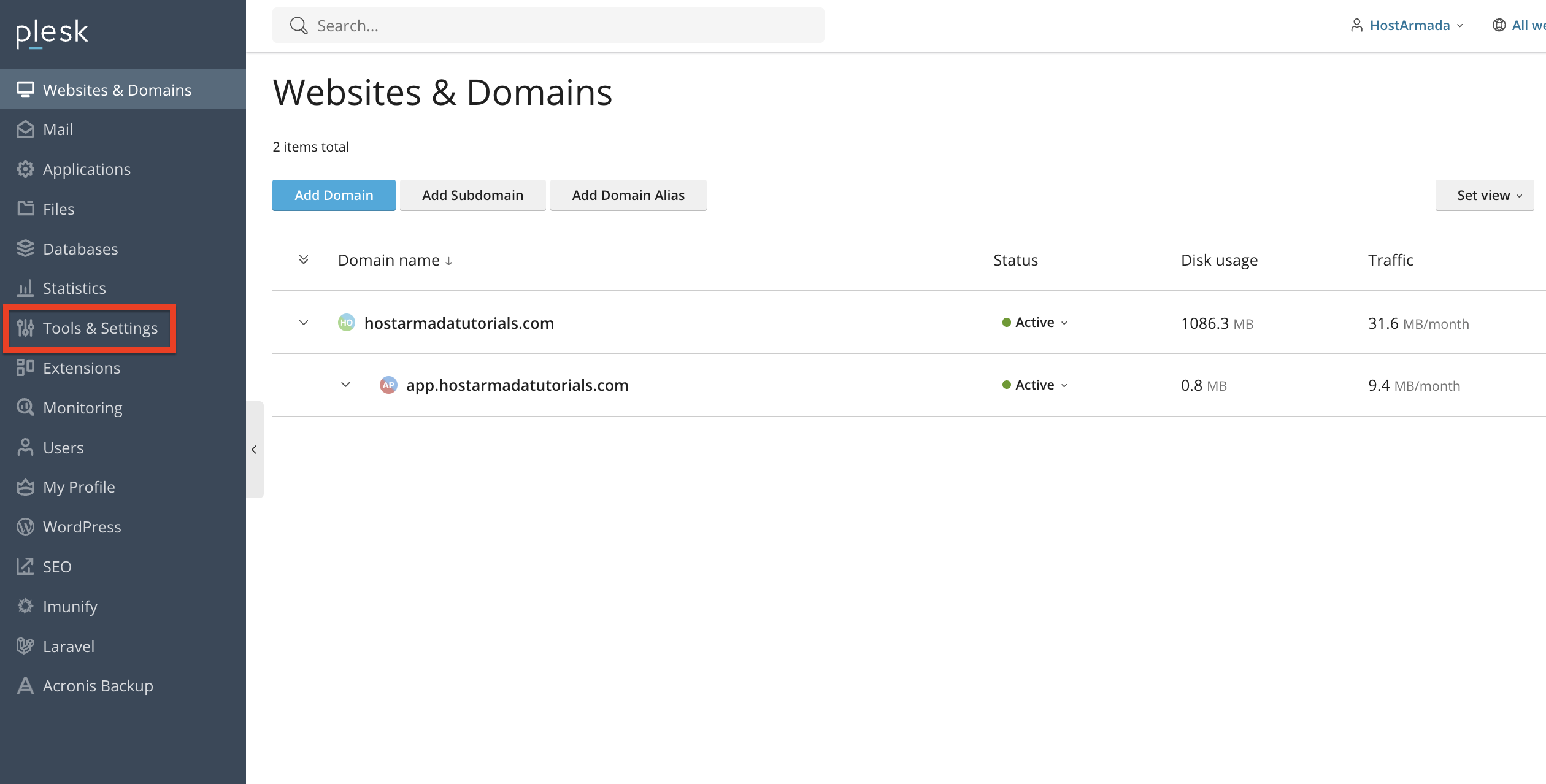
After logging in with your username and password, Plesk should automatically display the “Websites & Domains” page, which will serve as the index page from where you can manage everything related to your websites and domains on Plesk.
Accessing the Server Timezone Settings
To view or change your server’s timezone, please click on Tools & Settings from the left-hand menu.
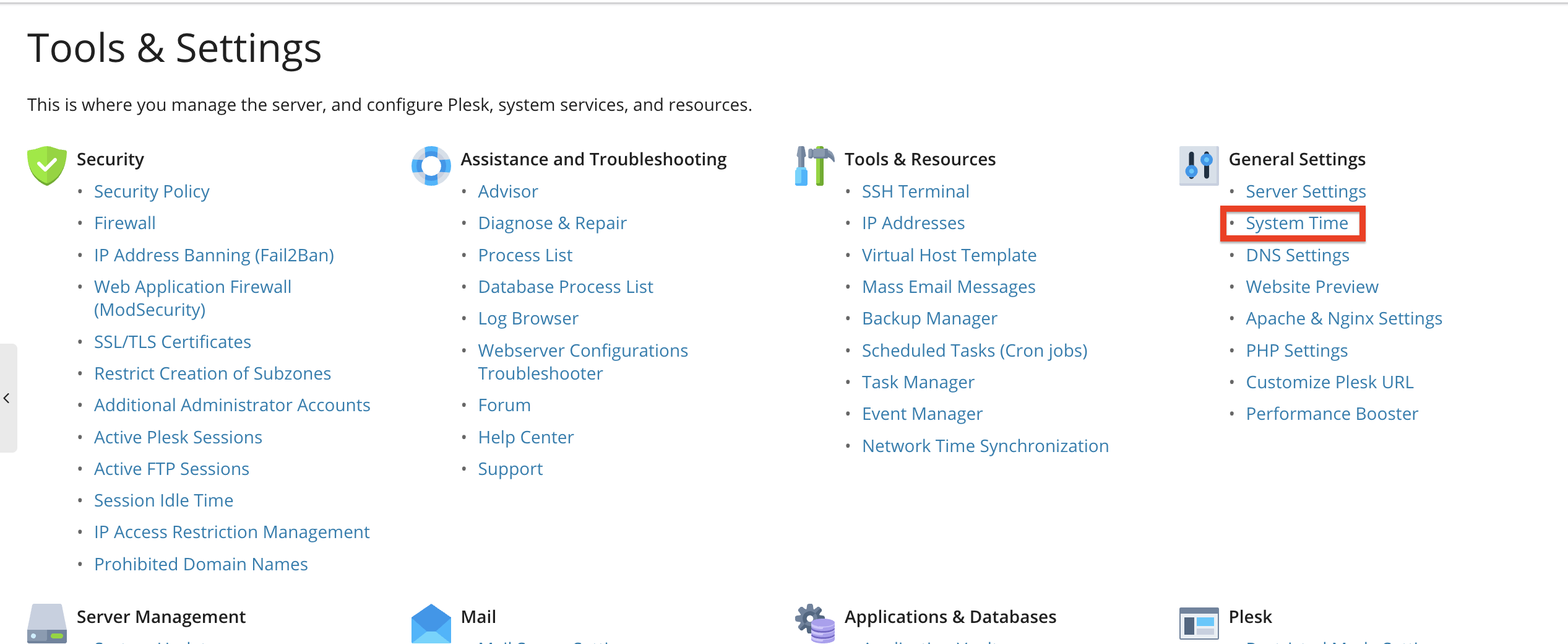
After being redirected to the “Tools & Settings” page, under the “General Settings” section, click on “System Time”.
This will open the page where you can manage your server’s current date, time, and timezone.
Changing the Server Timezone
On the System Time page, you will see a couple of changes allowing you to manipulate the date, time, and, of course, the timezone on your Plesk server
- Update System Time - Normally, the date & time on the server are immutable, and you cannot change them, as they are synced with a global service whenever the server is connected to the internet. However, using the checkbox here will allow you to set a custom date and time for your server.
- Date - Please use the text fields and drop-down menu to set up the date on your server.
- Time - Please use the text fields to set up the time on your server.
- Your timezone - Please use the drop-down menu here to configure a new timezone for your server.
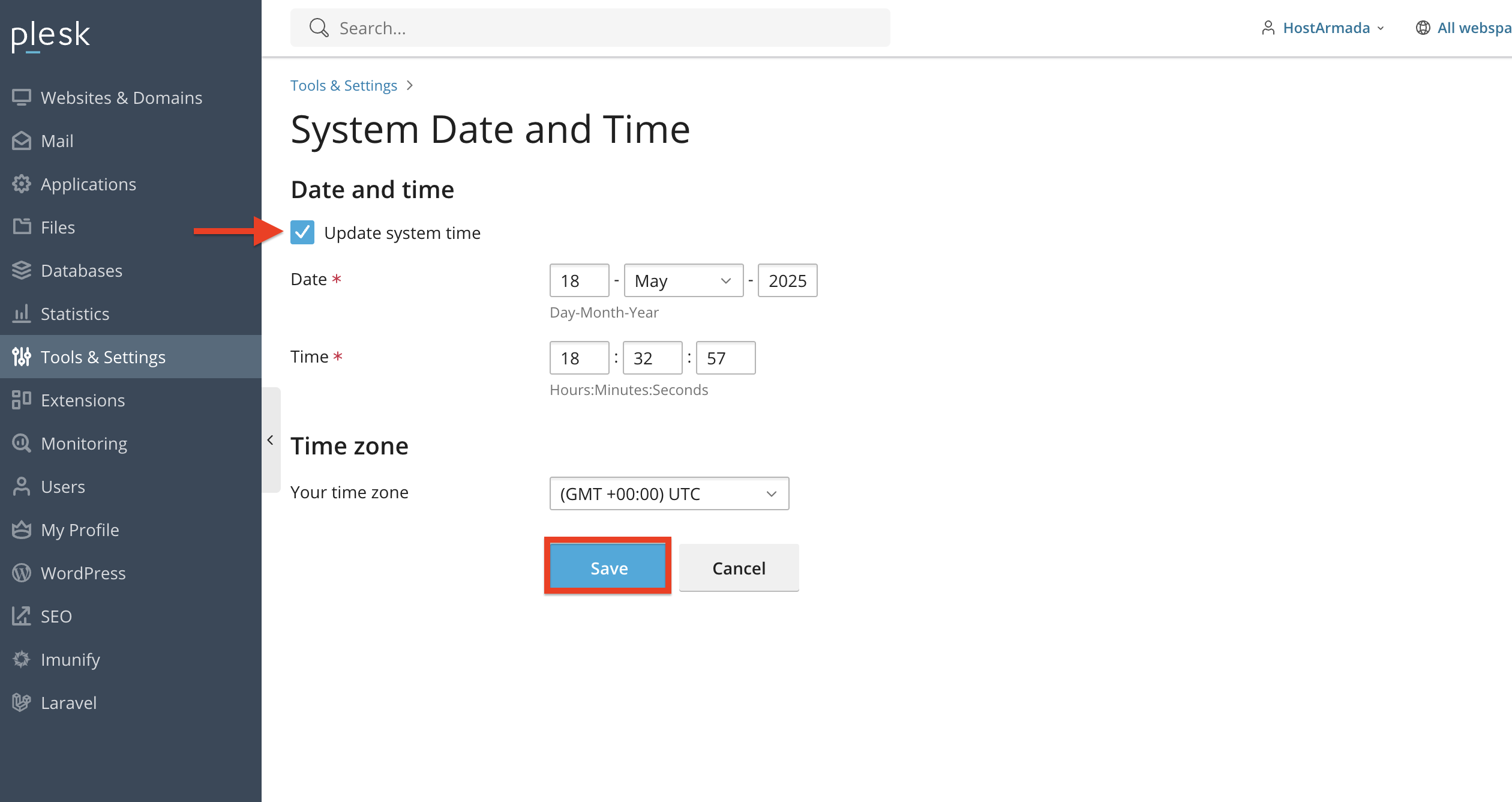
Before making changes, please verify whether the current timezone matches your local region or operational requirements. After making the desired adjustments, please click on the “Save” button at the bottom of the date & time configuration form to apply them.
Important Notes About Timezone Changes
When changing your server’s timezone, please note that these changes will affect the following:
- Cron jobs (scheduled tasks) - These cron jobs wil now run according to the new timezone.
- Log timestamps - These log timestamps will not be logged in accordance with the new local time on your Plesk server.
- Backup schedules - These schedules will follow the new time settings.
- Applications - Your apps will start relying on the system time and may display updated timestamps.
Recommendations: If you run multiple websites for different regions, ensure that application-specific timezones (such as PHP settings or CMS configurations) are also updated accordingly.
Conclusion
As you can see, managing your server’s timezone in Plesk is quick and straightforward. Keeping the correct timezone ensures accurate logs, properly scheduled tasks, and a smoother experience when managing your server and websites.
We hope this tutorial was helpful, and we kindly encourage you to verify your timezone settings whenever you set up a new server, migrate websites, or adjust system schedules.












