Introduction
Knowing your server’s technical details is essential for system administration, troubleshooting, compatibility checks, and general maintenance. Plesk provides a dedicated section where you can view important server information, such as:
- Operating system version
- Server hostname and IP addresses
- Installed Plesk version and build
- System resources (CPU, RAM, storage)
- Installed components and services
- Server architecture and virtualization type
This information is especially useful when opening support tickets, performing system upgrades, or configuring hosting applications.
In this tutorial, we will show you where to find and how to review your server information in Plesk.
Getting Started
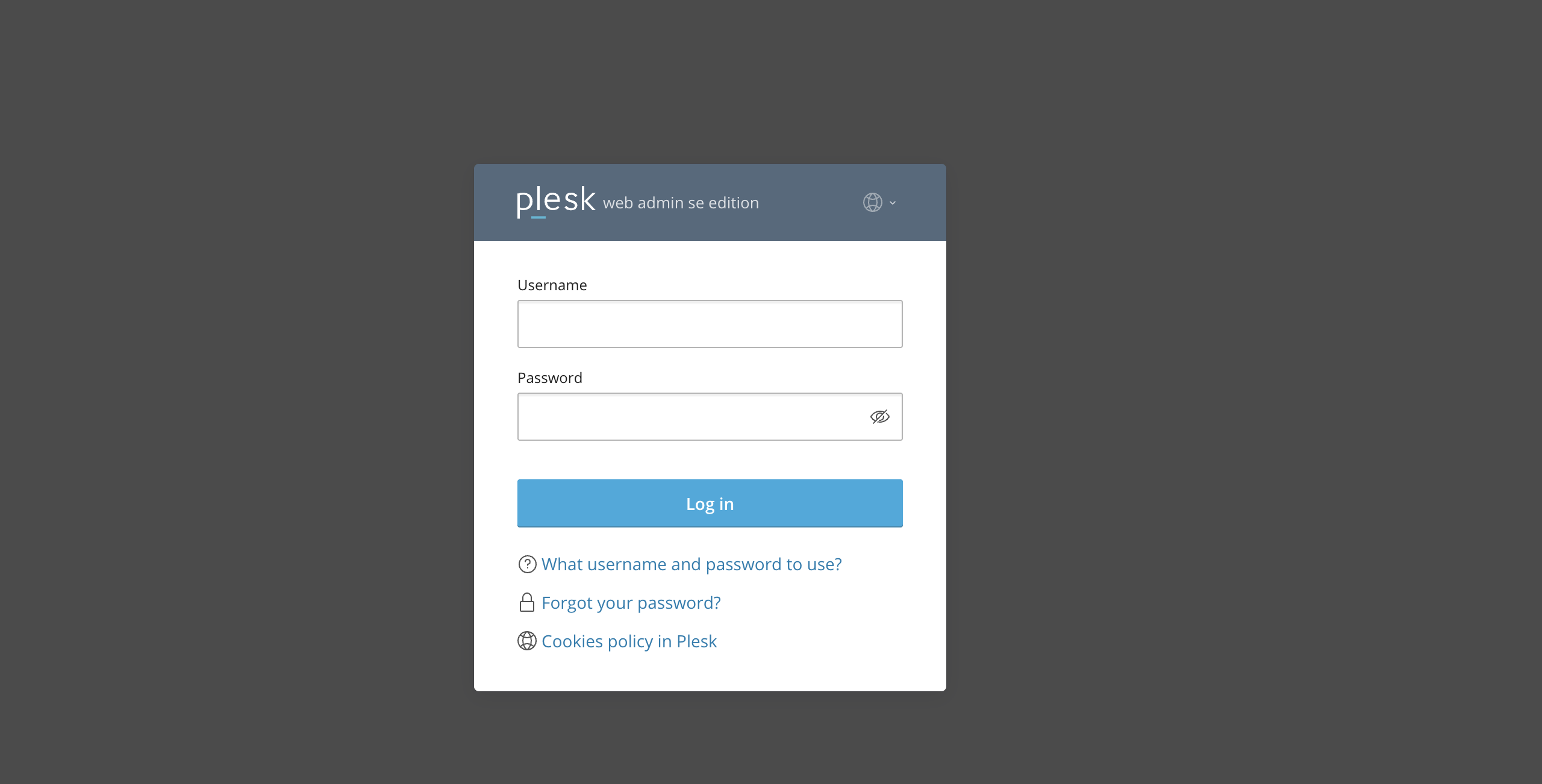
To start adding domain names to the server’s domain blacklist, ensure you have logged in to your Plesk control panel. To do that, please type in your IP address, hostname, or domain name inside your browser search bar and add “:8443” at the end. It should look something like: https://yourdomain.com:8443. By doing that, you will be prompted by a login form requiring your username and password.
Once logged in, Plesk will automatically display the “Websites & Domains” page, which will be the index page every time. In the middle, you will see a table section containing a list of all your websites.
Accessing Server Information Through Info and Statistics
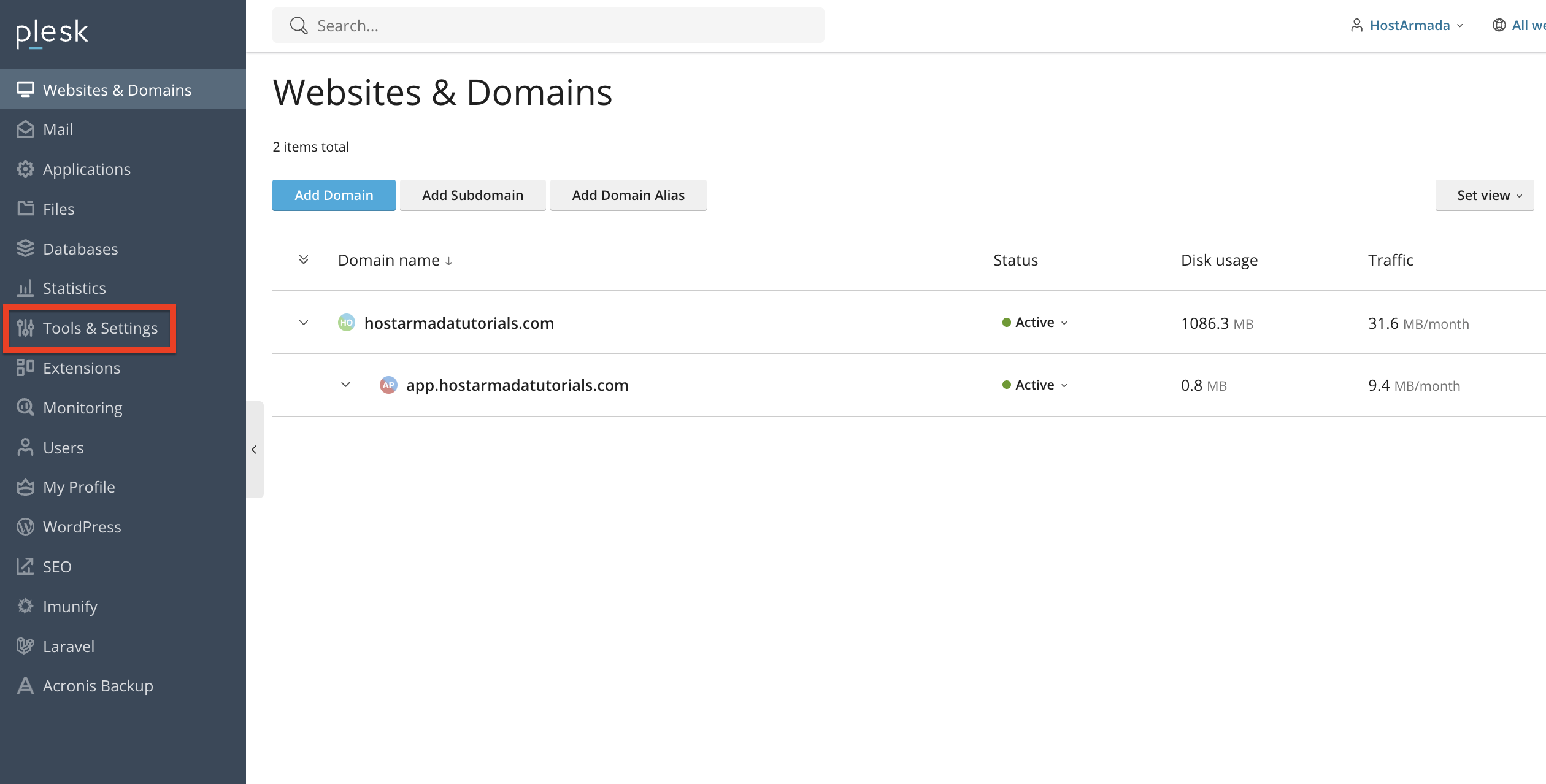
The fastest way to check essential server information is through the Info and Statistics section. To get to it, please check the left-hand menu and from there, please select the “Tools & Settings” option.
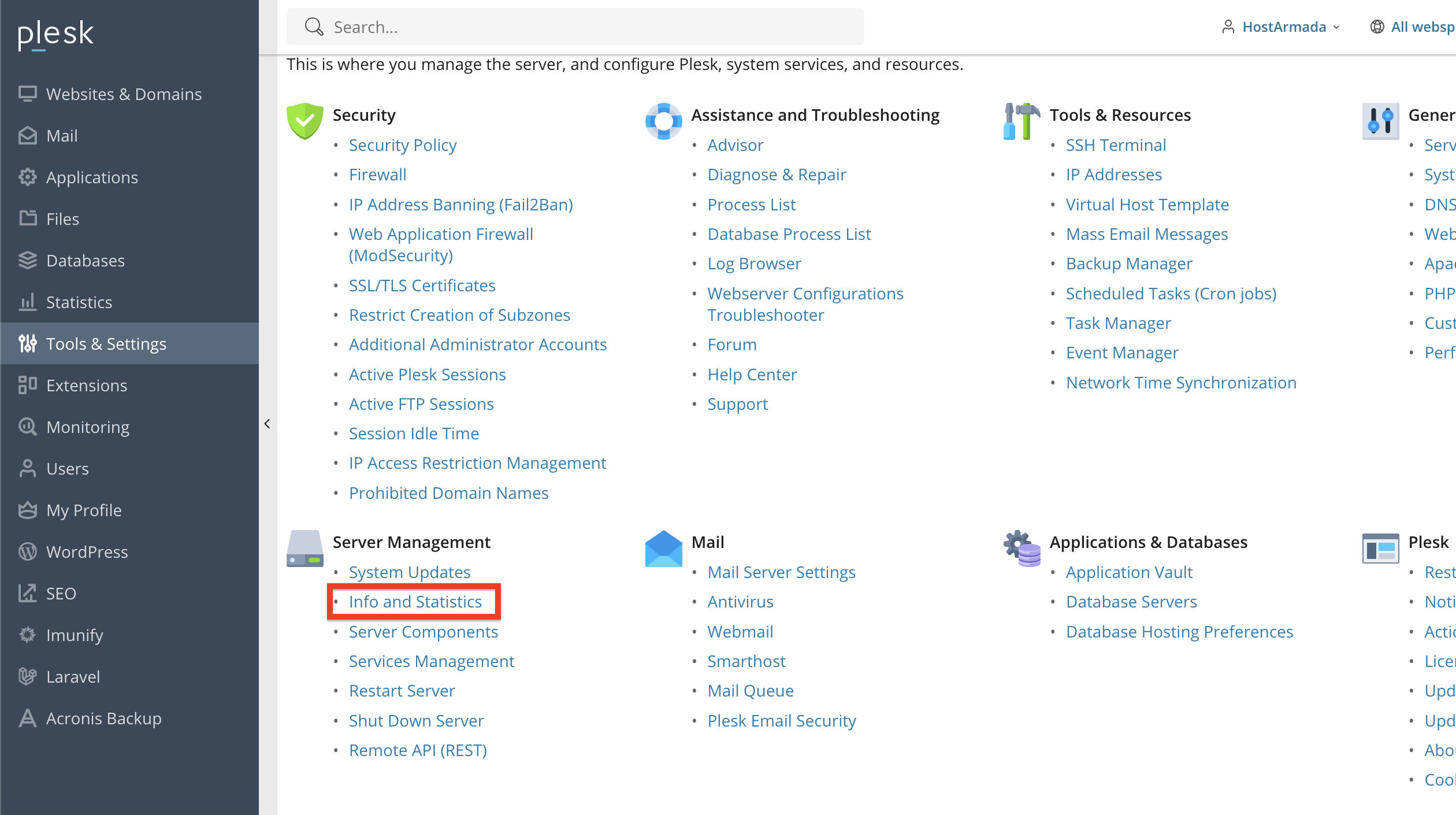
Once you perform the action above, please point your attention to the “Server Management” category and under it, please click on the “Info and Statistics” tool.
This page provides a detailed summary of your server’s configuration.
What Information Can You See Here?
Once you are redirected to the “Info and Statistics” page, you will see the general information about your Pleks server. You will also notice two additional tabs that contain information about your domains and traffic.
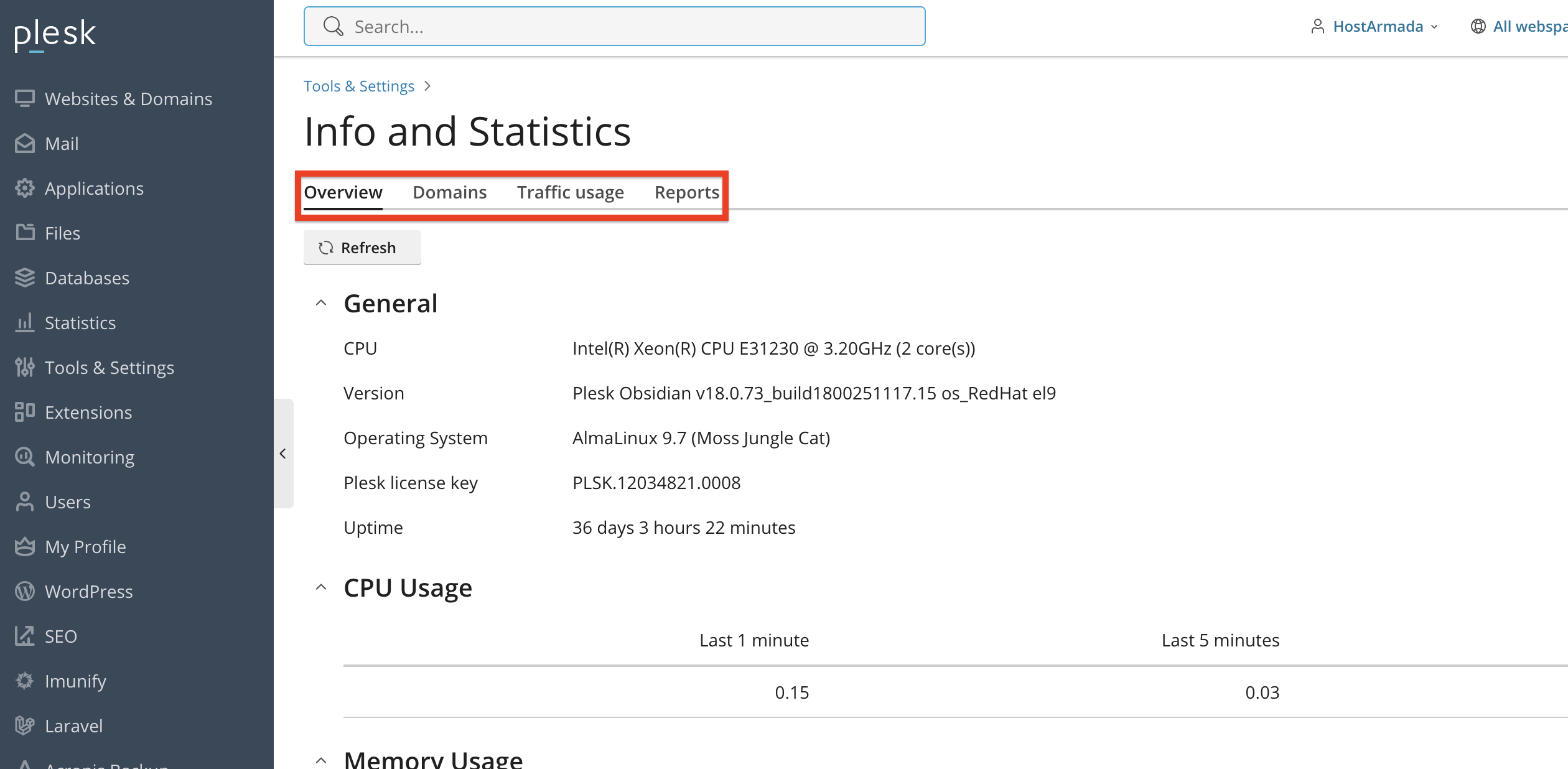
Let’s go over the “Overview” tab first and what it contains.
- CPU - On the right side of the “CPU” label, you will be able to see your Plesk server’s CPU model.
- Plesk Version - On the right side of the “Plesk Version” sign, you will be able to see your Plesk version.
- Operating System - On the right side of the “Operating System” label, you will be able to see your Linux Server’s OS.
- Plesk License Key - On the right side of the “Plesk License Key” sign, you will be able to see your Plesk License Key.
- Uptime - On the right side of the “Uptime” label, you will be able to see your server’s uptime. In other words, when was the last time the server was offline.
Scrolling further down, you will have a couple of sections that will include the following:
- CPU Usage - Under this section, you will be able to see your Plesk server’s CPU usage in the last 1 and 5 minutes.
- Memory Usage - Under this section, you will be able to see your Plesk server’s current Memory Usage.
- Swap Usage - Under this section, you will be able to see your Plesk server’s Swap Usage. Swap is a process that uses a portion of your hard drive or SSD as a temporary extension of your physical RAM to handle situations where RAM is full. This will get occupied and released, based on your overall memory usage.
- Hard Disk usage - Under this section, you will be able to see your Plesk server’s Hard Disk usage.
- Domains - Under this section, you will be able to se see how many domain names you have on your Plesk server.
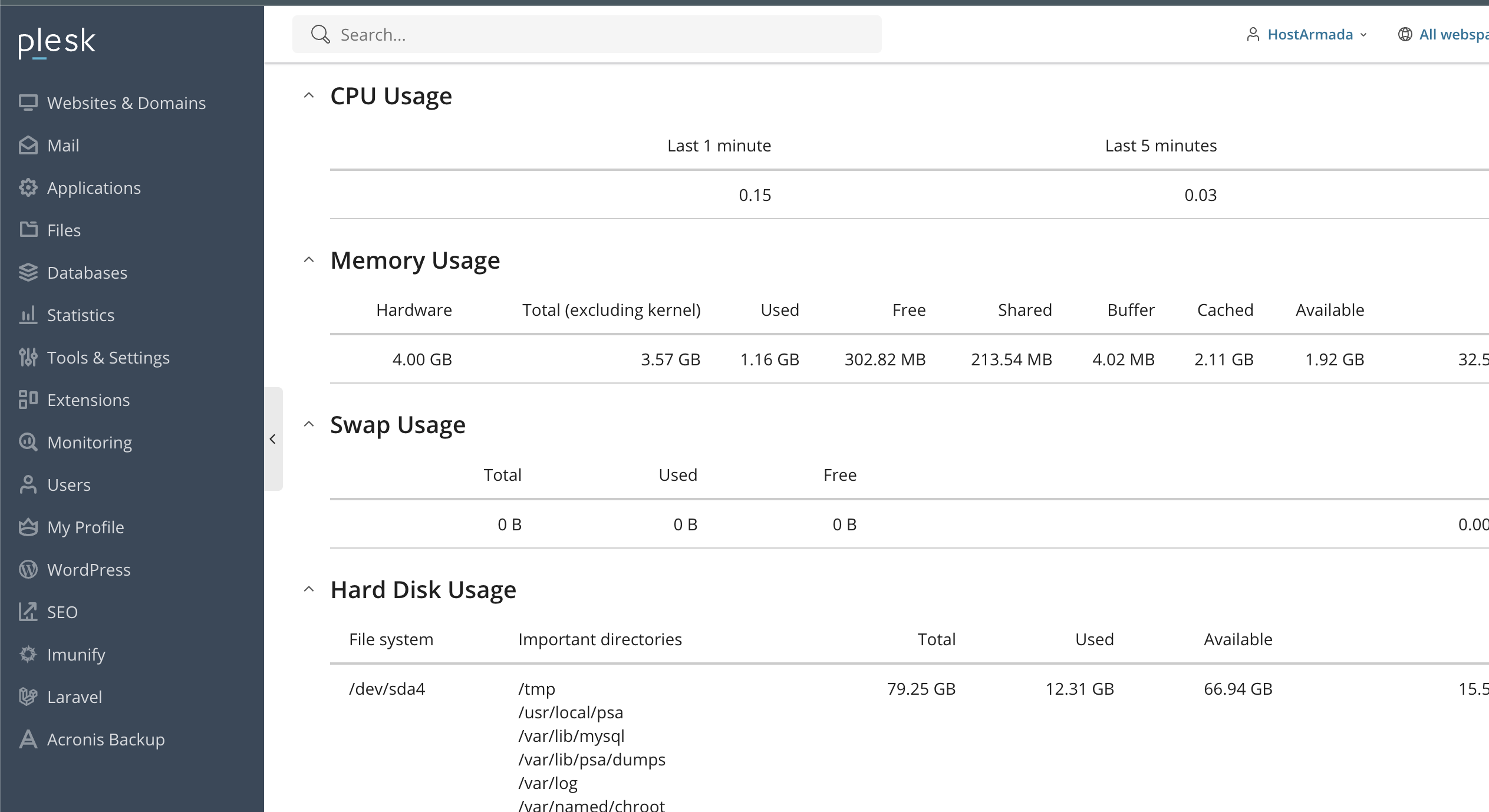
This overview gives you everything you need to understand your server at first glance.
Moving on to the “Domains” tab, you will see a table section in the middle that gives you information about all the domains on the server.
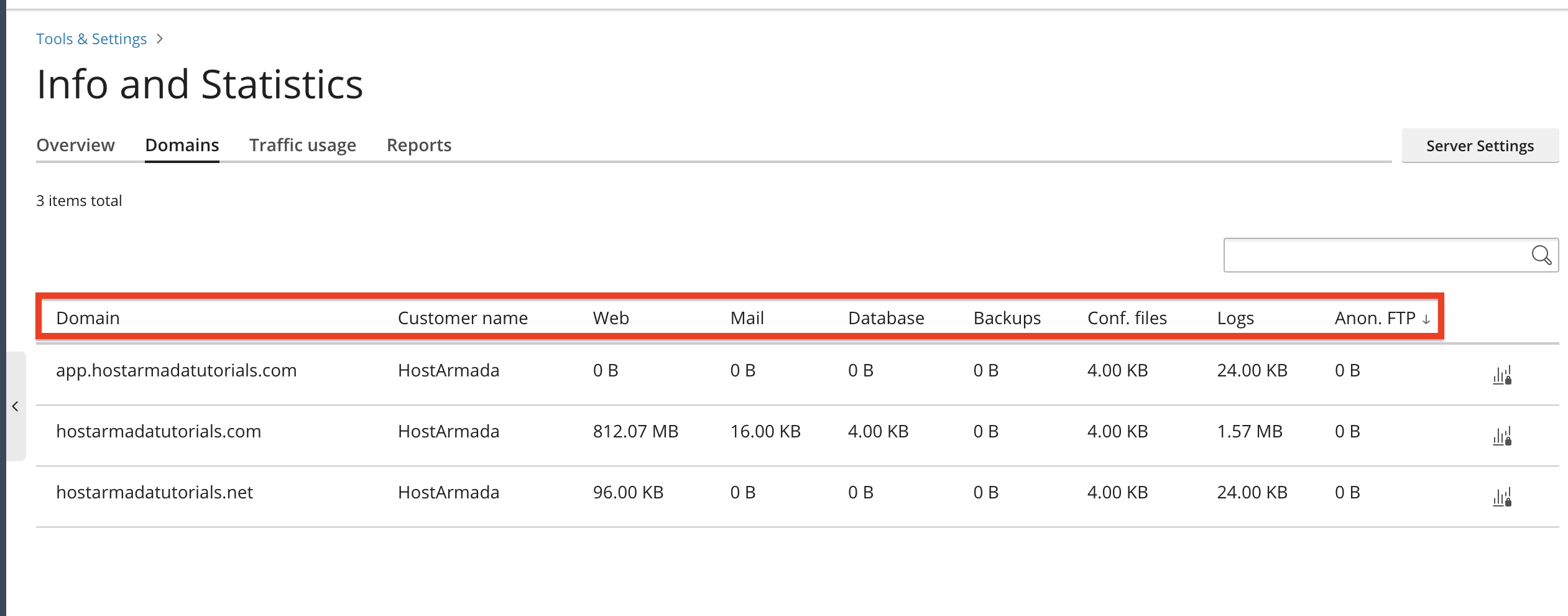
Let’s go over the table section itself to understand what type of information you can expect exactly and how it can help you.
- Domain - Under this column, you will see the domain name.
- Customer Name - Under this column, you will see the customer who owns the domain name.
- Web - Under this column, you will see the current website disk space usage this domain has.
- Mail - Under this column, you will see the current email disk space usage this domain has.
- Database - Under this column, you will see the current database usage this domain has.
- Backups - Under this column, you will see the amount of backup disk space usage this domain has.
- Conf. files - Under this column, you will see the disk space usage of configuration files for this domain.
- Logs - Under this column, you will see the disk space usage of log files for this domain name.
- Anon.FTP - Under this column, you will be able to see the current usage of your anonymous FTP directory.
The next tab is the “Traffic usage” tab, where you can see the amount of Bandwidth generated by your domains, along with other information such as:
- Domain Name - Under this column, you will see the name of the domain.
- Owner Name - Under this column, you will see the name of the domain owner.
- Used - Under this column, you will see the amount of bandwidth the domain has used this month.
- Limit - Under this column, you will see the bandwidth limit set for this domain name.
- Available - Under this column, you will see how much traffic the domain has available this month.
- Used (%) - Under this column, you will see the amount of Bandwidth used by the domain this month in %.
You may also filter this data based on Domains, Customers, Resellers, and by Month.
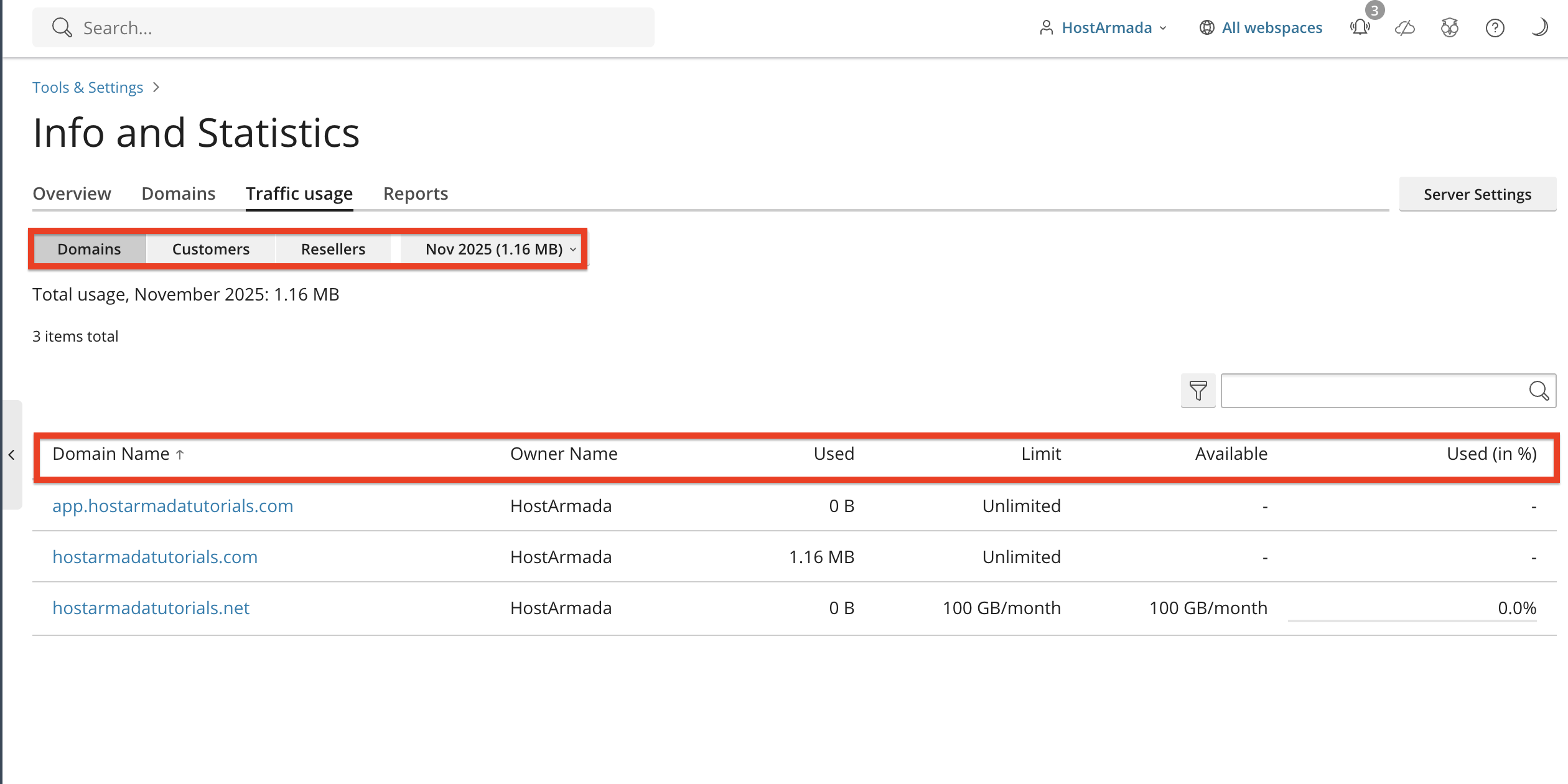
To do so, please use the buttons and drop-down menu directly on top of the table section, containing the traffic usage information on your Plesk server.
Conclusion
As you can see, Plesk provides a clean and organized way to check your server’s system information, domain information, and resource usage. Whether you need OS details, Plesk version information, IP addresses, or performance data, everything is easy to find under the Tools & Settings section.
We hope this tutorial was helpful, and we kindly encourage you to review your server information whenever you perform maintenance, troubleshoot issues, or prepare for system changes.












