Introduction
Restarting or shutting down your server is sometimes necessary during maintenance, system updates, performance troubleshooting, or hardware-level operations. While these actions should be performed carefully, Plesk makes it easy for administrators to reboot or shut down a server directly from the control panel, without SSH access.
In this tutorial, we will guide you through the process of restarting and shutting down your server using Plesk.
Getting Started
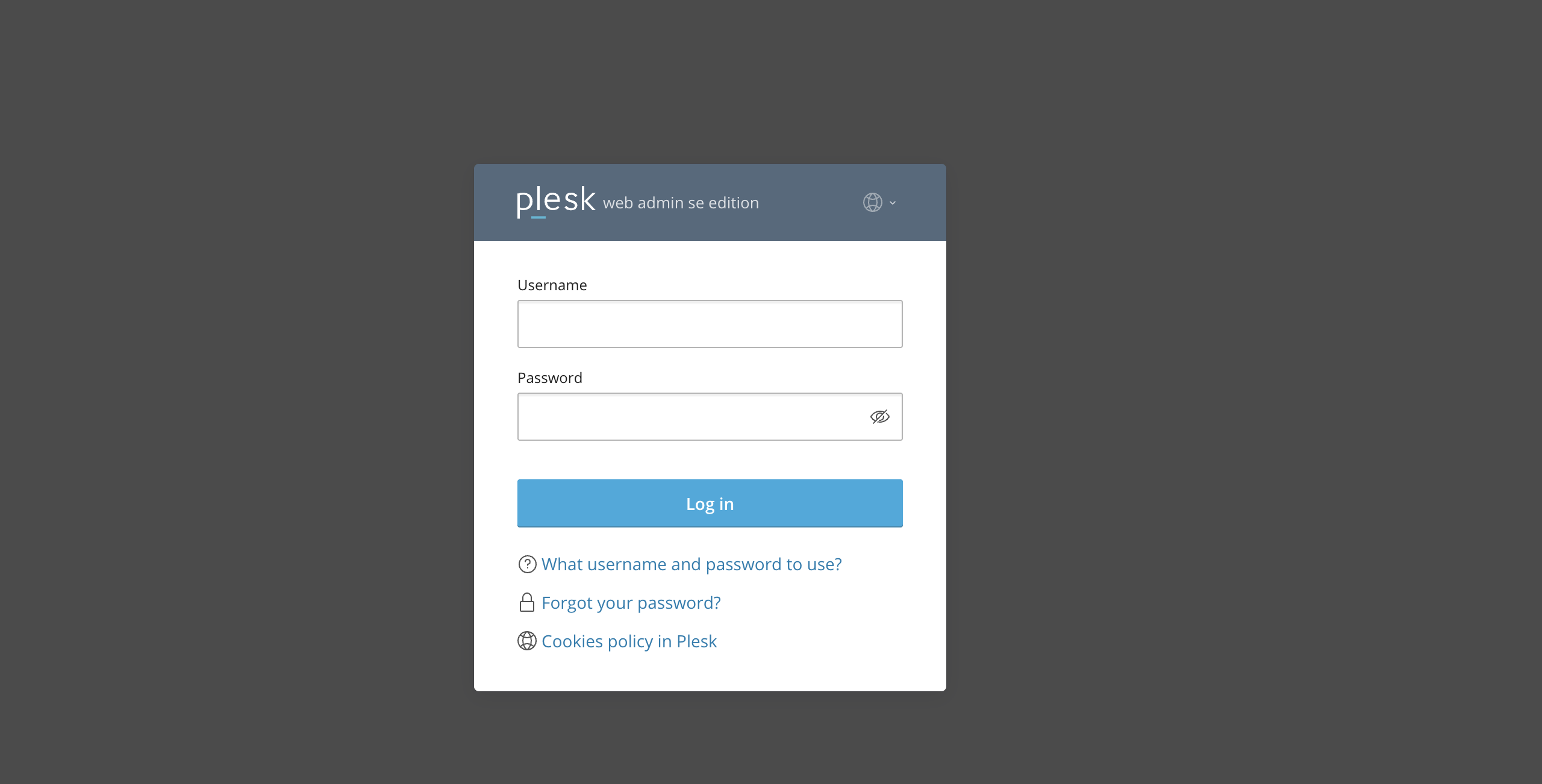
First and foremost, please ensure you are logged in to your Plesk control panel. To do that, please enter your IP address, hostname, or domain name inside your web browser’s search bar and add “:8443” at the end. It should look something like: “https://yourdomain.com:8443”. By doing so, you will be prompted by a login form that requests your username and password.
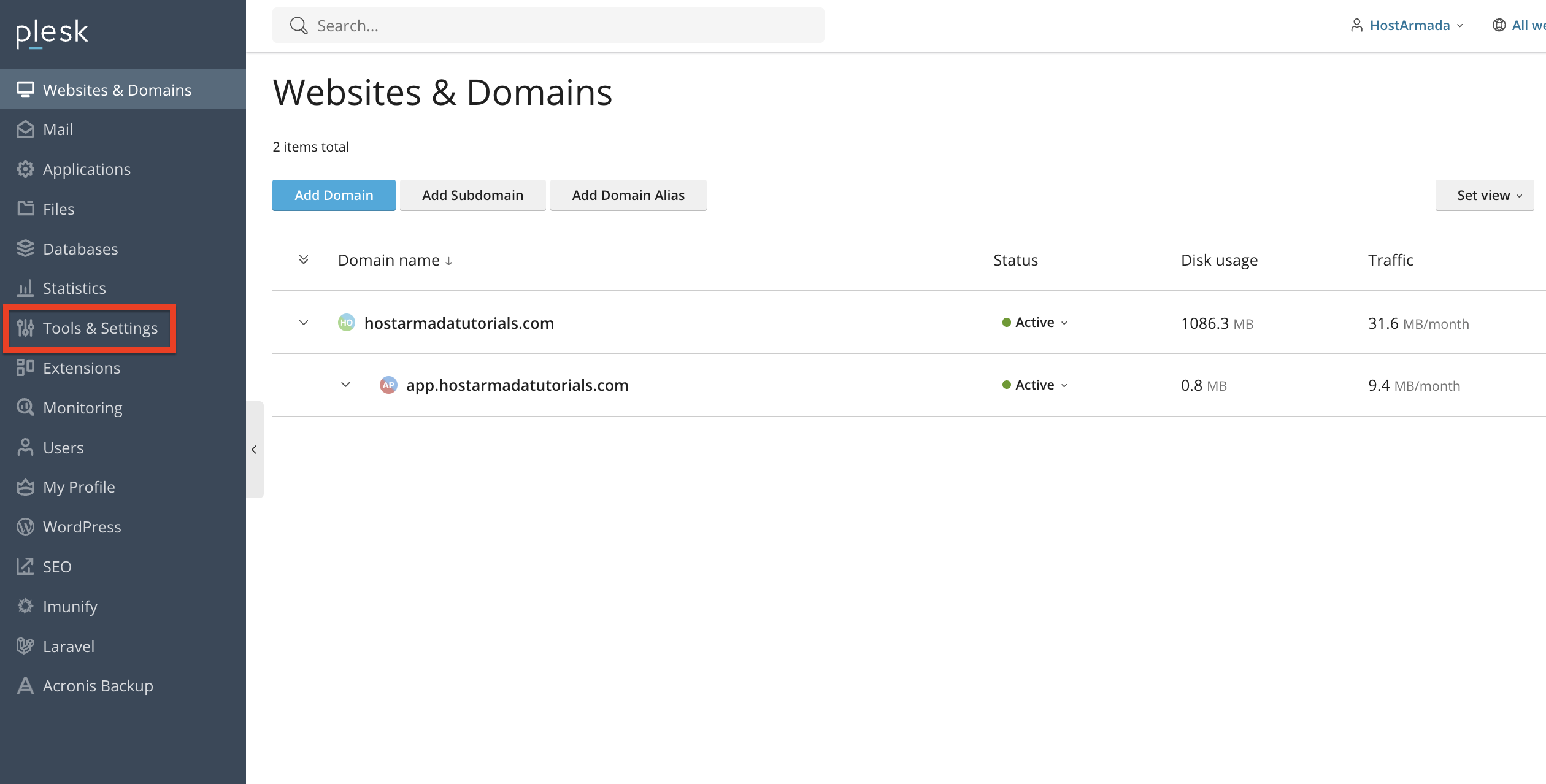
After logging in with your username and password, Plesk will automatically display the “Websites & Domains” page, which will serve as the index page from where you can manage everything related to your websites and domains on Plesk.
Recommendation: Before restarting or shutting down your server, please ensure you have saved your work, notified your users (if applicable), and confirmed no critical tasks are running.
Accessing Server Restart and Shutdown Options
To find the power management settings, please locate the “Tools & Settings” option on the left-hand side of the screen and click on it.
Performing the action above will redirect you to the page containing all the management tools available to you when using Pleks.
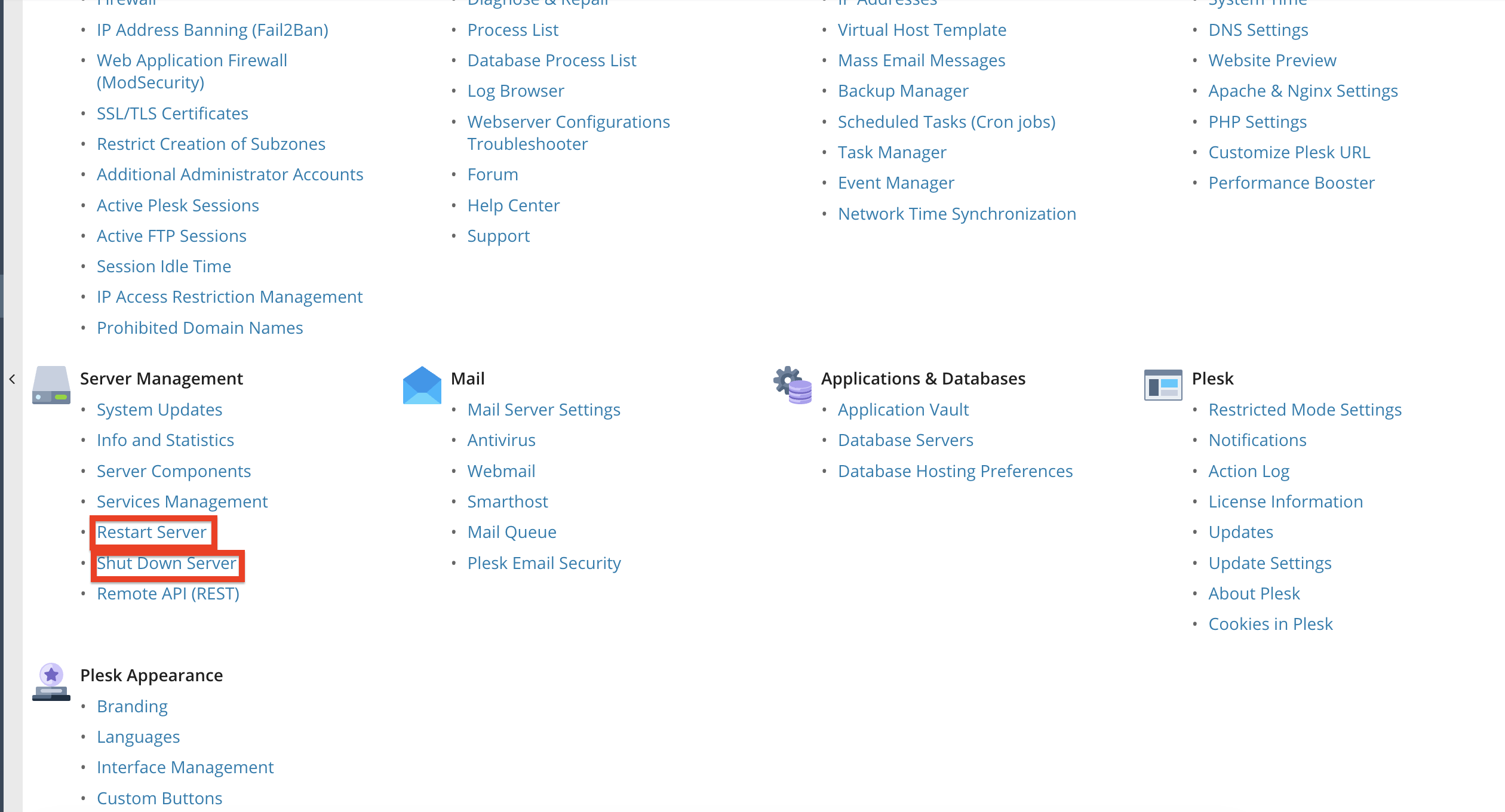
Both the “Server Restart” and “Server Shutdown” options are located under the “Server Management” section.
How to Restart Your Server
Restarting the server reboots the entire system, including:
- Web server (Apache / Nginx)
- Database services
- Mail services
- Plesk services
- OS kernel processes
To restart your server, please click on the “Restart Server” functionality under the “Server Management” section.
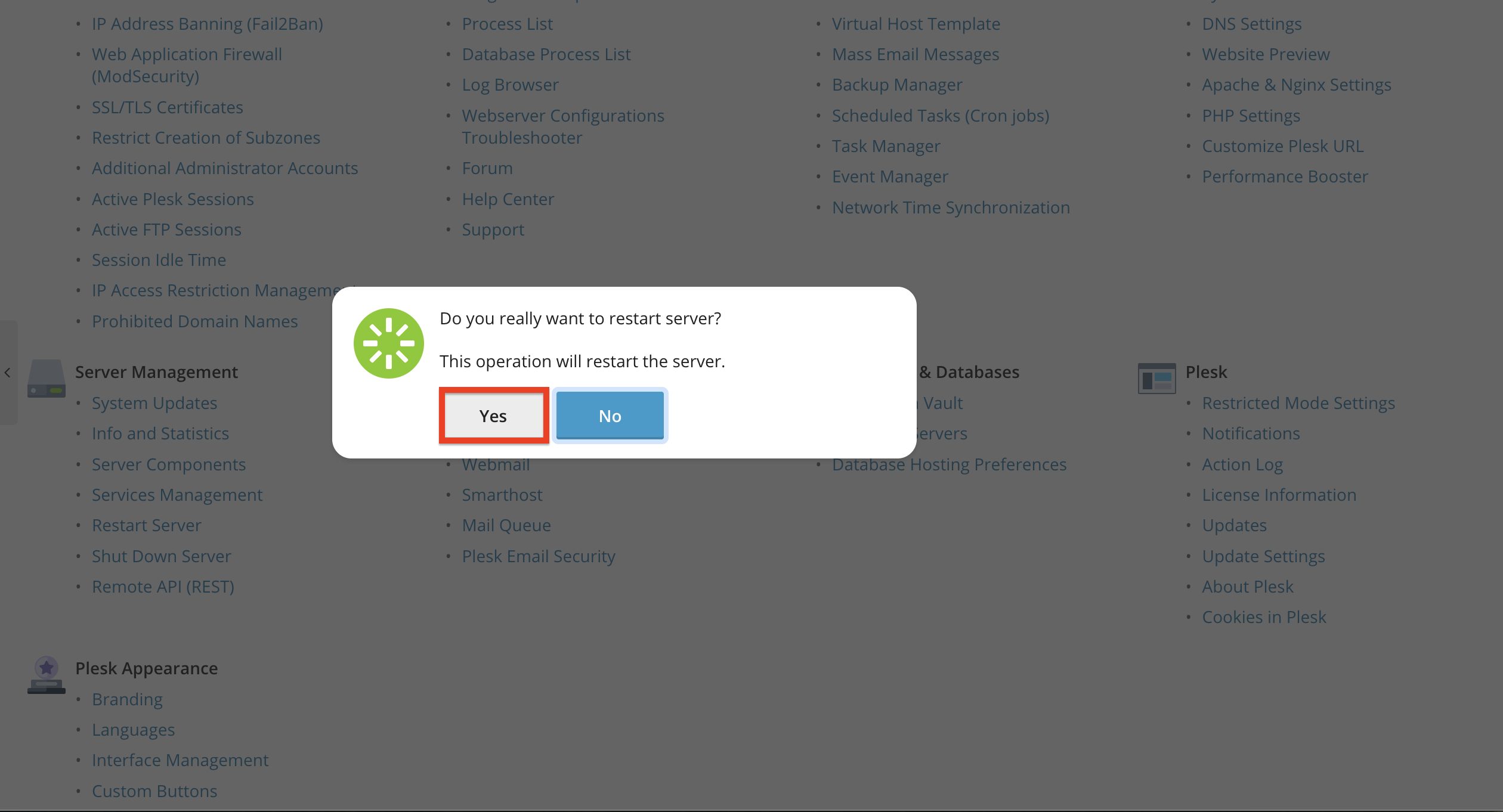
Once you perform the action above, a confirmation window will appear. Please click “Yes” to proceed.
Your server will begin the restart process, which may take a few minutes.
Note: During the reboot, all websites and services will be temporarily unavailable until the server finishes restarting.
How to Shut Down Your Server
Shutting down the server will completely power it off and render it completely inaccessible, and all websites, applications, and services on it unusable. You should only shut down your server if:
- You are performing hardware maintenance
- You need to migrate to another machine
- Your web hosting provider has instructed you to do so
- You are completing major system tasks
To perform a server shutdown, please click on the “Shut Down Server” functionality under the “Server Management” section.
Once you click on the functionality mentioned above, you will receive a prompt, which you must confirm to start the shutdown process.
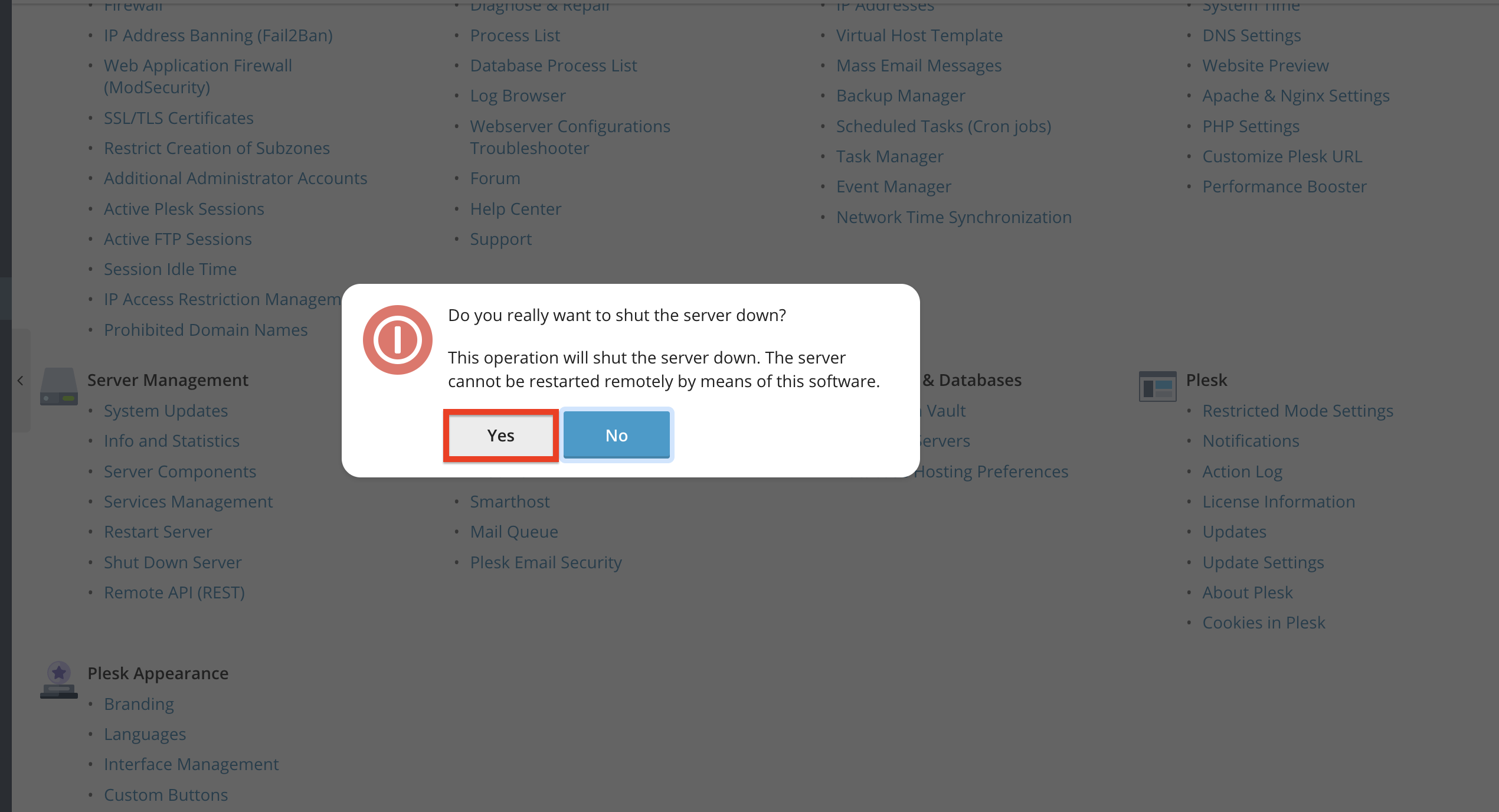
Once shut down, your server will remain offline until you start it manually through your hosting provider or virtualization panel.
What Happens During a Restart or Shutdown?
Now that you know how to restart and shut down your Pleks server, let's briefly cover what happens when you perform both those actions. When restarting:
- All services stop and restart automatically
- No data is lost unless unsaved
- Plesk becomes temporarily unavailable
When shutting down:
- All services stop
- The server becomes fully offline
- Websites, databases, FTP, and mail stop functioning
Conclusion
As you can see, Plesk offers a simple and convenient way to restart or shut down your server directly from the control panel. Whether you’re performing maintenance, troubleshooting issues, or managing system resources, these tools give you full control with just a few clicks.
We hope this tutorial was helpful, and we kindly encourage you to restart or shut down your server only when necessary, and always with proper preparation.












