Introduction
The Action Log in Plesk is an essential tool for monitoring activities performed within the control panel. It records events such as login attempts, configuration changes, service modifications, account actions, and administrative operations.
Accessing the Action Log allows you to:
- Track changes for auditing and security
- Identify unauthorized or unexpected actions
- Troubleshoot issues caused by recent modifications
- Verify successful operations performed by users or administrators
Plesk provides an easy-to-use interface where you can review, filter, and analyze recent activity.
In this tutorial, we will guide you through the process of accessing the Action Log in Plesk.
Getting Started
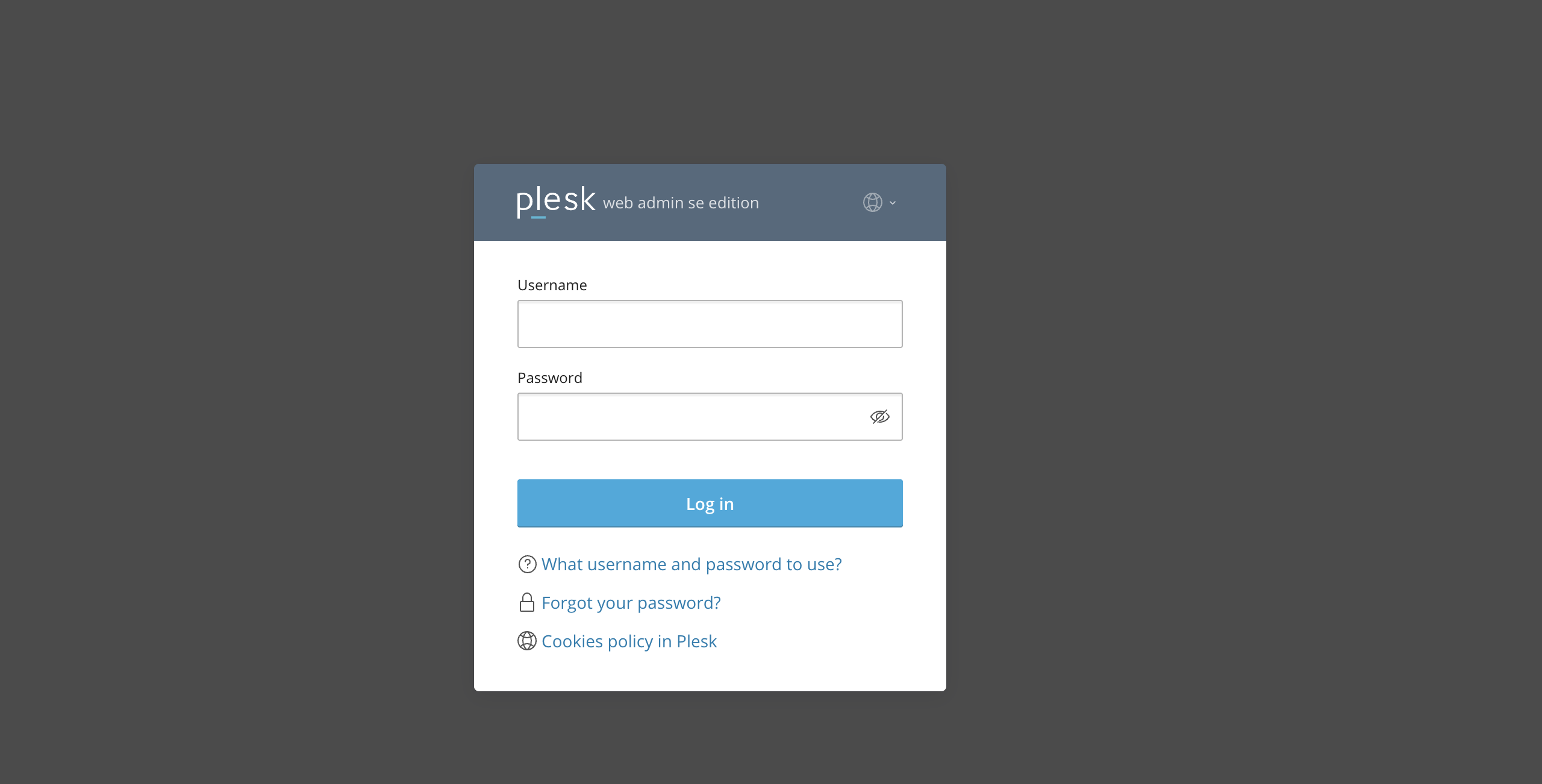
First and foremost, please ensure you are logged in to your Plesk control panel. To do that, please enter your IP address, hostname, or domain name inside your web browser’s search bar and add “:8443” at the end. It should look something like: “https://yourdomain.com:8443”. By doing so, you will be prompted by a login form that requests your username and password.
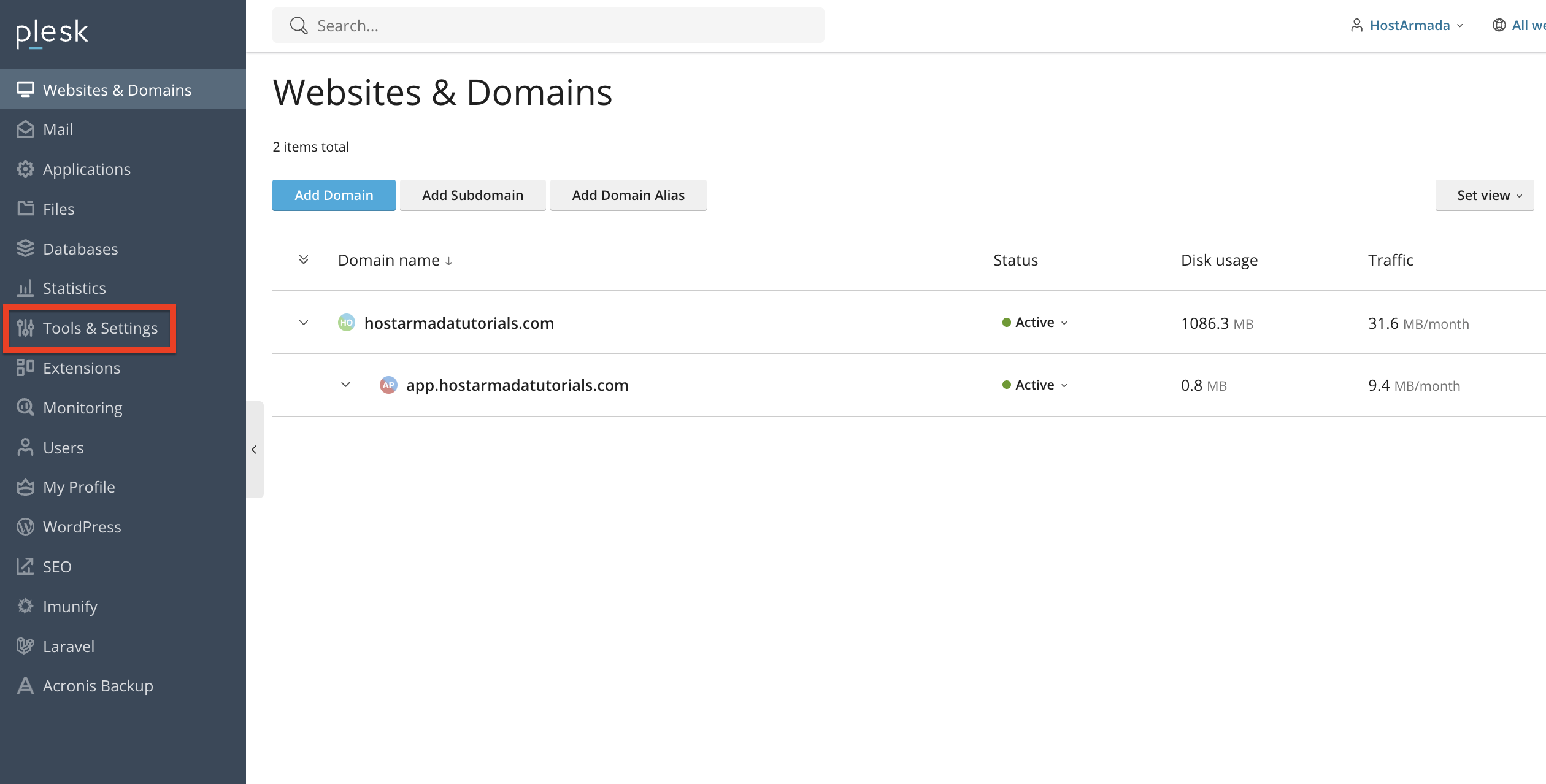
After logging in with your username and password, Plesk will automatically display the “Websites & Domains” page, which will serve as the index page from where you can manage everything related to your websites and domains on Plesk.
Accessing the Action Log
To access the Action Log functionality, please locate the “Tools & Settings” option in the left-hand menu. Once you do that, please click on it.
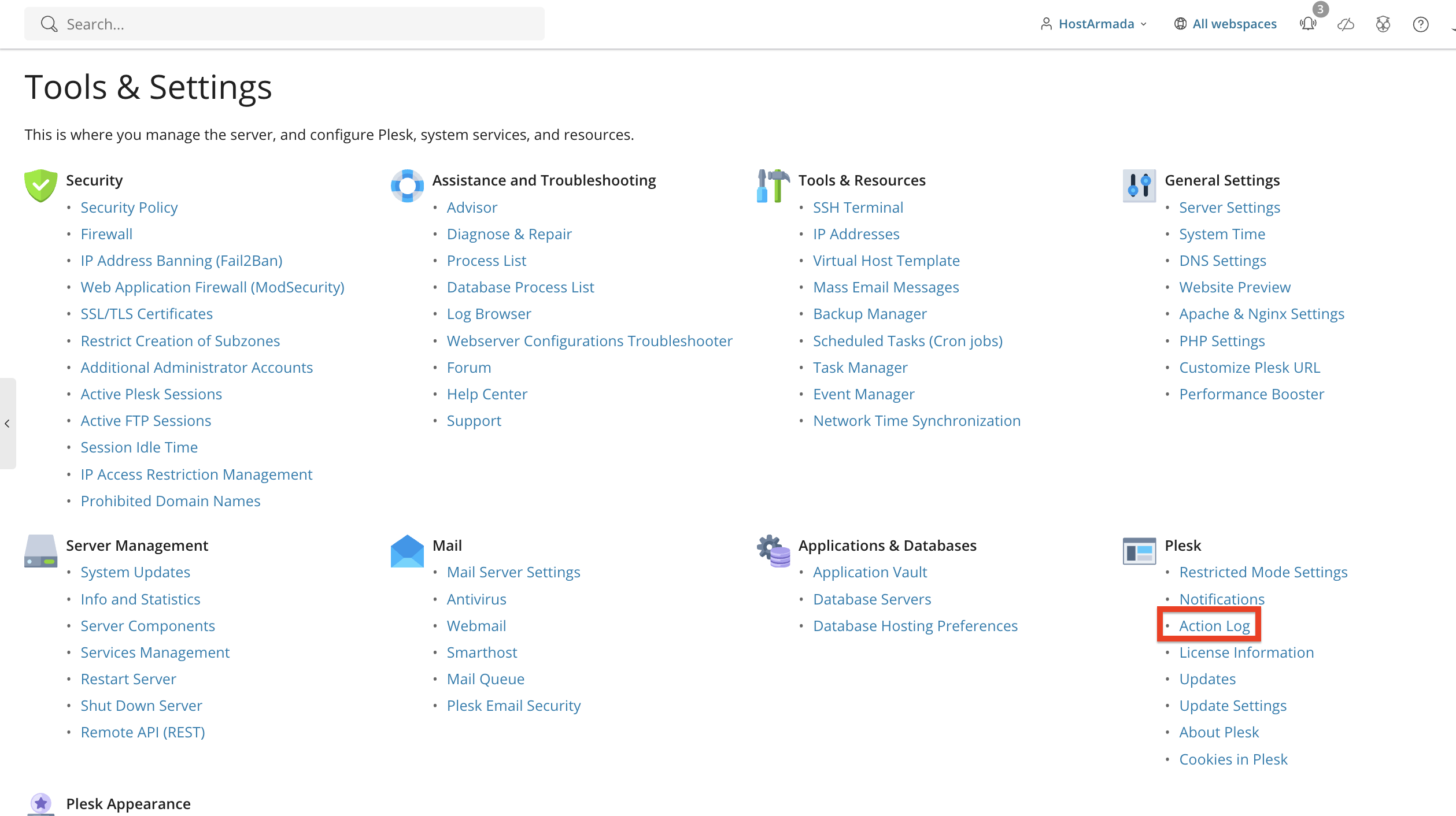
Once you do the above, you will be redirected to a page holding a wide variety of tools that help you manage your Plesk server. To access the action log, please click on the “Action Log” functionality, located under the “Plesk” section.
This will open a complete list of logged events.
Understanding the Action Log Interface
Upon being redirected to the “Action Log” page, you will notice a table section in the middle, which displays detailed information about each event, as follows:
- Date & Time - Under this column, you will see the date and time when the event occurred.
- User - Under this column, you will see the account responsible for the executed action.
- IP Address - Under this column, you will see which IP address the action originated from.
- Action - Under this column, you will see the action the user tried to execute. For example, logging inside the Plesk control panel.
- Details – Under this column, you will see information on the event itself.
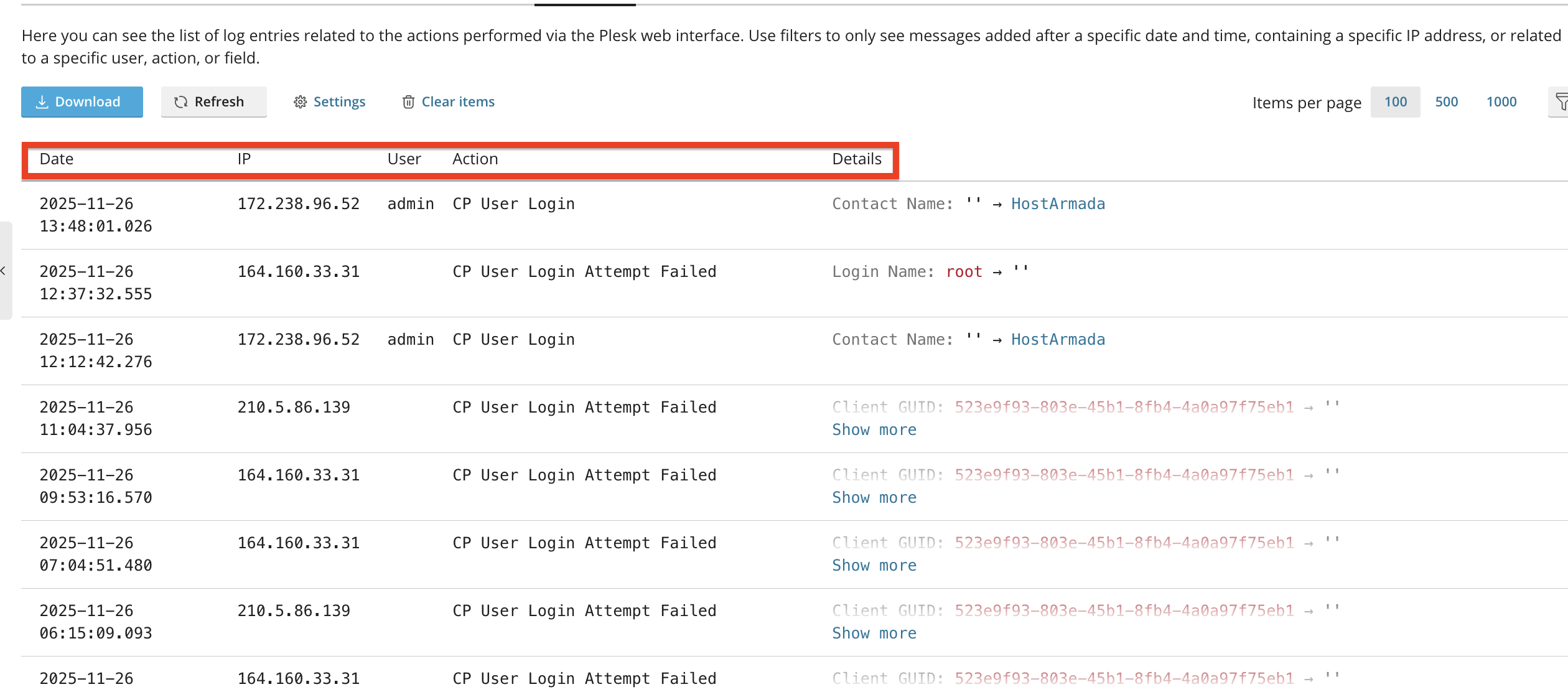
This information helps you understand what happened on your server and when.
Filtering and Searching Log Entries
Plesk provides built-in tools to help you quickly find specific events and locate whatever you need.
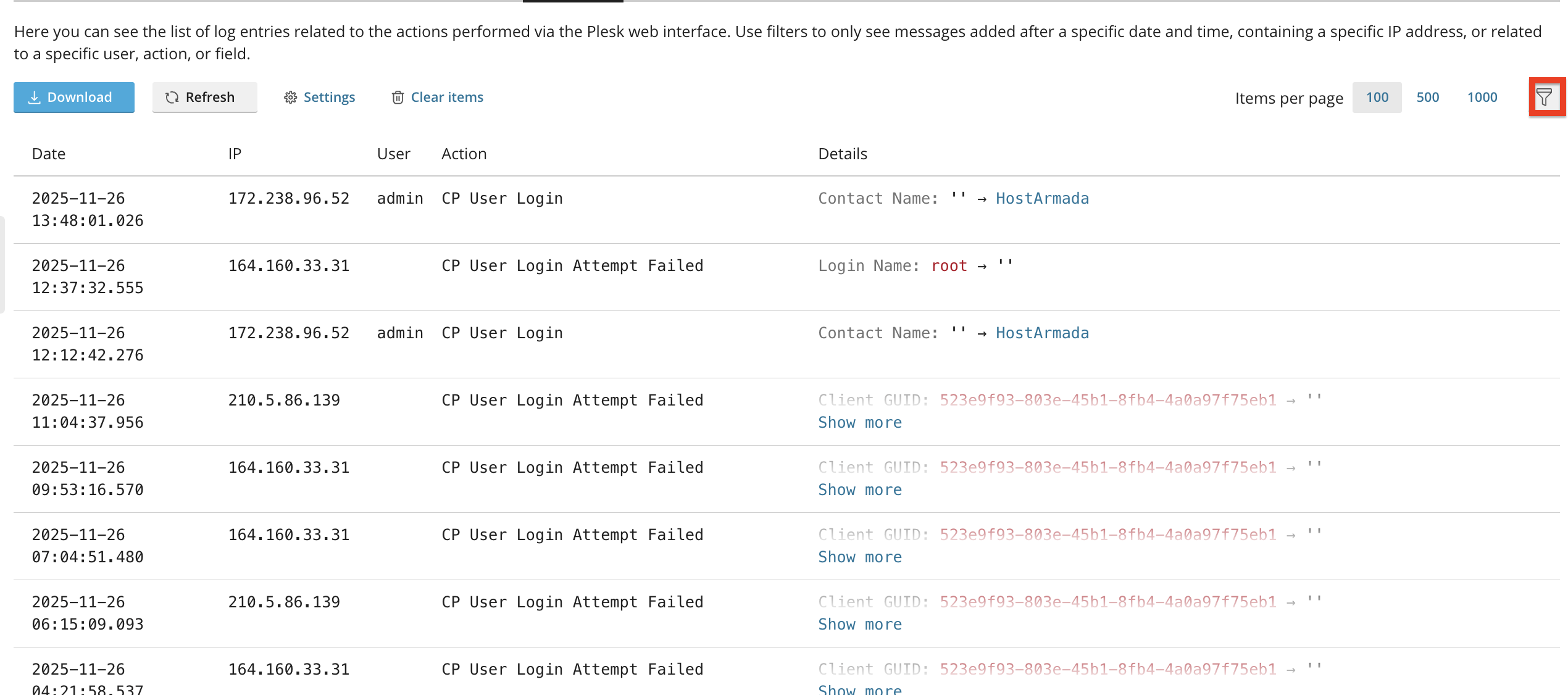
To filter entries, please use the filter button at the top-right side of the table section. Clicking on this button will open a pop-up window that will allow you to filter all the events based on criteria such as:
- Period - Please use the date selection fields to define the period of the action logs you want to filter out.
- IP - Please use the text field to type the IP address you want to filter the action logs by.
- Users - Please use the drop-down menu to select the user you want to filter the action logs by, who executed them.
- Actions - Please use the drop-down menu to filter out the action logs based on the actions that were executed.
- Changed field - Please use the text field to type in the change fields by which you want to filter out the action log.
- Changed value - Please use the text field to type in the changed values by which you want to filter out the action log.
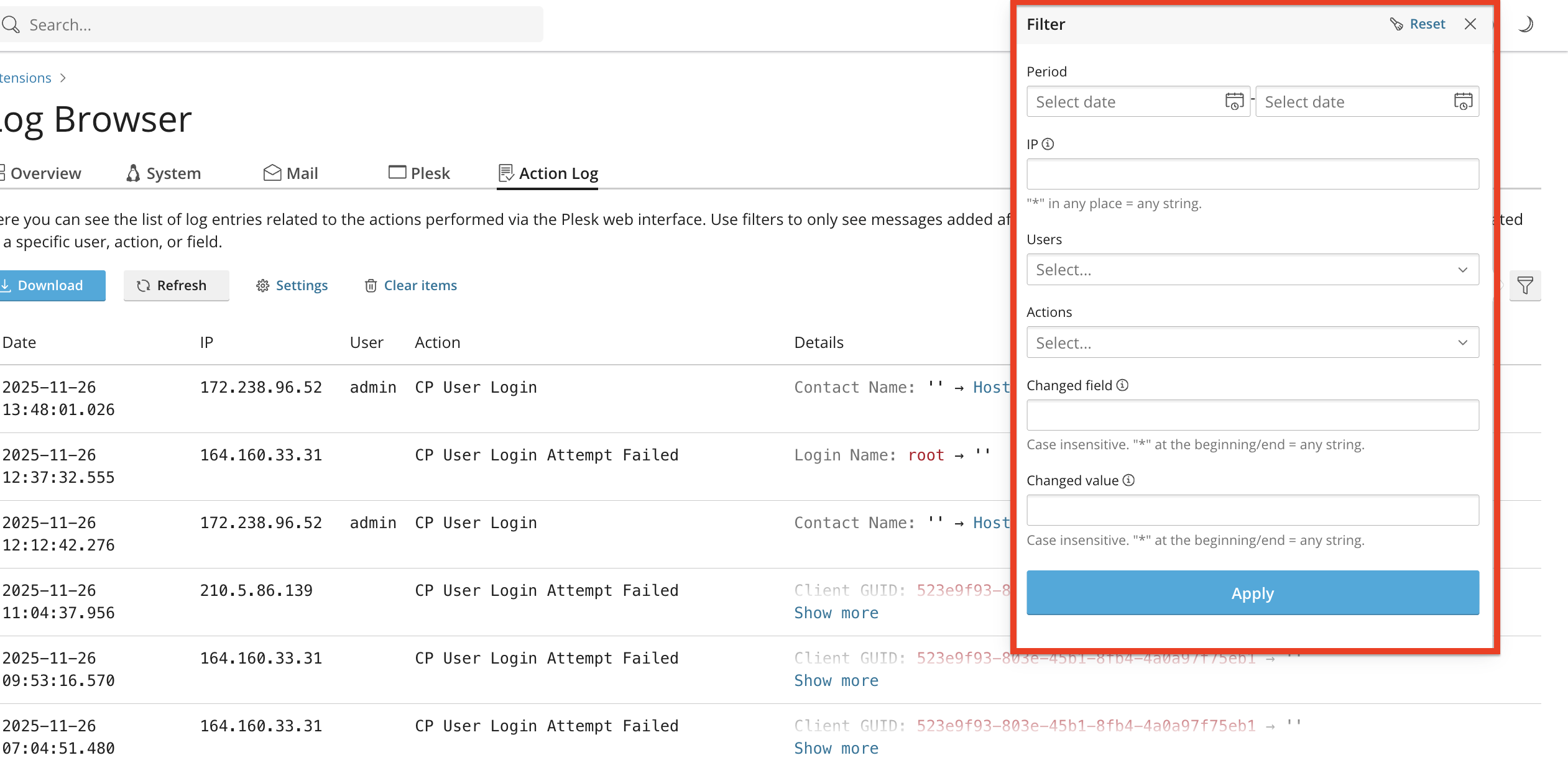
Once you configure the filter criteria, please click on the “Apply” button located at the bottom of the pop-up window.
Exporting Action Log Data
If you need to export log data for external analysis, Pleks allows you to do so via the “Download” button at the top left of the table section.
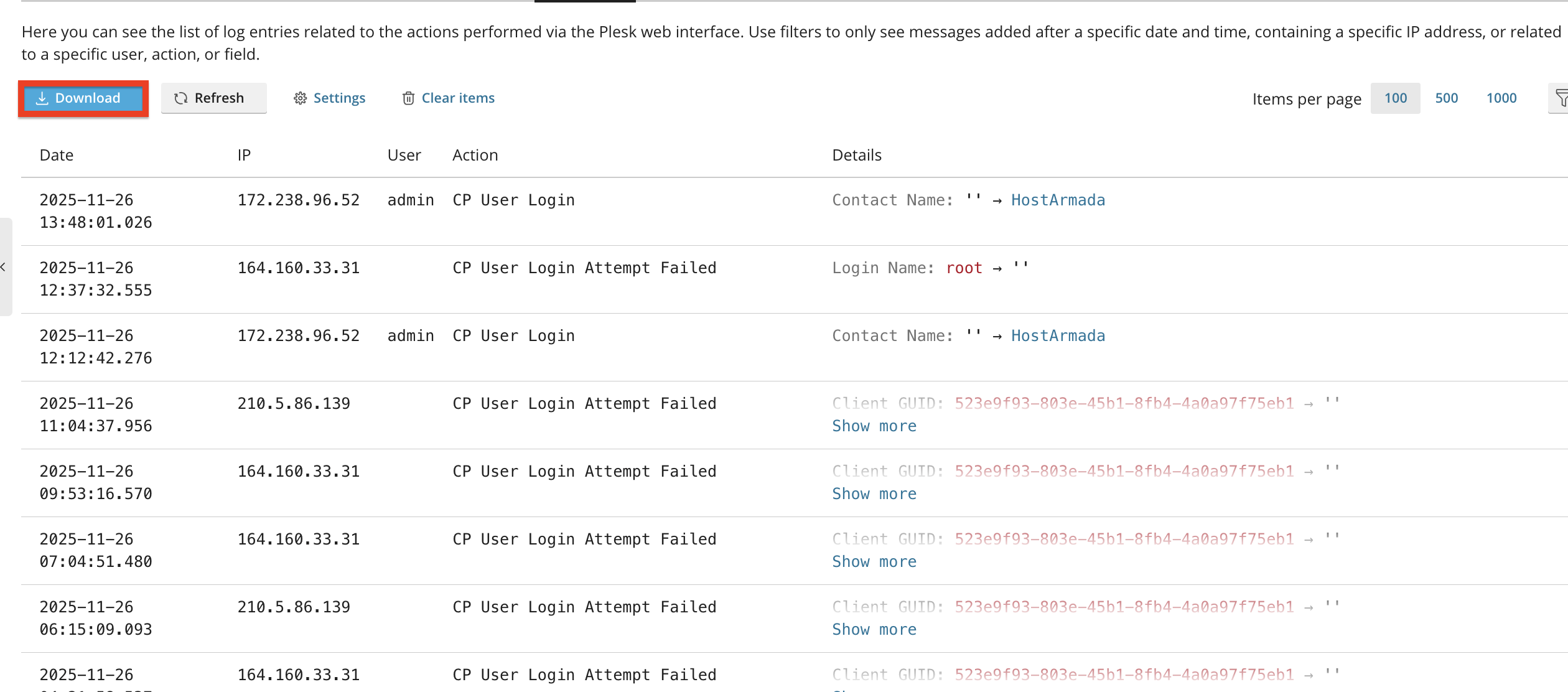
Performing the above will open a download window in your browser, and you can choose where to save the logs in a zip format. This is useful for compliance, auditing, or long-term record keeping.
Why It’s Important to Review the Action Log
We recommend regularly checking the Action Log, as it helps you proactively identify and address issues before they occur. In addition to that, it helps you with the following:
- Detect unauthorized access attempts
- Identify recent changes before troubleshooting
- Track administrative actions
- Confirm backup, security, or update activities
- Monitor reseller or customer behavior
The Action Log is one of the most valuable security and diagnostic tools in Plesk.
Conclusion
As you can see, accessing and using the Action Log in Plesk is simple and extremely helpful for maintaining visibility into your server’s activity. The Action Log allows you to track changes, monitor user actions, and troubleshoot issues efficiently.
We hope this tutorial was helpful, and we kindly encourage you to check the Action Log regularly to maintain a secure and well-managed hosting environment.












