Introduction
Plesk allows you to create and manage different types of users, giving you control over who can access your hosting environment and what permissions they have. Whether you want to add website administrators, developers, email-only users, or assign limited-access roles, Plesk provides a flexible user management system that supports various roles and permissions.
Managing users is essential for delegating tasks, improving security, and organizing access based on responsibilities or subscription plans.
In this tutorial, we will guide you through the process of managing users in Plesk.
Getting Started
Before you begin, please log in to your Plesk control panel. To do that, please enter your IP address, hostname, or domain name inside your web browser’s search bar and add “:8443” at the end. It should look something like: “https://yourdomain.com:8443”.
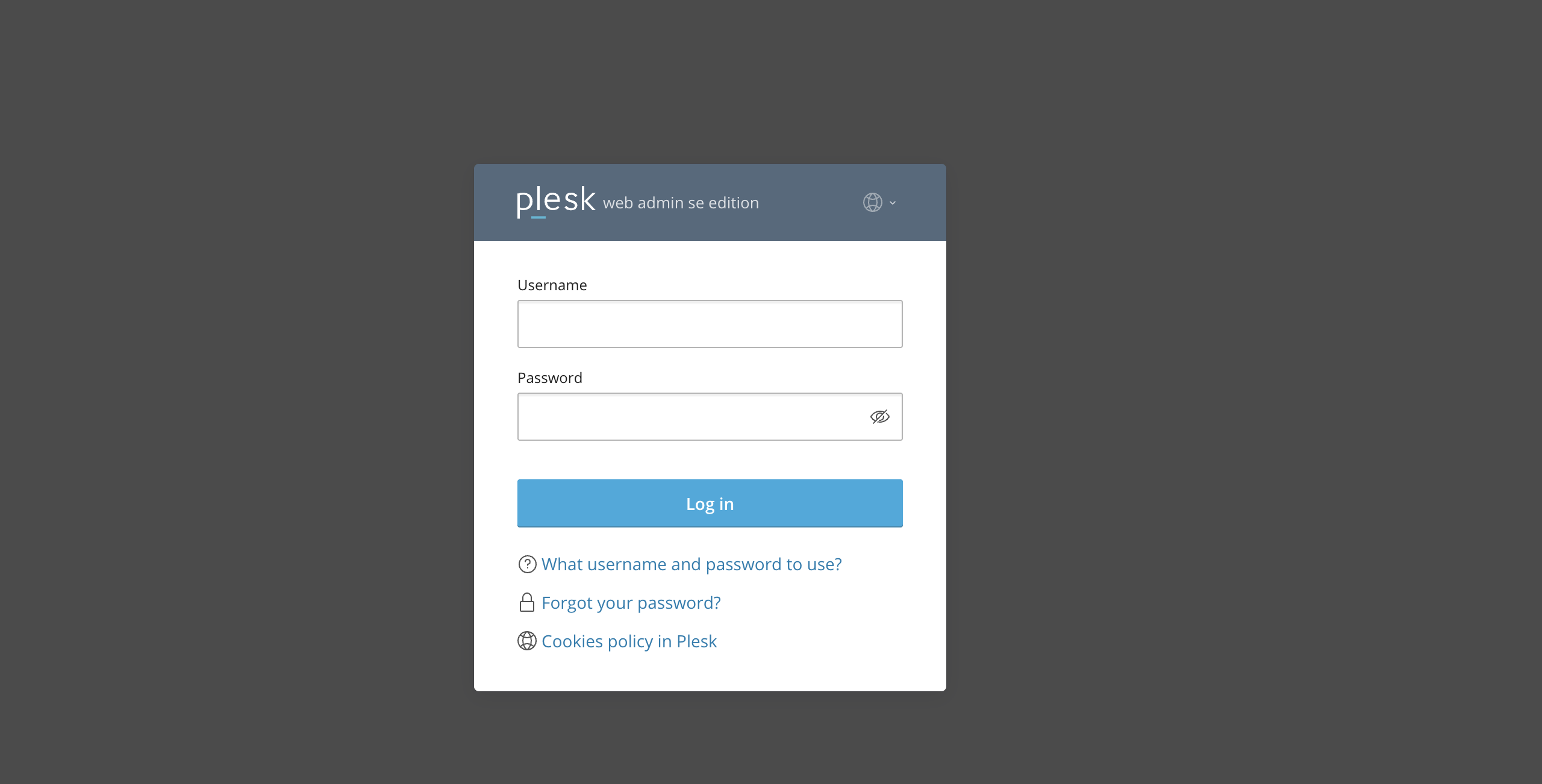
By doing so, you will be prompted by a login form that requests your username and password.
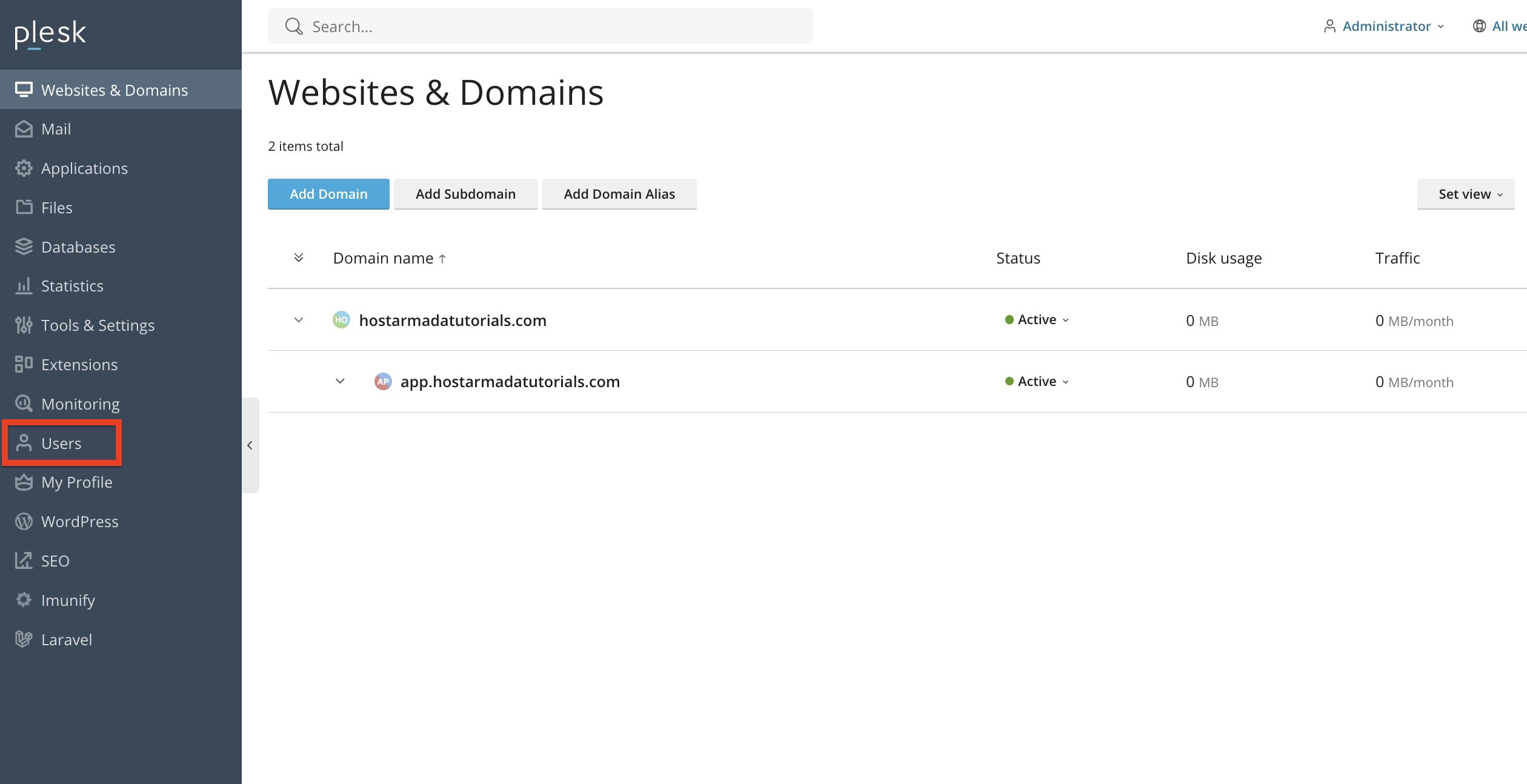
After logging in with your username and password, Plesk will automatically display the “Websites & Domains” page, which will serve as the index page from where you can manage everything related to your websites and domains on Plesk.
Accessing the User Management Section
To open the user management page, please point your attention to the left side of the screen. There you will see the “Users” option. Please click on it.
Once you perform the above, you will be redirected to the “Users” page, where you will see the users on your Plesk server and additional user management tools.
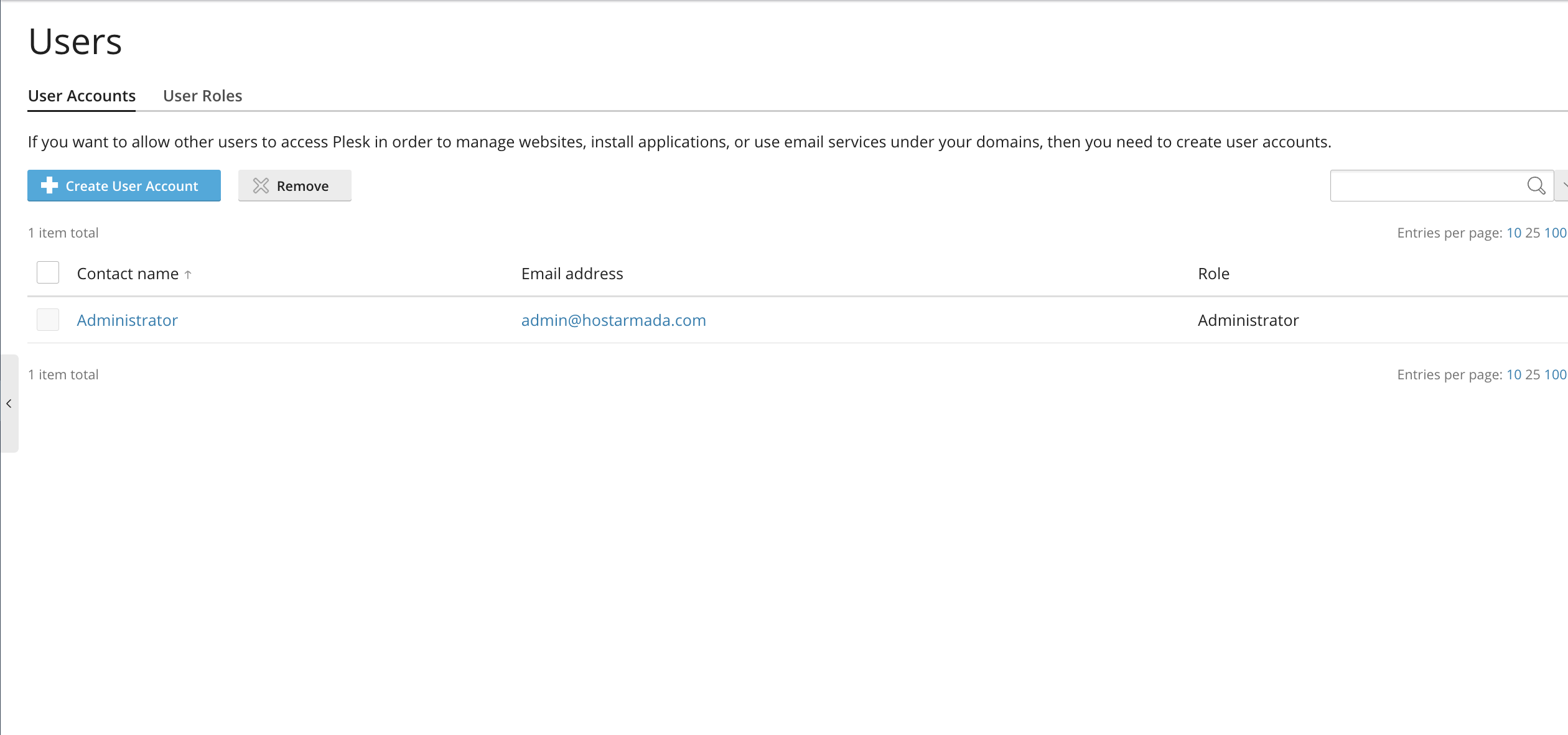
This page displays a list of all users for the selected subscription or server.
Understanding User Roles in Plesk
Each user in Plesk can be assigned a specific role with permissions. To better understand, we will list these roles and their permissions below.
- Administrator - The Administrator role has complete, unrestricted control over the entire Plesk server, including all system settings, customers, subscriptions, and extensions. This is the top-level role used for complete server management.
- WebMaster - The Webmaster role manages everything related to a specific website or subscription, domains, files, databases, email, and hosting settings, without having access to server-wide configuration. It’s ideal for technical users who maintain a site but shouldn’t control the whole server.
- Application User – The Application User role has very limited access, typically only to certain applications or parts of a website. This role is meant for content editors or collaborators who don’t need full technical control.
- Accountant – The Accountant role can view billing information, usage statistics, and subscription details, but cannot change anything technical. It’s designed for financial or managerial oversight rather than site administration.
These roles can be assigned during the user creation process, and we will explain exactly how in the following paragraphs.
Roles help you control what each user can see and do within the panel.
Adding a New User
To create a new Plesk user, from the “Users” page, please click on the “Create User Account” button at the top left side of the page.
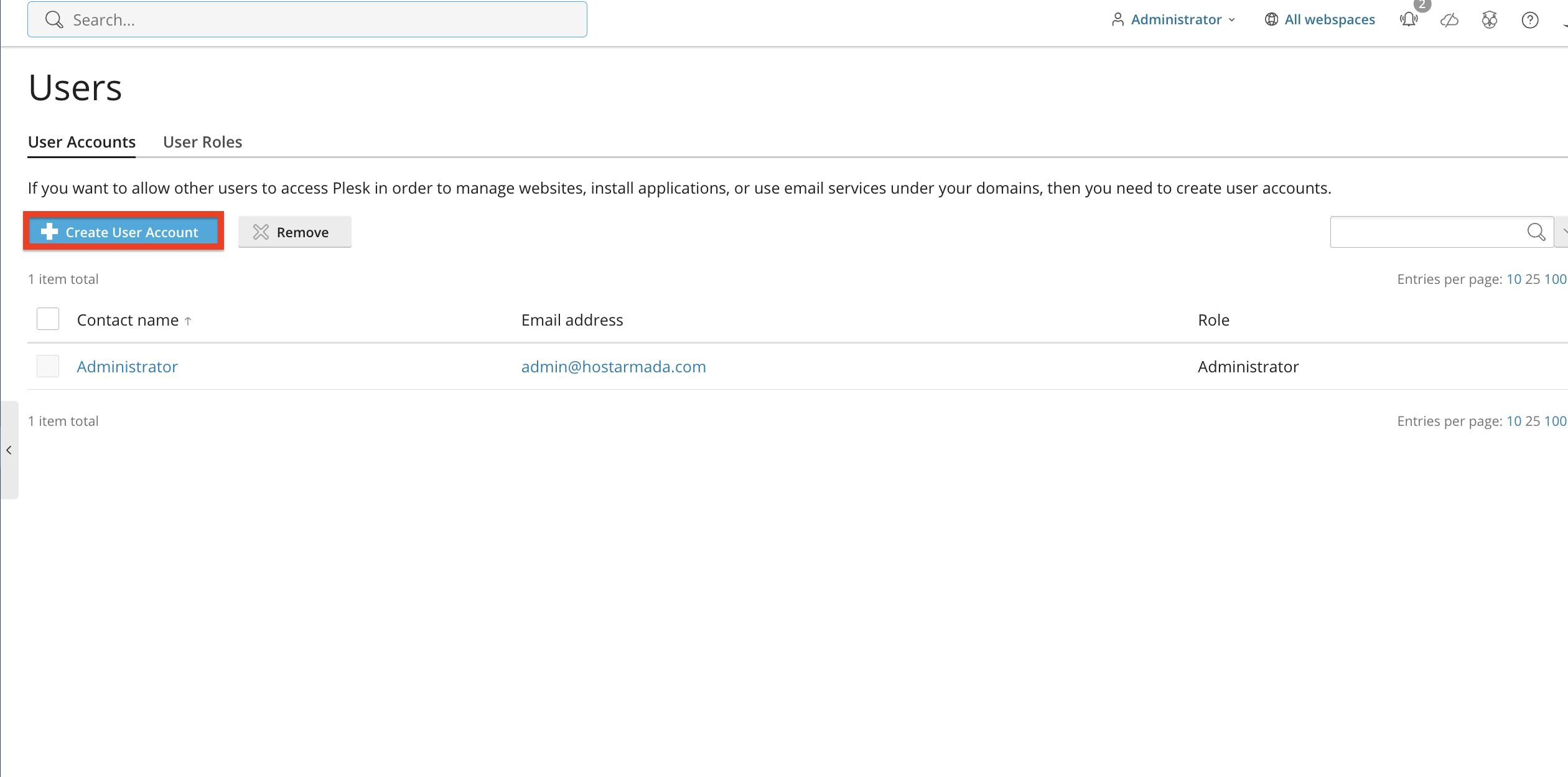
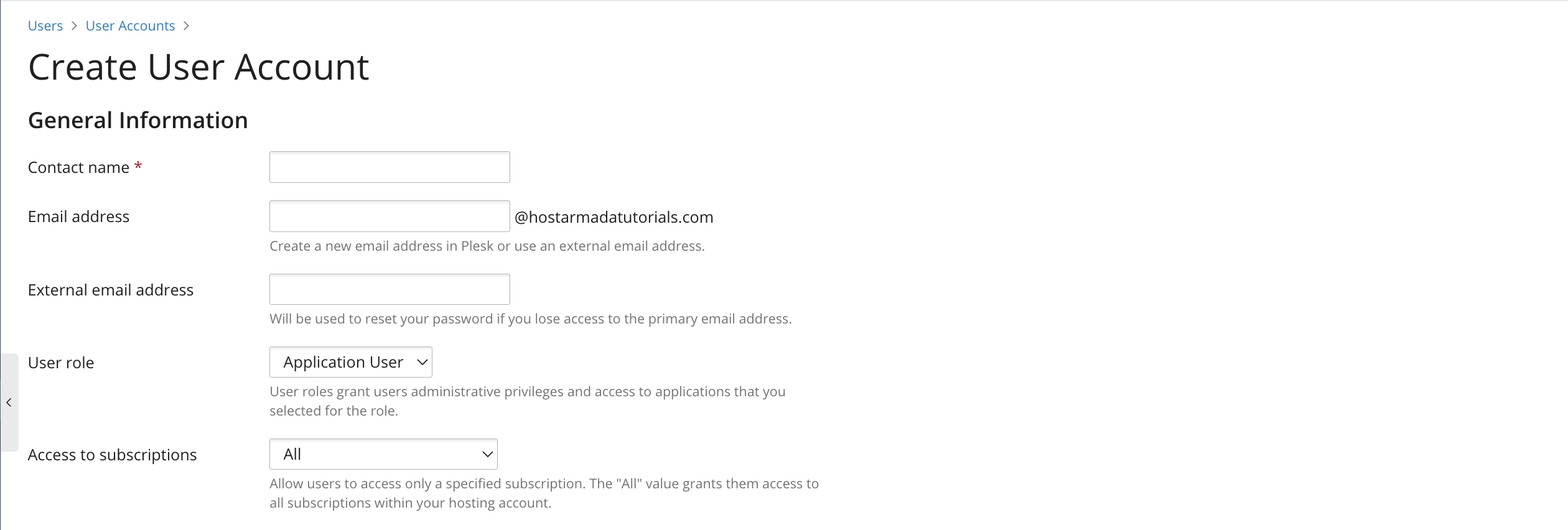
Performing the action above will redirect you to a page containing a form that lets you create a new user once it's filled out. Let’s go over all the options on the form.
- Contact name - Please use the text field to enter the user’s contact name. This can be the user’s personal name.
- Email address - Please use the text field to type in the user’s email address.
- External email address - Please type in the user’s external email address. This will serve as an alternative email if the user loses access to their primary email address.
- User role - Please use the drop-down menu to select the user role. In case you are not sure which rule should be used, please check the previous paragraph.
- Access to subscriptions - Please use this drop-down menu to grant the user access to either a specific subscription or all of your subscriptions.
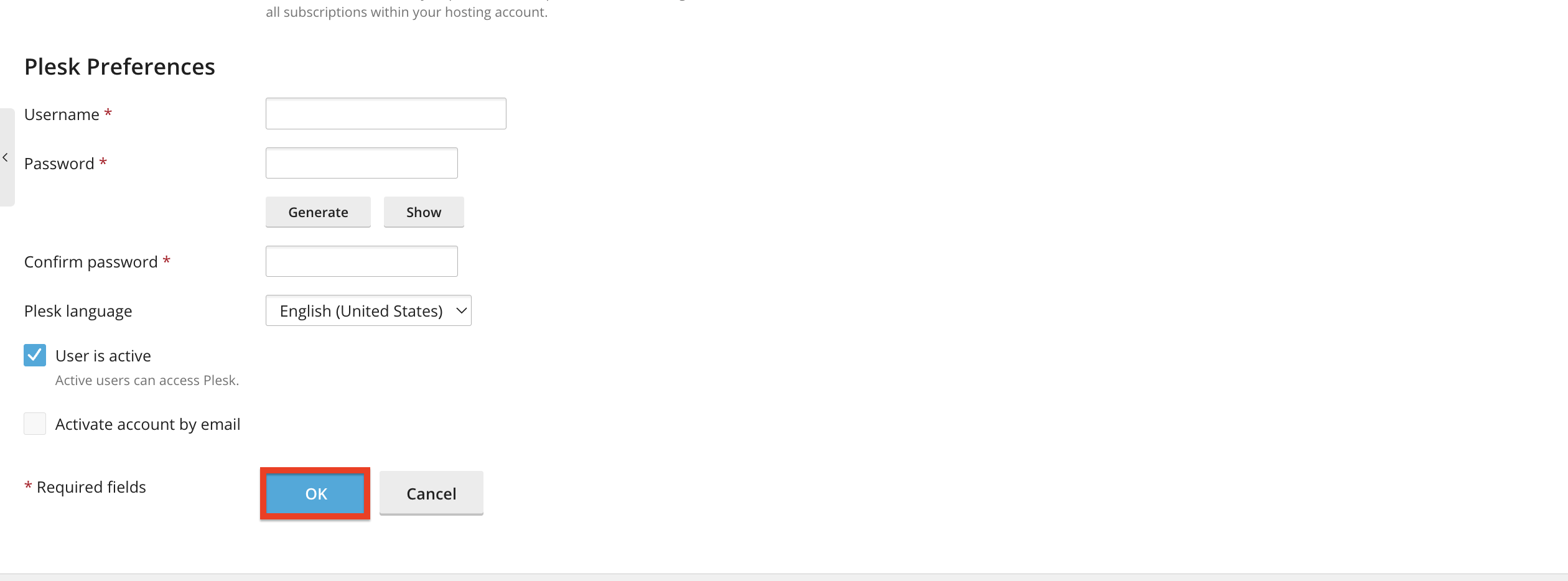
- Username - Please use this text field to type in the username of your user.
- Password - Please use this text field to enter the password for your user.
- Confirm password - Please use this text field to retype the password for your user.
- Plesk language - Please use this drop-down menu to select a Plesk language for your user.
- User is active - Please use this checkbox to activate or deactivate the current user.
- Activate account by email - Please use the tickbox to enable account activation via email confirmation sent to the user’s primary email address.
Once you have filled out the form, please click on the “Ok” button at the bottom of the page to create the user and get redirected back to the index “User” page.
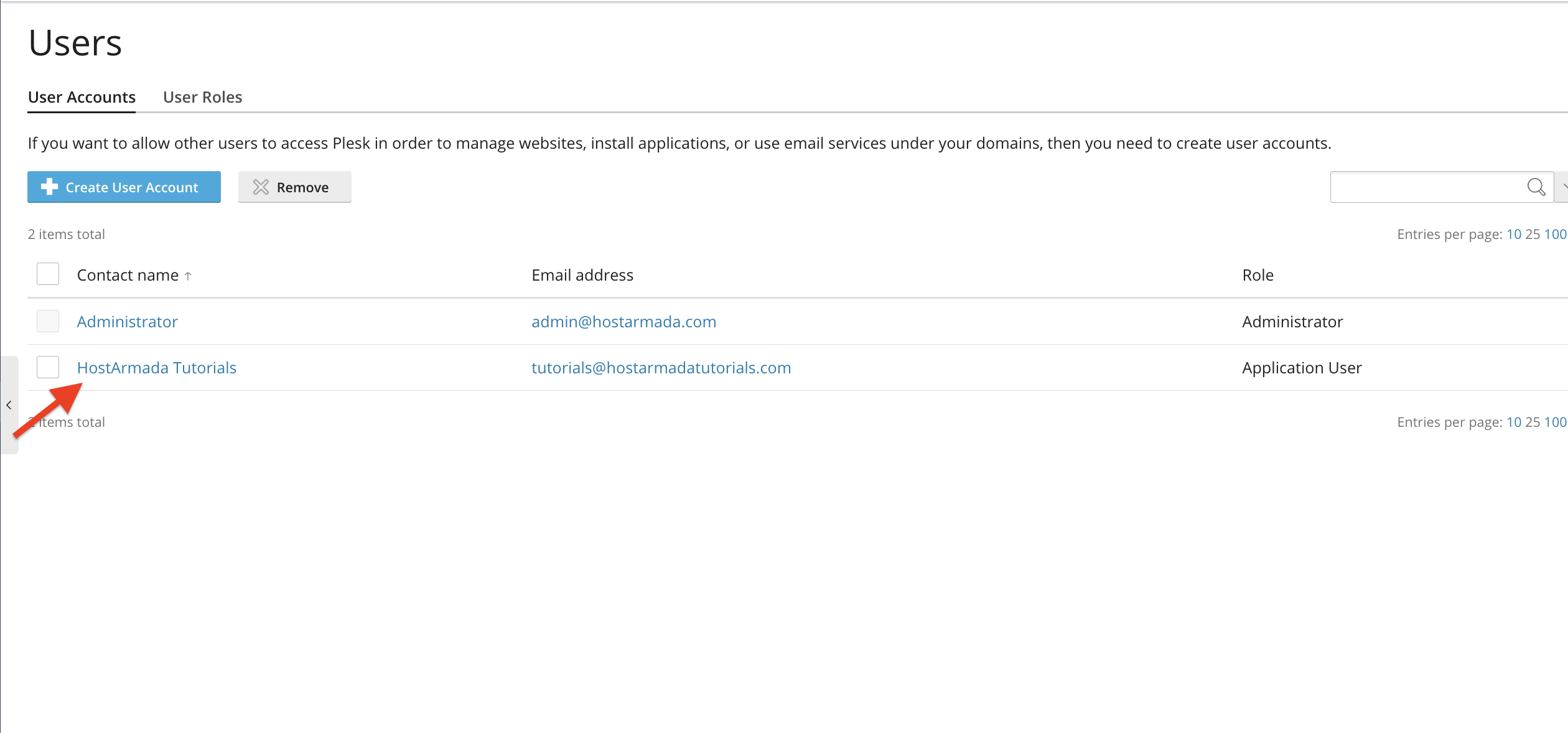
The user will now appear in the user list and can log in using their assigned credentials.
Managing User Permissions and Roles
To change a user’s role or permissions, please select the user in the middle table section by clicking on them.
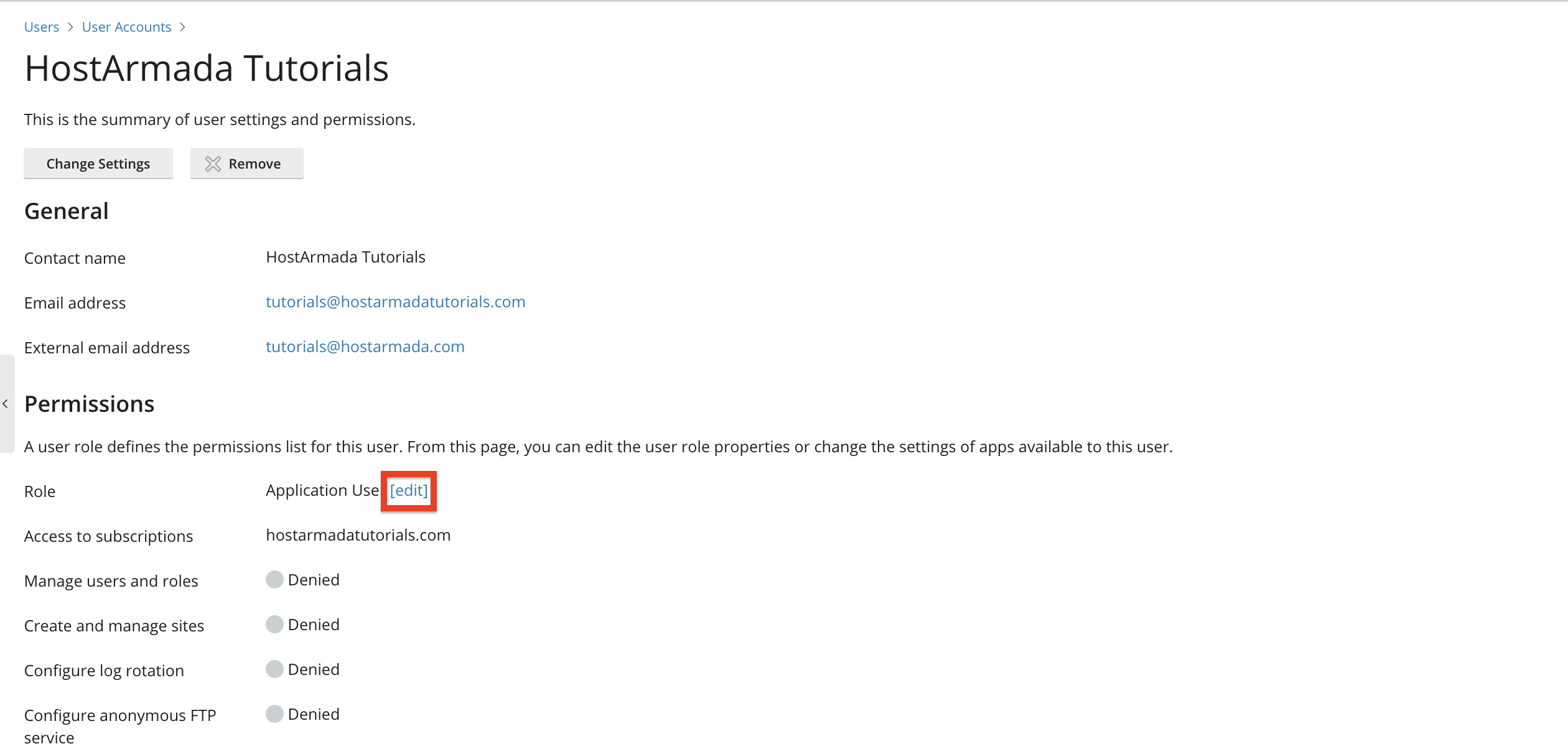
Performing the action above will redirect you to a page that lets you change everything about the user you set during their creation.
To change the permissions, please click on the “Edit” button corresponding to the Role label.
Upon doing so, you will be redirected to a page that allows you to edit the role’s permissions using radio buttons.
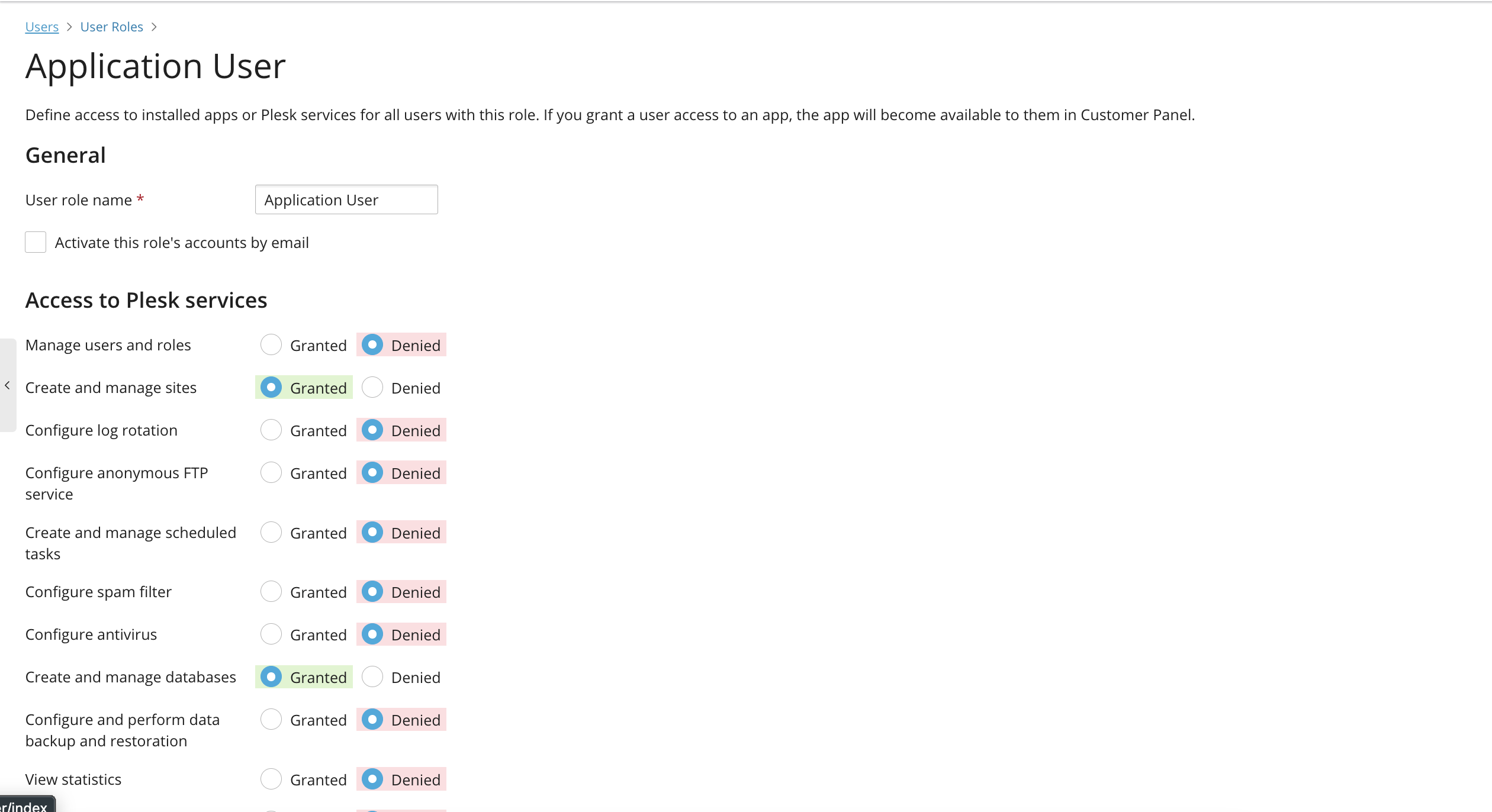
You can grant or deny specific things for the role, and once you are done with the assignment, please click on the “Apply” button to save them and remain on the page, or the “OK” button to save the new assignments and be redirected to the previous page.
Editing an Existing User
To update a user’s information, please click the user’s name in the list and afterward click on the “Change Settings” button.
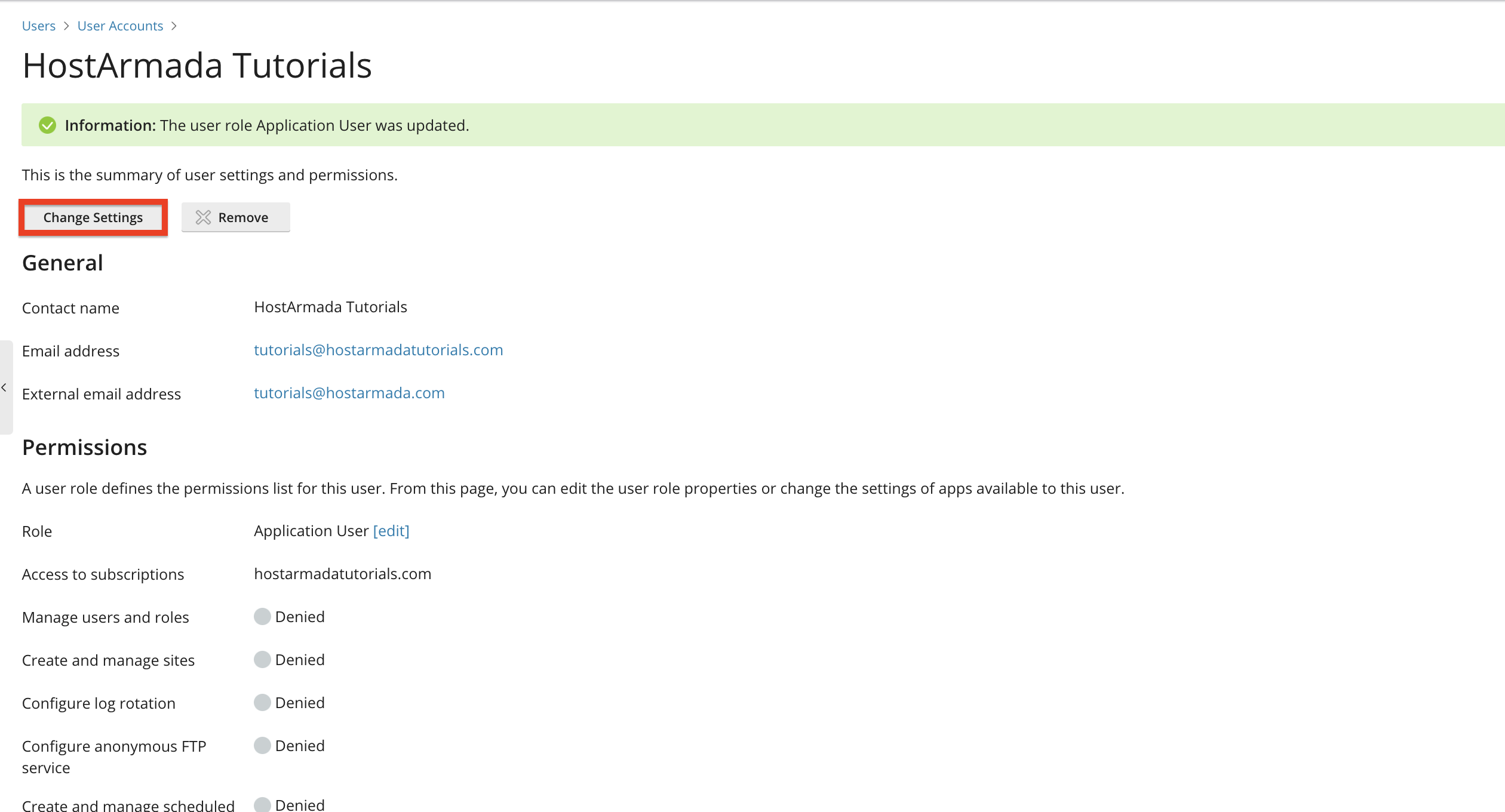
Performing the action will redirect you to a familiar page we covered in the "Adding New User" paragraph.
Removing a User
To permanently remove a user from the user editing page, instead of clicking on the “Change Settings”, please click on the “Remove” button located on its right side.
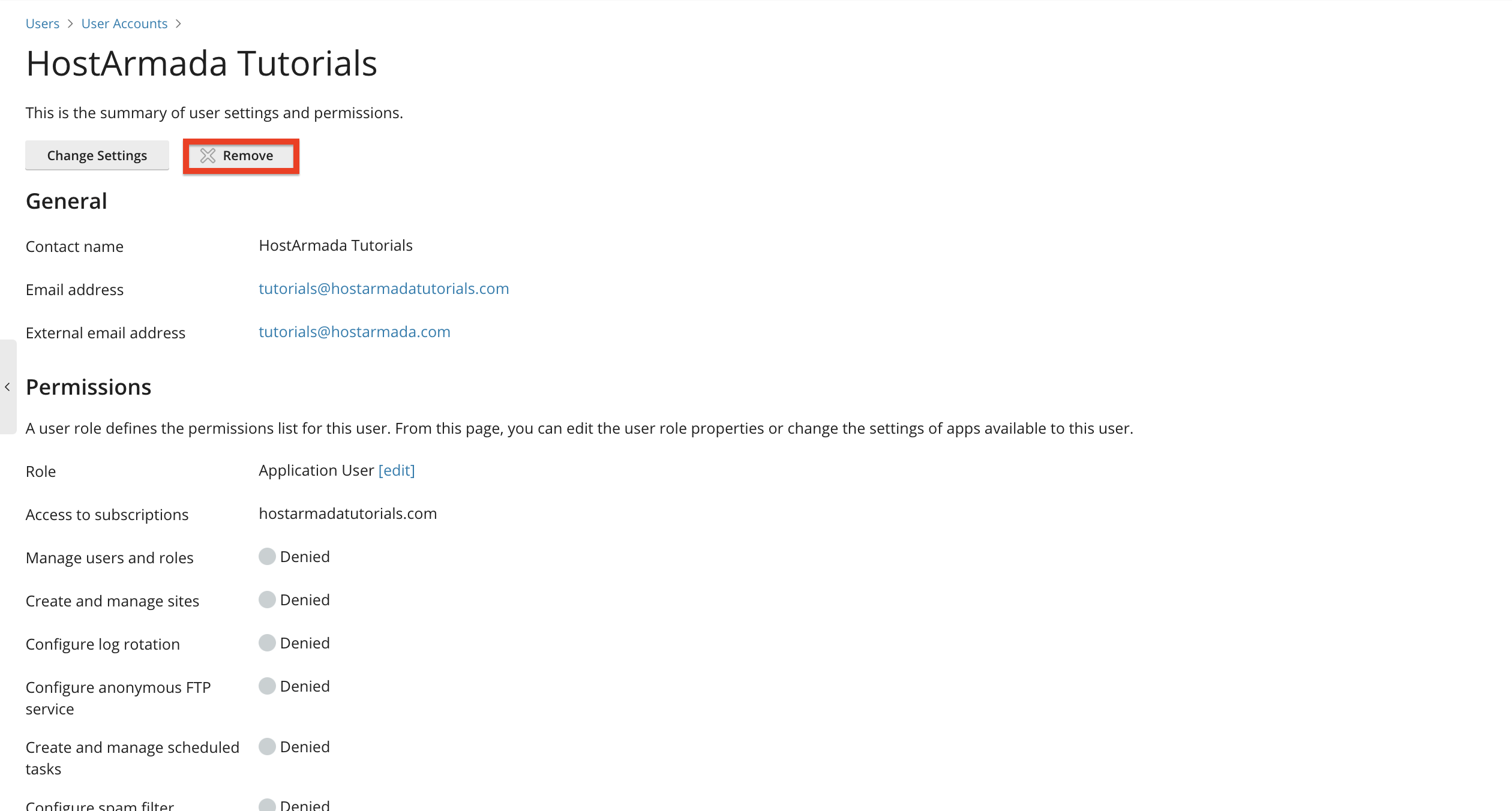
Once you perform the above, you will receive a prompt to confirm the deletion, and when you do that, the user will be removed from Plesk.
Conclusion
As you can see, Plesk offers a complete and flexible user management system that allows you to create users, assign roles, adjust permissions, and control access to your hosting environment. Whether you're managing customers, employees, or developers, Plesk’s user system ensures secure and organized access control.
We hope this tutorial was helpful, and we kindly encourage you to review your user roles and permissions periodically to maintain a safe and efficient environment.












