Introduction
Reseller management in Plesk allows you to provide hosting services to clients who will, in turn, manage their own customers, subscriptions, and resources. As a server administrator, you can create reseller accounts, define their permissions, assign resources, control available features, and monitor their usage.
Managing resellers is essential for hosting companies, agencies, and businesses that offer tiered services or want to delegate portions of their server to other providers.
In this tutorial, we will guide you through the full process of managing resellers in Plesk.
Getting Started
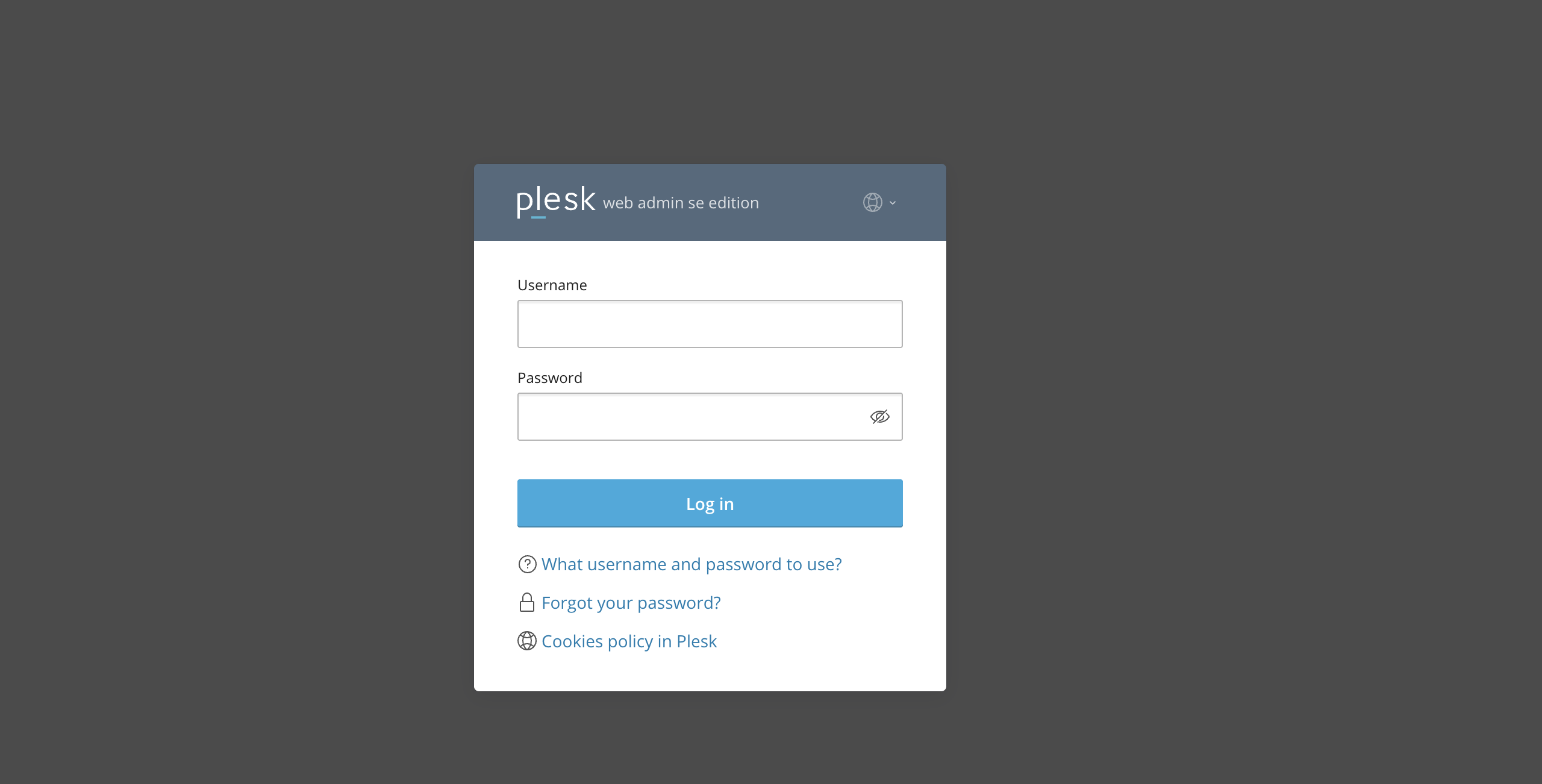
To start creating cron jobs and automating tasks in Plesk, ensure you have logged in to your Plesk control panel. To do that, please type in your IP address, hostname, or domain name inside your browser search bar and add “:8443” at the end. It should look something like: https://yourdomain.com:8443. By doing that, you will be prompted by a login form requiring your username and password.
Once logged in, Plesk will automatically display the “Websites & Domains” page, which will be the index every time. In the middle, you will see a table section containing a list of all your websites.
Accessing the Reseller Management Section
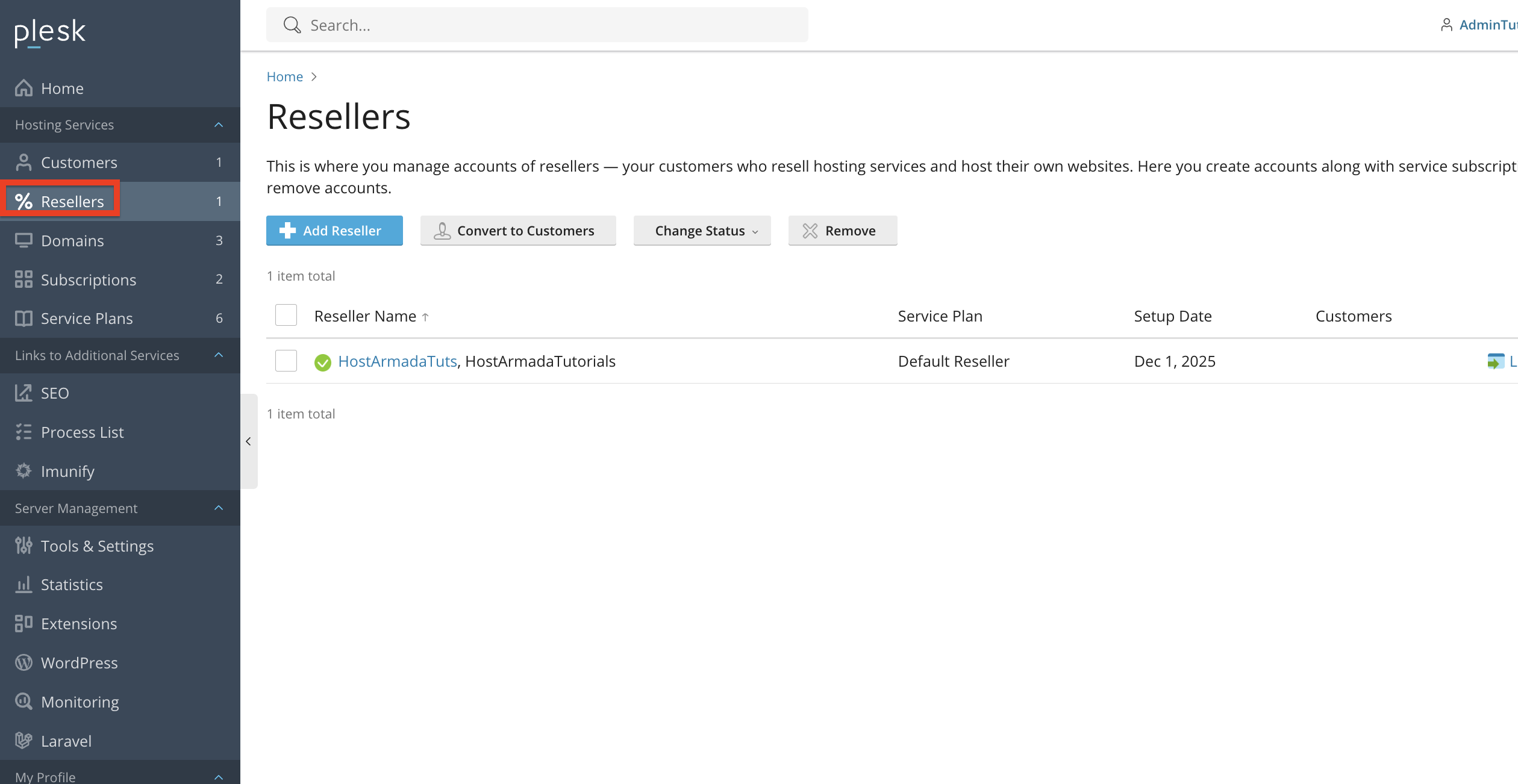
To open the reseller management interface, please click on the “Resellers” functionality on the left side of the screen.
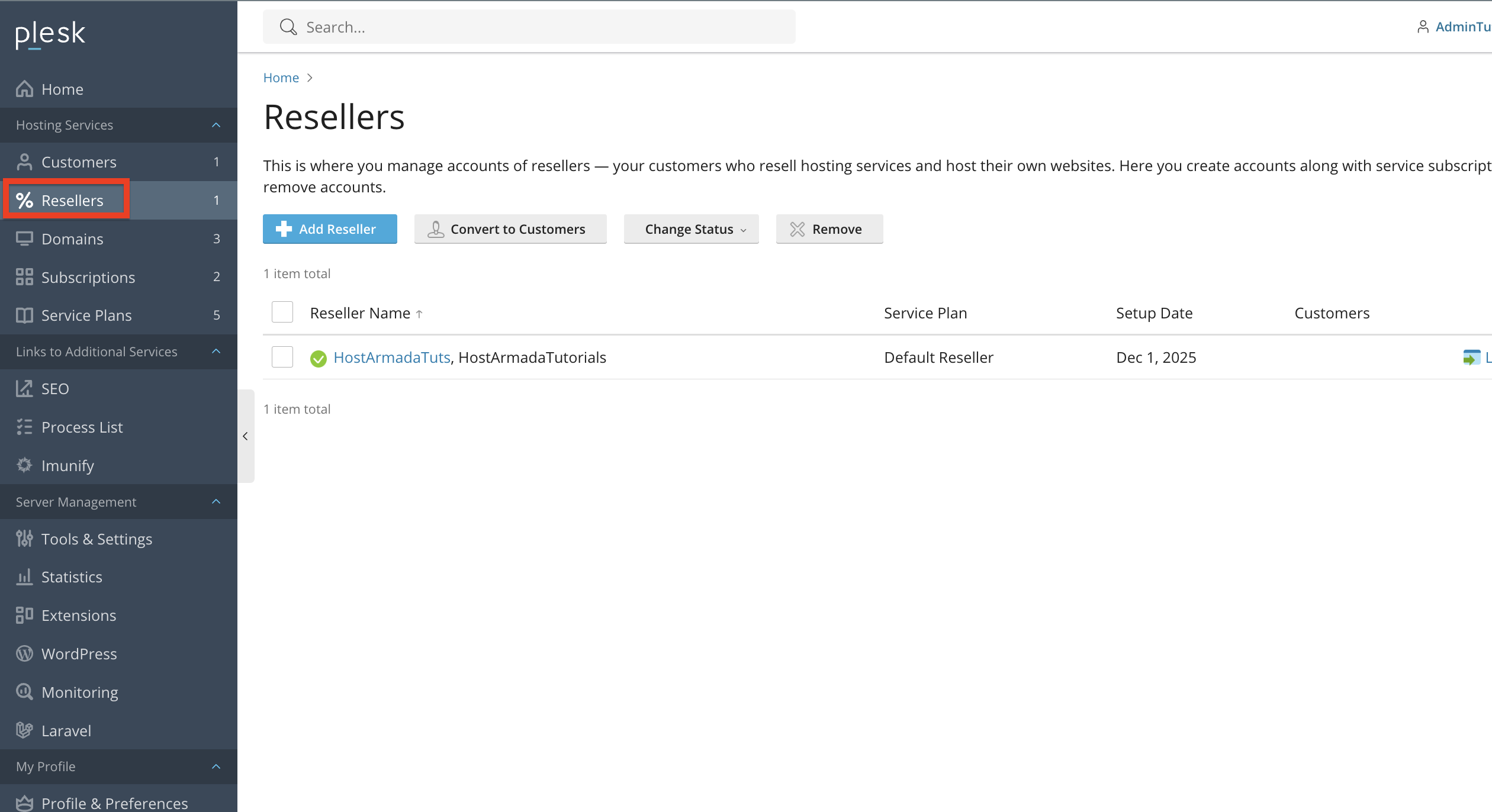
Once you perform the action above, this page will display all reseller accounts currently created on your server and will let you perform various actions for your resellers.
Creating a New Reseller Account
To add a new reseller, please click on the “+ Add Reseller” button located above the table section in the middle.
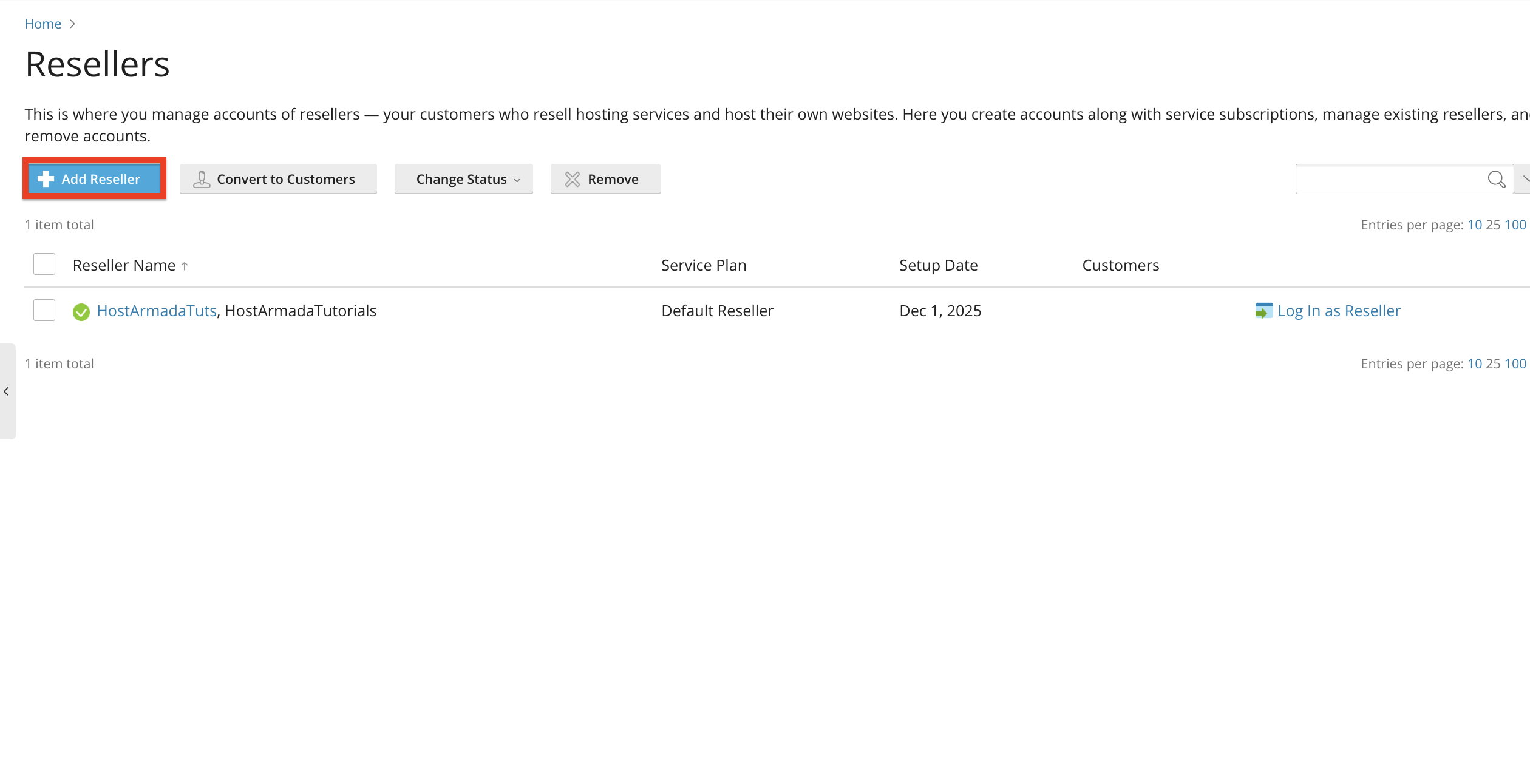
Performing this action will redirect you to a page where you need to add your reseller’s personal details.
- Contact Name - Please use this text field to type in the Reseller’s name.
- Email Address - Please use this text field to type in the Reseller's email address.
- Company Name - Please use this text field to type in the Reseller’s company name.
- Phone Number - Please use this text field to type in the Reseller’s phone number.
- Address - Please use this text field to type in the Reseller’s address.
- City - Please use this text field to enter the Reseller’s City of residence.
- State/Province - Please use this text field to enter the Reseller’s State/Provices of residence.
- Postal/Zip Code - Please use this text field to enter the Reseller’s Postal/ZIP code.
- Country - Please use this drop-down menu to select the Reseller’s country.
- Additional information - Please use this content box to add any additional information about the Reseller, if you believe it is relevant.
- Description - Please use this content box to add any relevant description about the Reseller, which you believe the administrators should know about.
- Username - Please use this text field to type in the Reseller’s username for accessing Plesk.
- Password - Please use this text field to type in the Reseller’s password for accessing Plesk.
- Repeat Password - Please use this text field to retype in the Reseller’s username for accessing Plesk.
- Service Plan - Please use this drop-down menu to select the service plan the Reseller will use when accessing Plesk.
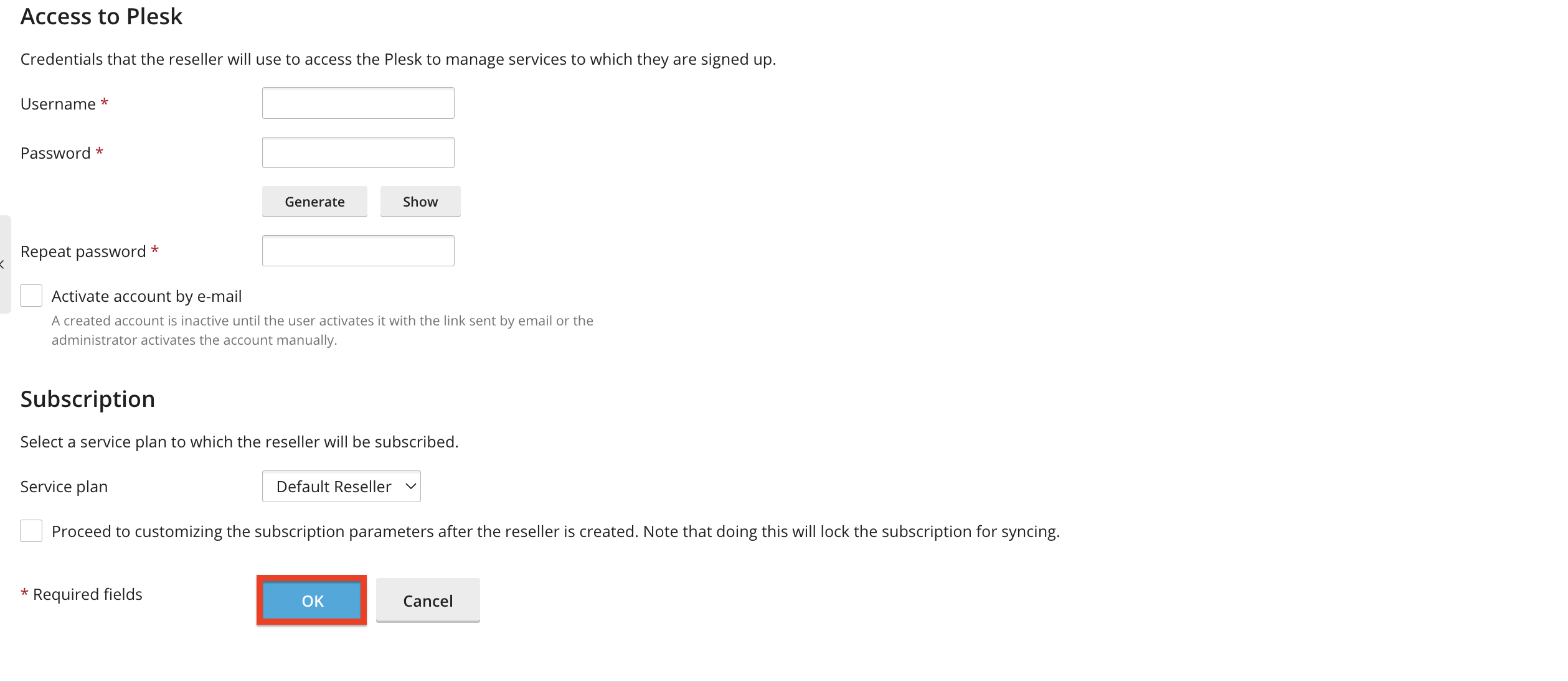
Once you have added all the required information about your Reseller, please click on the “OK” button at the bottom of the reseller creation form. The newly created reseller will appear in the list and can log in to Plesk using their credentials.
Assigning and Managing Reseller Plans
Reseller Plans determine the resources and features resellers are allowed to offer to their customers. Most notable of which are as follows:
- Disk space & bandwidth
- Number of domains, subscriptions, and customers
- Email limits
- Database limits
- DNS settings
- Access to features like backups, Git, and application installers
Of course, there are many more parameters that the Reseller can assign/remove to their customer’s subscriptions. To manage these, please use the left side menu to navigate to the “Service Plans” functionality.
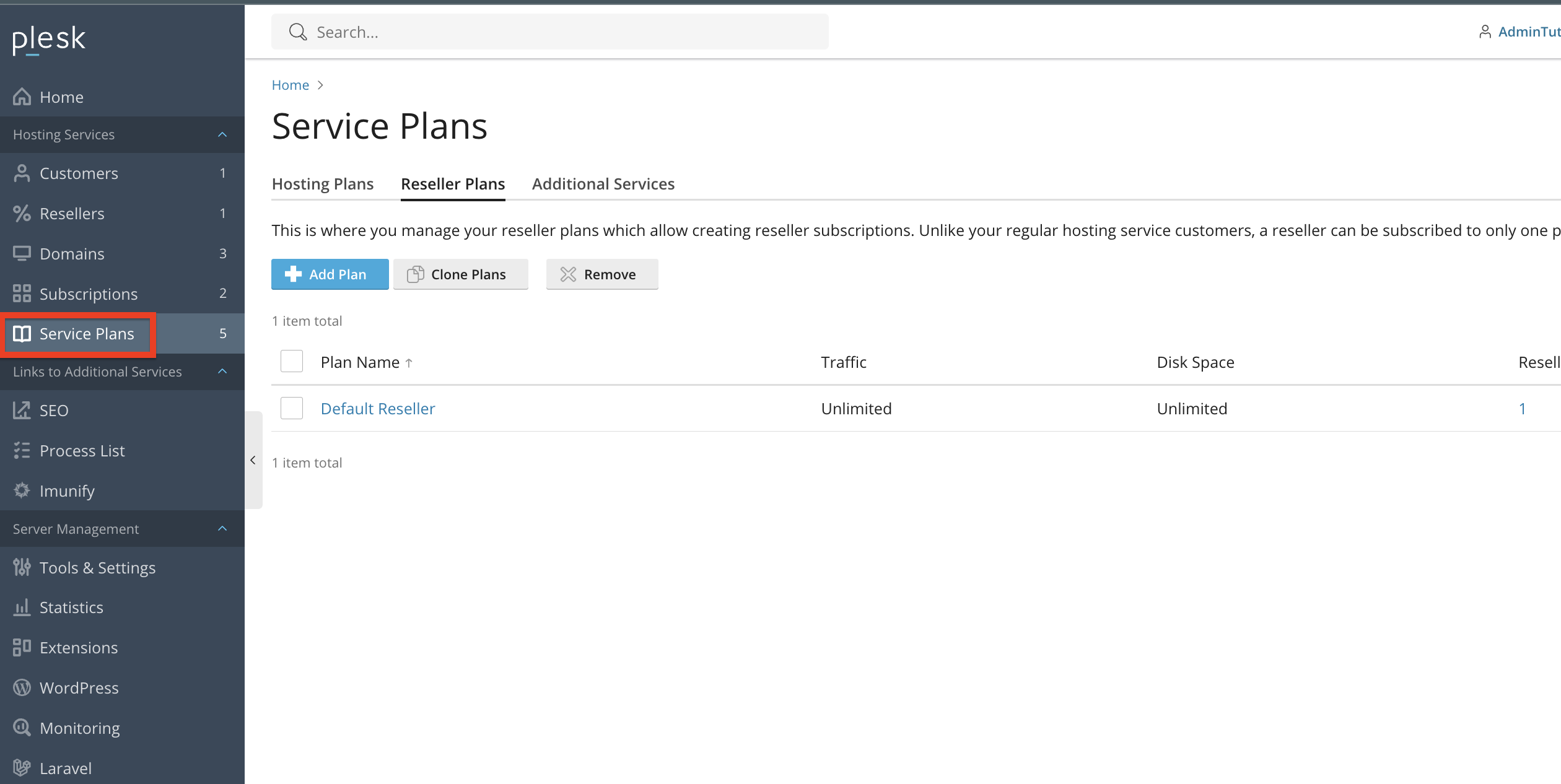
From there, please click on the “Resellers” tab.
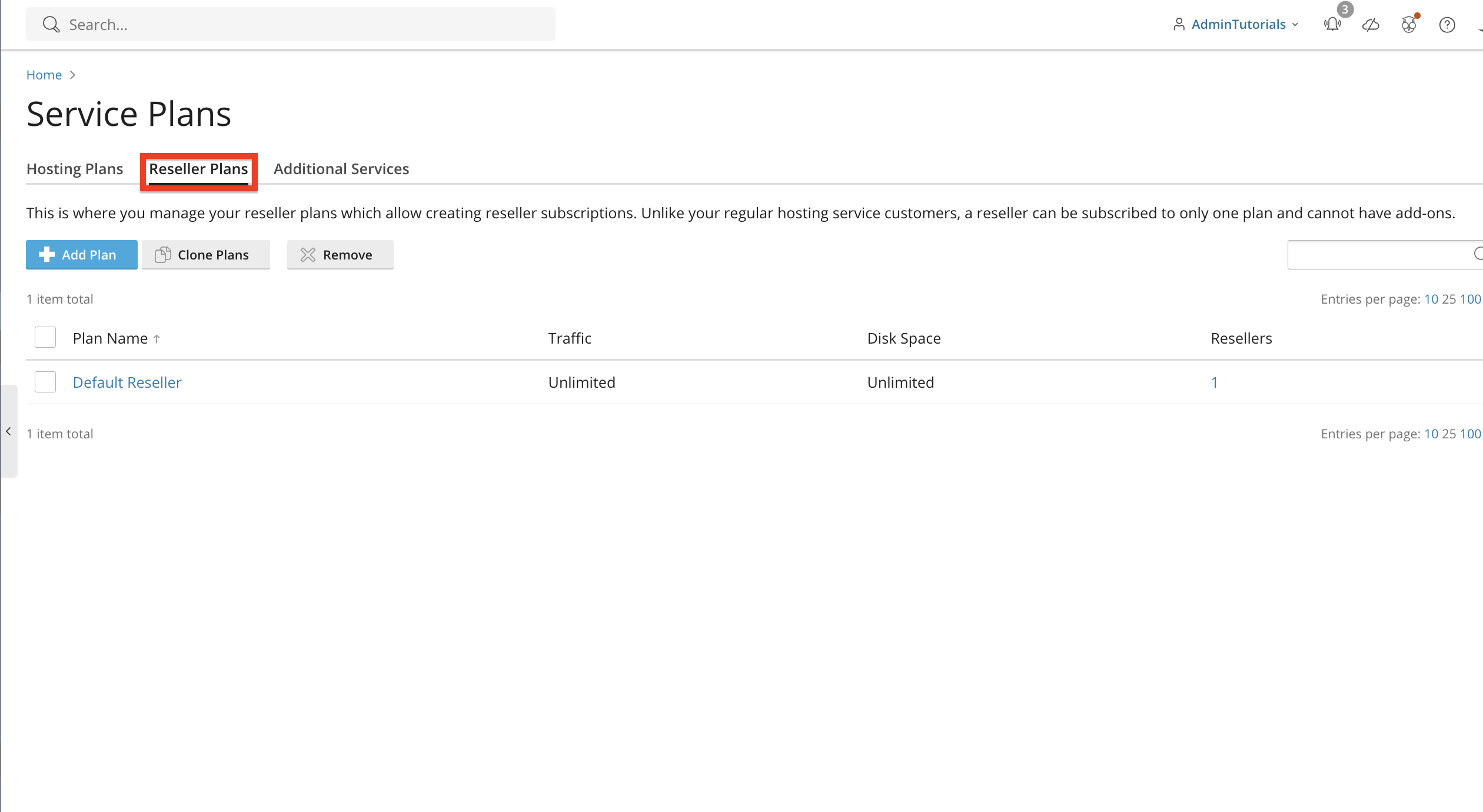
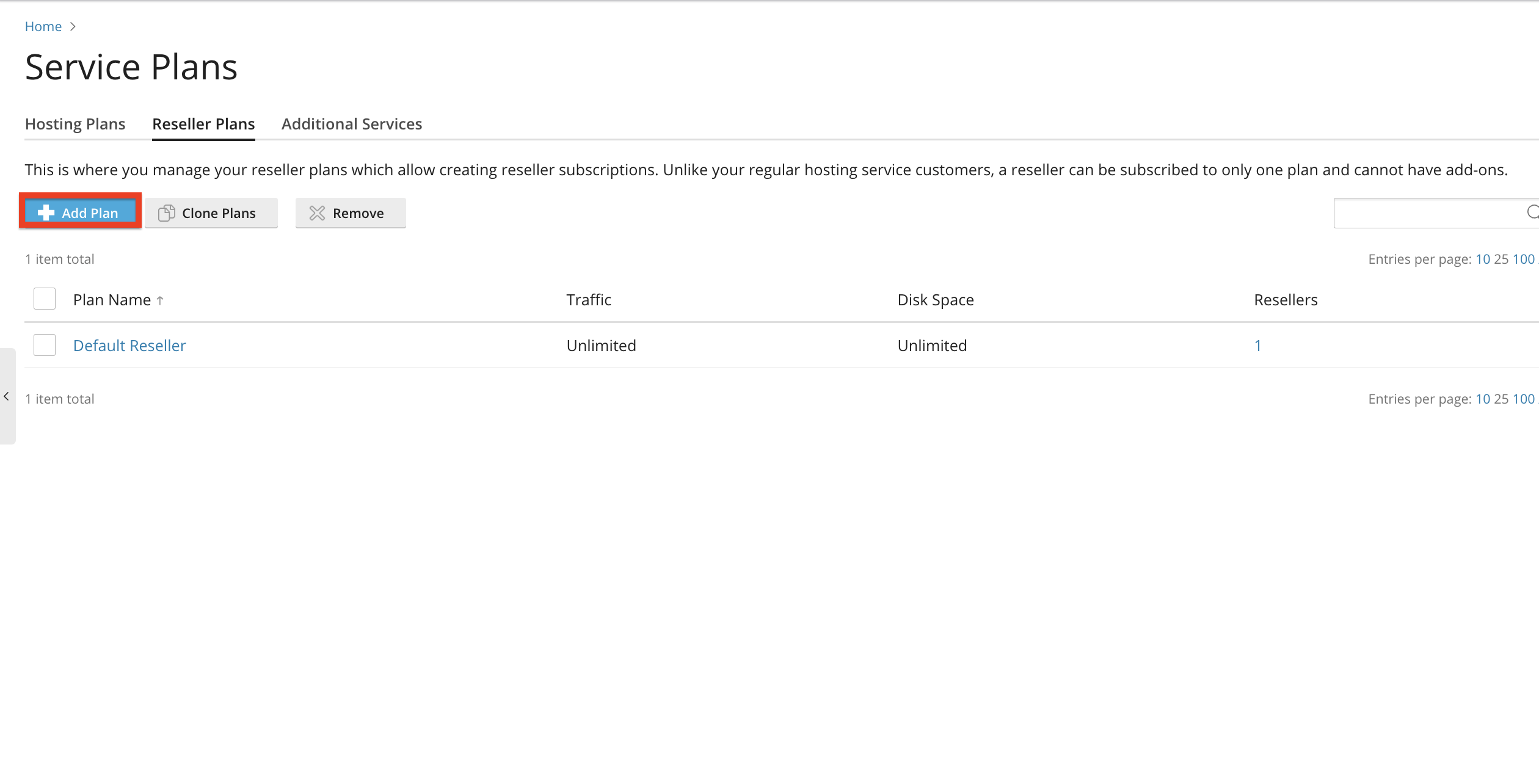
Underneath the “Resellers” tab, you will see all the Reseller service plans. To add a new service plan, please click on the “+ Add Plan” button at the top of the table section in the middle, which holds all the service packages.
Upon doing that, you will be redirected to the page allowing you to add new service packages. Allow options are located under 4 tabs, which are: Resources, Permissions, IP Addresses, and Applications.
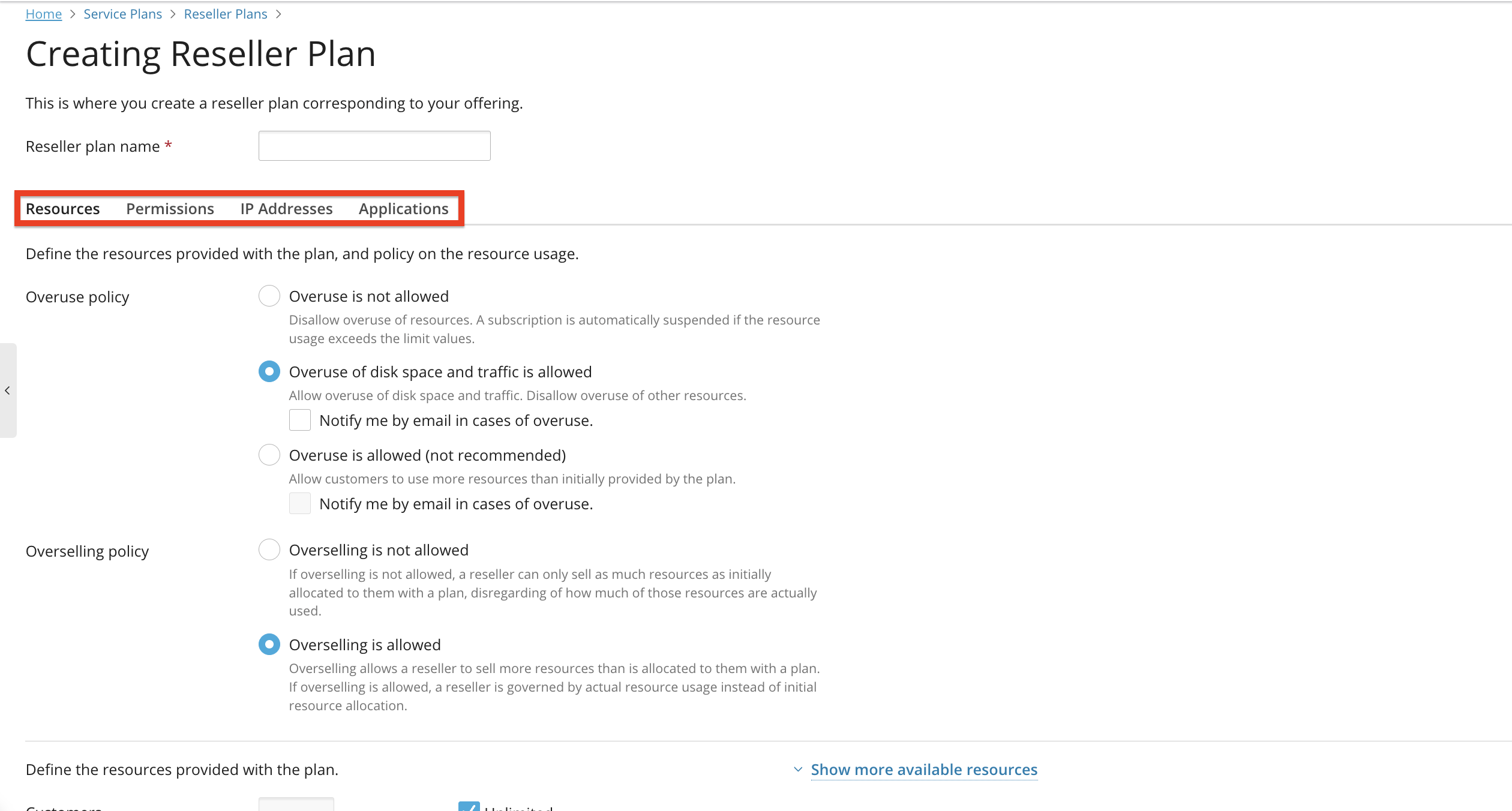
As their names suggest, under each tab, you will be able to manage aspects that are related to it. As we mentioned in the beginning, the “Resources” tab holds settings related to your disk space, domain/email limits, and database limits. The “Permissions” tab contains settings related to the features that are available under the reseller itself. The “IP addresses” tab will allow you to allocate IP addresses to the service package, depending on your customer's needs, and the last tab - the “Applications” tab will allow you to choose which applications you want to make available for your customer. For example, if you are providing a WordPress package for your customers, you may want to disable every other application other than WordPress to prevent account bloat that may cause confusion for your clients.
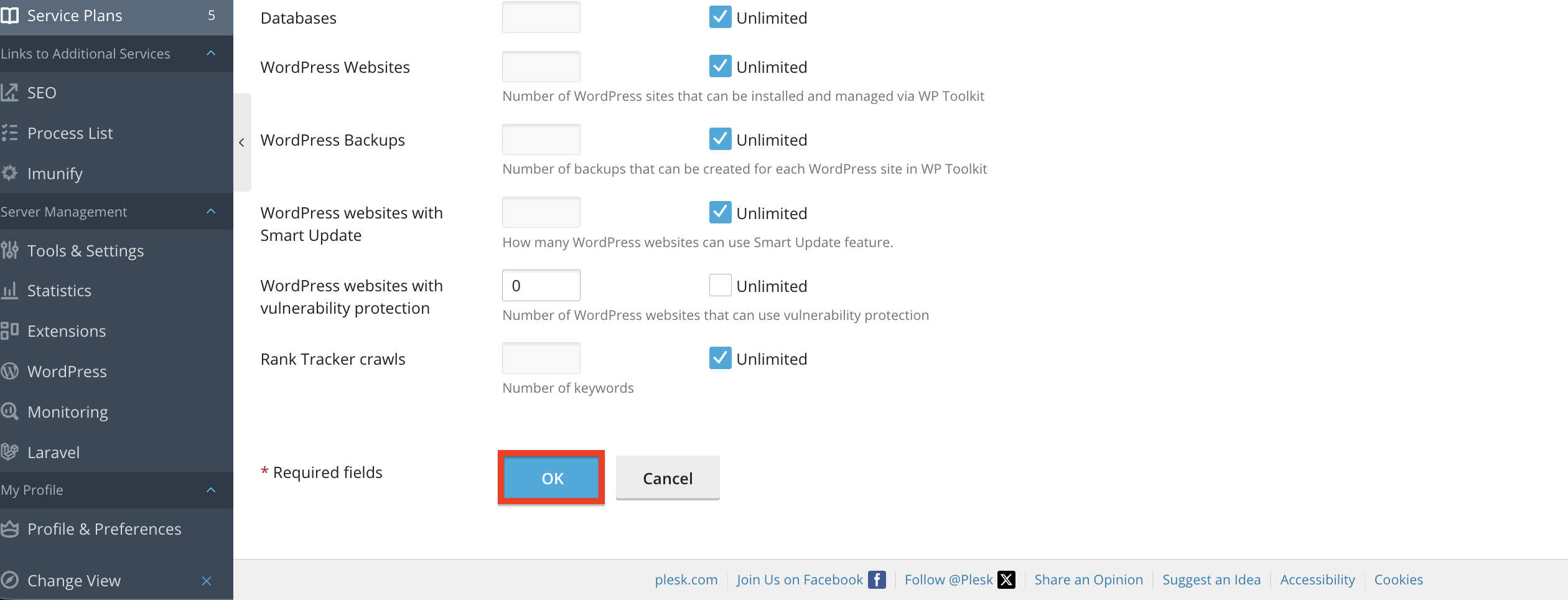
Finally, when you are done with setting the resources, permissions, IP addresses, and applications for your service plan, please click on the “OK” button located at the bottom of the page.
Performing the action above will redirect you back to the previous page, where you will see the new reseller service plan. If you want to edit it or another existing reseller service plan, please click on the plan itself.
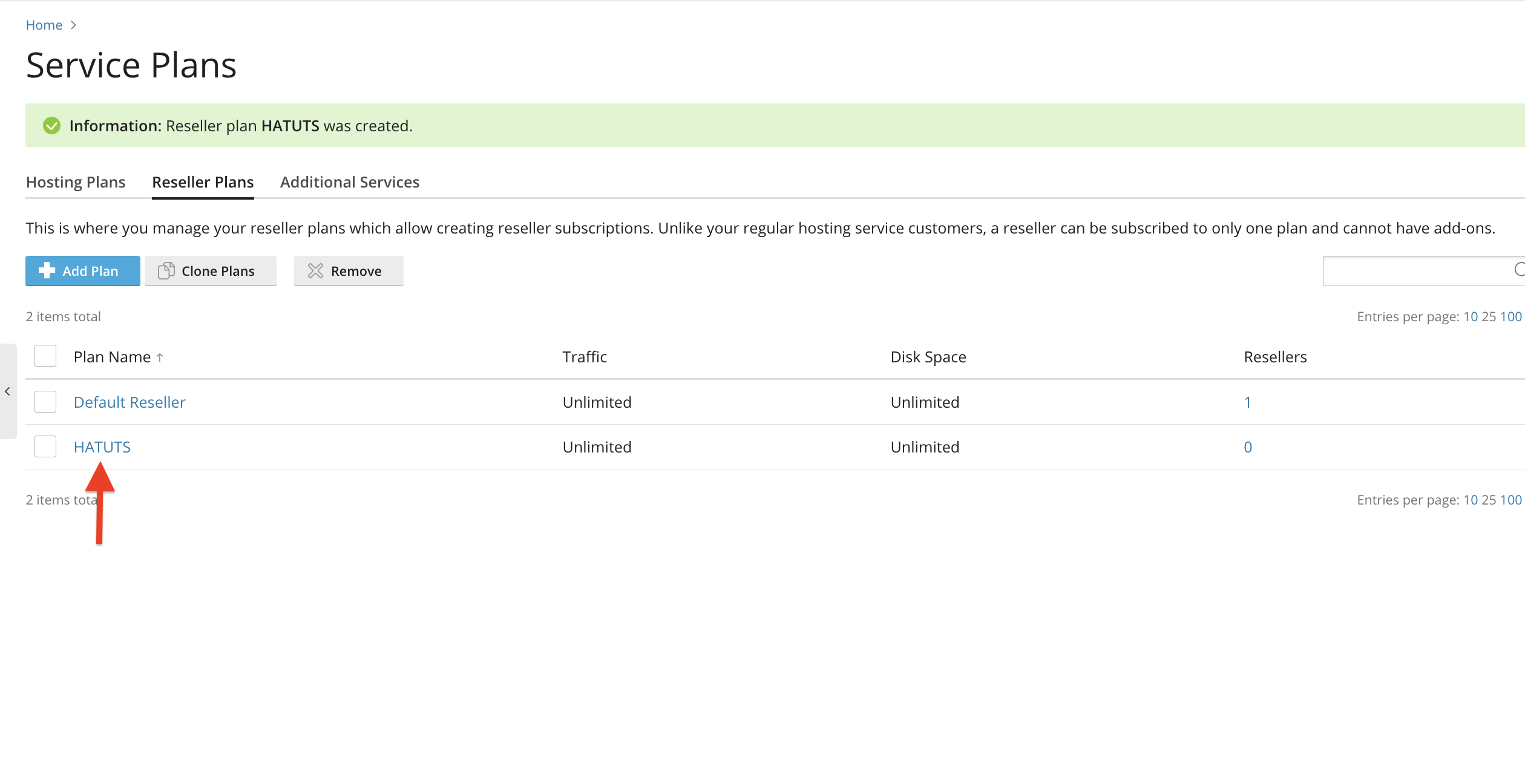
Doing so will redirect you to the same page we discussed earlier in this paragraph that contains the 4 mentioned tabs, allowing you to edit your reseller service plan based on your requirements.
Suspending or Unsuspending a Reseller
If a reseller violates terms or exceeds limits, you can consider suspending them to prevent further issues. To do so, please select the “Resellers” functionality from the left side menu.
Please use the checkbox corresponding to the reseller account you want to suspend and use the drop-down menu above the table section to select the “Suspend” option.
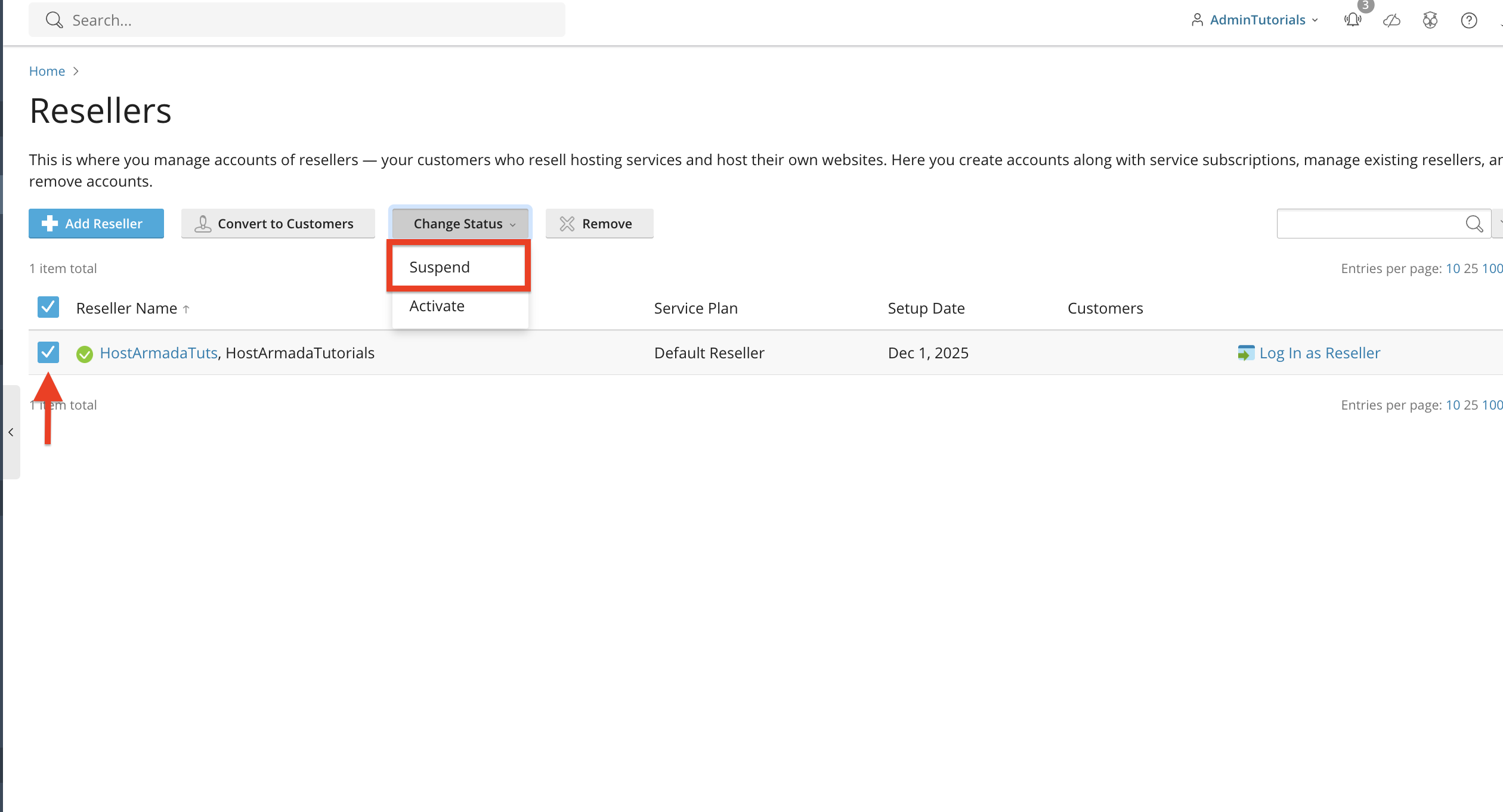
Doing the above will refresh the page, and your reseller will be suspended. If you wish to unsuspend them, please use the same drop-down menu after selecting the reseller using the checkbox and then choose the “Activate” option.
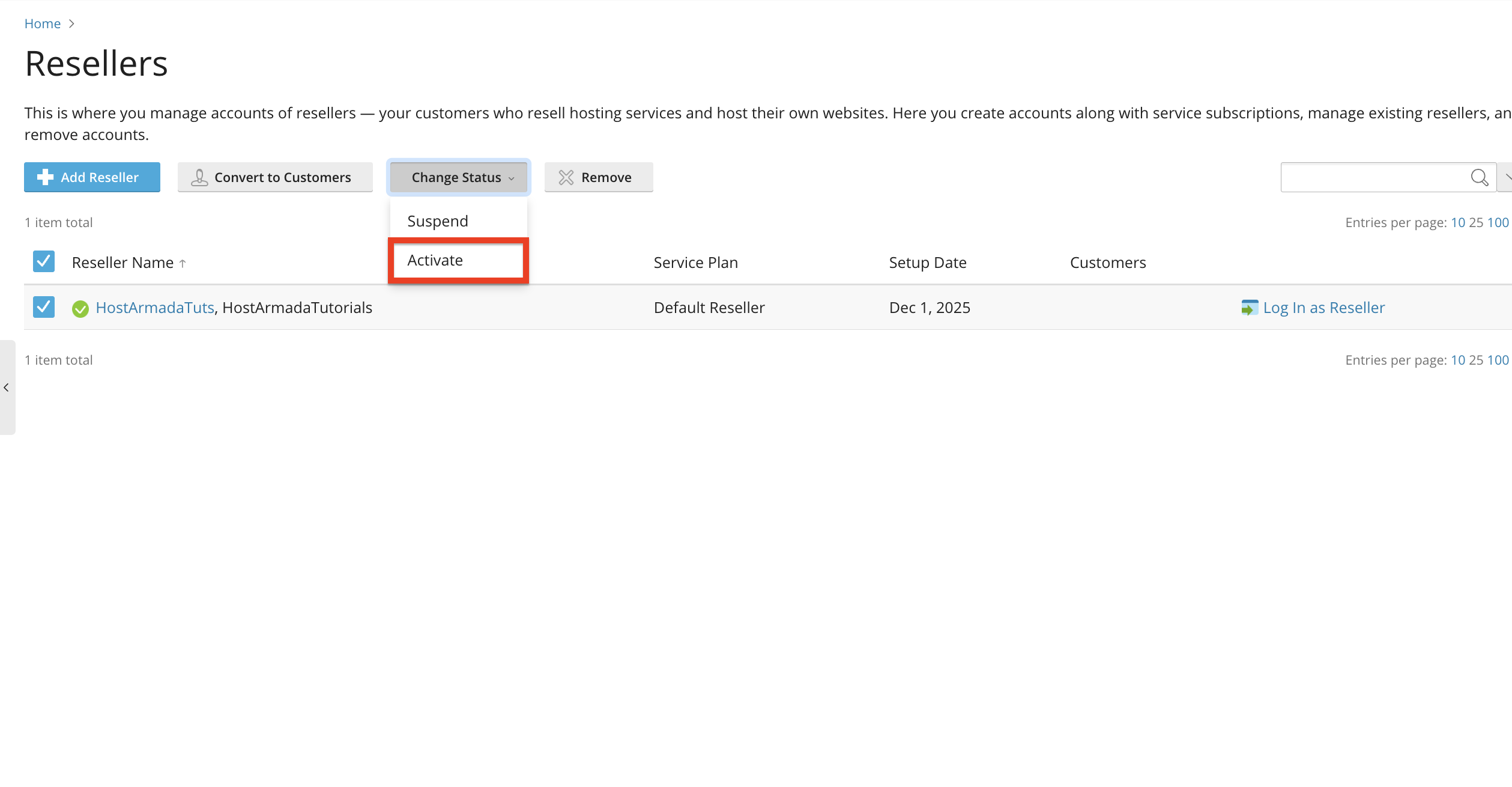
Suspension disables all reseller and customer access under their account.
Removing a Reseller
To completely delete a reseller account, please use the checkbox corresponding to the reseller you want to remove and then click on the “Remove” button located above the table section.
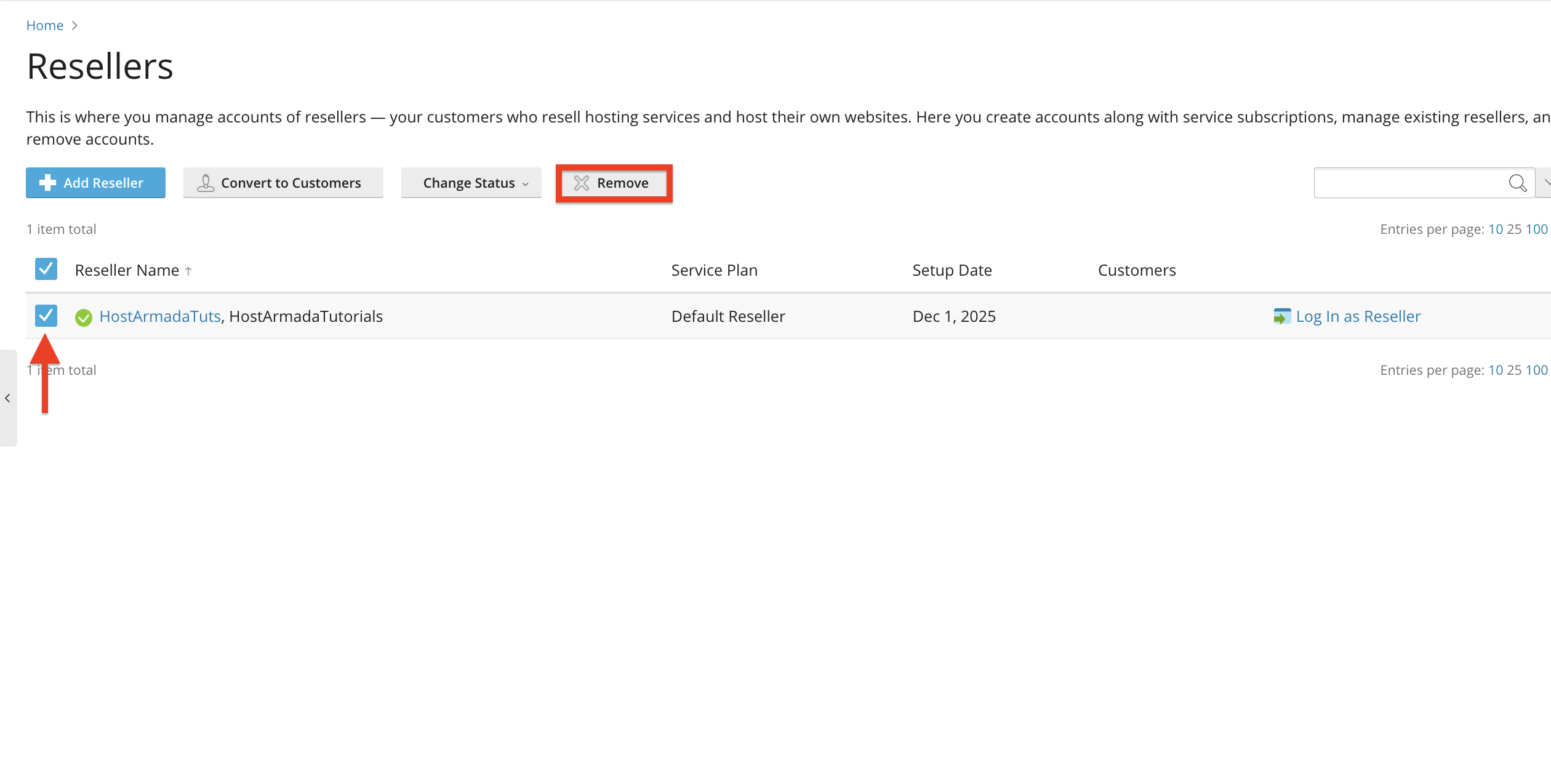
You will receive a prompt which will confirm the deletion, and once you confirm, Pleks will remove the reseller from your server completely.
Important: Removing a reseller will also remove all associated customers, domains, subscriptions, and website data. Please ensure backups are created beforehand.
Conclusion
As you can see, Plesk provides powerful and flexible tools for managing reseller accounts. You can create resellers, assign plans, customize permissions, allocate resources, and monitor usage - all through a clean and intuitive interface. This makes Plesk an excellent choice for hosting providers and businesses offering reseller-level services.
We hope this tutorial was helpful, and we kindly encourage you to review reseller accounts periodically to ensure resource usage and permissions remain aligned with your hosting policies.












