Introduction
Welcome to another part of our WHMCS General Settings tutorial. This tutorial will review another tab from the General Settings, namely, the “Affiliates” tab. This tab will include settings that allow you to enable and set up the WHMCS Affiliate system. Existing clients and promoters can use the affiliates system to refer extra customers to your hosting services, adding banners, links, and other affiliate techniques to their websites or marketing channels. The idea of the affiliate system is to reward the referrer’s commitment with commissions based on your ToS and the number of sign-ups they bring each month.
Of course, WHMCS has plenty of configuration choices under the General Settings, and we will examine them in the rest of our WHMCS tutorials in the series.
Getting Started
To access the General Settings, please log inside your WHMCS admin area. After you log in, please point your attention to the top right corner. There you will see the wrench icon. Please click on it, and then click on the "System Settings" option from the revealed icons.
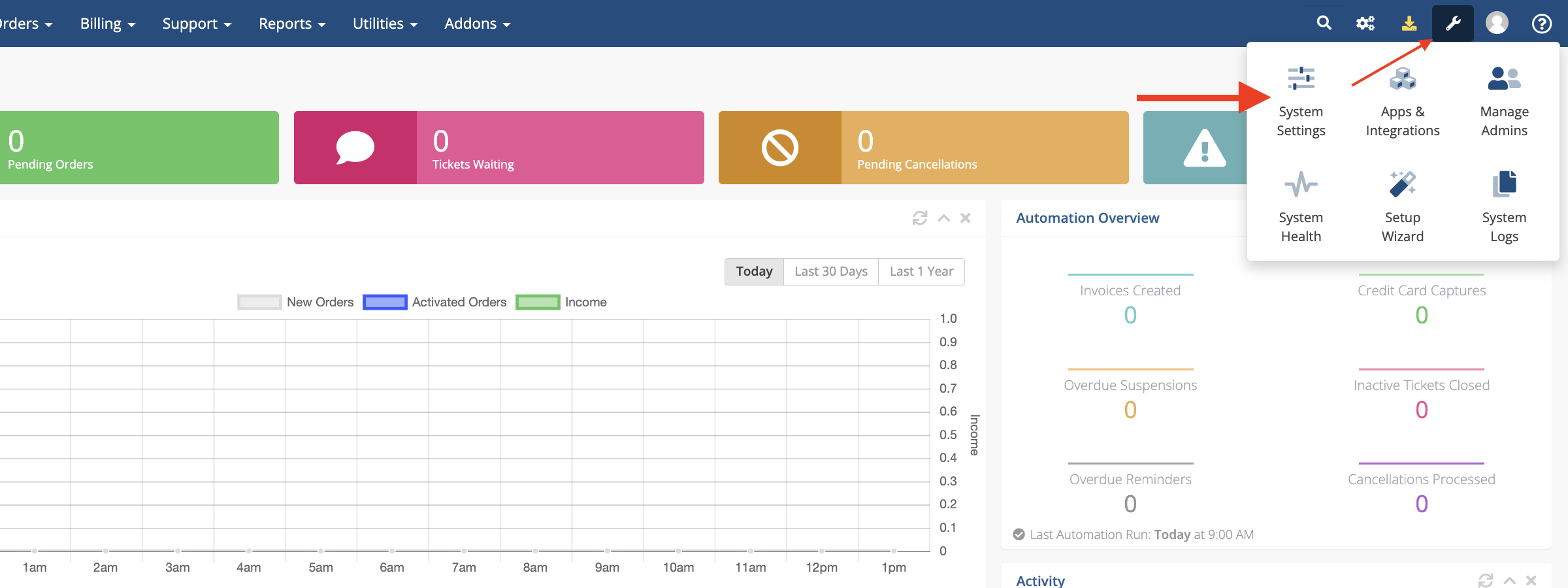
This action will redirect you to the "System Settings" page, where you will see all the available WHMCS settings.
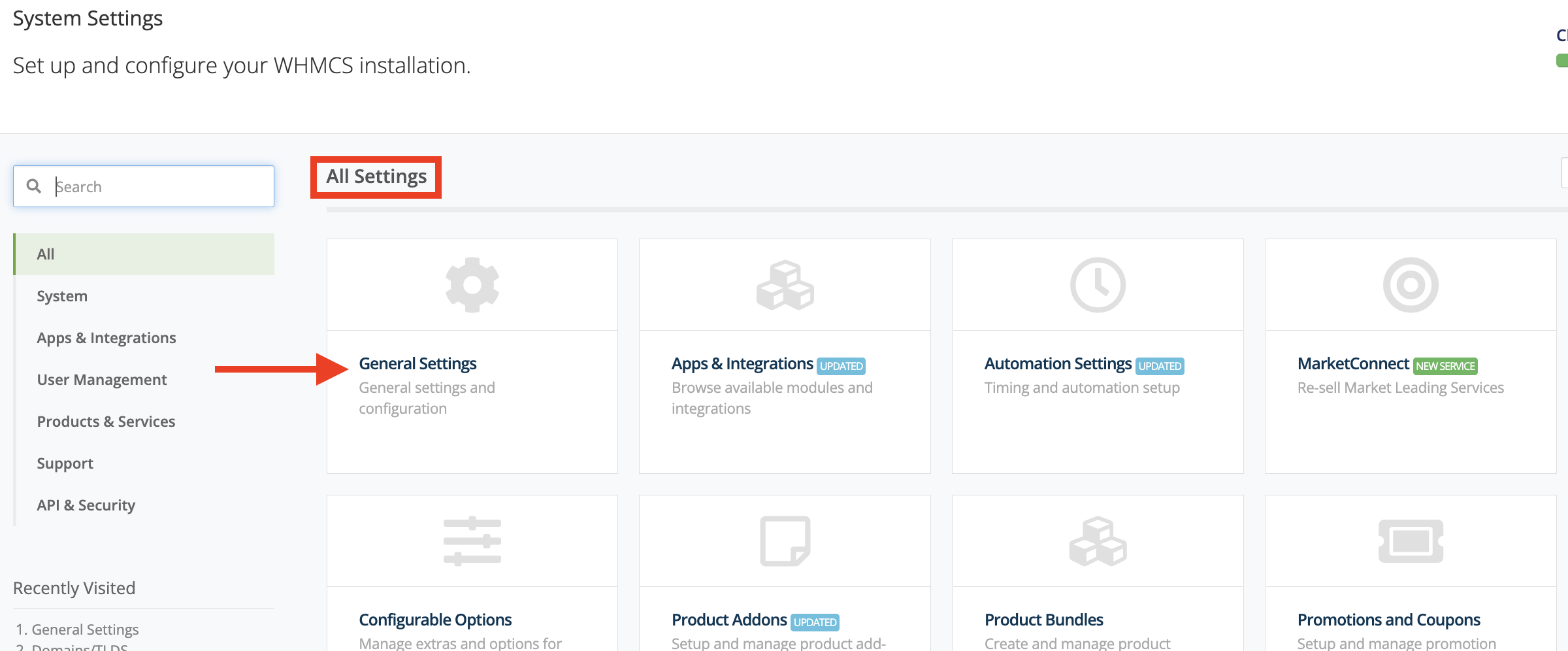
To access the "General Settings," please click on the "General Settings" content box, which will be the first option under the "All Settings" title.
Affiliates Tab
To access the "Affiliates" tab, please click on the "Affiliates" tab on the right side of the "Credit" tab. This tab will allow you to set up and configure the WHMCS affiliate system.
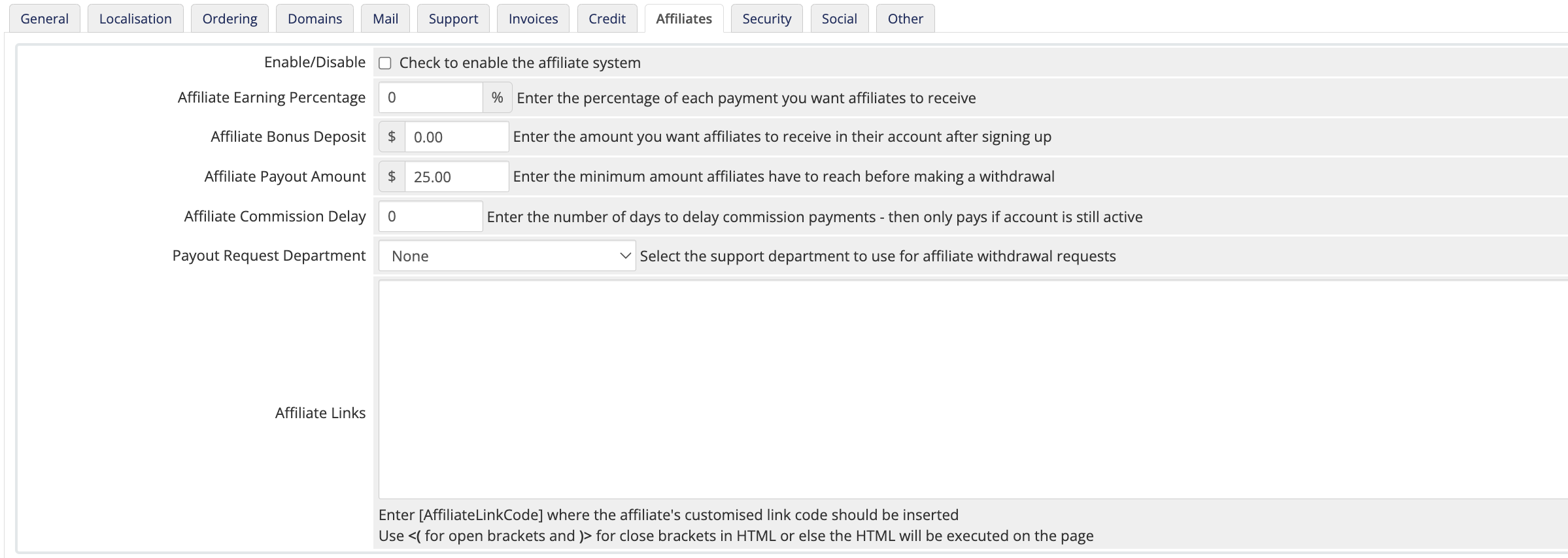
Let's explore the settings separately and get a better idea of what they do.
- Enable/Disable - Please use this checkbox to enable/disable the WHMCS affiliate system. The affiliate system will allow your affiliates to refer people to your hosting service and earn a commission each time they do so.
- Affiliate Earning Percentage - Please use this text field to define the percentage you want your affiliates to receive as a commission when they refer a customer. For example, if you set this to 10% - the affiliate will receive 10% for each invoice the referred customer pays.
- Affiliate Bonus Deposit - Please use this checkbox to specify the affiliate sign-up bonus. This bonus increases your affiliates' incentive to refer more people and reach their withdrawal limit faster.
- Affiliate Payout Amount - Please use this tickbox to set the minimum amount your affiliates need to reach before requesting a payout. Unless they acquire this amount, the "Request Withdrawal" button will not be visible in their affiliate area.
- Affiliate Commission Delay - Please use this checkbox to specify the delay period before the sale and the commission payout. This setting will help prevent abusive behavior where you may issue a commission and receive a dispute, cancellation, or refund for an order you rewarded an affiliate for. A good practice here is to set the commission delay to the same value as your money-back guarantee period. This ensures that the invoice cannot be subjected to a refund, even if the customer cancels the plan.
- Payout Request Department - Please use this drop-down menu to select the department where affiliates may raise tickets and request payouts.
- Affiliate Links - Please use this content box to add banner codes that your affiliates may use to refer customers.
Once you have chosen the desired settings on this page, please click on the blue “Save Changes” button located at the bottom of the page. Otherwise, please click the grey “Cancel Changes” button on the right side of it to revert them.
This ends our summary of the configuration options under the WHMCS “Affiliates” tab. We hope that our overview and recommendations were useful and helped you activate and configure the WHMCS affiliate system as per your needs.
Conclusion
Please follow our next tutorial in line, which will go through the “Security” tab. It allows you to improve WHMCS’s security using the available settings. Keeping your application safe from exploits is extremely important, and we highly recommend going through that tutorial!












