Introduction
Welcome to another part of our WHMCS General Settings tutorial. This tutorial will review another tab from the General Settings, namely, the “Social” tab. Social Media is an extremely potent tool that can spread the word about your web hosting services and earn you dividends. It allows existing customers to share their experiences with friends, followers, and others interested. The settings under this tab will allow you to integrate the most famous and commonly used social networks with your Client Area. Customers can then post about your web hosting services seamlessly and share their positive (hopefully) ventures with your company.
Of course, WHMCS has plenty of configuration choices under the General Settings, and we will examine them in the rest of our WHMCS tutorials in the series.
Getting Started
To access the General Settings, please log inside your WHMCS admin area. After you log in, please point your attention to the top right corner. There you will see the wrench icon. Please click on it, and then click on the "System Settings" option from the revealed icons.
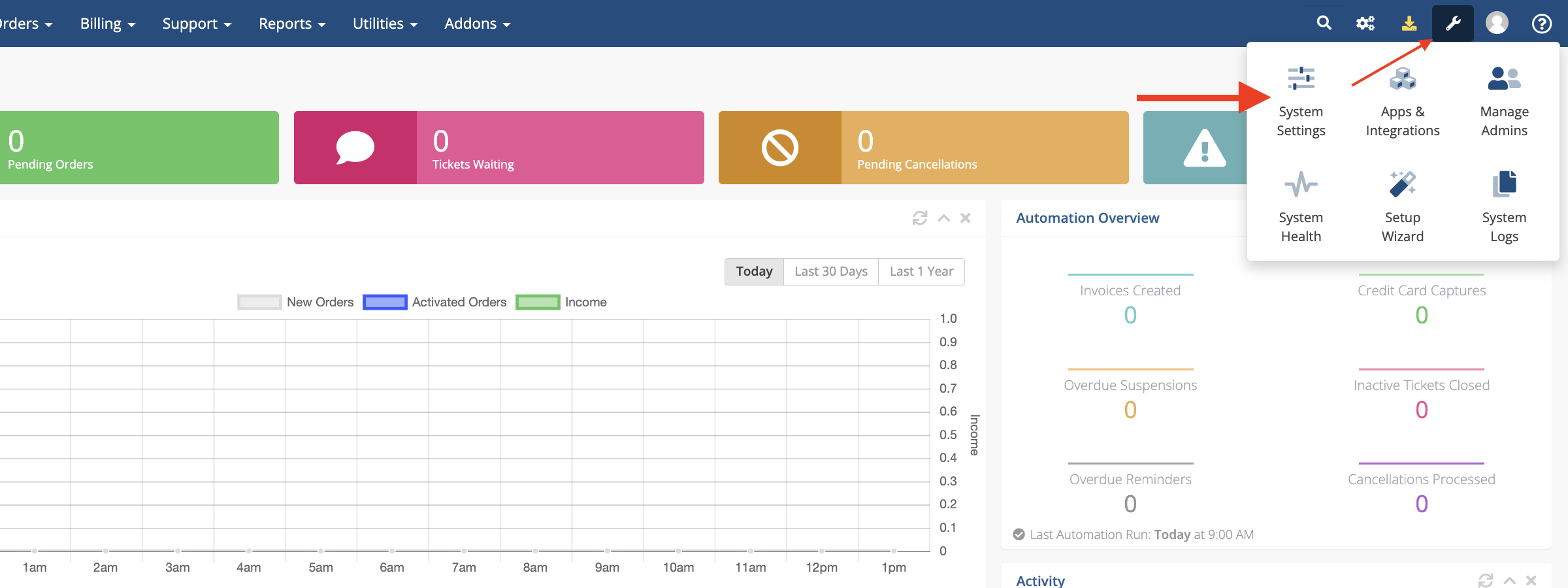
This action will redirect you to the "System Settings" page, where you will see all the available WHMCS settings.
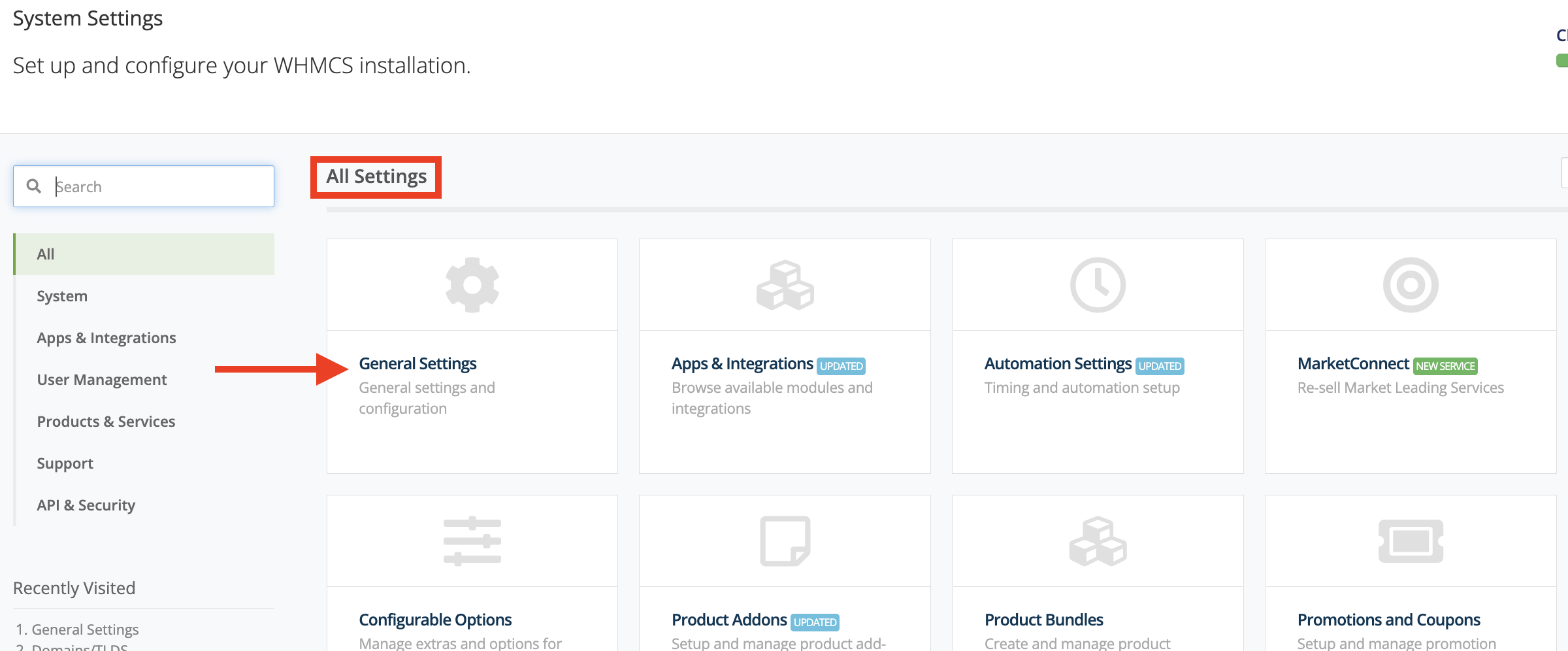
To access the "General Settings," please click on the "General Settings" content box, which will be the first option under the "All Settings" title.
Social Tab
To access the "Social" tab, please click on the "Social" tab on the right side of the "Security" tab. This tab will allow you to set up social media links inside your Client Area.
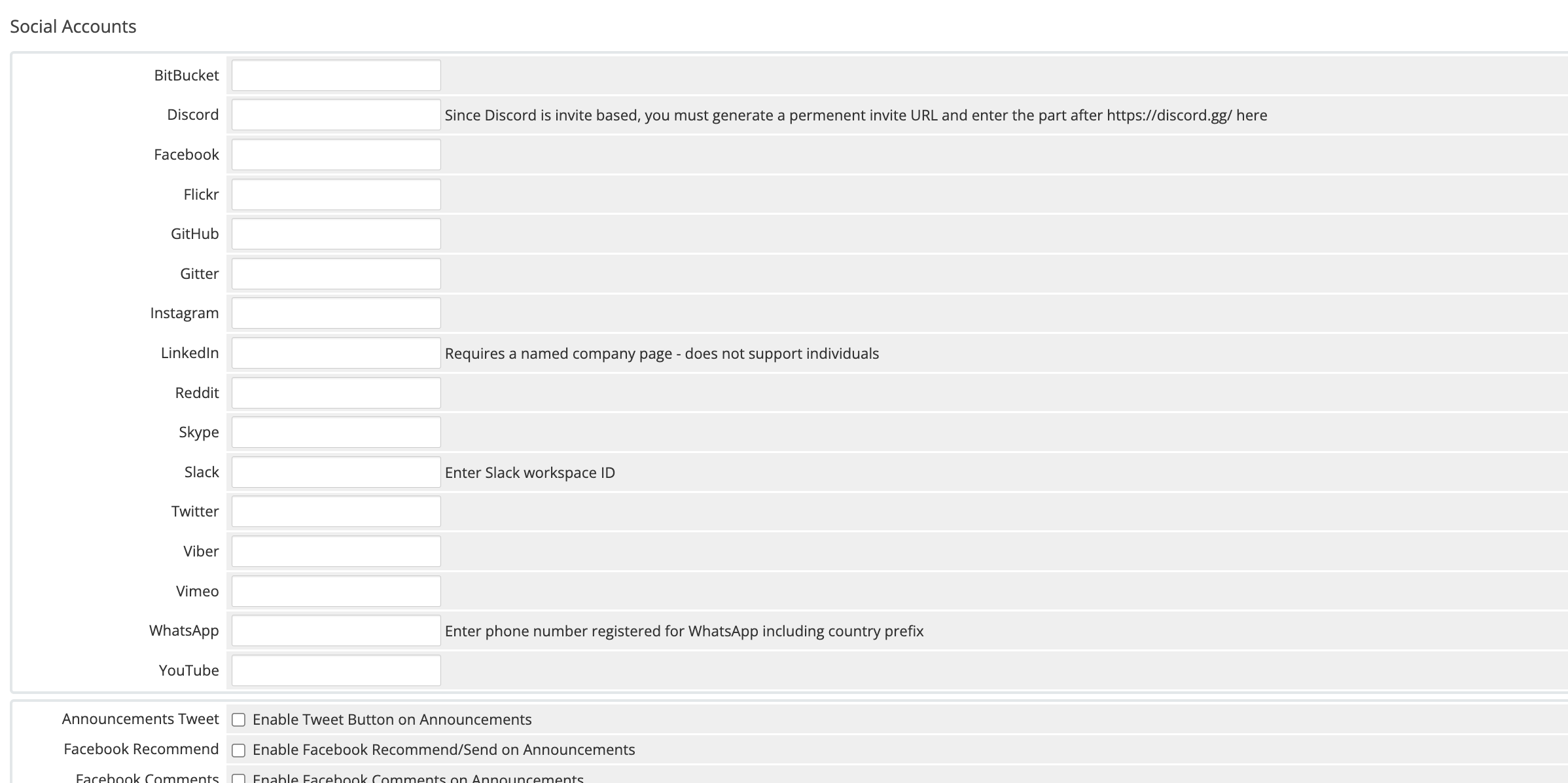
Currently, WHMCS supports the following social network applications:
BitBucket, Discord, Facebook, Flickr, GitHub, Gitter, Instagram, LinkedIn, Reddit, Skype, Slack, Twitter, Viber, Vimeo, WhatsApp, and YouTube.
To add a social media link to your Client Area, please add your URL, ID, or other identifying information to the text box corresponding to the social media application you want to integrate.
Twitter integration is a bit more versatile. When you enter your Twitter username, the portal homepage will showcase the two most recent tweets instead of the Latest Announcements section. In addition, a "Follow us on Twitter" button will also appear, directing clients to your Twitter page.
- Announcements Tweet - Please use this checkbox to enable or prevent customers from directly sharing your announcement on Twitter. This feature will also display a "share counter".
- Facebook Recommend - Please use this tickbox to enable or disable the "Recommend and Send" button, directly allowing clients to share your announcements on Facebook.
- Facebook Comments - Please use this checkbox to enable or disable comments on your Facebook posts shared from the client area. Additionally, this feature will also allow announcements on Facebook with a comment.
Once you have chosen the desired settings on this page, please click on the blue “Save Changes” button located at the bottom of the page. Otherwise, please click the grey “Cancel Changes” button on the right side of it to revert them.
This ends our overview of the available options under the WHMCS “Social” tab. We hope you found them useful and that you added integrations for the social network platforms you want to include your business in.
Conclusion
Please follow our next tutorial in line, which will go through the “Other” tab. It will include settings that are tightly related to the other tabs but didn’t fit in quite as well. Of course, there are plenty of useful options there as well, and we recommend going through them, so you don’t miss anything interesting!












