Una allows you to automatically install Apps and update them directly through your Studio, eliminating the need for manually downloading, uploading, and extracting the installation files. This is extremely handy considering how convenient it is to be able to install the Apps you need within one mouse click. To achieve that, you have to connect your Una empowered website with your una.io account.
In the following lines of this tutorial, we are going to step-by-step guide you on how to acquire the necessary details from your una.io account and configure them within your Una Studio.
Acquiring Una Account Key and Secret
For a start, please log in to your Una account at una.io. At this point, we expect you to have your account already created. If this is not done yet, please go ahead and create a new one.
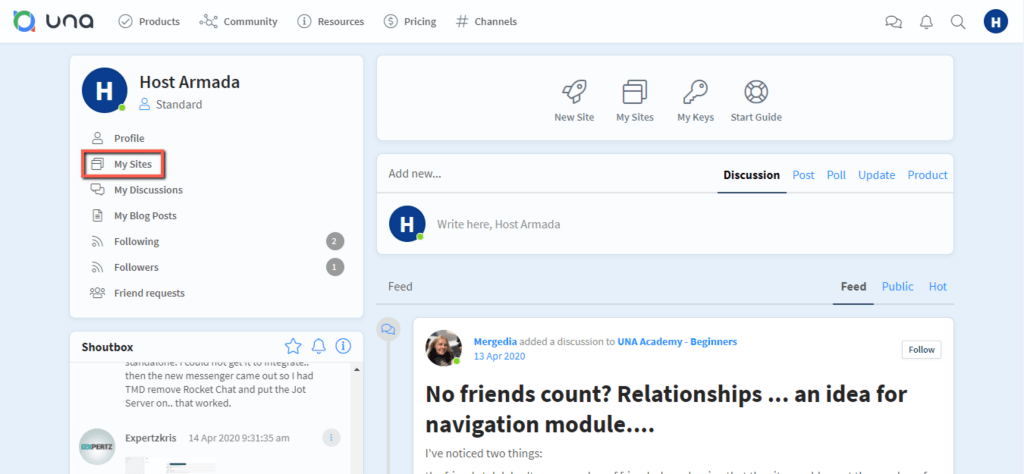
Once you are logged in, please click on the "My Sites" link in the left-hand menu bar.
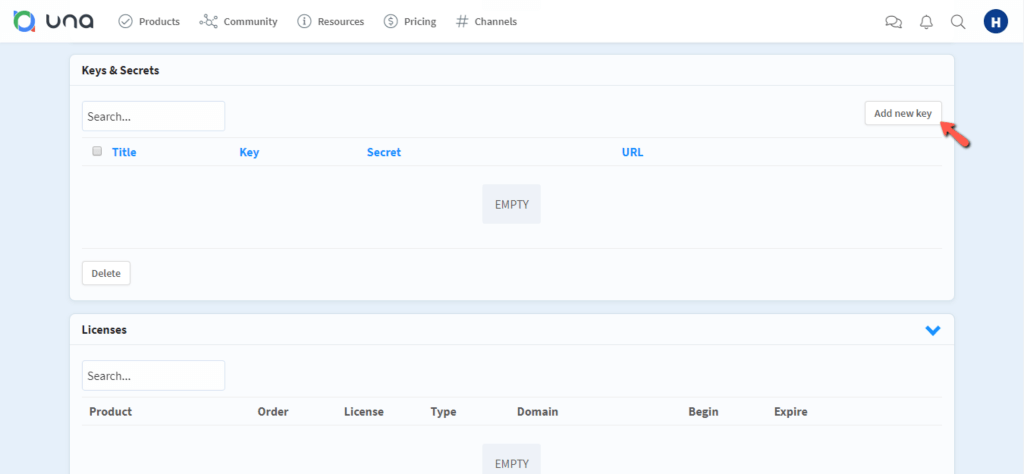
Under the "My Sites" page, please locate the "Keys & Secrets" section and click on the "Add new key" button.
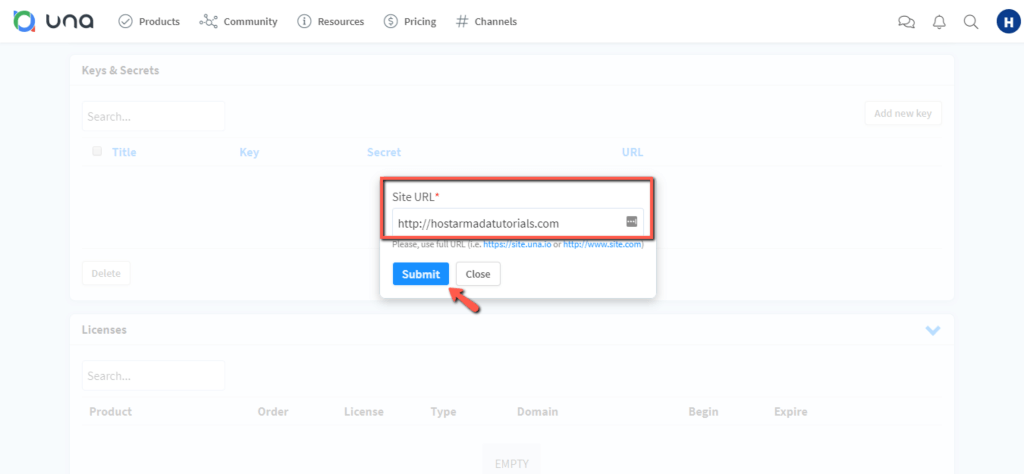
Upon doing that, a new pop-up window appears where you need to specify your Una website URL. Please make sure to enter the full URL of your site, including the protocol (i.e., https://yourdomain.com), and click on the "Submit" button.
Afterward, you are presented with the required Key and Secret under the "Keys & Secrets" section.
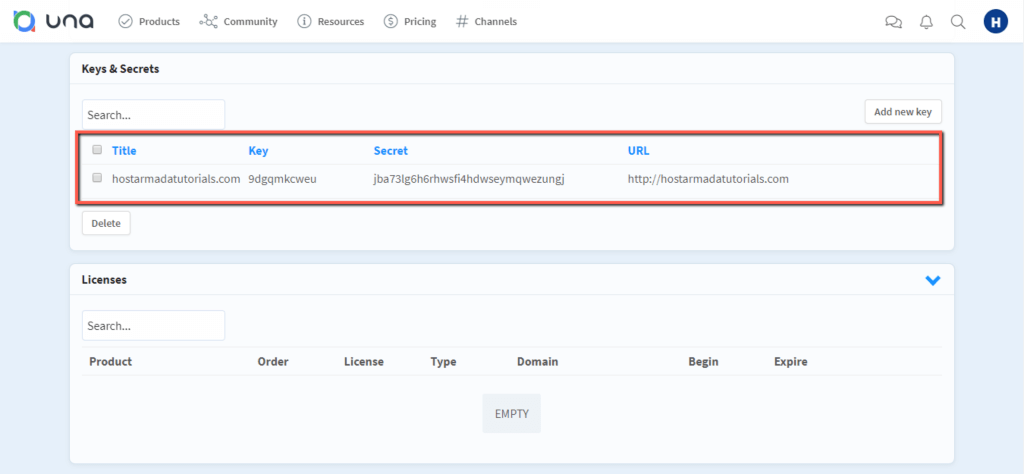
Please make sure to either copy those details or leave this page open as you are going to need them in the following step.
Connecting Una Studio with una.io
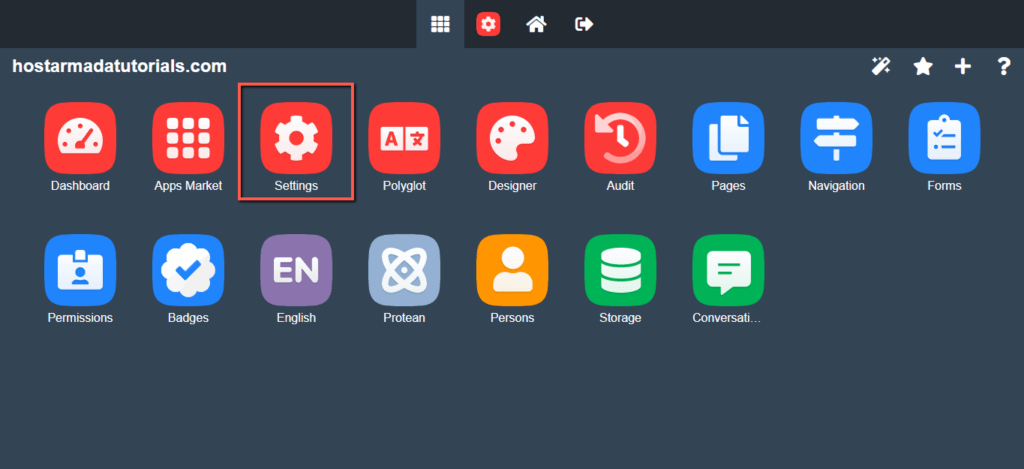
Now, please log in to your Una Studio and click on the "Settings" App on the home page.
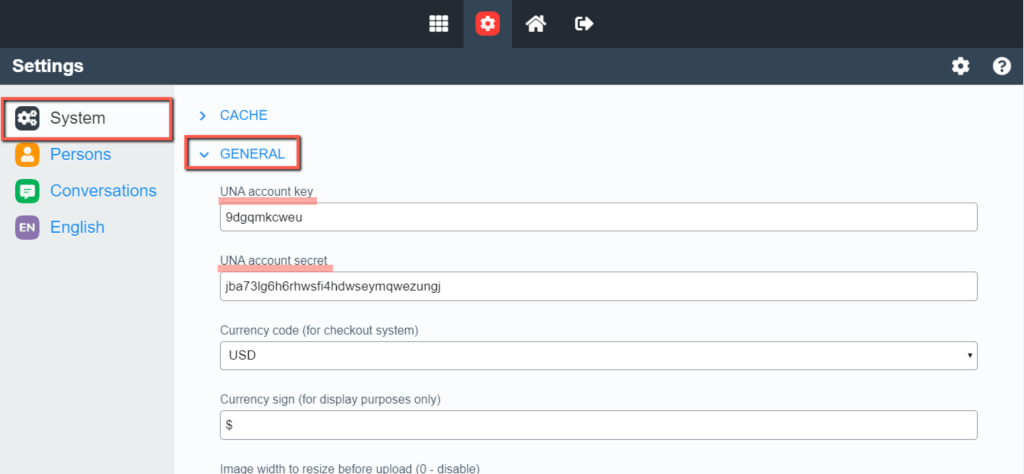
Under the "Settings" page, please navigate to System > General and enter your "UNA account key" and "UNA account secret" into the corresponding fields.
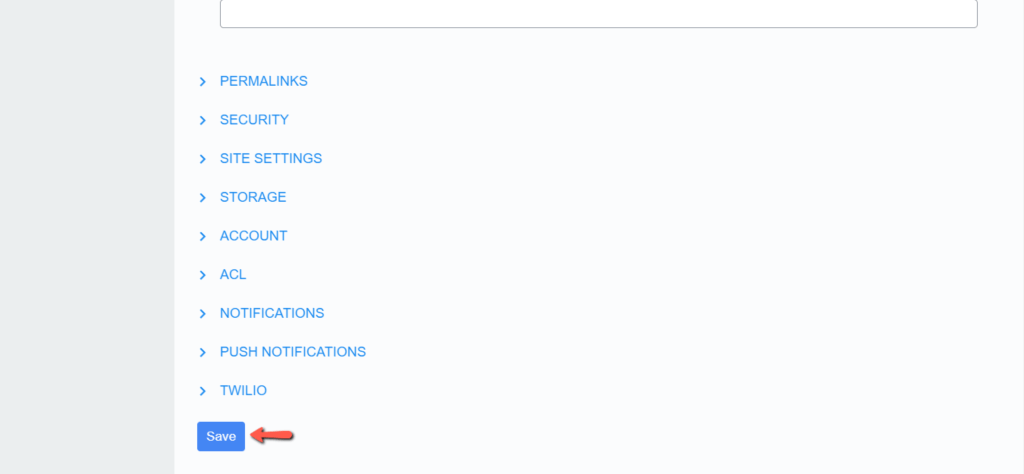
When ready, please scroll down to the very bottom of the page and click on the "Save" button to apply the changes.
With this done, you are ready to start installing any desired Apps directly from your Una Studio interface. Further directions you can find in our guide on How to install Apps in Una Social Network. We hope this information was useful to you, and you have managed to follow our instructions with ease. In case you have experienced any difficulties, please do not hesitate to contact our Support Team.












