In Social Media, events are intended to broadcast upcoming real-world gatherings and occasions. Whether it is about a cultural event, business-related event, or simply a party, your users would appreciate the ability to organize and invite other people using your platform.
In this tutorial, we are going to step-by-step guide you on how to enable and configure the Event feature in your Una Social Network.
Getting Started
In Una, the Event functionality is empowered by the Events module. This module is not available by default in a fresh Una installation. Fortunately, the process of installing additional modules is extremely simple and straightforward. You can find detailed instructions in our guide on How to install Apps in Una Social Network.
As soon as the module is installed, you can see it listed on the Home Page of your Una Studio.
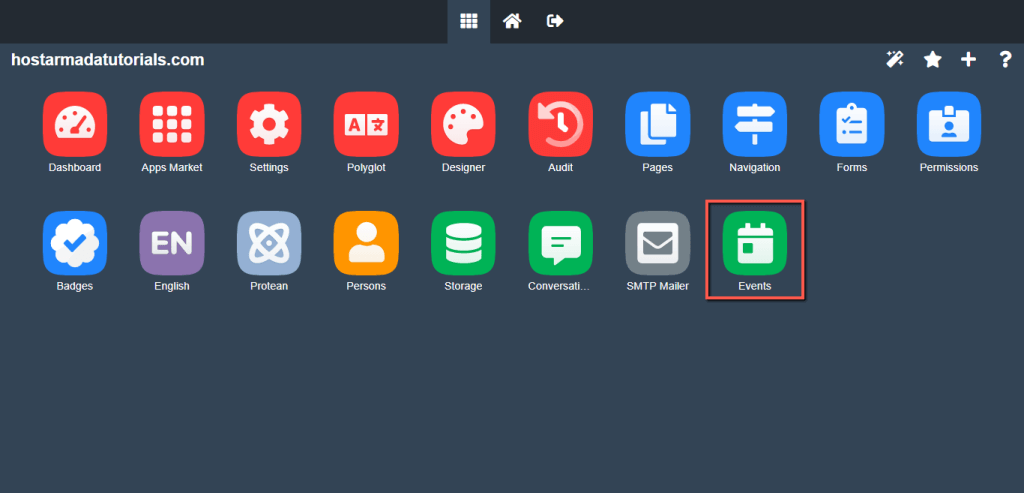
For a start, we need you to access it so that we can begin with the configuration.
Configuring Events module settings
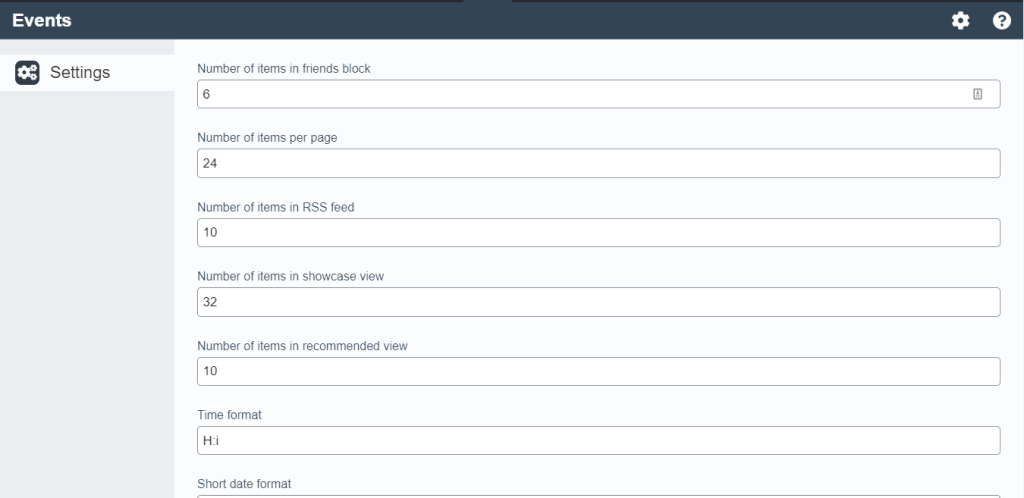
On the module page, you can see only one "Settings" tab at this point. Under it, you can see a list of the global module settings. Let's briefly explain what the purpose of each of them is:
- Number of items in friends block - This setting lets you define the number of events shown in friends blocks.
- Number of items per page - Determine the number of events show per page.
- Number of items in RSS feed - The RSS feeds are intended for pulling informative content. This value determines the number of events shown in such feeds.
- Number of items in showcase view - Determines the number of events shown in the showcase view.
- Number of items in recommended view - This value determines the number of events shown to users as "recommended".
- Time format - The setting lets you control the time format used for the events.
- Short date format - The short date format is used for date formatting. You can adjust it if required.
- Searchable fields - Your selection here determines the parameter(s) based on which users could search and filter events.
- Public list of interested members - This checkbox option lets you control whether the visitors who checked as interested in the event to be publically visible.
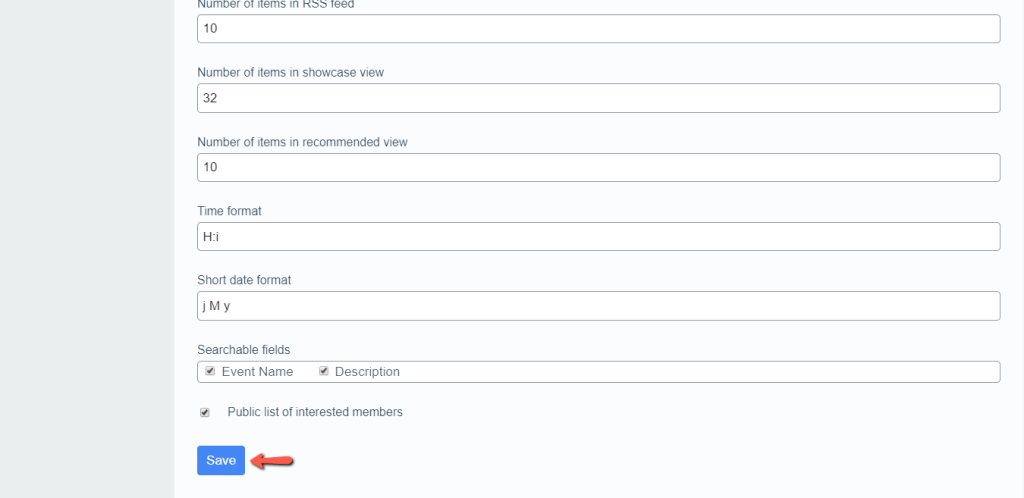
When you perform the desired changes, please click on the "Save" button to apply them.
Creating Events
Now that the module is installed and configured, it is time to create a new event. To do so, please access your website frontend while logged into your Una Studio.
At the top right corner of your Home Page, you can see your profile icon. Please click on the plus (+) icon right in front of it. Afterward, click on the "Event" icon in the upper row.
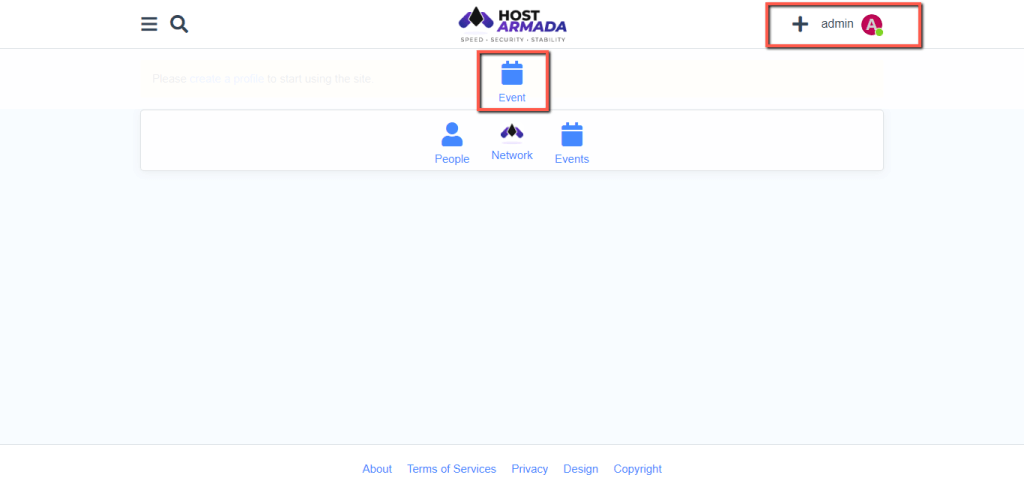
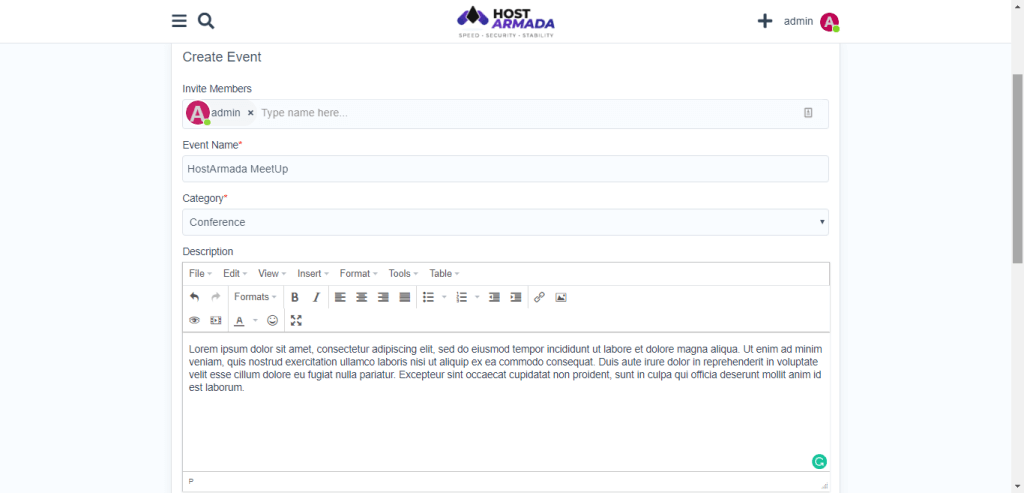
Once this is done, you are presented with the event creation form, and you have to configure your event information.
- Invite Members - In this field, you need to enter the names of the members to whom you would like to send invitations.
- Event Name - In this field, you have to specify the public name of your event.
- Category - From this dropdown menu, you need to select the most relevant category for your gathering.
- Description - This WYSIWYG edit is intended for all the details concerning the event.
- Location - In this field, you have to specify the location the event is going to take place in.
- Date Start - Using the calendar tool, you have to specify the start date and time of the event.
- Date End - In here, you have to specify the end date and time of the event.
- Timezone - From this dropdown, you have to select the applicable timezone.
- Reoccurring - This setting is intended for repeated events. It allows you to specify the time lap between the events and eliminates the need for creating them manually each time.
- Reminder - This setting allows you to control when the event reminders to be sent to the members.
- Visible to - With this setting, you can manage the visibility of the event.
- Who can post - This setting lets you control the users allowed to interact and post within the event.
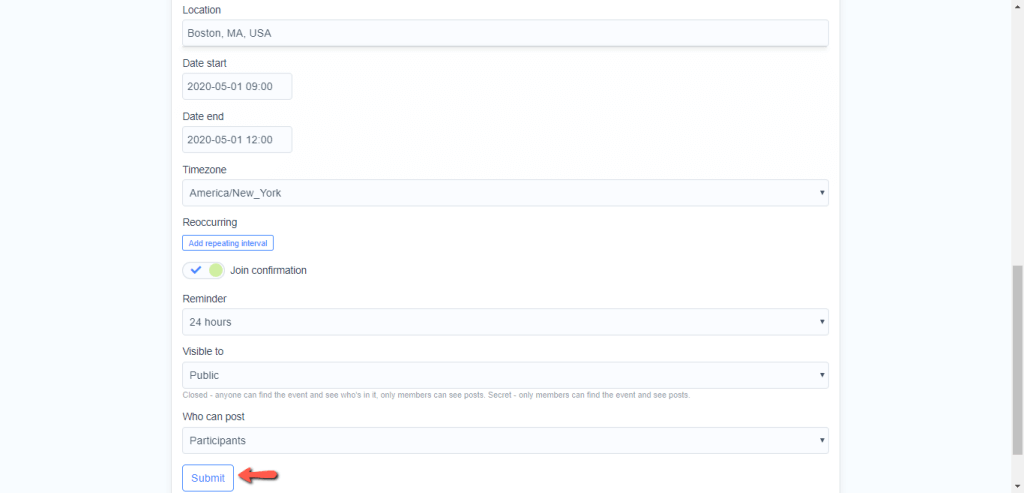
When you are ready with the details, please click on the "Submit" button to finalize the creation of your new event.
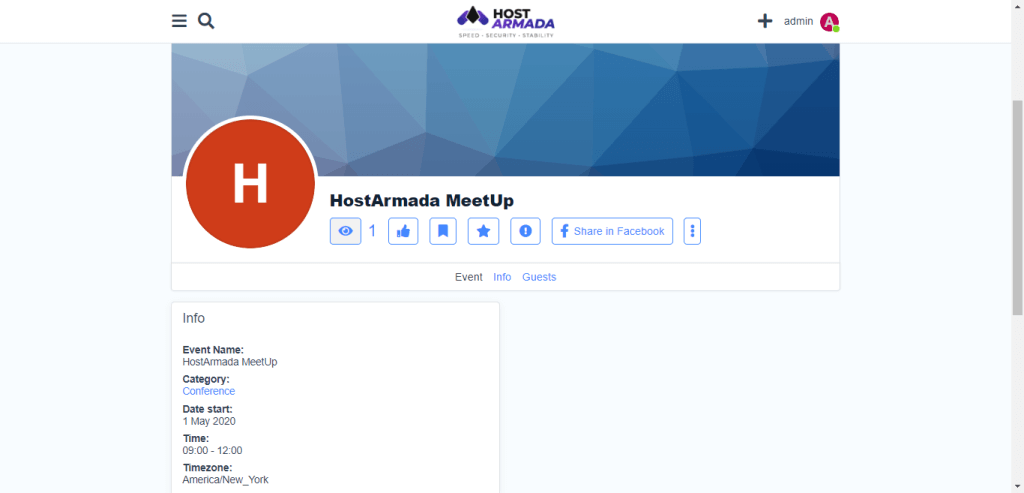
Once this is done, you are presented with the event overview. You are able to assign primary and cover images to it, as well as to share it on Facebook.
With this done, you already know all details concerning the process of enabling the events features in your Una Social Network. We hope this information was useful to you, and you have managed to follow our instructions with ease. We would like to welcome you to check the rest of our Una tutorial series.












