The main goal of enterprise labeling is strengthening brand identity and increasing online recognition. Your unique brand logo is the visual and identity asset that distinguishes you from the rest. Fortunately, in Una, you get to set up your custom logo extremely easily.
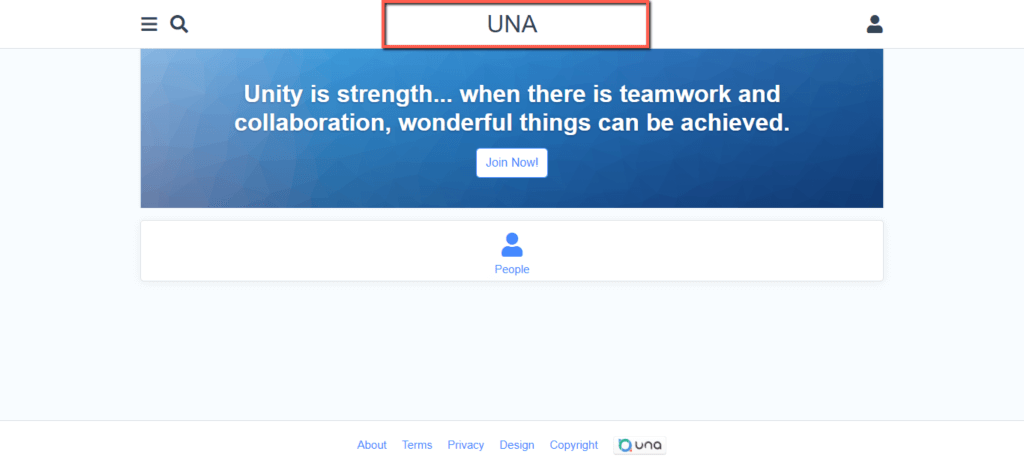
The site template determines the position of the logo. Therefore, it could vary depending on the one you are using for your Una site. Typically, it is displayed in the most visible place on the website - the header. In the following screenshot example, you can see the logo of the default "Protean" template.
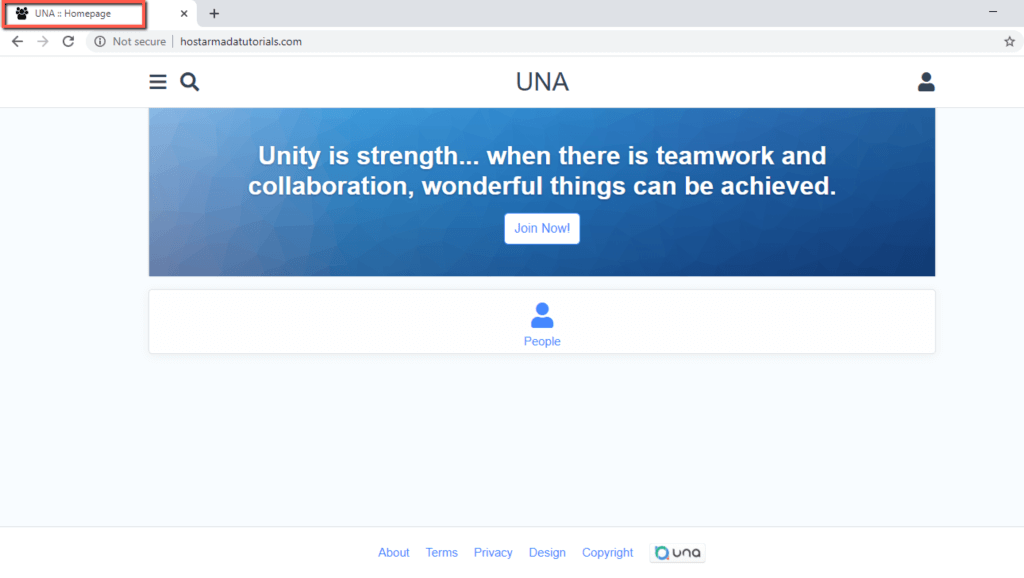
The Site Icons serve different purposes. The image you upload is going to be used as a Favicon, icon for Apple Touch devices, and Facebook sharing - to name a few. In the following screenshot, you can see the default Una Favicon.
In the following lines of this tutorial, we are going to step-by-step guide you on how to upload your custom image and configure it as a Site Logo and Site Icon.
Accessing the Designer App
For a start, please log in to your Una Studio and access the "Designer" App. This is one of the default Una Apps that comes pre-installed with the software and allows you to customize essential visual aspects of your website.
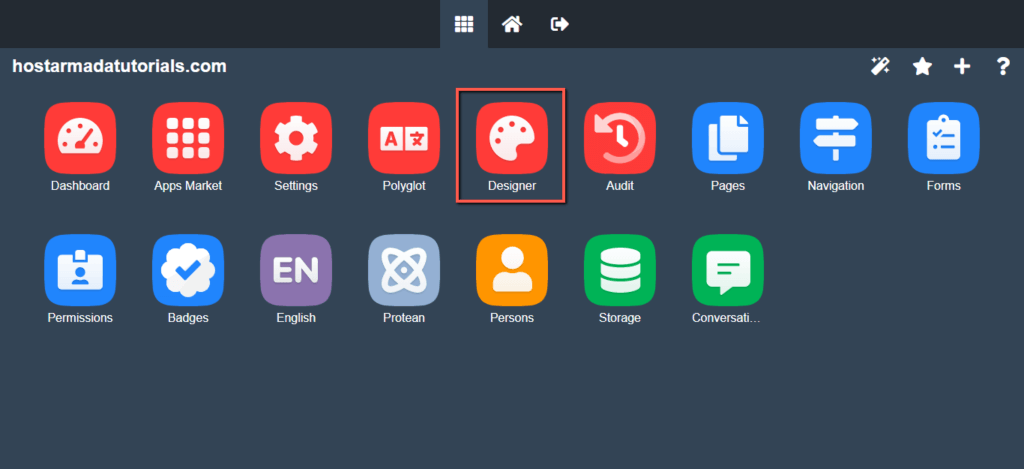
The "Designer" App consists of seven tabs, two of which we are going to review in this guide.
Configuring Site Logo
To upload your custom logo image, please switch to the "Logo" tab, click on the "Select a file" button, and choose the desired image from your local computer.
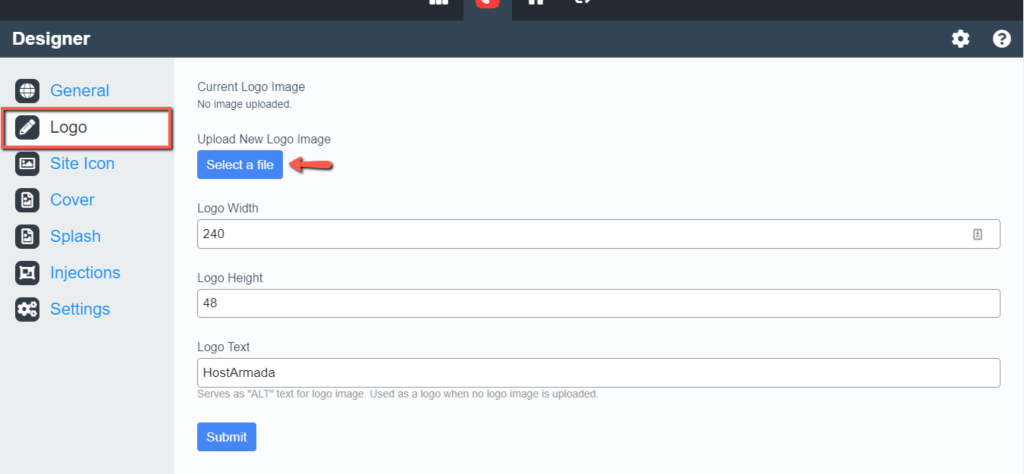
Once the file is uploaded, you can specify an alt text into the "Logo Text" field. This text is going to be displayed in case the logo image cannot be loaded for some reason. The purpose of the logo width and height is to resize your image so it can best fit the default template layout. Therefore, it is not recommended to change them unless it is strictly necessary.
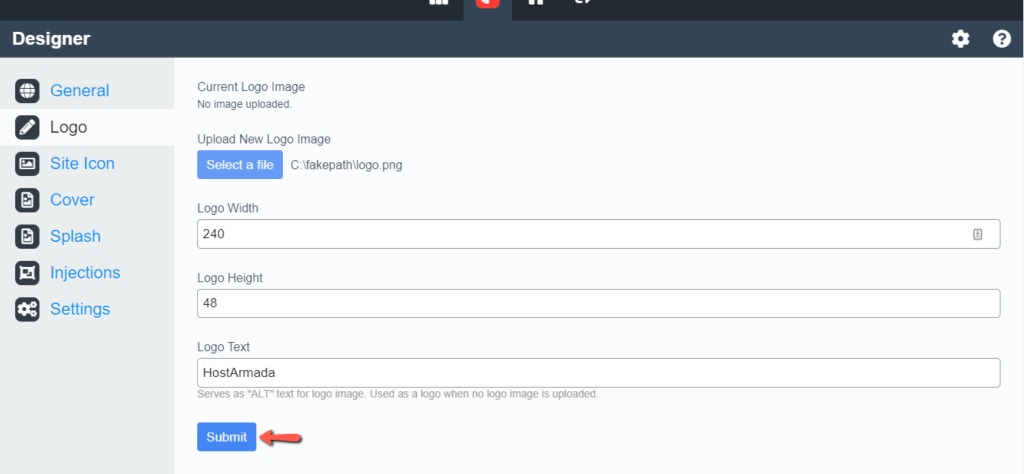
When you are ready, please click on the "Submit" button to apply the changes.
Afterward, please go ahead and check the result on your website frontend. Please bear in mind that you might not be able to see the change immediately due to browser-side caching. A simple page refresh is not going to resolve that. Therefore you need to refresh the page by ignoring the cached content. Depending on the browser you are using this is achieved as it follows:
- Chrome - Shift + f5
- Mozilla Firefox - Ctrl + Shift + R
- Safari - Cmd + Shift + R
- Internet Explorer - Ctrl +f5
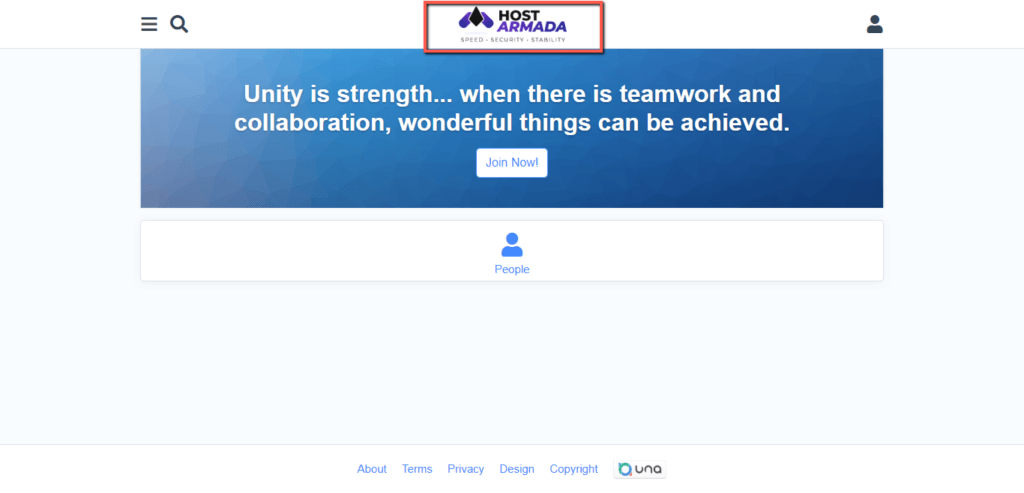
Once you confirm the logo appears as expected, you are all set!
Note that some Una templates allow you to directly upload your Site Logo image directly within the template settings. In this scenario, the logo configured within the "Designer" App is overwritten by the one configure within the template.
Configuring Site Icons
As we previously mentioned, the Site Icon image is used for several icons on your Una website - the Favicon, the Apple Touch devices icon, the Facebook sharing icon, etc. It is recommended to upload an image with a 152 x 152 resolution. Once the image is uploaded, Una creates a number of copies and automatically resizes them depending on the purpose for which they are going to be used.
To upload your custom Icon image, please switch to the "Site Icon" tab, click on the "Select a file" button, and choose the desired image from your local computer.
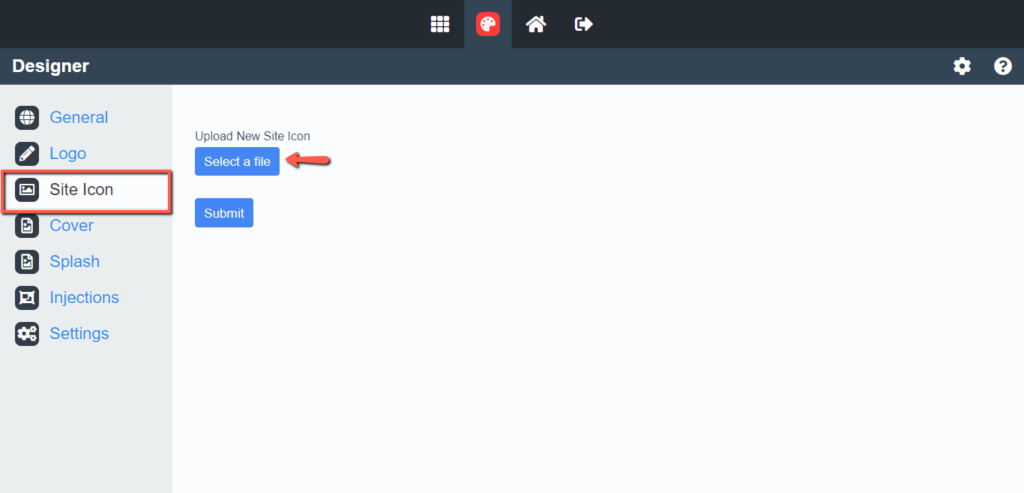
Once the image is uploaded, please click on the "Submit" button to apply it.
Afterward, please go ahead and check the result. Similarly to the Site Logo, you might not be able to see the change immediately. Therefore, take the necessary step to check the page by ignoring the cached content.
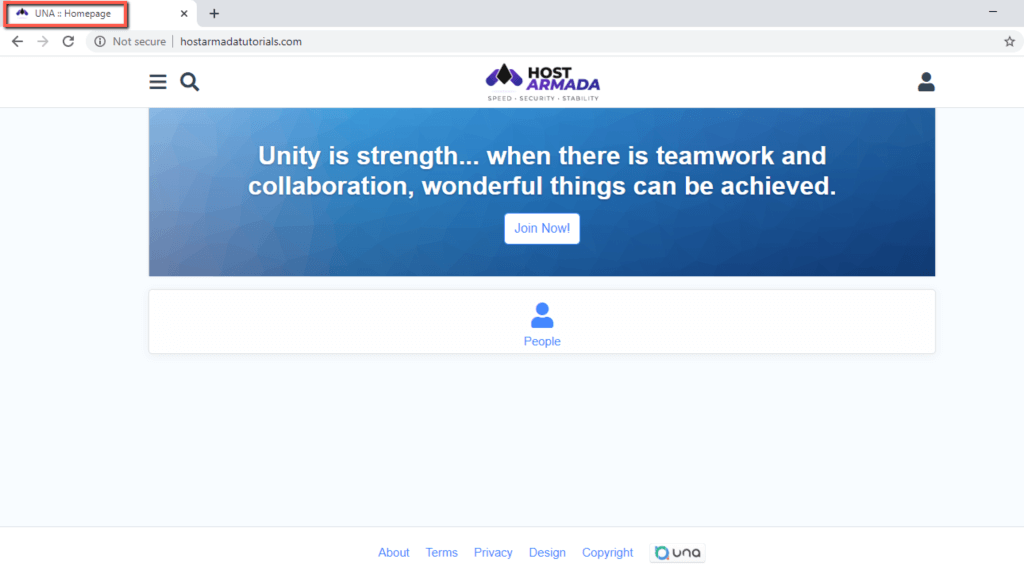
And there it is - your brand new Favicon.
Well done! Now you have a custom Site Logo and Icons on your fabulous Una website. We hope you are satisfied with the result. As usual, we would like to thank you for trusting our guidance and welcome you to check the rest of our tutorials based on the Una platform.












