In Una, you are able to create Membership Levels and grant them specific permissions. The set of permissions assigned to a particular membership level determines the levels of access the users have and the actions they are allowed to perform.
In this tutorial, you are going to learn how to edit the default Membership Levels, create custom ones, and how to assign them the required permissions.
Permissions Builder Overview
For a start, please log in to your Una Studio and access the "Permissions" app.
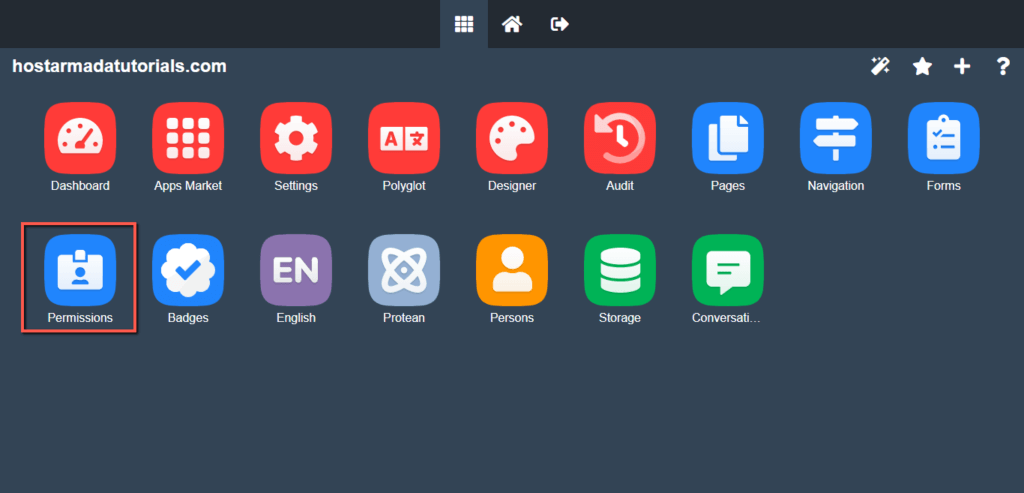
The Permissions Builder is where you get to manage your Membership Levels and Actions (Permissions).
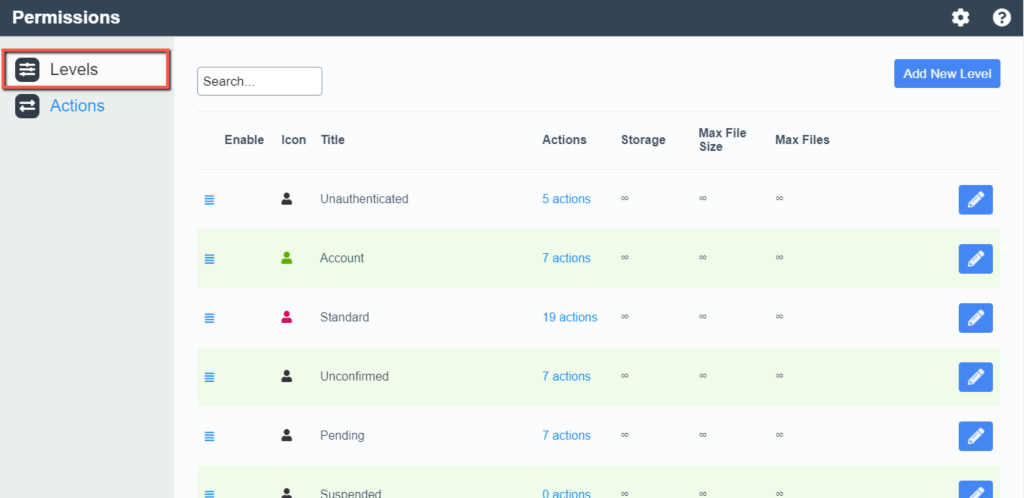
Under the first "Levels" tab, you can see a list of all default membership Levels created by Una. While you are not allowed to remove these levels, you can customize them, so they fit your requirements.
You can organize the levels by clicking on the horizontal bars icon and dragging and dropping them to the desired positions. Each of the columns in the table represents essential information, such as the actions assigned, maximum storage allowed, maximum files, and a number of files limit.
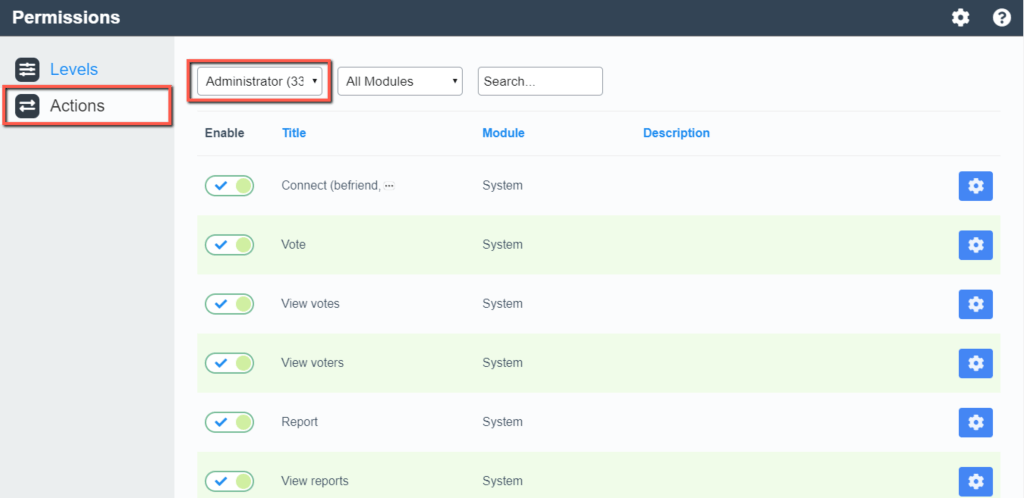
Under the second "Actions" tab, you are able to review and modify the permissions granted to a particular membership level by selecting it from the dropdown menu at the top.
Without further delay, let's jump straight to the point of our guide.
Creating Membership Levels
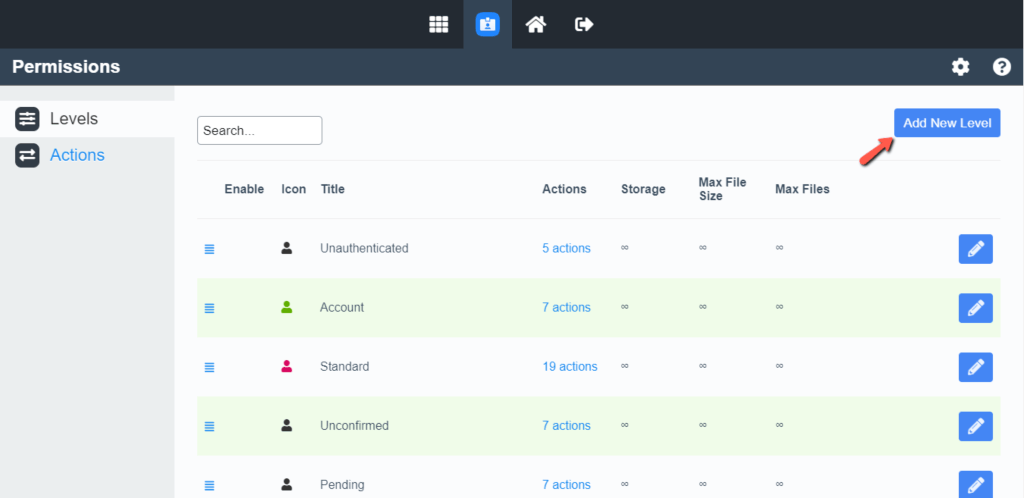
To create your first custom Membership Level, please click on the "Add New Level" button.
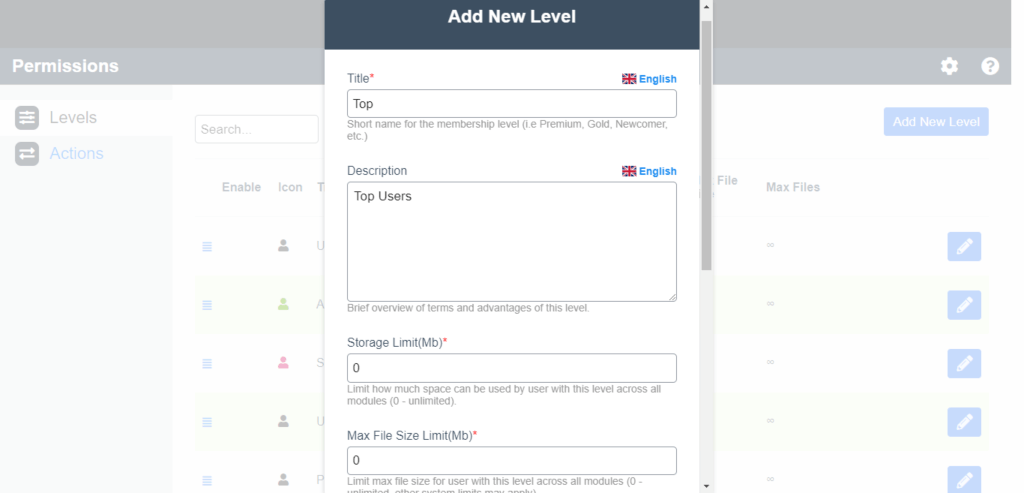
Within the pop-up window, you have to configure the Membership Level properties.
- Title - In this field, you have to specify the title of the Membership Level. Note that it is visible to users assigned to this level.
- Description - The description is optional, so you might as well leave it blank.
- Storage Limit (Mb) - This setting allows you to define file storage capacity granted for users within this Membership Level. If it is set to "0", no limit is applied, and some users may overload your website.
- Max File Size Limit (Mb) - This setting allows you to set a size limit on a per-file basis. We recommend you to set up an adequate limit. Either way, your users are allowed to upload enormously big files and overburden your storage capacity. In case you do not want to imply such a limitation, please set it to "0".
- Max Files Limit - This setting lets you control the maximum number of files users are allowed to upload. Just like the previous two options, setting it up to "0" does not apply a limit.
- Icon - You are allowed to insert a font icon or upload an image from your local computer for this membership level.
- Copy actions from - This option lets you acquire the set of actions assigned to another membership level and apply it to this one.
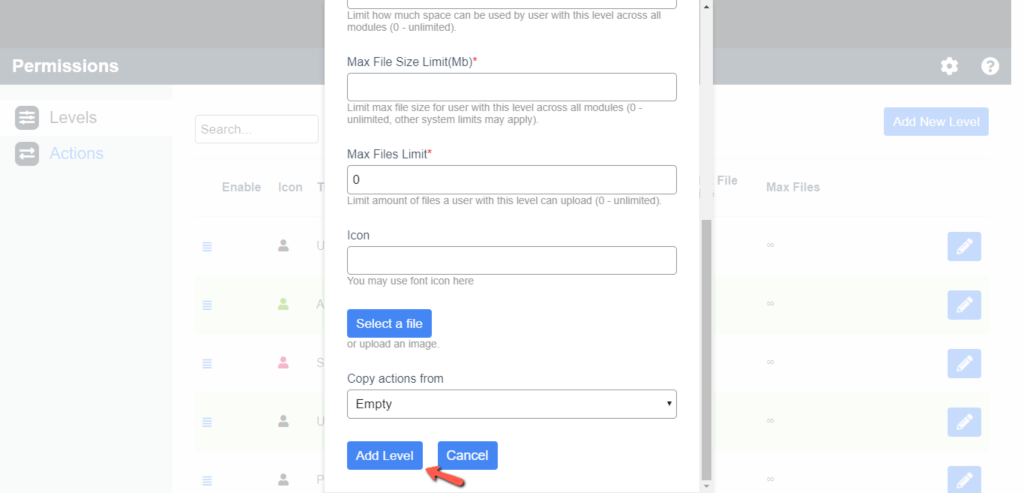
Once you are ready with all the details, please click on the "Add Level" button.
Assigning Actions to Membership Levels
Now that your Membership Level is created, you would want to assign the relevant permissions to it in order to grant the users the capabilities of performing certain tasks and access specific areas of your website.
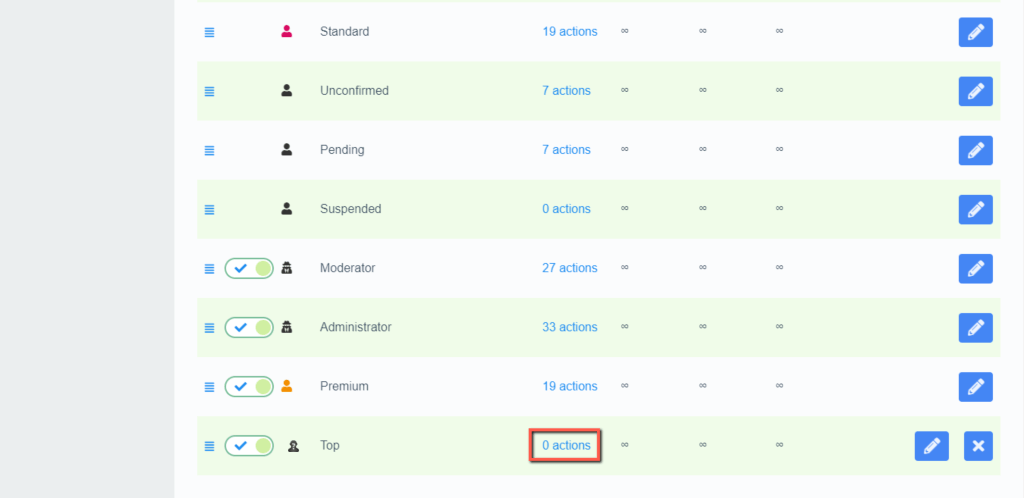
Please find your new level at the bottom of the membership levels list and click on the "0 actions" link.
Upon doing that, you are redirected to the "Actions" tab, where you have to select the appropriate actions by clicking on the corresponding toggle switch buttons.
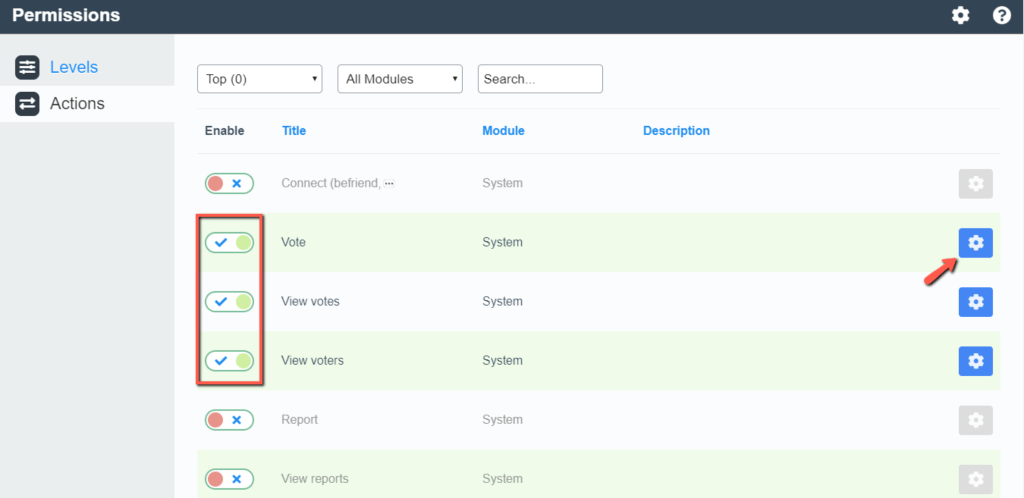
After the actions are selected, you can further configure them by clicking on the cogwheel button.
Within the pop-up window, you can adjust the settings as required.
- Number of allowed actions - This value determines how many times the user is allowed to perform the action. In case you do not want to apply a limit, please leave it set to "0".
- Number of actions is reset every - In case this action can be performed limited times, you can define a time (in hours) after which the action is reset, and users are able to perform it again.
- This action is available since - Using the calendar, you can set up an availability start date for the action. If not required, please leave it blank.
- This action is available until - Respectively, here you can define the end date of the action availability.
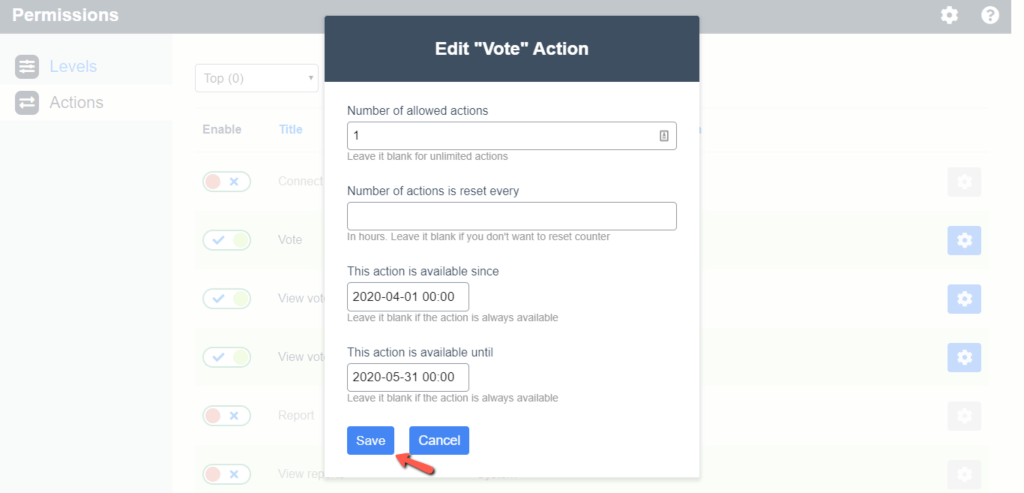
When ready, please click on the "Save" button to apply the changes.
With this done, your new membership level is successfully created, and users assigned to it are granted the selected permissions.
This pretty much sums up the Membership Levels and Actions concept. Now you should feel confident in your knowledge and abilities to properly administer your Una users. We hope the information in this tutorial was useful and our explanation helped you to better understand how to manage them.












