Periodically updating your WordPress Admin password is recommended practice for keeping your website secure and uncompromised. In addition to that, you should ensure you are using a strong password. A combination of letters, symbols, and digits is always a good idea.
In Wordpress, changing the password for a specific user is a relatively simple task. Whatever your purpose for changing the password is, in the following lines of this tutorial, we will step by step guide you on how to complete it.
Getting Started
First off, we will need you to log into your WordPress Admin Dashboard. You can do that by accessing your domain followed by "/wp-admin", i.e., "yourdomain.com/wp-admin", where "yourdomain.com" stands for your actual domain name.
Once logged, please navigate through the left-hand side menu bar to Users > Your Profile.
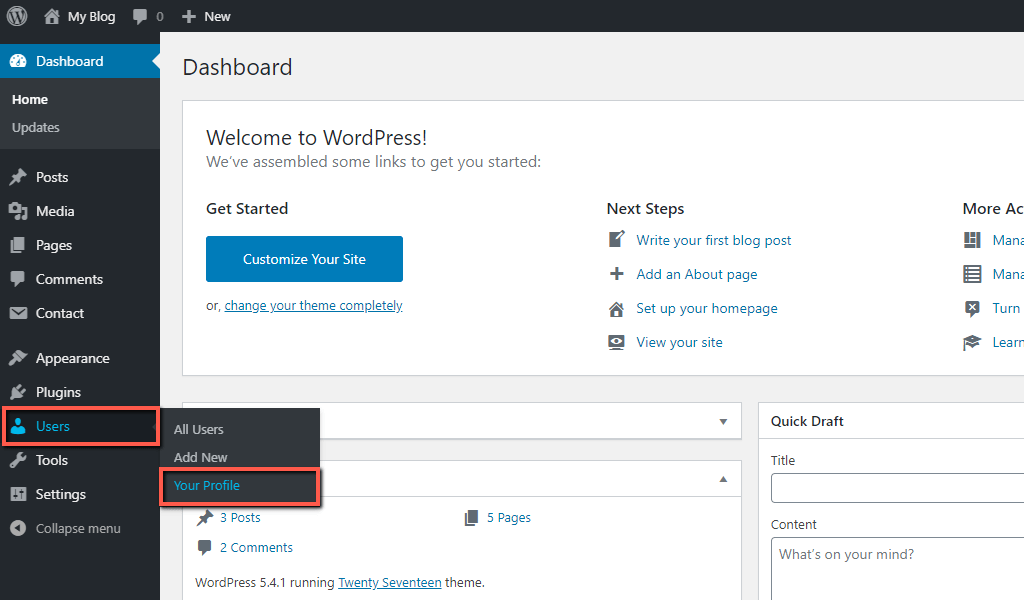
Upon doing that, you will be redirected to the "Profile" section, which contains all your user details. It will present you with a large number of options that are used for different configurations related to your profile. If you would like to learn more on how to modify your user profile, please refer to our tutorial on How to manage the users of your WordPress based website.
Changing the Password
Now, to change your password, please scroll down to the very bottom of the page where you will see the "New Password" option and click on the "Generate Password" button next to it.
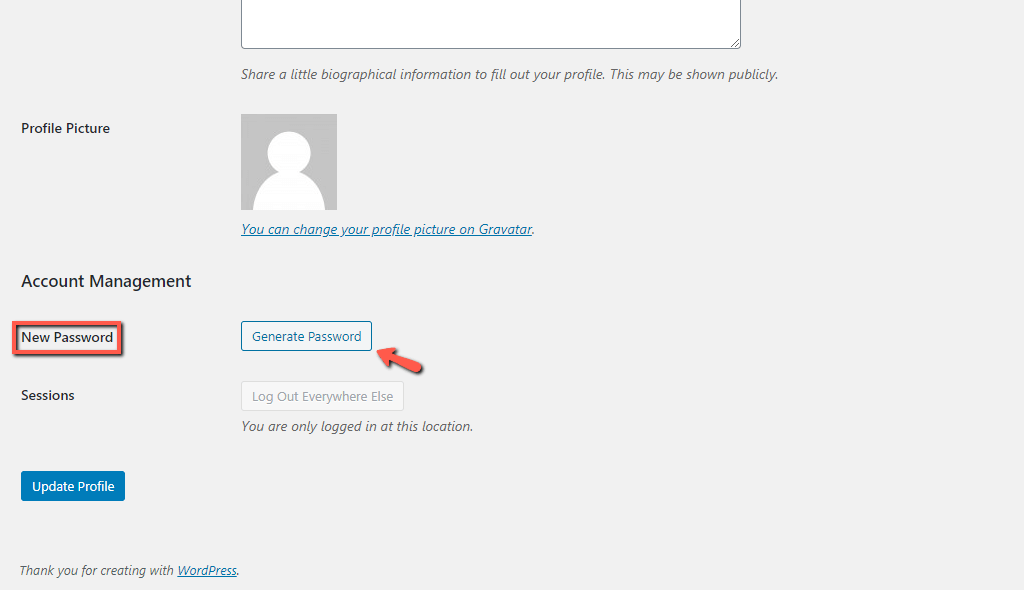
When you click on the “Generate Password” button, a text field will appear with an already inserted, randomly generated password. If you prefer to enter a custom password, you can simply do so by replacing the current one.
Right below, you will also see a Password strength indicator. We would recommend you avoid passwords indicated as "Weak" or even "Medium".
Once you specify your new password, please, click on the “Update Profile” button.
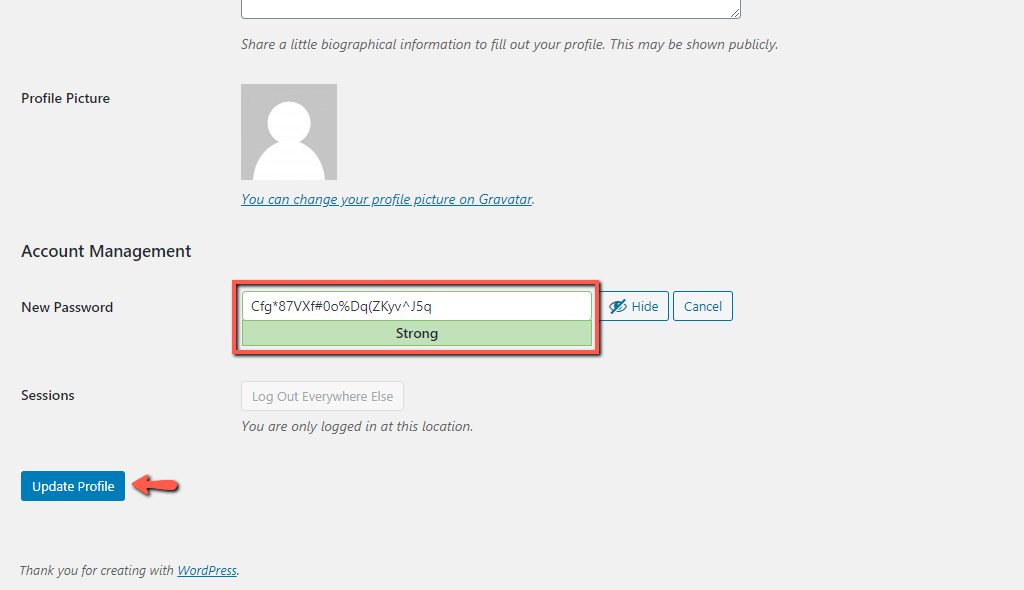
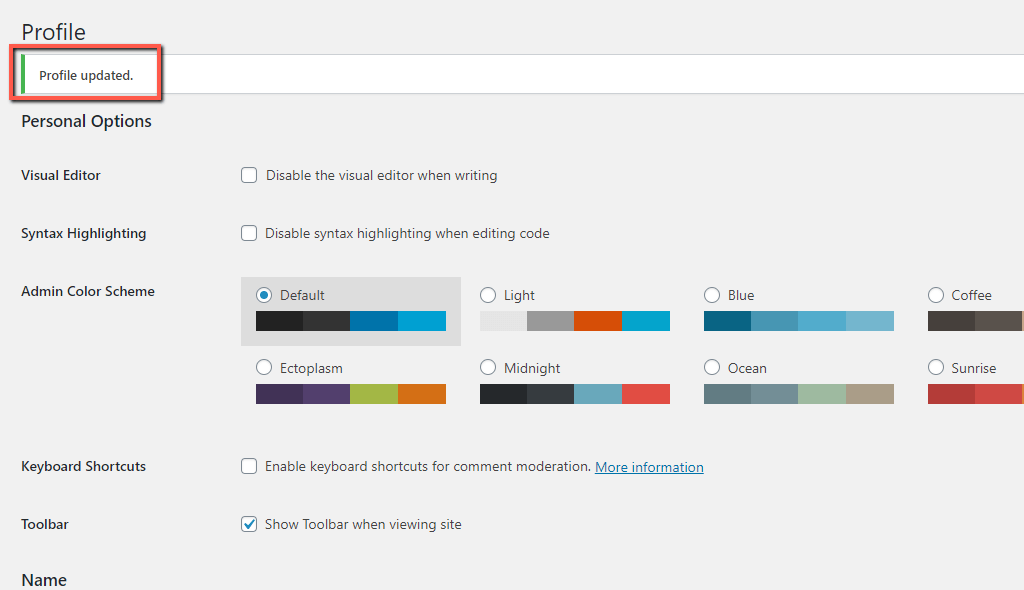
Upon doing that, your new password will be instantly saved. A confirmation message will appear at the top of the page, indicating the profile was successfully updated.
Simple as that you have changed your WordPress Admin account password and you can do so anytime in the future. We hope this tutorial was useful to you, and you have managed to complete the task with ease. In case you require any further assistance, please contact our Support Team.












