The typical procedure of changing or resetting a WordPress admin password is effortless and straightforward. However, what happens if you can no longer log into your dashboard, you have lost access to the administrative email address of your account, or the password reset email delivery fails?
Do not get frustrated. There is a solution to regain access to your WordPress Admin Dashboard, even in such a despairing scenario. All you have to do is change the password directly from the database through the phpMyAdmin tool integrated into cPanel. At first, that might sound like a task requiring quite advance skills, but it is actually relatively simple, and we are going to step-by-step guide you on it!
Let's not waste more time and jump straight into it!
Getting Started
First, you have to log into your cPanel account.
Once logged, please navigate to the "Databases" features group, where you will locate the "phpMyAdmin" tool.
Upon accessing phpMyAdmin, a list of all available databases in your hosting account will be presented in the left column. Please navigate through it and locate the database associated with your WordPress website. When you find it, click on the corresponding plus sign (+) to list the database tables.
The table you are looking for is "wppt_users" - please click on it.
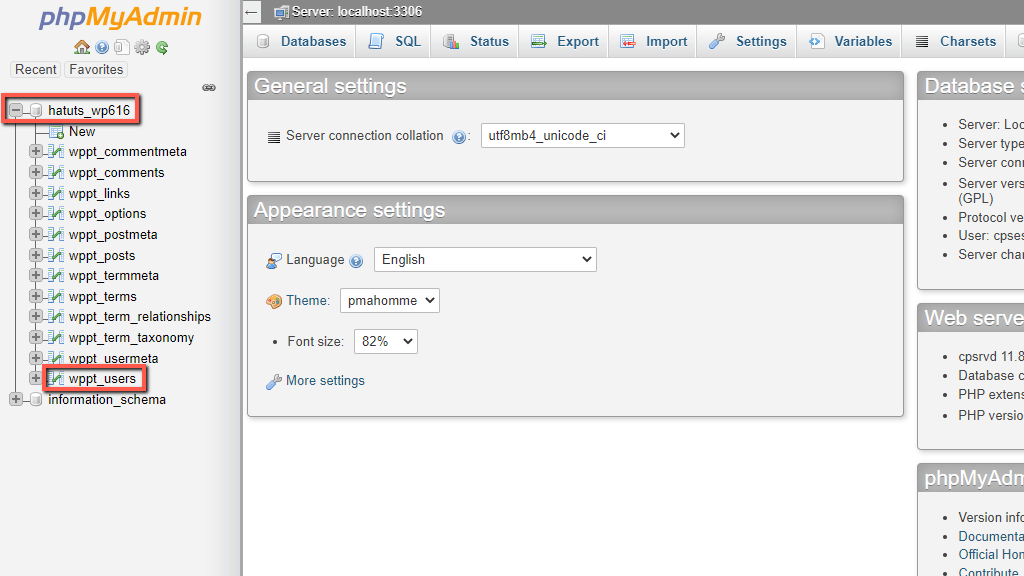
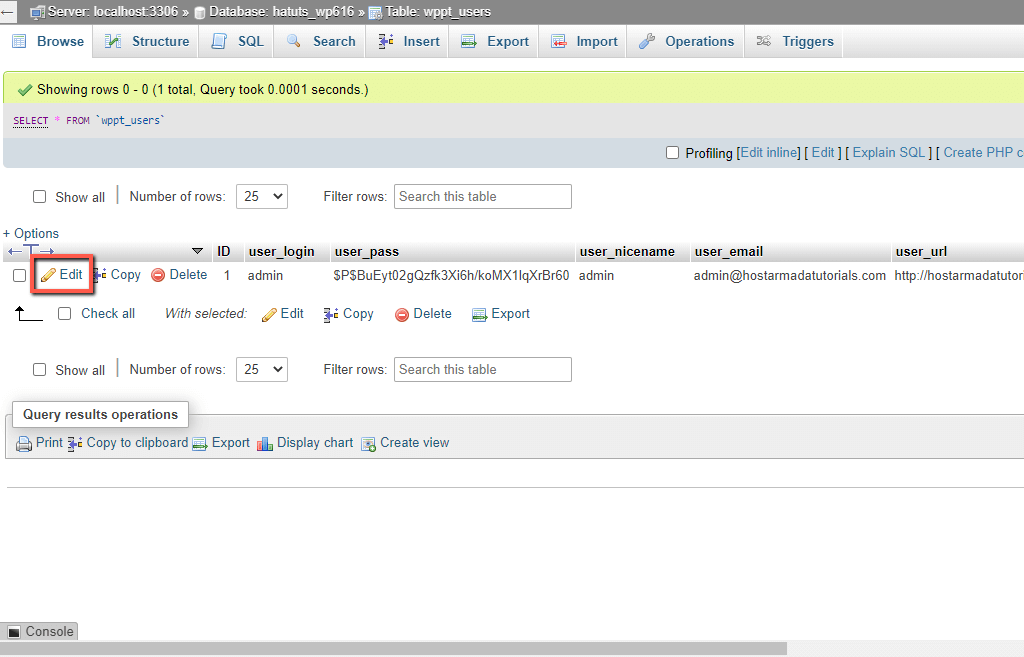
Once the table selected, the entries will be presented within the middle of the screen.
Changing the Admin Password
Now that you have accessed the intended table, please locate the user account you want to change the password for and click on the "Edit" link in front of it.
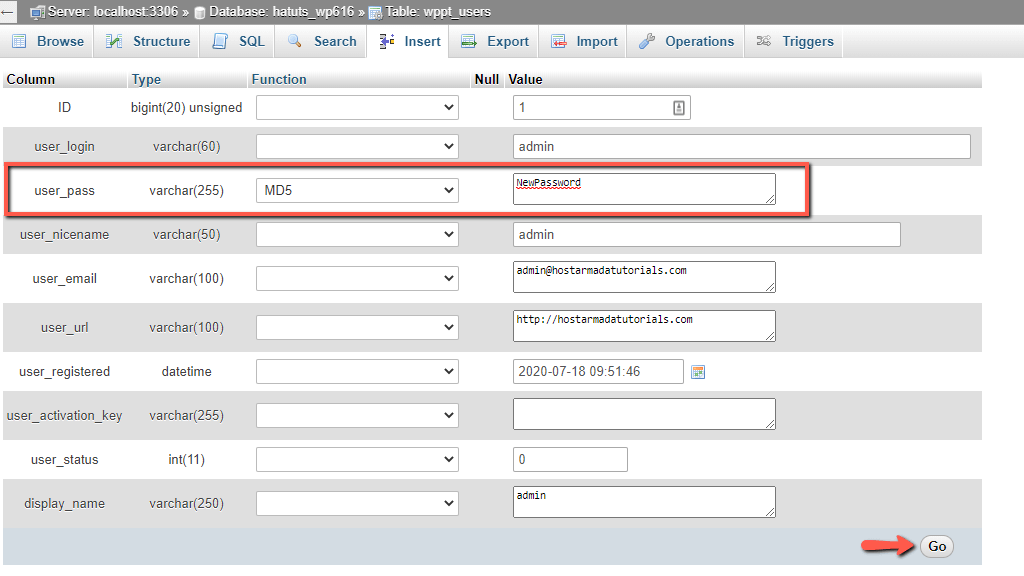
Next, you will be presented with the user information. In the "user_pass" line, please make sure to select "MD5" from the dropdown in the "Function" column and enter your new password within the field in the "Value" column.
When ready, make sure to click on the "Go" button positioned in the bottom right corner of the table.
With this done, your password is changed, and you may use the new one to log into your WordPress Admin Dashboard.
Well done! In this tutorial, you have learned how to gain access to your WordPress Admin Dashboard by changing your password directly through the database. We hope this tutorial saved you an unnecessary headache. In case you do not feel confident enough to perform the change on your own, please make sure to submit a ticket request to our Support Team from your SIRSTEVEHQ Client Area.












