Introduction
Being able to generate backups for your hosting account, websites, or databases whenever they are needed is an invaluable asset. Whether you need an up-to-date copy of your site just in case something happens, you want to move to a different server, or sell the website to a client, the "Backup" feature of the cPanel will prove to be a really useful tool in these situations, or any other ideas you may have.
In this tutorial, we will go over the "Backup" functionality and everything there is about it. In the end, you should be able to generate a backup of whatever you need on your cPanel account.
Without further ado, let us get right into it!
Getting Started
As with all of the cPanel service features, in order to use the "Backup" feature, you need to log into your cPanel account.
After logging in, please look for the "Files" features group. Under it, you will notice an icon titled “Backup”. Please click it to get access to the functionality mentioned above.
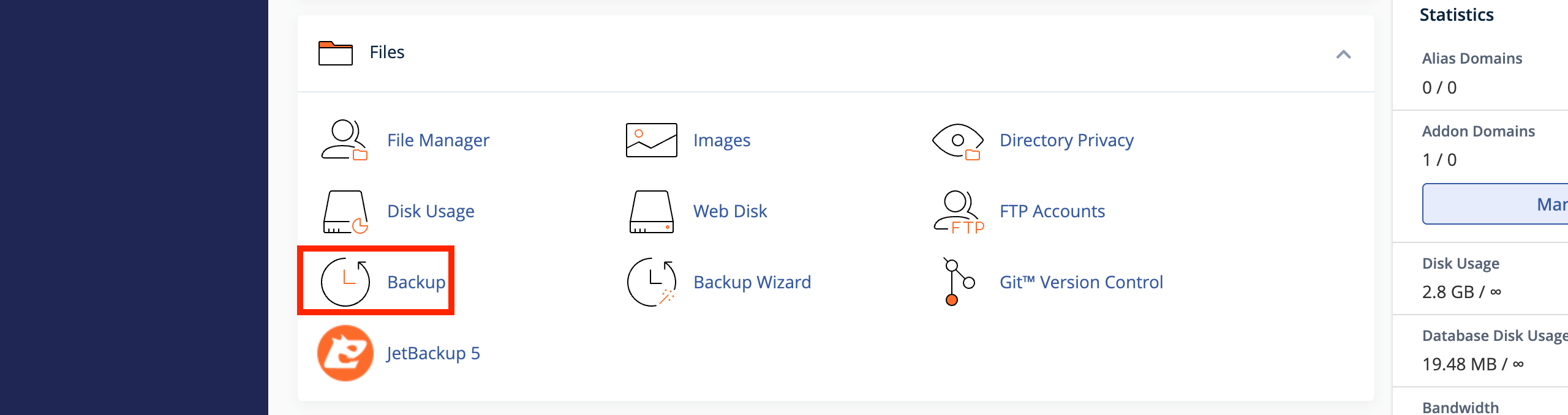
Upon clicking on the “Backup” icon, you will be redirected to a new interface, allowing you to select the type of backup you want to generate.
Selecting Backup Type
As mentioned in the introduction section of this tutorial, the “Backup” feature allows you to generate a few different backup types:
- Full Account Backup
- Home Directory Backup
- Database Backup
- Email Forwarders Backup
- Email Filters Backup
This feature also allows you to restore backups of the above. However, we will not discuss this functionality in this tutorial. We are going to be focusing mainly on the back generation aspect. We will be going over all of the backups mentioned above types in the following lines.
Full Account Backup
Perhaps from the name, you can already tell that this functionality will allow you to generate a full account backup, also known as a cPanel PKG. This includes everything on the account - your files, databases, emails, forwarders, DNS zones, domains, aliases, and sub-domains.
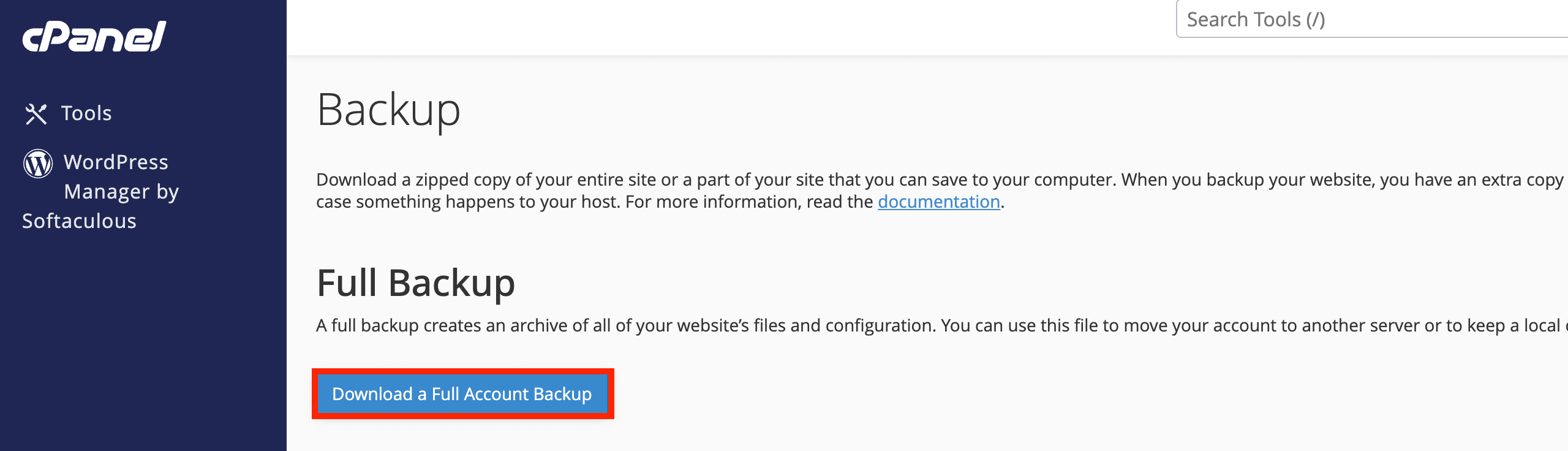
Please press the “Download a Full Account Backup” button to get redirected to the screen, that will allow you to initiate the full account backup generation.
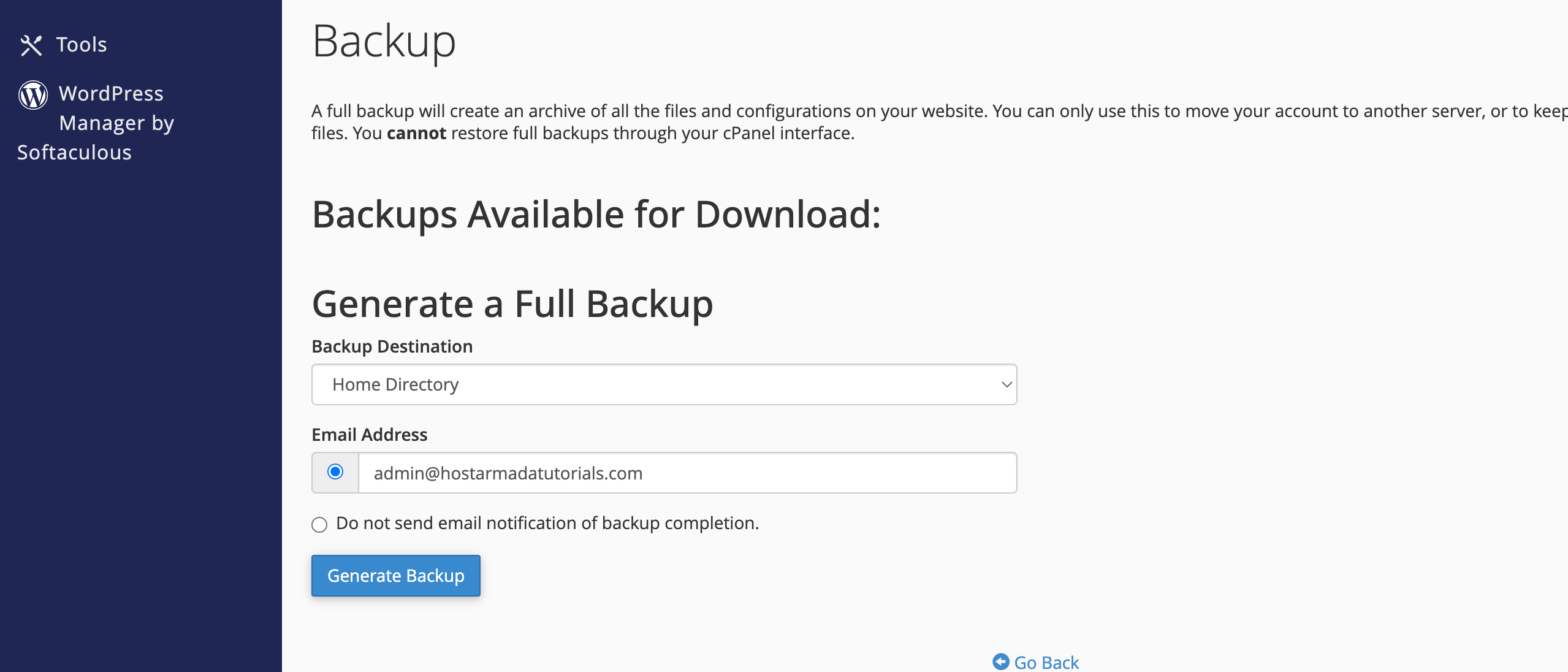
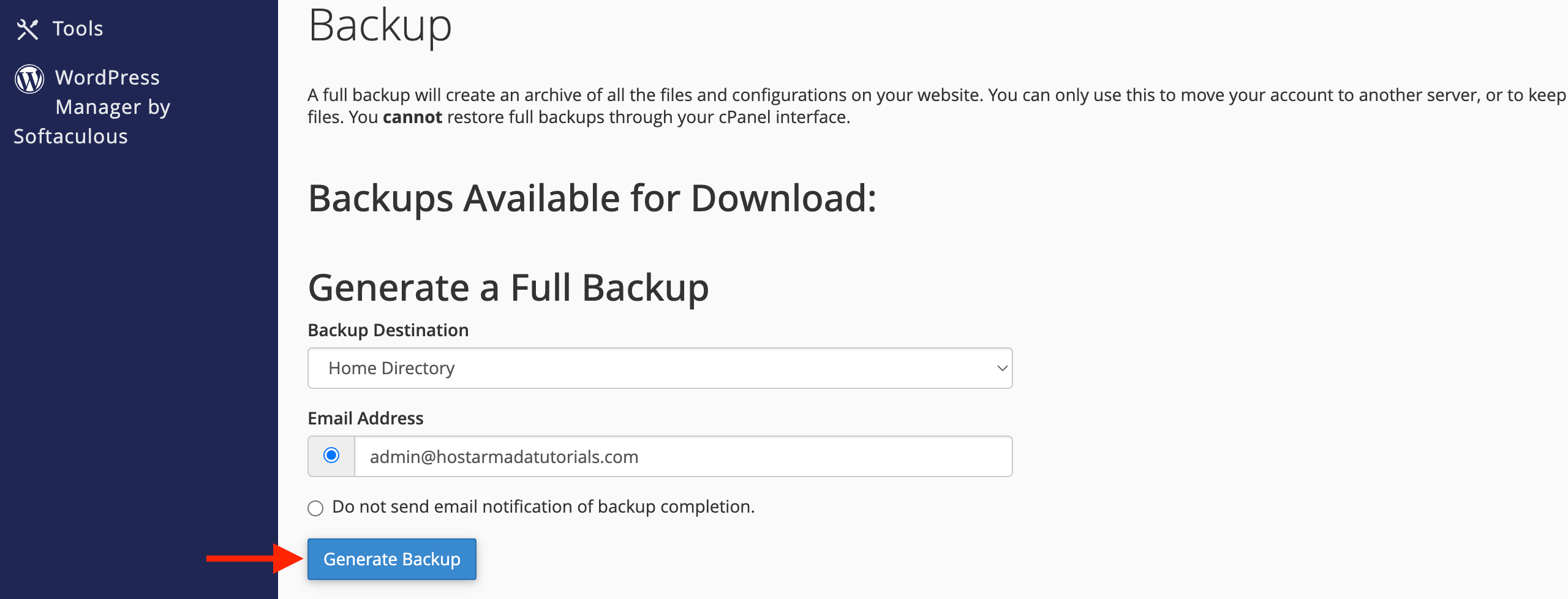
When you land there, under the “Generate a Full Backup” label, you will see a drop-down menu, two radio buttons, and a standard button. Let’s go over what they entail.
- Backup Destination - Please use this drop down menu to select the destination of your backup. The default choice is the “Home Directory”, which will place the backup within the home directory of your cPanel account. Your other options are:
- Remote FTP Server - Please select this option to start the backup process and then use an FTP service to transfer it to the remote server.
- Remote FTP Server (passive mode transfer) - Please select this option to use passive mode during the FTP transfer. It is completely analogical to the above.
- Secure Copy(SCP) - Please use this option to generate the backup, and then it will use the SCP service to copy the files over to the remote server.
Selection of any other choice other than “Home Directory” will open new text fields under the “Do not send email notification of backup completion” radio button that will require the following information:
- Remote Server - Please use this text field to type in either the hostname or the IP address of the remote server you want to transfer the backup to.
- Remote User - Please use this text field to type in the user on the remote server who will be receiving the backup on their own server.
- Remote Password - Please use this text field to type in the password of the user on the remote server that along with the user you typed in earlier, will allow you to authenticate.
- Port - Please use this text field to type in the port for the respective service you are using - either SCP (port 22 or 19199 if you are using SIRSTEVEHQ) or FTP (typically port 21).
- Remote Dir - Please use the text field to enter the directory on the remote server where the backup will be transferred. Adding the "/" directory will transfer it to the user's home directory.
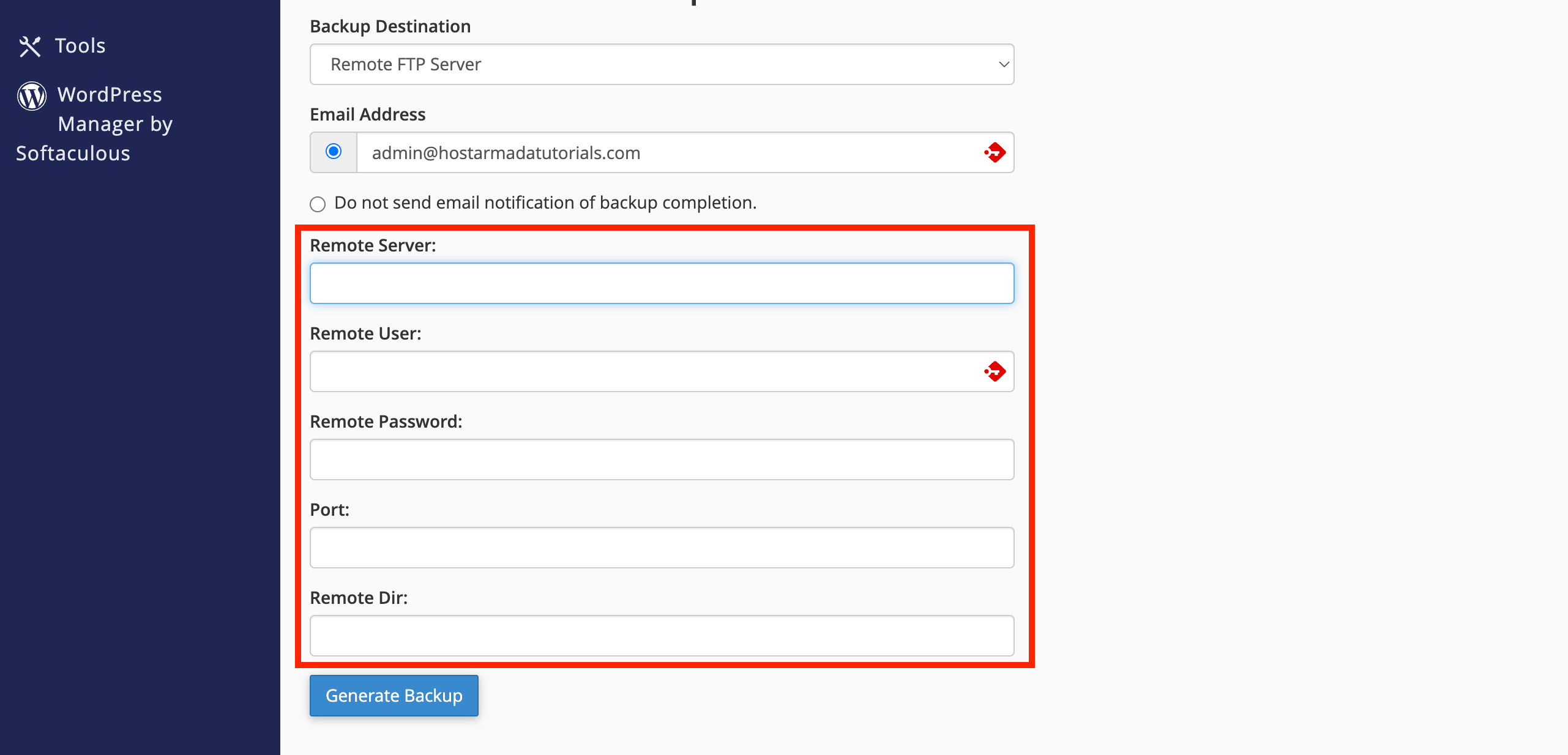
These text fields are absolutely mandatory in order to start the transfer.
- Email Address - Please use this radio button to activate the text field on its right side. It will allow you to define an email address that will receive a notification once the backup process is completed.
- Do not send email notifications of backup completion - Please select this radio button if you do not want to receive notifications upon backup completion.
- Generate Backup - Please press this button to start the entire process of backup generation and transfer (if such an option is selected).
For the purposes of this tutorial, we will use the “Home Directory” method, and we will select the “Do not send email notification of backup completion” radio button. After selecting your option and inputting the required parameters, please press the “Generate Backup” button at the bottom of the page.
If cPanel accepted the request, you should be redirected to a new screen, indicating the backup generation is in progress.
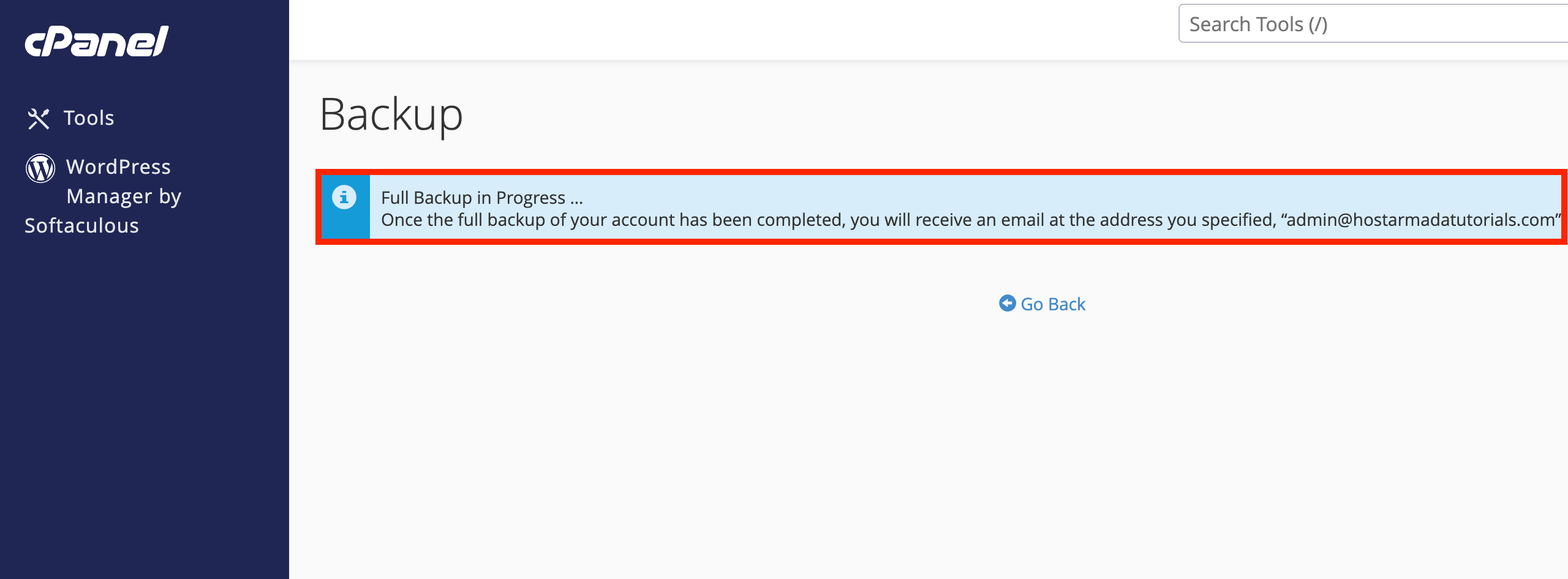
To track the process, please press the “Go Back” button located under the blue bar. This will take you to the previous page, where you will see a line under the “Backups Available for Download” label showing that the backup is currently in progress.
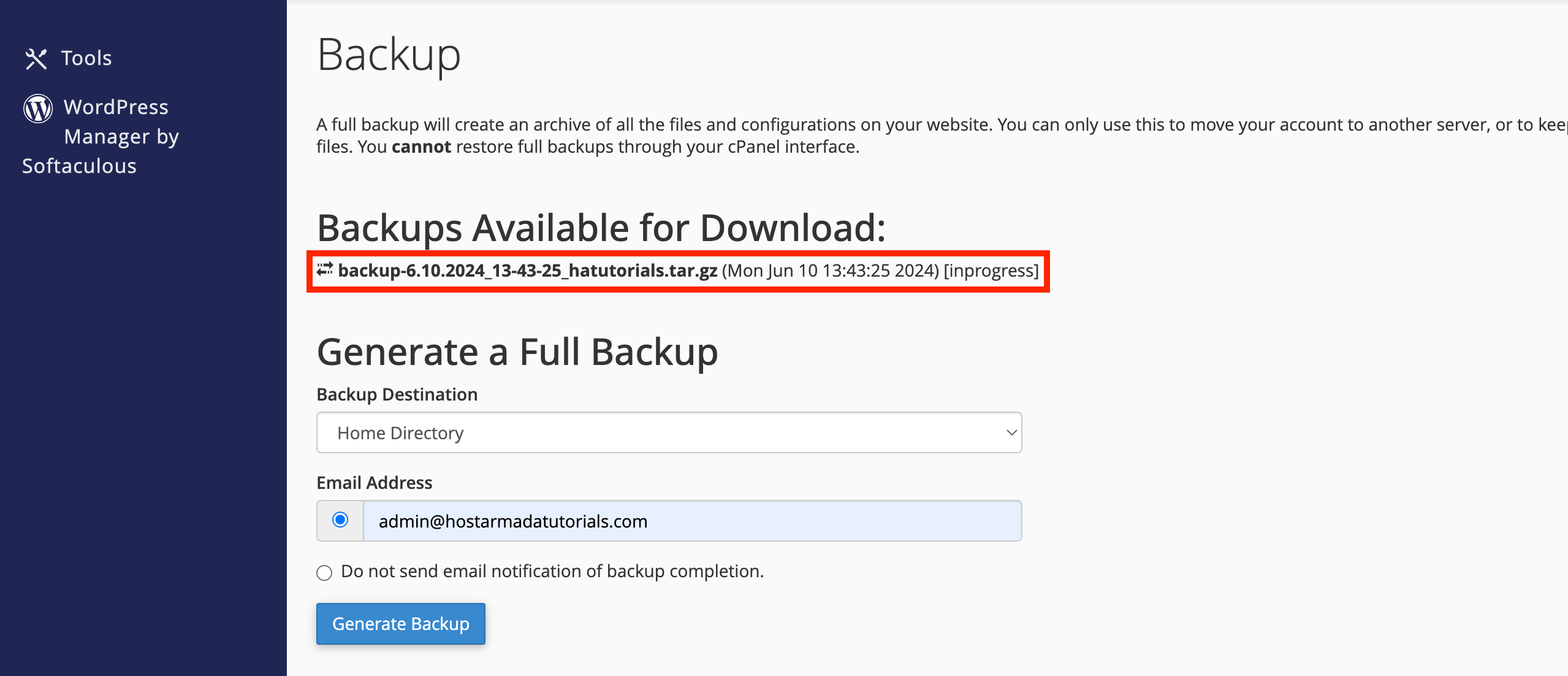
Note that the time required for backup generation varies based on the size. Smaller accounts will naturally take less time to complete, while large accounts will need more. When the operation is complete, the line I mentioned above will be highlighted in blue and become a clickable link.
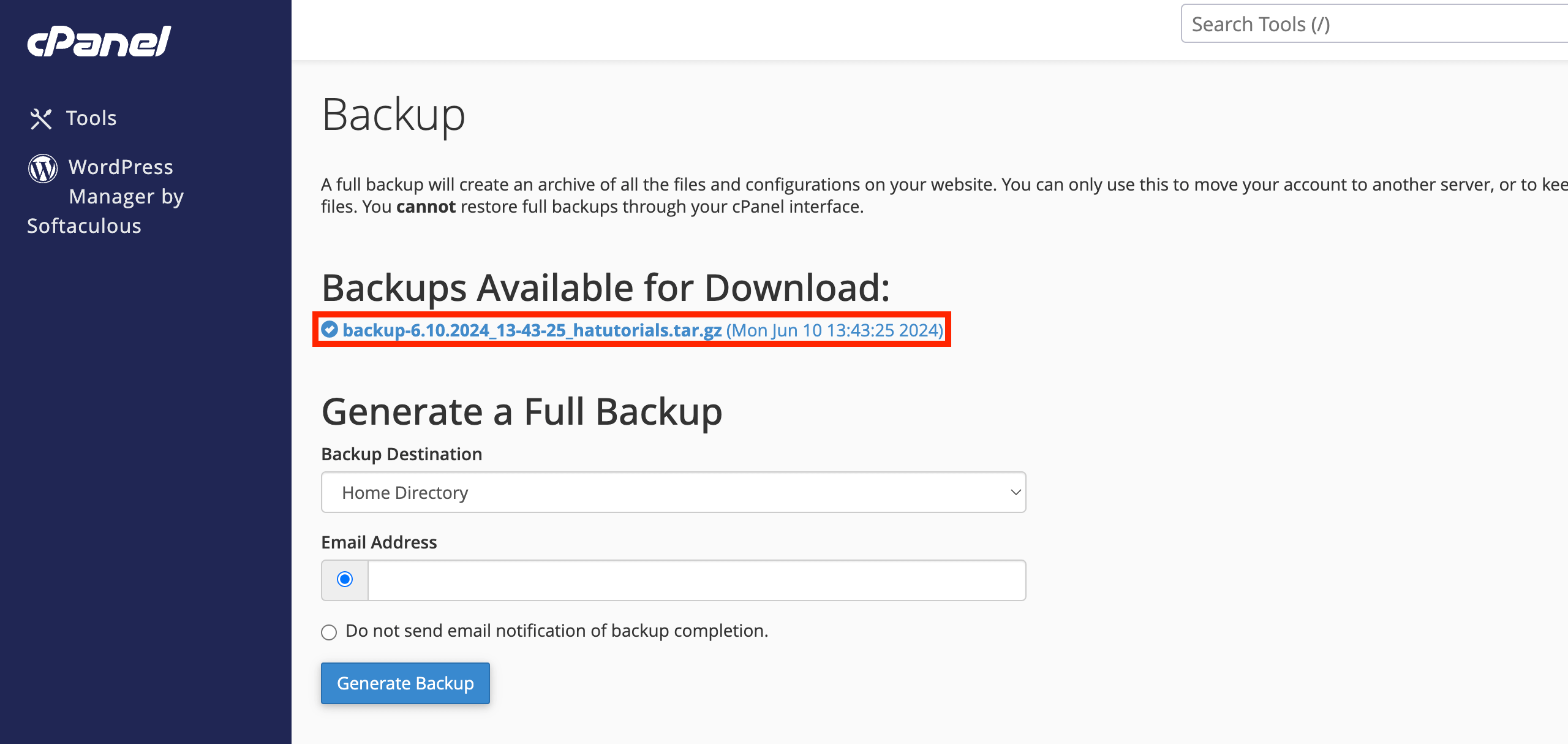
Pressing on this link will start a download process, which will save the generated backup locally on your computer or device.
Home Directory Backup
This backup type will generate a backup of all the files and folders located in your home directory of the account or, in short - all the files on your cPanel account. To initiate it, you need to click on the “Home Directory” button located on the “Backup” feature index page. It should be right under the “Download a Home Directory Backup” section.
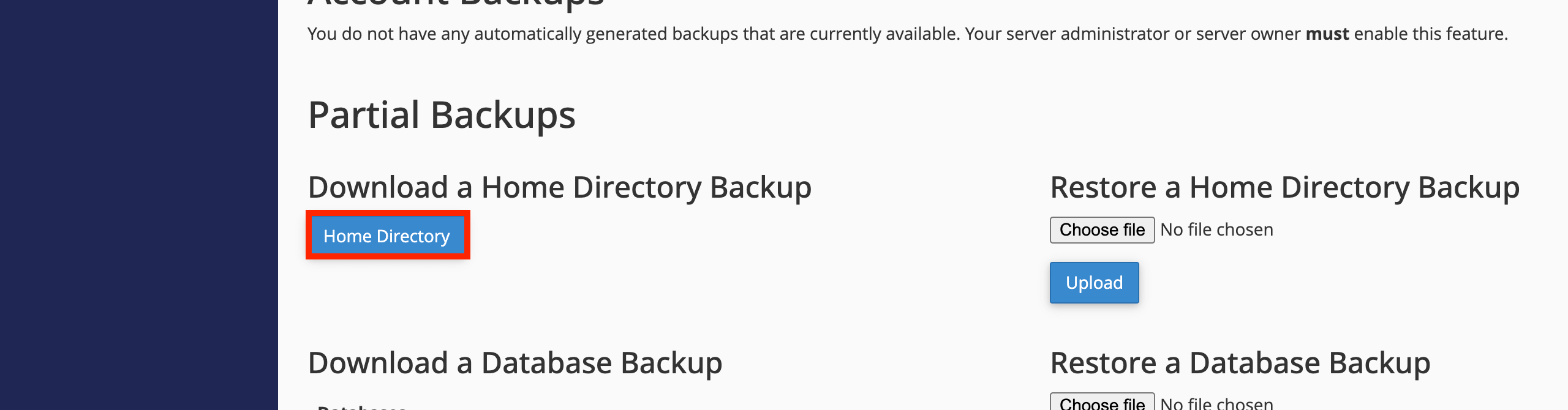
Clicking on the “Home Directory” button will immediately open up a popup window that will let you choose the location to save the file locally on your computer.
Database Backup
This functionality on the “Backup” page will let you download backups of the databases stored within your cPanel account. You will find a table underneath the “Download a MySQL Database Backup” section. Each row contains a database that is available on your cPanel account.
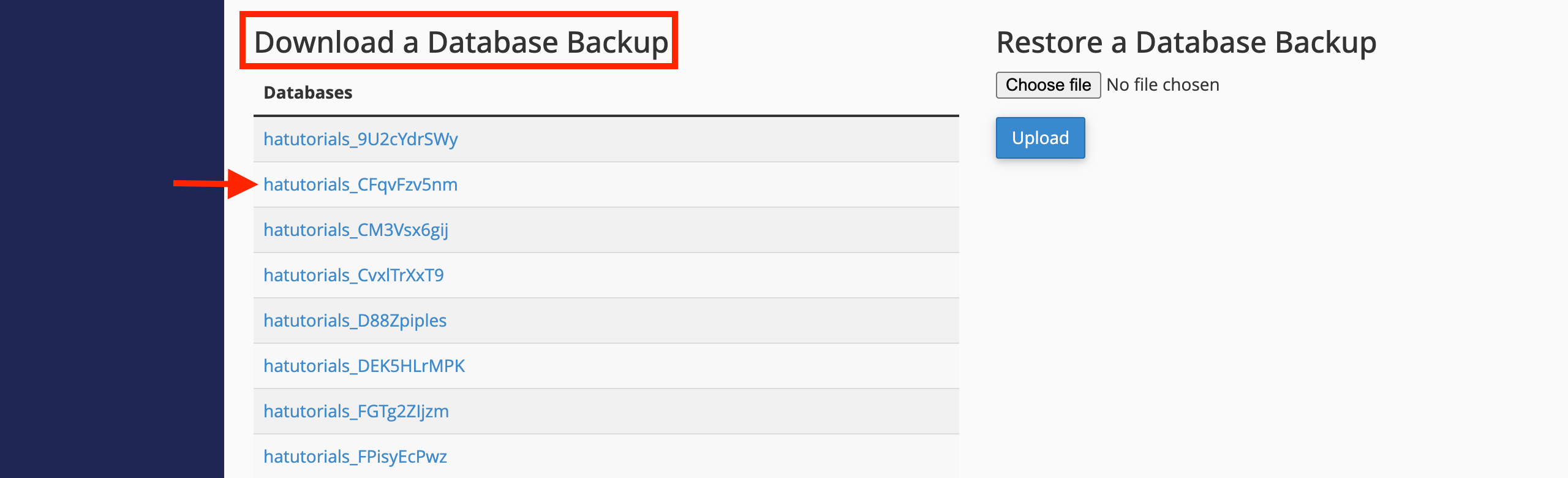
To download the desired database, please click on it. This action will open up a popup window, allowing you to select a location on your computer where to save the database backup.
Email Forwarders Backup
This functionality on the “Backup” page will allow you to download a copy of the email forwarders you have set up. It is located directly under the “Download Email Forwarders” section. It is useful when you are utilizing a lot of email accounts that have a specific forwarder configuration. You should occasionally do a backup to ensure you can restore these forwarders if something goes wrong.
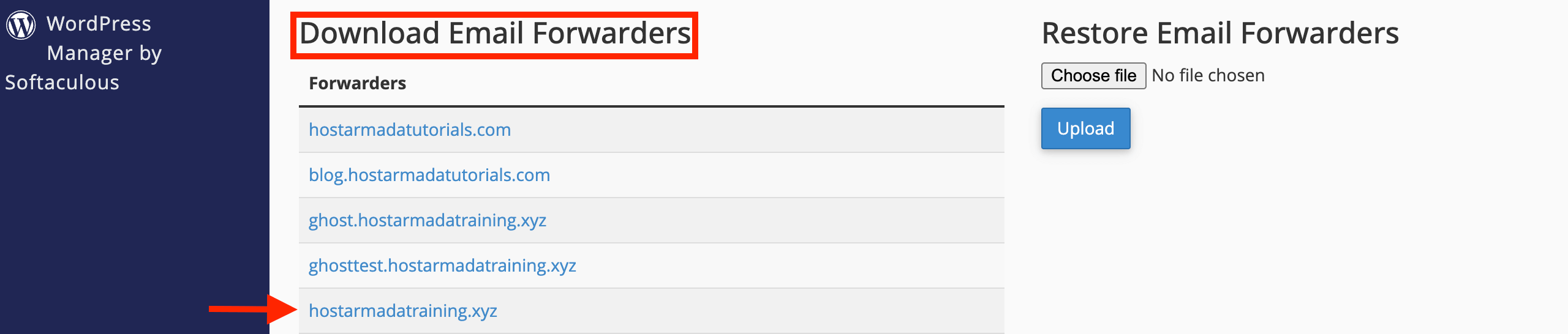
You will see all your email accounts inside a table section. To download the desired forwarder configuration, please click on the row corresponding to the email account you need. This process will open a window, allowing you to choose a location on your local computer to save the backup.
Email Filters Backup
The last option you can take advantage of on this page is downloading a backup of the Email filters you created on the cPanel account. This works completely analogous to the above two and is located under the “Download Email Filters” section.

You will see all your email account filters inside a table section. To download the desired filter configuration, please click on the row corresponding to the email account you are interested in. This process will open a window, allowing you to choose a location on your local computer to save the backup.
There you have it! The “Backup” feature under the cPanel account has gone over in the most simplified way! Hopefully, you found this information useful, and you are now able to utilize all its functionalities to generate the needed backups! If you are struggling with the feature, please do not hesitate to contact our support team over the ticketing system available in your Client Area. They are available 24/7 at your disposal.












