Introduction
Sometimes, when sending emails, people can mistype the recipient's address, which will consequently result in an undelivered message. This can prove a costly mistake if you send an important message that the recipient needs to read immediately. To avoid losing messages because of a mistyped address or because of a hard-to-remember address, cPanel offers a functionality where, no matter what, your messages will be delivered despite mistyping the recipient's email address.
The feature is called "Default Address," and in the next few lines of this tutorial, we will show you how straightforward it is to get this functionality working and how easy it is to configure and use it. Without further ado, let's proceed!
Accessing the Default Address feature in cPanel
To use any of the features cPanel has to offer, you will first have to be logged into the cPanel service. If you are not quite certain how to achieve that, please check our tutorial "How to access the cPanel service?".
Once logged into the cPanel web hosting control panel, you will need to find the "Default Address" feature. You can achieve that by either using the Search tool provided at the top of the cPanel home page or by looking for the "Mail" group of features. Within that group, you will find the "Default Address" feature.
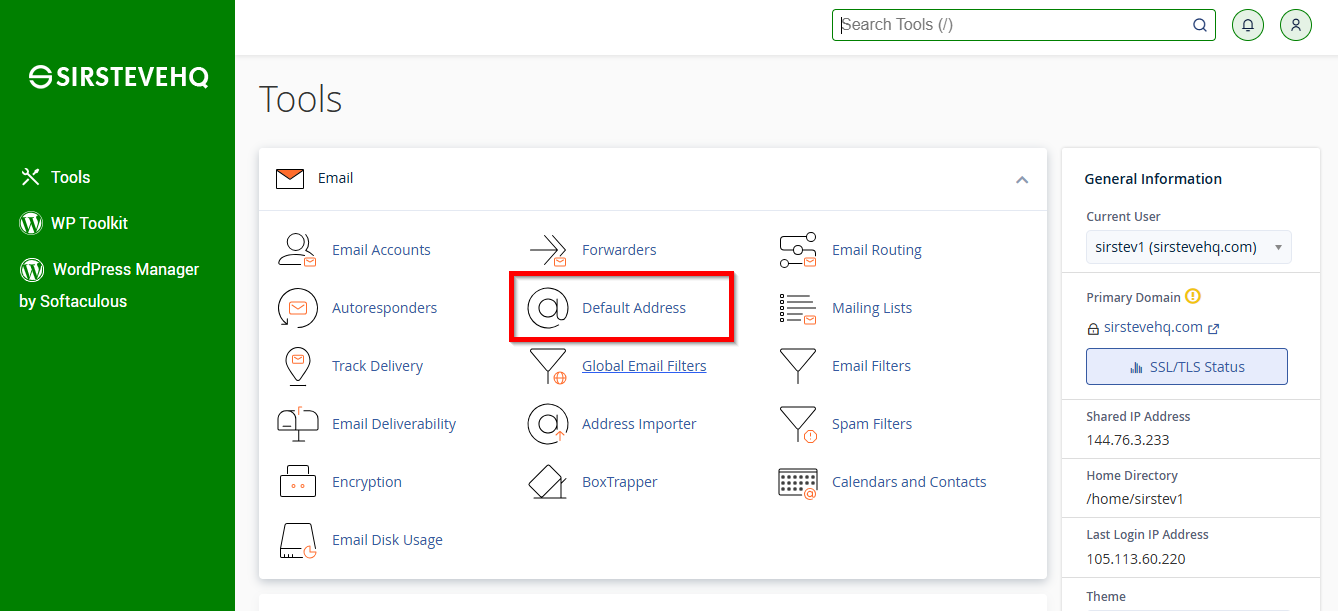
When you click on the feature, cPanel will redirect you to a brand new page where you can perform further configurations regarding the Default Email address for your domains.
Configuring the Default Address for your domains in cPanel
As you may or may not know, when a cPanel Web Hosting Account is created, the process assigns it a username. This username is derived from the first eight letters of your domain name. For example, if we create a cPanel with the domain name sirstevehq.com, the username will be "sirsteve." The default mail account will inherit the same name as the cPanel username, and in our case, it will be called "sirsteve" as well.
Since this is an internal account, it cannot be reached from outside the cPanel service; therefore, it is used only for the internal messages sent by the services available for your Web Hosting Account. When it comes to the Default Address for the domains you add to your cPanel Web Hosting Account, it will always be that internal email account that was created initially when your cPanel Web Hosting account was created.
Unlike any other feature, "Default Address" has only a single page for you to understand and utilize. On that page, there will be a few settings you are given in order to configure the Default Address for any of your domains. Let's review these one by one.
- Send all unrouted email for the following domain - This option contains a list of all the domains you have added to your cPanel Web Hosting Account. Therefore, here you will need to choose the correct domain name for which you would like to manage the Default Address.
- Discard the email while your server processes it by SMTP time with an error message - Choosing this option will instruct the mail service to discard the message returning to its sender an appropriate error indicating that the email account they are trying to reach is non-existing.
- Forward to Email Address - Choosing this option will allow you to configure a separate email account to which all emails sent to non-existing email accounts will be forwarded. This option is particularly useful if you would like to store these emails in a separate email account different than the above-described default email account.
- Forward to your system account “<username>” - This will be the option selected by default as we have already explained.
- Pipe to a Program - By choosing this option, you will instruct cPanel to send all messages that cannot be associated with an email account to a program or a script that you can deploy anywhere on your Web Hosting Account.
- Discard (Not Recommended) - This option will instruct cPanel to completely discard messages sent to non-existing email accounts without returning a proper error message to their sender. As noted, this option is not recommended since it will not inform the sender that the email account they are using does not exist.
Finally, when you are ready with the configuration, please click on the "Change" button so the performed configurations can be saved.
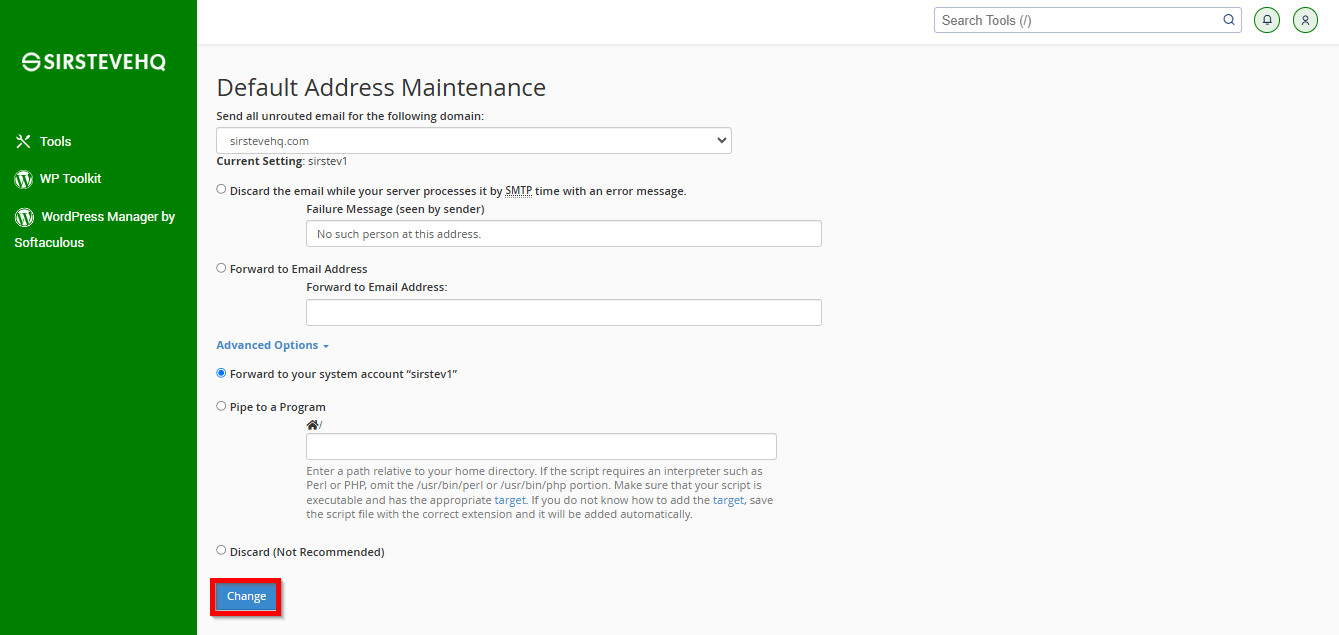
If you are a SirsteveHQ customer, we strongly suggest that you leave this option unchanged since we have already configured it for you. The default configuration of the feature will allow all messages sent to non-existing email accounts to be redirected to the default cPanel email account, which is your cPanel username. Of course, if you are experiencing any difficulties configuring the "Default Address" feature or you require any assistance with the configuration, please do not hesitate to contact our experienced Technical Support Crew, as they will be able to assist you further.












