1. Log in to your cPanel account.
2. In the Databases section, click on MySQL Databases.
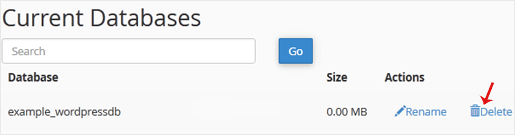
3. Under Current Databases, you can see a list of all your databases. Locate the database you want to remove and click on Delete.
4. Click on Delete Database.

Fast, reliable hosting for every need — from simple shared hosting and WordPress to cloud servers, reseller hosting and complete website solutions, we have the right platform for you.
1. Log in to your cPanel account.
2. In the Databases section, click on MySQL Databases.
3. Under Current Databases, you can see a list of all your databases. Locate the database you want to remove and click on Delete.
4. Click on Delete Database.
1. Log in to your cPanel account. 2. In the Databases section, click on MySQL Databases. 3....
1. Log in to your cPanel account. 2. In the Databases section, click on MySQL Databases. 3....
1. Log in to your cPanel account. 2. In the Databases section, click on MySQL Databases. 3....
1. Log in to your cPanel account. 2. In the Databases section, click on MySQL Databases. 3....
1. Log in to your cPanel account. 2. In the Databases section, click on phpMyAdmin. 3. From...












