Get 30% off your WordPress Hosting with code WPSAVE10. Launch Faster. Save More!
  • 00 Days
  • 00 Hours
  • 00 Minutes
  • 00 Seconds

How to Restore a Backup you Generated Earlier in DirectAdmin

1. Log in to your DirectAdmin account.

2. In the Advanced Features section, click on Create/Restore Backups or type Restore in the navigation filter box, and the option will appear. Click on it.

directadmin-crestore-icon.gif

3. Click on Restore Backup. You will find it on the top right.

directadmin-topside-restorebtn.gif

4. Under Restore Backup, click on the drop-down menu and select the backup you wish to restore.
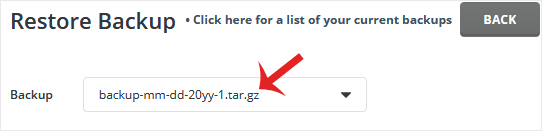
directadmin-dropdown-restorechose.gif

5. Under Restore Options, uncheck the data you do not want to include in the restore.
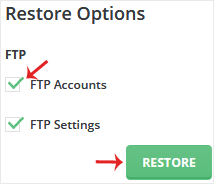
directadmin-restore-chk.gif

6. Scroll down to the end of the page and click on Restore Backup.
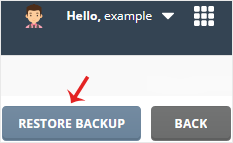
directadmin-topside-restorebtn.gif

You can check the status of your restore from the Messages option. From the top right side, click on your Username >> Messages.

Note: The process of restoration can take some time. Check Messages after a few minutes. The speed of the operation will depend on the size of your backup.

  • 0 Users Found This Useful
Was this answer helpful?

Related Articles

How to Generate and Download a Full Backup of Your Account in DirectAdmin

You can make a backup of your DirectAdmin account and download it. How to Generate a Backup of...

How to Download Email, FTP, or a Database-only Backup from DirectAdmin

You can download a backup of FTP data, email, or database-only backup from DirectAdmin's control...

How to Remove a Backup File Using DirectAdmin

You can remove backup files from your DirectAdmin to reduce disk space usage. If you are getting...










