Introduction
cPanel is one of the most used control panels for managing Web Hosting Services. When using cPanel you will be able to configure and utilize nearly every aspect of the services that we offer in a pretty straightforward fashion. In our cPanel tutorial series, we will review nearly every feature and configuration cPanel has to offer so you can be fully aware of how to use the panel with no difficulties.
Let us begin by reviewing the common options for accessing the cPanel service. Although the cPanel and its features are nearly identical on the different Web Hosting Plans that we offer, the way how the service is accessed is different. Therefore, in the next lines of this tutorial, we will provide general guidelines on how to access the cPanel service on our cPanel Shared Hosting and VPS services as well as our SSD Based Bare Metal Dedicated Servers.
Accessing cPanel on SirsteveHQ Shared Hosting Plans
If you own a Shared Web Hosting plan with SirsteveHQ, accessing the cPanel service for it is quite an easy task to achieve. Actually, you can consider a few ways to accomplish this task.
First, let's see how to access cPanel using the Client Area, which you should have received access to when you signed up for a service with us. Of course, you will need to access the Client area by logging in before you can move forward.
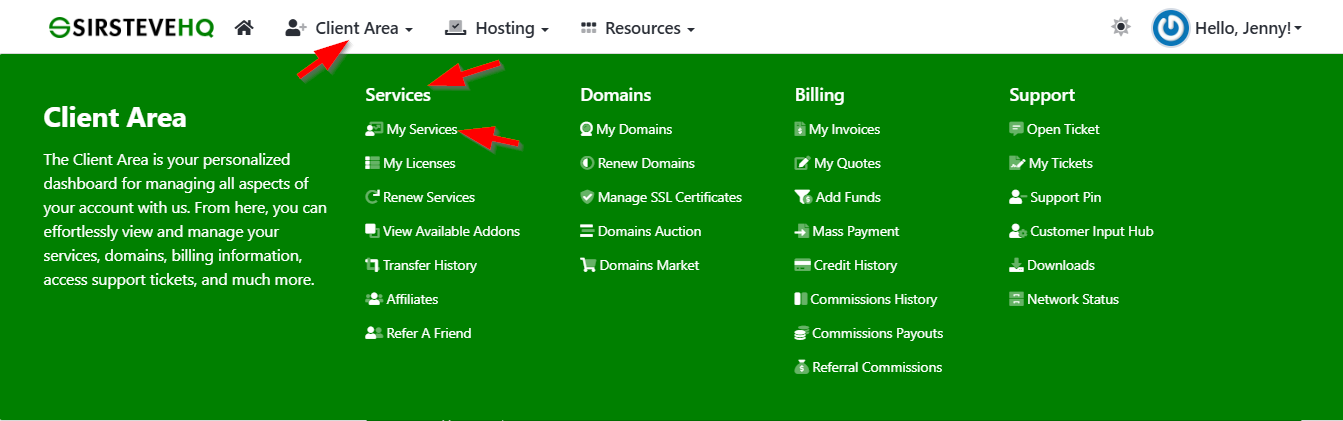
Now that you are logged in, you should be located on the "Dashboard" page, where you will find a few sections containing information about your services with SirsteveHQ. Out of all these, please point your attention to the "My Services" section, which should be located at the top menu bar "Client Area > Services > My Services". After clicking on it, you should see all the Web Hosting Services that you have with us.
These can vary from one up to as many as you need. For each service, you will be provided with some General Information, including the name of the server, the status of the service, the type of the service, the domain associated with this service, the billing cycle for the service, the next due date for the service and finally a row of useful links. Out of all these, you should click on "Log in to cPanel" at the left sidebar.
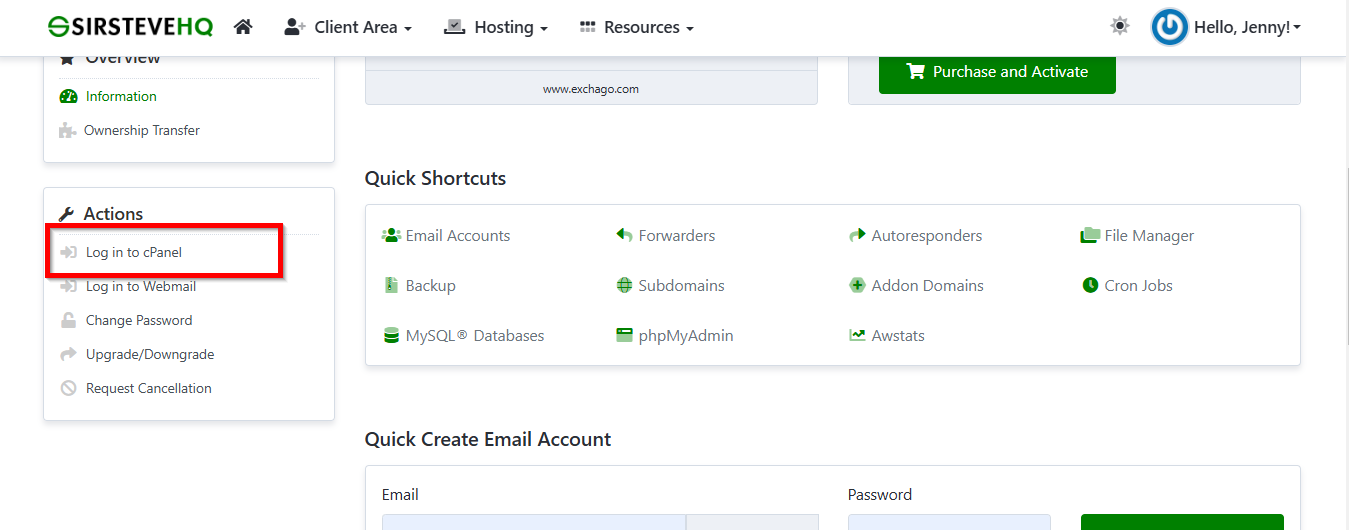
Clicking on this "Log in to cPanel" will immediately redirect you to the cPanel for your Web Hosting account without you needing to fill in any login details. Pretty convenient, isn't it?
Another way of finding a list of your services with SirsteveHQ would be to click on the "Services" menu link on the Client Area Dashboard, which will redirect you to a whole new page dedicated to all of your services with SirsteveHQ.
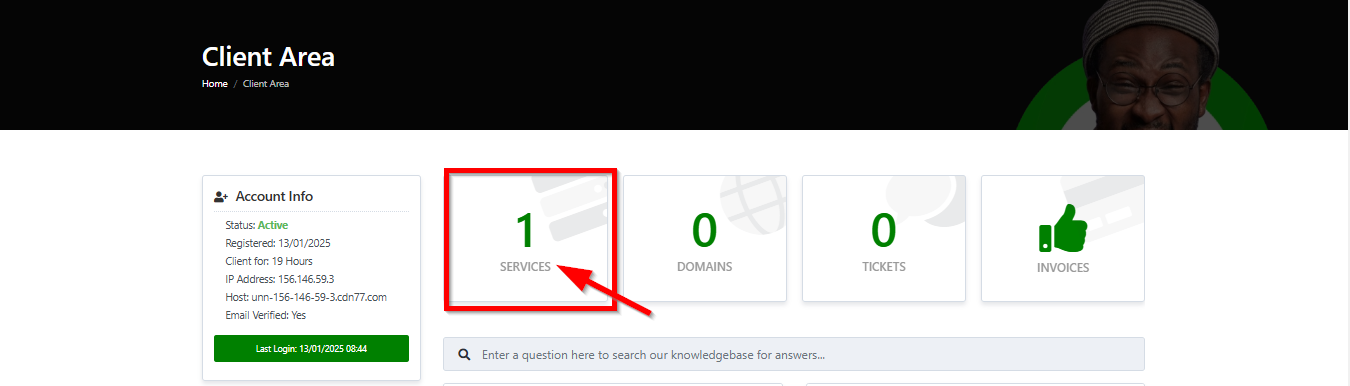
Please note that the services on that new page will be listed in a similar fashion to the "My Services" section available in the top menu bar of your Client Area. Therefore, once again please click on the small "Log in to cPanel" on the product you would like to access the cPanel service for.
Another possible way of accessing the cPanel service for Shared Hosting users is by using the provided information in the welcome email you should have received when signing up for services with SirsteveHQ. If you cannot find that email in your Inbox, please hover to your name at the top right corner (usually "Hello Name!"), and click on the "Email History" to view all the emails associated with your web hosting account.
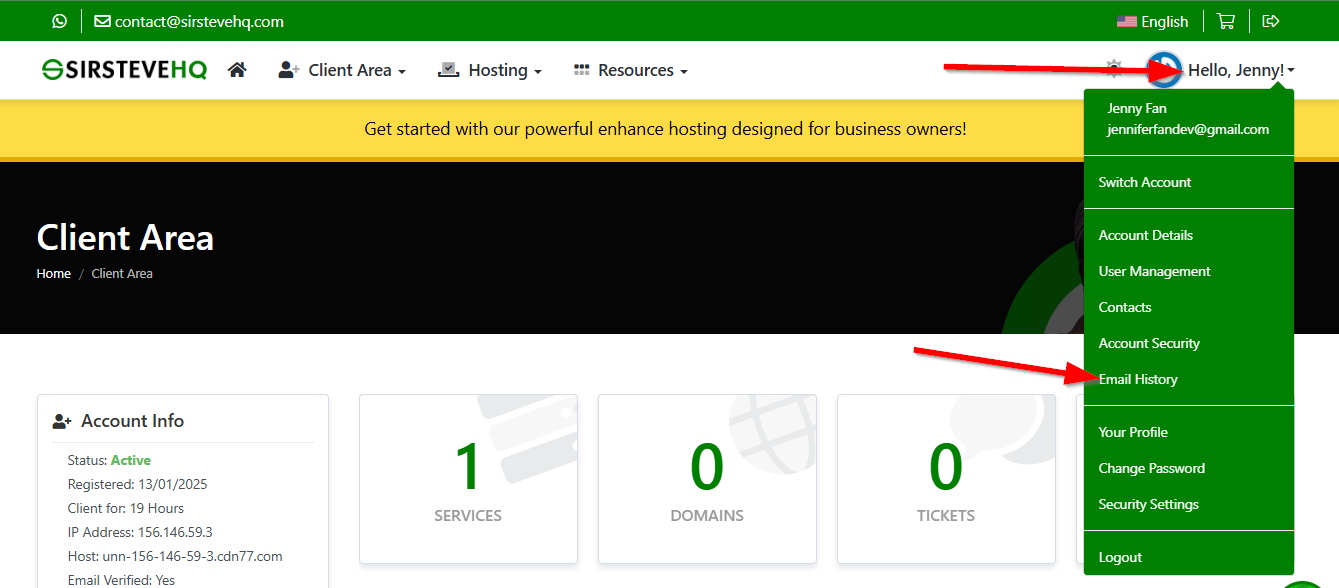
This action will redirect you to another page with a complete list of all the emails associated with your Client Area with us. Please locate the email with a subject similar to "New Hosting Account Information". In it, you will find important information related to the service you purchased from us. Please look for the "cPanel Login Details" section. There, you will find your cPanel login information as well as links you can use to access the cPanel service.
Accessing the cPanel service for SirsteveHQ Reseller services
Lastly, we will go over the process of accessing the cPanel service for our Reseller hosting plans. The process is pretty straightforward and analogical to the VPS/Dedicated CPU method; thus, we will not go into a lot of details as there is not much to cover to begin with.
To access the cPanel service on a Reseller Plan, please access your Client Area as you normally would. Afterward, please navigate to "My Services" so that you can see all your web hosting products in the center of your screen.
After you are redirected to the "My Services" page, please locate your Reseller plan which should be displayed as a content box under the "My Products & Services" label. After you select the product you want to access the WHM for, please click on the "Log in to WHM" at the left sidebar.
Performing this action will open a new tab in your browser and after a few short seconds, you will be logged inside the Reseller plan's Web Host Manager panel.
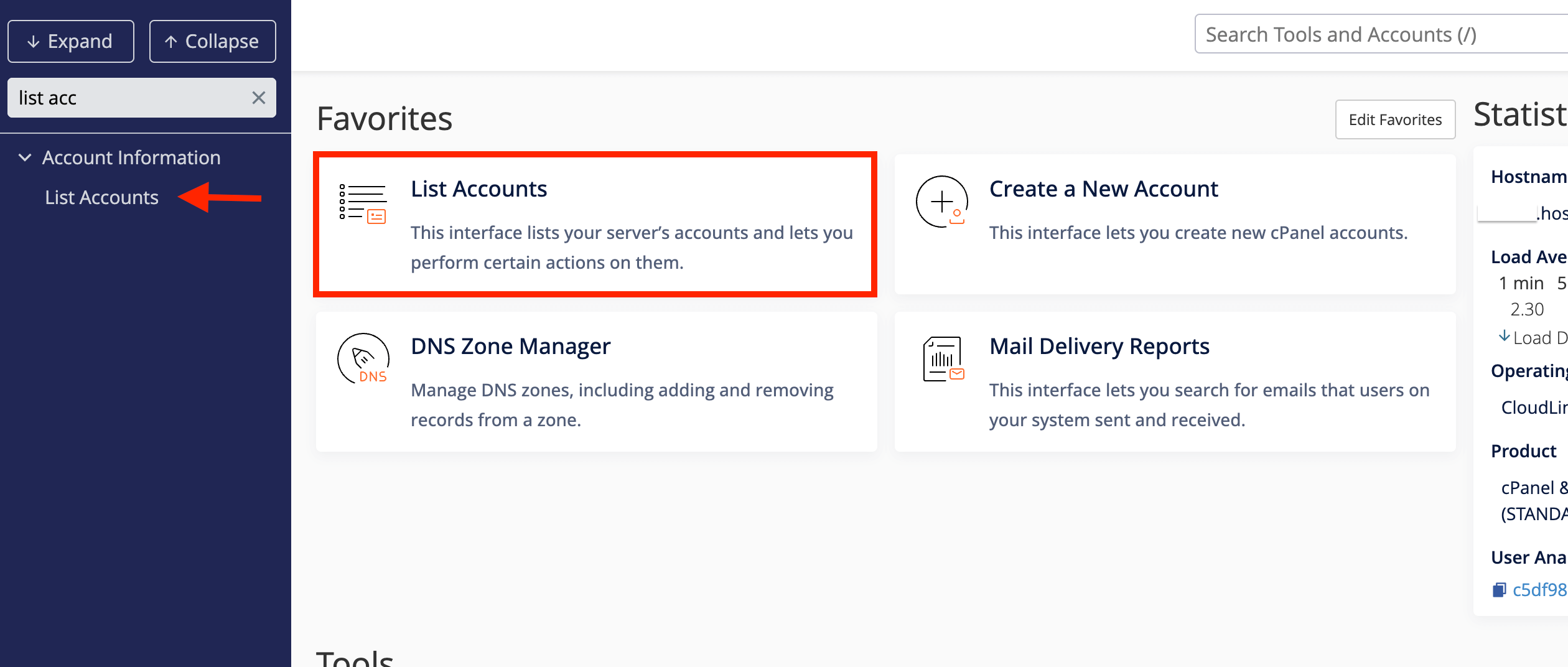
Lastly, you can use the search bar on the left or the quick link in the middle of the screen to pull up the "List Accounts" functionality, which in turn, will allow you access to the cPanel accounts on your Reseller plan.
That's it! You are now well aware of how to access the cPanel service for all the services SirsteveHQ has to offer. Of course, if you are facing difficulties or this guide is not detailed enough, please feel free to submit a Support Ticket to your Technical Support Crew and they will provide you with all the information you will need to access the cPanel service for your web hosting account with SirsteveHQ.












