Get 30% off your WordPress Hosting with code WPSAVE10. Launch Faster. Save More!
  • 00 Days
  • 00 Hours
  • 00 Minutes
  • 00 Seconds

How to Set Up an Email Signature in Android

We hope you have already read our tutorial on How to Set Up a cPanel Email Account in Android, and you have already added a built-in email widget to your Android screen.

The built-in Android email application allows us to set a custom email signature, which displays at the end of your email.

1. Open the Inbox or Gmail Application.
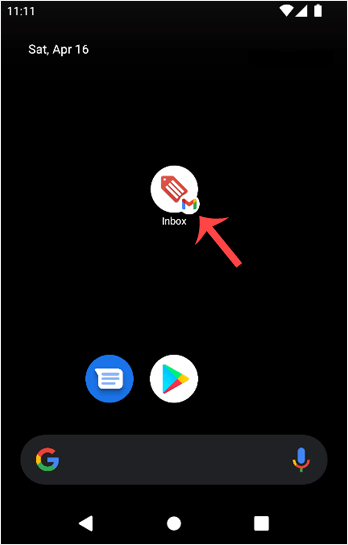
android-email-icon-cpanel.gif

2. On the top left, tap on Menu. Scroll down to the bottom and then tap on Settings.
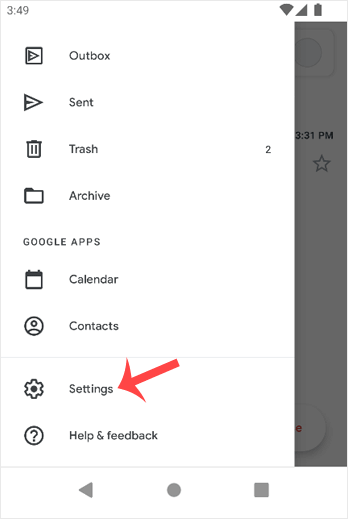
android-email-setting-change.gif

3. Select your email account. If you have multiple accounts, you can set different signatures for each one.
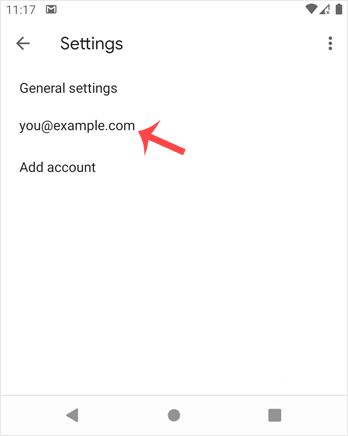
select-email-android-email-cpanel.gif

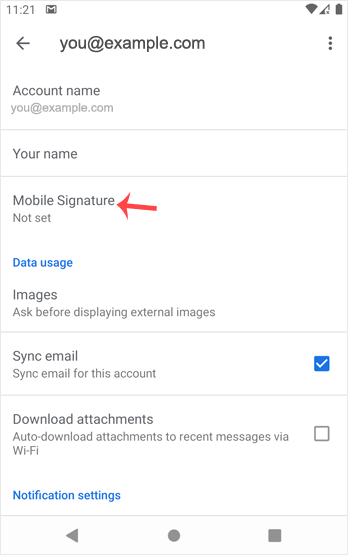
4. Tap on Mobile Signature.

set-email-signature-android-cpanel.gif

5. Set up your customized signature and then confirm with OK.
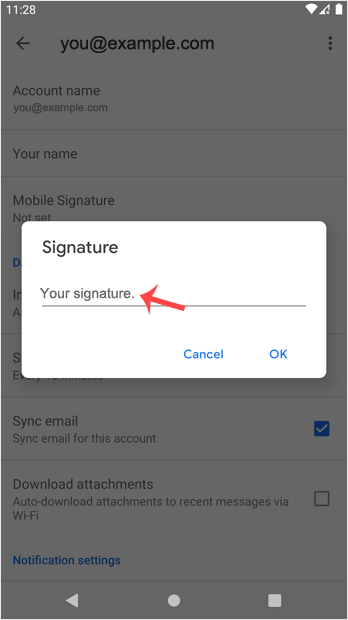
signature-customize-cpanel-android.gif

Now, whenever you send an email or reply to one, the signature will be automatically added at the end of your email.

  • 0 Users Found This Useful
Was this answer helpful?

Related Articles

How to Set Up a cPanel Email Account in Android

You can add a cPanel email account to your Android's built-in email application. You don't need...

How to Read cPanel Emails in Android

Suppose you have already added your cPanel email accounts to your Android built-in email...

How to Delete cPanel Emails in Android

We hope you have already read our tutorial on How to Set Up a cPanel Email Account in Android,...

How to Fetch – Sync Emails in Android

We hope you have already read our tutorial on How to Set Up a cPanel Email Account in Android,...

How to Send an Email via Android

We hope you have already read our tutorial on How to Set Up a cPanel Email Account in Android,...