Introduction
Structured Query Language or in short - SQL is a programming language used to communicate with a database. It has been standardized by ANSI as the primary language for managing relational database systems. SQL code is used to carry out various tasks on a database, such as updating its content or fetching information from it. It is supported by the most common management system, and of course - PHPMyAdmin is one of them.
Getting Started
Before you can access the PHPMyAdmin feature, you need to log into your cPanel account with us. To do so, please check our tutorial on How to access the cPanel service.
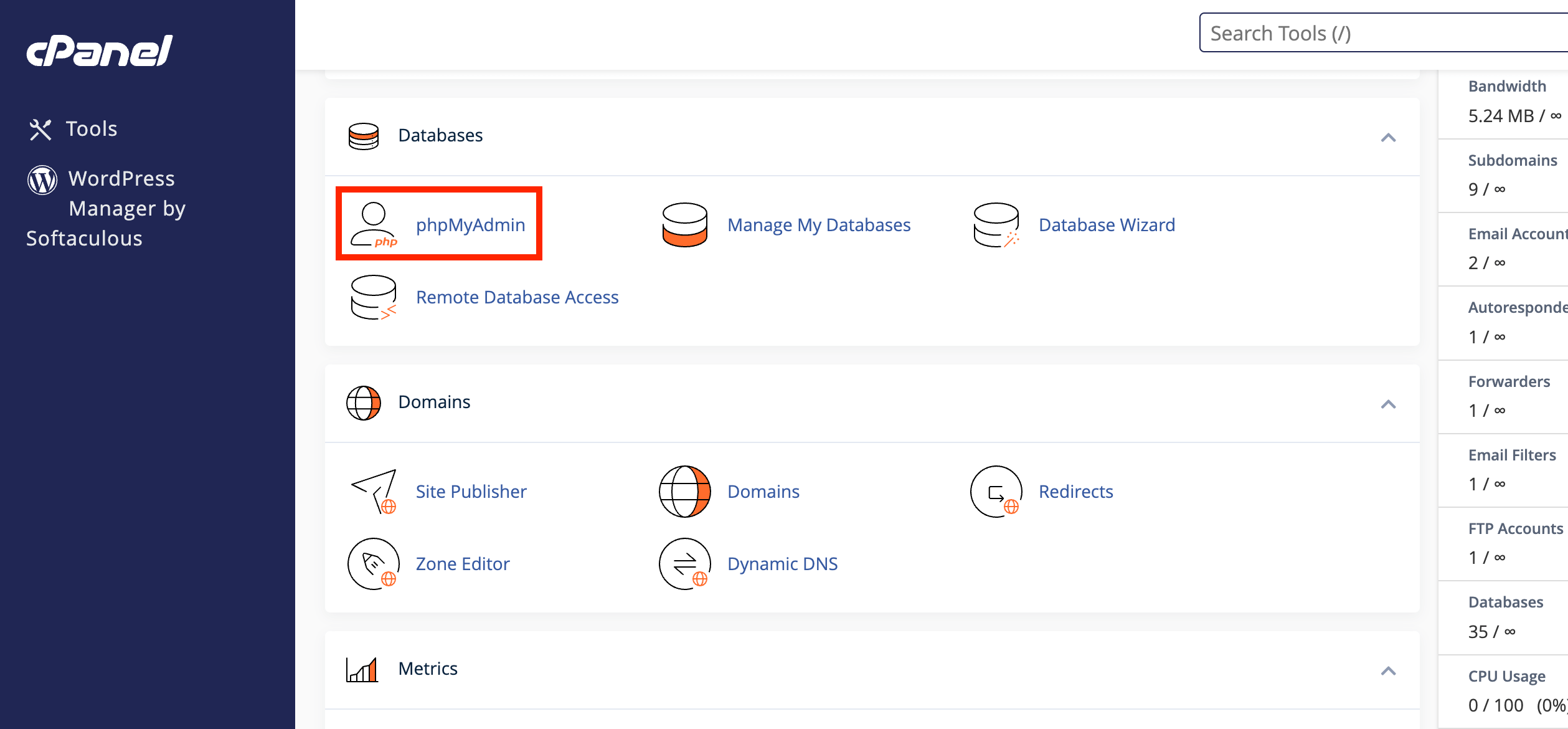
Once logged in, please navigate to the “Database” section and click on the “phpMyAdmin” icon.
Clicking on the result redirects you to the “PHPMyAdmin” feature. In the left sidebar, you can see a list of all your databases.
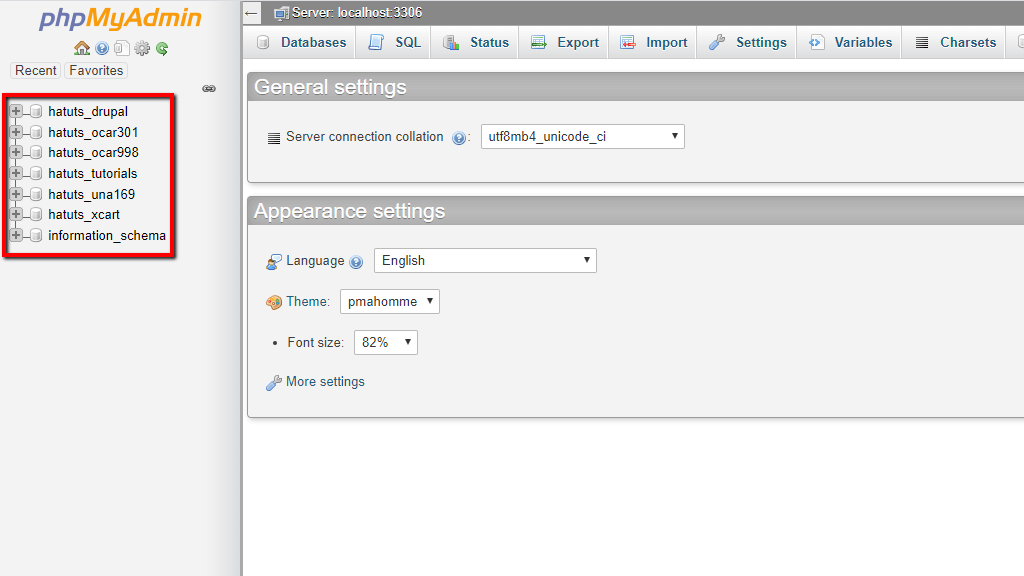
To further manage an individual database, please click on it.
Executing Queries
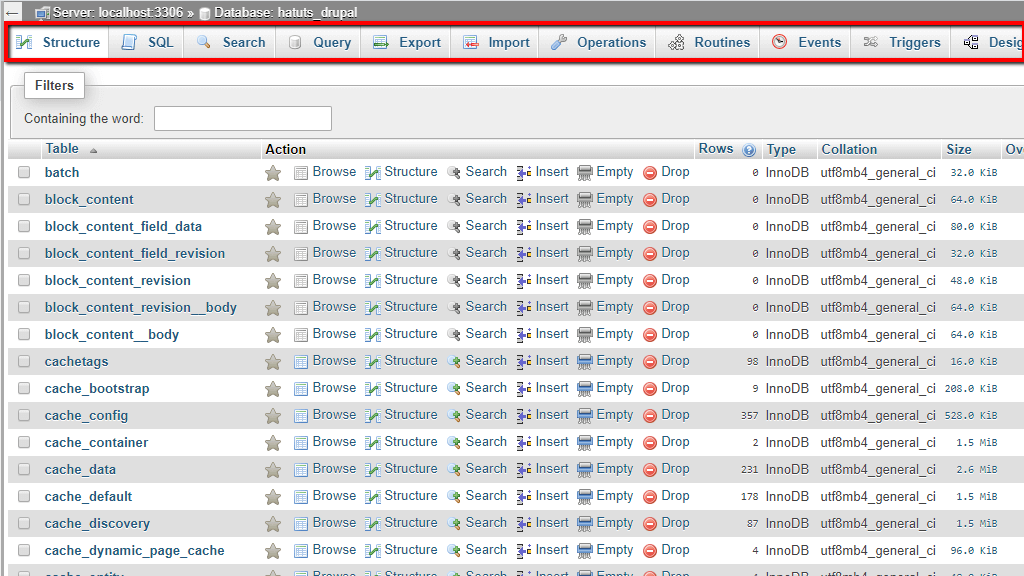
After you have selected a database, you are redirected to the database management interface. In the middle, you can see all the tables of the chosen database, and on the top, you can see the main navigation menu, containing all the tools at your disposal to manage the database.
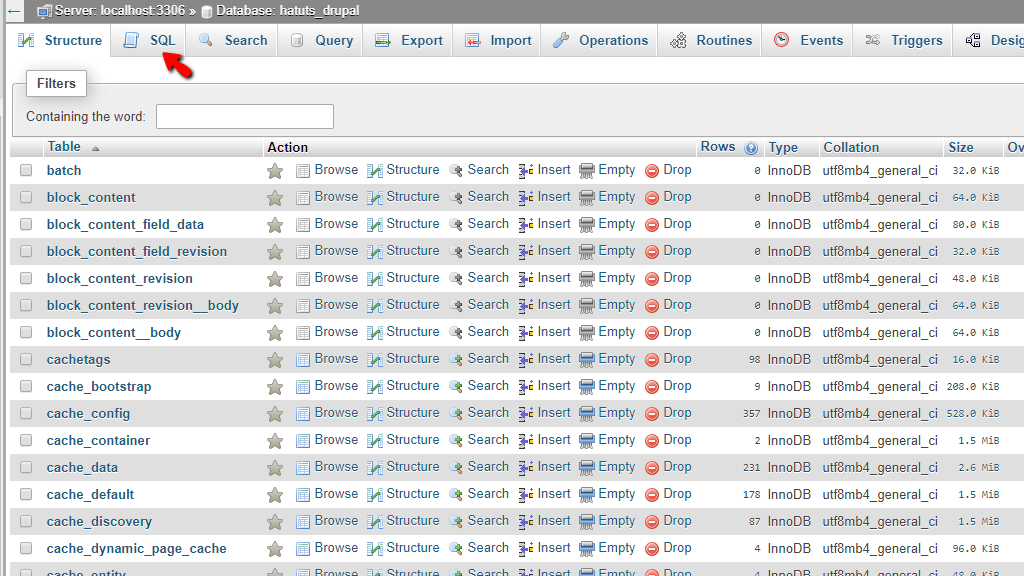
To access the functionality allowing you to write SQL code, please access the “SQL” tab.
Once there, you can see a content box which is actually a built-in IDE for the SQL programming language. It supports all the functionalities of a standard IDE, such as displaying errors in your code on a specific line if such exist and providing a dropdown menu that you can use to autofill the function or statement you need.
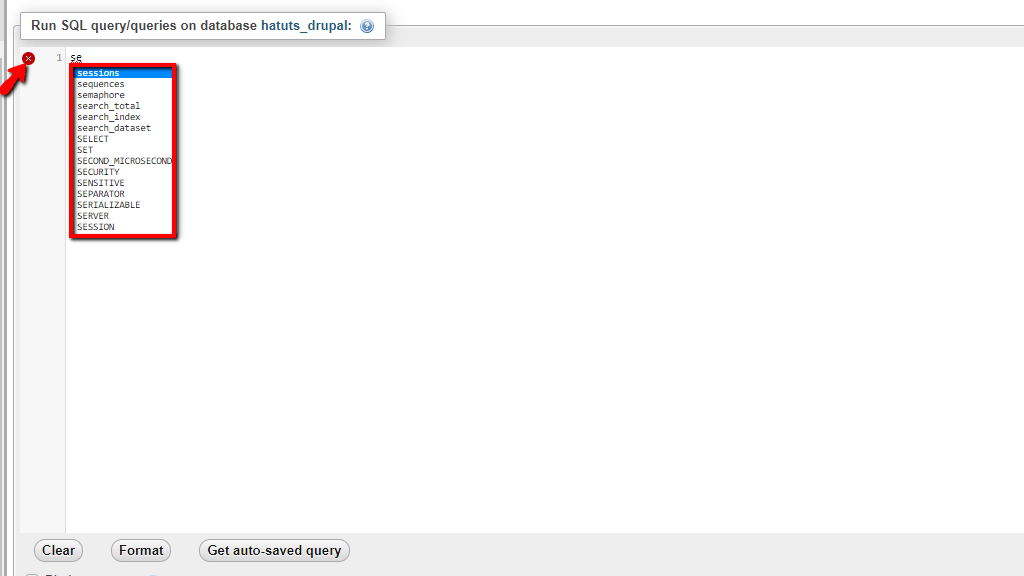
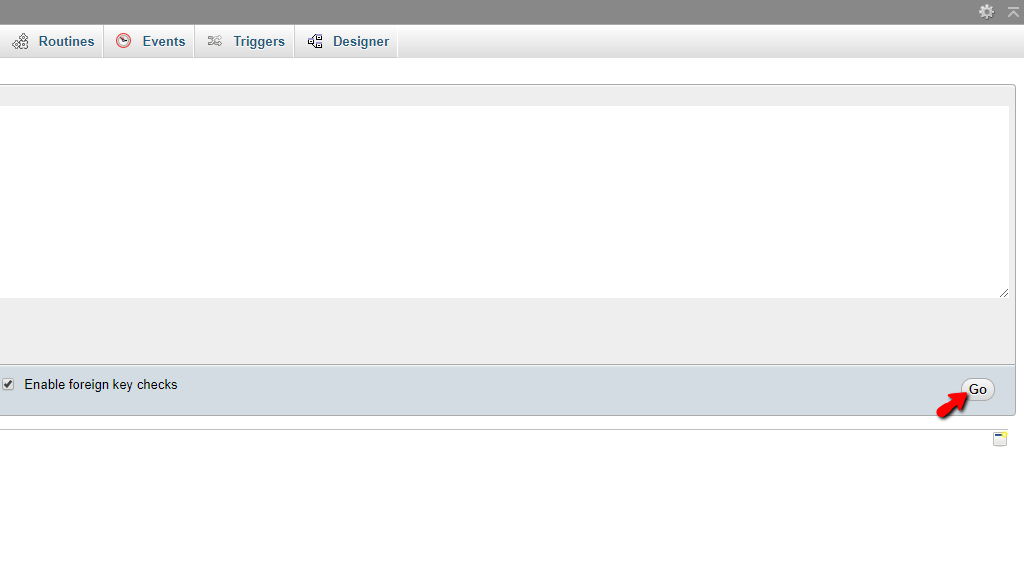
Please enter the SQL code inside, and when ready, click the “Go” button on the bottom right side of the page.
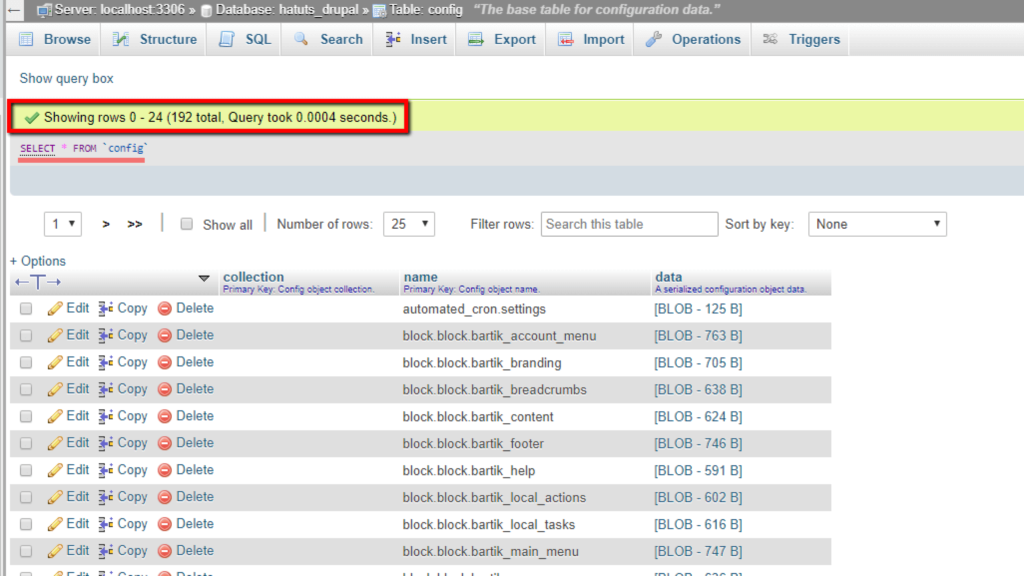
If your SQL code is correct, the query is executed and you receive a success message. Otherwise, an error is displayed. Here is a very simple SELECT statement and how the result looks like:
That’s it! Hopefully, this tutorial has provided insight on how you can use PHPMyAdmin to execute SQL code. If you are facing any technical issues with this functionality, such as an inability to access or use it, please feel free to contact our Technical Support Staff over the ticketing system available in your Client Area.












