Get 30% off your WordPress Hosting with code WPSAVE10. Launch Faster. Save More!
  • 00 Days
  • 00 Hours
  • 00 Minutes
  • 00 Seconds

How to Access VPS via VNC in SolusVM

You can access your VPS via VNC in an emergency, such as when a firewall blocks your IP, the Internet connection on the VPS is not working, and when you cannot access SSH. Also, you can use VNC for OS installation/reinstallation.

1. Log in to your SolusVM Control Panel.

2. If you have multiple VPSs, select the appropriate one.
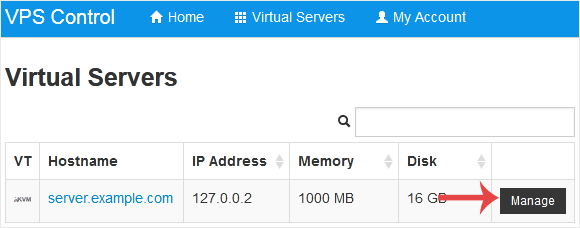
solusvm-select-vps.gif

3. Click on VNC.

solusvm-vnc-start.gif

4. The new VNC page will open. Click on HTML5 VNC Client SSL(Recommended) or Java VNC Client.
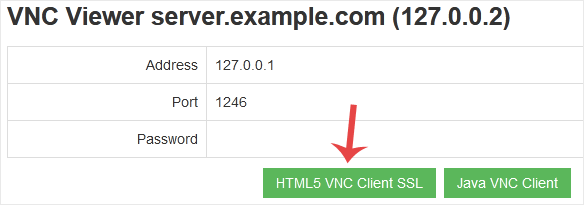
solusvm-vnc-area-button.gif

5. With HTML5 VNC, it shows VNC directly. For Java VNC, accept security warnings if prompted and click on the Run button.
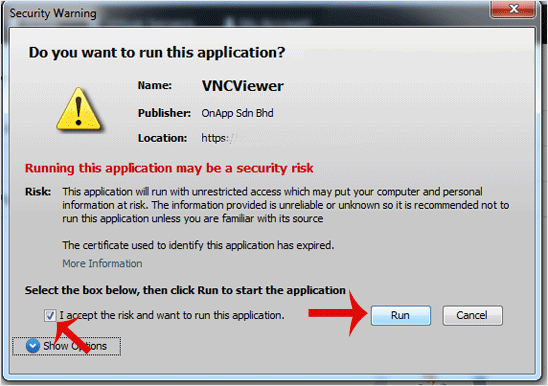
solusvm-security-warning-window.gif

The VNC Area will resemble the following screenshot:
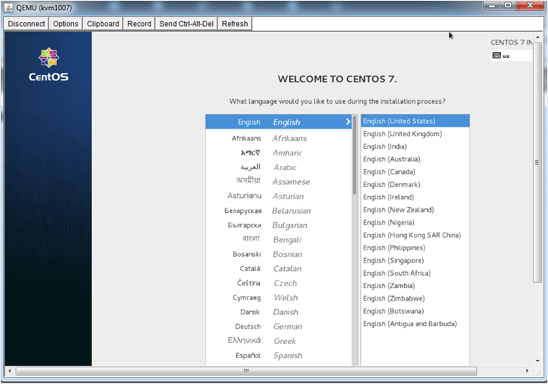
java-vnc-area.gif

Note: If you get an error such as Java Blocked, white-list our VPS control panel domain in your Java Security List. If you don't have Java, install it on your computer.

  • 0 Users Found This Useful
Was this answer helpful?

Related Articles

How to Reboot/Restart VPS in SolusVM

You can restart VPS via the command line or SolusVM. How to Reboot/Restart a VPS via SolusVM?...

How to Forcefully or Gracefully Shut Down the VPS in SolusVM

You can shut down the VPS in two ways - forcefully or gracefully in SolusVM. How to Gracefully...

How to Start/Boot Your VPS in SolusVM

If your VPS is down/offline, you can start it using SolusVM. 1. Log in to your SolusVM Control...

How to Reinstall OS Using SolusVM OS-Reinstaller

You can easily Install/Reinstall the operating system using SolusVM. However, note that this...

How to Manually Install/Reinstall an OS using SolusVM for a Customized Installation

SolusVM's automatic reinstall option does not allow you to modify or create a custom partition....











