Introduction
Sometimes, you might need to restore email accounts or emails in case you have deleted any by accident or if you have lost the emails because of email account misconfiguration. Thanks to the extended backup functionality that JetBackup 5 supports, we can provide our Shared Hosting customers with the option to restore their email accounts from every date that we have a backup available for.
Step 1: Accessing the Email Accounts restoration section
Before you can perform the restoration of any email accounts, you will need to configure the restore. To do that first you will need to access the JetBackup 5 backup manager. In case you are not sure how to do that, please make sure to read our JetBackup overview tutorial.
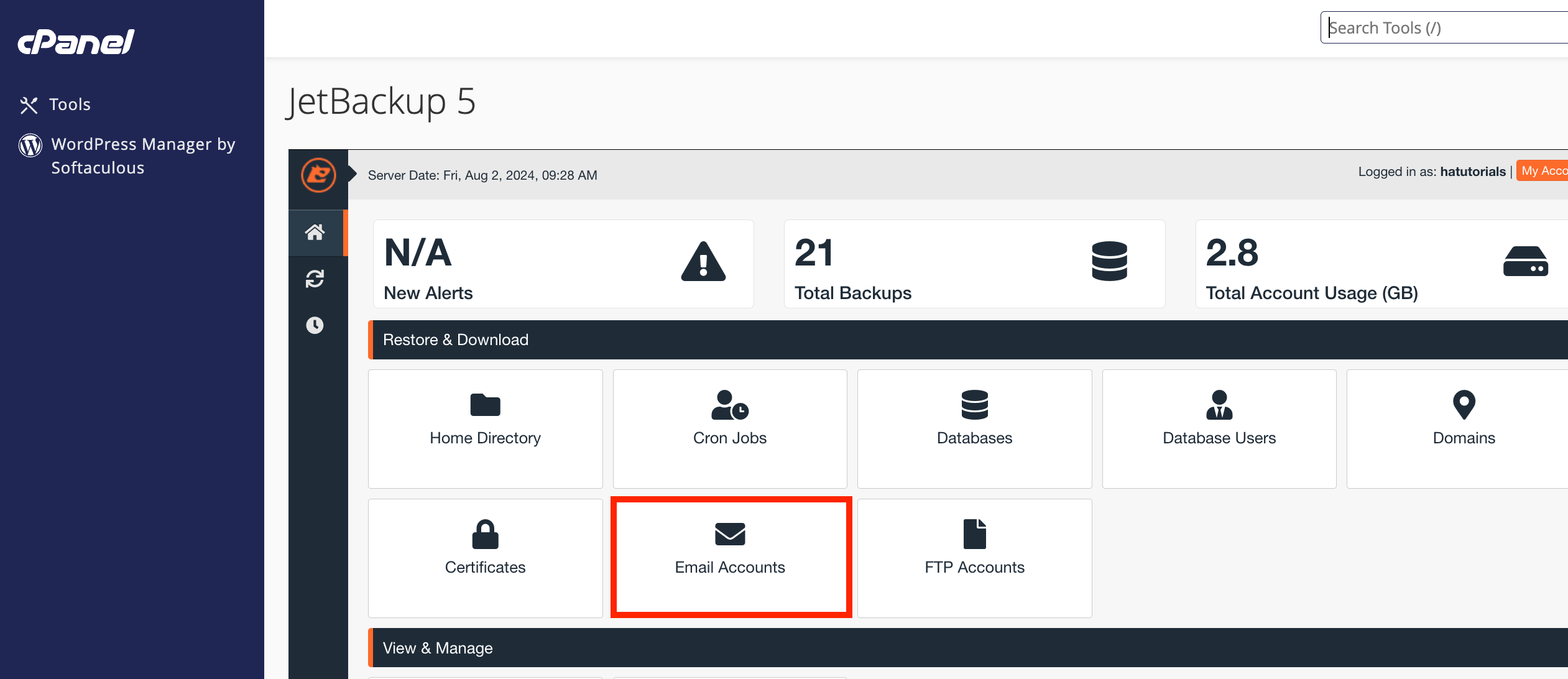
Once you are on the “Dashboard” page of the backup manager, please click on the “Email accounts” option from the “Restore & Download” section.
Step 2: Locating the Email account for restoration
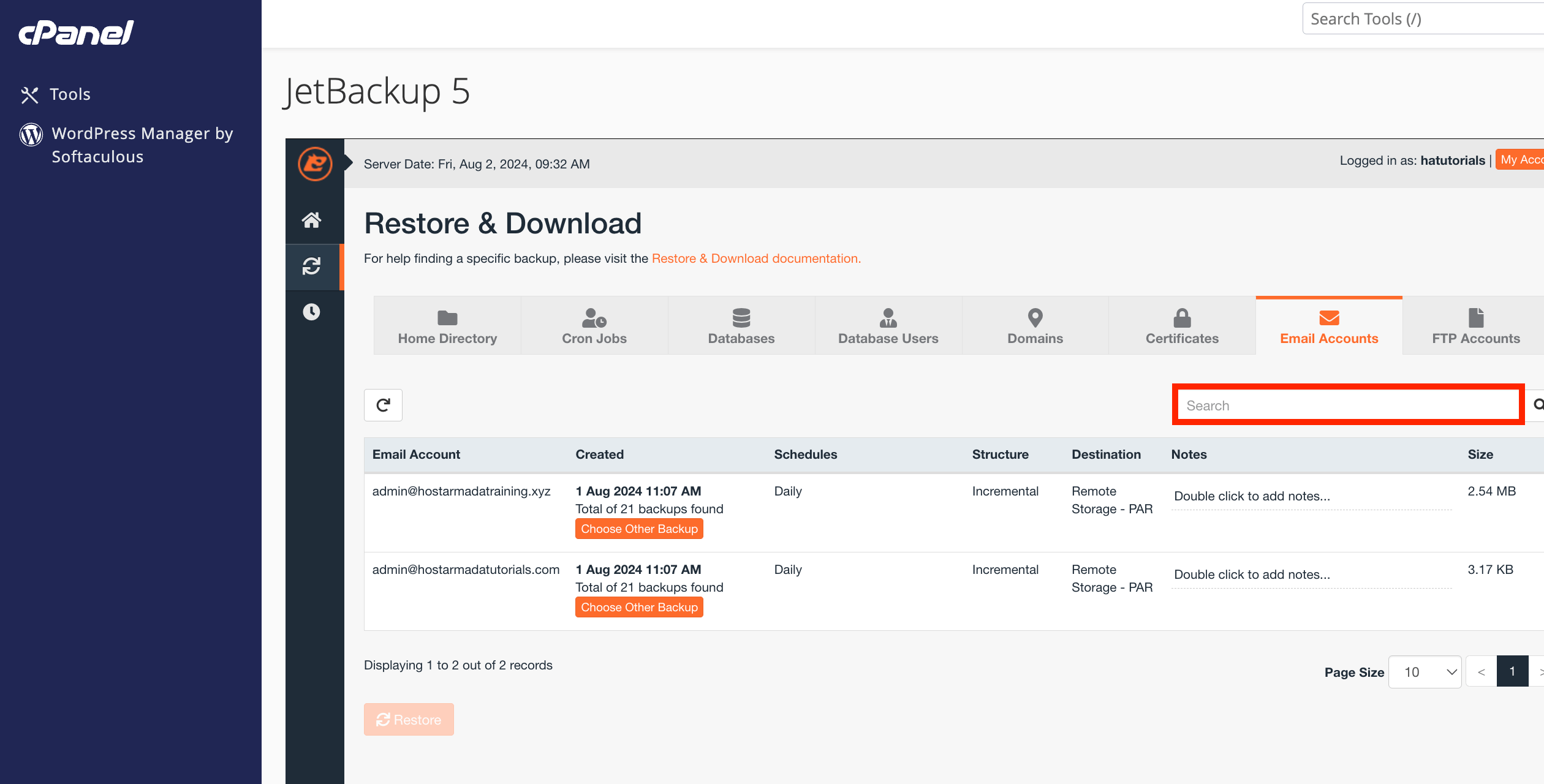
You will be presented with a table view containing a list of all the email accounts you have created on your cPanel account. From the list you will need to locate the email account you would like to restore. If the list is too long, you can simply use the search functionality provided in the right corner of the table with your email accounts.
Step 3: Choosing a backup date for the restoration
By default, JetBackup 5 will have the most recent backup selected for restoration. If you would like to restore the chosen email account from that backup, please skip this step and move forward to the next one.
Please click on the “Choose Other Backup” button for the selected email account to select a date from which it should be restored.
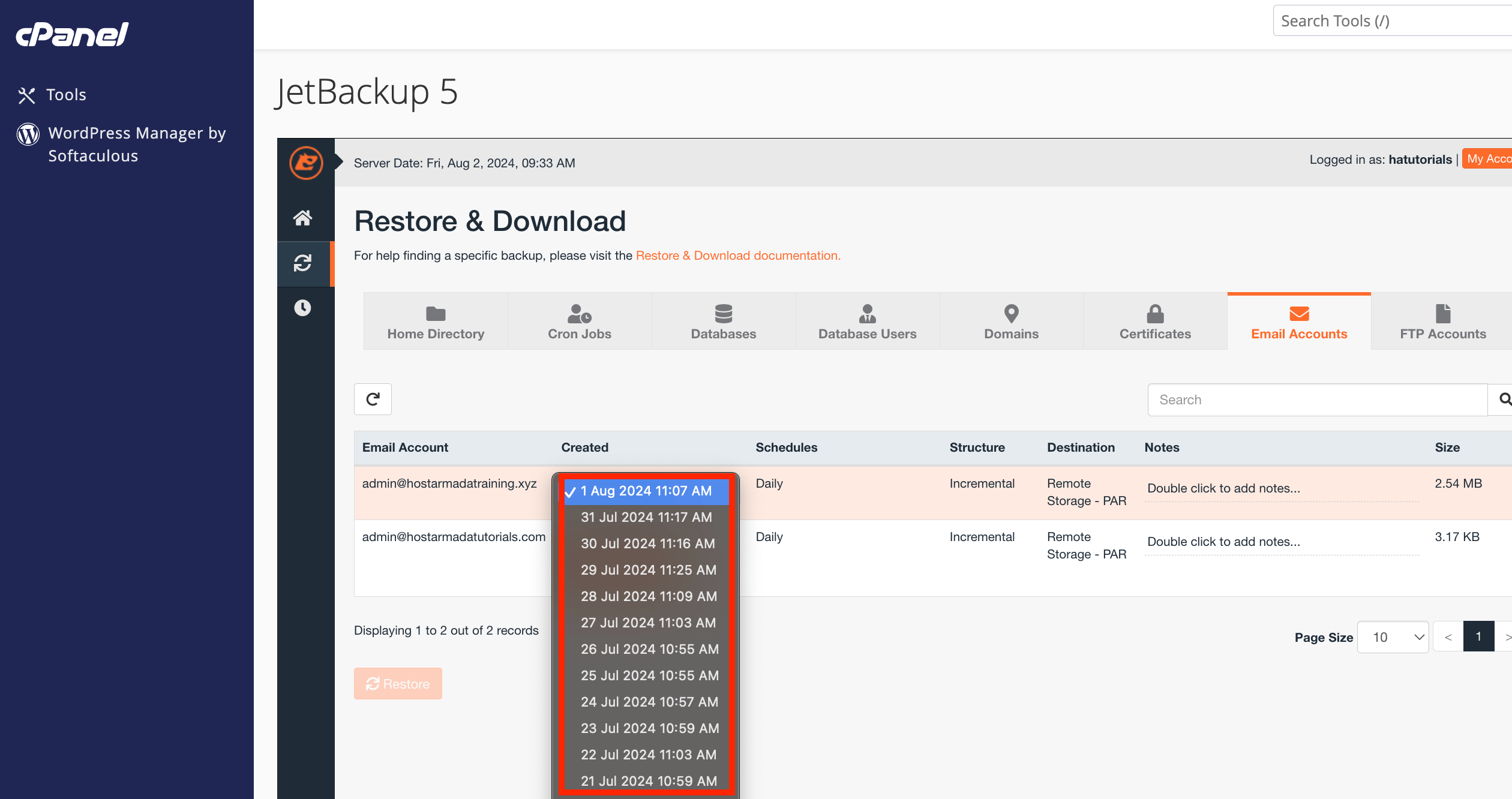
The “Choose Other Backup” button will turn into a drop-down list with all the available backup dates you can choose from. Please find the one you would like to use and select it.
Step 4: Starting the restoration process
Now that you have the date of the restoration selected, you will need to select the email account by clicking on the row it is displayed on, from the table section containing all your email accounts and then click on the “Restore” button.
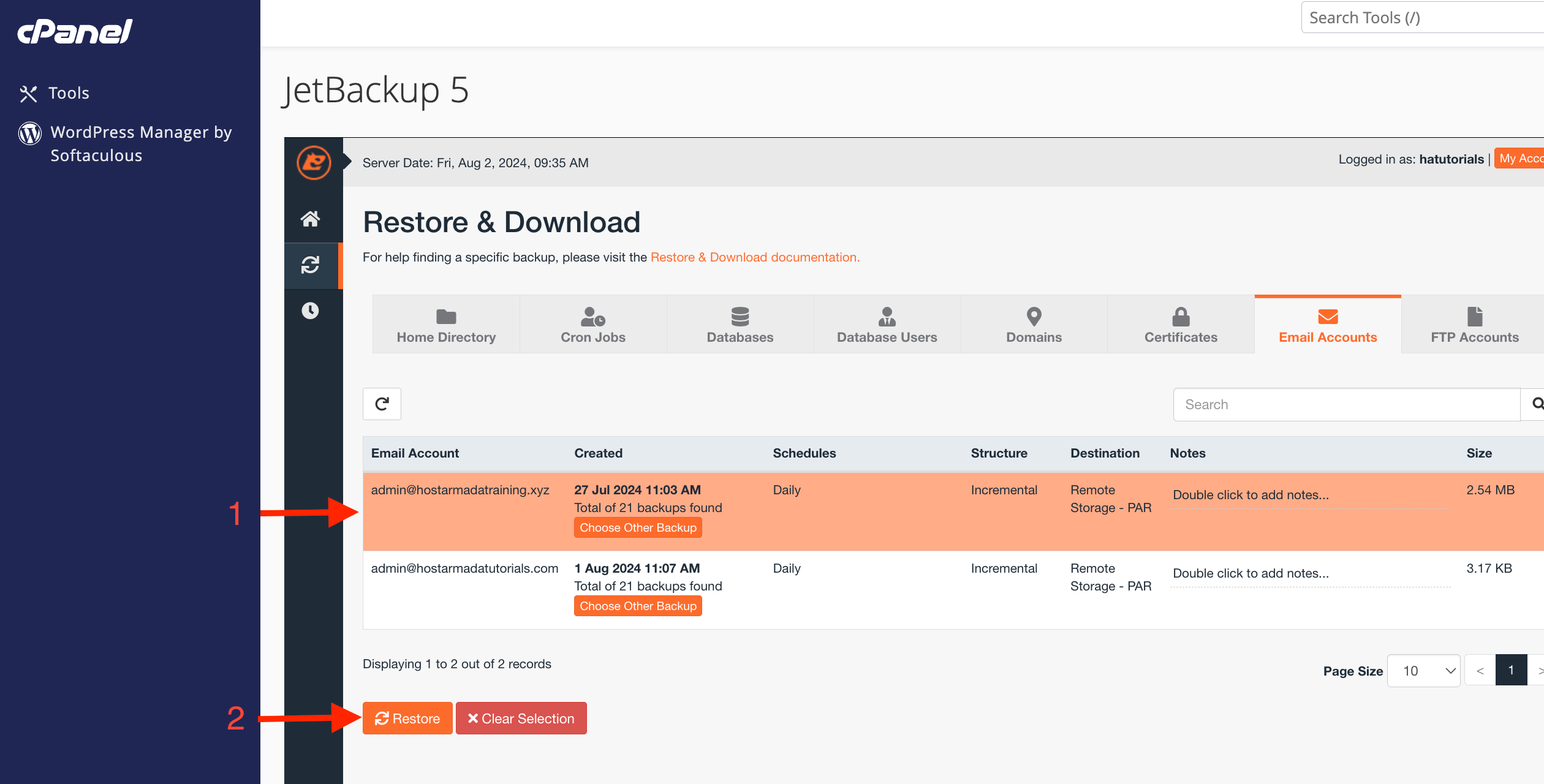
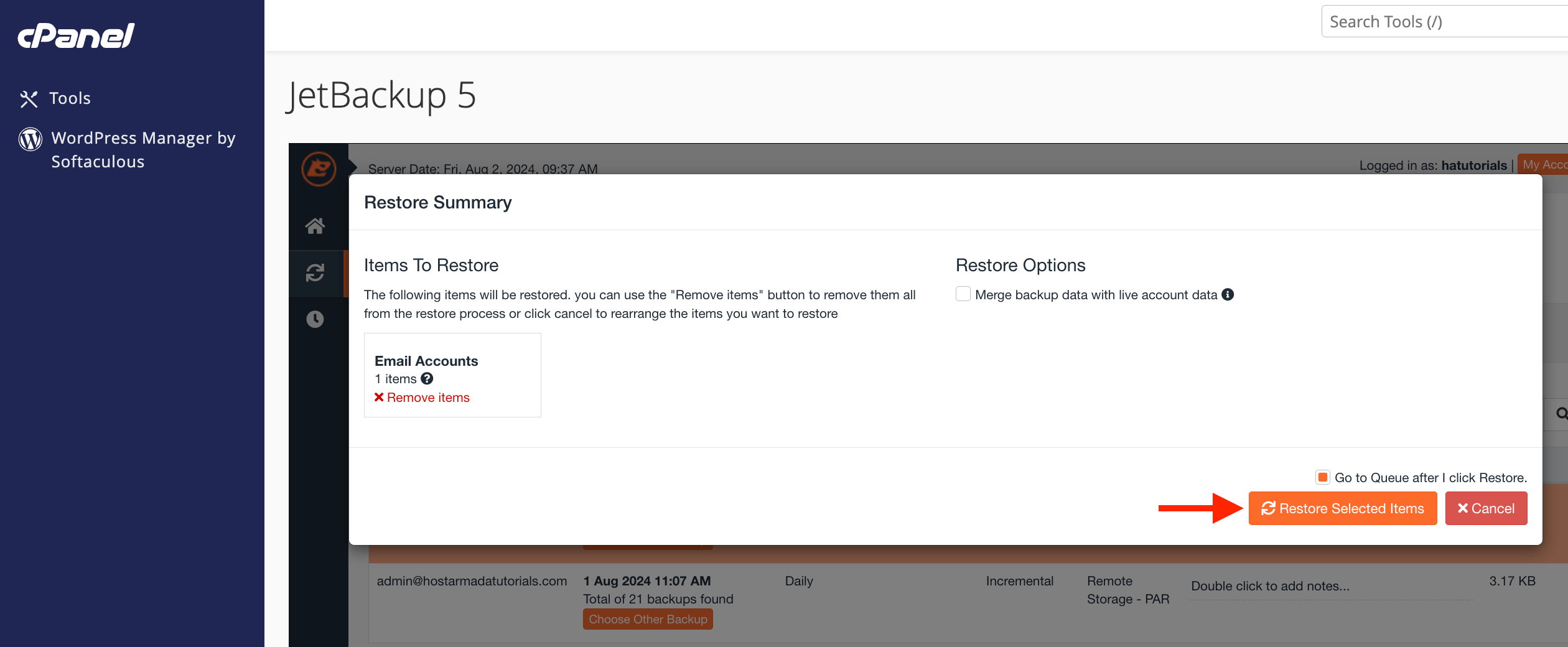
This will bring the “Restore Summary” page, where you will be presented with a summary of the content you would like to restore. Please click on the “Restore Selected Items” button so the restoration process can start.
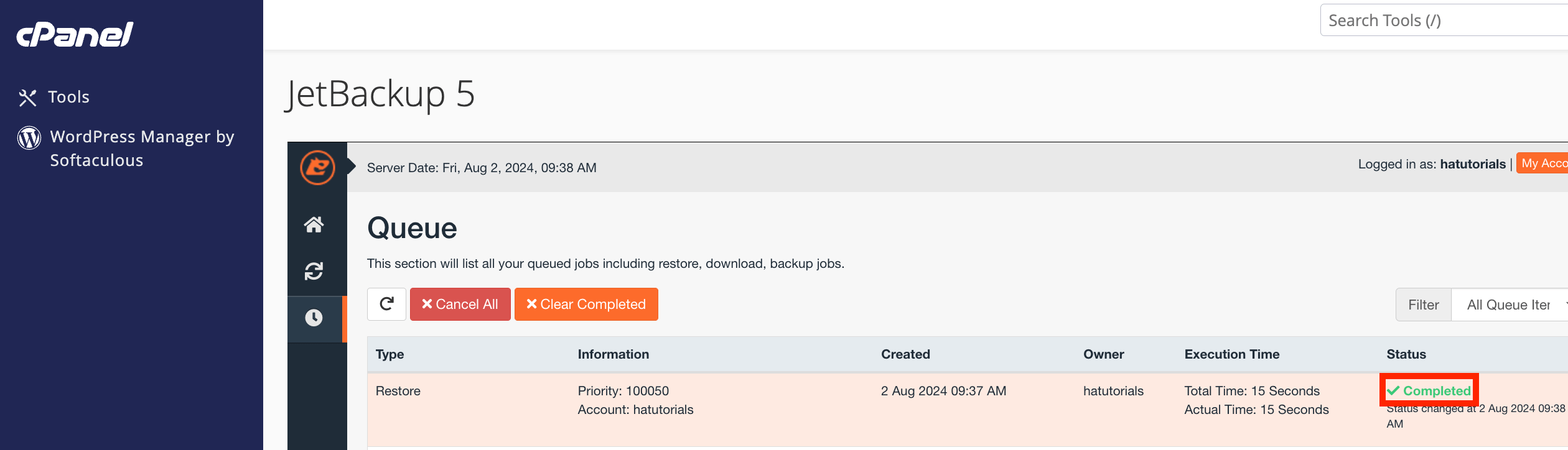
You will be redirected to the “Queue” page of the JetBackup 5 backup manager where you can monitor the progress of the restoration you have just initiated. When the restoration is completed the “Status” column of the table will indicate that with a “Completed” message highlighted in green color.
The restoration process can take some time depending on the size of the restored email account. In case the process takes more than 1 hour, please check with our Technical Support Crew if the restoration is still ongoing.












