How to add or edit DNS
To add or edit DNS entries:
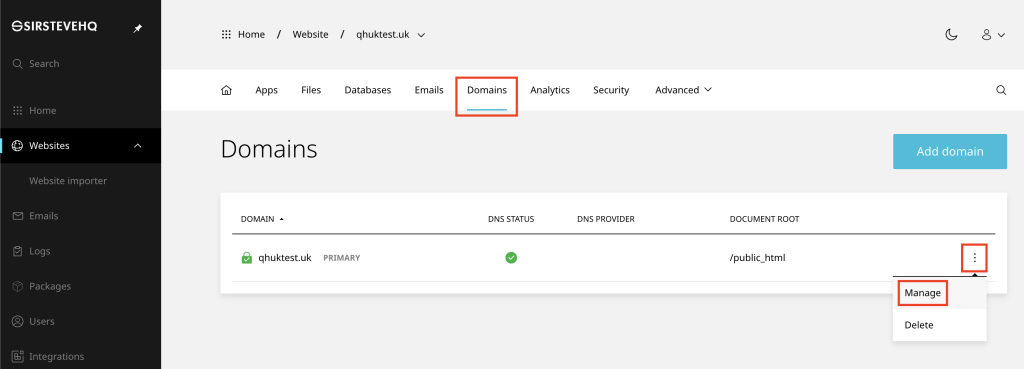
- Open Websites in the left sidebar
- Select the desired website
- Click Domains
- Click the (3 dots) and then Manage.
On the next page, scroll down to DNS Records:
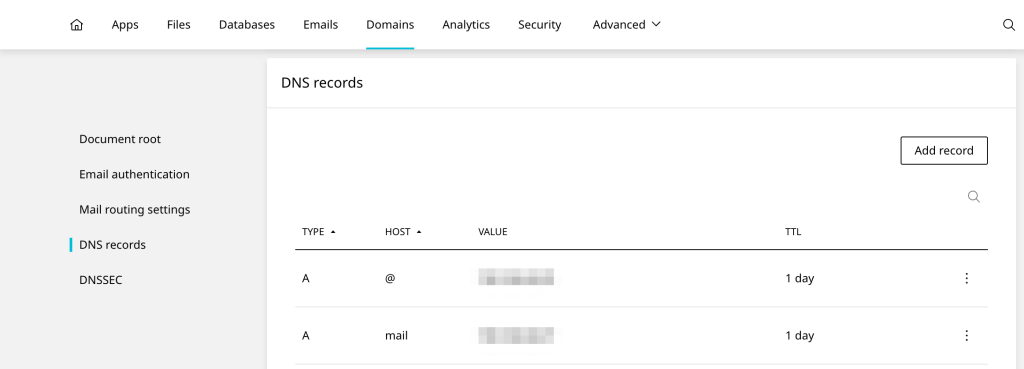
Usage
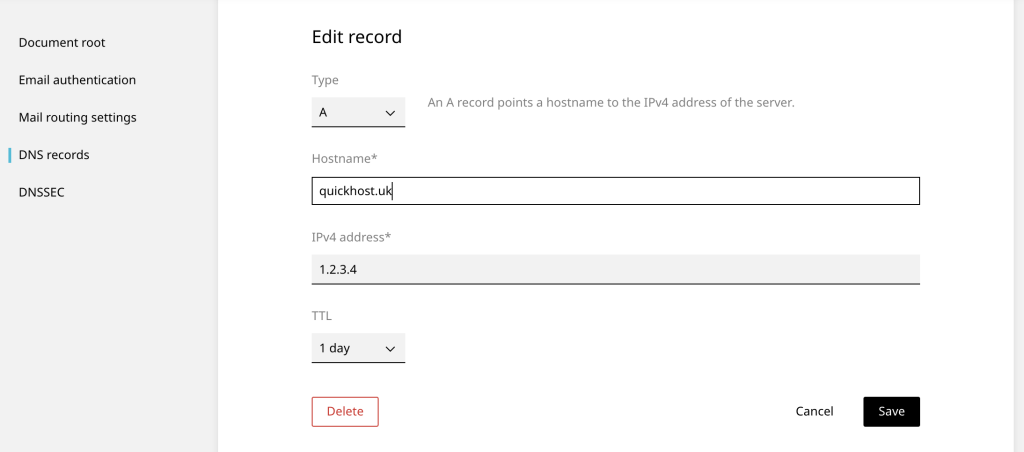
Root domains
Do not use the ‘root domain’ as the Hostname, as shown in this example:
Do use ‘@’ as the Hostname to signify the root domain, as in this example:
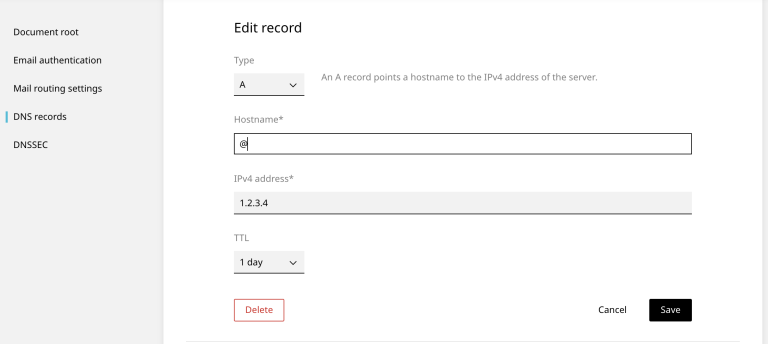
The prefix ‘@’ refers to the root domain itself. For example, example.com
Sub domains
Do not use the ‘root domain’ as the Hostname, as shown in this example:
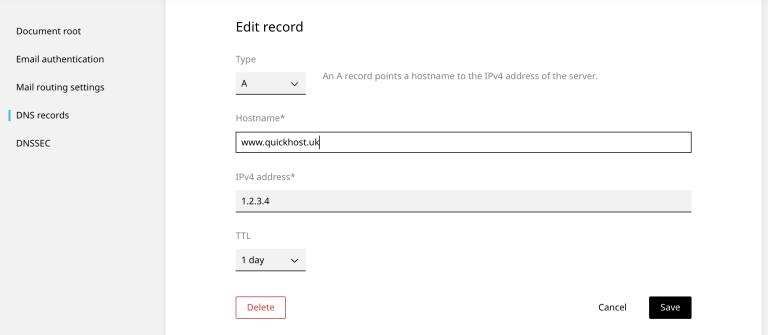
Do use the ‘sub-domain’ as the Hostname to, as in this example:
.png)
The prefix ‘*’ is a wildcard (anything). For example, any.example.com
DNS Format
When adding or managing DNS you will see the DNS records in the following format:
Type | Host | Value | TTL
- Type: This specifies the type of DNS record. Each record type serves a different purpose, such as A records for mapping a domain to an IPv4 address, MX records for specifying mail servers, CNAME records for domain aliasing, etc.
- Host: The host field indicates the domain or subdomain that the DNS record is associated with. For example, it could be the root domain (
example.com) or a subdomain (blog.example.com). This field is sometimes referred to as the “Name” or “@,” which typically represents the root domain itself. - Value: This is the content of the DNS record, specifying the outcome of the DNS query. The nature of this information varies depending on the record type. For instance, in an A record, the value would be an IPv4 address; in an MX record, it would be the domain name of the mail server; and for a CNAME record, it would be the target domain to which the host is aliased.
- TTL (Time To Live): TTL is a value that tells other servers how long to cache the record before querying it again. It’s essentially an expiration time for the record’s data, measured in seconds. A lower TTL means the record is updated more frequently across the internet, while a higher TTL reduces the load on DNS servers but might delay the propagation of changes to the record.
Examples
A record example
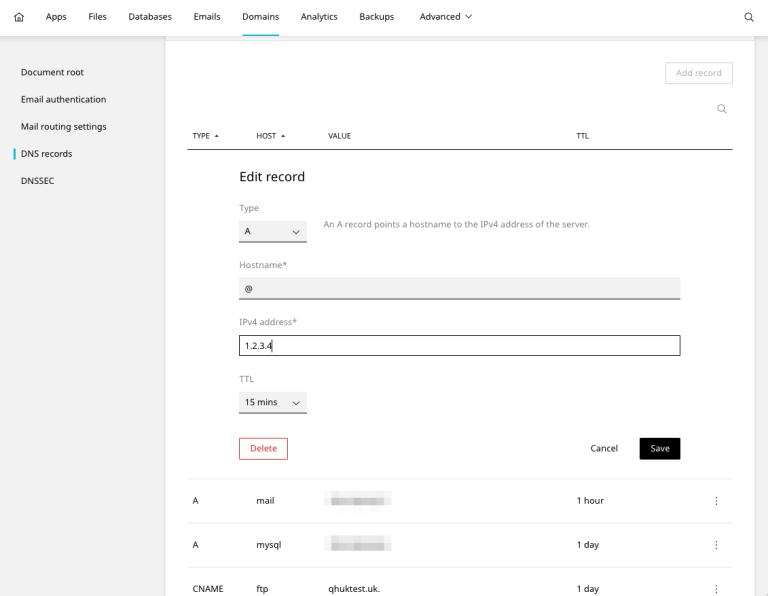
As an example, to add a DNS ‘A’ record for your domain example.com to a web server with the IP 1.2.3.4 you would enter:
- Type: A
- Host: @
- Value: 1.2.3.4
- TTL: 1 day
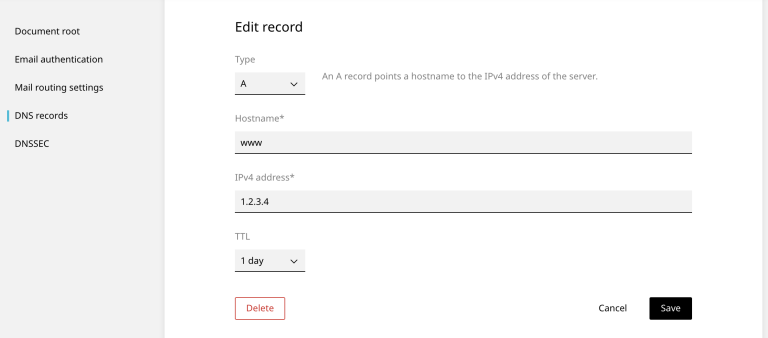
As an example, to add a DNS ‘A’ record for your sub-domain www to a web server with the IP 1.2.3.4 you would enter:
- Type: A
- Host: www
- Value: 1.2.3.4
- TTL: 1 day
CNAME record example
To add a DNS ‘CNAME’ record for your www sub-domain to example.com you would enter:
- Type: CNAME
- Host: www
- Value: example.com. (note the dot (.) at the end)
- TTL: 1 day
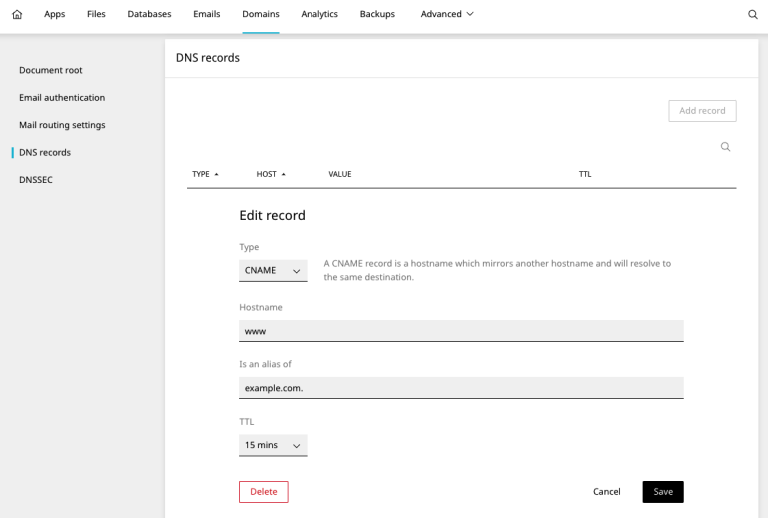
You must include a dot (.) where the record should end to avoid appending the root domain. Without it, you will get “www.example.com.example.com.”
TXT record example
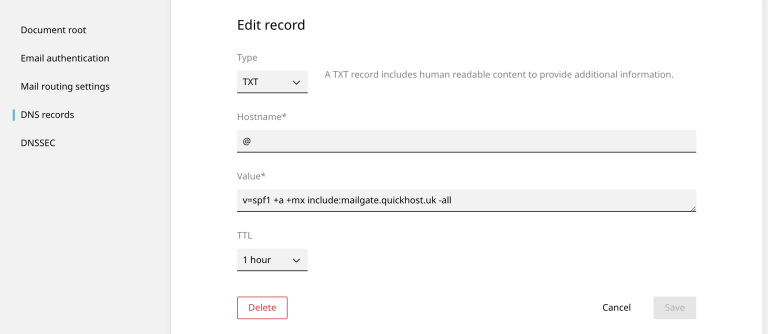
To add a DNS ‘TXT’ record for your root domain example.com you would enter:
- Type: TXT
- Host: @
- Value: v=spf1 +a +mx include:mailgate.quickhost.uk -all
- TTL: 1 day
SRV record example
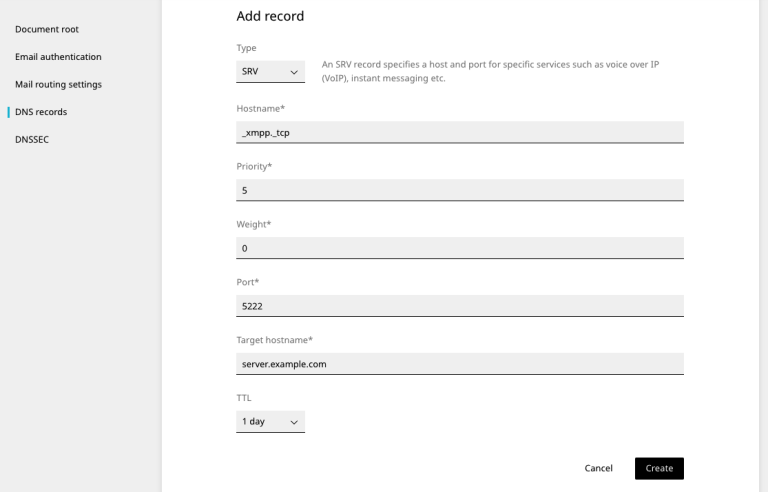
To add a DNS ‘SRV’ record for your root domain example.com you would enter:
- Type: SRV
- Hostname: _service._protocol
- Priority: 5
- Weight: 0
- Port: 5222
- Target: server.example.com
- TTL: 1 day
Let’s look at each of the SRV record fields individually:
- _Service: This denotes the service’s name within the DNS, always starting with an underscore character.
- _Protocol: This specifies the protocol utilized by the service, also beginning with an underscore character. Common protocols include “_tcp” or “_udp”.
- TTL: The Time-To-Live of this record in seconds. All SRV records under the same owner name must have an identical TTL.
- Priority: Represents the priority level of this endpoint, expressed as a 16-bit unsigned integer. Among endpoints, those with the lowest priority value are utilized first.
- Weight: An additional 16-bit unsigned integer value indicating relative importance. Clients utilize weights to randomly select among endpoints sharing identical priority values.
- Port: The port number allocated to this endpoint, also a 16-bit unsigned integer.
- Target: The DNS hostname associated with this endpoint. The target may resolve to a CNAME record.
Common DNS record types
Here are some common DNS record types:
A Record
A record (Address Record) maps a domain name to an IPv4 address. It’s one of the most fundamental types of DNS records, allowing browsers to establish connections with the domain’s server.
AAAA Record
AAAA Record (Quad-A Record) similar to the A record, but maps a domain name to an IPv6 address, which accommodates the larger address space of the newer IP version.
CNAME Record
CNAME Record (Canonical Name Record) redirects one domain name to another domain name. It’s commonly used for aliasing subdomains to the primary domain or to manage multiple services under a single domain.
TXT Record
TXT Record (Text Record) holds text information for sources outside the domain. This type of record is often used for verifying domain ownership, implementing email security measures like SPF (Sender Policy Framework) and DKIM (DomainKeys Identified Mail), and other miscellaneous purposes.
MX Record
MX Record (Mail Exchange Record) specifies the mail server responsible for receiving email messages on behalf of a domain. Multiple MX records can be set up for redundancy and priority management.
NS Record
NS Record (Name Server Record) points to the servers that are authoritative for the domain. This record is essential for directing traffic to the correct location for further DNS lookups.
SRV Record
SRV Record (Service Record) Identifies the hostname and port number for specific services, such as VOIP (Voice Over IP), instant messaging, and other services that require specific port assignments.












