The cPanel importer allows you to migrate a cPanel account into your website.
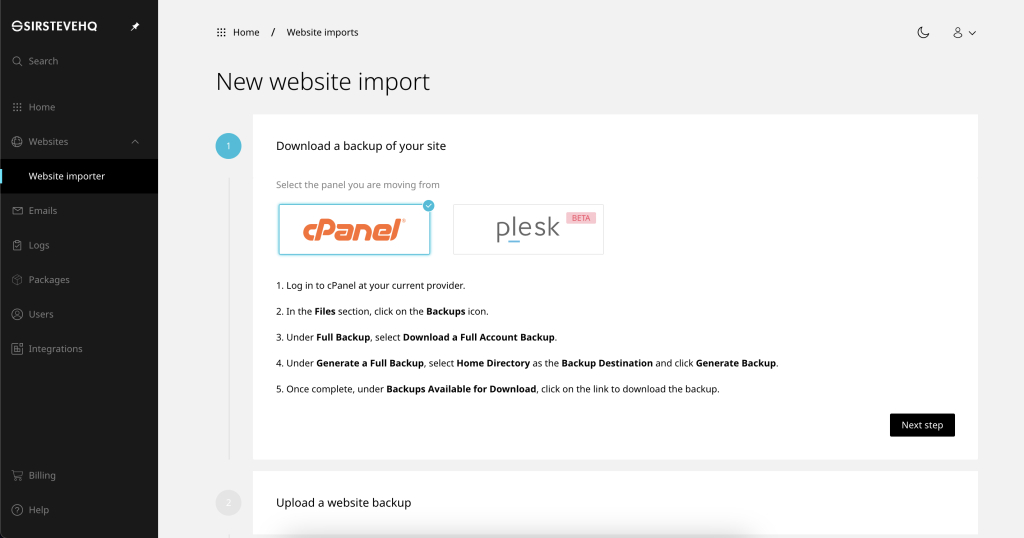
To import a cPanel account to Enhance:
- Select websites > website importer in the left side bar
- Click New import
- Select cPanel
- Follow the onscreen instructions to generate a compatible cPanel backup.
- Click Next step
- Select Choose file to upload your cPanel backup
- Select Next step
- Once the page loads. Check for any conflicts (Any conflicts that are blocking your website import will be highlighted in the red modal)
- Select Import now to finish
Your backup needs to be a complete account backup, in a .tar.gz format, and under 10GB in size. If the backup exceeds 10GB, please contact support.
A cPanel import will restore a full cPanel account backup. Websites should work exactly as they did on cPanel. Some proprietary features available on cPanel are not supported, these tools will not be copied across.
The following will be imported:
- Primary website
- Sub, add-on and parked domains will become mapped domains within a single website
- All files
- All database
- Any installed applications
- All email accounts with their passwords and email data
- All forwarders-only accounts
- Any existing SSL certificate
- Cron jobs
- FTP accounts
- MX and TXT for SPF records
The following proprietary tools are not supported on Enhance:
- Postgres databases
- Wildcard subdomains
- Mailman settings
- Directory privacy
- PostgreSQL databases
- Catch all email addresses
- Autoresponders
- Calendars and contacts`
- Existing statistics
- Error pages
The cPanel importer is compatible with full cPanel account backups generated on versions 102 LTS, 104, 106, 108.
If any domains you are importing already exist in your account, you will need to delete these to proceed with the import.












