To change your PHP directives on a single website:
- On the website dashboard select the advanced drop-down menu
- Click Developer Tools and scroll to php.ini editor
- In the directive box put the desired name, select Value and input your desired value in the Text field
- Click Create to finish
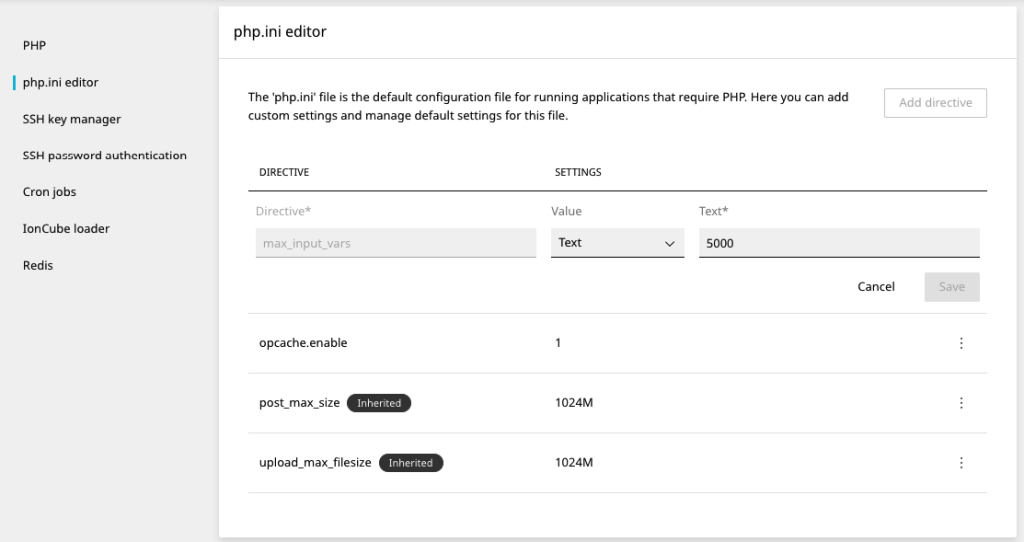
PHP directives are used to configure various aspects of PHP’s behaviour. When hosting websites, adjusting these directives can optimise performance, enhance security, and tailor the PHP environment to specific needs. Here’s a list of common PHP directives that you might consider changing for website hosting:
memory_limit: Specifies the maximum amount of memory in bytes that a script is allowed to allocate. This helps prevent poorly written scripts from eating up all available memory on a server.upload_max_filesize: Determines the maximum size of an uploaded file. This is crucial for sites that allow users to upload files.post_max_size: Sets the max size of post data allowed. This setting also affects file upload. To upload large files, this value must be larger thanupload_max_filesize.max_execution_time: Specifies the maximum time in seconds a script is allowed to run before it is terminated by the parser. This helps prevent scripts from tying up the server.max_input_time: Sets the maximum time in seconds a script is allowed to parse input data, like POST, GET, and file uploads.display_errors: Determines whether errors should be printed to the screen as part of the output or if they should be hidden from the user. It’s often set to “Off” in production environments for security reasons.error_reporting: Specifies which errors are reported. In development, you might want to see all errors by usingE_ALL. In production, you might suppress warnings by setting it to a lower level or even0to turn off error reporting.file_uploads: Enables or disables file upload support in PHP.allow_url_fopen: Allows PHP’s file functions to retrieve data from remote locations, like FTP or HTTP. This can be a security risk, so some hosts disable it.short_open_tag: Determines whether PHP will recognize code between<?and?>tags as PHP code. It’s generally recommended to use the full<?phptag.session.gc_maxlifetime: Defines the number of seconds after which data will be seen as ‘garbage’ and potentially cleaned up. This affects how long session data is stored.session.cookie_secure: Specifies whether cookies should only be sent over secure connections. This is an important setting for securing session cookies when using HTTPS.session.cookie_httponly: Marks the cookie as accessible only through the HTTP protocol. This can help reduce identity theft through XSS attacks.date.timezone: Sets the default timezone used by all date/time functions in a script.
Adjusting these directives can significantly impact your website’s performance, security, and functionality. Always test changes in a development environment before applying them to your production server to ensure they don’t adversely affect your website.












