Follow these steps to configure a custom ionCube loader version for your website hosted with Enhance:
Step 1: Download and Upload the ionCube Loaders
- Download the Loader Archive
- Go to ionCube Loader Downloads.
- Download the file i.e
ioncube_loaders_lin_x86-64.tar.gz.
- Upload and Extract the Loader
- Log in to your Enhance web hosting panel.
- Navigate to the File Manager for your website.
- Upload the downloaded
.tar.gzfile. - Extract the archive into a directory named
ioncubewithin your website’s root directory.
Step 2: Configure the PHP.ini File
- Disable the Built-in ionCube Loader
- Go to the Developer Tools section in the Enhance dashboard.
- Disable the ionCube toggle to turn off the default ionCube loader.
- Edit the PHP.ini File
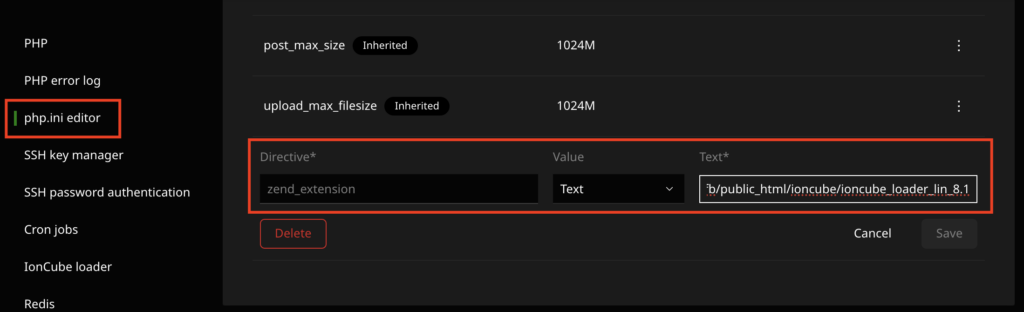
- Open the PHP.ini Editor from the dashboard.
- Add the following directive:
zend_extension = /path/to/loader/ioncube_loader_lin_8.1.soReplace /path/to/loader/ioncube_loader_lin_8.1.so with the absolute path to the loader file for PHP 8.1 in your ioncube directory.
Get the Absolute Path
- In the File Manager, locate the file
ioncube_loader_lin_8.1.soin yourioncubedirectory. - Right-click the file and select Get Info.
- Copy the absolute path provided and use it in the
zend_extensiondirective.
Step 3: Save, Restart PHP
- Save the Changes
- Ensure you’ve saved the modifications to the
php.inifile.
- Ensure you’ve saved the modifications to the
- Restart the PHP Container
- In the Enhance web hosting panel, go to the Developer Tools section.
- Locate the option to restart the PHP container (this might be labelled as “Restart PHP container” or similar).
- Restart the container to apply the changes.
- Test the Configuration
- Follow the steps in Step 4: Test with info.php to confirm that the custom ionCube loader is active and functioning correctly.
Step 4: Create and Test with info.php
- Create a
info.phpFile- In your website’s File Manager, create a new file called
info.php. - Add the following code to the file:phpCopy code
- In your website’s File Manager, create a new file called
<?php
phpinfo();
?>- Save the file.
Access the info.php File
- Open your web browser and navigate to
http://yourdomain.com/info.php(replaceyourdomain.comwith your actual domain). - Look for the Zend Engine section or search for “ionCube” in the page.
Check the Loader Status
- Confirm that the custom ionCube loader is listed and active.
- If you see the custom ionCube loader for PHP 8.1 in the configuration details, the setup is successful.

Remove the info.php File After Testing
Leaving the info.php file accessible on your server can expose sensitive information about your PHP configuration to the public. Be sure to delete it once you’ve confirmed the setup is working correctly.












